2017 HONDA CIVIC HATCHBACK USB
[x] Cancel search: USBPage 307 of 641

306
uuAudio System Basic Operation uApple CarPlay
Features
Apple CarPlay
If you connect an Apple CarPlay-compatible iPhone to the system via USB, you can
use the audio/information screen, instead of the iPhone display, to make a phone
call, listen to music, view maps (navigation), and access messages.
2USB Port(s) P. 219
■Phone
Access the contact list, make phone calls, or listen to voice mail.
■Messages
Check and reply to text messages, or have messages read to you.
■Music
Play music stored on your iPhone.
■Apple CarPlay Menu
1Apple CarPlay
Only iPhone 5 or newer versi ons with iOS 8.4 or later
are compatible with Apple CarPlay.
Park in a safe place before connecting your iPhone to
Apple CarPlay and when launching any compatible
apps.
To use Apple CarPlay, connect the USB cable to the
front USB port. The USB por t located in the center
console storage will not enable Apple CarPlay
operation.
2 USB Port(s) P. 219
To directly access the Appl e CarPlay phone function,
press Phone on the home screen. While connected
to Apple CarPlay, calls are only made through Apple
CarPlay. If you want to make a call with Bluetooth®
HandsFreeLink ®, turn Apple CarPlay OFF or detach
the USB cable from your iPhone. 2 Setting Up Apple CarPlay P. 307
When your iPhone is connected to Apple CarPlay, it is
not possible to use the Bluetooth® Audio or
Bluetooth ® HandsFreeLink ®. However, other
previously paired phones can stream audio via
Bluetooth ® while Apple CarPlay is connected.
2 Phone Setup P. 390
For details on c ountries and regions where Apple
CarPlay is available, as well as information pertaining
to function, refer to the Apple homepage.
: Go back to the
Home screen
Home screen
Apple CarPlay icon Apple CarPlay menu screen
Go back to the Apple
CarPlay menu screen
17 CIVIC 5D (KA KC KL)-31TGG6000.book 306 ページ 2016年6月8日 水曜日 午 後2時8分
Page 308 of 641

Continued307
uuAudio System Basic Operation uApple CarPlay
Features
■Maps
Display Apple CarPlay map and use the navigation function just as you would on
your iPhone.
Only one navigation system (pre-installed navigation or Apple CarPlay) can give
directions at a time. When you are using one system, directions to any prior
destination set on the other system will be canceled, and the system you are
currently using will direct you to your destination.
After you have connected your iPhone to the system via USB, use the following
procedure to set up Apple CarPlay. Us e of Apple CarPlay will result in the
transmission of certain user and vehicle information (such as vehicle location, speed,
and status) to your iPhone to enhance the Apple CarPlay experience. You will need
to consent to the sharing of this in formation on the Display Audio Screen.
■Enabling Apple CarPlay
Enable Once: Allows only once. (Prompt
shows again next time.)
Always Enable: Allows anytime. (Prompt
does not show again.)
Cancel: Does not allow this consent.
You may change the consent settings under
the Smartphone settings menu.
■Setting Up Apple CarPlay
1Apple CarPlay
Apple CarPlay Operating Requirements &
Limitations
Apple CarPlay requi res a compatible iPhone with an
active cellular connecti on and data plan. Your
carrier’s rate plans will apply.
Changes in operating system s, hardware, software,
and other technology integral to providing Apple
CarPlay functionality, as well as new or revised
governmental regulations, may result in a decrease or
cessation of Apple CarPlay functionality and services.
Honda cannot and does not pr ovide any warranty or
guarantee of future Appl e CarPlay performance or
functionality.
It is possible to use 3r d party apps if they are
compatible with Apple CarPlay. Refer to the Apple
homepage for information on compatible apps.
Models with navigation system
1 Setting Up Apple CarPlay
You can also use the method below to set up Apple
CarPlay:
Select HOME Settings Smartphone Apple
CarPlay
Use of user and vehicle information
The use and handling of user and vehicle information
transmitted to /from your iPhone by Apple CarPlay is
governed by the Apple iOS terms and conditions and
Apple’s Privacy Policy.
17 CIVIC 5D (KA KC KL)-31TGG6000.book 307 ページ 2016年6月8日 水曜日 午 後2時8分
Page 310 of 641

309
uuAudio System Basic Operation uAndroid Auto
Continued
Features
Android Auto
When you connect an Android phone to the Display Audio system via USB, Android
Auto is automatically initiated. When connected via Android Auto, you can use the
audio/information screen to access the Phone, Google Maps (Navigation), Google
Play Music, and Google Now functions. When you first use Android Auto, a tutorial
will appear on the screen.
We recommend that you comple te this tutorial while safely parked before using
Android Auto.
2 USB Port(s) P. 219
2 Auto Pairing Connection P. 311
1Android Auto
To use Android Auto, you need to download the
Android Auto app from Google Play to your
smartphone.
Only Android 5.0 (Lollipop) or later versions are
compatible with Android Auto.
Bluetooth A2DP cannot be used with Android Auto
phone.
Park in a safe place befo re connecting your Android
phone to Android Auto and when launching any
compatible apps.
To use Android Auto, connect the USB cable to the
front USB port. The USB port in the center console
storage will not enable Android Auto operation.
2 USB Port(s) P. 219
When your Android phone is connected to Android
Auto, it is not possible to use the Bluetooth® Audio.
However, other previously paired phones can stream
audio via Bluetooth ® while Android Auto is
connected.
2 Phone Setup P. 390
17 CIVIC 5D (KA KC KL)-31TGG6000.book 309 ページ 2016年6月8日 水曜日 午 後2時8分
Page 312 of 641
Continued311
uuAudio System Basic Operation uAndroid Auto
Features
d Music and audio
Play Google Play Music an d music apps that are compatible with Android Auto.
To switch between music apps, press this icon.
e Go back to the Home Screen.
f Voice
Operate Android Auto with your voice.
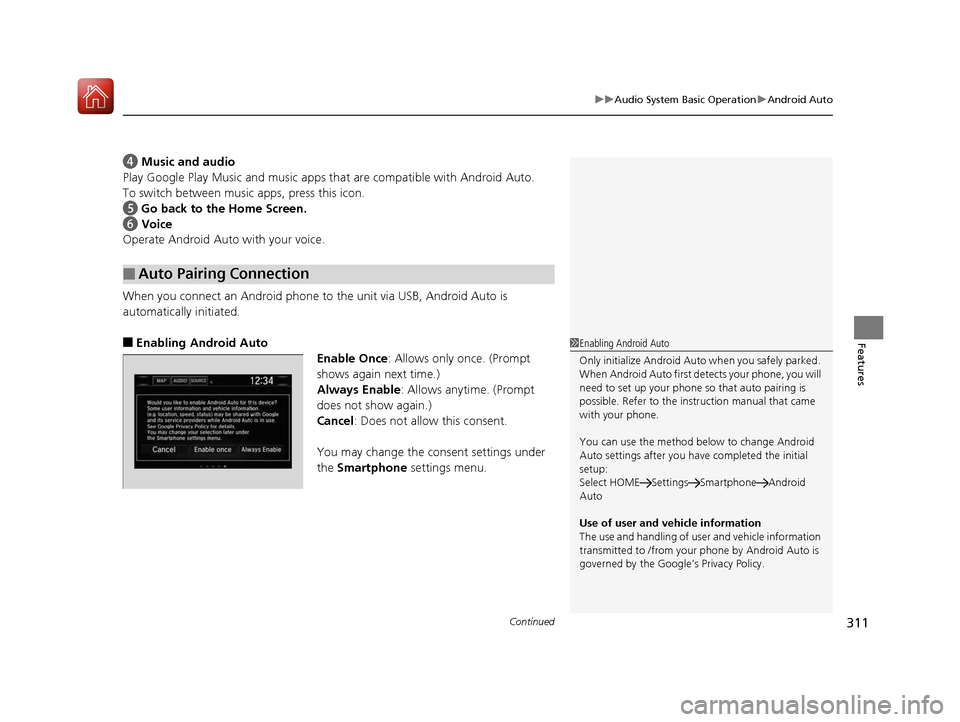
When you connect an Android phone to the unit via USB, Android Auto is
automatically initiated.
■Enabling Android Auto
Enable Once: Allows only once. (Prompt
shows again next time.)
Always Enable: Allows anytime. (Prompt
does not show again.)
Cancel: Does not allow this consent.
You may change the consent settings under
the Smartphone settings menu.
■Auto Pairing Connection
1Enabling Android Auto
Only initialize Android Auto when you safely parked.
When Android Auto first detects your phone, you will
need to set up your phone so that auto pairing is
possible. Refer to the inst ruction manual that came
with your phone.
You can use the method below to change Android
Auto settings after you have completed the initial
setup:
Select HOME Settings Smartphone Android
Auto
Use of user and vehicle information
The use and handling of user and vehicle information
transmitted to /from your phone by Android Auto is
governed by the Google’s Privacy Policy.
17 CIVIC 5D (KA KC KL)-31TGG6000.book 311 ページ 2016年6月8日 水曜日 午 後2時8分
Page 314 of 641

313Continued
Features
Audio Error Messages
iPod/USB Flash Drive
If an error occurs while playing an iPod or USB flash drive, you may see the following
error messages. If you cannot clear the error message, contact a dealer.
*1:Models with color audio system
*2:Models with Display Audio
Error MessageSolution
USB Error*1, *2Appears when there is a problem with th e audio system. Check if the device is
compatible with the audio system.
Bad USB Device
Please Check Owners Manual*1
A charging error has occurred with the
connected USB device. When safe please
check the compatibility of the device and
USB cable and try again.
*2
Appears when an incomp atible device is connected. Disconnect the device. Then turn
the audio system off, and turn it on again. Do not reconnect the device that caused the
error.
Unsupported Ver*1
Unsupported Version*2Appears when an unsupported iPod is connecte d. If it appears when a supported iPod
is connected, update the iPod software to the newer version.
Retry Connection*1
Connect Retry*2Appears when the system does not ackn owledge the iPod. Reconnect the iPod.
Unplayable File*1, *2Appears when the files in the USB flash driv e are copyright protected or an unsupported
format. This error message appears for about three seconds, then plays the next song.
17 CIVIC 5D (KA KC KL)-31TGG6000.book 313 ページ 2016年6月8日 水曜日 午 後2時8分
Page 315 of 641

314
uuAudio Error Messages uiPod/USB Flash Drive
Features
*1:Models with color audio system
*2:Models with Display Audio
Error MessageSolution
USB No Song*1
iPod No Song*1
No Data*2
Appears when the iPod is empty.
Appears when the USB flash drive is empt y or there are no MP3, WMA, AAC, or WAV
*2
files in the USB flash drive.
Check that compatible files are stored on the device.
Unsupported*1, *2Appears when an unsupported device is conn ected. If it appears when a supported
device is connected, reconnect the device.
iPod
USB flash drive
iPod and USB flash drive
17 CIVIC 5D (KA KC KL)-31TGG6000.book 314 ページ 2016年6月8日 水曜日 午 後2時8分
Page 320 of 641

319
uuGeneral Information on the Audio System uCompatible iPod, iPhone, and USB Flash Drives
Features
Compatible iPod, iPhone , and USB Flash Drives
*1:Models with Display Audio
•A USB flash drive of 256 MB or higher is recommended.
• Some digital audio players may not be compatible.
• Some USB flash drives (e.g., a device with security lockout) may not work.
• Some software files may not allow for audio play or text data display.
• Some versions of MP3, WMA, AAC, or WAV
* formats may be unsupported.
■iPod and iPhone Model Compatibility
Model
iPod (5th generation)
iPod classic 80GB/160GB (launch in 2007)
iPod classic 120GB (launch in 2008)
iPod classic 160GB (launch in 2009)
iPod nano (1st to 7th generation) released between 2005 and 2012
iPod touch (1st to 5th generation) released between 2007 and 2012
iPhone 3G/iPhone 3GS/iPhone 4/iPhone 4S/iPhone 5/iPhone 5c*1/iPhone 5s*1/
iPhone 6*1/iPhone 6 Plus*1
■USB Flash Drives
1 iPod and iPhone Model Compatibility
This system may not work with all software versions
of these devices.
1USB Flash Drives
Files on the USB flash drive are played in their stored
order. This order may be different from the order
displayed on your PC or device.
* Not available on all models
17 CIVIC 5D (KA KC KL)-31TGG6000.book 319 ページ 2016年6月8日 水曜日 午 後2時8分
Page 346 of 641

345
uuCustomized Features u
Continued
Features
*1:Default Setting
*2:Appears only when you change the screen interface design.
Setup
Group Customizable Features Description Selectable Settings
Audio
BluetoothBluetooth Device List
Pairs a new phone to HFL, edits or deletes a
paired phone.
2
Phone Setup P. 390
—
Other
[Your selected media]
Cover ArtTurns the cover art display on and off.On*1/Off
Audio Source Pop-Up
Selects whether the list of selectable audio source
comes on when Audio is selected on the home
screen.
On /Off*1
DefaultCancels/Resets all customized items in the Audio
settings group as default.Yes /No
System Home Home Screen Edit Order
Changes the HOME screen icon layout. —
Menu Icon Position
*2Changes the position of the menu icons on the
Audio , Phone, and Info screen. —
Configuration of
Instrument Panel Changes the
Instrument Panel screen icon
layout. —
Tachometer Setting Turns on and off the tachometer display. On
*1/Off
Bluetooth ® mode
iPod or USB mode
17 CIVIC 5D (KA KC KL)-31TGG6000.book 345 ページ 2016年6月8日 水曜日 午 後2時8分