2017 GMC TERRAIN manual
[x] Cancel search: manualPage 10 of 20
10F Optional equipment
Bluetooth® System
Before using a Bluetooth-enabled device in the vehicle, it must be paired with the in-vehicle Bluetooth system. Not all devices will support all functions. Bluetooth streaming audio is available with the IntelliLink system.F For more information, visit www.gm.com/bluetooth.
Pair a Phone
1. To use voice recognition, press the Voice Recognition button on the steering wheel; after the beep, say “Pair.”
To use the screen buttons, press the CONFIG button and then touch Phone Settings > Pair Device.
2. Start the pairing process on the phone. Locate your vehicle name on the \
phone.
3. Enter the four-digit code that appears on the touch screen into the phone or confirm the six-digit code on the phone.
4. If your phone prompts you to accept the connection or phone book download, click “yes” and always allow.
See your Infotainment System Owner Manual.
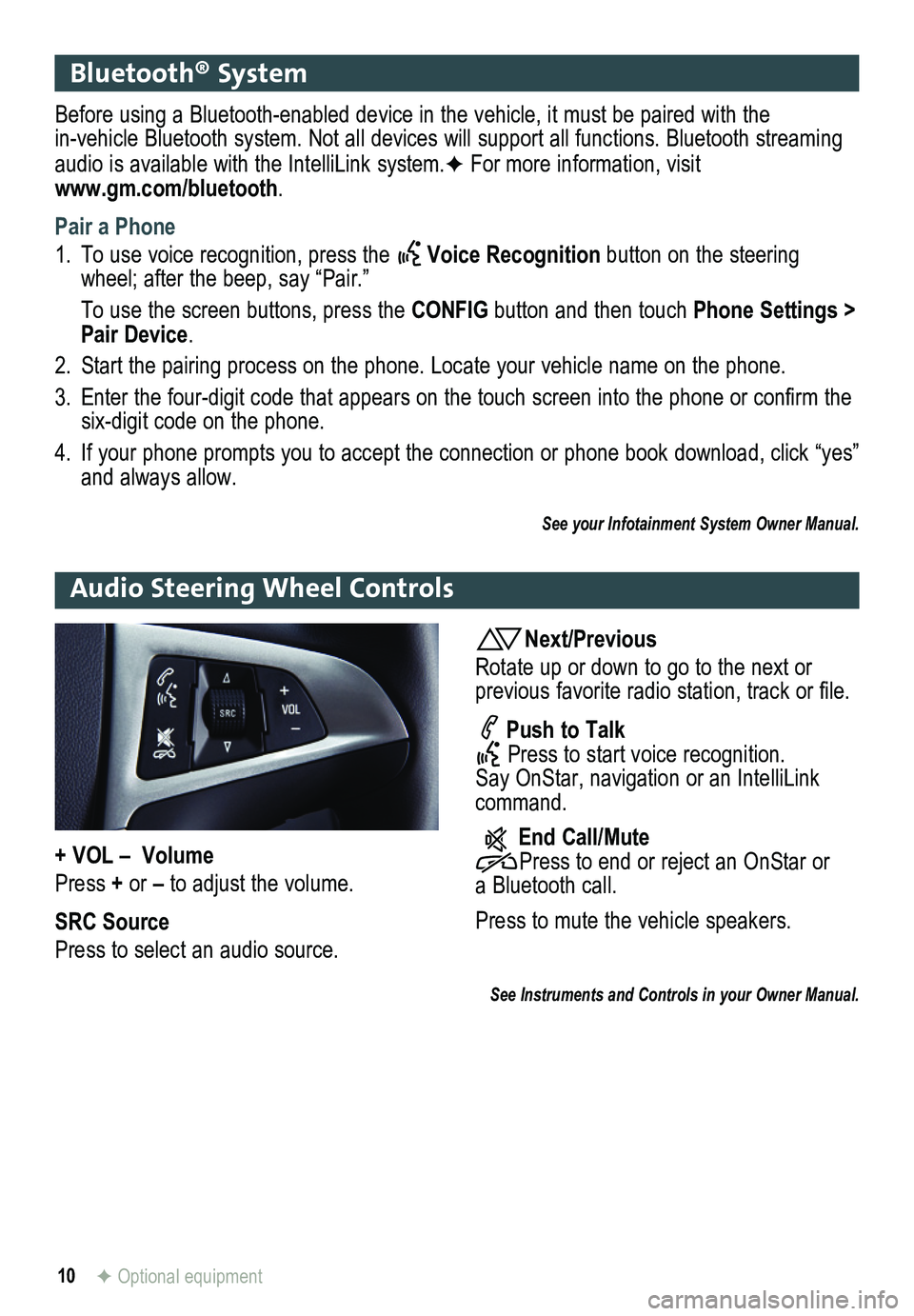
Audio Steering Wheel Controls
Next/Previous
Rotate up or down to go to the next or
previous favorite radio station, track or file.
Push to Talk Press to start voice recognition. Say OnStar, navigation or an IntelliLink command.
End Call/Mute Press to end or reject an OnStar or a Bluetooth call.
Press to mute the vehicle
speakers.
See Instruments and Controls in your Owner Manual.
+ VOL – Volume
Press + or – to adjust the volume.
SRC Source
Press to select an audio source.
Page 11 of 20

11
GMC IntelliLinkF
IntelliLink uses a Bluetooth or USB connection to link a smartphone, cell phone, USB flash drive or portable audio player/iPod™ to the touch screen infotainment\
display. It offers a variety of entertainment options, including streaming audio from the Internet through a smartphone, and features enhanced hands-free voice control, music inform\
ation and the ability to play music files from a USB flash drive.
For assistance with Bluetooth pairing, application downloading and installation, mobile device compatibility, and operation of the IntelliLink system, contact Customer Assistance at 1-855-4-SUPPORT (855-478-7767) or visit www.gmc.com/intellilink.
PANDORA® Internet Radio
Listen to personalized radio stations based on favorite artists or genres (a slight delay may \
occur when loading a song or changing a station).
Download the Pandora app to your smartphone. Restart the smartphone and \
sign in to Pandora.
Create a station on your phone to listen to a customized song list in the vehicle.
If you like a song, you can say “Thumbs up” using voice recognitio\
n, or touch the Thumbs Up screen button.
Use voice commands to tune your Pandora stations.
Stitcher SmartRadio™
Stream favorite podcasts, radio shows and news to your vehicle.
Download the Stitcher app to your smartphone. Restart the smartphone and sign in to Stitcher.
Select a category to listen to.
If you like the station, touch the Star screen button to add it to your Favorites list.
SiriusXM™ Satellite Radio (subscription required)
SiriusXM provides access to over 180 channels of commercial-free music, sports, talk, entertainment, comedy and weather using the radio controls or voice comm\
ands.
NEW – XM Travel Link includes fuel locations and prices, weather, and mo\
vies with theater locations. Additional subscription fee required.
NEW – XM Tune Select finds your favorite artists or songs on all XM stations and alerts you.
F Optional equipment
See your Infotainment System Owner Manual.
Page 12 of 20
 using the enhanced voice recognition system.
1. Press the")
12
GMC IntelliLinkF
Voice Recognition
Control the music source and make phone calls hands-free (after pairing\
your Bluetooth-enabled phone) using the enhanced voice recognition system.
1. Press the Voice Recognition button on the steering wheel.
2. The radio will say “Please say a command,” followed by a beep.
3. After the beep, say what you want it to do.
• Phone (Using your paired phone):
– “Pair” or “Connect”
– “Dial” or “Call [number]”
– “Dial” or “Call [phone book name]”
Example command: “Call Amanda” or “Dial 555-1212”
• Media Music Device Search:
– “Play CD”
– “Play USB”
– “Play Bluetooth audio”
Example command: “Play artist [name]”
Example command: “Play song ‘Dance the Night Away’”
• Radio Control:
Example command: “Tune FM 104.3” or “Tune Classic Vinyl”
Example command: “Tune Pandora” (Pandora app required)
Example command: “Thumbs up” or “Thumbs down” (Pandora app \
required)
• Quick Tips:
– Say “Help” for voice recognition assistance.
– To start speaking immediately without waiting for the beep, press the Voice Recognition button twice.
See your Infotainment System Owner Manual.
F Optional equipment
Page 13 of 20
13
Navigation SystemF
Note: When the vehicle is moving, various on-screen functions are disabled to reduce driver distraction.
Controls
NAV Navigation
Press to view the vehicle’s current position on the map screen.
DEST Destination
Press to access the Route screen to enter a destination or plan a route.
RPT Repeat
Press to repeat the last voice guidance prompt.
To select various functions, touch the highlighted touch screen buttons in the on-screen menus or use the MENU/SEL knob.
Entering a Destination
1. Press the DEST control button.
2. Touch one of the Select Destination menu options to plan a route. If you know the
specific address, touch the Address Entry screen button.
3. Enter the State/Province, City and Street name. Touch the List screen button to select the desired name from the generated list for each entry.
4. Enter the house number. Touch the DONE screen button.
5. If the displayed address is correct, touch the GO screen button.
6. Select the route preference and touch the Start Guidance screen button.
See your Infotainment System Owner Manual.
Rear Seat Entertainment SystemF
Play a DVD Video
1. Press the release button on the seatback consoles to raise the screens.
2. Insert a DVD into the audio system.
3. Press the DVD screen button to select the DVD source. Sound will play through the vehicle speakers.
4. To use the wireless headphones, press the On/Off button on the headphones, select Channel 1, and adjust the volume using the headphone volume control.
5. To control DVD playback, use the audio controls or the remote control. For best
performance, aim the remote control at the driver-side seatback console.\
Changing the Source on the Video Screens
Continually press the AUX button on the remote control to play a DVD or an auxiliary device, such as a video game, on both screens or a different source on e\
ach screen.
See your Infotainment System Owner Manual.
F Optional equipment
Page 14 of 20

14
Cruise Control
Adjusting Cruise Control
RES+ Resume/Accelerate
Rotate the switch up to resume a set speed.
When the system is active, rotate the switch up to increase speed.
SET– Set/Coast
When the system is active, rotate the switch down to decrease speed.
Cancel
Press to cancel the cruise control but retain the set speed in memory.
The cruise control set speed is erased when cruise control or the vehicle ignition is turned off.
See Driving and Operating in your Owner Manual.
Setting Cruise Control
1. Press the ON/OFF button. The Cruise Control symbol will illuminate in white in the instrument cluster.
2. When traveling at the desired speed, rotate the SET– switch down to set the speed. The symbol will illuminate in green in the instrument cluster.
Forward Collision Alert/Lane Departure WarningF
Forward Collision Alert
When approaching a vehicle directly ahead too quickly, a visual alert flashes on top of the instrument panel and beeps sound.
Press the Collision Alert button on the left side of the steering wheel to set the alert timing.
Lane Departure Warning
When crossing a detected lane marking without using a turn signal, a visual alert flashes on top of the instrument panel and beeps sound.
Press the Lane Departure Warning button on the left side of the steering wheel to turn the system on or off.
See Driving and Operating in your Owner Manual.
F Optional equipment
Page 15 of 20

15
Passenger Presence System
The passenger’s frontal airbag On indicator located on the overhead c\
onsole may illuminate if an object, such as a handbag, briefcase, notebook computer or other elec\
tronic device, is on the unoccupied front seat. If this is not desired, remove the object fro\
m the seat.
See Seats and Restraints in your Owner Manual.
Wind Noise
If a rear window is open, there may be a buffeting wind noise inside the\
vehicle. Opening a front window slightly when a rear window is open will prevent this noise from occurring.
See Keys, Doors and Windows in your Owner Manual.
Accessory Power Outlets
There are four accessory power outlets in the vehicle — located below\
the audio system, inside the center console, on the rear of the center console, and in the\
rear cargo area. All of the outlets except the rear cargo area outlet are not powered when the v\
ehicle is off to avoid draining the battery. Always unplug electrical equipment when not in use\
.
See Instruments and Controls in your Owner Manual.
Parking Brake
To set the parking brake, hold down the regular brake pedal; then push d\
own the
parking brake pedal.
To release the parking brake, hold down the regular brake pedal; then pu\
sh down the parking brake pedal until you feel the pedal release.
See Driving and Operating in your Owner Manual.
Page 16 of 20
16
Driver Information Center
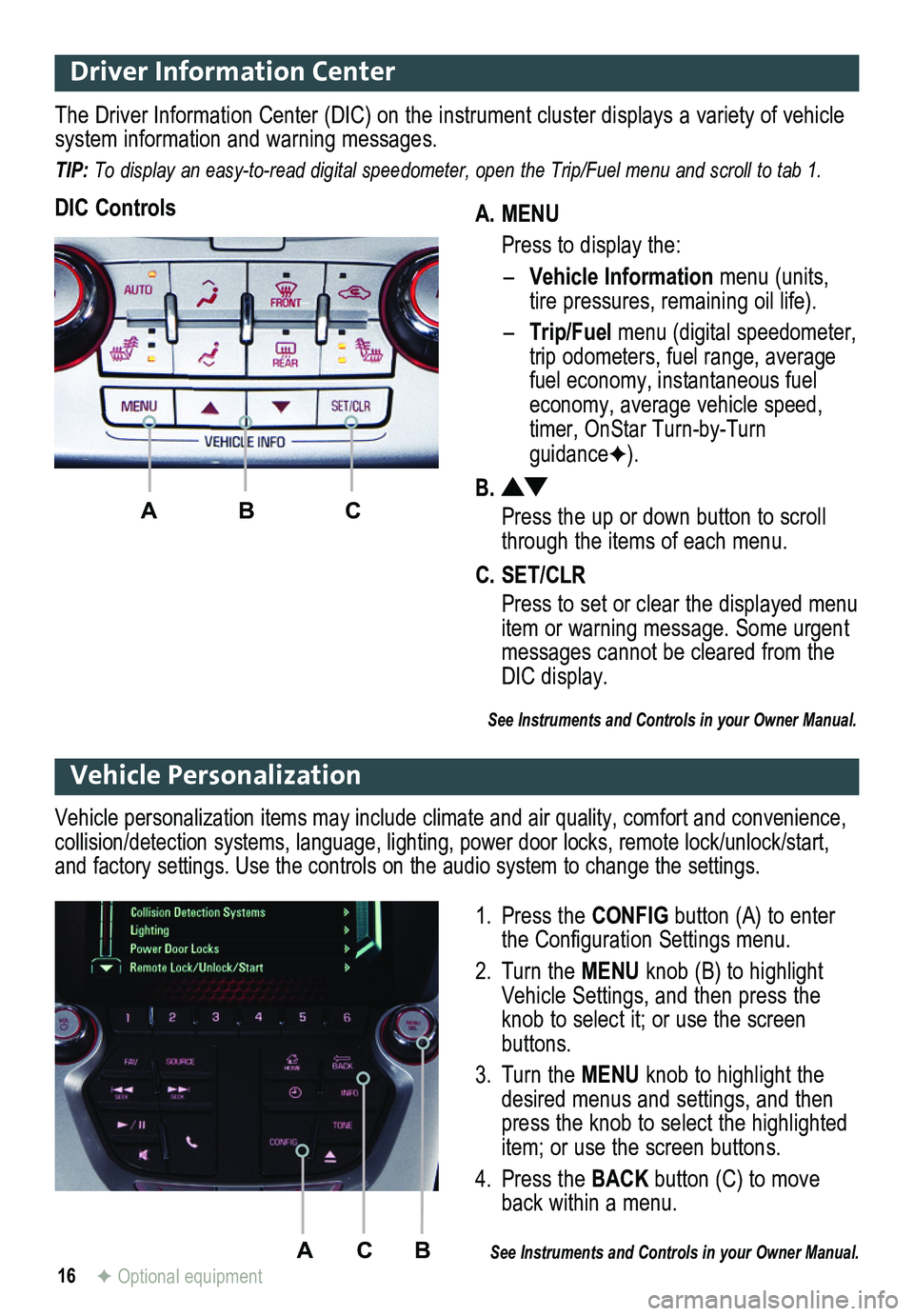
A. MENU
Press to display the:
– Vehicle Information menu (units, tire pressures, remaining oil life).
– Trip/Fuel menu (digital speed ometer, trip odometers, fuel range, average fuel economy, instantaneous fuel economy, average vehicle speed, timer, OnStar Turn-by-Turn guidanceF).
B.
Press the up or down button to scroll through the items of each menu.
C. SET/CLR
Press to set or clear the displayed menu item or warning message. Some urgent messages cannot be cleared from the DIC display.
The Driver Information Center (DIC) on the instrument cluster displays a variety of vehicle system information and warning messages.
TIP: To display an easy-to-read digital speedometer, open the Trip/Fuel menu and scroll to tab 1.
DIC Controls
ABC
See Instruments and Controls in your Owner Manual.
ACB
Vehicle Personalization
1. Press the CONFIG button (A) to enter the Configuration Settings menu.
2. Turn the MENU knob (B) to highlight Vehicle Settings, and then press the knob to select it; or use the screen buttons.
3. Turn the MENU knob to highlight the desired menus and settings, and then press the knob to select the highlighted item; or use the screen buttons.
4. Press the BACK button (C) to move back within a menu.
See Instruments and Controls in your Owner Manual.
Vehicle personalization items may include climate and air quality, comfort and conven ience, collision/detection systems, language, lighting, power door locks, remot\
e lock/unlock/start, and factory settings. Use the controls on the audio system to change the settings.
F Optional equipment
Page 17 of 20

17
Fan control
On/Off
AUTOF: Automatic operation
FRONT Defrost mode
Driver’s heated seat controlF
Air delivery modes: Vent Bi-level Floor Defog
REAR Rear window defogger
Passenger’s heated seat controlF
Automatic climate control system with heated seats shown
A/C Air conditioning control
Temperature control
Climate Controls
Recirculation Mode
The recirculation mode can help to quickly cool the air inside the vehicle or prevent outside odors from entering the vehicle. It is not available while the defog or defrost mode is selected. When the recirculation mode is used without air conditioning, the air humidity increases and the windows may fog.
Air Outlets
Use the thumbwheels below the center outlets to open or close the center\
outlets.
Use the chrome-accented sliding knob on each outlet to direct airflow.
Automatic OperationF
1. Press AUTO.
2. Set the temperature. Allow time for the system to automatically reach the desired temperature.
Note: When outside temperature and vehicle temperature are cold, fan speed will not increase until warmer air is available.
See Climate Controls in your Owner Manual.
Recirculation mode
F Optional equipment