2017 GMC SIERRA ECO mode
[x] Cancel search: ECO modePage 167 of 511

GMC Sierra/Sierra Denali Owner Manual (GMNA-Localizing-U.S./Canada/
Mexico-9955992) - 2017 - crc - 4/18/17
166 Instruments and Controls
TRANSMISSION HOT IDLE
ENGINE
This message displays and a chime
may sound if the transmission fluid
in the vehicle gets hot. Driving with
the transmission fluid temperature
high can cause damage to the
vehicle. Stop the vehicle and let it
idle to allow the transmission to
cool. This message clears and the
chime stops when the fluid
temperature reaches a safe level.
When towing, use Tow/Haul Mode
to prevent damage to the engine or
transmission. SeeTow/Haul Mode
0 288.
VEHICLE IN 4WD LOW
This message will display if the
vehicle is driven in 4
nfor about
10 minutes above 72 km/h (45 mph).
Vehicle Reminder
Messages
CHECK TRAILER WIRING
On vehicles with the Integrated
Trailer Brake Control (ITBC) system,
this message may display and a
chime may sound when one of the
following conditions exists:
. A trailer with electric brakes
becomes disconnected from the
vehicle.
‐If the disconnect occurs while
the vehicle is stopped, this
message clears itself after a
short time.
‐ If the disconnect occurs while
the vehicle is moving, this
message stays on until the
ignition is turned off.
. There is a short in the wiring to
the electric trailer brakes.
When this message displays, power
is no longer available to the trailer
brakes. As soon as it is safe to do so,
carefully pull the vehicle over to the
side of the road and turn the ignition
off. Check the wiring connection to
the trailer and turn the ignition back
on. This message clears if the trailer
is reconnected. This message also
clears if you acknowledge it. If this
message still displays, either the
vehicle or the trailer needs service.
See your dealer.
See
“Integrated Trailer Brake
Control System” underTowing
Equipment 0340.
ICE POSSIBLE DRIVE
WITH CARE
This message displays when ice
conditions are possible.
TRAILER CONNECTED
On vehicles with the Integrated
Trailer Brake Control (ITBC) system,
this message displays briefly when
a trailer with electric or electric over
hydraulic brakes is first connected
to the vehicle.
Page 169 of 511

GMC Sierra/Sierra Denali Owner Manual (GMNA-Localizing-U.S./Canada/
Mexico-9955992) - 2017 - crc - 4/18/17
168 Instruments and Controls
Uplevel Radio Audio System
Controls1. Press the desired feature to display a list of available
options.
2. Press to select the desired feature setting.
3. Press
oBACK on the
faceplate or the
0screen
button to return to the previous
menu or exit.
Turn the vehicle to ON/RUN to
access the Settings menu, then
select SETTINGS from the Home
Page on the infotainment system
display.
Personalization Menus
The following list of menu items may
be available:
. Time and Date
. Language (Language)
. Rear Seat Reminder
. Teen Driver
. Valet Mode
. Radio .
Vehicle
. Bluetooth
. Apple CarPlay
. Android Auto
. USB Auto Launch
. Voice
. Display
. Rear Camera
. Return to Factory Settings
. Software Information
Detailed information for each menu
follows.
Time and Date
Manually set the time and date. See
Clock 0127.
Language (Language)
Select Language, then select from
the available language(s).
The selected language will display
on the system, and voice
recognition will reflect the selected
language.
Rear Seat Reminder
This allows for a chime and a
message ‘Look in Rear Seat’ when
the rear door has been opened
before or during operation of the
vehicle.
Select Off or On.
Teen Driver
See “Teen Driver” under“Settings”
in the infotainment manual.
Valet Mode
This will lock the infotainment
system and steering wheel controls.
It may also limit access to vehicle
storage locations (if equipped).
To enable valet mode:
1. Enter a four-digit code on the keypad.
2. Select Enter to go to the confirmation screen.
3. Re-enter the four-digit code.
Press LOCK or UNLOCK to lock or
unlock the system. Press Back to go
back to the previous menu.
Page 184 of 511

GMC Sierra/Sierra Denali Owner Manual (GMNA-Localizing-U.S./Canada/
Mexico-9955992) - 2017 - crc - 4/18/17
Lighting 183
change. This causes the turn
signals to automatically flash three
times. It will flash six times if Tow/
Haul Mode is active. Holding the
turn signal lever for more than
one second will cause the turn
signals to flash until the lever is
released.
The lever returns to its starting
position whenever it is released.
If after signaling a turn or a lane
change the arrows flash rapidly or
do not come on, a signal bulb could
be burned out. If equipped with LED
turn signals, see your dealer.
Replace any burned out bulbs. If a
bulb is not burned out, check the
fuse. SeeFuses0393.
Turn Signal On Chime
If the turn signal is left on for more
than 1.2 km (0.75 mi), a chime
sounds at each flash of the turn
signal. The message TURN
SIGNAL ON will also appear in the
Driver Information Center (DIC). To
turn the chime and message off,
move the turn signal lever to the off
position.Fog Lamps
If equipped, the control is on the
center of the exterior lamp control,
to the left of the steering column.
The ignition must be in the ON/RUN
position for the fog lamps to
come on.
#(Fog Lamps) : Press to turn the
fog lamps on or off. A light will come
on in the instrument cluster.
When the fog lamps are turned on,
the parking lamps automatically
turn on.
When the headlamps are changed
to high beam, the fog lamps go off.
When the high-beam headlamps are
turned off, the fog lamps will come
on again. Some localities have laws that
require the headlamps to be on with
the fog lamps.
Auxiliary
Roof-Mounted Lamp
If equipped, this button includes
wiring provisions for a dealer or a
qualified service center to install an
auxiliary roof lamp.
This button is on the overhead
console.
When the wiring is connected to an
auxiliary roof-mounted lamp,
pressing the bottom of the button
will activate the lamp and illuminate
an indicator light at the bottom of
Page 195 of 511

GMC Sierra/Sierra Denali Owner Manual (GMNA-Localizing-U.S./Canada/
Mexico-9955992) - 2017 - crc - 4/18/17
194 Infotainment System
4.6
.Radio: Press and release to
go to the next station or
channel. Press and hold to
fast seek the next strongest
station or channel.
. USB/Bluetooth Music/
Pictures: Press and hold to
go to the next content.
Press and hold to fast
forward.
5.
#
. Press and release to
access the phone screen,
answer an incoming call,
or access the device home
screen. Press and hold to
access Press to Talk.
Home Page (Base Radio)
Home Page Features
The infotainment system displays a
Home Page that makes it easy to
access all of the applications. Turn
the MENU knob to highlight feature
icons. Press the MENU knob to
access the feature’s options. Various functions are disabled when
the vehicle is moving.
AUDIO :
Select the AUDIO screen
icon to display the active source
page. The sources available are
AM, FM, SiriusXM
®(if equipped),
USB/iPod, AUX Input, and Bluetooth
Audio (if equipped).
See AM-FM Radio (Base Radio with
Touchscreen) 0199 orAM-FM
Radio (Base Radio) 0197, Satellite
Radio (Base Radio) 0200 or
Satellite Radio (Base Radio with
Touchscreen) 0201, , Auxiliary Jack
0 214, and Bluetooth Audio 0215.
PHONE : Select the PHONE screen
icon to display the Phone main
page.
See Bluetooth (Voice Recognition -
Base Radio) 0228 orBluetooth
(Infotainment Controls - Base
Radio) 0224 orBluetooth
(Overview) 0222 orBluetooth
(Infotainment Controls - Base Radio
with Touchscreen) 0233. NAV (Navigation, If Equipped) :
Select the NAV screen icon to
display the OnStar Turn-by-Turn
Navigation. See
OnStar Overview
0 488, if equipped.
SETTINGS : Select the SETTINGS
screen icon to display the Settings
main page. See “Setting Radio
Preferences” following.
Setting Radio Preferences
Select the SETTINGS screen icon
to display the Settings menu and
the following may display:
Time and Date : SeeClock 0127.
Language (Current Language) :
This will set the display language in
the radio and instrument cluster.
Select to display a list of languages.
Select
oBACK to go back to the
previous menu.
Valet Mode:
Using the circular numeric keypad,
enter a four-digit code:
1. Turn the MENU knob to highlight a number.
Page 213 of 511
GMC Sierra/Sierra Denali Owner Manual (GMNA-Localizing-U.S./Canada/
Mexico-9955992) - 2017 - crc - 4/18/17
212 Infotainment System
Changing to Next/Previous Files
.Touch
lto change to the
next file.
. Touch
gwithin five seconds of
the playback time to play the
previous file.
Returning to the Beginning of the
Current File
Touch
gafter five seconds of the
playback time.
Scanning Forward or Backward
Touch and hold
gorlduring
playback to rewind or fast forward.
Release the button to resume
playback at normal speed.
Playing a File Randomly
Touch
Zduring playback.
. ON: Plays all files randomly.
. OFF: Returns to normal
playback.
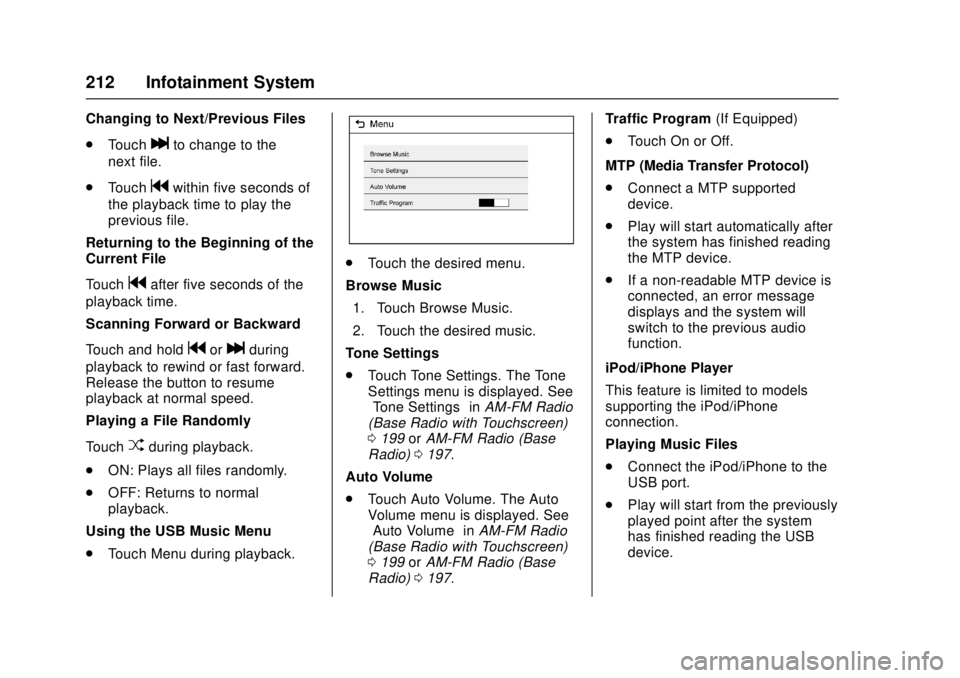
Using the USB Music Menu
. Touch Menu during playback.
.Touch the desired menu.
Browse Music 1. Touch Browse Music.
2. Touch the desired music.
Tone Settings
. Touch Tone Settings. The Tone
Settings menu is displayed. See
“Tone Settings” inAM-FM Radio
(Base Radio with Touchscreen)
0 199 orAM-FM Radio (Base
Radio) 0197.
Auto Volume
. Touch Auto Volume. The Auto
Volume menu is displayed. See
“Auto Volume” inAM-FM Radio
(Base Radio with Touchscreen)
0 199 orAM-FM Radio (Base
Radio) 0197. Traffic Program
(If Equipped)
. Touch On or Off.
MTP (Media Transfer Protocol)
. Connect a MTP supported
device.
. Play will start automatically after
the system has finished reading
the MTP device.
. If a non-readable MTP device is
connected, an error message
displays and the system will
switch to the previous audio
function.
iPod/iPhone Player
This feature is limited to models
supporting the iPod/iPhone
connection.
Playing Music Files
. Connect the iPod/iPhone to the
USB port.
. Play will start from the previously
played point after the system
has finished reading the USB
device.
Page 214 of 511

GMC Sierra/Sierra Denali Owner Manual (GMNA-Localizing-U.S./Canada/
Mexico-9955992) - 2017 - crc - 4/18/17
Infotainment System 213
.If a non-readable USB device is
connected, an error message
displays and the system will
switch to the previous audio
function.
If the iPod/iPhone is already
connected:
1. Press
{.
2. Touch AUDIO.
3. Touch Source.
4. Touch iPod.
To stop the device and select
another media source, touch
Source, then select the other
source.
To remove the device, select
another function, then remove the
device.
Pause
. Touch
jto pause.
. Touch
rto resume.
Changing to Next/Previous Song
. Touch
lto change to the
next song. .
Touch
gwithin two seconds of
the playback time to play the
previous file.
Returning to the Beginning of the
Current File
Touch
gafter two seconds of the
playback time.
Scanning Forward or Backward
Touch and hold
gorlduring
playback to rewind or fast forward.
Release the button to resume
playback at normal speed.
Playing a File Randomly
Touch
Zduring playback.
. ON: Plays all files randomly.
. OFF: Returns to normal
playback.
Using the iPod Menu
. Touch Menu during playback.
. Touch the appropriate
play mode.
Browse Music 1. Touch Browse Music. 2. Touch the desired music.
Tone Settings
. Touch Tone Settings. The Tone
Settings menu is displayed. See
“Tone Settings” inAM-FM Radio
(Base Radio with Touchscreen)
0 199 orAM-FM Radio (Base
Radio) 0197.
Auto Volume
. Touch Auto Volume. The Auto
Volume menu is displayed. See
“Auto Volume” inAM-FM Radio
(Base Radio with Touchscreen)
0 199 orAM-FM Radio (Base
Radio) 0197.Picture System Information
The infotainment system can view
picture files stored on a USB
storage device and devices that
support Media Transfer
Protocol (MTP).
.
Supported file extensions: .jpg,
.bmp, .png, .gif.
. Animated GIF files are not
supported.
Page 218 of 511

GMC Sierra/Sierra Denali Owner Manual (GMNA-Localizing-U.S./Canada/
Mexico-9955992) - 2017 - crc - 4/18/17
Infotainment System 217
destination entry and voice keypad,
can be completed in a single
command. If the task takes more
than one command to complete, the
first command would be to indicate
the kind of task that is to be
performed. The system replies with
prompts that lead through a dialog
to enter the necessary information.
Voice recognition can be used when
the ignition is on or when Retained
Accessory Power (RAP) is active.
SeeRetained Accessory Power
(RAP) 0277.
Using Voice Recognition
Voice recognition becomes available
once the system has been
initialized. This begins when the
ignition is turned on. Initialization
may take a few moments.
1. Press
gon the steering wheel
control to activate voice
recognition, or select
gon the
infotainment screen on the
center stack.
. If voice recognition is
started from the steering
wheel control, the instrument cluster displays
the selections and visual
dialog content.
. If voice recognition is
started from the
infotainment screen, the
selections and visual dialog
content are displayed on
both the center stack
display and the instrument
cluster display.
2. The audio system mutes and the system plays a prompt
followed by a beep.
3. Wait until after the beep completes, then clearly speak
one of the commands
described in this section.
Press
gto interrupt any voice
recognition system prompt. For
example, if the prompt seems
to be taking too long to finish,
press
gagain and the beep
should happen right away.
There are two voice prompt modes
supported: .
Long verbal prompts: The longer
prompts provide more
information regarding the
supported actions.
. Short prompts: The short
prompts provide simple
instructions about what can be
stated.
If a command is not spoken, the
voice recognition system says a
help prompt.
Prompts and Screen Displays
While a voice recognition session is
active, there will be corresponding
buttons on screens displayed.
Manual interaction in the voice
recognition session is permitted.
Interaction during a voice session
may be completed entirely using
voice commands, or some
selections may expedite a session.
If a selection is made using a
manual control, the dialog will
progress in the same way as if the
selection was made through a voice
command. Once the system is able
to complete the task, or the session
is terminated, the voice recognition
dialog stops.
Page 223 of 511

GMC Sierra/Sierra Denali Owner Manual (GMNA-Localizing-U.S./Canada/
Mexico-9955992) - 2017 - crc - 4/18/17
222 Infotainment System
contact and location at home, at
work, on mobile device, or on
another phone.
“Call
call to a standard phone number
seven or 10 digits in length, and
also 911, 411, or 611.
“Pair Phone” :Begins the
Bluetooth pairing process. Follow
instructions on the radio display.
“Switch Phone” :Select a different
phone for outgoing calls.
“Voice Keypad” :Begins a dialog
to enter special numbers like
international numbers. The numbers
can be entered in groups of digits
with each group of digits being
repeated back by the system. If the
group of digits is not correct, the
command “Delete”will remove the
last group of digits and allow them
to be re-entered. Once the entire
number has been entered, the
command “Call”will start dialing the
number.
“Voice Mail” :Initiate a call to voice
mail numbers.Voice Recognition for OnStar
(If Equipped)
“OnStar” :Begin OnStar Voice
Recognition.
Bluetooth Speech Recognition
(If Equipped)
Voice Pass-Thru allows access to
the speech recognition commands
on the cell phone. See your cell
phone manufacturer ’s user guide to
see if the cell phone supports this
feature.
Activating this function will start the
Bluetooth Speech Recognition on a
connected phone.
The steering wheel controls are
used to operate this function.
Press and hold
gto activate.
A voice session begins so that voice
commands can be given to Siri
®or
many other controls provided by the
cell phone.
Press
@to exit or pressito
close and return to the previous
application prior to the start of Voice
Pass-Thru.
Phone
Bluetooth (Overview)
Instructions for using the cell phone
may differ between infotainment
systems. The base radio and base
radio with touchscreen instructions
are included in this manual. See the
infotainment manual for instructions
on the uplevel radios.
Bluetooth-capable systems can
interact with many cell phones,
allowing:
. Placement and receipt of calls in
a hands-free mode.
. Sharing of the cell phone’s
address book or contact list with
the vehicle.
To minimize driver distraction,
before driving, and with the vehicle
parked:
. Become familiar with the
features of the cell phone.
Organize the phone book and
contact lists clearly and delete