2017 GMC SIERRA 1500 USB
[x] Cancel search: USBPage 8 of 494

GMC Sierra/Sierra Denali Owner Manual (GMNA-Localizing-U.S./Canada/
Mexico-9955992) - 2017 - crc - 5/3/16
In Brief 7
1.Instrument Panel Illumination
Control 0172.
2. Integrated Trailer Brake Control (ITBC) System (If Equipped).
See Towing Equipment 0324.
3. Exterior Lamp Controls 0166.
Fog Lamps 0171 (If
Equipped).
4. Air Vents 0234.
5. Turn Signal Lever. See Turn
and Lane-Change
Signals 0170.
Windshield Wiper/
Washer 0114.
6. Favorite Switches (Out of View). See Steering Wheel
Controls 0113.
Volume Switches (Out of View).
See Steering Wheel
Controls 0113.
7. Instrument Cluster 0121.
8. Hazard Warning
Flashers 0170
9. Shift Lever. See Automatic
Transmission 0267. Tow/Haul Selector Button (If
Equipped). See
Tow/Haul
Mode 0273.
Range Selection Mode (If
Equipped). See Manual
Mode 0270.
10. Light Sensor. See Automatic
Headlamp System 0169.
11. Infotainment 0176.
12. Heated and Ventilated Front
Seats 055 (If Equipped).
13. Power Outlet (Alternating Current) (If Equipped). See
Power Outlets 0117.
14. Power Outlets 0117.
15. USB Port. See Infotainment 0176.
16.
gTraction Control/Electronic
Stability Control 0284.
0Pedal Adjust Switch (If
Equipped). See Adjustable
Throttle and Brake
Pedal 0258.
{Cargo Lamp 0172.
XParking Assist Button (If
Equipped). See Assistance
Systems for Parking or
Backing 0291.
ALane Keep Assist (LKA)
(1500 Series) 0298 (If
Equipped).
@Lane Departure Warning
(LDW) (2500/3500 Series)
0 296 (If Equipped).
5Hill Descent Control Switch
(If Equipped). See Hill Descent
Control (HDC) 0286.
qExhaust Brake (If
Equipped). See “Exhaust
Brake” in the Duramax diesel
supplement.
Auxiliary Button (If Equipped).
See Add-On Electrical
Equipment 0334.
17. Dual Automatic Climate Control
System 0231.
18. Steering Wheel Controls 0113
(If Equipped).
Page 20 of 494
GMC Sierra/Sierra Denali Owner Manual (GMNA-Localizing-U.S./Canada/
Mexico-9955992) - 2017 - crc - 5/3/16
In Brief 19
Vehicle Features
Infotainment System
The base radio and base radio with
touchscreen information is included
in this manual. See the infotainment
manual for information on the
uplevel radios, audio players,
phone, navigation system, Rear
Seat Entertainment (RSE), and
voice or speech recognition,
if equipped.
Radio(s)
Base Radio
O:Press to turn the system on.
Press and hold to turn it off. When
on, press to mute; press again to
unmute. Turn to increase or
decrease the volume.
RADIO : Press to choose between
FM, AM, and SiriusXM
®,
if equipped.
MEDIA : Press to change the audio
source between CD, USB, AUX,
and Bluetooth
®Audio, if equipped.
{: Press to go to the Home Page. MENU :
Press to select a menu.
g:Press to seek the previous
station or track.
l: Press to seek the next station
or track.
See “Base Radio” inOverview
(Base Radio with Touchscreen)
0 178 orOverview (Base
Radio) 0179.
Base Radio with Touchscreen
O:Press to turn the system on.
Press and hold to turn it off. When
on, press to mute; press again to
unmute. Turn to increase or
decrease the volume.
{: Press to go to the Home Page.
7:Press to seek the previous
station or track.
6: Press to seek the next station
or track.
See “Base Radio with Touchscreen”
in Overview (Base Radio with
Touchscreen) 0178 orOverview
(Base Radio) 0179.
Setting the Clock
See Clock 0115.
Satellite Radio
Vehicles with a SiriusXM®satellite
radio tuner and a valid SiriusXM
satellite radio subscription can
receive SiriusXM programming.
SiriusXM Satellite Radio
Service
SiriusXM is a satellite radio service
based in the 48 contiguous United
States and 10 Canadian provinces.
SiriusXM satellite radio has a wide
variety of programming and
commercial-free music, coast to
coast, and in digital-quality sound.
A fee is required to receive the
SiriusXM service.
For more information refer to:
. www.siriusxm.com or call
1-888-601-6296 (U.S.).
. www.siriusxm.ca or call
1-877-438-9677 (Canada).
Page 21 of 494

GMC Sierra/Sierra Denali Owner Manual (GMNA-Localizing-U.S./Canada/
Mexico-9955992) - 2017 - crc - 5/3/16
20 In Brief
SeeSatellite Radio (Base Radio)
0 188 orSatellite Radio (Base
Radio with Touchscreen) 0188.
Portable Audio Devices
This vehicle may have a 3.5 mm
(1/8 in) auxiliary input jack and USB
ports in the center console or
armrest. There may be a USB port
in the upper glove box. External
devices such as iPods
®, laptop
computers, MP3 players, and USB
storage devices may be connected,
depending on the audio system.
See USB Port (Base Radio) 0193
or USB Port (Base Radio with
Touchscreen) 0196 andAuxiliary
Jack 0202.
Bluetooth®
The Bluetooth®system allows users
with a Bluetooth-enabled cell phone
to make and receive hands-free
calls using the vehicle audio system
and controls. The Bluetooth-enabled cell phone
must be paired with the in-vehicle
Bluetooth system before it can be
used in the vehicle. Not all phones
will support all functions.
See
Bluetooth (Voice Recognition -
Base Radio) 0216 orBluetooth
(Infotainment Controls - Base
Radio) 0212 orBluetooth
(Overview) 0210 orBluetooth
(Infotainment Controls - Base Radio
with Touchscreen) 0220.
Steering Wheel Controls
If equipped, some audio controls
can be adjusted at the steering
wheel.
g:For vehicles with OnStar®or a
Bluetooth®system, press to interact
with those systems. See OnStar
Overview 0471 or“Bluetooth
(Overview)” in the infotainment
manual.
i: Press to reject an incoming
call, or end a current call. Press to
mute or unmute the infotainment
system when not on a call.
oorp: Press to go to the
previous or next menu option.
worx: Press to go to the next or
previous selection.
V: Press to select a highlighted
menu option.
Page 110 of 494
GMC Sierra/Sierra Denali Owner Manual (GMNA-Localizing-U.S./Canada/
Mexico-9955992) - 2017 - crc - 5/3/16
Storage 109
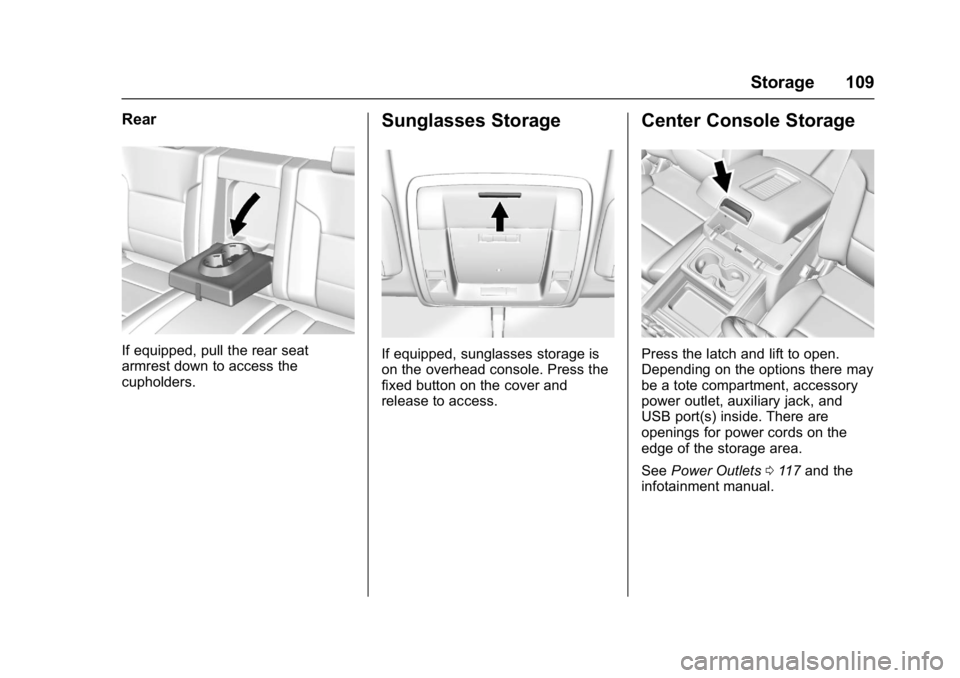
Rear
If equipped, pull the rear seat
armrest down to access the
cupholders.
Sunglasses Storage
If equipped, sunglasses storage is
on the overhead console. Press the
fixed button on the cover and
release to access.
Center Console Storage
Press the latch and lift to open.
Depending on the options there may
be a tote compartment, accessory
power outlet, auxiliary jack, and
USB port(s) inside. There are
openings for power cords on the
edge of the storage area.
SeePower Outlets 0117 and the
infotainment manual.
Page 156 of 494
GMC Sierra/Sierra Denali Owner Manual (GMNA-Localizing-U.S./Canada/
Mexico-9955992) - 2017 - crc - 5/3/16
Instruments and Controls 155
Vehicle
Personalization
Use the audio system controls to
access the personalization menus
for customizing vehicle features.
The following are all possible
personalization features. Depending
on the vehicle, some may not be
available.
Base Radio Audio System
Controls
MENU :Press the center of the
knob to enter menus and select
menu items. Turn the knob to scroll
through the menus.
oBACK : Press to return to the
previous menu or exit.
Base Radio with Touchscreen
Audio System Controls
{(Home) : Press to access the
Home Page Menu.
QorR(Up/Down) : Touch to scroll
through the menus or setup items.
0(Back) : Touch to exit or return
to the previous screen or menu. Uplevel Radio Audio System
Controls
1. Press the desired feature to display a list of available
options.
2. Press to select the desired feature setting.
3. Press
oBACK on the
faceplate or the
0screen
button to return to the previous
menu or exit.
Turn the vehicle to ON/RUN to
access the Settings menu, then
select SETTINGS from the Home
Page on the infotainment system
display.
Personalization Menus
The following list of menu items may
be available:
. Time and Date
. Language (Language)
. Rear Seat Reminder
. Teen Driver
. Valet Mode
. Radio .
Vehicle
. Bluetooth
. Apple CarPlay
. Android Auto
. USB Auto Launch
. Voice
. Display
. Rear Camera
. Return to Factory Settings
. Software Information
Detailed information for each menu
follows.
Time and Date
Manually set the time and date. See
Clock 0115.
Language (Language)
Select Language, then select from
the available language(s).
The selected language will display
on the system, and voice
recognition will reflect the selected
language.
Page 161 of 494
GMC Sierra/Sierra Denali Owner Manual (GMNA-Localizing-U.S./Canada/
Mexico-9955992) - 2017 - crc - 5/3/16
160 Instruments and Controls
.Discoverable
. Device Management
. Ringtones
. Voice Mail Numbers
. Text Message Alerts
Pair New Device
Select to pair a new device. See
“Pairing” underBluetooth (Voice
Recognition - Base Radio) 0216 or
Bluetooth (Infotainment Controls -
Base Radio) 0212 orBluetooth
(Overview) 0210 orBluetooth
(Infotainment Controls - Base Radio
with Touchscreen) 0220 or“Pairing”
in “Infotainment Controls” under
Bluetooth in the infotainment
manual.
Discoverable
This allows the system to find a
device.
Select Off or On.
Device Management
Select to connect to a different
phone source, disconnect a phone,
or delete a phone. Ringtones
Press to change the ring tone for
the specific phone. The phone does
not need to be connected to change
the ring tones.
Voice Mail Numbers
This feature displays the voice mail
number for all connected phones.
To change the voice mail number,
select EDIT or press the EDIT
button. Type a new number, then
select SAVE or press the SAVE
button.
Text Message Alerts
This allows the feature to be turned
on or off.
Select Off or On.
Apple CarPlay™
Select and the following may
display:
.
Apple CarPlay
. Manage Apple CarPlay Devices Apple CarPlay
This feature allows Apple devices to
be connected to the infotainment
system through a USB port.
Select Off or On.
Manage Apple CarPlay Devices
Select to manage Apple devices.
Apple CarPlay must be on for this
feature to be accessed.
Android Auto™
Select and the following may
display:
.
Android Auto
. Manage Android Auto Devices
Android Auto
This feature allows Android devices
to be connected to the infotainment
system through a USB port.
Select Off or On.
Manage Android Auto Devices
Select to manage Android devices.
Android Auto must be on for this
feature to be accessed.
Page 162 of 494
GMC Sierra/Sierra Denali Owner Manual (GMNA-Localizing-U.S./Canada/
Mexico-9955992) - 2017 - crc - 5/3/16
Instruments and Controls 161
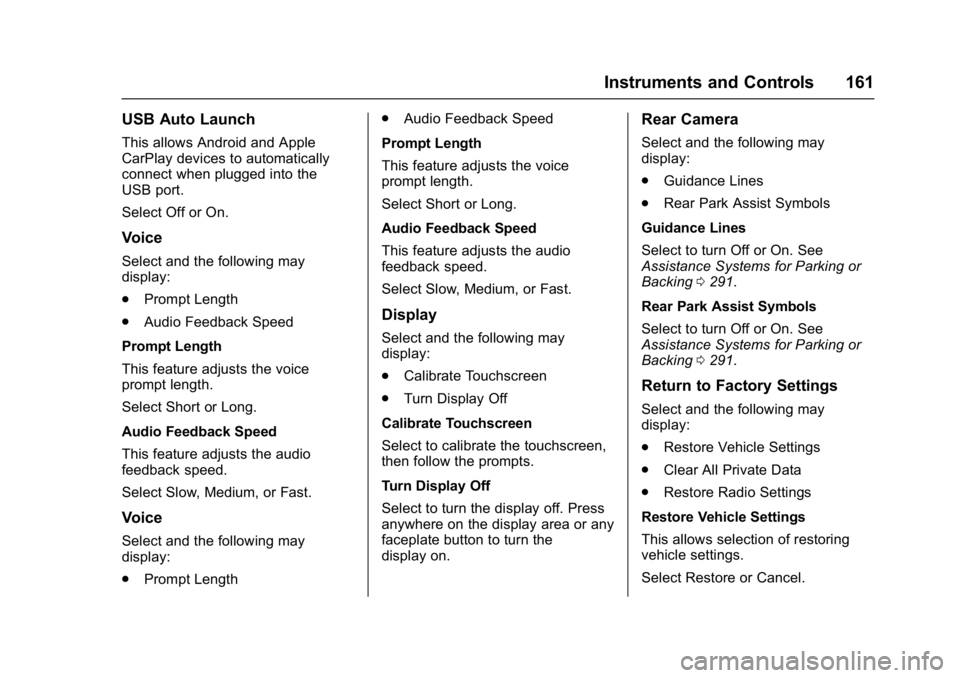
USB Auto Launch
This allows Android and Apple
CarPlay devices to automatically
connect when plugged into the
USB port.
Select Off or On.
Voice
Select and the following may
display:
.Prompt Length
. Audio Feedback Speed
Prompt Length
This feature adjusts the voice
prompt length.
Select Short or Long.
Audio Feedback Speed
This feature adjusts the audio
feedback speed.
Select Slow, Medium, or Fast.
Voice
Select and the following may
display:
. Prompt Length .
Audio Feedback Speed
Prompt Length
This feature adjusts the voice
prompt length.
Select Short or Long.
Audio Feedback Speed
This feature adjusts the audio
feedback speed.
Select Slow, Medium, or Fast.
Display
Select and the following may
display:
. Calibrate Touchscreen
. Turn Display Off
Calibrate Touchscreen
Select to calibrate the touchscreen,
then follow the prompts.
Turn Display Off
Select to turn the display off. Press
anywhere on the display area or any
faceplate button to turn the
display on.
Rear Camera
Select and the following may
display:
. Guidance Lines
. Rear Park Assist Symbols
Guidance Lines
Select to turn Off or On. See
Assistance Systems for Parking or
Backing 0291.
Rear Park Assist Symbols
Select to turn Off or On. See
Assistance Systems for Parking or
Backing 0291.
Return to Factory Settings
Select and the following may
display:
.
Restore Vehicle Settings
. Clear All Private Data
. Restore Radio Settings
Restore Vehicle Settings
This allows selection of restoring
vehicle settings.
Select Restore or Cancel.
Page 177 of 494
GMC Sierra/Sierra Denali Owner Manual (GMNA-Localizing-U.S./Canada/
Mexico-9955992) - 2017 - crc - 5/3/16
176 Infotainment System
Infotainment
System
Introduction
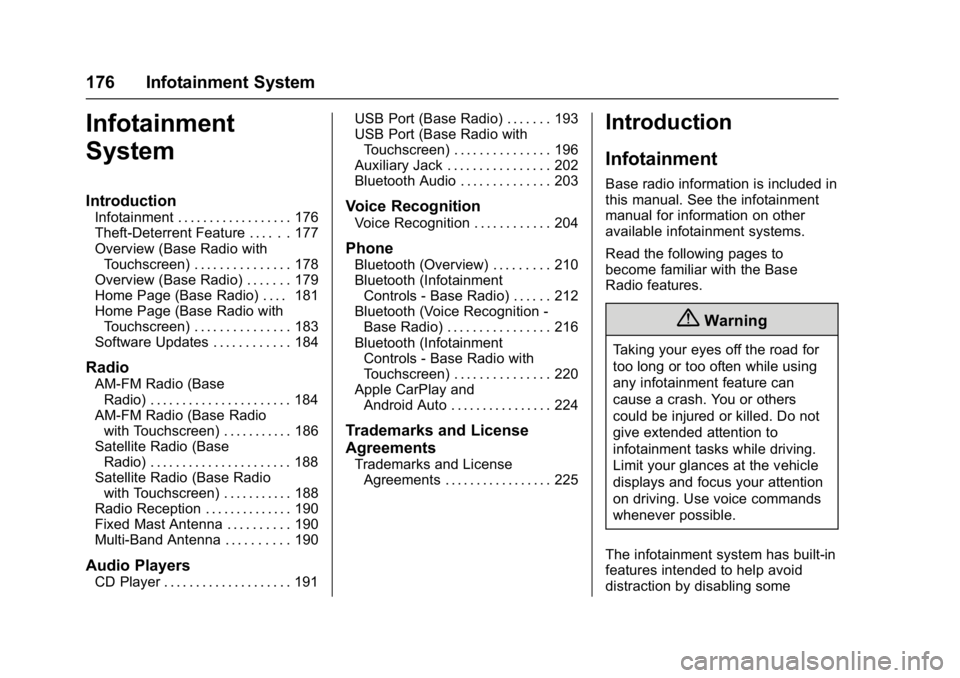
Infotainment . . . . . . . . . . . . . . . . . . 176
Theft-Deterrent Feature . . . . . . 177
Overview (Base Radio withTouchscreen) . . . . . . . . . . . . . . . 178
Overview (Base Radio) . . . . . . . 179
Home Page (Base Radio) . . . . 181
Home Page (Base Radio with Touchscreen) . . . . . . . . . . . . . . . 183
Software Updates . . . . . . . . . . . . 184
Radio
AM-FM Radio (Base Radio) . . . . . . . . . . . . . . . . . . . . . . 184
AM-FM Radio (Base Radio with Touchscreen) . . . . . . . . . . . 186
Satellite Radio (Base Radio) . . . . . . . . . . . . . . . . . . . . . . 188
Satellite Radio (Base Radio with Touchscreen) . . . . . . . . . . . 188
Radio Reception . . . . . . . . . . . . . . 190
Fixed Mast Antenna . . . . . . . . . . 190
Multi-Band Antenna . . . . . . . . . . 190
Audio Players
CD Player . . . . . . . . . . . . . . . . . . . . 191 USB Port (Base Radio) . . . . . . . 193
USB Port (Base Radio with
Touchscreen) . . . . . . . . . . . . . . . 196
Auxiliary Jack . . . . . . . . . . . . . . . . 202
Bluetooth Audio . . . . . . . . . . . . . . 203
Voice Recognition
Voice Recognition . . . . . . . . . . . . 204
Phone
Bluetooth (Overview) . . . . . . . . . 210
Bluetooth (Infotainment Controls - Base Radio) . . . . . . 212
Bluetooth (Voice Recognition - Base Radio) . . . . . . . . . . . . . . . . 216
Bluetooth (Infotainment Controls - Base Radio with
Touchscreen) . . . . . . . . . . . . . . . 220
Apple CarPlay and Android Auto . . . . . . . . . . . . . . . . 224
Trademarks and License
Agreements
Trademarks and LicenseAgreements . . . . . . . . . . . . . . . . . 225
Introduction
Infotainment
Base radio information is included in
this manual. See the infotainment
manual for information on other
available infotainment systems.
Read the following pages to
become familiar with the Base
Radio features.
{Warning
Taking your eyes off the road for
too long or too often while using
any infotainment feature can
cause a crash. You or others
could be injured or killed. Do not
give extended attention to
infotainment tasks while driving.
Limit your glances at the vehicle
displays and focus your attention
on driving. Use voice commands
whenever possible.
The infotainment system has built-in
features intended to help avoid
distraction by disabling some