2017 GMC SIERRA 1500 radio
[x] Cancel search: radioPage 165 of 494
GMC Sierra/Sierra Denali Owner Manual (GMNA-Localizing-U.S./Canada/
Mexico-9955992) - 2017 - crc - 5/3/16
164 Instruments and Controls
The name and color of the
button may vary by
manufacturer.
5. Press and release the Learn or Smart button. Step 6 must be
completed within 30 seconds of
pressing this button.
6. Inside the vehicle, press and hold the newly programmed
Universal Remote system
button for two seconds and
then release it. If the garage
door does not move or the
lamp on the garage door
opener receiver does not flash,
press and hold the same
button a second time for
two seconds, then release it.
Again, if the door does not
move or the garage door lamp
does not flash, press and hold
the same button a third time for
two seconds, then release it.
The Universal Remote system
should now activate the
garage door.
Repeat the process for
programming the two remaining
buttons.Radio Signals for Canada and
Some Gate Operators
For questions or programming help,
call 1-800-355-3515 or see
www.homelink.com.
Canadian radio-frequency laws and
some U.S. gate operators require
transmitter signals to time out or quit
after several seconds of
transmission. This may not be long
enough for the Universal Remote
system to pick up the signal during
programming.
If the programming did not work,
replace Step 2 under “Programming
the Universal Remote System” with
the following:
Press and hold the Universal
Remote system button while
pressing and releasing the
hand-held transmitter button every
two seconds until the signal has
been successfully accepted by the
Universal Remote system. The
Universal Remote system indicator
light will flash slowly at first and then
rapidly. Proceed with Step 3 under
“Programming the Universal Remote
System” to complete.
Universal Remote System
Operation
Using the Universal Remote
System
Press and hold the appropriate
Universal Remote system button for
at least one-half second. The
indicator light will come on while the
signal is being transmitted.
Erasing Universal Remote
System Buttons
Erase all programmed buttons when
vehicle ownership is terminated.
To erase:
1. Press and hold the two outside buttons until the indicator light
begins to flash. This should
take about 10 seconds.
2. Release both buttons.
Page 177 of 494
GMC Sierra/Sierra Denali Owner Manual (GMNA-Localizing-U.S./Canada/
Mexico-9955992) - 2017 - crc - 5/3/16
176 Infotainment System
Infotainment
System
Introduction
Infotainment . . . . . . . . . . . . . . . . . . 176
Theft-Deterrent Feature . . . . . . 177
Overview (Base Radio withTouchscreen) . . . . . . . . . . . . . . . 178
Overview (Base Radio) . . . . . . . 179
Home Page (Base Radio) . . . . 181
Home Page (Base Radio with Touchscreen) . . . . . . . . . . . . . . . 183
Software Updates . . . . . . . . . . . . 184
Radio
AM-FM Radio (Base Radio) . . . . . . . . . . . . . . . . . . . . . . 184
AM-FM Radio (Base Radio with Touchscreen) . . . . . . . . . . . 186
Satellite Radio (Base Radio) . . . . . . . . . . . . . . . . . . . . . . 188
Satellite Radio (Base Radio with Touchscreen) . . . . . . . . . . . 188
Radio Reception . . . . . . . . . . . . . . 190
Fixed Mast Antenna . . . . . . . . . . 190
Multi-Band Antenna . . . . . . . . . . 190
Audio Players
CD Player . . . . . . . . . . . . . . . . . . . . 191 USB Port (Base Radio) . . . . . . . 193
USB Port (Base Radio with
Touchscreen) . . . . . . . . . . . . . . . 196
Auxiliary Jack . . . . . . . . . . . . . . . . 202
Bluetooth Audio . . . . . . . . . . . . . . 203
Voice Recognition
Voice Recognition . . . . . . . . . . . . 204
Phone
Bluetooth (Overview) . . . . . . . . . 210
Bluetooth (Infotainment Controls - Base Radio) . . . . . . 212
Bluetooth (Voice Recognition - Base Radio) . . . . . . . . . . . . . . . . 216
Bluetooth (Infotainment Controls - Base Radio with
Touchscreen) . . . . . . . . . . . . . . . 220
Apple CarPlay and Android Auto . . . . . . . . . . . . . . . . 224
Trademarks and License
Agreements
Trademarks and LicenseAgreements . . . . . . . . . . . . . . . . . 225
Introduction
Infotainment
Base radio information is included in
this manual. See the infotainment
manual for information on other
available infotainment systems.
Read the following pages to
become familiar with the Base
Radio features.
{Warning
Taking your eyes off the road for
too long or too often while using
any infotainment feature can
cause a crash. You or others
could be injured or killed. Do not
give extended attention to
infotainment tasks while driving.
Limit your glances at the vehicle
displays and focus your attention
on driving. Use voice commands
whenever possible.
The infotainment system has built-in
features intended to help avoid
distraction by disabling some
Page 178 of 494
GMC Sierra/Sierra Denali Owner Manual (GMNA-Localizing-U.S./Canada/
Mexico-9955992) - 2017 - crc - 5/3/16
Infotainment System 177
functions when driving. These
functions may gray out when they
are unavailable. Many infotainment
features are also available through
the instrument cluster and steering
wheel controls.
Before driving:
.Become familiar with the
operation, faceplate buttons, and
screen buttons.
. Set up the audio by presetting
favorite stations, setting the
tone, and adjusting the
speakers.
. Set up phone numbers in
advance so they can be called
easily by pressing a single
button or by using a single voice
command if equipped with
Bluetooth phone capability.
See Defensive Driving 0239.
To play the infotainment system with
the ignition off, see Retained
Accessory Power (RAP) 0262.Theft-Deterrent Feature
TheftLock®is designed to
discourage theft of the vehicle's
radio by learning a portion of the
Vehicle Identification Number (VIN).
The radio does not operate if it is
stolen or moved to a different
vehicle.
Page 179 of 494
GMC Sierra/Sierra Denali Owner Manual (GMNA-Localizing-U.S./Canada/
Mexico-9955992) - 2017 - crc - 5/3/16
178 Infotainment System
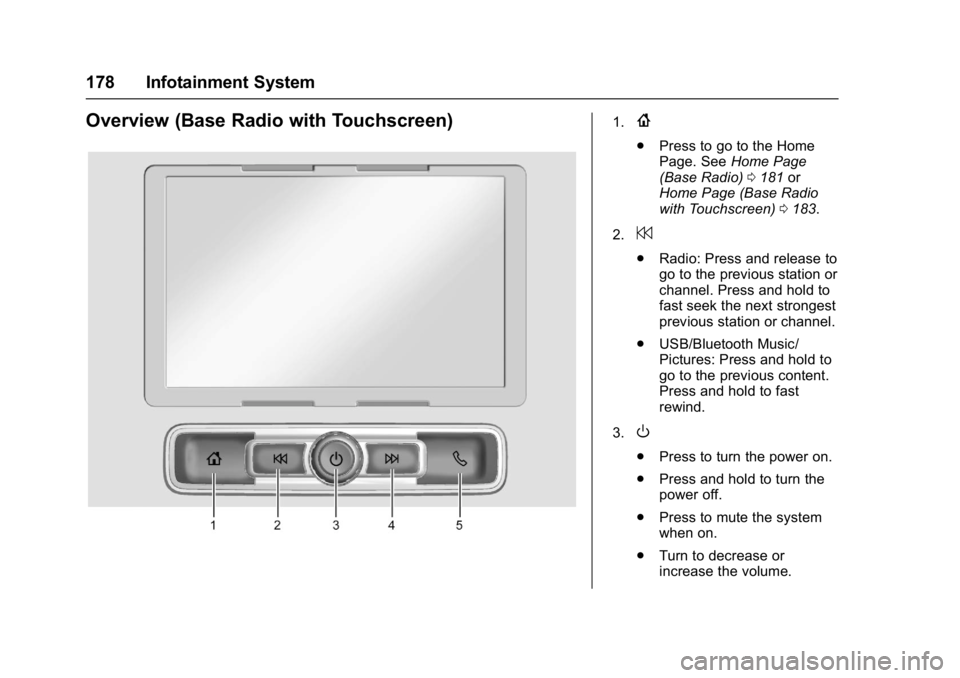
Overview (Base Radio with Touchscreen)1.{
.Press to go to the Home
Page. See Home Page
(Base Radio) 0181 or
Home Page (Base Radio
with Touchscreen) 0183.
2.
7
. Radio: Press and release to
go to the previous station or
channel. Press and hold to
fast seek the next strongest
previous station or channel.
. USB/Bluetooth Music/
Pictures: Press and hold to
go to the previous content.
Press and hold to fast
rewind.
3.
O
. Press to turn the power on.
. Press and hold to turn the
power off.
. Press to mute the system
when on.
. Turn to decrease or
increase the volume.
Page 180 of 494
GMC Sierra/Sierra Denali Owner Manual (GMNA-Localizing-U.S./Canada/
Mexico-9955992) - 2017 - crc - 5/3/16
Infotainment System 179
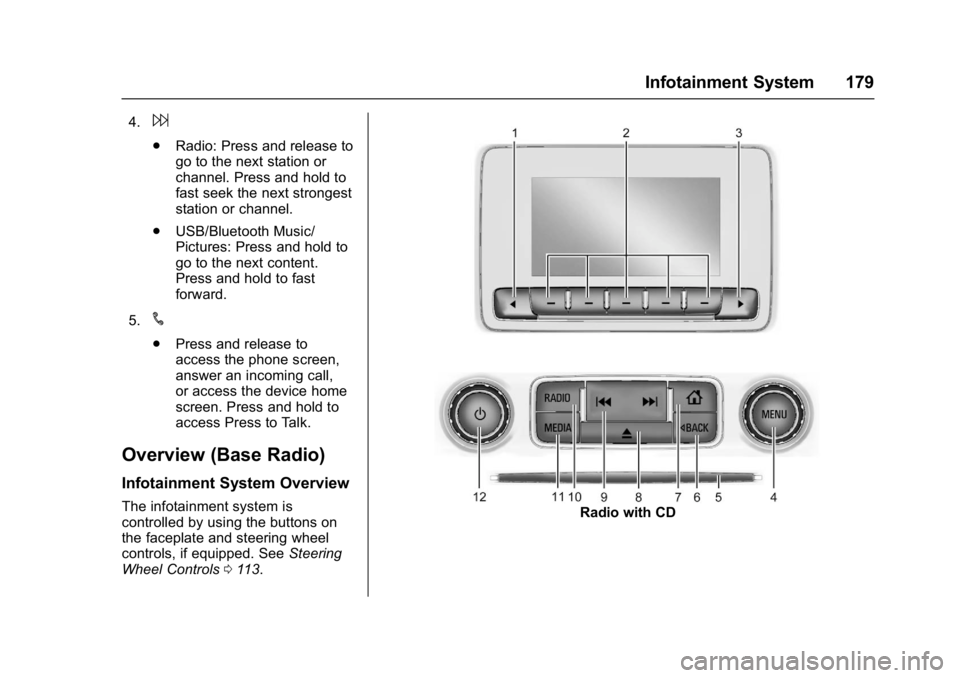
4.6
.Radio: Press and release to
go to the next station or
channel. Press and hold to
fast seek the next strongest
station or channel.
. USB/Bluetooth Music/
Pictures: Press and hold to
go to the next content.
Press and hold to fast
forward.
5.
#
. Press and release to
access the phone screen,
answer an incoming call,
or access the device home
screen. Press and hold to
access Press to Talk.
Overview (Base Radio)
Infotainment System Overview
The infotainment system is
controlled by using the buttons on
the faceplate and steering wheel
controls, if equipped. See Steering
Wheel Controls 0113.Radio with CD
Page 181 of 494
GMC Sierra/Sierra Denali Owner Manual (GMNA-Localizing-U.S./Canada/
Mexico-9955992) - 2017 - crc - 5/3/16
180 Infotainment System
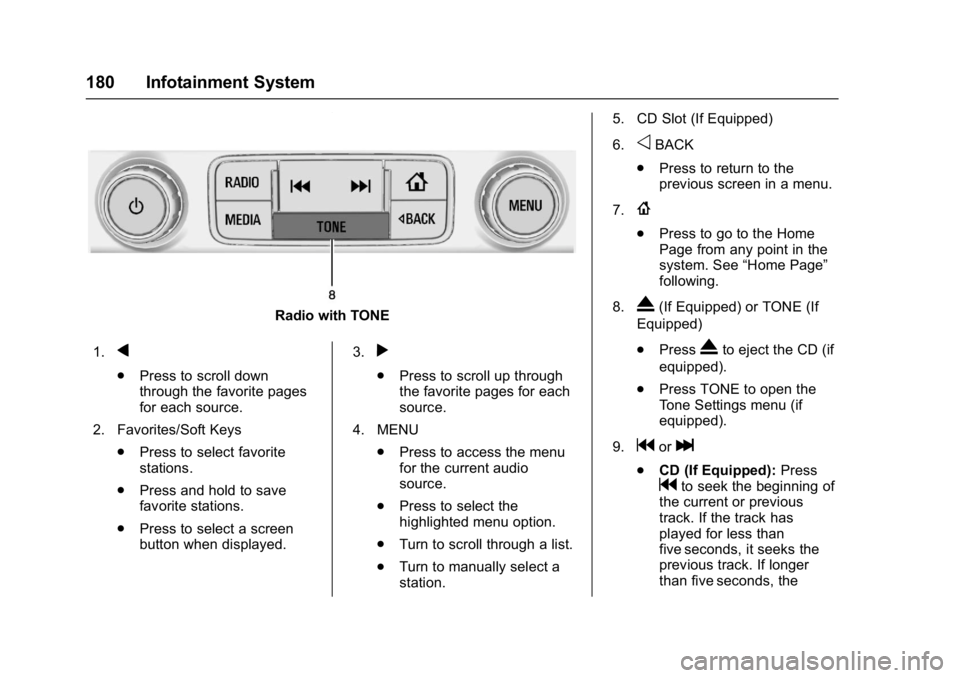
Radio with TONE
1.
q
. Press to scroll down
through the favorite pages
for each source.
2. Favorites/Soft Keys .Press to select favorite
stations.
. Press and hold to save
favorite stations.
. Press to select a screen
button when displayed. 3.
r
.
Press to scroll up through
the favorite pages for each
source.
4. MENU .Press to access the menu
for the current audio
source.
. Press to select the
highlighted menu option.
. Turn to scroll through a list.
. Turn to manually select a
station. 5. CD Slot (If Equipped)
6.
oBACK
. Press to return to the
previous screen in a menu.
7.
{
. Press to go to the Home
Page from any point in the
system. See “Home Page”
following.
8.
X(If Equipped) or TONE (If
Equipped)
. Press
Xto eject the CD (if
equipped).
. Press TONE to open the
Tone Settings menu (if
equipped).
9.
gorl
. CD (If Equipped): Press
gto seek the beginning of
the current or previous
track. If the track has
played for less than
five seconds, it seeks the
previous track. If longer
than five seconds, the
Page 182 of 494
GMC Sierra/Sierra Denali Owner Manual (GMNA-Localizing-U.S./Canada/
Mexico-9955992) - 2017 - crc - 5/3/16
Infotainment System 181
current track will start from
the beginning. Press
lto
seek the next track.
. AM, FM, or SiriusXM (If
Equipped): Press
gorl
to seek to the previous or
next strong station.
. CD (If Equipped): Press
and hold
gto quickly
reverse through a track.
Release the button to return
to playing speed. Press and
hold
lto fast forward
through a track. Release
the button to return to
playing speed.
10. RADIO .Press to change the audio
source between AM, FM,
or SiriusXM, if equipped.
11. MEDIA .Press to change the audio
source between CD, USB,
AUX, and Bluetooth Audio,
if equipped. 12.
O
.
Press to turn the audio on.
. Press and hold to turn it off.
. When on, press to mute the
system. Press again to
unmute.
. Turn to increase or
decrease the volume.
Home Page (Base Radio)
Home Page Features
The infotainment system displays a
Home Page that makes it easy to
access all of the applications. Turn
the MENU knob to highlight feature
icons. Press the MENU knob to
access the feature’s options.
Various functions are disabled when
the vehicle is moving.
AUDIO : Select the AUDIO screen
icon to display the active source
page. The sources available are
AM, FM, SiriusXM
®(if equipped),
USB/iPod, AUX Input, and Bluetooth Audio (if equipped). See
AM-FM
Radio (Base Radio with
Touchscreen) 0186 orAM-FM
Radio (Base Radio) 0184, Satellite
Radio (Base Radio) 0188 or
Satellite Radio (Base Radio with
Touchscreen) 0188, Auxiliary Jack
0 202, and Bluetooth Audio 0203.
PHONE : Select the PHONE screen
icon to display the Phone main
page. See Bluetooth (Voice
Recognition - Base Radio) 0216 or
Bluetooth (Infotainment Controls -
Base Radio) 0212 orBluetooth
(Overview) 0210 orBluetooth
(Infotainment Controls - Base Radio
with Touchscreen) 0220.
NAV (Navigation, If Equipped) :
Select the NAV screen icon to
display the OnStar Turn-by-Turn
Navigation. See OnStar Overview
0 471, if equipped.
SETTINGS : Select the SETTINGS
screen icon to display the Settings
main page. See “Setting Radio
Preferences” following.
Page 183 of 494
GMC Sierra/Sierra Denali Owner Manual (GMNA-Localizing-U.S./Canada/
Mexico-9955992) - 2017 - crc - 5/3/16
182 Infotainment System
Setting Radio Preferences
Select the SETTINGS screen icon
to display the Settings menu and
the following may display:
Time and Date :SeeClock 0115.
Language (Current Language) :
This will set the display language in
the radio and instrument cluster.
Select to display a list of languages.
Select
oBACK to go back to the
previous menu.
Valet Mode:
Using the circular numeric keypad,
enter a four-digit code:
1. Turn the MENU knob to highlight a number.
2. Press the MENU knob to select it. Do this for each one of the
four digits. Select Enter to go to
the confirmation screen.
3. Re-enter the four-digit code. Select LOCK to lock the
system. 4. Enter the four-digit code to
unlock the system. Select
o
BACK to go back to the
previous menu.
Radio : See“Radio Setup” later in
this section.
Vehicle : SeeVehicle
Personalization 0155.
Display : Press the MENU knob to
turn the display on or off.
Return to Factory Settings : See
“Return to Factory Settings” later in
this section.
Software Information (If
Equipped) : Press the MENU knob
to select Save Vehicle Info to USB.
Press the MENU knob again to start
downloading the vehicle information
to the USB. Radio Setup
Press the RADIO button and the
following may display:
Manage Favorites:
.
Turn the MENU knob and press
to select a favorite.
.To delete a favorite, press
the button just below the
DELETE screen button.
. To move a favorite, press the
MOVE screen button. Turn
the MENU knob to select a
new location, then press the
DROP screen button to
select the new location.
. Select
oBACK to go back to
the previous menu.
Number of Favorites Shown :
Select Auto and the system will
automatically adjust the number of
favorite pages when favorites are
added and removed, or select a
number from 5–25 to manually
adjust the number of favorites
shown.