2017 GMC ACADIA LIMITED buttons
[x] Cancel search: buttonsPage 124 of 339

GMC Acadia Limited Owner Manual (GMNA-Localizing-U.S.-10283134) -
2017 - crc - 3/30/16
Instruments and Controls 123
Metric
Format Three : This display
includes all the information in
Format One along with a circular
tachometer, but without outside air
temperature.
All formats will show the
Turn-By-Turn navigation information
and provide details about the next
driving maneuver to be made. When
you near your destination, the HUD
will display a distance bar that will
fill in the closer you get to your
destination. All navigation
information is provided to the HUD
by the navigation radio, if equipped.
Care of the HUD
Clean the inside of the windshield
as needed to remove any dirt or film
that could reduce the sharpness or
clarity of the HUD image. To clean the HUD lens, use a soft,
clean cloth that has household glass
cleaner sprayed on it. Wipe the
HUD lens gently, then dry it. Do not
spray cleaner directly on the lens
because the cleaner could leak into
the unit.
HUD Troubleshooting
Check that:
.
Nothing is covering the
HUD lens.
. HUD brightness setting is not
too dim or too bright.
. HUD is adjusted to the proper
height.
. Polarized sunglasses are
not worn.
. Windshield and HUD lens are
clean.
If the HUD image is not correct,
contact your dealer.
The windshield is part of the HUD
system. See Windshield
Replacement 0230.
Vehicle Messages
Messages are displayed on the DIC
to notify the driver that the status of
the vehicle has changed and that
some action may be needed by the
driver to correct the condition.
Multiple messages may appear one
after another.
Some messages may not require
immediate action, but you can press
any of the DIC buttons on the
instrument panel to acknowledge
that you received the messages and
to clear them from the display.
Some messages cannot be cleared
from the DIC display because they
are more urgent. These messages
require action before they can be
cleared. You should take any
messages that appear on the
display seriously and remember that
clearing the messages will only
make the messages disappear, not
correct the problem.
The following are the possible
messages that can be displayed
and some information about them.
Page 140 of 339

GMC Acadia Limited Owner Manual (GMNA-Localizing-U.S.-10283134) -
2017 - crc - 3/30/16
Instruments and Controls 139
Exiting the Feature
Settings Menu
The feature settings menu will be
exited when any of the following
occurs:
.The vehicle is shifted out of
P (Park).
. The vehicle is no longer in
ON/RUN.
. The trip/fuel or vehicle
information DIC buttons are
pressed.
. The end of the feature settings
menu is reached and exited.
. A 40-second time period has
elapsed with no selection made.
Universal Remote
System
See Radio Frequency
Statement 0314.
Universal Remote System
Programming
If equipped, these buttons are in the
overhead console.
This system can replace up to three
remote control transmitters used to
activate devices such as garage
door openers, security systems, and
home automation devices. These
instructions refer to a garage door
opener, but can be used for other
devices.
Do not use the Universal Remote
system with any garage door opener
that does not have the stop and reverse feature. This includes any
garage door opener model
manufactured before April 1, 1982.
Read these instructions completely
before programming the Universal
Remote system. It may help to have
another person assist with the
programming process.
Keep the original hand-held
transmitter for use in other vehicles
as well as for future programming.
Erase the programming when
vehicle ownership is terminated.
See
“Erasing Universal Remote
System Buttons” later in this
section.
To program a garage door opener,
park outside directly in line with and
facing the garage door opener
receiver. Clear all people and
objects near the garage door.
Make sure the hand-held transmitter
has a new battery for quicker and
more accurate transmission of the
radio-frequency signal.
Page 141 of 339
GMC Acadia Limited Owner Manual (GMNA-Localizing-U.S.-10283134) -
2017 - crc - 3/30/16
140 Instruments and Controls
Programming the Universal
Remote System
For questions or help programming
the Universal Remote system, call
1-800-355-3515 or see
www.homelink.com.
Programming involves
time-sensitive actions, and may time
out causing the procedure to be
repeated.
To program up to three devices:1. Hold the end of the hand-held transmitter about 3 to 8 cm (1
to 3 in) away from the
Universal Remote system
buttons with the indicator light
in view. The hand-held
transmitter was supplied by the
manufacturer of the garage
door opener receiver.
2. At the same time, press and hold both the hand-held
transmitter button and one of
the three Universal Remote
system buttons to be used to
operate the garage door. Do
not release either button until the indicator light changes from
a slow to a rapid flash. Then
release both buttons.
Some garage door openers
may require substitution of
Step 2 with the procedure
under
“Radio Signals for
Canada and Some Gate
Operators” later in this section.
3. Press and hold the newly programmed Universal Remote
system button for five seconds
while watching the indicator
light and garage door
activation.
.If the indicator light stays on
continuously or the garage
door moves when the
button is pressed, then
programming is complete.
There is no need to
complete Steps 4–6.
. If the indicator light does
not come on or the garage
door does not move, a
second button press may
be required. For a second
time, press and hold the
newly programmed button for five seconds. If the light
stays on or the garage door
moves, programming is
complete.
. If the indicator light blinks
rapidly for two seconds,
then changes to a solid light
and the garage door does
not move, continue with
programming Steps 4–6.
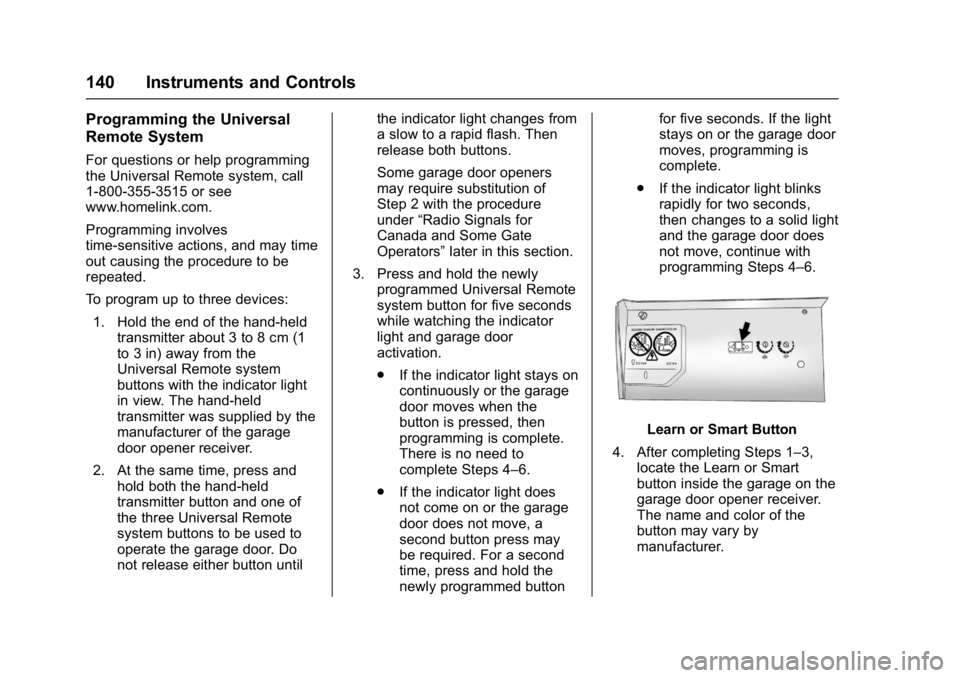
Learn or Smart Button
4. After completing Steps 1–3, locate the Learn or Smart
button inside the garage on the
garage door opener receiver.
The name and color of the
button may vary by
manufacturer.
Page 142 of 339
GMC Acadia Limited Owner Manual (GMNA-Localizing-U.S.-10283134) -
2017 - crc - 3/30/16
Instruments and Controls 141
5. Press and release the Learn orSmart button. Step 6 must be
completed within 30 seconds of
pressing this button.
6. Inside the vehicle, press and hold the newly programmed
Universal Remote system
button for two seconds, then
release it. If the garage door
does not move or the lamp on
the garage door opener
receiver does not flash, press
and hold the same button a
second time for two seconds,
then release it. Again, if the
door does not move or the
garage door lamp does not
flash, press and hold the same
button a third time for
two seconds, then release it.
The Universal Remote system
should now activate the
garage door.
Repeat the process for
programming the two remaining
buttons.Radio Signals for Canada and
Some Gate Operators
For questions or programming help,
call 1-800-355-3515 or see
www.homelink.com.
Canadian radio-frequency laws and
some U.S. gate operators require
transmitter signals to time out or quit
after several seconds of
transmission. This may not be long
enough for the Universal Remote
system to pick up the signal during
programming.
If the programming did not work,
replace Step 2 under “Programming
the Universal Remote System” with
the following:
Press and hold the Universal
Remote system button while
pressing and releasing the
hand-held transmitter button every
two seconds until the signal has
been successfully accepted by the
Universal Remote system. The
Universal Remote system indicator
light will flash slowly at first and then
rapidly. Proceed with Step 3 under
“Programming the Universal Remote
System” to complete.
Universal Remote System
Operation
Using the Universal Remote
System
Press and hold the appropriate
Universal Remote system button for
at least one-half second. The
indicator light will come on while the
signal is being transmitted.
Erasing Universal Remote
System Buttons
Erase all programmed buttons when
vehicle ownership is terminated.
To erase:
1. Press and hold the two outside buttons until the indicator light
begins to flash. This should
take about 10 seconds.
2. Release both buttons.
Page 143 of 339
GMC Acadia Limited Owner Manual (GMNA-Localizing-U.S.-10283134) -
2017 - crc - 3/30/16
142 Instruments and Controls
Reprogramming a Single
Universal Remote System
Button
To reprogram any of the system
buttons:1. Press and hold any one of the buttons. Do not release the
button.
2. The indicator light will begin to flash after 20 seconds. Without
releasing the button, proceed
with Step 1 under
“Programming the Universal
Remote System.”
Page 153 of 339

GMC Acadia Limited Owner Manual (GMNA-Localizing-U.S.-10283134) -
2017 - crc - 3/30/16
152 Climate Controls
Display Function
Each time the temperature, mode,
or fan controls are adjusted, the
climate control display shows that
function along with the inside
temperature setting. The outside
temperature is displayed on the
instrument cluster.
(:Turn clockwise or
counterclockwise to turn the climate
control system on or off.
The climate control system will also
turn on if the defrost, AUTO, or air
conditioning buttons are pressed.
Automatic Operation
The system automatically controls
the fan speed, air delivery, air
conditioning, and recirculation in
order to heat or cool the vehicle to
the desired temperature.
When AUTO is lit, all four functions
operate automatically. Each function
can also be manually set and the
setting is displayed. Functions not
manually set will continue to be
automatically controlled, even if the
AUTO indicator is not lit. For automatic operation:
1. Press AUTO.
When AUTO is selected, the
current temperature(s) is
displayed and the AUTO
indicator light is on.
When AUTO is selected, the
air conditioning and air inlet are
automatically controlled. The
air conditioning runs when the
outside temperature is over 4 °
C (40 °F). The system is
automatically set to outside air,
unless it is hot outside and
then the air inlet changes to
recirculation mode to help
quickly cool the vehicle. The
recirculation indicator light will
come on.
2. Set the temperature for the driver and passenger.
To find a comfortable setting,
start with a 22 °C (73 °F)
temperature setting and allow
about 20 minutes for the
system to regulate. Use the
driver side or passenger side
temperature control to adjust the temperature setting as
necessary. The system will
remain at the selected setting.
Choosing the warmest or
coolest temperatures does not
cause the vehicle to heat or
cool more quickly.
To avoid blowing cold air in
cold weather, the system
delays turning on the fan until
warm air is available. Turn the
fan knob to override this delay
and select the fan speed.
Temperature Control
The driver and passenger side
temperature controls are used to
adjust the temperature of the air
coming through the system. The
temperature can be adjusted even if
the system is turned off since
outside air still enters the vehicle,
unless the recirculation mode is
selected. See “Recirculation” later in
this section.
Driver Side Temperature
Control : Turn clockwise or
counterclockwise to increase or
decrease the driver side
Page 158 of 339

GMC Acadia Limited Owner Manual (GMNA-Localizing-U.S.-10283134) -
2017 - crc - 3/30/16
Climate Controls 157
Rear Climate Control System (with Rear Seat Audio)
1. Fan Control
2. Air Delivery Mode Control
3. Temperature Control
If equipped with the rear climate
control system, the controls are on
the rear of the center console.
Press the REAR button on the front
climate control system to control the
rear climate control system. The
system also turns on if any of the
rear controls, except
C, are
pressed. The display is activated
when the rear system is on. The system can also be turned off
by pressing
Cuntil the fan goes off.
Sync Mode : This mode matches
the rear climate control to the front
climate control settings. It comes on
when REAR is pressed.
Independent Mode : This mode
directs rear seating airflow
according to the settings of the rear
controls. It comes on when any rear
control is adjusted.
DandC: Press the fan up or down
buttons to increase or decrease the
fan speed. Temperature Control :
Press + or
− to increase or decrease the air
temperature. The temperature
settings will display in
0-12 increments, going from the
coolest (0) to the warmest (12)
setting.
N: Press to manually change the
direction of the airflow. Repeatedly
press the button until the desired
mode appears on the display.
H: Air is directed through the
overhead outlets.
): Air is directed through the rear
floor outlets, as well as the
overhead outlets.
6: Air is directed through the floor
outlets. The rear system floor
outlets are under the third row
seats.
Page 255 of 339
GMC Acadia Limited Owner Manual (GMNA-Localizing-U.S.-10283134) -
2017 - crc - 3/30/16
254 Vehicle Care
The TPMS sensor matching process
is outlined below:1. Set the parking brake.
2. Turn the ignition to ON/RUN with the engine off.
3. Press the Remote Keyless Entry (RKE) transmitter's
Q
andKbuttons at the same
time for approximately
five seconds. The horn sounds
twice to signal the receiver is in
relearn mode and TIRE
LEARNING ACTIVE message
displays on the DIC screen.
4. Start with the driver side front tire.
5. Place the relearn tool against the tire sidewall, near the valve
stem. Then press the button to
activate the TPMS sensor.
A horn chirp confirms that the
sensor identification code has
been matched to this tire and
wheel position. 6. Proceed to the passenger side
front tire, and repeat the
procedure in Step 5.
7. Proceed to the passenger side rear tire, and repeat the
procedure in Step 5.
8. Proceed to the driver side rear tire, and repeat the procedure
in Step 5. The horn sounds two
times to indicate the sensor
identification code has been
matched to the driver side rear
tire, and the TPMS sensor
matching process is no longer
active. The TIRE LEARNING
ACTIVE message on the DIC
display screen goes off.
9. Turn the ignition to LOCK/OFF.
10. Set all four tires to the recommended air pressure
level as indicated on the Tire
and Loading Information label.
11. Put the valve caps back on the valve stems.
Tire Inspection
We recommend that the tires,
including the spare tire, if the
vehicle has one, be inspected
for signs of wear or damage at
least once a month.
Replace the tire if:
.The indicators at three or
more places around the tire
can be seen.
.There is cord or fabric
showing through the tire's
rubber.
.The tread or sidewall is
cracked, cut, or snagged
deep enough to show cord or
fabric.
.The tire has a bump, bulge,
or split.
.The tire has a puncture, cut,
or other damage that cannot
be repaired well because of
the size or location of the
damage.