2017 FORD SUPER DUTY wheel
[x] Cancel search: wheelPage 273 of 636
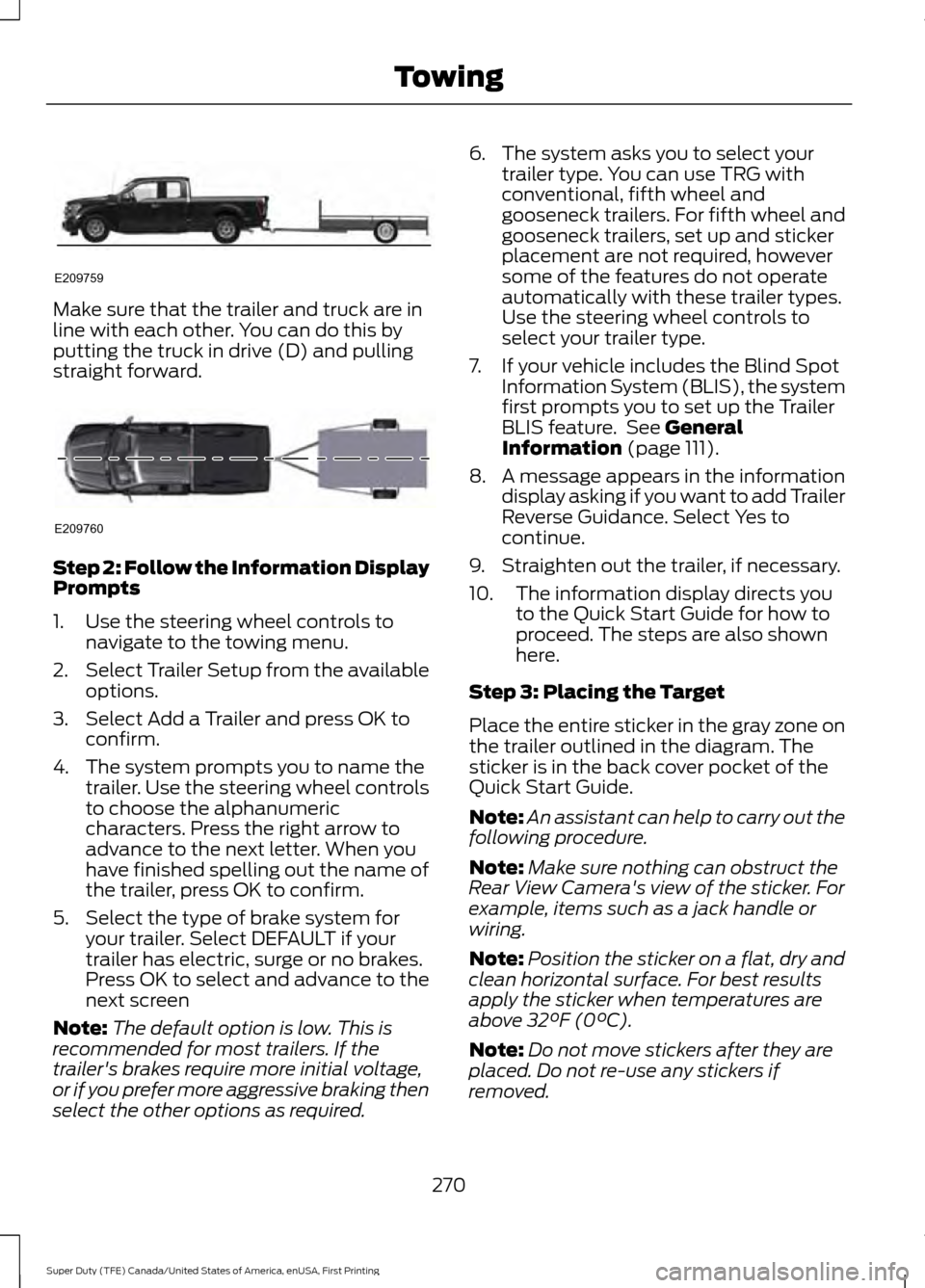
Make sure that the trailer and truck are in
line with each other. You can do this by
putting the truck in drive (D) and pulling
straight forward.
Step 2: Follow the Information Display
Prompts
1. Use the steering wheel controls to
navigate to the towing menu.
2. Select Trailer Setup from the available
options.
3. Select Add a Trailer and press OK to confirm.
4. The system prompts you to name the trailer. Use the steering wheel controls
to choose the alphanumeric
characters. Press the right arrow to
advance to the next letter. When you
have finished spelling out the name of
the trailer, press OK to confirm.
5. Select the type of brake system for your trailer. Select DEFAULT if your
trailer has electric, surge or no brakes.
Press OK to select and advance to the
next screen
Note: The default option is low. This is
recommended for most trailers. If the
trailer's brakes require more initial voltage,
or if you prefer more aggressive braking then
select the other options as required. 6. The system asks you to select your
trailer type. You can use TRG with
conventional, fifth wheel and
gooseneck trailers. For fifth wheel and
gooseneck trailers, set up and sticker
placement are not required, however
some of the features do not operate
automatically with these trailer types.
Use the steering wheel controls to
select your trailer type.
7. If your vehicle includes the Blind Spot Information System (BLIS), the system
first prompts you to set up the Trailer
BLIS feature. See General
Information (page 111).
8. A message appears in the information display asking if you want to add Trailer
Reverse Guidance. Select Yes to
continue.
9. Straighten out the trailer, if necessary.
10. The information display directs you to the Quick Start Guide for how to
proceed. The steps are also shown
here.
Step 3: Placing the Target
Place the entire sticker in the gray zone on
the trailer outlined in the diagram. The
sticker is in the back cover pocket of the
Quick Start Guide.
Note: An assistant can help to carry out the
following procedure.
Note: Make sure nothing can obstruct the
Rear View Camera's view of the sticker. For
example, items such as a jack handle or
wiring.
Note: Position the sticker on a flat, dry and
clean horizontal surface. For best results
apply the sticker when temperatures are
above
32°F (0°C).
Note: Do not move stickers after they are
placed. Do not re-use any stickers if
removed.
270
Super Duty (TFE) Canada/United States of America, enUSA, First Printing TowingE209759 E209760
Page 275 of 636
Step 5: Enter Measurements Using the
Information Display
Using the recorded measurements, enter
the required data into the system. Follow
the on screen prompts to enter each of the
measurements taken in step 4. Use the
up/down arrows to increase or decrease
the numbers as needed. Press OK to
confirm each measurement. The screen
prompts you to add the next
measurement. Once you add your last
measurement, the information display
shows you all of your entered
measurements. You can choose to confirm
or change the measurements.
Step 6: Confirming the Sticker Location
Check the Rear View Camera display to
see if the sticker is identified by the system
and marked with a red circle.
Confirm that the red circle is correctly
located over the sticker image in the
display. The on screen prompt will ask you
to confirm this.
Note:
If the system cannot locate the
sticker try cleaning the camera lens, and
also make sure the sticker is within the zone
as indicated in step 3.
The information display shows a
confirmation message when you
successfully confirm the target.
Calibrating the System
To complete setup, drive your vehicle
straight forward between 4 mph (6 km/h)
and 24 mph (39 km/h) as directed by the
information display.
Note: Keep the steering wheel straight
during the calibration process. If the steering
wheel is in a turned position, then the
calibration pauses. The information display
prompts you to drive straight forward to
complete the calibration. The information display shows a message
during calibration and after calibration is
complete
Note:
For best results, we do not
recommend that you calibrate the system
at night.
Using Trailer Reverse Guidance
1. Shift into reverse (R) if you are not already in reverse. Press the rear
camera button to expand the menu.
2. Press the trailer icon .
3. Select your trailer on your information display.
4. While in TRG mode, you can see the camera view on the side where your
trailer is moving, or both sides when
the trailer is straight behind you. When
the views change with the trailer
direction, it's called Auto Mode. For
example, If you turn the trailer to the
right, then you see the right side of your
vehicle and trailer. You can switch this
view manually at any time by using the
arrow keys. To return to Auto Mode,
press the Auto button.
Note: Auto Mode is your default setting.
Use the view that helps you the most while
backing up your vehicle and trailer. Normal rear view camera view.
Use this feature when you want
to see your trailer hitch or what
is directly behind your vehicle. Straight back-up mode. Use this
feature when you want to keep
your trailer completely in line
with your truck. In this mode, a steering
wheel graphic shows you which way to turn
your steering wheel to keep your trailer
straight.
272
Super Duty (TFE) Canada/United States of America, enUSA, First Printing TowingE224483 E224484
Page 276 of 636
Note:
It may be helpful to shift your vehicle
into drive (D), pull forward and straighten
out the vehicle and trailer before engaging
Straight Backup Mode.
Left and right arrows let you see other
views regardless of your trailer angle. Use
them to switch views manually.
Note: If you're using a Fifth Wheel or
Gooseneck trailer, or you haven't set up the
Trailer Reverse Guidance System yet, Auto
View is not available.
To change your view, use the arrows. You
can see the following views:
• Full driver
• Partial driver
• 50/50
• Partial passenger
• Full passenger Zoom. Use this feature to zoom
in on any view.
Return. Ths feature takes you
back to the 360-degree camera
system and out of the Trailer
Reverse Guidance feature. Auto. Ths feature returns you to
automatic view mode.
In addition to multiple view options, your
touchscreen adds some features to give
you more information.
After using the set up for a conventional
trailer, for example, the display always
shows you a small, top-view
representation of your truck and trailer.
This representation shows two,
different-colored lines: A black line shows
you where your trailer is in relation to your
vehicle. A white line gives you a projection
of where your trailer will go based on your
current steering wheel position Note:
When you move the steering wheel,
the white line indicates where the trailer will
go based on your steering wheel input.
When you turn your steering wheel to the
left, the trailer moves to the right; when you
turn your steering wheel to the right, the
trailer moves to the left.
When you turn the wheel, the small
representation shows you two zones to
warn you of a possible jackknife condition.
The view shows you your truck and trailer
position and provides visual feedback to
help you avoid jackknifing entirely.
The yellow zone warns you of a potential
jackknife position. When you enter into this
zone, it's best to put your vehicle back into
drive (D) and pull forward. Moving forward
helps put the truck and trailer back into an
in-line position.
The RED zone indicates that you need to
put the truck into drive (D) and pull
forward immediately.
Troubleshooting
Note: The system requires a clear view of
the sticker placed on the trailer. You must
keep the camera lens and sticker clean for
the system to operate correctly.
Setup
The system is designed to be used with a
wide variety of trailers. However there are
some trailers that do not have a proper
surface and location to mount the sticker.
These trailers are not supported. Attempts
to place the sticker on a surface that does
not meet the sticker placement
requirement listed in Step 3 of the setup
instruction or entering inaccurate
measurements to proceed through setup
can result in improper system function.
273
Super Duty (TFE) Canada/United States of America, enUSA, First Printing TowingE224485 E224487 E224486
Page 279 of 636
Sticker lost:
•
Check for the following if you receive
the lost sticker message while using
the system.
•Stop your vehicle as soon as the
message displays.
• Make sure the sticker is visible in
the rear view camera image.
• Clean the sticker and camera to
make sure they are unobstructed.
• Remove any items that may be
blocking the view of the sticker.
Depending on your trailer
configuration and any equipment
mounted to your trailer it is possible
for the sticker to be blocked from
view of the camera as it rotates on
the hitch ball but not be blocked
during setup. Remove the
obstruction if possible. It will be necessary to remove the sticker
from it’
s current location if the
obstruction cannot be cleared and
place a new sticker that will be
visible to the camera in all positions
of the trailer behind your vehicle.
• You can change your sticker
location by going into the trailer
menu, selecting trailer options,
selecting change trailer settings
and then selecting the change
sticker option. The previous sticker
must be removed. ONLY ONE
STICKER SHOULD BE PLACED
ON THE TRAILER FOR CORRECT
SYSTEM FUNCTION.
• The camera system uses the
entered measurements to help
locate the sticker. Inaccurate
measurements will reduce the
system ’s ability to locate the
sticker. Check the measurements
entered into the system are correct.
Refer to the step 4 of Trailer
Reverse Guidance setup for
instructions on measurements.
• You can change your measurement
by going into the trailer menu,
selecting trailer options, selecting
change trailer setting and then
selecting the change sticker option.
Disregard the prompt to remove
this sticker and continue to the next
step if you only plan to update the
measurements for the current
sticker location.
System will not backup straight:
• Factors such as the drawbar
connection to the hitch receiver, road
camber, road grade and compliance in
the trailer suspension can influence
how straight the system is able to back
your trailer when the wheel is not
turned. You can compensate for the
trailer drifting to the right or left by
276
Super Duty (TFE) Canada/United States of America, enUSA, First Printing Towing
Page 280 of 636
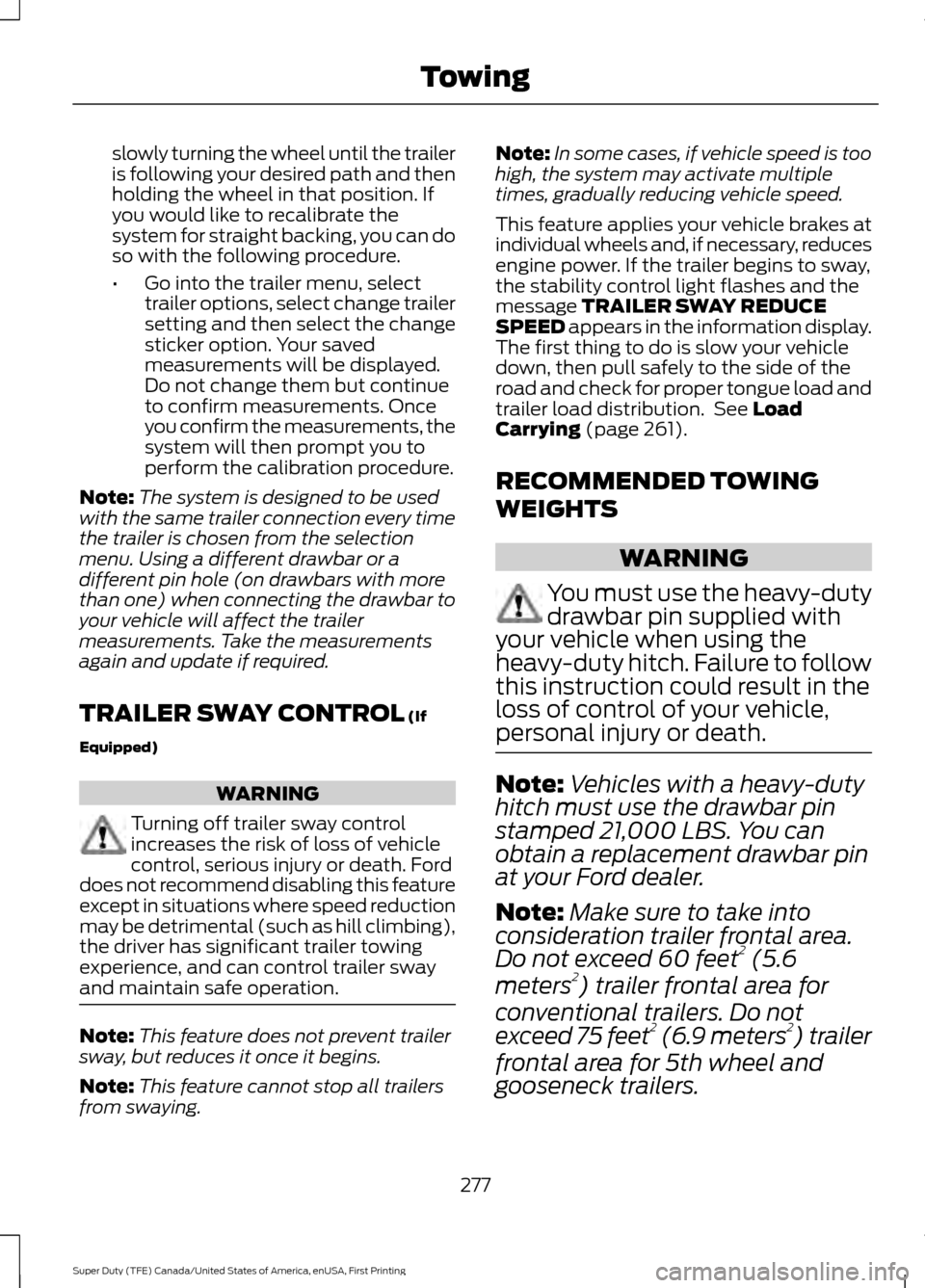
slowly turning the wheel until the trailer
is following your desired path and then
holding the wheel in that position. If
you would like to recalibrate the
system for straight backing, you can do
so with the following procedure.
•
Go into the trailer menu, select
trailer options, select change trailer
setting and then select the change
sticker option. Your saved
measurements will be displayed.
Do not change them but continue
to confirm measurements. Once
you confirm the measurements, the
system will then prompt you to
perform the calibration procedure.
Note: The system is designed to be used
with the same trailer connection every time
the trailer is chosen from the selection
menu. Using a different drawbar or a
different pin hole (on drawbars with more
than one) when connecting the drawbar to
your vehicle will affect the trailer
measurements. Take the measurements
again and update if required.
TRAILER SWAY CONTROL (If
Equipped) WARNING
Turning off trailer sway control
increases the risk of loss of vehicle
control, serious injury or death. Ford
does not recommend disabling this feature
except in situations where speed reduction
may be detrimental (such as hill climbing),
the driver has significant trailer towing
experience, and can control trailer sway
and maintain safe operation. Note:
This feature does not prevent trailer
sway, but reduces it once it begins.
Note: This feature cannot stop all trailers
from swaying. Note:
In some cases, if vehicle speed is too
high, the system may activate multiple
times, gradually reducing vehicle speed.
This feature applies your vehicle brakes at
individual wheels and, if necessary, reduces
engine power. If the trailer begins to sway,
the stability control light flashes and the
message
TRAILER SWAY REDUCE
SPEED appears in the information display.
The first thing to do is slow your vehicle
down, then pull safely to the side of the
road and check for proper tongue load and
trailer load distribution. See
Load
Carrying (page 261).
RECOMMENDED TOWING
WEIGHTS WARNING
You must use the heavy-duty
drawbar pin supplied with
your vehicle when using the
heavy-duty hitch. Failure to follow
this instruction could result in the
loss of control of your vehicle,
personal injury or death. Note:
Vehicles with a heavy-duty
hitch must use the drawbar pin
stamped 21,000 LBS. You can
obtain a replacement drawbar pin
at your Ford dealer.
Note: Make sure to take into
consideration trailer frontal area.
Do not exceed 60 feet 2
(5.6
meters 2
) trailer frontal area for
conventional trailers. Do not
exceed 75 feet 2
(6.9 meters 2
) trailer
frontal area for 5th wheel and
gooseneck trailers.
277
Super Duty (TFE) Canada/United States of America, enUSA, First Printing Towing
Page 281 of 636
Note:
Exceeding this limitation
may significantly reduce the
performance of your towing
vehicle. Selecting a trailer with a
low aerodynamic drag and rounded
front design helps optimize
performance and fuel economy.
Note: For high altitude operation,
reduce the gross combined weight
by 2% per 1000 feet (300 meters)
starting at the 1000 foot (300
meter) elevation point. Note:
Certain states require
electric trailer brakes for trailers
over a specified weight. Be sure to
check state regulations for this
specified weight. The maximum
trailer weights listed may be limited
to this specified weight, as your
vehicle's electrical system may not
include the wiring connector
needed to use electric trailer
brakes.
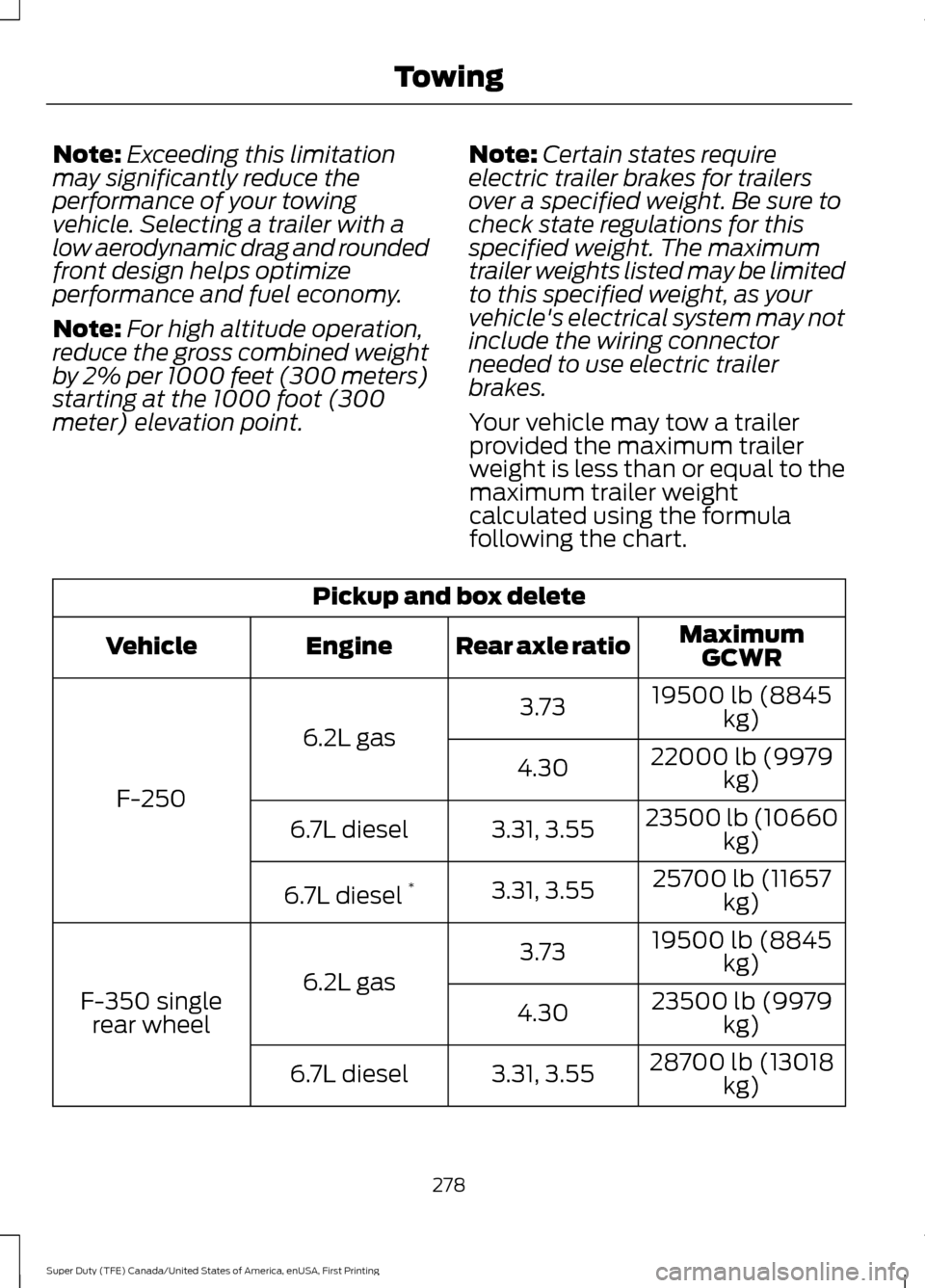
Your vehicle may tow a trailer
provided the maximum trailer
weight is less than or equal to the
maximum trailer weight
calculated using the formula
following the chart. Pickup and box delete
MaximumGCWR
Rear axle ratio
Engine
Vehicle
19500 lb (8845kg)
3.73
6.2L gas
F-250 22000 lb (9979
kg)
4.30
23500 lb (10660kg)
3.31, 3.55
6.7L diesel
25700 lb (11657kg)
3.31, 3.55
6.7L diesel *
19500 lb (8845kg)
3.73
6.2L gas
F-350 single
rear wheel 23500 lb (9979
kg)
4.30
28700 lb (13018kg)
3.31, 3.55
6.7L diesel
278
Super Duty (TFE) Canada/United States of America, enUSA, First Printing Towing
Page 282 of 636
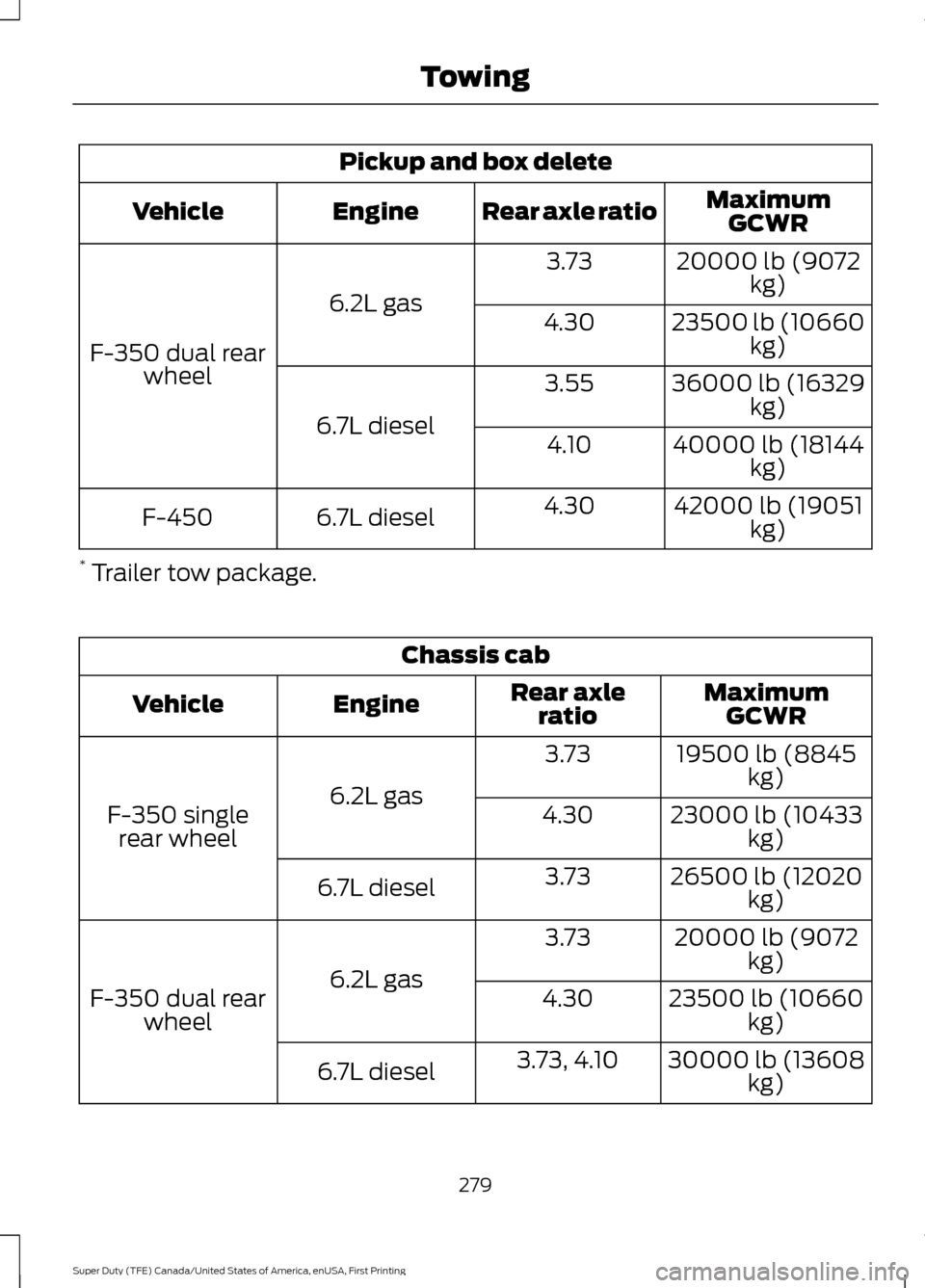
Pickup and box delete
MaximumGCWR
Rear axle ratio
Engine
Vehicle
20000 lb (9072kg)
3.73
6.2L gas
F-350 dual rear wheel 23500 lb (10660
kg)
4.30
36000 lb (16329kg)
3.55
6.7L diesel 40000 lb (18144
kg)
4.10
42000 lb (19051kg)
4.30
6.7L diesel
F-450
* Trailer tow package. Chassis cab
MaximumGCWR
Rear axle
ratio
Engine
Vehicle
19500 lb (8845kg)
3.73
6.2L gas
F-350 single
rear wheel 23000 lb (10433
kg)
4.30
26500 lb (12020kg)
3.73
6.7L diesel
20000 lb (9072kg)
3.73
6.2L gas
F-350 dual rear
wheel 23500 lb (10660
kg)
4.30
30000 lb (13608kg)
3.73, 4.10
6.7L diesel
279
Super Duty (TFE) Canada/United States of America, enUSA, First Printing Towing
Page 283 of 636
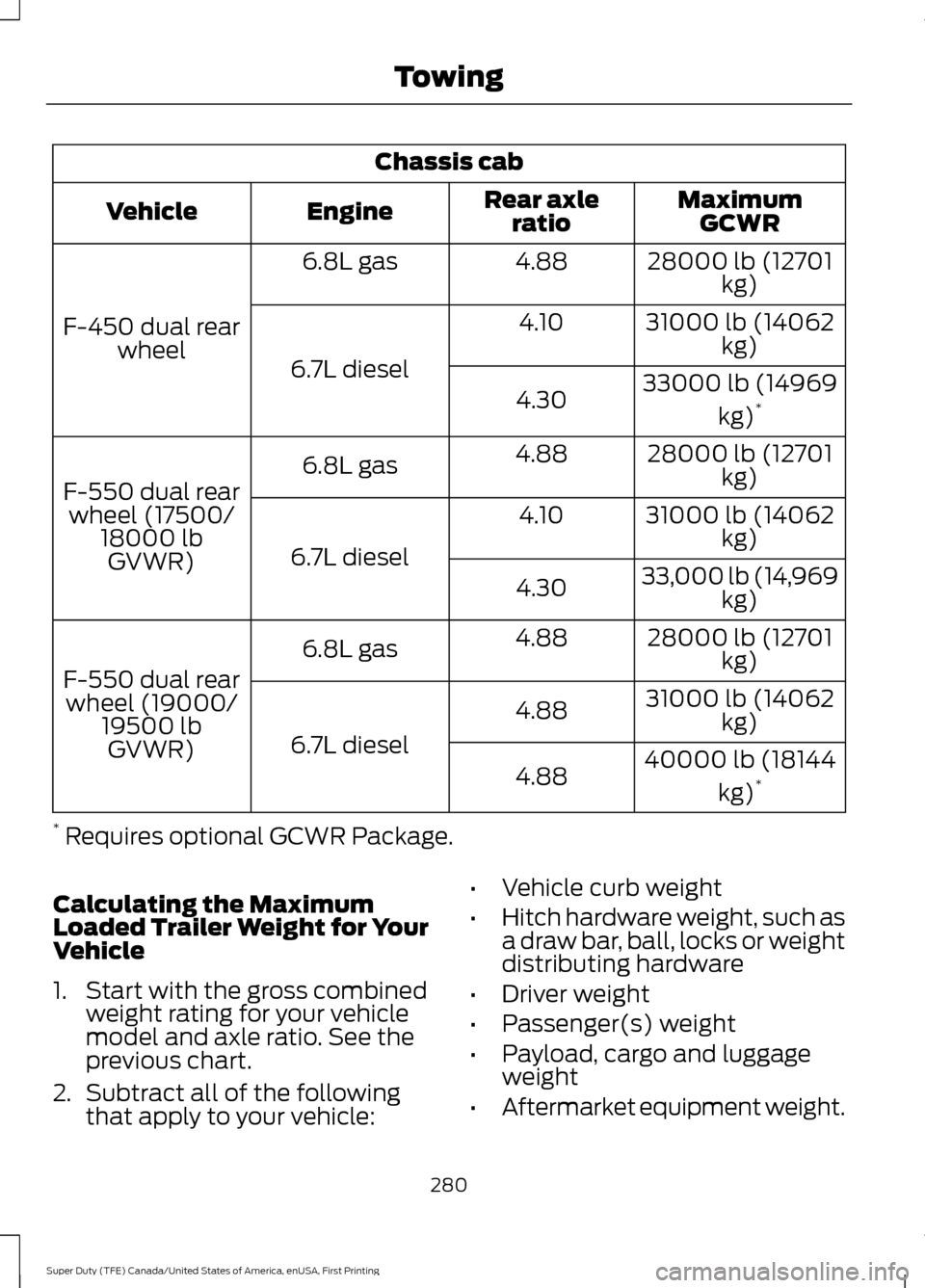
Chassis cab
MaximumGCWR
Rear axle
ratio
Engine
Vehicle
28000 lb (12701kg)
4.88
6.8L gas
F-450 dual rear wheel 31000 lb (14062
kg)
4.10
6.7L diesel 33000 lb (14969
kg)*
4.30
28000 lb (12701kg)
4.88
6.8L gas
F-550 dual rear wheel (17500/ 18000 lbGVWR) 31000 lb (14062
kg)
4.10
6.7L diesel 33,000 lb (14,969
kg)
4.30
28000 lb (12701kg)
4.88
6.8L gas
F-550 dual rear wheel (19000/ 19500 lbGVWR) 31000 lb (14062
kg)
4.88
6.7L diesel 40000 lb (18144
kg)*
4.88
* Requires optional GCWR Package.
Calculating the Maximum
Loaded Trailer Weight for Your
Vehicle
1. Start with the gross combined weight rating for your vehicle
model and axle ratio. See the
previous chart.
2. Subtract all of the following
that apply to your vehicle: •
Vehicle curb weight
• Hitch hardware weight, such as
a draw bar, ball, locks or weight
distributing hardware
• Driver weight
• Passenger(s) weight
• Payload, cargo and luggage
weight
• Aftermarket equipment weight.
280
Super Duty (TFE) Canada/United States of America, enUSA, First Printing Towing