2017 FORD POLICE INTERCEPTOR SEDAN display
[x] Cancel search: displayPage 271 of 358

Press the phone button to enter the Phone Menu, then scroll to:
Action and Description
Message
Press the OK button to redial the last number called.
PHONE REDIAL
Press the OK button again to confirm.
Access any previously dialed, received or missed calls after you
connect your Bluetooth-enabled cell phone to SYNC. 1
PHONE REDIAL
Press the
OK button then select one of the following and press the
OK button again to confirm.
INCOMING
OUTGOING
MISSED
The system attempts to automatically re-download your phonebook
and call history each time your cell phone connects to SYNC (if the
auto download feature is on and your Bluetooth-enabled cell phone
supports this feature).
To browse your phonebook select:
PHONEBOOK
Press
OK. Scroll down or up to the
desired name and press OK.
BROWSE
In addition to the Phonebook entry
name, the phone number label (Work, Cell, Home or Other) shows on thedisplay. If there are multiple phone
number entries for a particular Phone-
book name, you can scroll through the different phone labels at this time.
Once you have the desired phone label on the screen press
OK. The phone
number that is stored under the
selected label will be shown on the
display. Press
OK to dial this number.
To search for a contact in your phone book select: Press
OK.
SEARCH
Scroll down until you see the first letterof your phonebook entry. Press
OK.
Scroll down until you see the second
letter of your desired phonebook entry. Press
OK.
268
Taurus (CPH) Police, Canada/United States of America, enUSA, First Printing SYNC™
Page 272 of 358
Action and Description
Message
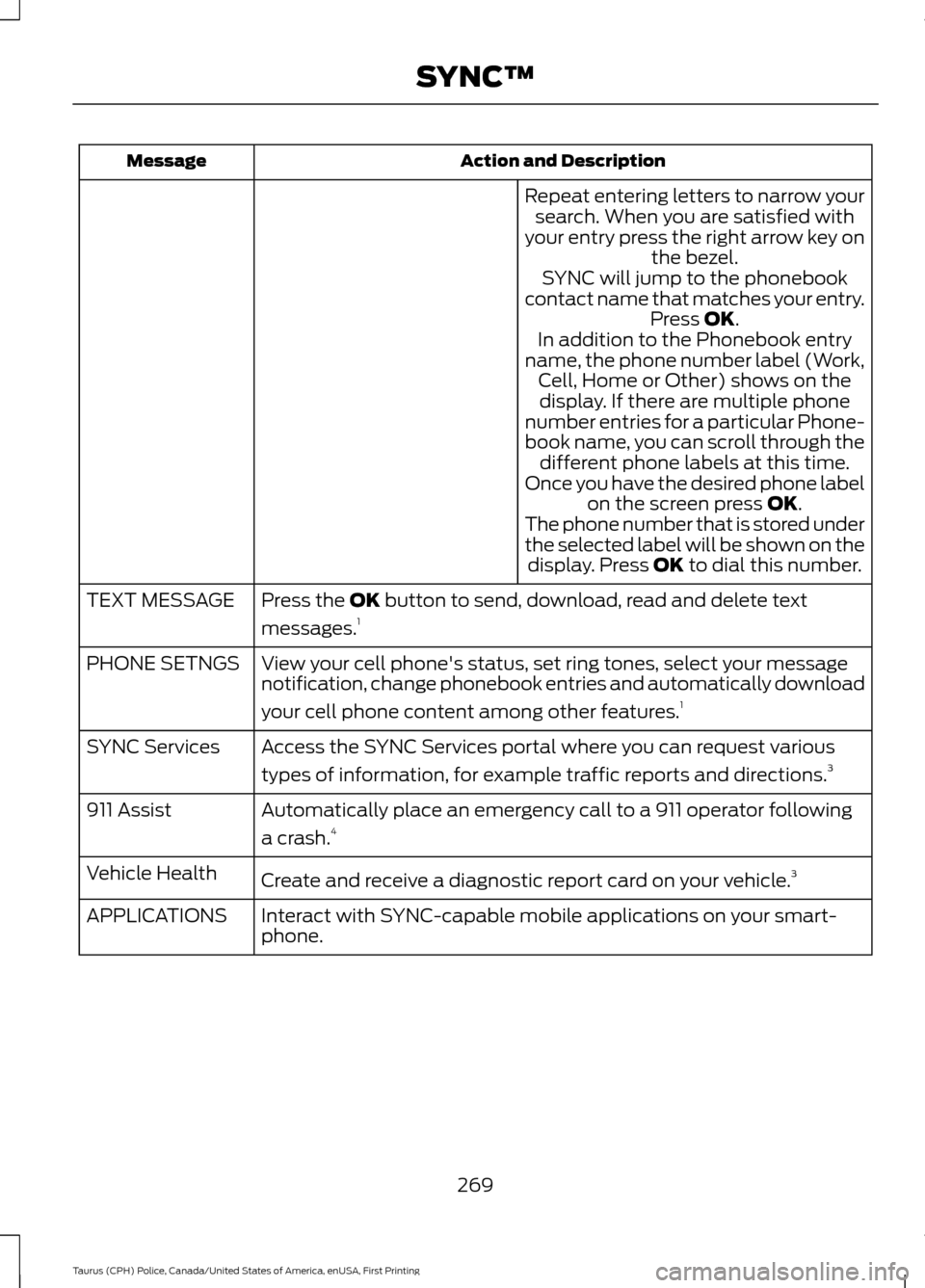
Repeat entering letters to narrow yoursearch. When you are satisfied with
your entry press the right arrow key on the bezel.
SYNC will jump to the phonebook
contact name that matches your entry. Press OK.
In addition to the Phonebook entry
name, the phone number label (Work, Cell, Home or Other) shows on thedisplay. If there are multiple phone
number entries for a particular Phone-
book name, you can scroll through the different phone labels at this time.
Once you have the desired phone label on the screen press
OK.
The phone number that is stored under
the selected label will be shown on the display. Press
OK to dial this number.
Press the
OK button to send, download, read and delete text
messages. 1
TEXT MESSAGE
View your cell phone's status, set ring tones, select your message
notification, change phonebook entries and automatically download
your cell phone content among other features. 1
PHONE SETNGS
Access the SYNC Services portal where you can request various
types of information, for example traffic reports and directions. 3
SYNC Services
Automatically place an emergency call to a 911 operator following
a crash.4
911 Assist
Create and receive a diagnostic report card on your vehicle. 3
Vehicle Health
Interact with SYNC-capable mobile applications on your smart-
phone.
APPLICATIONS
269
Taurus (CPH) Police, Canada/United States of America, enUSA, First Printing SYNC™
Page 273 of 358

Action and Description
Message
Access Bluetooth Devices menu listings and advanced menu listings.
SYS SETTINGS
Press the OK button to exit the phone menu.
EXIT MENU
1 This is a cell phone-dependent feature.
2 This is a cell phone-dependent and speed-dependent feature.
3 This is an optional feature and available in the United States only.
4 This is an optional feature and available in the United States and Canada only.
Text Messaging
Note: This is a cell phone-dependent
feature.
SYNC allows you to receive, send,
download and delete text messages. The
system can also read incoming text
messages to you so that you do not have
to take your eyes off the road.
Receiving a Text Message
Note: This is a cell phone-dependent
feature. Your cell phone must support
downloading text messages using Bluetooth
to receive incoming text messages. Note:
Forwarding a text message is a
speed-dependent feature. It is only available
when your vehicle is traveling at 3 mph (5
km/h) or less.
Note: Only one recipient is allowed per text
message.
When a new text message arrives, an
audible tone sounds and the information
display indicates you have a new message.
Following the notification you can do
any of the following:
Do nothing to have the message go into
your text message inbox.
To have SYNC read you the message using voice commands, press the voice
button and when prompted say: Action and Description
Voice Command
SYNC will read the most recent text message to you.
Read Message | Read
Text Message | Text
Message
To open the test message, press OK to
receive and open the text message. Press
OK again and SYNC reads your message
aloud as you are not able to view the
message. You can then also choose
whether you’ d like to reply or forward the
message.
270
Taurus (CPH) Police, Canada/United States of America, enUSA, First Printing SYNC™
Page 275 of 358
Action and Description
Message
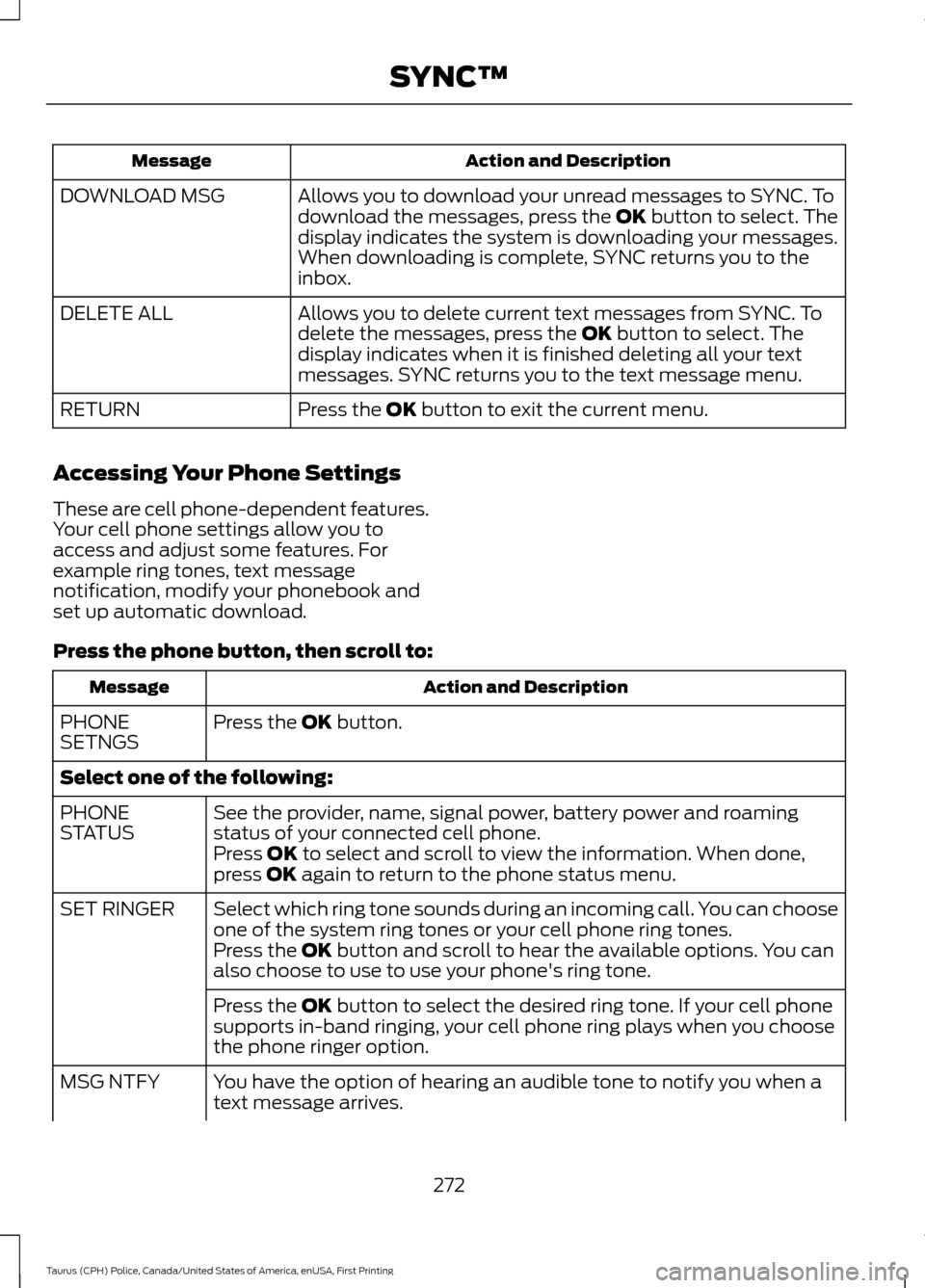
Allows you to download your unread messages to SYNC. To
download the messages, press the OK button to select. The
display indicates the system is downloading your messages.
When downloading is complete, SYNC returns you to the
inbox.
DOWNLOAD MSG
Allows you to delete current text messages from SYNC. To
delete the messages, press the
OK button to select. The
display indicates when it is finished deleting all your text
messages. SYNC returns you to the text message menu.
DELETE ALL
Press the
OK button to exit the current menu.
RETURN
Accessing Your Phone Settings
These are cell phone-dependent features.
Your cell phone settings allow you to
access and adjust some features. For
example ring tones, text message
notification, modify your phonebook and
set up automatic download.
Press the phone button, then scroll to: Action and Description
Message
Press the
OK button.
PHONE
SETNGS
Select one of the following:
See the provider, name, signal power, battery power and roaming
status of your connected cell phone.
PHONE
STATUS
Press
OK to select and scroll to view the information. When done,
press OK again to return to the phone status menu.
Select which ring tone sounds during an incoming call. You can choose
one of the system ring tones or your cell phone ring tones.
SET RINGER
Press the
OK button and scroll to hear the available options. You can
also choose to use to use your phone's ring tone.
Press the
OK button to select the desired ring tone. If your cell phone
supports in-band ringing, your cell phone ring plays when you choose
the phone ringer option.
You have the option of hearing an audible tone to notify you when a
text message arrives.
MSG NTFY
272
Taurus (CPH) Police, Canada/United States of America, enUSA, First Printing SYNC™
Page 276 of 358
Action and Description
Message
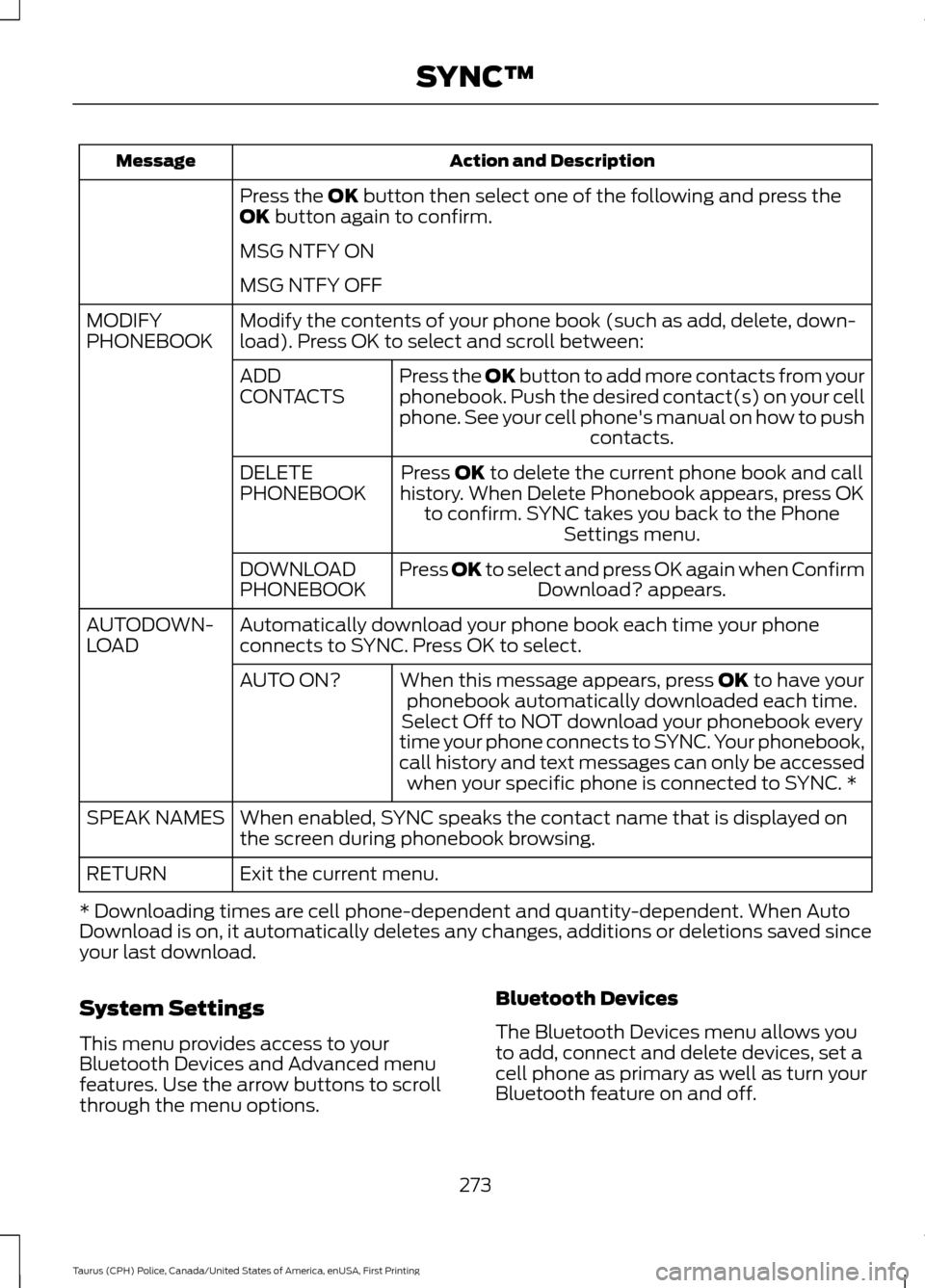
Press the OK button then select one of the following and press the
OK button again to confirm.
MSG NTFY ON
MSG NTFY OFF
Modify the contents of your phone book (such as add, delete, down-
load). Press OK to select and scroll between:
MODIFY
PHONEBOOK
Press the
OK button to add more contacts from your
phonebook. Push the desired contact(s) on your cell
phone. See your cell phone's manual on how to push contacts.
ADD
CONTACTS
Press
OK to delete the current phone book and call
history. When Delete Phonebook appears, press OK to confirm. SYNC takes you back to the Phone Settings menu.
DELETE
PHONEBOOK
Press
OK to select and press OK again when ConfirmDownload? appears.
DOWNLOAD
PHONEBOOK
Automatically download your phone book each time your phone
connects to SYNC. Press OK to select.
AUTODOWN-
LOAD
When this message appears, press
OK to have your
phonebook automatically downloaded each time.
AUTO ON?
Select Off to NOT download your phonebook every
time your phone connects to SYNC. Your phonebook,
call history and text messages can only be accessed when your specific phone is connected to SYNC. *
When enabled, SYNC speaks the contact name that is displayed on
the screen during phonebook browsing.
SPEAK NAMES
Exit the current menu.
RETURN
* Downloading times are cell phone-dependent and quantity-dependent. When Auto
Download is on, it automatically deletes any changes, additions or deletions saved since
your last download.
System Settings
This menu provides access to your
Bluetooth Devices and Advanced menu
features. Use the arrow buttons to scroll
through the menu options. Bluetooth Devices
The Bluetooth Devices menu allows you
to add, connect and delete devices, set a
cell phone as primary as well as turn your
Bluetooth feature on and off.
273
Taurus (CPH) Police, Canada/United States of America, enUSA, First Printing SYNC™
Page 278 of 358
Advanced
The Advanced menu allows you to access
and set prompts, languages, defaults,
perform a master reset, install an
application and view system information.
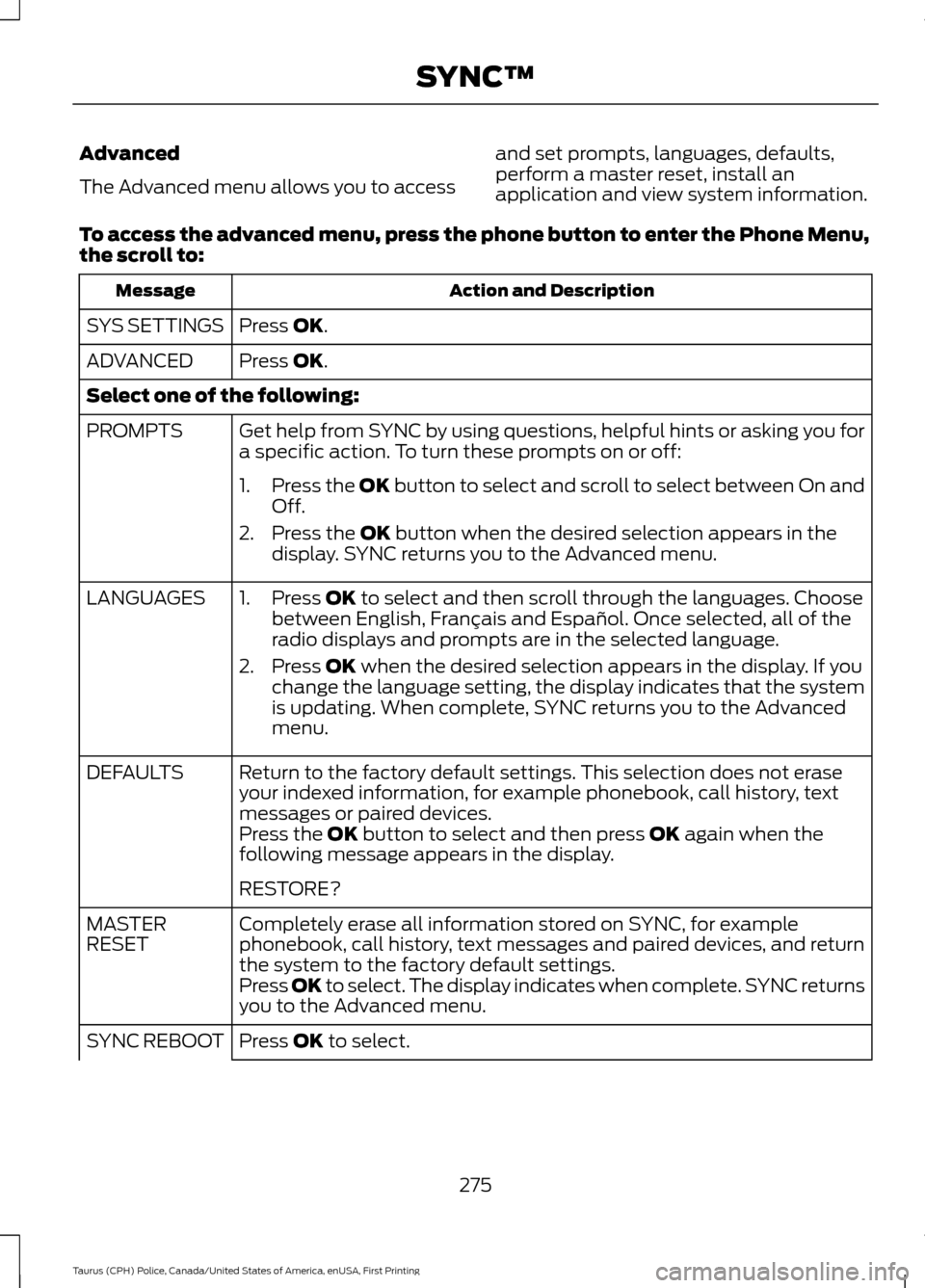
To access the advanced menu, press the phone button to enter the Phone Menu,
the scroll to: Action and Description
Message
Press OK.
SYS SETTINGS
Press
OK.
ADVANCED
Select one of the following:
Get help from SYNC by using questions, helpful hints or asking you for
a specific action. To turn these prompts on or off:
PROMPTS
1.Press the
OK button to select and scroll to select between On and
Off.
2. Press the
OK button when the desired selection appears in the
display. SYNC returns you to the Advanced menu.
1. Press
OK to select and then scroll through the languages. Choose
between English, Français and Español. Once selected, all of the
radio displays and prompts are in the selected language.
2. Press
OK when the desired selection appears in the display. If you
change the language setting, the display indicates that the system
is updating. When complete, SYNC returns you to the Advanced
menu.
LANGUAGES
Return to the factory default settings. This selection does not erase
your indexed information, for example phonebook, call history, text
messages or paired devices.
DEFAULTS
Press the
OK button to select and then press OK again when the
following message appears in the display.
RESTORE?
Completely erase all information stored on SYNC, for example
phonebook, call history, text messages and paired devices, and return
the system to the factory default settings.
MASTER
RESET
Press OK to select. The display indicates when complete. SYNC returns
you to the Advanced menu.
Press
OK to select.
SYNC REBOOT
275
Taurus (CPH) Police, Canada/United States of America, enUSA, First Printing SYNC™
Page 280 of 358
Note:
If any user turns 911 Assist on or off,
that setting applies for all paired phones. If
911 Assist is turned off, either a voice
message plays or a display message (or
icon) comes on (or both) when your vehicle
is started after a previously paired phone
connects.
Note: Every phone operates differently.
While SYNC 911 Assist works with most
cellular phones, some may have trouble
using this feature. If a crash deploys an airbag (excluding
knee airbags and rear inflatable safety
belts [if equipped]) or activates the fuel
pump shut-off, your SYNC-equipped
vehicle may be able to contact emergency
services by dialing 911 through a paired and
connected Bluetooth-enabled phone. You
can learn more about the 911 Assist
feature, visit www.SYNCMyRide.com,
www.SYNCMyRide.ca or
www.syncmaroute.ca.
See Supplementary Restraints System
(page 36). Important information about
airbag deployment is in this chapter.
See
Roadside Emergencies (page 146).
Important information about the fuel pump
shut-off is in this chapter.
Switching 911 Assist On or Off
Press the phone button to enter the phone menu and scroll to: Action and Description
Message
Press the OK button to confirm and enter the 911 Assist menu.
911 Assist
Press the OK button when the desired option appears in the
radio display.
On
Off
Off selections include: Action and Description
Message
Provides a display and voice reminder at phone connection
at vehicle start.
Off with reminder:
Provides a display reminder only without a voice reminder at
phone connection.
Off without reminder:
To make sure that 911 Assist works
correctly:
• SYNC must be powered and working
properly at the time of the incident and
throughout feature activation and use.
• The 911 Assist feature must be set on
before the incident. •
You must pair and connect a
Bluetooth-enabled and compatible
cell phone to SYNC.
• A connected Bluetooth-enabled phone
must have the ability to make and
maintain an outgoing call at the time
of the incident.
277
Taurus (CPH) Police, Canada/United States of America, enUSA, First Printing SYNC™
Page 281 of 358
•
A connected Bluetooth-enabled phone
must have adequate network coverage,
battery power and signal strength.
• The vehicle must have battery power
and be located in the U.S., Canada or
in a territory in which 911 is the
emergency number.
In the Event of a Crash
Not all crashes will deploy an airbag or
activate the fuel pump shut-off (the
triggers for 911 Assist). If a connected cell
phone sustains damage or loses its
connection to SYNC during a crash, SYNC
will search for and try to connect to a
previously paired cell phone; SYNC will
then attempt to call the emergency
services.
Before making the call:
• SYNC provides a short window of time
(about 10 seconds) to cancel the call.
If you fail to cancel the call, SYNC
attempts to dial 911.
• SYNC says the following, or a similar
message: "SYNC will attempt to call
911, to cancel the call, press Cancel on
your screen or press and hold the
phone button on your steering wheel."
If you do not cancel the call, and SYNC
makes a successful call, a pre-recorded
message plays for the 911 operator, and
then the occupant(s) in your vehicle is able
to talk with the operator. Be prepared to
provide your name, phone number and
location immediately, because not all 911
systems are capable of receiving this
information electronically. 911 Assist May Not Work If
•
Your cellular phone or 911 Assist
hardware sustains damage in a crash.
• The vehicle's battery or the SYNC
system has no power.
• The phone(s) thrown from your vehicle
are the ones paired and connected to
the system.
911 Assist Privacy Notice
When you turn on 911 Assist, it may
disclose to emergency services that your
vehicle has been in a crash involving the
deployment of an airbag or activation of
the fuel pump shut-off. Certain versions or
updates to 911 Assist may also be capable
of electronically or verbally disclosing to
911 operators your vehicle location or other
details about your vehicle or crash to assist
911 operators to provide the most
appropriate emergency services. If you do
not want to disclose this information, do
not turn the feature on.
SYNC™ APPLINK ™
SYNC Mobile Apps
Note: You must pair and connect your
smartphone to SYNC to access AppLink.
Note: iPhone users need to connect the
phone to the USB port in order to start the
application.
Note: The AppLink feature is not available
if your vehicle is equipped with the MyFord
Touch system.
Note: Depending on your display type, you
can access AppLink from the media menu,
the phone menu, or by using voice
commands. Once an app is running through
AppLink, you can control main features of
the app through voice commands and
steering wheel controls.
278
Taurus (CPH) Police, Canada/United States of America, enUSA, First Printing SYNC™