2017 FORD F150 brakes
[x] Cancel search: brakesPage 234 of 599
Action
Cause
Clean the grille surface in front of the radar
or remove the object causing the obstruc-
tion.
The surface of the radar in the grille is dirty
or obstructed in some way.
Wait a short time. It may take several
minutes for the radar to detect that it is free
from obstruction.
The surface of the radar in the grille is clean
but the message remains in the display.
Do not use the system in these conditions
because it may not detect any vehicles
ahead.
Heavy rain or snow is interfering with the
radar signals.
Do not use the system in these conditions
because it may not detect any vehicles
ahead.
Swirling water, or snow or ice on the surface
of the road may interfere with the radar
signals.
Wait a short time or switch to normal cruise
control.
You are in a desert or remote area with no
other vehicles and no roadside objects.
Due to the nature of radar technology, it is
possible to get a blockage warning and not
have a blockage. This can happen, for
example, when driving in sparse rural or
desert environments. A false blocked
condition either self clears or clears after
a key cycle.
Switching to Normal Cruise
Control WARNING
Normal cruise control will not brake
when your vehicle is approaching
slower vehicles. Always be aware of
which mode you have selected and apply
the brakes when necessary. You can manually change from adaptive
cruise control to normal cruise control
through the information display. See
Information Messages (page 126). The cruise control indicator light
replaces the adaptive cruise
control indicator light if you
select normal cruise control. The gap
setting does not display, the system does
not automatically respond to lead vehicles
and automatic braking remains active to
maintain set speed. The system recalls its
last setting when you start your vehicle.
231
F-150 (TFC) Canada/United States of America, enUSA, First Printing Cruise Control
(If Equipped)E71340
Page 247 of 599

Note:
A high crown in the road or high
crosswinds may also make the steering
seem to wander or pull.
Adaptive Learning
The electronic power steering system
adaptive learning helps correct road
irregularities and improves overall handling
and steering feel. It communicates with
the brake system to help operate
advanced stability control and accident
avoidance systems. Additionally, whenever
the battery is disconnected or a new
battery installed, you must drive your
vehicle a short distance before the system
relearns the strategy and reactivates all
systems.
COLLISION WARNING SYSTEM
(If Equipped)
Principle Of Operation (If Equipped) WARNINGS
This system is an extra driving aid. It
does not replace your attention and
judgment, or the need to apply the
brakes. This system does NOT
automatically brake your vehicle. If you fail
to press the brake pedal when necessary,
you may collide with another vehicle. The collision warning system with
brake support cannot help prevent
all collisions. Do not rely on this
system to replace your judgment and the
need to maintain correct distance and
speed. Note:
The system does not detect, warn or
respond to potential collisions with vehicles
to the rear or sides of your vehicle.
Note: The collision warning system is active
at speeds above approximately
5 mph
(8 km/h). Note:
The collision warning system will be
unavailable if you disable the electronic
stability control. See
Using Stability
Control (page 210). The system alerts you of certain collision
risks. The system's sensor detects your
vehicle's rapid approach to other vehicles
traveling in the same direction as your
vehicle.
When your vehicle rapidly approaches
another vehicle, a red warning light flashes
and a tone sounds.
The brake support system assists you in
reducing any collision speed by
pre-charging the brakes. If the risk of
collision continues to increases after the
audio-visual warning, the brake support
prepares the brake system for rapid
braking. The system does not
automatically activate the brakes, but if
the brake pedal is pressed even lightly, the
brakes apply full stopping power.
Using the Collision Warning System
WARNING
The collision warning system
’s brake
support reduces collision speed only
if you brake your vehicle before any
collision. As in any typical braking situation,
you must press your brake pedal. 244
F-150 (TFC) Canada/United States of America, enUSA, First Printing Driving AidsE156130 E156131
Page 249 of 599

System Limitations
WARNING
The collision warning system
’s brake
support only reduces collision speed
if you first apply your brakes. You
must brake as you would in any typical
braking situation. Due to the nature of radar technology,
there may be certain instances where
vehicles do not provide a collision warning.
These include:
•
Stationary vehicles or vehicles moving
below 6 mph (10 km/h).
• Pedestrians or objects in the roadway.
• Oncoming vehicles in the same lane.
• Severe weather conditions (see
blocked sensor section).
• Debris build-up on the grille near the
headlamps (see blocked sensor
section).
• Small distance to vehicle ahead.
• Large steering wheel and pedal
movements (very active driving style).
Damage to the front end of your vehicle
may alter the radar sensor's coverage area.
This may result in missed or false collision
warnings. Have an authorized dealer check
your radar sensor for proper coverage and
operation.
DRIVE CONTROL
Selectable Steering
Note: The steering setting defaults to
Normal if the battery is disconnected or
removed. To change the steering feel,
toggle the switch on the
instrument panel. The first press
illuminates the selected mode, subsequent
presses will change the selected mode. Modes:
•
Normal - Default factory setting.
• Sport - Slightly higher effort required
for steering with more road force felt
through the steering wheel.
• Comfort - Slightly less effort required
for steering with less road force felt
through the steering wheel.
After selecting the desired setting, you may
feel a soft feedback bump in the steering
wheel when the changeover occurs.
Note: If your vehicle is equipped with the
selectable drive modes feature, the steering
feel will change when you select a new drive
mode. You can override this automatic
selection by pressing the steering button or
switch.
246
F-150 (TFC) Canada/United States of America, enUSA, First Printing Driving AidsE174705
Page 253 of 599
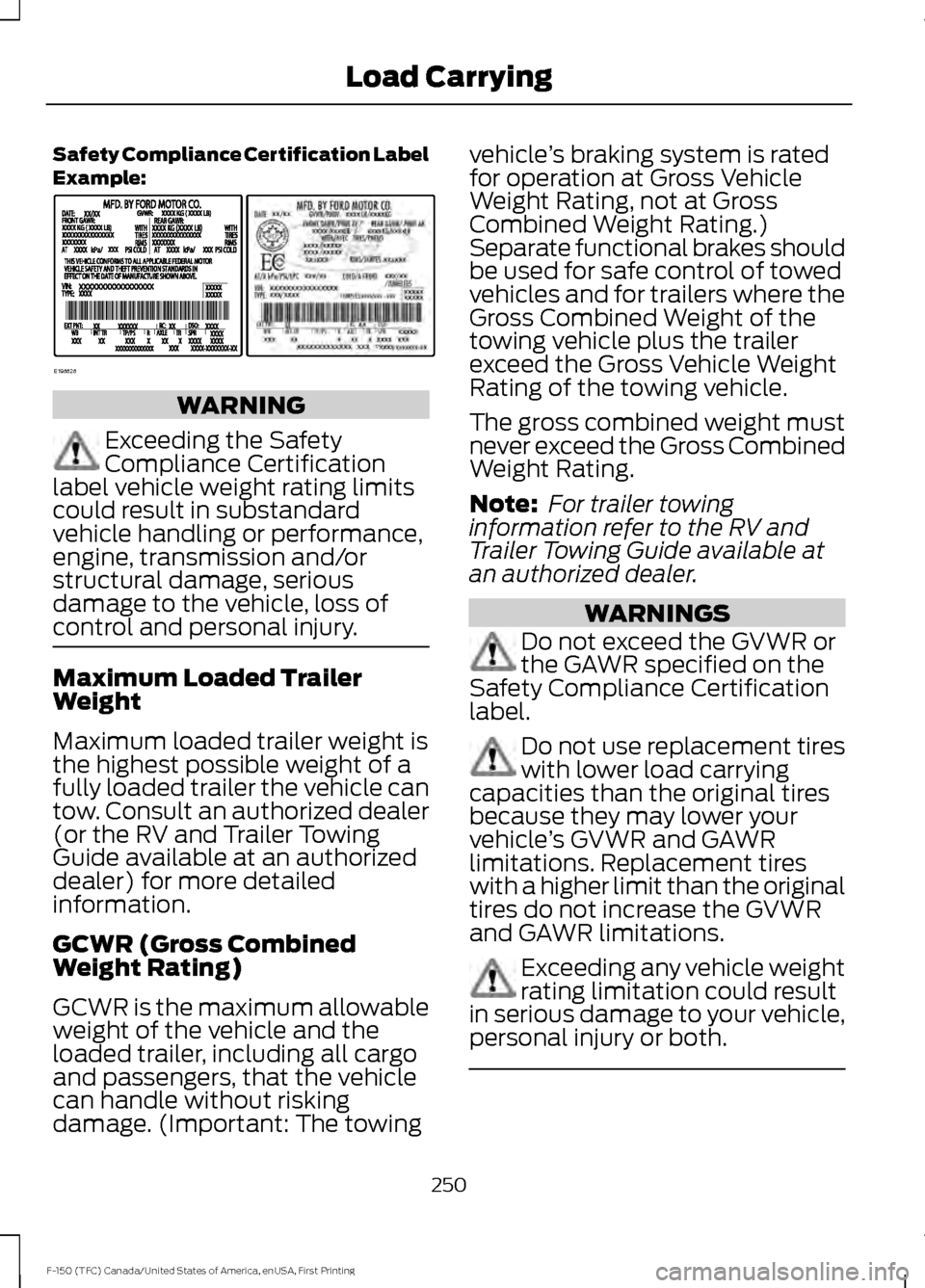
Safety Compliance Certification Label
Example:
WARNING
Exceeding the Safety
Compliance Certification
label vehicle weight rating limits
could result in substandard
vehicle handling or performance,
engine, transmission and/or
structural damage, serious
damage to the vehicle, loss of
control and personal injury. Maximum Loaded Trailer
Weight
Maximum loaded trailer weight is
the highest possible weight of a
fully loaded trailer the vehicle can
tow. Consult an authorized dealer
(or the RV and Trailer Towing
Guide available at an authorized
dealer) for more detailed
information.
GCWR (Gross Combined
Weight Rating)
GCWR is the maximum allowable
weight of the vehicle and the
loaded trailer, including all cargo
and passengers, that the vehicle
can handle without risking
damage. (Important: The towing vehicle
’s braking system is rated
for operation at Gross Vehicle
Weight Rating, not at Gross
Combined Weight Rating.)
Separate functional brakes should
be used for safe control of towed
vehicles and for trailers where the
Gross Combined Weight of the
towing vehicle plus the trailer
exceed the Gross Vehicle Weight
Rating of the towing vehicle.
The gross combined weight must
never exceed the Gross Combined
Weight Rating.
Note: For trailer towing
information refer to the RV and
Trailer Towing Guide available at
an authorized dealer. WARNINGS
Do not exceed the GVWR or
the GAWR specified on the
Safety Compliance Certification
label. Do not use replacement tires
with lower load carrying
capacities than the original tires
because they may lower your
vehicle ’s GVWR and GAWR
limitations. Replacement tires
with a higher limit than the original
tires do not increase the GVWR
and GAWR limitations. Exceeding any vehicle weight
rating limitation could result
in serious damage to your vehicle,
personal injury or both. 250
F-150 (TFC) Canada/United States of America, enUSA, First Printing Load CarryingE198828
Page 259 of 599

TOWING A TRAILER
WARNINGS
Do not exceed the GVWR or
the GAWR specified on the
certification label. Towing trailers beyond the
maximum recommended
gross trailer weight exceeds the
limit of your vehicle and could
result in engine damage,
transmission damage, structural
damage, loss of vehicle control,
vehicle rollover and personal
injury. Do not exceed the lowest
rating capacity for your
vehicle or trailer hitch. Overloading
your vehicle or trailer hitch can
impair your vehicle stability and
handling. Failure to follow this
instruction could result in the loss
of control of your vehicle, personal
injury or death. Do not cut, drill, weld or
modify the trailer hitch.
Modifying the trailer hitch could
reduce the hitch rating. Note:
To prevent your trailer from
accumulating distance, and the
trailer information status appearing
when you restart your vehicle after
disconnecting your trailer, you must
deactivate your trailer. Using the
information display, go to the
Towing menu and then the Select
Trailer option. Select the No active
trailer option. See Information
Displays (page 110).
Your vehicle may have electrical
items, such as fuses or relays,
related to towing. See
Fuses
(page 307).
Your vehicle may have ability to
modify trailer towing features.
See
General Information (page
110).
Your vehicle's load capacity
designation is by weight, not by
volume, so you cannot necessarily
use all available space when
loading a vehicle or trailer.
Towing a trailer places an extra
load on your vehicle's engine,
transmission, axle, brakes, tires
and suspension. Inspect these
components periodically during,
and after, any towing operation.
256
F-150 (TFC) Canada/United States of America, enUSA, First Printing Towing
Page 261 of 599
WARNINGS
This system is an extra driving aid. It
does not replace your attention and
judgment, or the need to apply the
brakes. This system does NOT
automatically brake your vehicle. If you fail
to press the brake pedal when necessary,
you may collide with another vehicle. Note:
The system is not a substitute for
safe driving practices.
Note: You must always be aware of the
vehicle and trailer combination and the
surrounding environment.
Note: The system does not detect or
prevent the vehicle or trailer from making
contact with obstacles in the surrounding
environment.
Note: Keep in mind that the front end of
the vehicle swings out when changing the
direction of the trailer.
Note: The system relies on user
measurements to determine sticker
placement and system limits. It is critical to
take the key measurements correctly.
Incorrect measurements can result in the
improper function of the system up to and
including contact between the vehicle and
trailer.
Note: The system limits vehicle speed when
backing up. The system is not a replacement
for proper use of the throttle and brake
pedals.
Principle of Operation
This feature helps you to steer your vehicle
when backing up with a trailer attached.
Turn and hold the control knob in the
direction you want the trailer to go and the
system takes over the steering. This allows
you to focus on checking the mirrors and
operating the brake and accelerator.
Each trailer you use with your vehicle has
to be setup once. You must take care to follow the setup
process accurately, to make sure the
sticker is placed correctly.
Setting Up Pro Trailer Backup
Assist
Note:
Once you have entered a trailer's
information into the system, it is stored for
easy recall. A maximum of 10 trailers can be
added to the system.
Step 1: Position your Vehicle and Trailer
Hitch your conventional trailer to your
vehicle. See Essential Towing Checks
(page 278).
Park your vehicle and hitched trailer on a
level surface.
For best results, make sure that your trailer
rides level with the ground when you hitch
it your vehicle. More information on
selecting your towbar is available in the
Towing section.
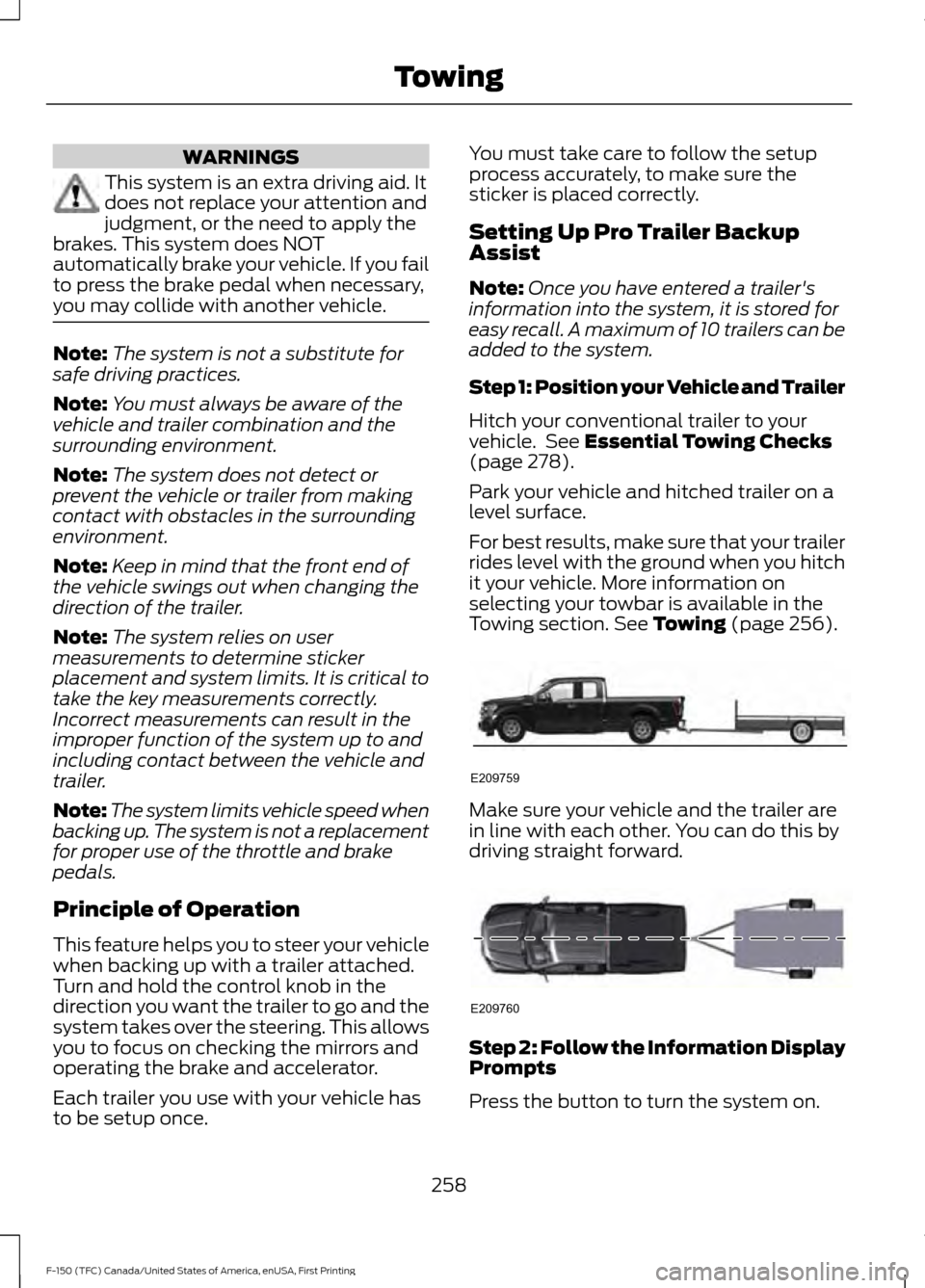
See Towing (page 256). Make sure your vehicle and the trailer are
in line with each other. You can do this by
driving straight forward.
Step 2: Follow the Information Display
Prompts
Press the button to turn the system on.
258
F-150 (TFC) Canada/United States of America, enUSA, First Printing TowingE209759 E209760
Page 262 of 599
1.
Select the option to add a trailer in the
instrument cluster menu, using the
steering wheel control. See General
Information (page 110).
2. Add a personalized name for the trailer
using the screen prompts. Use the
down arrow to scroll to the desired
letter and then press the right arrow to
advance to the next letter. Press OK to
continue.
3. Select the type of trailer brake system for the trailer you are adding.
4. Select the brake effort level for the trailer.
Note: The default option is low. This is
recommended for most trailers. If the
trailer's brakes require more initial voltage,
or if you prefer more aggressive braking then
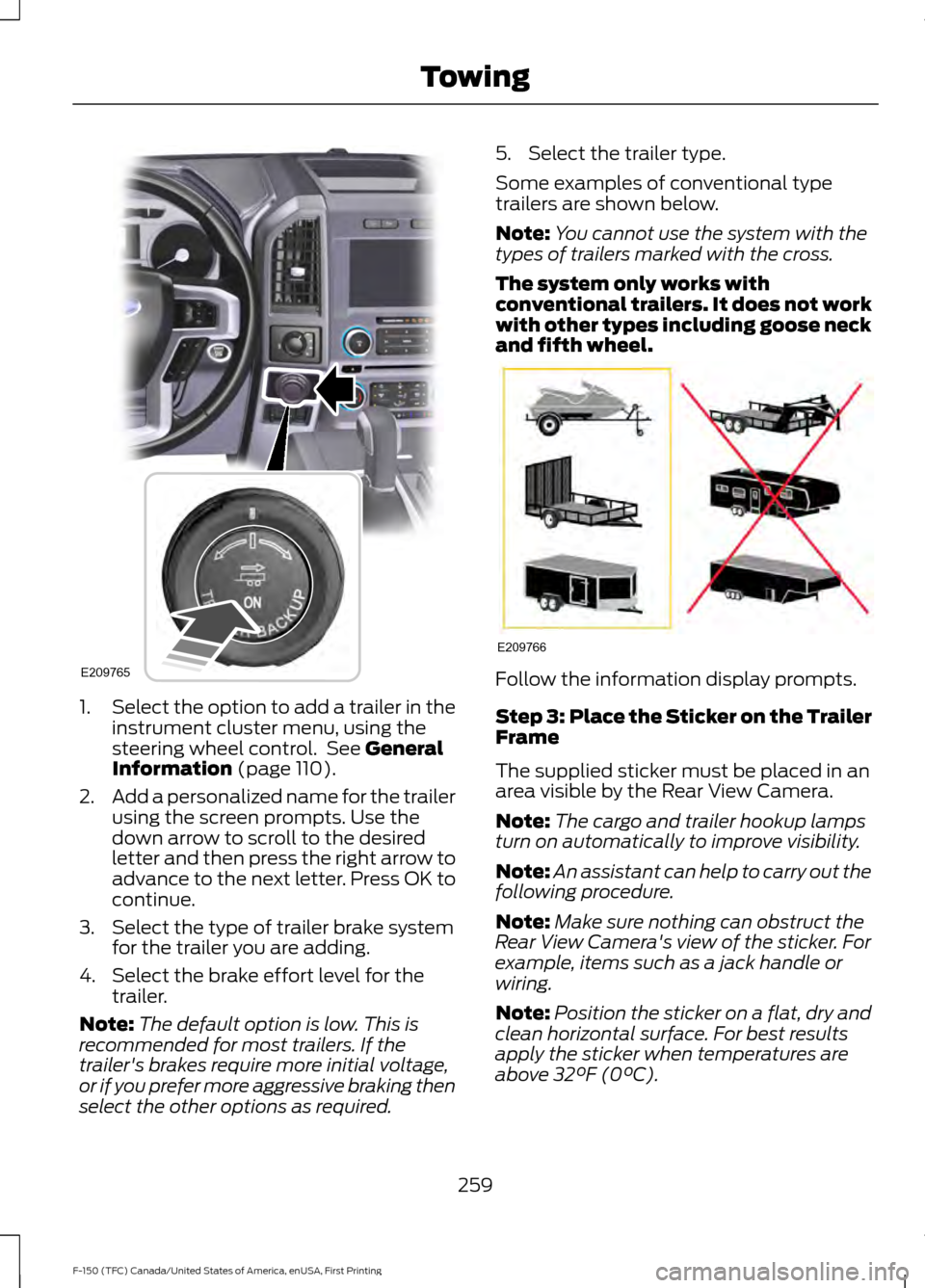
select the other options as required. 5. Select the trailer type.
Some examples of conventional type
trailers are shown below.
Note:
You cannot use the system with the
types of trailers marked with the cross.
The system only works with
conventional trailers. It does not work
with other types including goose neck
and fifth wheel. Follow the information display prompts.
Step 3: Place the Sticker on the Trailer
Frame
The supplied sticker must be placed in an
area visible by the Rear View Camera.
Note:
The cargo and trailer hookup lamps
turn on automatically to improve visibility.
Note: An assistant can help to carry out the
following procedure.
Note: Make sure nothing can obstruct the
Rear View Camera's view of the sticker. For
example, items such as a jack handle or
wiring.
Note: Position the sticker on a flat, dry and
clean horizontal surface. For best results
apply the sticker when temperatures are
above
32°F (0°C).
259
F-150 (TFC) Canada/United States of America, enUSA, First Printing TowingE209765 E209766
Page 265 of 599

Turn and hold counterclockwise to make
the trailer go left.
Turn and hold clockwise to make the trailer
go right.
Note:
Practice maneuvering with the
system in a safe open area first.
Note: Try backing up in a straight line and
then turning the knob slowly in the direction
you want to go.
Note: Quickly turning and releasing the
knob results in a jerky movement of the
vehicle. Release the knob when the trailer is
moving in the direction you want. Control
the accelerator and brakes while the
system steers your vehicle automatically
to keep the trailer moving straight back.
Note:
You may have to use the knob to
correct the trailer direction when attempting
to move the trailer straight back under some
conditions.
Note: Your vehicle speed is automatically
limited.
Note: When you release the knob or turn it
to the center position, your vehicle follows
the trailer's path.
Troubleshooting
Note: The system requires a clear view of
the sticker placed on the trailer. You must
keep the camera lens and sticker clean for
the system to operate correctly.
Setup
The system is designed to be used with a
wide variety of trailers. However there are
some trailers that do not have a proper
surface and location to mount the sticker.
These trailers are not supported. Attempts
to place the sticker on a surface that does
not meet the sticker placement
requirement listed in Step 3 of the setup
instruction or entering inaccurate
measurements to proceed through setup
can result in improper system function.
Accurate measurements are critical to
correct system function. If you need to
check measurements entered or change
them you can access them through the
trailer menus in the instrument cluster.
Choose the option to change the sticker
from the change trailer settings menu. It is
not necessary to remove the sticker if you
are just reviewing or changing
measurements.
262
F-150 (TFC) Canada/United States of America, enUSA, First Printing TowingE209812 E209813 E209814