2017 FORD EXPLORER audio
[x] Cancel search: audioPage 453 of 541
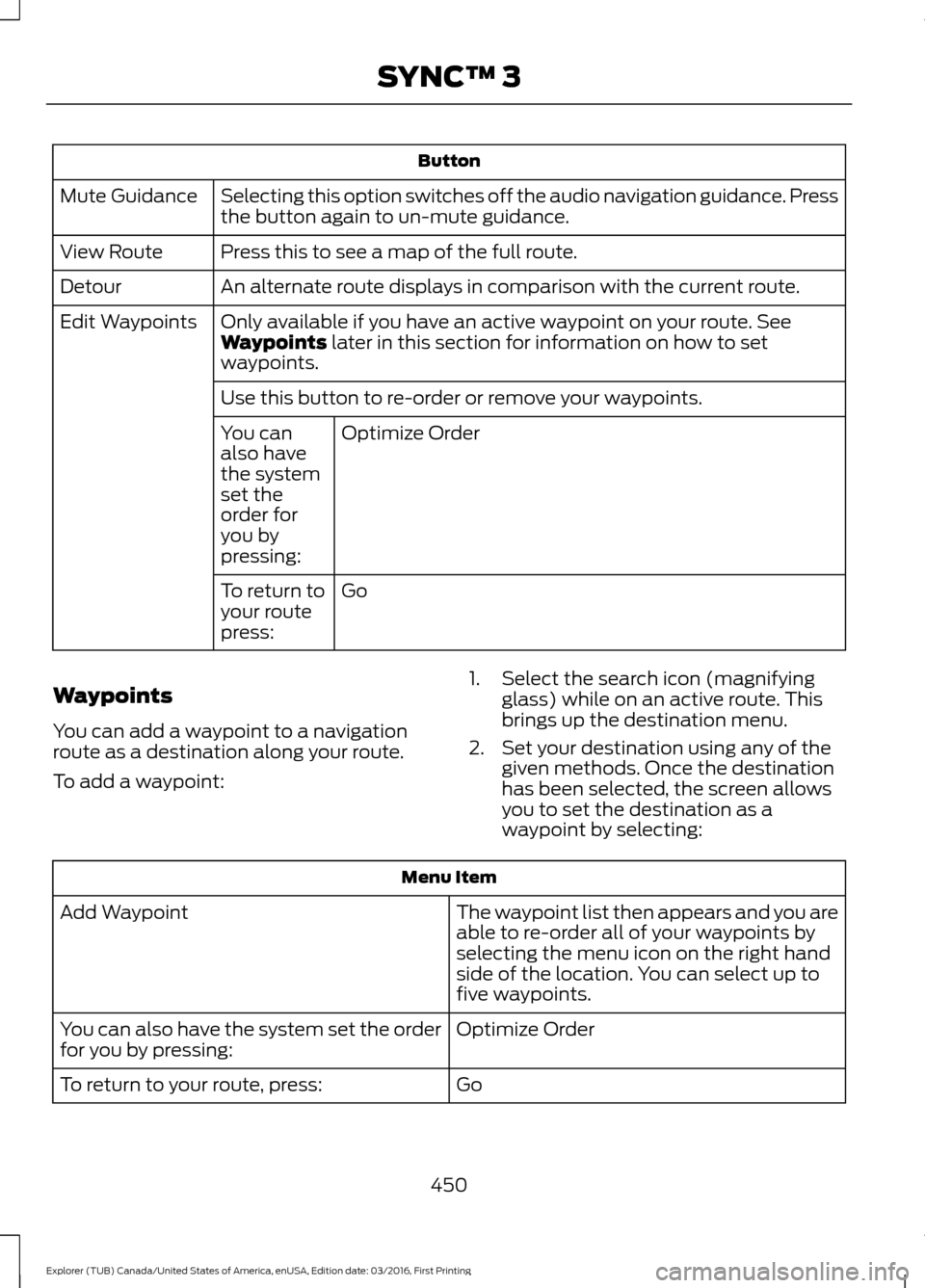
Button
Selecting this option switches off the audio navigation guidance. Press
the button again to un-mute guidance.
Mute Guidance
Press this to see a map of the full route.
View Route
An alternate route displays in comparison with the current route.
Detour
Only available if you have an active waypoint on your route. See
Waypoints later in this section for information on how to set
waypoints.
Edit Waypoints
Use this button to re-order or remove your waypoints.Optimize Order
You can
also have
the system
set the
order for
you by
pressing:
Go
To return to
your route
press:
Waypoints
You can add a waypoint to a navigation
route as a destination along your route.
To add a waypoint: 1. Select the search icon (magnifying
glass) while on an active route. This
brings up the destination menu.
2. Set your destination using any of the given methods. Once the destination
has been selected, the screen allows
you to set the destination as a
waypoint by selecting: Menu Item
The waypoint list then appears and you are
able to re-order all of your waypoints by
selecting the menu icon on the right hand
side of the location. You can select up to
five waypoints.
Add Waypoint
Optimize Order
You can also have the system set the order
for you by pressing:
Go
To return to your route, press:
450
Explorer (TUB) Canada/United States of America, enUSA, Edition date: 03/2016, First Printing SYNC™ 3
Page 458 of 541
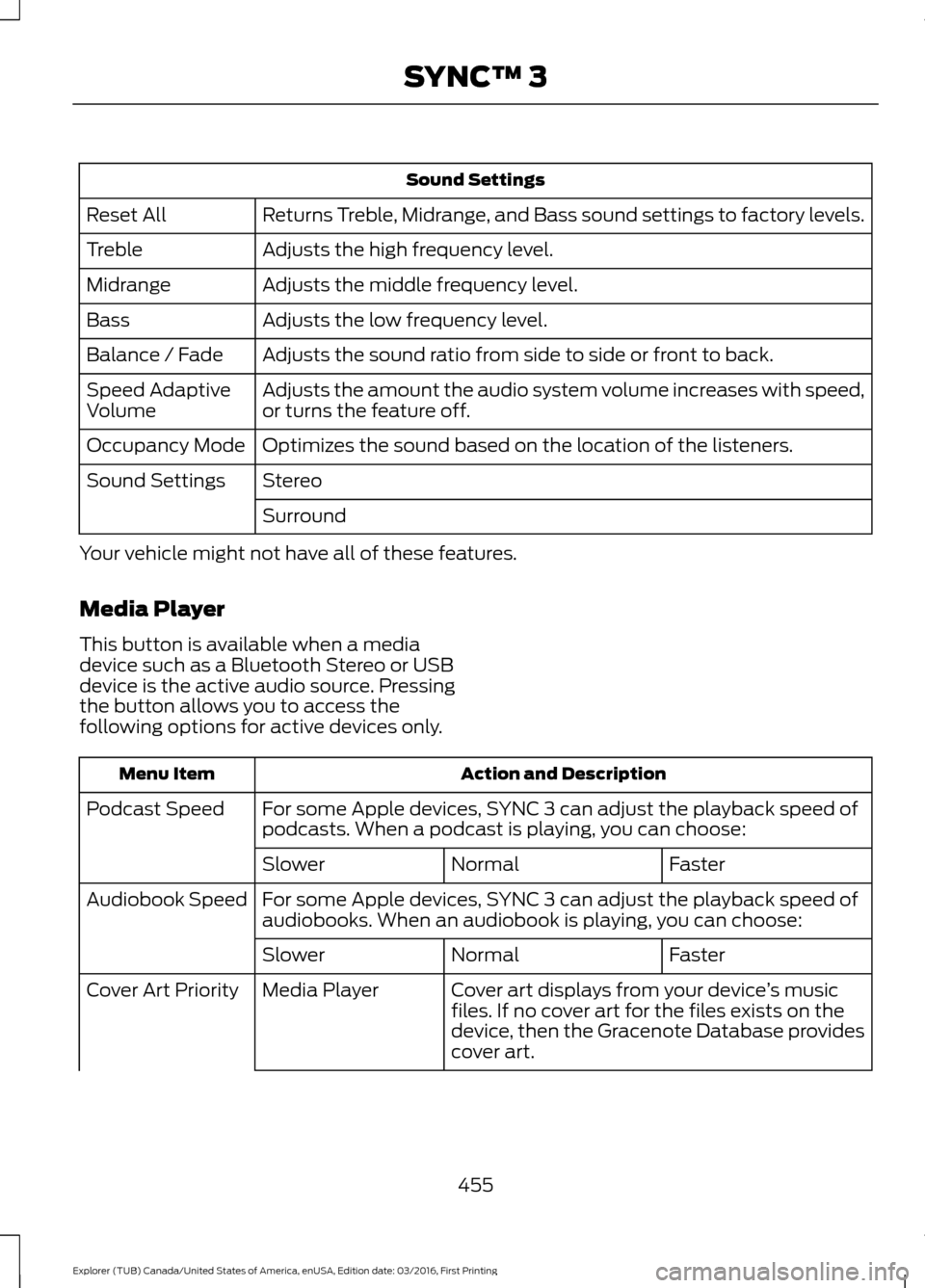
Sound Settings
Returns Treble, Midrange, and Bass sound settings to factory levels.
Reset All
Adjusts the high frequency level.
Treble
Adjusts the middle frequency level.
Midrange
Adjusts the low frequency level.
Bass
Adjusts the sound ratio from side to side or front to back.
Balance / Fade
Adjusts the amount the audio system volume increases with speed,
or turns the feature off.
Speed Adaptive
Volume
Optimizes the sound based on the location of the listeners.
Occupancy Mode
Stereo
Sound Settings
Surround
Your vehicle might not have all of these features.
Media Player
This button is available when a media
device such as a Bluetooth Stereo or USB
device is the active audio source. Pressing
the button allows you to access the
following options for active devices only. Action and Description
Menu Item
For some Apple devices, SYNC 3 can adjust the playback speed of
podcasts. When a podcast is playing, you can choose:
Podcast Speed
Faster
Normal
Slower
For some Apple devices, SYNC 3 can adjust the playback speed of
audiobooks. When an audiobook is playing, you can choose:
Audiobook Speed
Faster
Normal
Slower
Cover art displays from your device ’s music
files. If no cover art for the files exists on the
device, then the Gracenote Database provides
cover art.
Media Player
Cover Art Priority
455
Explorer (TUB) Canada/United States of America, enUSA, Edition date: 03/2016, First Printing SYNC™ 3
Page 462 of 541
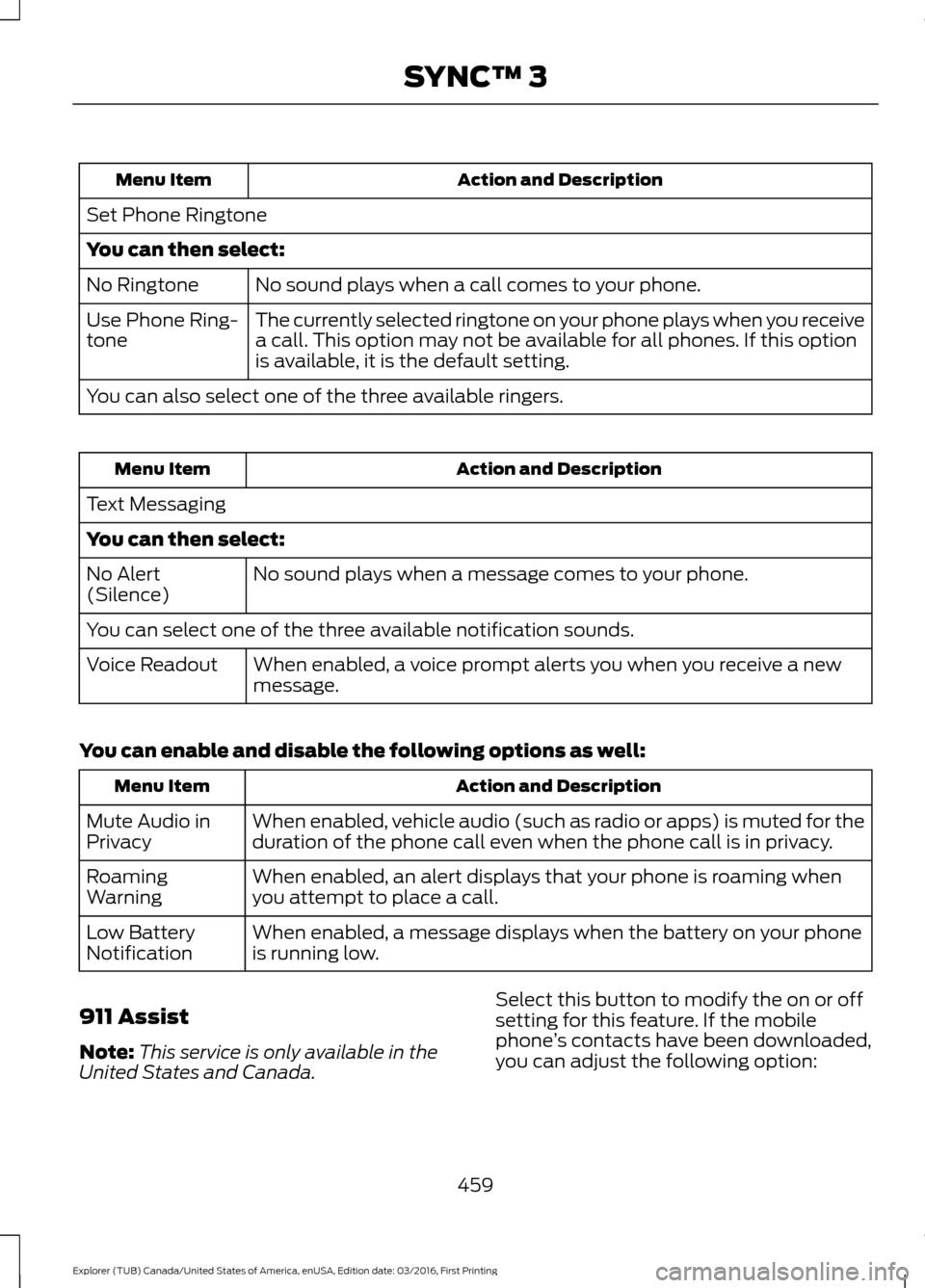
Action and Description
Menu Item
Set Phone Ringtone
You can then select: No sound plays when a call comes to your phone.
No Ringtone
The currently selected ringtone on your phone plays when you receive
a call. This option may not be available for all phones. If this option
is available, it is the default setting.
Use Phone Ring-
tone
You can also select one of the three available ringers. Action and Description
Menu Item
Text Messaging
You can then select: No sound plays when a message comes to your phone.
No Alert
(Silence)
You can select one of the three available notification sounds.
When enabled, a voice prompt alerts you when you receive a new
message.
Voice Readout
You can enable and disable the following options as well: Action and Description
Menu Item
When enabled, vehicle audio (such as radio or apps) is muted for the
duration of the phone call even when the phone call is in privacy.
Mute Audio in
Privacy
When enabled, an alert displays that your phone is roaming when
you attempt to place a call.
Roaming
Warning
When enabled, a message displays when the battery on your phone
is running low.
Low Battery
Notification
911 Assist
Note: This service is only available in the
United States and Canada. Select this button to modify the on or off
setting for this feature. If the mobile
phone
’s contacts have been downloaded,
you can adjust the following option:
459
Explorer (TUB) Canada/United States of America, enUSA, Edition date: 03/2016, First Printing SYNC™ 3
Page 470 of 541

To check your cell phone's compatibility,
visit the Ford website.
Website
owner.ford.com Website
www.syncmyride.ca
www.syncmaroute.ca Cell phone issues
Possible solution
Possible cause
Issue
Refer to your device's manual about audio
adjustments.
The audio control
settings on your cell
phone may be affecting
SYNC 3 performance.
There is back-
ground noise
during a phone
call.
Try switching your cell phone off, resetting
it or removing the battery, then try again.
Possible cell phone
malfunction.
During a call, I
can hear the
other person
but they cannot
hear me.
Make sure that the microphone for SYNC
3 is not set to off. Look for the microphone
icon on the phone screen.
To restart your system, shut down the
engine, open and close the door, and then
lock the door and wait for 2-3 minutes.
Make sure that your SYNC 3 screen is black
and the lighted USB port is off.
The system may need to
be restarted.
During a call, I
cannot hear the
other person
and they cannot
hear me.
Check your cell phone's compatibility.
This is a cell phone-
dependent feature.
SYNC 3 is not
able to down-
load my phone-
book. Make sure you allow SYNC 3 to retrieve
contacts from your phone. Refer to your
cell manual.
Possible cell phone
malfunction. You must switch on your cell phone and
the automatic phonebook download
feature on SYNC 3.
Try switching your cell phone off, resetting
it or removing the battery, then try again.
467
Explorer (TUB) Canada/United States of America, enUSA, Edition date: 03/2016, First Printing SYNC™ 3
Page 473 of 541
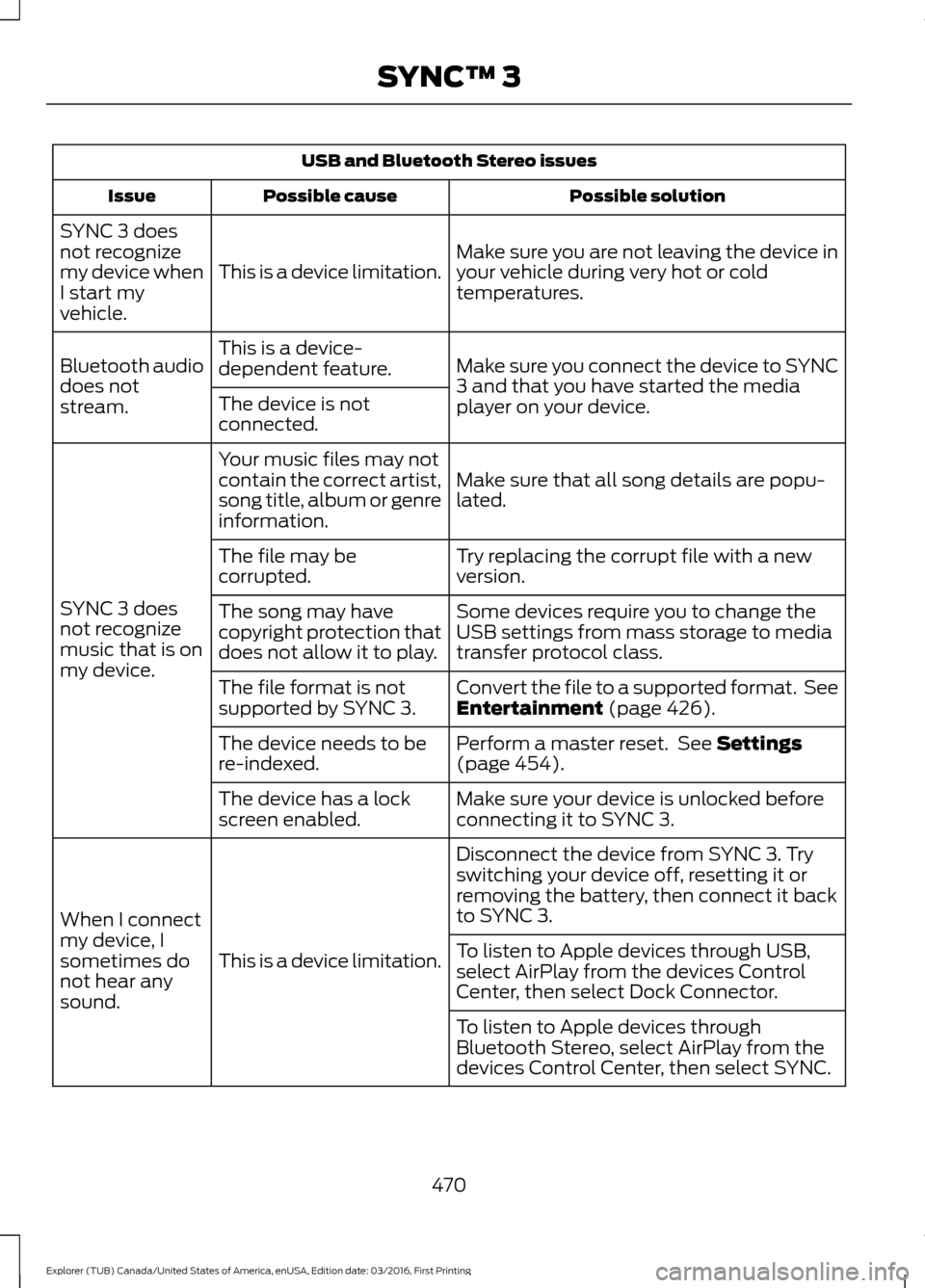
USB and Bluetooth Stereo issues
Possible solution
Possible cause
Issue
Make sure you are not leaving the device in
your vehicle during very hot or cold
temperatures.
This is a device limitation.
SYNC 3 does
not recognize
my device when
I start my
vehicle.
Make sure you connect the device to SYNC
3 and that you have started the media
player on your device.
This is a device-
dependent feature.
Bluetooth audio
does not
stream. The device is not
connected.
Make sure that all song details are popu-
lated.
Your music files may not
contain the correct artist,
song title, album or genre
information.
SYNC 3 does
not recognize
music that is on
my device. Try replacing the corrupt file with a new
version.
The file may be
corrupted.
Some devices require you to change the
USB settings from mass storage to media
transfer protocol class.
The song may have
copyright protection that
does not allow it to play.
Convert the file to a supported format. See
Entertainment (page 426).
The file format is not
supported by SYNC 3.
Perform a master reset. See
Settings
(page 454).
The device needs to be
re-indexed.
Make sure your device is unlocked before
connecting it to SYNC 3.
The device has a lock
screen enabled.
Disconnect the device from SYNC 3. Try
switching your device off, resetting it or
removing the battery, then connect it back
to SYNC 3.
This is a device limitation.
When I connect
my device, I
sometimes do
not hear any
sound. To listen to Apple devices through USB,
select AirPlay from the devices Control
Center, then select Dock Connector.
To listen to Apple devices through
Bluetooth Stereo, select AirPlay from the
devices Control Center, then select SYNC.
470
Explorer (TUB) Canada/United States of America, enUSA, Edition date: 03/2016, First Printing SYNC™ 3
Page 478 of 541
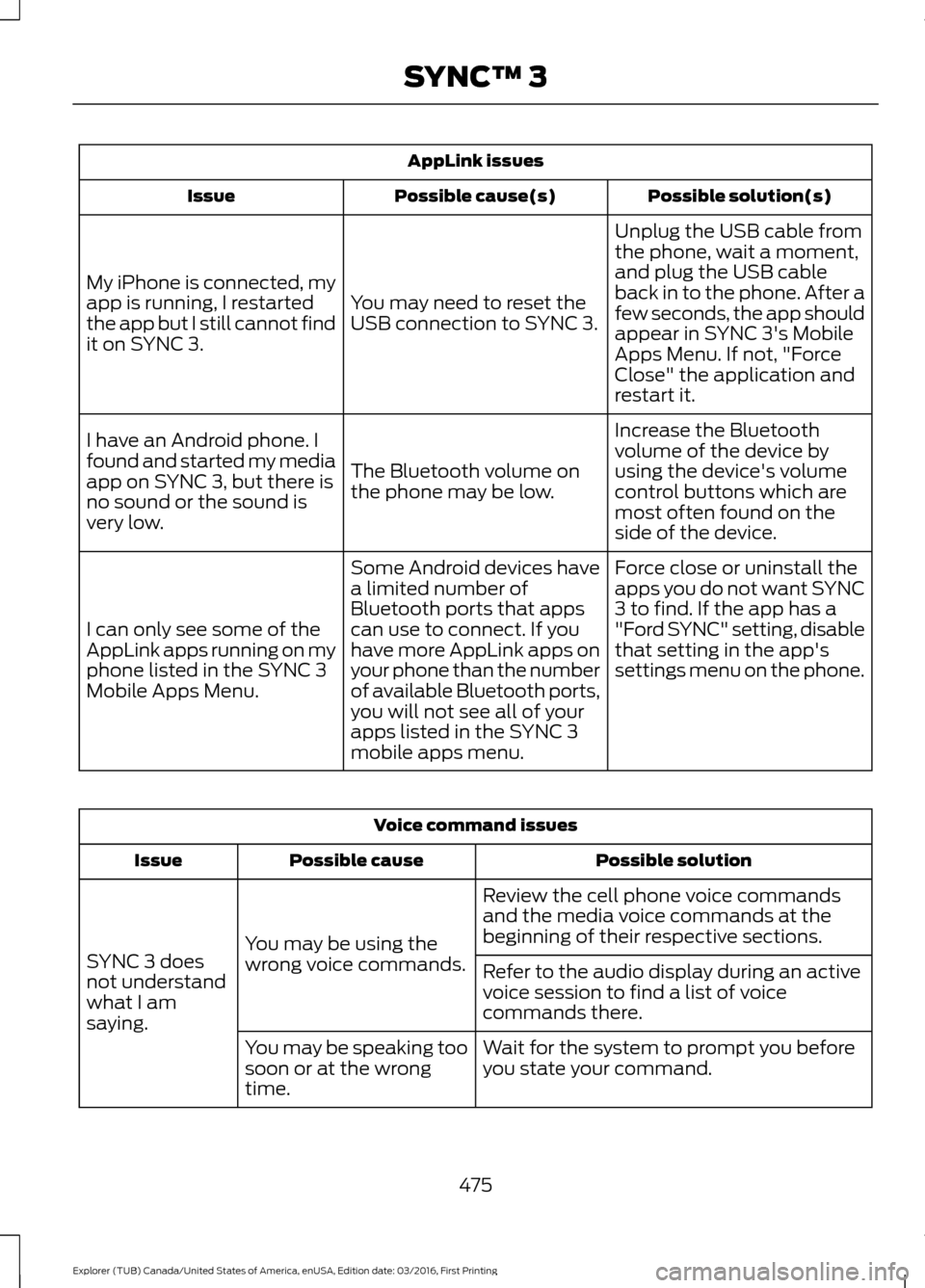
AppLink issues
Possible solution(s)
Possible cause(s)
Issue
Unplug the USB cable from
the phone, wait a moment,
and plug the USB cable
back in to the phone. After a
few seconds, the app should
appear in SYNC 3's Mobile
Apps Menu. If not, "Force
Close" the application and
restart it.
You may need to reset the
USB connection to SYNC 3.
My iPhone is connected, my
app is running, I restarted
the app but I still cannot find
it on SYNC 3.
Increase the Bluetooth
volume of the device by
using the device's volume
control buttons which are
most often found on the
side of the device.
The Bluetooth volume on
the phone may be low.
I have an Android phone. I
found and started my media
app on SYNC 3, but there is
no sound or the sound is
very low.
Force close or uninstall the
apps you do not want SYNC
3 to find. If the app has a
"Ford SYNC" setting, disable
that setting in the app's
settings menu on the phone.
Some Android devices have
a limited number of
Bluetooth ports that apps
can use to connect. If you
have more AppLink apps on
your phone than the number
of available Bluetooth ports,
you will not see all of your
apps listed in the SYNC 3
mobile apps menu.
I can only see some of the
AppLink apps running on my
phone listed in the SYNC 3
Mobile Apps Menu. Voice command issues
Possible solution
Possible cause
Issue
Review the cell phone voice commands
and the media voice commands at the
beginning of their respective sections.
You may be using the
wrong voice commands.
SYNC 3 does
not understand
what I am
saying. Refer to the audio display during an active
voice session to find a list of voice
commands there.
Wait for the system to prompt you before
you state your command.
You may be speaking too
soon or at the wrong
time.
475
Explorer (TUB) Canada/United States of America, enUSA, Edition date: 03/2016, First Printing SYNC™ 3
Page 481 of 541
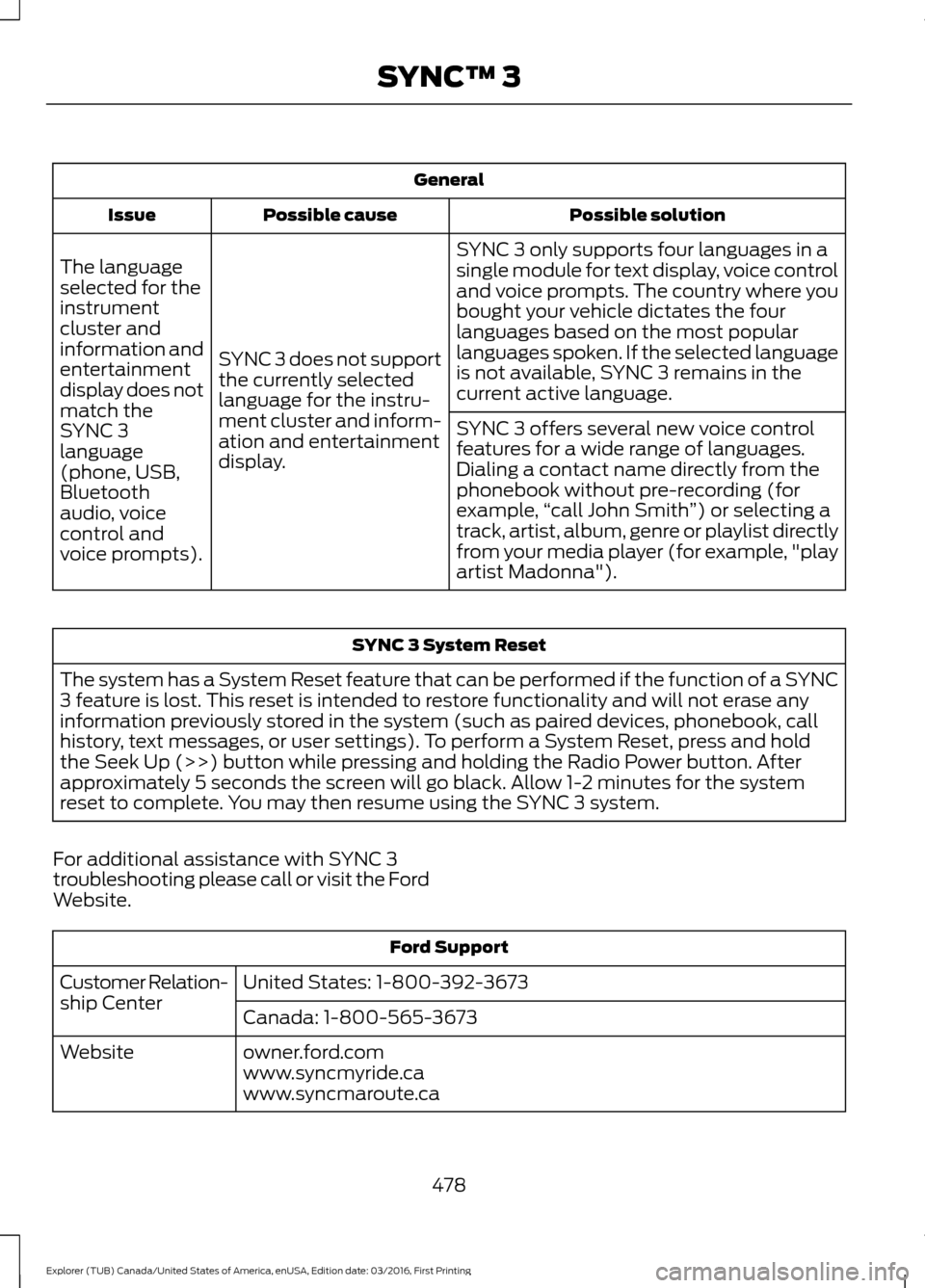
General
Possible solution
Possible cause
Issue
SYNC 3 only supports four languages in a
single module for text display, voice control
and voice prompts. The country where you
bought your vehicle dictates the four
languages based on the most popular
languages spoken. If the selected language
is not available, SYNC 3 remains in the
current active language.
SYNC 3 does not support
the currently selected
language for the instru-
ment cluster and inform-
ation and entertainment
display.
The language
selected for the
instrument
cluster and
information and
entertainment
display does not
match the
SYNC 3
SYNC 3 offers several new voice control
features for a wide range of languages.
Dialing a contact name directly from the
phonebook without pre-recording (for
example,
“call John Smith ”) or selecting a
track, artist, album, genre or playlist directly
from your media player (for example, "play
artist Madonna").
language
(phone, USB,
Bluetooth
audio, voice
control and
voice prompts). SYNC 3 System Reset
The system has a System Reset feature that can be performed if the function of a SYNC
3 feature is lost. This reset is intended to restore functionality and will not erase any
information previously stored in the system (such as paired devices, phonebook, call
history, text messages, or user settings). To perform a System Reset, press and hold
the Seek Up (>>) button while pressing and holding the Radio Power button. After
approximately 5 seconds the screen will go black. Allow 1-2 minutes for the system
reset to complete. You may then resume using the SYNC 3 system.
For additional assistance with SYNC 3
troubleshooting please call or visit the Ford
Website. Ford Support
United States: 1-800-392-3673
Customer Relation-
ship Center
Canada: 1-800-565-3673
owner.ford.com
Website
www.syncmyride.ca
www.syncmaroute.ca
478
Explorer (TUB) Canada/United States of America, enUSA, Edition date: 03/2016, First Printing SYNC™ 3
Page 507 of 541
•
Links to Third Party Sites: The
SOFTWARE may provide you with the
ability to link to third party sites. The
third party sites are not under the
control of FORD MOTOR COMPANY,
its affiliates and/or its designated
agent. Neither FORD MOTOR
COMPANY nor its affiliates nor its
designated agent are responsible for
(I) the contents of any third party sites,
any links contained in third party sites,
or any changes or updates to third
party sites, or (ii) webcasting or any
other form of transmission received
from any third party sites. If the
SOFTWARE provides links to third
party sites, those links are provided to
you only as a convenience, and the
inclusion of any link does not imply an
endorsement of the third party site by
FORD MOTOR COMPANY, its affiliates
and/or its designated agent.
• Obligation to Drive Responsibly:
You recognize your obligation to drive
responsibly and keep attention on the
road. You will read and abide with the
DEVICES operating instructions
particularly as they pertain to safety
and you agree to assume any risk
associated with the use of the
DEVICES.
UPGRADES AND RECOVERY MEDIA:
If the SOFTWARE is provided by FORD
MOTOR COMPANY separate from the
DEVICES on media such as a ROM chip,
CD ROM disk(s) or via web download or
other means, and is labeled "For Upgrade
Purposes Only" or "For Recovery Purposes
Only" you may install one (1) copy of such
SOFTWARE onto the DEVICES as a
replacement copy for the existing
SOFTWARE, and use it in accordance with
this EULA, including any additional EULA
terms accompanying the upgrade
SOFTWARE. INTELLECTUAL PROPERTY RIGHTS:
All title and intellectual property rights in
and to the SOFTWARE (including but not
limited to any images, photographs,
animations, video, audio, music, text and
"applets" incorporated into the
SOFTWARE), the accompanying printed
materials, and any copies of the
SOFTWARE, are owned by FORD MOTOR
COMPANY, or its affiliates or suppliers. The
SOFTWARE is licensed, not sold. You may
not copy the printed materials
accompanying the SOFTWARE. All title
and intellectual property rights in and to
the content which may be accessed
through use of the SOFTWARE is the
property of the respective content owner
and may be protected by applicable
copyright or other intellectual property
laws and treaties. This EULA grants you no
rights to use such content outside its
intended use. All rights not specifically
granted under this EULA are reserved by
FORD MOTOR COMPANY, its affiliates,
and third party software and service
providers and suppliers. Use of any on-line
services which may be accessed through
the SOFTWARE may be governed by the
respective terms of use relating to such
services. If this SOFTWARE contains
documentation that is provided only in
electronic form, you may print one copy of
such electronic documentation.
EXPORT RESTRICTIONS:
You
acknowledge that the SOFTWARE is
subject to U.S. and European Union export
jurisdiction. You agree to comply with all
applicable international and national laws
that apply to the SOFTWARE, including
the U.S. Export Administration Regulations,
as well as end-user, end-use and
destination restrictions issued by U.S. and
other governments.
504
Explorer (TUB) Canada/United States of America, enUSA, Edition date: 03/2016, First Printing Appendices