2017 FORD EXPEDITION EL navigation
[x] Cancel search: navigationPage 419 of 500
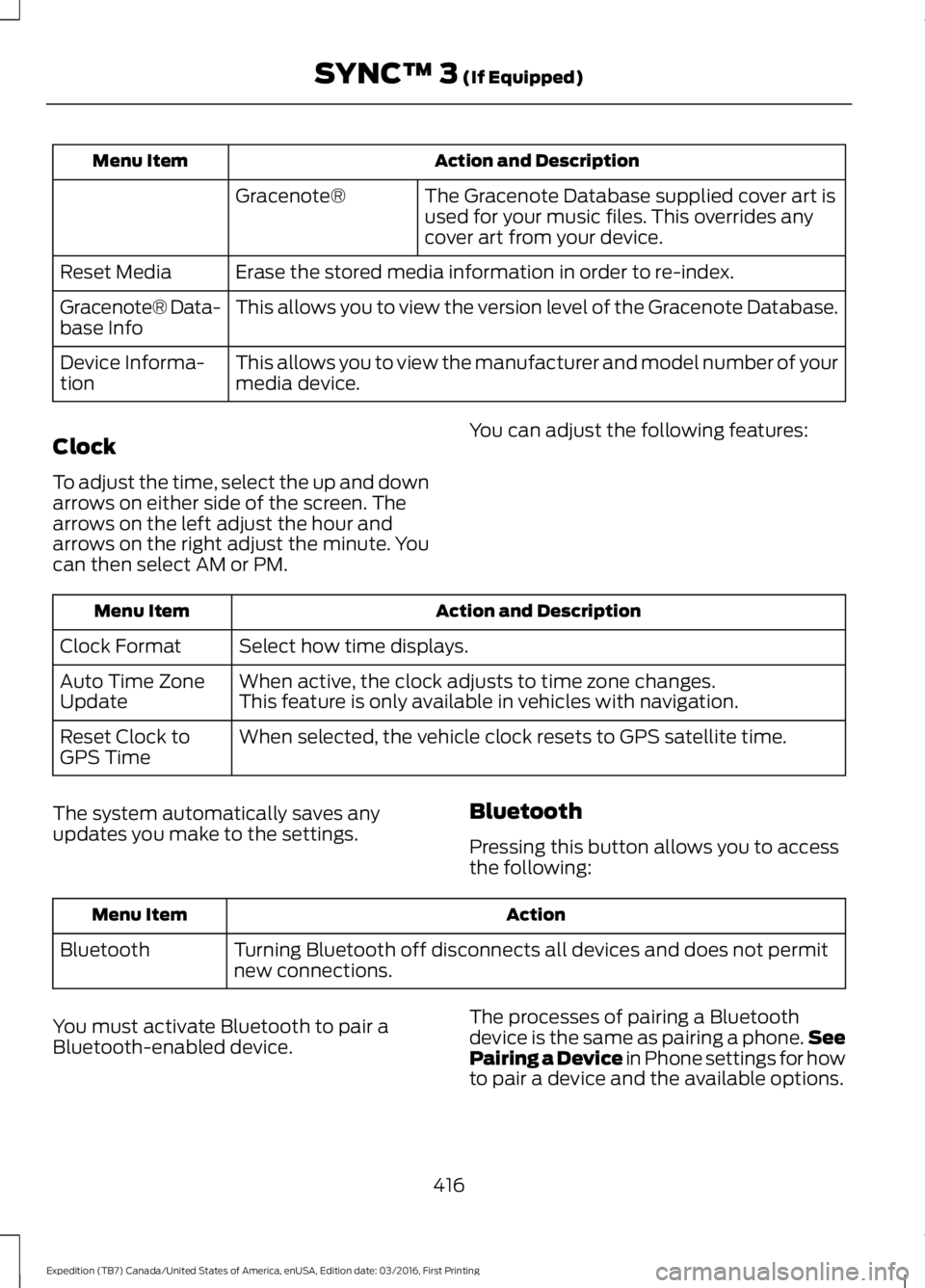
Action and DescriptionMenu Item
The Gracenote Database supplied cover art isused for your music files. This overrides anycover art from your device.
Gracenote®
Erase the stored media information in order to re-index.Reset Media
This allows you to view the version level of the Gracenote Database.Gracenote® Data-base Info
This allows you to view the manufacturer and model number of yourmedia device.Device Informa-tion
Clock
To adjust the time, select the up and downarrows on either side of the screen. Thearrows on the left adjust the hour andarrows on the right adjust the minute. Youcan then select AM or PM.
You can adjust the following features:
Action and DescriptionMenu Item
Select how time displays.Clock Format
When active, the clock adjusts to time zone changes.Auto Time ZoneUpdateThis feature is only available in vehicles with navigation.
When selected, the vehicle clock resets to GPS satellite time.Reset Clock toGPS Time
The system automatically saves anyupdates you make to the settings.Bluetooth
Pressing this button allows you to accessthe following:
ActionMenu Item
Turning Bluetooth off disconnects all devices and does not permitnew connections.Bluetooth
You must activate Bluetooth to pair aBluetooth-enabled device.
The processes of pairing a Bluetoothdevice is the same as pairing a phone.SeePairing a Device in Phone settings for howto pair a device and the available options.
416
Expedition (TB7) Canada/United States of America, enUSA, Edition date: 03/2016, First Printing
SYNC™ 3 (If Equipped)
Page 423 of 500
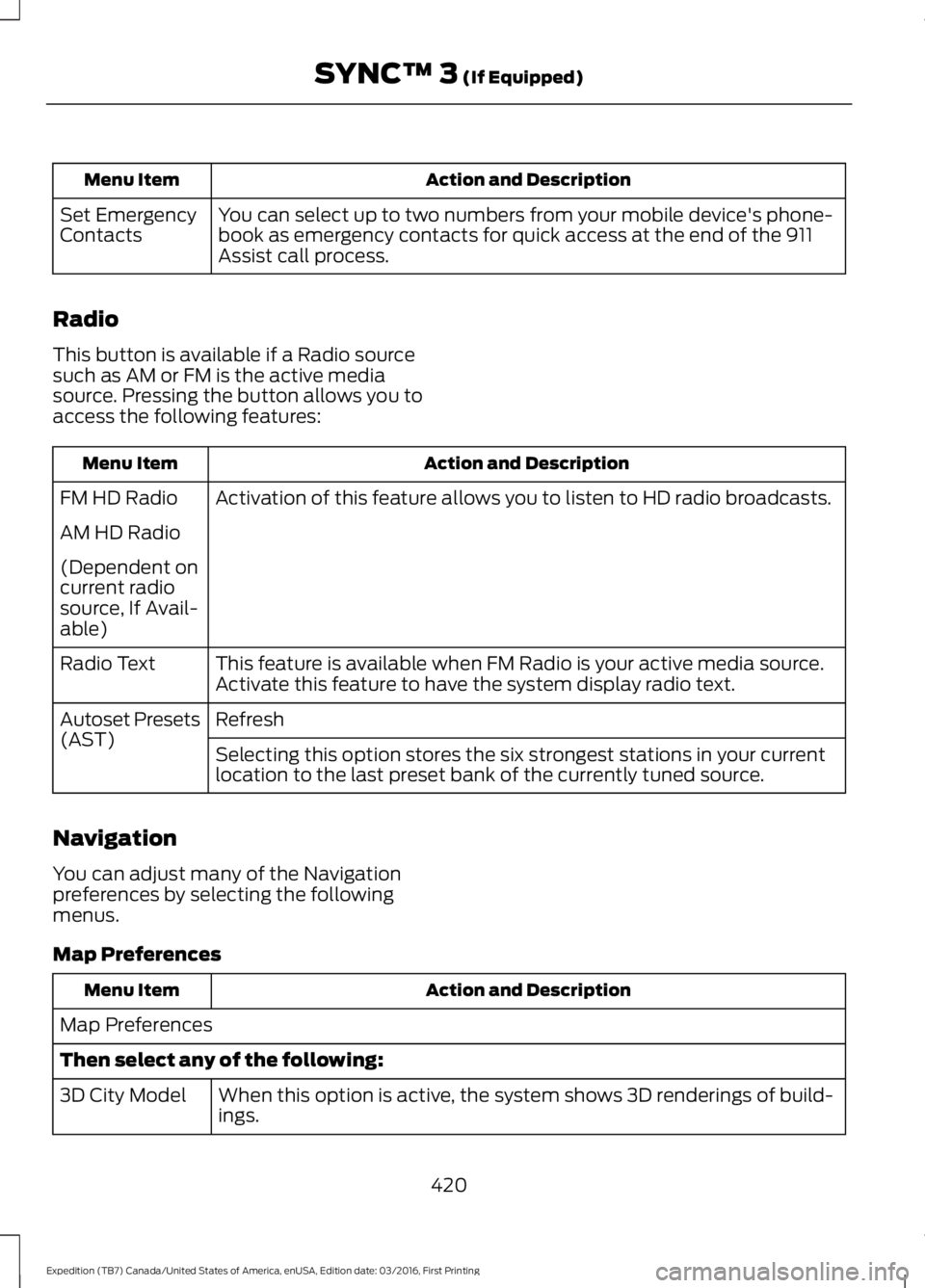
Action and DescriptionMenu Item
You can select up to two numbers from your mobile device's phone-book as emergency contacts for quick access at the end of the 911Assist call process.
Set EmergencyContacts
Radio
This button is available if a Radio sourcesuch as AM or FM is the active mediasource. Pressing the button allows you toaccess the following features:
Action and DescriptionMenu Item
Activation of this feature allows you to listen to HD radio broadcasts.FM HD Radio
AM HD Radio
(Dependent oncurrent radiosource, If Avail-able)
This feature is available when FM Radio is your active media source.Activate this feature to have the system display radio text.Radio Text
RefreshAutoset Presets(AST)Selecting this option stores the six strongest stations in your currentlocation to the last preset bank of the currently tuned source.
Navigation
You can adjust many of the Navigationpreferences by selecting the followingmenus.
Map Preferences
Action and DescriptionMenu Item
Map Preferences
Then select any of the following:
When this option is active, the system shows 3D renderings of build-ings.3D City Model
420
Expedition (TB7) Canada/United States of America, enUSA, Edition date: 03/2016, First Printing
SYNC™ 3 (If Equipped)
Page 424 of 500
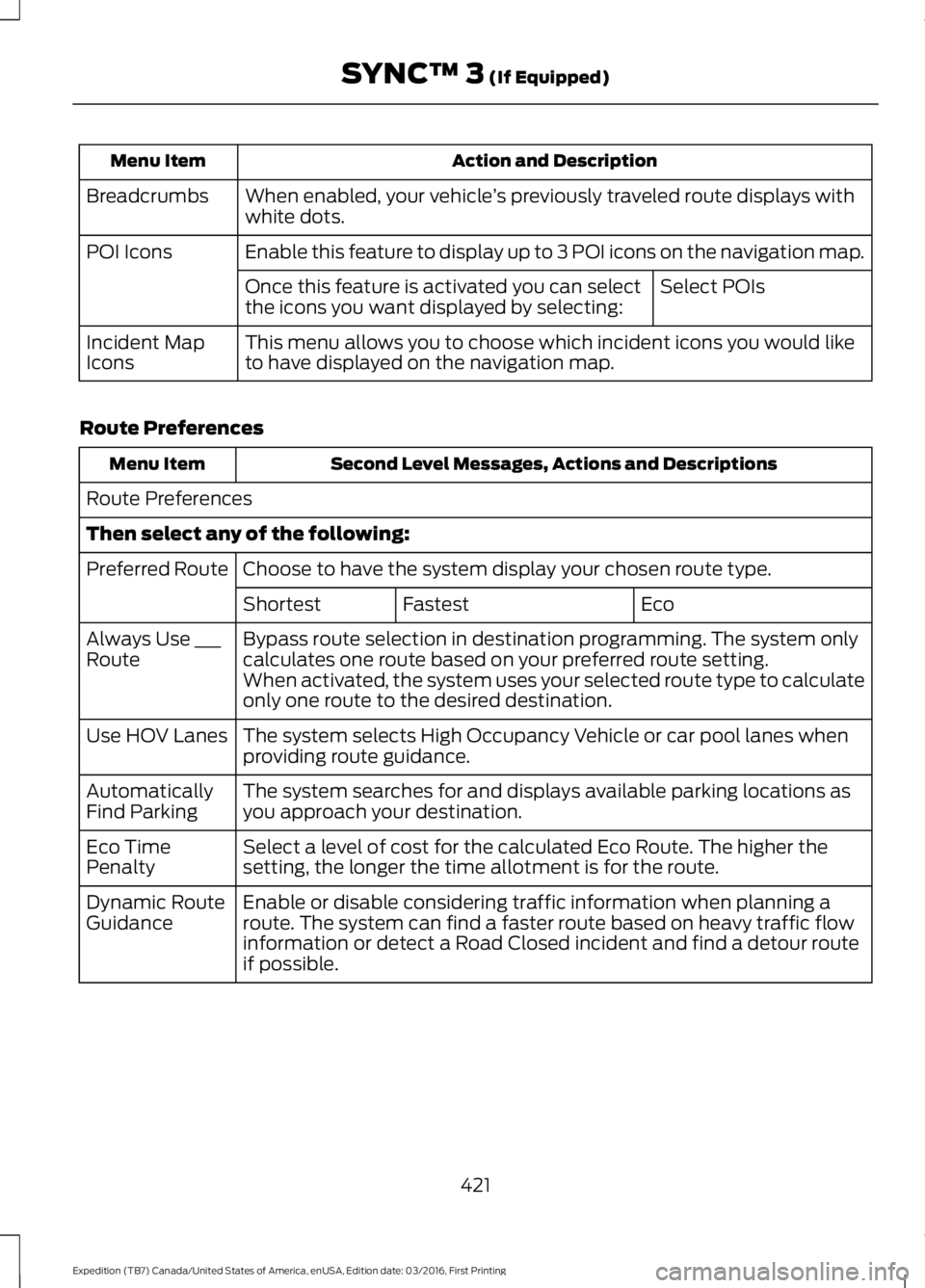
Action and DescriptionMenu Item
When enabled, your vehicle’s previously traveled route displays withwhite dots.Breadcrumbs
Enable this feature to display up to 3 POI icons on the navigation map.POI Icons
Select POIsOnce this feature is activated you can selectthe icons you want displayed by selecting:
This menu allows you to choose which incident icons you would liketo have displayed on the navigation map.Incident MapIcons
Route Preferences
Second Level Messages, Actions and DescriptionsMenu Item
Route Preferences
Then select any of the following:
Choose to have the system display your chosen route type.Preferred Route
EcoFastestShortest
Bypass route selection in destination programming. The system onlycalculates one route based on your preferred route setting.Always Use ___RouteWhen activated, the system uses your selected route type to calculateonly one route to the desired destination.
The system selects High Occupancy Vehicle or car pool lanes whenproviding route guidance.Use HOV Lanes
The system searches for and displays available parking locations asyou approach your destination.AutomaticallyFind Parking
Select a level of cost for the calculated Eco Route. The higher thesetting, the longer the time allotment is for the route.Eco TimePenalty
Enable or disable considering traffic information when planning aroute. The system can find a faster route based on heavy traffic flowinformation or detect a Road Closed incident and find a detour routeif possible.
Dynamic RouteGuidance
421
Expedition (TB7) Canada/United States of America, enUSA, Edition date: 03/2016, First Printing
SYNC™ 3 (If Equipped)
Page 425 of 500
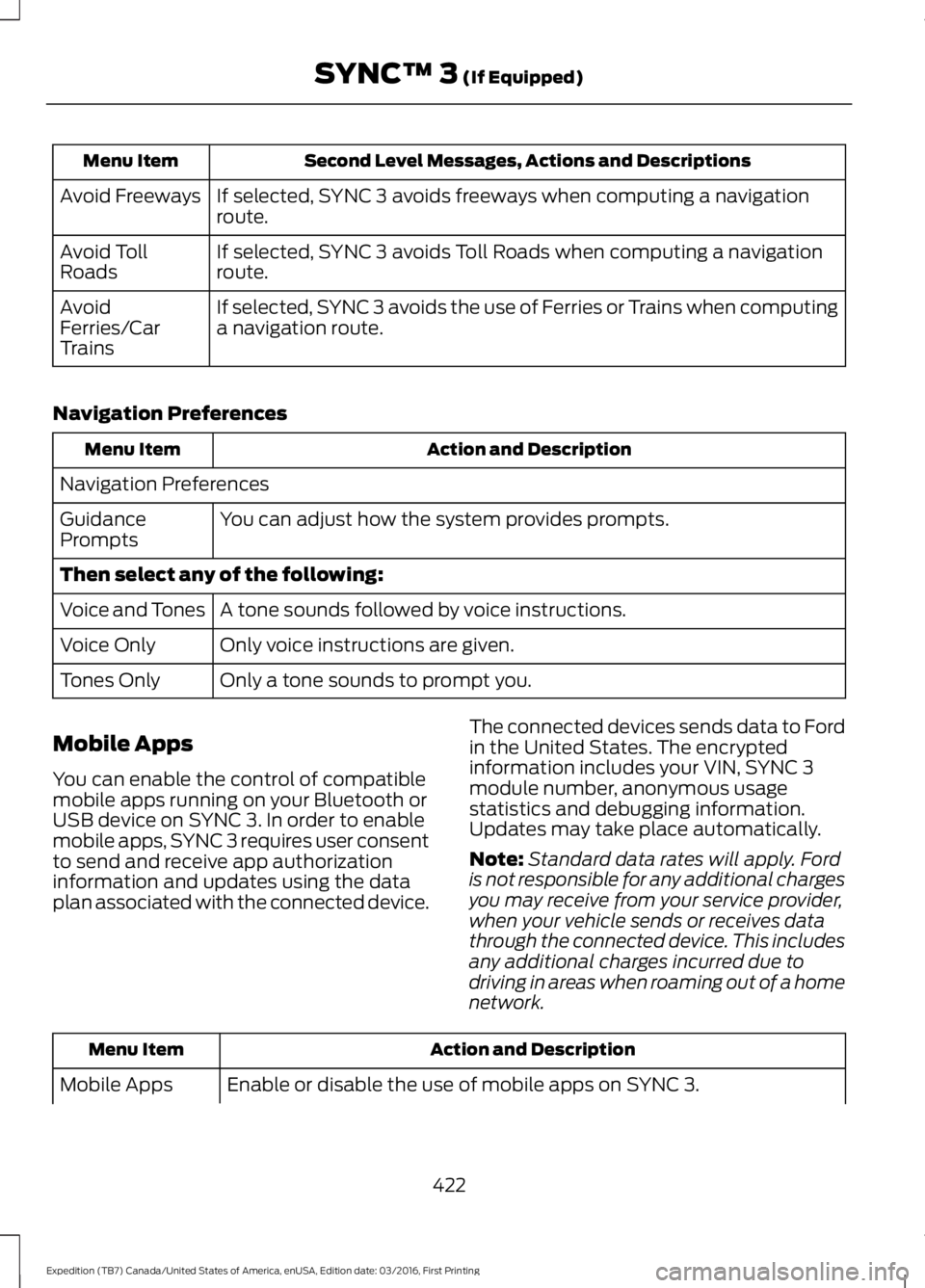
Second Level Messages, Actions and DescriptionsMenu Item
If selected, SYNC 3 avoids freeways when computing a navigationroute.Avoid Freeways
If selected, SYNC 3 avoids Toll Roads when computing a navigationroute.Avoid TollRoads
If selected, SYNC 3 avoids the use of Ferries or Trains when computinga navigation route.AvoidFerries/CarTrains
Navigation Preferences
Action and DescriptionMenu Item
Navigation Preferences
You can adjust how the system provides prompts.GuidancePrompts
Then select any of the following:
A tone sounds followed by voice instructions.Voice and Tones
Only voice instructions are given.Voice Only
Only a tone sounds to prompt you.Tones Only
Mobile Apps
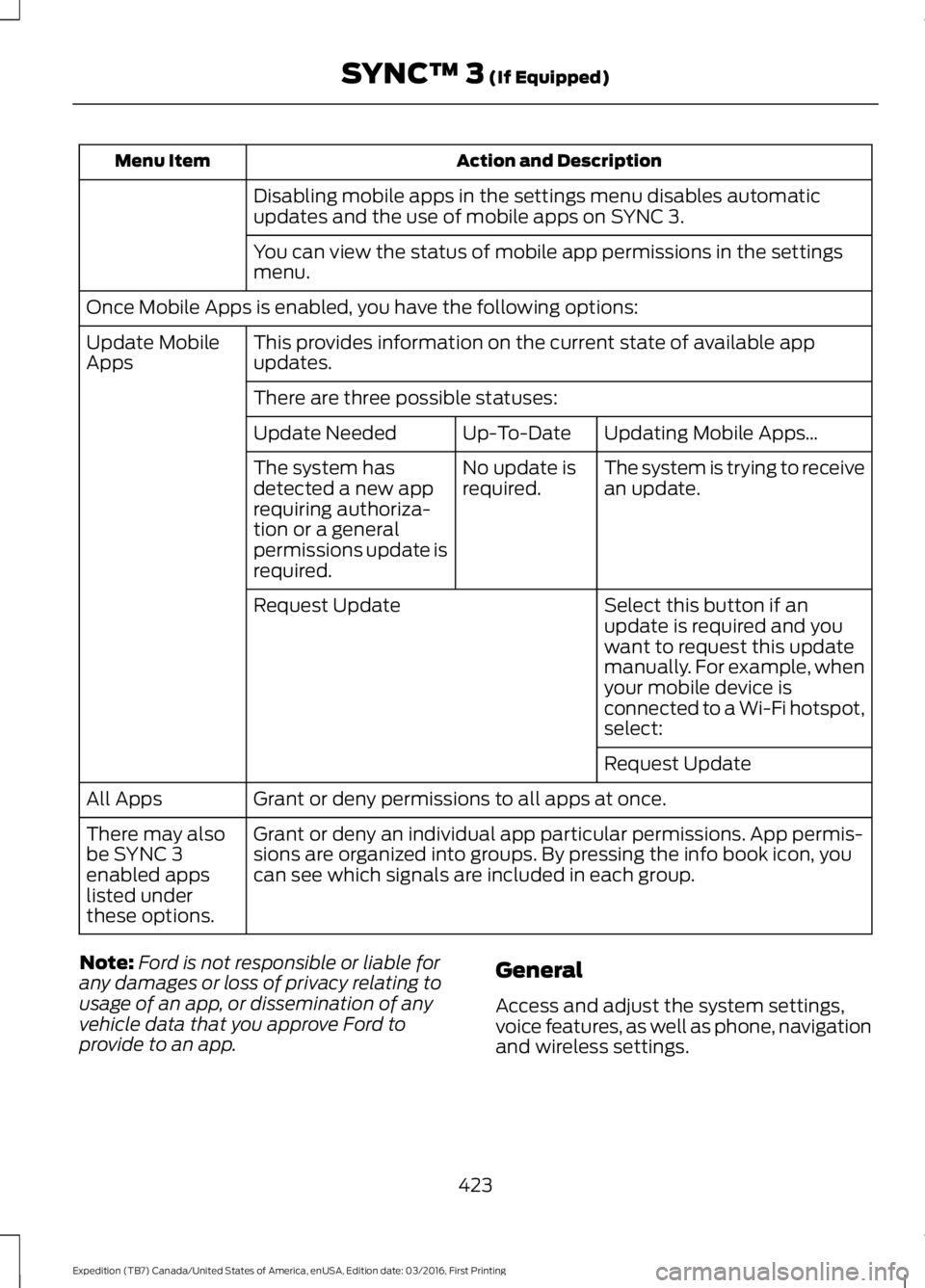
You can enable the control of compatiblemobile apps running on your Bluetooth orUSB device on SYNC 3. In order to enablemobile apps, SYNC 3 requires user consentto send and receive app authorizationinformation and updates using the dataplan associated with the connected device.
The connected devices sends data to Fordin the United States. The encryptedinformation includes your VIN, SYNC 3module number, anonymous usagestatistics and debugging information.Updates may take place automatically.
Note:Standard data rates will apply. Fordis not responsible for any additional chargesyou may receive from your service provider,when your vehicle sends or receives datathrough the connected device. This includesany additional charges incurred due todriving in areas when roaming out of a homenetwork.
Action and DescriptionMenu Item
Enable or disable the use of mobile apps on SYNC 3.Mobile Apps
422
Expedition (TB7) Canada/United States of America, enUSA, Edition date: 03/2016, First Printing
SYNC™ 3 (If Equipped)
Page 426 of 500
Action and DescriptionMenu Item
Disabling mobile apps in the settings menu disables automaticupdates and the use of mobile apps on SYNC 3.
You can view the status of mobile app permissions in the settingsmenu.
Once Mobile Apps is enabled, you have the following options:
This provides information on the current state of available appupdates.Update MobileApps
There are three possible statuses:
Updating Mobile Apps…Up-To-DateUpdate Needed
The system is trying to receivean update.No update isrequired.The system hasdetected a new apprequiring authoriza-tion or a generalpermissions update isrequired.
Select this button if anupdate is required and youwant to request this updatemanually. For example, whenyour mobile device isconnected to a Wi-Fi hotspot,select:
Request Update
Request Update
Grant or deny permissions to all apps at once.All Apps
Grant or deny an individual app particular permissions. App permis-sions are organized into groups. By pressing the info book icon, youcan see which signals are included in each group.
There may alsobe SYNC 3enabled appslisted underthese options.
Note:Ford is not responsible or liable forany damages or loss of privacy relating tousage of an app, or dissemination of anyvehicle data that you approve Ford toprovide to an app.
General
Access and adjust the system settings,voice features, as well as phone, navigationand wireless settings.
423
Expedition (TB7) Canada/United States of America, enUSA, Edition date: 03/2016, First Printing
SYNC™ 3 (If Equipped)
Page 468 of 500
TRADEMARKS: This EULA does not grantyou any rights in connection with anytrademarks or service marks of FORDMOTOR COMPANY, its affiliates, and thirdparty software and service providers.
PRODUCT SUPPORT: Please refer toFORD MOTOR COMPANY instructionsprovided in the documentation for theDEVICES product support, such as thevehicle owner guide.
Should you have any questions concerningthis EULA, or if you desire to contact FORDMOTOR COMPANY for any other reason,please refer to the address provided in thedocumentation for the DEVICES.
No Liability for Certain Damages:EXCEPT AS PROHIBITED BY LAW, FORDMOTOR COMPANY, ANY THIRD PARTYSOFTWARE OR SERVICES SUPPLIERS,AND THEIR AFFILIATES SHALL HAVE NOLIABILITY FOR ANY INDIRECT, SPECIAL,CONSEQUENTIAL OR INCIDENTALDAMAGES ARISING FROM OR INCONNECTION WITH THE USE ORPERFORMANCE OF THE SOFTWARE. THISLIMITATION SHALL APPLY EVEN IF ANYREMEDY FAILS OF ITS ESSENTIALPURPOSE. THERE ARE NO WARRANTIESOTHER THAN THOSE THAT MAY BEEXPRESSLY PROVIDED FOR YOUR NEWVEHICLE.
SYNC® Automotive Important SafetyInformation Read and followinstructions:
•Before using your SYNC® system, readand follow all instructions and safetyinformation provided in this end usermanual ("Owner Guide".) Notfollowing precautions found in theOwner Guide can lead to an accidentor other serious injuries.
General Operation
•Voice Command Control: Certainfunctions within the SYNC® systemmay be accomplished using voicecommands. Using voice commandswhile driving helps you to operate thesystem without removing your handsfrom the wheel or eyes from the road.
•Prolonged Views of Screen: Do notaccess any function requiring aprolonged view of the screen while youare driving. Pull over in a safe and legalmanner before attempting to access afunction of the system requiringprolonged attention.
•Volume Setting: Do not raise thevolume excessively. Keep the volumeat a level where you can still hearoutside traffic and emergency signalswhile driving. Driving while unable tohear these sounds could cause anaccident.
•Navigation Features: Any navigationfeatures included in the system areintended to provide turn by turninstructions to get you to a desireddestination. Please make certain allpersons using this system carefullyread and follow instructions and safetyinformation fully.
•Distraction Hazard: Any navigationfeatures may require manual(non-verbal) setup. Attempting toperform such set-up or insert datawhile driving can distract your attentionand could cause an accident or otherserious injury. Stop the vehicle in a safeand legal manner before attemptingthese operations.
•Let Your Judgment Prevail: Anynavigation features are provided onlyas an aid. Make your driving decisionsbased on your observations of localconditions and existing trafficregulations. Any such feature is not a
465
Expedition (TB7) Canada/United States of America, enUSA, Edition date: 03/2016, First Printing
Appendices
Page 469 of 500
substitute for your personal judgment.Any route suggestions made by thissystem should never replace any localtraffic regulations or your personaljudgment or knowledge of safe drivingpractices.
•Route Safety: Do not follow the routesuggestions if doing so would result inan unsafe or illegal maneuver, if youwould be placed in an unsafe situation,or if you would be directed into an areathat you consider unsafe. The driver isultimately responsible for the safeoperation of the vehicle and therefore,must evaluate whether it is safe tofollow the suggested directions.
•Potential Map Inaccuracy: Mapsused by this system may be inaccuratebecause of changes in roads, trafficcontrols or driving conditions. Alwaysuse good judgment and common sensewhen following the suggested routes.
•Emergency Services: Do not rely onany navigation features included in thesystem to route you to emergencyservices. Ask local authorities or anemergency services operator for theselocations. Not all emergency servicessuch as police, fire stations, hospitalsand clinics are likely to be contained inthe map database for such navigationfeatures.
Your Responsibilities and Assumptions ofRisk
•You agree to each of the following:(a)Any use of the SOFTWARE whiledriving an automobile or other vehiclein violation of applicable law orotherwise driving in an unsafe mannerpresents a significant risk of distracteddriving and should not be attemptedunder any circumstances;(b) Use ofthe SOFTWARE at excessive volumeposes a significant risk of hearingdamage and should not be attemptedunder any circumstances;(c) TheSOFTWARE may not be compatiblewith new or different versions of anoperating system, third party software,or third party services, and theSOFTWARE may potentially cause acritical failure of an operating system,third party software, or third partyservice.(d) Any third party serviceaccessed by or third party softwareused with the SOFTWARE (I) maycharge an additional fee for access, (ii)may not work correctly, on anuninterrupted basis, or error free, (iii)may change streaming formats ordiscontinue operation, (iv) may containadult, profane or offensive content; and(v) may contain inaccurate, false ormisleading traffic, weather, financialor safety information or other content;and (e) Use of the SOFTWARE maycause you to incur additional chargesfrom your wireless service provider(WSP) and any data or minutecalculators that may be included in thesoftware program are for referenceonly, are not warranted in any way andshould not be relied upon in anyway.
•When using the SOFTWARE, you agreeto be responsible for and assume theentire risk to the items set forth inSection (a) – (e) above.
466
Expedition (TB7) Canada/United States of America, enUSA, Edition date: 03/2016, First Printing
Appendices
Page 473 of 500
1. Safe and Lawful Use
You acknowledge that devoting attentionto the TeleNav Software may pose a riskof injury or death to you and others insituations that otherwise require yourundivided attention, and you thereforeagree to comply with the following whenusing the TeleNav Software:
(a) observe all traffic laws and otherwisedrive safely;
(b) use your own personal judgment whiledriving. If you feel that a route suggestedby the TeleNav Software instructs you toperform an unsafe or illegal maneuver,places you in an unsafe situation, or directsyou into an area that you consider to beunsafe, do not follow such instructions;
(c) do not input destinations, or otherwisemanipulate the TeleNav Software, unlessyour vehicle is stationary and parked;
(d) do not use the TeleNav Software forany illegal, unauthorized, unintended,unsafe, hazardous, or unlawful purposes,or in any manner inconsistent with thisAgreement;
(e) arrange all GPS and wireless devicesand cables necessary for use of theTeleNav Software in a secure manner inyour vehicle so that they will not interferewith your driving and will not prevent theoperation of any safety device (such as anairbag).
You agree to indemnify and hold TeleNavharmless against all claims resulting fromany dangerous or otherwise inappropriateuse of the TeleNav Software in any movingvehicle, including as a result of your failureto comply with the directions above.
2. Account Information
You agree: (a) when registering theTeleNav Software, to provide TeleNav withtrue, accurate, current, and completeinformation about yourself, and (b) toinform TeleNav promptly of any changesto such information, and to keep it true,accurate, current and complete.
3. Software License
•Subject to your compliance with theterms of this Agreement, TeleNavhereby grants to you a personal,non-exclusive, non-transferable license(except as expressly permitted belowin connection with your permanenttransfer of the TeleNav Softwarelicense), without the right tosublicense, to use the TeleNavSoftware (in object code form only) inorder to access and use the TeleNavSoftware. This license shall terminateupon any termination or expiration ofthis Agreement. You agree that you willuse the TeleNav Software only for yourpersonal business or leisure purposes,and not to provide commercialnavigation services to other parties.
3.1 License Limitations
•(a) reverse engineer, decompile,disassemble, translate, modify, alteror otherwise change the TeleNavSoftware or any part thereof; (b)attempt to derive the source code,audio library or structure of theTeleNav Software without the priorexpress written consent of TeleNav;(c) remove from the TeleNavSoftware, or alter, any of TeleNav's orits suppliers' trademarks, trade names,logos, patent or copyright notices, orother notices or markings; (d)
470
Expedition (TB7) Canada/United States of America, enUSA, Edition date: 03/2016, First Printing
Appendices