Page 268 of 584
Oil Pressure
•Displays the actual oil pressure.
Oil Life
Battery Voltage
Driver Assist — If Equipped
Push and release the UPorDOWNar-
row button until the Driver Assist display
icon/title is highlighted in the Instrument
Cluster Display. For further information, refer
to “Adaptive Cruise Control (ACC) — If Equipped” in
“Understanding The Features Of Your Vehicle.”
266 UNDERSTANDING YOUR INSTRUMENT PANEL
Page 269 of 584

Fuel Economy
Push and release theUPorDOWNar-
row button until the Fuel Economy Menu
icon/title is highlighted. Push the LEFTor
RIGHT arrow button to scroll the submenus,
one with current fuel economy display and one without
it.
• Range
• Current MPG or L/100 km or km/l
• Average MPG or L/100 km or km/l
• Press the OKbutton to reset the average fuel economy
NOTE: The Range feature is not able to be reset through
the Instrument Cluster Display Controls.
Trip
Push and release the UPorDOWNar-
row button until the Trip icon/title is high-
lighted in the Instrument Cluster Display, then
push and release the LEFT
orRIGHT
arrow button to select Trip A or Trip B.
The Trip A and Trip B information will display the
following:
•Distance
• Average Fuel Economy
• Elapsed Time
Hold the OKbutton to reset all the information.
Stop/Start — If Equipped
Push and release the UPorDOWNar-
row button until the Stop/Start icon/title is
highlighted in the Instrument Cluster Display.
The screen will display the Stop/Start status.
Audio
Push and release the UPorDOWNar-
row button until the Audio Menu icon/title is
highlighted in the Instrument Cluster Display.
4
UNDERSTANDING YOUR INSTRUMENT PANEL 267
Page 270 of 584

Stored Messages
Push and release theUPorDOWNar-
row button until the Messages Menu item is
highlighted. This feature shows the number of
stored warning messages. Pushing the RIGHT
arrow button will allow you to see what the stored
messages are.
When no messages are present, main menu icon will be a
closed envelope.
Screen Setup
Push and release the UPorDOWNar-
row button until the Screen Setup Menu icon/
title is highlighted in the Instrument Cluster
Display. Push and release the OKbutton to
enter the submenus and follow the prompts on the
screen as needed. The Screen Setup feature allows you
to change what information is displayed in the instru-
ment cluster as well as the location that information is
displayed. Screen Setup Driver Selectable Items
Current Gear
•
On
• Off (default setting)
Favorite Menus
• Speedometer
• Vehicle Info
• Driver Assist (Show/Hide)
• Fuel Economy (Show/Hide)
• Trip (Show/Hide)
• Stop/Start
• Audio (Show/Hide)
• Stored Messages
• Screen Setup
NOTE: Menus with (show/hide) can push the OKbutton
to choose whether to show or hide this menu on the
Instrument Cluster Display.
268 UNDERSTANDING YOUR INSTRUMENT PANEL
Page 272 of 584
When load reduction is activated, the message “Battery
Saver On” or “Battery Saver Mode” will appear in the
Instrument Cluster Display.
These messages indicate the vehicle battery has a low state
of charge and continues to lose electrical charge at a rate
that the charging system cannot sustain.
NOTE:
•The charging system is independent from load reduc-
tion. The charging system performs a diagnostic on the
charging system continuously.
• If the Battery Charge Warning Light is on it may indicate
a problem with the charging system. Refer to “Battery
Charge Warning Light” in “Understanding Your Instru-
ment Panel” for further information.
The electrical loads that may be switched off (if equipped),
and vehicle functions which can be effected by load reduction:
• Heated Seat/Vented Seats/Heated Wheel
• Heated/Cooled Cup Holders — If Equipped
• Rear Defroster And Heated Mirrors
• HVAC System •
115V AC Power Inverter System
• Audio and Telematics System
Loss of the battery charge may indicate one or more of the
following conditions:
• The charging system cannot deliver enough electrical
power to the vehicle system because the electrical loads
are larger than the capability of charging system. The
charging system is still functioning properly.
• Turning on all possible vehicle electrical loads (e.g.
HVAC to max settings, exterior and interior lights,
overloaded power outlets +12V, 115V AC, USB ports)
during certain driving conditions (city driving, towing,
frequent stopping).
•
Installing options like additional lights, upfitter electrical
accessories, audio systems, alarms and similar devices.
• Unusual driving cycles (short trips separated by long
parking periods).
• The vehicle was parked for an extended period of time
(weeks, months).
• The battery was recently replaced and was not charged
completely.
270 UNDERSTANDING YOUR INSTRUMENT PANEL
Page 278 of 584
Units
After pressing the “Units” button on the touchscreen you
may select each unit of measure independently displayed
in the Instrument Cluster Display, and navigation system
(if equipped). The following selectable units of measure are
listed below:
Setting NameSelectable Options
Units Custom
NOTE:
The “Custom” option allows you to set the “Speed” (MPH, or km/h), “Distance” (mi, or km), “Fuel Consumption”
[MPG (US), MPG (UK), L/100 km, or km/L], “Pressure” (psi, kPa, or bar), and “Temperature” (°C, or °F) units of
measure independently.
Voice
After pressing the “Voice” button on the touchscreen, the
following settings will be available:
Setting Name Selectable Options
Voice Response Length Brief Detailed
Show Command List AlwaysWith Help Never
276 UNDERSTANDING YOUR INSTRUMENT PANEL
Page 297 of 584
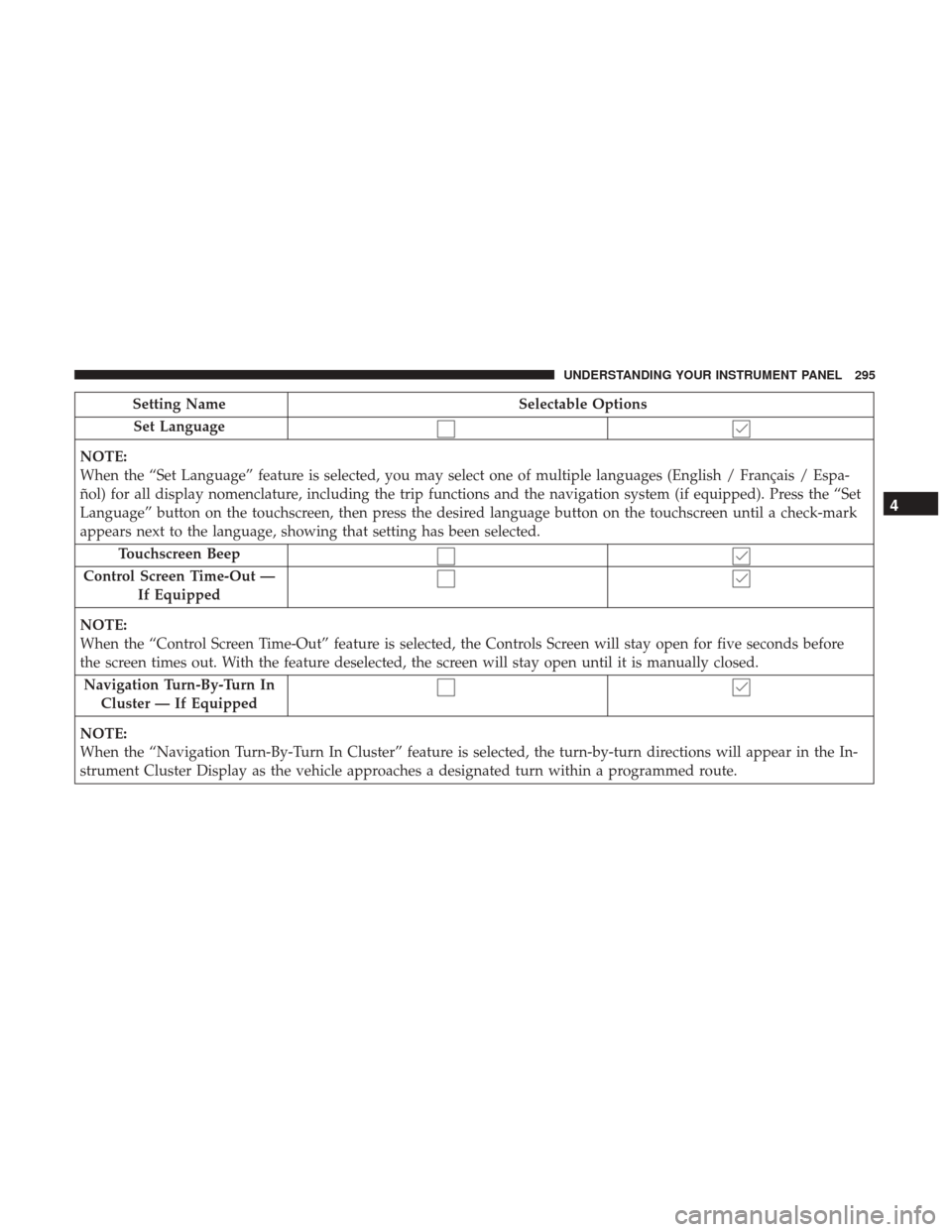
Setting NameSelectable Options
Set Language
NOTE:
When the “Set Language” feature is selected, you may select one of multiple languages (English / Français / Espa-
ñol) for all display nomenclature, including the trip functions and the navigation system (if equipped). Press the “Set
Language” button on the touchscreen, then press the desired language button on the touchscreen until a check-mark
appears next to the language, showing that setting has been selected. Touchscreen Beep
Control Screen Time-Out — If Equipped
NOTE:
When the “Control Screen Time-Out” feature is selected, the Controls Screen will stay open for five seconds before
the screen times out. With the feature deselected, the screen will stay open until it is manually closed. Navigation Turn-By-Turn In Cluster — If Equipped
NOTE:
When the “Navigation Turn-By-Turn In Cluster” feature is selected, the turn-by-turn directions will appear in the In-
strument Cluster Display as the vehicle approaches a designated turn within a programmed route.
4
UNDERSTANDING YOUR INSTRUMENT PANEL 295
Page 298 of 584
Units
After pressing the “Units” button on the touchscreen you
may select each unit of measure independently displayed
in the Instrument Cluster Display, and navigation system
(if equipped). The following selectable units of measure are
listed below:
Setting NameSelectable Options
Units Custom
NOTE:
The “Custom” option allows you to set the “Speed” (MPH, or km/h), “Distance” (mi, or km), “Fuel Consumption”
[MPG (US), MPG (UK), L/100 km, or km/L], “Pressure” (psi, kPa, or bar), and “Temperature” (°C, or °F) units of
measure independently.
Voice
After pressing the “Voice” button on the touchscreen, the
following settings will be available:
Setting Name Selectable Options
Voice Response Length Brief Detailed
Show Command List AlwaysWith Help Never
296 UNDERSTANDING YOUR INSTRUMENT PANEL
Page 383 of 584

3. If the gear selector is not in PARK, the ENGINE START/STOP button must be held for two seconds or three short
pushes in a row with the vehicle speed above 5 mph
(8 km/h) before the engine will shut off. The ignition
switch position will remain in the ACC position until the
gear selector is in PARK and the button is pushed twice
to the OFF position. If the gear selector is not in PARK
and the ENGINE START/STOP button is pushed once,
the instrument cluster display will display a “Vehicle
Not In Park” message and the engine will remain
running. Never leave a vehicle out of the PARK position,
or it could roll.
4. If the gear selector is in Neutral, push and release the ENGINE START/STOP button with the vehicle speed
below 5 mph (8 km/h) before the engine will shut off.
The ignition will remain in the ACC position.
NOTE:
If the ignition is left in the ACC or RUN (engine not
running) position and the transmission is in PARK, the
system will automatically time out after 30 minutes of inac-
tivity and the ignition will switch to the OFF position.
ENGINE START/STOP Button Functions — With
Driver ’s Foot OFF The Brake Pedal (In PARK Or
NEUTRAL Position)
The ENGINE START/STOP button operates similar to an
ignition switch. It has four positions, OFF, ACC, RUN and
START. To change the ignition positions without starting
the vehicle and use the accessories, follow these steps:
• Starting with the ignition in the OFF position.
• Push the ENGINE START/STOP button once to place
the ignition to the ACC position (instrument cluster
display will display “ACC”).
• Push the ENGINE START/STOP button a second time to
place the ignition to the RUN position (instrument
cluster display will display “ON/RUN”).
• Push the ENGINE START/STOP button a third time to
return the ignition to the OFF position (instrument
cluster display will display “OFF”).
Extreme Cold Weather (Below –22°F Or 30°C)
To ensure reliable starting at these temperatures, use of an
externally powered electric engine block heater (available
from your authorized dealer) is recommended.
5
STARTING AND OPERATING 381


