Page 237 of 530
NOTE:Only one touchscreen area may be selected at a
time.
When making a selection, press the button on the touch-
screen to enter the desired mode. Once in the desired
mode, select the preferred setting option. Once the setting
is complete, either press the Back Arrow/Done button on
the touchscreen or the Back button on the faceplate to
return to the previous menu or press the “X” button on the
touchscreen to close out of the settings screen. Pressing the
Up or Down Arrow buttons on the right side of the screen
will allow you to toggle up or down through the available
settings.Display
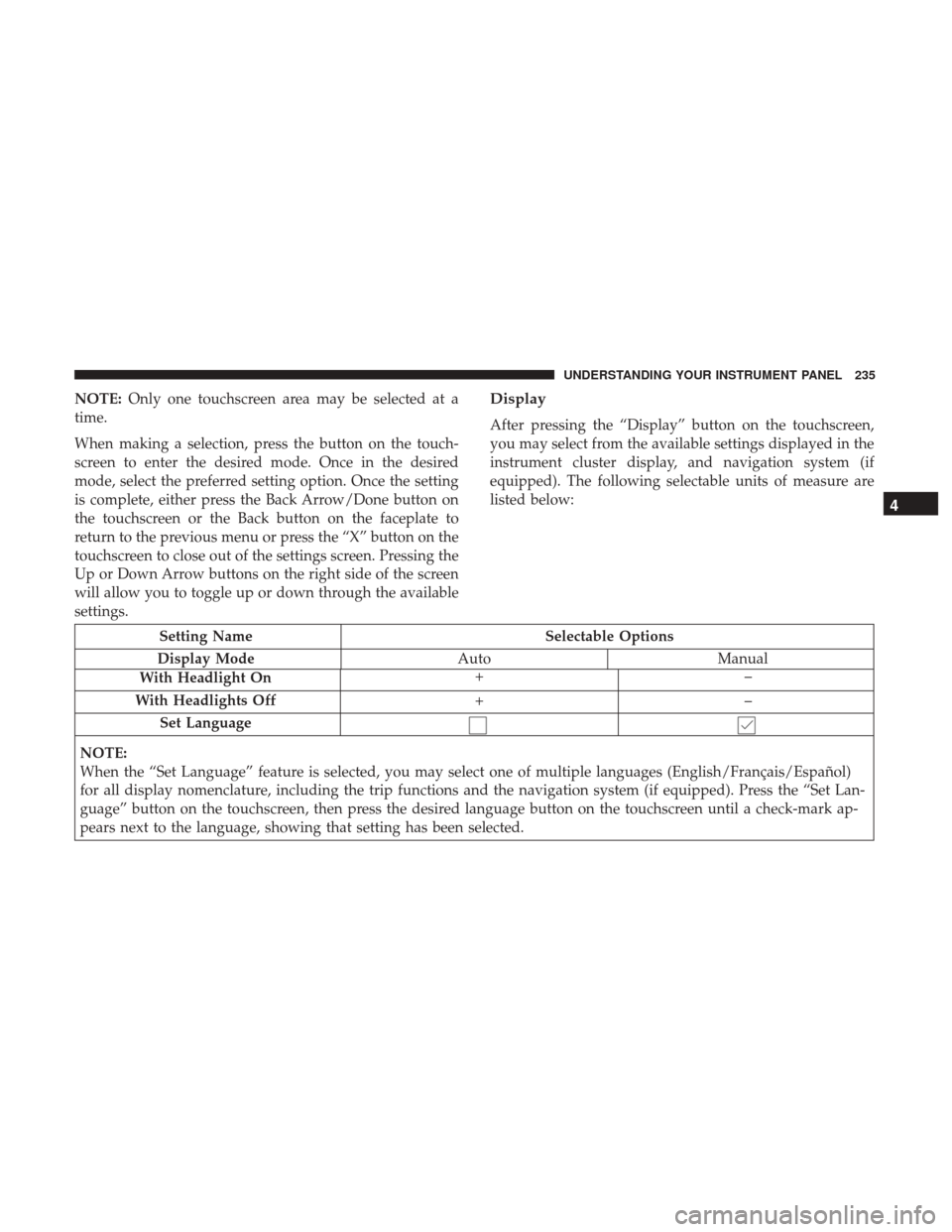
After pressing the “Display” button on the touchscreen,
you may select from the available settings displayed in the
instrument cluster display, and navigation system (if
equipped). The following selectable units of measure are
listed below:
Setting Name Selectable Options
Display Mode AutoManual
With Headlight On +–
With Headlights Off +–
Set Language
NOTE:
When the “Set Language” feature is selected, you may select one of multiple languages (English/Français/Español)
for all display nomenclature, including the trip functions and the navigation system (if equipped). Press the “Set Lan-
guage” button on the touchscreen, then press the desired language button on the touchscreen until a check-mark ap-
pears next to the language, showing that setting has been selected.
4
UNDERSTANDING YOUR INSTRUMENT PANEL 235
Page 254 of 530

Customer Programmable Features — Uconnect 8.4
Settings
Press the “Apps” button, and then press the “Set-
tings” button on the touchscreen to display the menu
setting screen. In this mode, the Uconnect system allows
you to access programmable features that may be
equipped such as Display, Language, Units, Voice,
Clock, Safety & Driving Assistance, Lights, Doors &
Locks, Auto-On Comfort, Engine Off Options, Audio,
Phone, SiriusXM Setup, Restore Settings, Clear Personal
Data and System Information.
NOTE:
• Only one touchscreen area may be selected at a time.
• Depending on the vehicles options, feature settings may
vary. When making a selection, press the button on the touch-
screen to enter the desired mode. Once in the desired
mode, press and release the preferred setting “option” until
a check-mark appears next to the setting, showing that
setting has been selected. Once the setting is complete,
either press the back arrow button on the touchscreen to
return to the previous menu, or press the “X” button on the
touchscreen to close out of the settings screen. Pressing the
up or down arrow button on the right side of the screen
will allow you to toggle up or down through the available
settings.Display
After pressing the “Display” button on the touchscreen, the
following settings will be available:
Setting Name
Selectable Options
Display Mode Manual Auto
Display Brightness With Headlights ON +–
NOTE:
•When in the “Display Brightness With Headlights ON” display, you may select the brightness with the headlights
on.
252 UNDERSTANDING YOUR INSTRUMENT PANEL
Page 257 of 530
Setting NameSelectable Options
Navigation Turn-By-Turn
Displayed In Cluster — If Equipped
NOTE:
When the “Navigation Turn-By-Turn In Cluster” feature is selected, the turn-by-turn directions will appear in the in-
strument cluster display as the vehicle approaches a designated turn within a programmed route.
Language
After pressing the “Language” button on the touchscreen,
the following settings will be available:
Setting Name Selectable Options
Set Lan- guage English Français Español
4
UNDERSTANDING YOUR INSTRUMENT PANEL 255
Page 510 of 530

PUBLICATION ORDER FORMS
To order the following manuals, you may use either the
website or the phone numbers listed below. Visa, Master-
card, American Express, and Discover orders are accepted.
Service Manuals
These comprehensive Service Manuals provide the infor-
mation that students and professional technicians need in
diagnosing/troubleshooting, problem solving, maintain-
ing, servicing, and repairing FCA US LLC vehicles. A
complete working knowledge of the vehicle, system,
and/or components is written in straightforward language
with illustrations, diagrams, and charts.
Diagnostic Procedure Manuals
Diagnostic Procedure Manuals are filled with diagrams,
charts and detailed illustrations. These practical manuals
make it easy for students and technicians to find and fix
problems on computer-controlled vehicle systems and fea-
tures. They show exactly how to find and correct problems
the first time, using step-by-step troubleshooting and driv-
ability procedures, proven diagnostic tests, and a complete
list of all tools and equipment.Owner’s Manuals
These Owner’s Manuals have been prepared with the
assistance of service and engineering specialists to acquaint
you with specific FCA US LLC vehicles. Included are
starting, operating, emergency and maintenance proce-
dures as well as specifications, capabilities and safety tips.
Call toll free at:
•
1-800-890-4038 (U.S.)
• 1-800-387-1143 (Canada)
Or
Visit us on the Worldwide Web at:
• www.techauthority.com
508 IF YOU NEED CONSUMER ASSISTANCE
