Page 199 of 530
INSTRUMENT PANEL FEATURES
1 — Air Outlet6 — Glove Compartment
2 — Instrument Cluster 7 — Power Outlet
3 — Radio Controls 8 — Ignition Start/Stop Button
4 — Uconnect System 9 — Trunk Release Button
5 — Climate Control Hard Controls 10 — Headlight Switch
4
UNDERSTANDING YOUR INSTRUMENT PANEL 197
Page 233 of 530

are larger than the capability of charging system. The
charging system is still functioning properly.
• Turning on all possible vehicle electrical loads (e.g.
HVAC to max settings, exterior and interior lights,
overloaded power outlets +12V, 115V AC, USB ports)
during certain driving conditions (city driving, towing,
frequent stopping).
• Installing options like additional lights, upfitter electri-
cal accessories, audio systems, alarms and similar de-
vices.
• Unusual driving cycles (short trips separated by long
parking periods).
• The vehicle was parked for an extended period of time
(weeks, months).
• The battery was recently replaced and was not charged
completely.
• The battery was discharged by an electrical load left on
when the vehicle was parked.
• The battery was used for an extended period with the
engine not running to supply radio, lights, chargers,
+12V portable appliances like vacuum cleaners, game
consoles and similar devices. What to do when an electrical load reduction action
message is present (“Battery Saver On” or “Battery Saver
Mode”)
During a trip:
•
Reduce power to unnecessary loads if possible:
– Turn off redundant lights (interior or exterior)
– Check what may be plugged in to power outlets +12V, 115V AC, USB ports
– Check HVAC settings (blower, temperature)
– Check the audio settings (volume)
After a trip:
• Check if any aftermarket equipment was installed (ad-
ditional lights, upfitter electrical accessories, audio sys-
tems, alarms) and review specifications if any (load and
Ignition Off Draw currents).
• Evaluate the latest driving cycles (distance, driving time
and parking time).
• The vehicle should have service performed if the mes-
sage is still present during consecutive trips and the
evaluation of the vehicle and driving pattern did not
help to identify the cause.
4
UNDERSTANDING YOUR INSTRUMENT PANEL 231
Page 241 of 530

Setting NameSelectable Options
Rear ParkSense
Chime Volume — If Equipped Low
MedHigh
ParkView Backup Camera Active Guidelines On
Off
NOTE:
Your vehicle may be equipped with the ParkView Rear Back Up Camera Active Guidelines that allows you to see ac-
tive guidelines over the ParkView Back up camera display whenever the gear selector is put into REVERSE. The im-
age will be displayed on the radio touchscreen display along with a caution note to “check entire surroundings”
across the top of the screen. After five seconds, this note will disappear. ParkView Backup Camera Delay On
Off
NOTE:
When the vehicle is shifted out of REVERSE (with camera delay turned off), the rear camera mode is exited and the
navigation or audio screen appears again. When the vehicle is shifted out of REVERSE (with camera delay turned
on), the rear view image with dynamic grid lines will be displayed for up to 10 seconds after shifting out of “RE-
VERSE” unless the forward vehicle speed exceeds 8 mph (12 km/h), the transmission is shifted into PARK or the ig-
nition is switched to the off position. To set the ParkView Backup Camera Delay press the “Controls” button on the
touchscreen, the “settings” button on the touchscreen, then the “Safety & Assistance” button on the touchscreen.
4
UNDERSTANDING YOUR INSTRUMENT PANEL 239
Page 246 of 530
Setting NameSelectable Options
Passive Entry — If Equipped On
Off
NOTE:
This feature allows you to lock and unlock the vehicle’s door(s) without having to push the key fob lock or unlock
buttons. It automatically unlocks the doors when the outside door handle is grabbed.
Engine Off Options
After pressing the “Engine Off Options” button on the
touchscreen, the following settings will be available:
Setting Name Selectable Options
Headlight Off Delay 030609 0
Engine Off Power Delay 0 seconds
45 seconds 5 minutes10 minutes
NOTE:
When this feature is selected, the power window switches, radio, Uconnect phone system (if equipped), DVD video
system (if equipped), power sunroof (if equipped), and power outlets will remain active for up to 10 minutes after
the ignition is cycled to OFF. Opening either front door will cancel this feature.
244 UNDERSTANDING YOUR INSTRUMENT PANEL
Page 252 of 530

Setting NameSelectable Options
Subscription Info Sirius ID
NOTE:
New vehicle purchasers or lessees will receive a free limited time subscription to SiriusXM Satellite Radio with your
radio. Following the expiration of the free services, it will be necessary to access the information on the Subscription
Information screen to re-subscribe.
1. Press the “Subscription Info” button on the touchscreen to access the Subscription Information screen.
2. Write down the SIRIUS ID numbers for your receiver. To reactivate your service, either call the number listed on the screen or visit the provider online.
SiriusXM Travel Link is a separate subscription and is available for U.S. residents only.
Restore Settings
After pressing the “Restore Settings” button on the touch-
screen the following settings will be available:
Setting Name Selectable Options
Restore Settings YesCancel
NOTE:
When the “Restore Settings” feature is selected it will reset the Display, Clock, Audio, and Radio Settings to their de-
fault settings. If “Yes” is selected a pop-up will appear asking �Are you sure you want to reset your settings to de-
fault?” select “Yes” to restore, or “Cancel” to exit.
250 UNDERSTANDING YOUR INSTRUMENT PANEL
Page 259 of 530
Voice
After pressing the “Voice” button on the touchscreen, the
following settings will be available:
Setting NameSelectable Options
Voice Response Length Brief Detailed
Show Command List NeverWith Help Always
Clock
After pressing the “Clock” button on the touchscreen, the
following settings will be available:
Setting Name Selectable Options
Sync Time With GPS — If Equipped
NOTE:
The “Sync Time With GPS” feature will allow you to automatically have the radio set the time.
4
UNDERSTANDING YOUR INSTRUMENT PANEL 257
Page 265 of 530
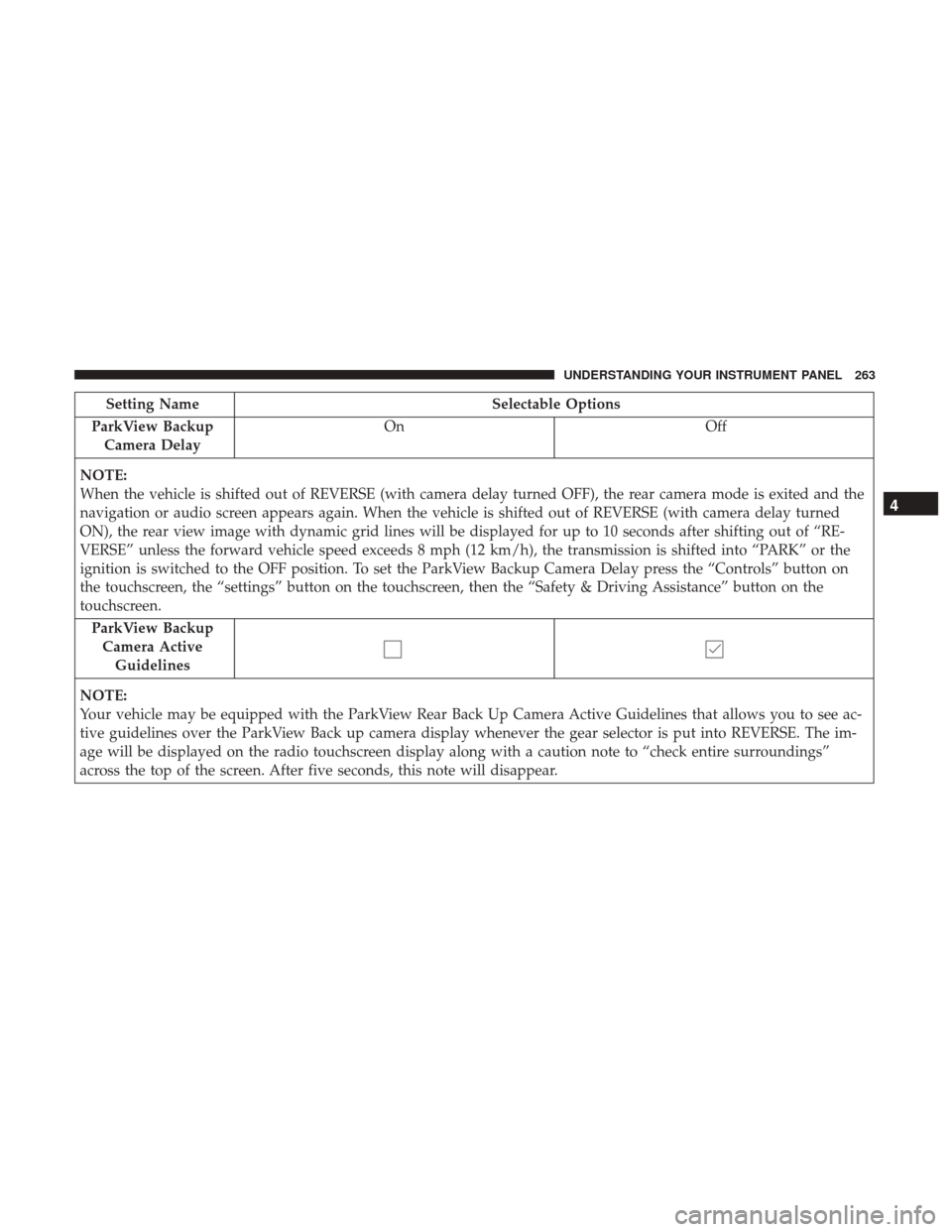
Setting NameSelectable Options
ParkView Backup Camera Delay On
Off
NOTE:
When the vehicle is shifted out of REVERSE (with camera delay turned OFF), the rear camera mode is exited and the
navigation or audio screen appears again. When the vehicle is shifted out of REVERSE (with camera delay turned
ON), the rear view image with dynamic grid lines will be displayed for up to 10 seconds after shifting out of “RE-
VERSE” unless the forward vehicle speed exceeds 8 mph (12 km/h), the transmission is shifted into “PARK” or the
ignition is switched to the OFF position. To set the ParkView Backup Camera Delay press the “Controls” button on
the touchscreen, the “settings” button on the touchscreen, then the “Safety & Driving Assistance” button on the
touchscreen. ParkView BackupCamera Active Guidelines
NOTE:
Your vehicle may be equipped with the ParkView Rear Back Up Camera Active Guidelines that allows you to see ac-
tive guidelines over the ParkView Back up camera display whenever the gear selector is put into REVERSE. The im-
age will be displayed on the radio touchscreen display along with a caution note to “check entire surroundings”
across the top of the screen. After five seconds, this note will disappear.
4
UNDERSTANDING YOUR INSTRUMENT PANEL 263
Page 269 of 530
Passive Entry — IfEquipped
NOTE:
The “Passive Entry” feature allows you to lock and unlock the vehicles door(s) without having to push the key fob
lock or unlock buttons. To make your selection, press the “Passive Entry” button on the touchscreen, until a check-
mark appears next to the setting, showing that the setting has been selected. Personal Settings Linked To Key Fob — IfEquipped
NOTE:
•This feature provides automatic recall of all settings stored to a memory location (driver ’s seat, exterior mirrors,
steering column position and radio station pre-sets) to enhance driver mobility when entering and exiting the ve-
hicle.
•The seat will return to the memorized seat location (if Personal Settings Linked to Key Fob is set to on) when the
key fob is used to unlock the door.
4
UNDERSTANDING YOUR INSTRUMENT PANEL 267


