Page 123 of 506

WARNING!(Continued)
operation of the vehicle under all road conditions.
Your complete attention is always required while
driving to maintain safe control of your vehicle.
Failure to follow these warnings can result in a
collision and death or serious personal injury.
• The ACC system:
• Does not react to pedestrians, oncoming vehicles,
and stationary objects (e.g., a stopped vehicle in a
traffic jam or a disabled vehicle).
• Cannot take street, traffic, and weather conditions
into account, and may be limited upon adverse
sight distance conditions.
• Does not always fully recognize complex driving
conditions, which can result in wrong or missing
distance warnings.
You should switch off the ACC system:
• When driving in fog, heavy rain, heavy snow, sleet,
heavy traffic, and complex driving situations (i.e., in
highway construction zones).
(Continued)
WARNING! (Continued)
•When entering a turn lane or highway off ramp;
when driving on roads that are winding, icy, snow-
covered, slippery, or have steep uphill or downhill
slopes.
• When towing a trailer up or down steep slopes.
• When circumstances do not allow safe driving at a
constant speed.
Adaptive Cruise Control (ACC) Operation
The cruise control buttons (located on the right side of the
steering wheel) operates the ACC system.
3
UNDERSTANDING THE FEATURES OF YOUR VEHICLE 121
Page 132 of 506

Adaptive Cruise Control (ACC) Menu
The instrument cluster display will show the current ACC
system settings. The instrument cluster display is located
in the center of the instrument cluster. The information it
displays depends on ACC system status.
Push the Adaptive Cruise Control (ACC) on/off button
(located on the steering wheel) until one of the following
appears in the instrument cluster display:
Adaptive Cruise Control Off
When ACC is deactivated, the display will read “Adaptive
Cruise Control Off.”
Adaptive Cruise Control Ready
When ACC is activated, but the vehicle speed setting has
not been selected, the display will read “Adaptive Cruise
Control Ready.”
ACC SET
When the SET (+) or the SET (-) button (located on the
steering wheel) is pushed, the display will read “ACC
SET.”
When ACC is set, the set speed will show in the instrument
cluster display.The ACC screen may display once again if any ACC
activity occurs, which may include any of the following:
•
System Cancel
• Driver Override
• System Off
• ACC Proximity Warning
• ACC Unavailable Warning
• The instrument cluster display will return to the last
display selected after five seconds of no ACC display
activity
Display Warnings And Maintenance
“Wipe Front Radar Sensor In Front Of Vehicle”
Warning
The “ACC/FCW Unavailable Wipe Front Radar Sensor”
warning will display and also a chime will indicate when
conditions temporarily limit system performance.
This most often occurs at times of poor visibility, such as in
snow or heavy rain. The ACC system may also become
temporarily blinded due to obstructions, such as mud, dirt
or ice. In these cases, the instrument cluster display will
read “ACC/FCW Unavailable Wipe Front Radar Sensor”
and the system will deactivate.
130 UNDERSTANDING THE FEATURES OF YOUR VEHICLE
Page 150 of 506

REVERSE. However, this feature is cancelled if the forward
vehicle speed exceeds 8 mph (13 km/h), the transmission is
shifted into PARK or the vehicle’s ignition is cycled to the
OFF position.
When the vehicle is shifted out of REVERSE (with Camera
Delay turned off), the rear camera mode is exited and the
last touchscreen appears again.When enabled, active guide lines are overlaid on the image
to illustrate the width of the vehicle and its projected
backup path based on the steering wheel position. The
active guide lines will show separate zones that will help
indicate the distance to the rear of the vehicle.
Different colored zones indicate the distance to the rear of
the vehicle.
The following table shows the approximate distances for
each zone:
Zone
Distance to the rear of the vehicle
Red 0 - 1 ft (0 - 30 cm)
Yellow 1 ft - 6.5 ft (30 cm - 2 m)
Green 6.5 ft or greater (2 m or greater)
WARNING!
Drivers must be careful when backing up even when
using the ParkView Rear Back Up Camera. Always
check carefully behind your vehicle, and be sure to
(Continued)
WARNING!(Continued)
check for pedestrians, animals, other vehicles, obstruc-
tions, or blind spots before backing up. You are re-
sponsible for the safety of your surroundings and must
continue to pay attention while backing up. Failure to
do so can result in serious injury or death.
148 UNDERSTANDING THE FEATURES OF YOUR VEHICLE
Page 170 of 506
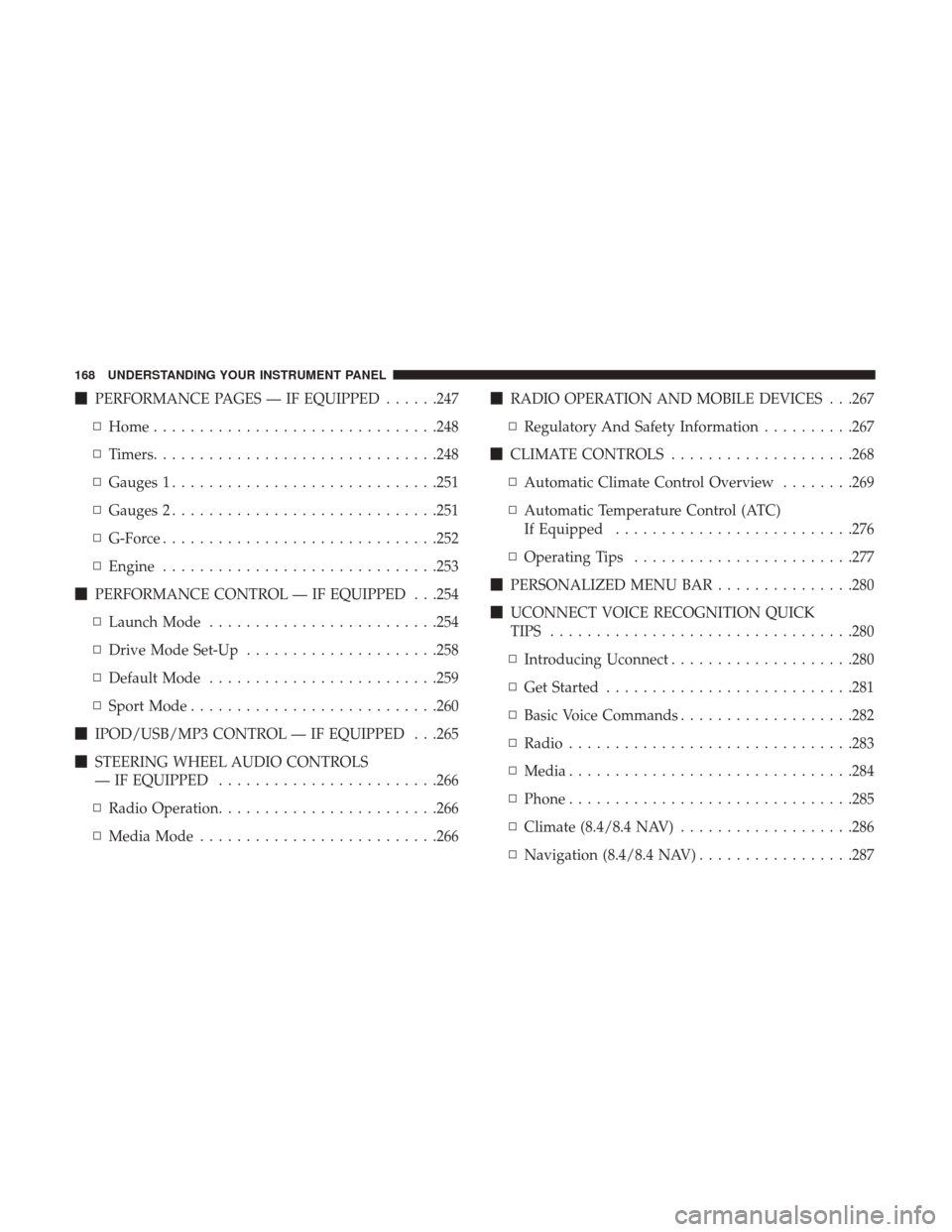
�PERFORMANCE PAGES — IF EQUIPPED ......247
▫ Home .............................. .248
▫ Timers .............................. .248
▫ Gauges 1 ............................ .251
▫ Gauges 2 ............................ .251
▫ G-Force ............................. .252
▫ Engine ............................. .253
� PERFORMANCE CONTROL — IF EQUIPPED . . .254
▫ Launch Mode ........................ .254
▫ Drive Mode Set-Up .....................258
▫ Default Mode ........................ .259
▫ Sport Mode .......................... .260
� IPOD/USB/MP3 CONTROL — IF EQUIPPED . . .265
� STEERING WHEEL AUDIO CONTROLS
— IF EQUIPPED ....................... .266
▫ Radio Operation ....................... .266
▫ Media Mode ......................... .266�
RADIO OPERATION AND MOBILE DEVICES . . .267
▫ Regulatory And Safety Information ..........267
� CLIMATE CONTROLS ....................268
▫ Automatic Climate Control Overview ........269
▫ Automatic Temperature Control (ATC)
If Equipped ......................... .276
▫ Operating Tips ....................... .277
� PERSONALIZED MENU BAR ...............280
� UCONNECT VOICE RECOGNITION QUICK
TIPS ................................ .280
▫ Introducing Uconnect ....................280
▫ Get Started .......................... .281
▫ Basic
Voice Commands ...................282
▫ Radio .............................. .283
▫ Media .............................. .284
▫ Phone .............................. .285
▫ Climate (8.4/8.4 NAV) ...................286
▫ Navigation (8.4/8.4 NAV) .................287
168 UNDERSTANDING YOUR INSTRUMENT PANEL
Page 198 of 506
LaneSense Indicator Light — If Equipped
Green TelltaleLight What It Means
LaneSense Indicator Light — If Equipped
The LaneSense indicator is solid green when both lane markings have been detected and the sys-
tem is “armed” to provide visual warnings in the instrument cluster and a torque warning in the
steering wheel if an unintentional lane departure occurs. Refer to “LaneSense — If Equipped
�in
“Understanding The Features Of Your Vehicle” for further information.
Blue Telltale Indicator Lights
High Beam Indicator Light
Blue Telltale Light What It Means
High Beam Indicator Light
This indicator shows that the high beam headlights are on. Push the multifunction control lever
away from you to switch the headlights to high beam. Pull the lever toward you to switch the
headlights back to low beam.
196 UNDERSTANDING YOUR INSTRUMENT PANEL
Page 201 of 506
INSTRUMENT CLUSTER DISPLAY
The instrument cluster display features an interactive
display which is located in the instrument cluster.
This system conveniently allows the driver to select a
variety of useful information by pushing the arrow buttons
located on the left side of the steering wheel. The instru-
ment cluster display menu items consist of the following:
•Speedometer
• Vehicle Info
• Performance — If Equipped •
Driver Assist — If Equipped
• Fuel Economy
• Trip
• Audio
• Messages
• Screen Setup
The system allows the driver to select information by
pushing the following buttons mounted on the steering
wheel:
Instrument Cluster Display
4
UNDERSTANDING YOUR INSTRUMENT PANEL 199
Page 203 of 506

•Pushing the OKbutton makes the selection and a
confirmation screen will appear (returning the user to
the 1st page of the submenu).
• Pushing the leftarrow button will exit each submenu
layer and return to the main menu.
For the Trip and Fuel Economy menus (and new Perfor-
mance Timers):
• Information is reset by pushing and holding the OK
button.
Engine Oil Life Reset
Oil Change Required
Your vehicle is equipped with an engine oil change indi-
cator system. The “Oil Change Required” message will
display in the instrument cluster display for five seconds
after a single chime has sounded, to indicate the next
scheduled oil change interval. The engine oil change indi-
cator system is duty cycle based, which means the engine
oil change interval may fluctuate, dependent upon your
personal driving style.
Unless reset, this message will continue to display each
time you place the ignition in the ON/RUN position. To
turn off the message temporarily, push and release the OKor arrow buttons. To reset the oil change indicator system
(after performing the scheduled maintenance), refer to the
following procedure.
Vehicles Equipped With Keyless Enter-N-Go —
Ignition
Use the steering wheel instrument cluster display controls
for the following procedure(s):
1. Without pressing the brake pedal, push the ENGINE
START/STOP button and place the ignition in the
ON/RUN position (do not start the engine).
2. Push and release the upordown arrow button to scroll
downward through the main menu to “Vehicle Info.”
3. Push and release the rightorleft arrow button to access
the ”Oil Life” screen.
4. Push and hold the OKbutton to reset oil life. If
conditions are met, the gauge and numeric display will
update to show 100%. If conditions are not met a popup
message of �To reset oil life engine must be off with
ignition in run� will be displayed (for five seconds), and
the user will remain at the Oil Life screen.
5. Push and release the upordown arrow button to exit
the submenu screen.4
UNDERSTANDING YOUR INSTRUMENT PANEL 201
Page 206 of 506

•0-100 MPH (0-161 km/h) Timer
– Best
– Last
– Current
– Reaction Timer
• 1/8 Mile (200 meters) Timer
– Best
– Last
– Current
– Reaction Timer
• 1/4 Mile (400 meters) Timer
– Best
– Last
– Current
– Reaction Timer
• Braking Distance
– Distance
– From Speed
• Current G-Forces
• Peak G-Forces
• Lap Timer •
Lap History
– Will list the last 5 laps with the best lap highlighted in green.
• Top Speed
The following describes each feature and its operation:
Driver Assist — If Equipped
Adaptive Cruise Control (ACC) Menu
The instrument cluster display displays the current ACC
system settings. The information displayed depends on
ACC system status.
Push the ADAPTIVE CRUISE CONTROL (ACC) ON/OFF
button (located on the steering wheel) until one of the
following displays in the instrument cluster display:
Adaptive Cruise Control Off
When ACC is deactivated, the display will read “Adaptive
Cruise Control Off.”
Adaptive Cruise Control Ready
When ACC is activated but the vehicle speed setting has
not been selected, the display will read “Adaptive Cruise
Control Ready.”
204 UNDERSTANDING YOUR INSTRUMENT PANEL

