2017 Citroen BERLINGO RHD service
[x] Cancel search: servicePage 213 of 260

211
Berlingo2VU_en_Chap10a_SMEGplus_ed02-2016
As a safety measure and because it
requires sustained attention by the
driver, using a smartphone when
driving is prohibited.
All operations must be done with the
vehicle stationary.
The synchronisation of a
smartphone allows applications on a
smartphone that are adapted to the
MirrorLink
TM technology to be displayed
i
n the vehicle's screen.
The principles and standards
are constantly evolving. For the
communication process between the
smartphone and the system to work
correctly, the smartphone must be
unlocked; update the operating system
of your smartphone as well as the date
and time in the smartphone and the
system.
For the list of eligible smartphones,
connect to the brand's internet website
in your country. As a safety measure, applications
can only be viewed with the vehicle
stationary; display is interrupted once
the vehicle is moving.When connecting a smartphone to
the system, it is recommended that
Bluetooth
® be started on the smartphone
Start the application on the
smartphone (optional, depending
on the smartphone and operating
syste m).
Access to the different audio sources remains
accessible in the margin of the MirrorLink
TM
display, using touch buttons in the upper bar.
Access to the menus for the system is possible
at any time using the dedicated buttons During the procedure, several screen
pages relating to certain functions
are displayed.
Accept to start and end the
connection.
Connect a USB cable. The
smartphone charges when
connected by a USB cable. Press on " MirrorLink
TM" to
start the application in the
system. Once connection is established, an page
is displayed with the applications already
downloaded to your smartphone and adapted
to MirrorLink
TM technology.
If only one application has been downloaded to
the smartphone, it starts automatically.
MirrorLinkTM smartphone
connection
Press the end of the lighting control stalk to
start voice recognition of your smartphone via
the system.
Voice recognition requires a compatible
smartphone connected to the vehicle by
Bluetooth
®.
Voice recognition
Please note:
-
i f your smartphone is supported, to
make it "MirrorLink
TM" compatible,
some phone manufacturers
nevertheless invite you to first
download a dedicated application.
From the system, press on
" Connected services " to display the
primary page.
Audio and Telematics
TECHNOLOGY on BOARD
10
Page 215 of 260

213
Berlingo2VU_en_Chap10a_SMEGplus_ed02-2016
Level 1Level 2 Level 3 Comments
Connected services
MirrorLink
TM
Access or return to the applications already
downloaded to your smartphone and adapted to
MirrorLink
TM technology.
Access to a menu list depending on the
application chosen.
"Back": abandon the current operation, go up one
level.
"Home": access or return to the "Car mode" page.
Access to the "Connected services" primary
page.
Audio and Telematics
TECHNOLOGY on BOARD
10
Page 217 of 260
215
Berlingo2VU_en_Chap10a_SMEGplus_ed02-2016
As a safety measure and because it
requires sustained attention by the
driver, using a smartphone when
driving is prohibited.
All operations must be done with the
vehicle stationary.
As a safety measure, applications
can only be viewed with the vehicle
stationary; display is interrupted once
the vehicle is moving. The synchronisation of a
smartphone allows applications on a
smartphone that are adapted to the
CarPlay
® technology to be displayed on
t
he vehicle's screen.
As the principles and standards are
constantly evolving, it is recommended
that you update the operating system of
your smartphone.
For the list of eligible smartphones,
connect to the brand's internet website
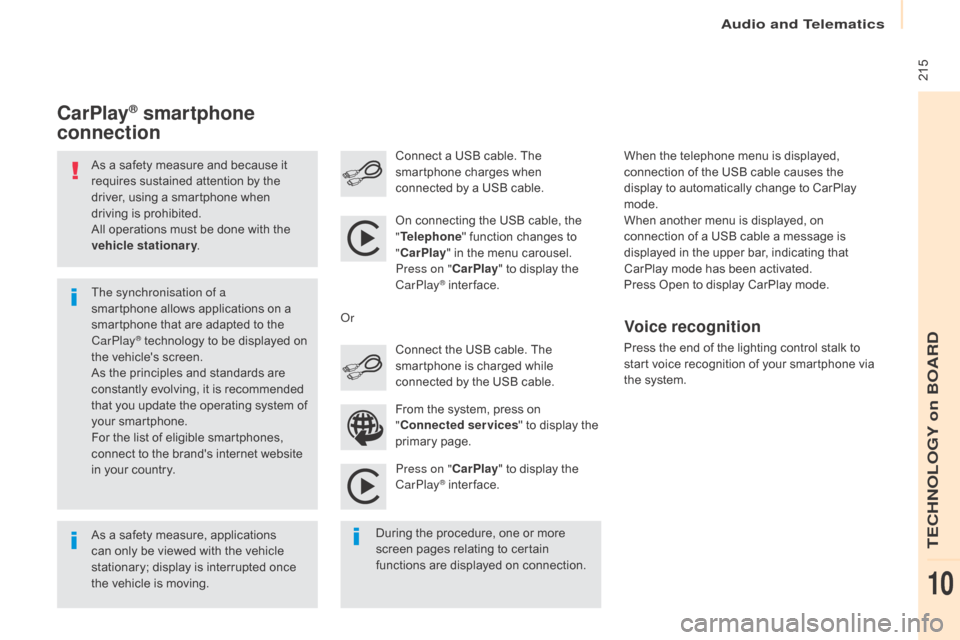
in your country. On connecting the USB cable, the
"
Telephone " function changes to
" CarPlay " in the menu carousel.
Press on " CarPlay" to display the
CarPlay
® inter face.
Press on " CarPlay" to display the
CarPlay
® inter face.
Connect a USB cable. The
smartphone charges when
connected by a USB cable.
Press the end of the lighting control stalk to
start voice recognition of your smartphone via
the system.
CarPlay® smartphone
connection
During the procedure, one or more
screen pages relating to certain
functions are displayed on connection. From the system, press on
"
Connected services " to display the
primary page. Connect the USB cable. The
smartphone is charged while
connected by the USB cable.
Or
Voice recognition
When the telephone menu is displayed,
connection of the USB cable causes the
display to automatically change to CarPlay
mode.
When another menu is displayed, on
connection of a USB cable a message is
displayed in the upper bar, indicating that
CarPlay
mode has been activated.
Press Open to display CarPlay mode.
Audio and Telematics
TECHNOLOGY on BOARD
10
Page 223 of 260
221
Berlingo2VU_en_Chap10a_SMEGplus_ed02-2016
The services available depend
on the network, the SIM card and
the compatibility of the Bluetooth
®
telephone used. Check the telephone
manual and with your network provider
for details of the services available to
you.
The ability of the system to connect
with only one profile depends on the
telephone. The three profiles may all
connect by default.
Visit www.citroen.co.uk for more information
(compatibility, additional help, ...).
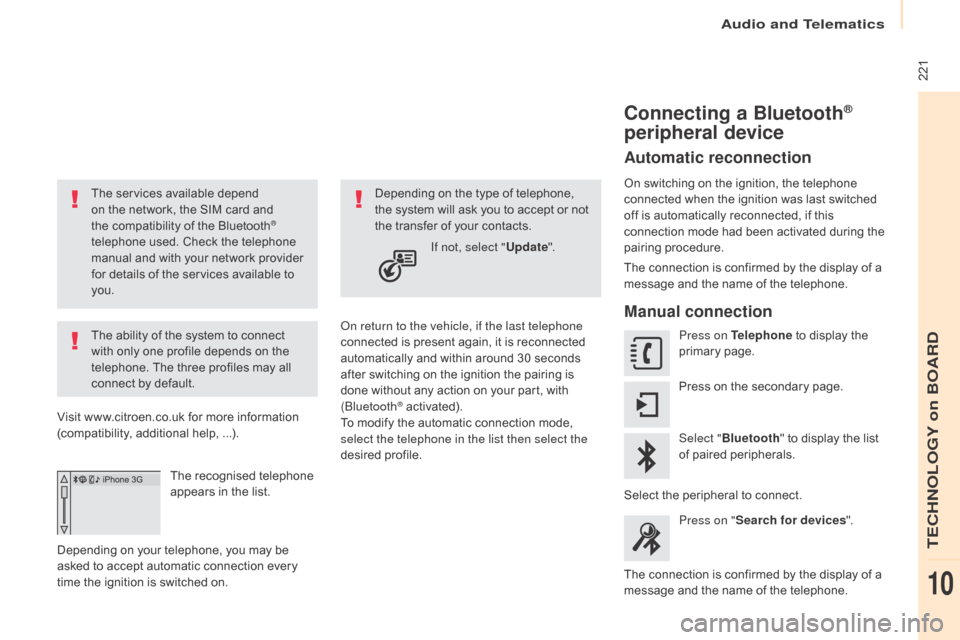
The recognised telephone
appears in the list.
Depending on your telephone, you may be
asked to accept automatic connection every
time the ignition is switched on. On return to the vehicle, if the last telephone
connected is present again, it is reconnected
automatically and within around 30 seconds
after switching on the ignition the pairing is
done without any action on your part, with
(Bluetooth
® activated).
To modify the automatic connection mode,
select the telephone in the list then select the
desired profile. Depending on the type of telephone,
the system will ask you to accept or not
the transfer of your contacts.
If not, select " Update".
Connecting a Bluetooth®
peripheral device
Automatic reconnection
On switching on the ignition, the telephone
connected when the ignition was last switched
off is automatically reconnected, if this
connection mode had been activated during the
pairing procedure.
The connection is confirmed by the display of a
message and the name of the telephone.
Manual connection
Press on Telephone to display the
primary page.
Press on the secondary page.
Select " Bluetooth " to display the list
of paired peripherals.
Select the peripheral to connect. Press on " Search for devices ".
The connection is confirmed by the display of a
message and the name of the telephone.
Audio and Telematics
TECHNOLOGY on BOARD
10
Page 232 of 260

230
Berlingo2VU_en_Chap10a_SMEGplus_ed02-2016
QUESTIONANSWER SOLUTION
I cannot connect my
Bluetooth telephone. The telephone's Bluetooth function may be switched off or the
telephone may not be visible. Check that your telephone's Bluetooth function is
switched on.
Check in the telephone settings that it is " Visible
to all".
The Bluetooth telephone is not compatible with the system. You can check the compatibility of your telephone
at www.citroen.co.uk (services).
The volume of the
telephone connected
in Bluetooth mode is
inaudible. The volume depends both on the system and on the telephone. Increase the volume of the audio system, to
maximum if required, and increase the volume of
the telephone if necessary.
The ambient noise level has an influence on the quality of telephone
communication. Reduce the ambient noise level (close the
windows, reduce the booster fan speed, slow
down...).
Some contacts are
duplicated in the list. The options for synchronizing contacts are synchronizing the
contacts on the SIM card, the contacts on the telephone, or both .
When both synchronizations are selected, some contacts may be
duplicated. Select "Display SIM card contacts" or "Display
telephone contacts".
Contacts are not shown in
alphabetical order. Some telephones offer display options. Depending on the settings
chosen, contacts can be transferred in a specific order. Modify the display setting in the telephone
di r e c to r y.
The system does not receive
SMS text messages. The Bluetooth mode does not permit sending SMS text messages to
the system.
Telephone
Audio and Telematics
Page 244 of 260

242
Berlingo2VU_en_Chap10b_RD45_ed02-2016
Telephone
Pairing a Bluetooth® telephone
Screen C
(Available according to model and version)
As a safety measure and because they
require prolonged attention on the part
of the driver, the operations for pairing
of the Bluetooth
® mobile telephone with
the Bluetooth® hands-free system of
your audio equipment must be carried
out with the vehicle stationary and the
ignition on.
Go to www.citroen.co.uk for more information
(compatibility, more help, ...).
Activate the telephone's Bluetooth
® function
and ensure that it is "visible to all" (telephone
configuration).
Press the MENU button. In the menu, select:
-
"
Bl
uetooth
: Telephone - Audio "
-
"
B
luetooth configuration
"
-
"
P
erform a Bluetooth search
"
A window is displayed with a message that a
search is in progress. The services available depend on
the network, the SIM card and the
compatibility of the Bluetooth
® device
used.
Consult your telephone's manual and
your operator to find out which services
are available to you.
* If your telephone is fully compatible. The first 4 telephones recognised are displayed
in this window.
The "Telephone"
menu permits access to the
following functions in particular: " Directory" *,
" Calls list ", "Consult the paired equipment ".Select the telephone to be connected from the
list. Only one telephone can be connected at
a time.
A virtual keypad is displayed in the screen:
enter a code with at least 4 digits.
Confirm by pressing OK.
A message in the screen indicates the telephone
chosen. To accept the pairing, enter the same
code on the telephone, then confirm with OK.
If pairing fails, the number of attempts is not
limited.
A message that the pairing has been
successful appears in the screen.
The automatic connection authorised is only
active after the telephone has been configured.
The directory and the call list can be accessed
after the necessary synchronisation period.
Audio and Telematics
Page 252 of 260

250
Berlingo2VU_en_Chap10b_RD45_ed02-2016
Media
QUESTIONANSWER SOLUTION
The message "USB
peripheral error" is
displayed on the screen.
The Bluetooth
® connection
is cut. The battery of the peripheral may not be sufficiently charged. Recharge the battery of the peripheral device.
The USB memory stick is not recognised.
The USB memory stick may be corrupt.
Reformat the USB memory stick.
The CD is ejected
automatically or is not
played by the player. The CD is inserted upside down, is unplayable, does not contain
any audio data or contains an audio format which the player cannot
p l ay.
The CD is protected by an anti-pirating protection system which is
not recognised by the audio equipment. -
C
heck that the CD is inserted in the player
the right way up.
-
C
heck the condition of the CD: the CD
cannot be played if it is too damaged.
-
C
heck the content in the case of a recorded
CD: consult the advice in the "Audio" section.
-
T
he audio equipment's CD player does not
play DVDs.
-
D
ue to their quality level, certain writeable
CDs will not be played by the audio system.
The CD player sound is
p o o r. The CD used is scratched or of poor quality.
Insert good quality CDs and store them in
suitable conditions.
The audio equipment settings (bass, treble, ambiences) are
unsuitable. Set the treble or bass level to 0, without selecting
an ambience.
QUESTION ANSWER SOLUTION
I am unable to access my
voicemail. Few telephones or service providers allow the use of this function.
Telephone
Audio and Telematics
Page 253 of 260

251
Berlingo2VU_en_Chap10c_BTA-3R_ed02-2016
Localised Emergency CallFor Russia, Belarus and Kazakhstan.If an impact is detected by the airbag
control unit, and independently of
the deployment of any airbags, an
emergency call is made automatically.
If you benefit from the CITROËN
Connect Box offer with the SOS and
assistance pack included, there are
additional services available to you in
your personal space, via the Internet
website for your country.
In an emergency, press this
button for more than 2 seconds.
Flashing of the green LED and
a voice message confirm that
the call has been made to the
"Localised Emergency Call" call
c e nt re*.
The green LED remains on (without flashing)
when communication is established.
It goes off at the end of the call. Pressing this button again immediately cancels
the request.
The green LED goes off.
"Localised Emergency Call" immediately
locates your vehicle, starts communication with
you in your language**, and where necessary
sends the appropriate public emergency
services**. In countries where the service is
not available, or when the locating service has
been expressly declined, the call is sent directly
to the emergency services (112) without the
vehicle location. *
S
ubject to the general conditions for the
service available from dealers and subject
to technological and technical limitations.
**
D
epending on the geographical cover of
"Localised Emergency Call", "Localised
Assistance Call" and the official national
language selected by the owner of the
vehicle.
T
he list of countries covered and Telematic
services is available from dealers or on the
website for your country.
Emergency or assistance call
Audio and Telematics
TECHNOLOGY on BOARD
10