Page 753 of 828

2. Press the “Remote” button on the touchscreen in thesettings menu.
3. Select “Pair Remote” and follow the on screen instruc- tions to complete the pairing process.
NOTE:
• There will be a touchscreen notification message when
pairing is successful/unsuccessful. Repeat the above
steps to pair the second remote.
• If remote is ever non-operational, try pairing remote.
• The system can accommodate up to 10 paired remote
controls.
Unpairing The Remote
In events such as updating the Uconnect Theater soft-
ware, or taking a remote to another vehicle, the remote will need to be unpaired from your Uconnect Theater
system. To unpair the remote, follow the procedure
below:
1. Select “Manage Remote Controls” from the Remote
section of �Settings and follow the on screen instruc-
tions to complete the unpairing process.
2. Push and hold the “Screen”, “Down Arrow”, and “Play/Pause” buttons for 5 seconds, or until the
remote screen indicator light flashes.
3. Once complete, the remote will be ready to pair again.
NOTE: There will be a touchscreen notification message
when unpairing is successful. Repeat the above steps to
unpair a second remote.10
MULTIMEDIA 751
Page 755 of 828
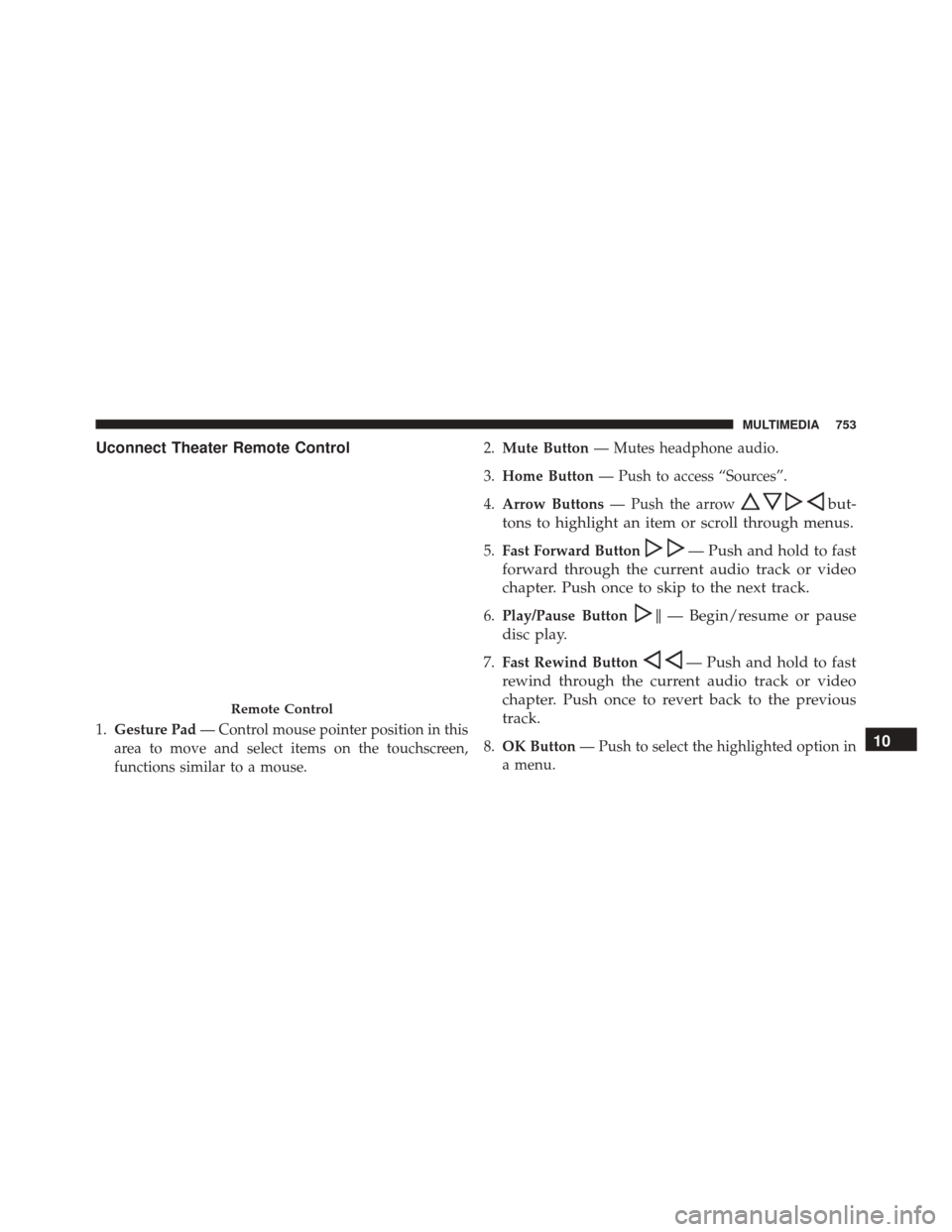
Uconnect Theater Remote Control
1.Gesture Pad — Control mouse pointer position in this
area to move and select items on the touchscreen,
functions similar to a mouse. 2.
Mute Button — Mutes headphone audio.
3. Home Button — Push to access “Sources”.
4. Arrow Buttons — Push the arrow
but-
tons to highlight an item or scroll through menus.
5. Fast Forward Button— Push and hold to fast
forward through the current audio track or video
chapter. Push once to skip to the next track.
6. Play/Pause Button�— Begin/resume or pause
disc play.
7. Fast Rewind Button— Push and hold to fast
rewind through the current audio track or video
chapter. Push once to revert back to the previous
track.
8. OK Button — Push to select the highlighted option in
a menu.
Remote Control
10
MULTIMEDIA 753
Page 758 of 828

NOTE:
•Source card order can be changed by pressing the
Settings button on the touchscreen and scrolling down
to �Source Card Order�.
• Use the “View Screen” function to pull content from
one screen to the other. Doing this however will
disable and gray out certain player controls.
General Settings
To change source card order, select “Source Card Reor-
der”, then press and hold source card on the touchscreen,
and drag and drop in desired order.
You can also adjust the following below and more.
• Brightness
• Media port lighting on and off
• Clock on and off NOTE:
System information can also be displayed under
General Settings.
Remote Settings
Under this setting, you can access the following:
• Manage Remotes
• Remote sensitivity (This adjusts the speed and sensi-
tivity of cursor on screen when using gesture pad)
Play A DVD/Blu-ray Or USB Media File From
Uconnect Radio
1. Insert a Blu-ray disc or DVD disc into the disc player with the label facing up. Or insert a USB drive into
rear Video USB port.
NOTE: The DVD/Blu-ray Disc player is located under
the radio controls in the instrument panel.
756 MULTIMEDIA
Page 780 of 828
Media
Uconnect offers connections via USB, SD, Bluetooth and
auxiliary ports (If Equipped). Voice operation is only
available for connected USB and AUX devices. (Remote
CD player optional and not available on all vehicles.)
Push the VR button
. After the beep, say one of the
following commands and follow the prompts to
switch your media source or choose an artist.
• Change source to Bluetooth
• Change source to AUX
• Change source to USB
• Play artist Beethoven; Play album Greatest Hits; Play
song Moonlight Sonata; Play genreClassical TIP:
Press the “Browse” button on the touchscreen to see
all of the music on your AUX or USB device. Your Voice
Command must match exactlyhow the artist, album,
song and genre information is displayed.
Uconnect 5.0 Media
778 MULTIMEDIA
Page 787 of 828
Uconnect Access
WARNING!
ALWAYS obey traffic laws and pay attention to the
road. Some Uconnect Access services, including 9-1-1
and Assist, will NOT work without an operable 1X
(voice/data) or 3G (data) network connection.
NOTE: Your vehicle may be transmitting data as autho-
rized by the subscriber.
An included trial and/or subscription is required to take
advantage of the Uconnect Access services in the next
section of this guide. To register with Uconnect Access,
press the Apps button on the 8.4-inch touchscreen to get
started. Detailed registration instructions can be found
on the next page.
NOTE: Uconnect Access is available only on equipped
vehicles purchased within the continental United States, Alaska and Hawaii. Services can only be used where
coverage is available; see coverage map for details.
9-1-1 Call
Security Alarm Notification
Remote Door Lock/Unlock
Stolen Vehicle Assistance
Remote Vehicle Start**
Remote Horn and Lights
Yelp Search
Voice Texting
Roadside Assistance Call
WiFi Hotspot***
**If vehicle is equipped.
***Extra charges apply.10
MULTIMEDIA 785
Page 797 of 828

Uconnect System Support:
•U.S. residents call 1-877-855-8400 (24 hours a day 7
days a week) or visit DriveUconnect.com
• Canadian residents call 1-800-465-2001 (English) or
1-800-387-9983 (French) or visit DriveUconnect.ca
Mon. – Fri., 8:00 am – 8:00 pm, ET
Sat., 9:00 am – 5:00 pm, ET
Sun., Closed
Uconnect Access Services Support 1-855-792-4241 Please
have your Uconnect Security PIN ready when you call.
CD/DVD DISC MAINTENANCE
To keep a CD/DVD in good condition, take the following
precautions:
1. Handle the disc by its edge; avoid touching the surface. 2. If the disc is stained, clean the surface with a soft cloth,
wiping from center to edge.
3. Do not apply paper or tape to the disc; avoid scratch- ing the disc.
4. Do not use solvents such as benzene, thinner, cleaners, or anti-static sprays.
5. Store the disc in its case after playing.
6. Do not expose the disc to direct sunlight.
7. Do not store the disc where temperatures may become too high.
NOTE: If you experience difficulty in playing a particular
disc, it may be damaged (e.g., scratched, reflective coat-
ing removed, a hair, moisture or dew on the disc)
oversized, or have protection encoding. Try a known
good disc before considering disc player service.
10
MULTIMEDIA 795
Page 803 of 828

Warranty expires. The manufacturer stands behind only
the manufacturer’s service contracts. If you purchased a
manufacturer’s service contract, you will receive Plan
Provisions and an Owner Identification Card in the mail
within three weeks of the vehicle delivery date. If you
have any questions about the service contract, call the
manufacturer’s Service Contract National Customer
Hotline at 1-800-521-9922 (Canadian residents, call (800)
465-2001 English / (800) 387-9983 French).
The manufacturer will not stand behind any service
contract that is not the manufacturer’s service contract. It
is not responsible for any service contract other than the
manufacturer’s service contract. If you purchased a ser-
vice contract that is not a manufacturer’s service contract,
and you require service after the manufacturer’s New
Vehicle Limited Warranty expires, please refer to the
contract documents, and contact the person listed in
those documents.We appreciate that you have made a major investment
when you purchased the vehicle. An authorized dealer
has also made a major investment in facilities, tools, and
training to assure that you are absolutely delighted with
the ownership experience. You will be pleased with their
sincere efforts to resolve any warranty issues or related
concerns.
WARNING!
Engine exhaust (internal combustion engines only),
some of its constituents, and certain vehicle compo-
nents contain, or emit, chemicals known to the State
of California to cause cancer and birth defects, or
other reproductive harm. In addition, certain fluids
contained in vehicles and certain products of compo-
nent wear contain, or emit, chemicals known to the
State of California to cause cancer and birth defects,
or other reproductive harm.
11
CUSTOMER ASSISTANCE 801
Page 808 of 828
Adaptive Cruise Control (ACC) (Cruise Control) . . .409
Adding Engine Coolant (Antifreeze)............632
Additives, Fuel .......................... .678
Adjust Forward ..............................85
Rearward ..............................85
AirBag ............................... .322
Advance Front Air Bag ...................323
Air Bag Operation ...................... .324
Air Bag Warning Light ................325, 342
Driver Knee Air Bag .....................334
Enhanced Accident Response ............341, 608
Event Data Recorder (EDR) .............345, 609
FrontAirBag ......................... .325
If A Deployment Occurs ..................340
Knee Impact Bolsters .....................334
Maintaining Your Air Bag System ............344
Redundant Air Bag Warning Light ...........343
Side Air Bags ......................... .335Transporting Pets
...................... .373
Air Bag Light .....................231, 342, 375
Air Bag Maintenance ...................... .344
Air Cleaner, Engine (Engine Air Cleaner Filter) . . . .625
Air Conditioner Maintenance .................625
Air Conditioning ......................... .124
Air Conditioning Controls ...................124
Air Conditioning Filter .....................147
Air Conditioning, Operating Tips ..............146
Air Conditioning, Rear Zone ..............130, 143
Air Conditioning Refrigerant ..............625, 626
Air Conditioning System .............124, 132, 625
Air Filter .............................. .625
Air Pressure, Tires ........................ .650
Alarm Arm The System ........................38
Disarm The System .......................39
Alarm (Security Alarm) ..................240, 261
Alterations/Modifications, Vehicle ...............6
806 INDEX