Page 731 of 828

•Tilt Side Mirrors In Reverse
When this feature is selected, the exterior sideview
mirrors will tilt downward when the ignition is in the
RUN position and the transmission gear selector is in the
REVERSE position. The mirrors will move back to their
previous position when the transmission is shifted out of
REVERSE. To make your selection, press the “Tilt Side
Mirrors in Reverse” button on the touchscreen, until a
check-mark appears next to setting, indicating that the
setting had been selected.
• Blind Spot Alert — If Equipped
When this feature is selected, the Blind Spot Alert feature
Provides alerts, visual and/or audible, to indicate objects
in your blind spot. The Blind Spot Alert feature can be
activated in “Lights” mode. When this mode is selected,
the Blind Spot Monitor (BSM) system is activated and
will only show a visual alert in the exterior mirrors.
When “Lights & Chime” mode is activated, the Blind Spot Monitor (BSM) will show a visual alert in the
exterior mirrors as well as an audible alert when the turn
signal is on. When “Off” is selected, the Blind Spot
Monitor (BSM) system is deactivated. To change the
Blind Spot Alert status, press the “Off,” “Lights” or
“Lights & Chime” button on the touchscreen.
NOTE:
If your vehicle has experienced any damage in
the area where the sensor is located, even if the fascia is
not damaged, the sensor may have become misaligned.
Take your vehicle to an authorized dealer to verify sensor
alignment. Having a sensor that is misaligned will result
in the BSM not operating to specification.
• ParkView Backup Camera Active Guidelines
Your vehicle may be equipped with the ParkView Rear
Back Up Camera Active Guidelines that allows you to see
active guidelines over the ParkView Back up camera
display whenever the gear selector is put into REVERSE.
The image will be displayed on the radio touchscreen
10
MULTIMEDIA 729
Page 732 of 828

display along with a caution note to “Check Entire
Surroundings” across the top of the screen. After five
seconds, this note will disappear. To make your selection,
press the “ParkView Backup Camera Active Guidelines”
button on the touchscreen, until a check-mark appears
next to setting, indicating that the setting had been
selected.
•ParkView Backup Camera Delay
When the vehicle is shifted out of REVERSE (with camera
delay turned OFF), the rear camera mode is exited and
the previously viewed screen appears again. When the
vehicle is shifted out of REVERSE (with camera delay
turned ON), the rear view image with dynamic grid lines
will be displayed for up to 10 seconds after shifting out of
“REVERSE” unless the forward vehicle speed exceeds
8 mph (12 km/h), the transmission is shifted into
“PARK” or the ignition is switched to the OFF position.
To set the ParkView Backup Camera Delay press the “Controls” button on the touchscreen, the “settings”
button on the touchscreen, then the “Safety & Driving
Assistance” button on the touchscreen. Press the
“Parkview Backup Camera Delay” button on the touch-
screen to turn the ParkView Delay ON or OFF.
•
Surround View Camera
Displays a complete 360 degree view of the vehicle’s
exterior environment while backing up. When this fea-
ture is selected, the Surround View Camera can be
enabled or disabled. To make your selection, press the
“Surround View Camera” button on the touchscreen,
until a check-mark appears next to setting, indicating that
the setting had been selected.
• Surround View Camera Delay
When activation occurs by pressing a button in the
“Controls” screen, the initial view will be the default
view (associated with current gear state). Image will be
displayed while in that gear as long as vehicle speed
730 MULTIMEDIA
Page 733 of 828

remains less than 8 mph (12 km/h). When vehicle is
shifted into a different gear (other than ‘REVERSE’), the
image will remain displayed for 10 seconds or until
vehicle speed exceeds 8 mph (12 km/h), at which point it
will immediately cancel and return to the last viewed
screen.
•Surround View Camera Guidelines
Your vehicle may be equipped with the Surround View
Rear Back Up Camera Active Guidelines that allows you
to see active guidelines over the Surround View camera
display whenever the gear selector is put into REVERSE
or the Surround View button on the touchscreen is
pushed. The image will be displayed on the radio touch-
screen display. To make your selection, press the “Sur-
round View Camera Active Guidelines” button on the
touchscreen, until a check-mark appears next to setting,
indicating that the setting had been selected. •
Sliding Door Alert
When this feature is selected, a chime plays when the
sliding door reverses or an obstacle is sensed. To make
your selection, press the “Sliding Door Alert” button on
the touchscreen until a check-mark appears next to
setting, indicating that the setting had been selected.
• Rain Sensing Auto Wipers
When this feature is selected and the wipers are on, the
system will automatically activate the windshield wipers
if it senses moisture on the windshield. To make your
selection, press the “Rain Sensing Auto Wipers” button
on the touchscreen, until a check-mark appears next to
setting, indicating that the setting had been selected.
10
MULTIMEDIA 731
Page 744 of 828
System Information
After pressing the “System Information” button on the
touchscreen the following information will be available:
•System Information
When System Information is selected, a System Informa-
tion screen will appear displaying the system software
version.
STEERING WHEEL AUDIO CONTROLS
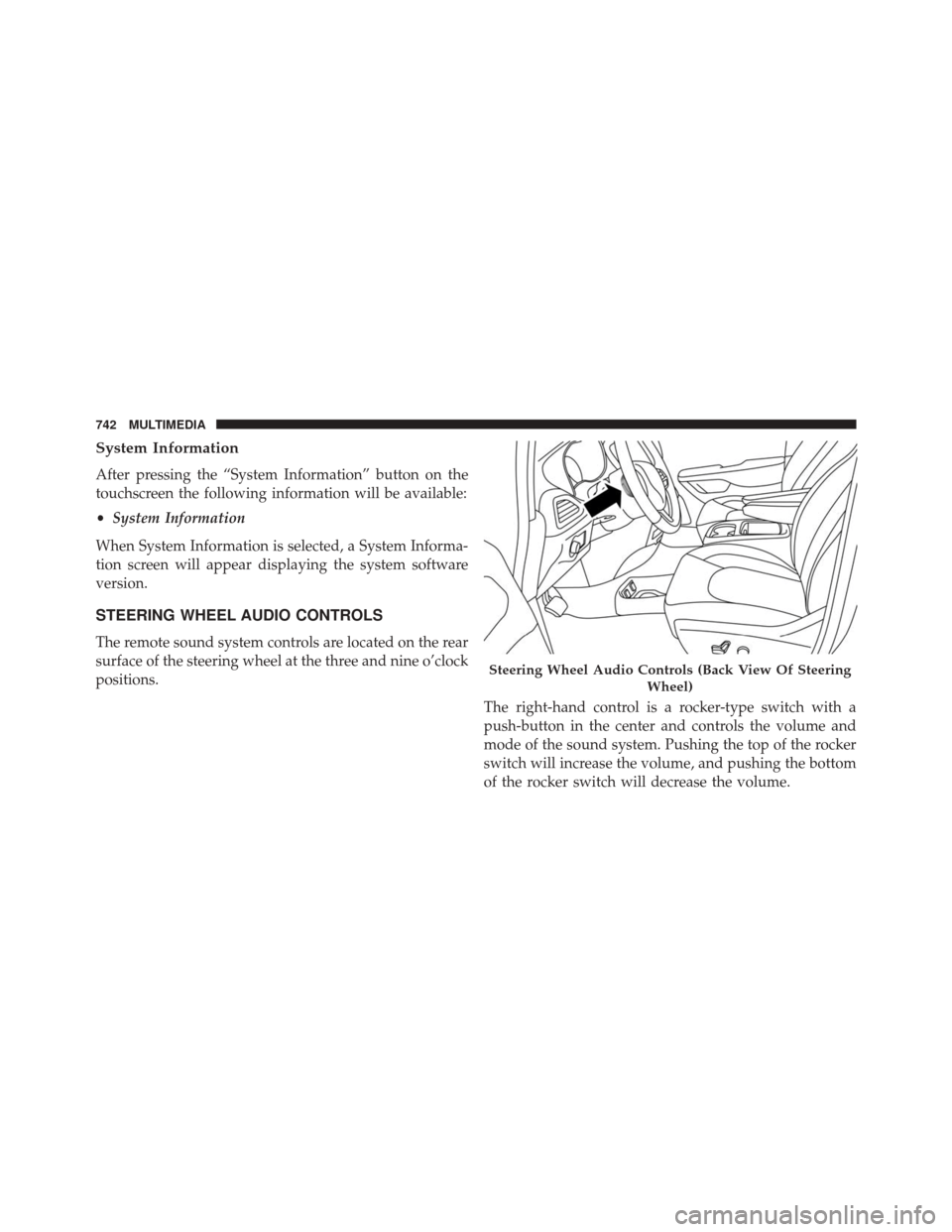
The remote sound system controls are located on the rear
surface of the steering wheel at the three and nine o’clock
positions. The right-hand control is a rocker-type switch with a
push-button in the center and controls the volume and
mode of the sound system. Pushing the top of the rocker
switch will increase the volume, and pushing the bottom
of the rocker switch will decrease the volume.
Steering Wheel Audio Controls (Back View Of SteeringWheel)
742 MULTIMEDIA
Page 758 of 828

NOTE:
•Source card order can be changed by pressing the
Settings button on the touchscreen and scrolling down
to �Source Card Order�.
• Use the “View Screen” function to pull content from
one screen to the other. Doing this however will
disable and gray out certain player controls.
General Settings
To change source card order, select “Source Card Reor-
der”, then press and hold source card on the touchscreen,
and drag and drop in desired order.
You can also adjust the following below and more.
• Brightness
• Media port lighting on and off
• Clock on and off NOTE:
System information can also be displayed under
General Settings.
Remote Settings
Under this setting, you can access the following:
• Manage Remotes
• Remote sensitivity (This adjusts the speed and sensi-
tivity of cursor on screen when using gesture pad)
Play A DVD/Blu-ray Or USB Media File From
Uconnect Radio
1. Insert a Blu-ray disc or DVD disc into the disc player with the label facing up. Or insert a USB drive into
rear Video USB port.
NOTE: The DVD/Blu-ray Disc player is located under
the radio controls in the instrument panel.
756 MULTIMEDIA
Page 760 of 828
Using The Touchscreen Radio
NOTE:Control functions apply to individual screen
selected displayed on touchscreen.
Source Controls — Uconnect Radio
Media Control Screen
758 MULTIMEDIA
Page 771 of 828
Listening To Audio With The Screen Closed
To listen to only audio portion of the channel with the
screen closed:
•Set the audio to the desired source and channel.
• Close the video screen.
• When the screen is reopened, the video screen will
automatically turn back on and show the appropriate
display menu or media.
If the screen is closed and there is no audio heard, verify
that the headphones are turned on (the ON indicator is
illuminated) and the headphone selector switch is on the
desired channel. If the headphones are turned on, push
the remote control’s power button to turn audio on. If
audio is still not heard, check that fully charged batteries
are installed in the headphones.
Rear Climate Controls
The rear climate controls can also be controlled using the
Uconnect Theater system. Refer to “Climate Controls” in
“Getting To Know Your Vehicle” for further information.
Rear Climate Controls10
MULTIMEDIA 769
Page 780 of 828
Media
Uconnect offers connections via USB, SD, Bluetooth and
auxiliary ports (If Equipped). Voice operation is only
available for connected USB and AUX devices. (Remote
CD player optional and not available on all vehicles.)
Push the VR button
. After the beep, say one of the
following commands and follow the prompts to
switch your media source or choose an artist.
• Change source to Bluetooth
• Change source to AUX
• Change source to USB
• Play artist Beethoven; Play album Greatest Hits; Play
song Moonlight Sonata; Play genreClassical TIP:
Press the “Browse” button on the touchscreen to see
all of the music on your AUX or USB device. Your Voice
Command must match exactlyhow the artist, album,
song and genre information is displayed.
Uconnect 5.0 Media
778 MULTIMEDIA