Page 484 of 592
CAUTION!
Do not use Alcohol and Alcohol-based and/or Ketone
based cleaning products to clean leather seats, as
damage to the seat may result.
Glass Surfaces
All glass surfaces should be cleaned on a regular basis with
MOPAR Glass Cleaner, or any commercial household-type
glass cleaner. Never use an abrasive type cleaner. Use
caution when cleaning the inside rear window equipped
with electric defrosters or windows equipped with radio
antennas. Do not use scrapers or other sharp instrument
that may scratch the elements.
When cleaning the rear view mirror, spray cleaner on the
towel or cloth that you are using. Do not spray cleaner
directly on the mirror.
482 SERVICING AND MAINTENANCE
Page 495 of 592

MULTIMEDIA
CONTENTS
�UCONNECT RADIOS ....................495
� PERSONALIZED MENU BAR ...............495
� CYBERSECURITY ....................... .495
� UCONNECT SETTINGS ...................497
▫ Customer Programmable Features — Uconnect 8.4
Settings ............................. .497
� STEERING WHEEL AUDIO CONTROLS .......520
▫ Radio Operation ....................... .521
� AUX/USB/MP3 CONTROL ................521
� UCONNECT THEATER — IF EQUIPPED ......523
▫ Uconnect Theater Overview ...............523
▫ Getting Started ....................... .523
▫ Accessing The System From The Uconnect
Radio .............................. .524
▫ Uconnect Theater Controls ................525 ▫
Accessing The System From The Uconnect Theater
Rear Screens ......................... .526
▫ Pairing The Remote .....................527
▫ Unpairing The Remote ...................528
▫ Media Sources ........................ .528
▫ Uconnect Theater Remote Control ...........529
▫ Uconnect Theater Home Screen And Controls . . .530
▫ Play A DVD/Blu-ray Or USB Media File From
Uconnect System ...................... .532
▫ Blu-ray Controls – Disc Specific Functions .....534
▫ Uconnect Theater Apps ...................535
▫ Using The Rear Video USB Port .............537
▫ Play Video Games ..................... .538
▫ Headphones Operation .................. .538
▫ Disc
Menu ........................... .541
10
Page 496 of 592

▫Display Settings ....................... .541
▫ Listening To Audio With The Screen Closed . . . .541
▫ Rear Climate Controls....................542
▫ Wireless Streaming — If Equipped ...........544
▫ BD And DVD Region Codes ...............545
▫ Product Agreement .....................548
▫ General Information .....................550
▫ FCC/IC Regulatory Notices ...............550
� RADIO OPERATION AND MOBILE PHONES . . .552
▫ Regulatory And Safety Information ..........552
� UCONNECT VOICE RECOGNITION QUICK
TIPS ................................ .553
▫ Introducing Uconnect ....................553
▫ Get Started .......................... .554
▫ Basic Voice Commands ...................555
▫ Radio .............................. .555
▫ Media .............................. .556▫
Phone .............................. .557
▫ Voice Text Reply ...................... .557
▫ Climate ............................. .559
▫ Navigation .......................... .559
▫ Uconnect Access ...................... .560
▫ Register ............................. .561
▫ Vehicle Health Report/Alert ...............562
▫ Mobile App .......................... .562
▫ Voice Texting ......................... .563
▫ Yelp ............................... .564
▫ SiriusXM
Travel Link....................564
▫ Siri Eyes Free — If Equipped ..............565
▫ Do Not Disturb ....................... .566
▫ General Information .....................566
▫ Additional Information ...................567
� CD/DVD DISC MAINTENANCE ............567
494 MULTIMEDIA
Page 497 of 592

UCONNECT RADIOS
For detailed information about your Uconnect radio, refer
to your Uconnect Owner ’s Manual Supplement.
PERSONALIZED MENU BAR
The Uconnect features and services in the main menu bar
are easily changed for your convenience. Simply follow
these steps:
1. Press the “Apps
” button to open the App screen.
2. Press and hold, then drag the selected App to replace anexisting shortcut in the main menu bar. The new shortcut will now be an active App/shortcut on
the main menu bar.
CYBERSECURITY
Your vehicle may be a connected vehicle and may be
equipped with both wired and wireless networks. These
networks allow your vehicle to send and receive informa-
tion. This information allows systems and features in your
vehicle to function properly.
Your vehicle may be equipped with certain security fea-
tures to reduce the risk of unauthorized and unlawful
access to vehicle systems and wireless communications.
Vehicle software technology continues to evolve over time
and FCA US LLC, working with its suppliers, evaluates
and takes appropriate steps as needed. Similar to a com-
puter or other devices, your vehicle may require software
updates to improve the usability and performance of your
systems or to reduce the potential risk of unauthorized and
unlawful access to your vehicle systems.
The risk of unauthorized and unlawful access to your
vehicle systems may still exist, even if the most recent
version of vehicle software (such as Uconnect software) is
installed.
Personalized Menu Bar
10
MULTIMEDIA 495
Page 498 of 592

WARNING!
•It is not possible to know or to predict all of the
possible outcomes if your vehicle’s systems are
breached. It may be possible that vehicle systems,
including safety related systems, could be impaired
or a loss of vehicle control could occur that may
result in an accident involving serious injury or
death.
• ONLY insert media (e.g., USB, SD card, or CD) into
your vehicle if it came from a trusted source. Media
of unknown origin could possibly contain malicious
software, and if installed in your vehicle, it may
increase the possibility for vehicle systems to be
breached.
• As always, if you experience unusual vehicle behav-
ior, take your vehicle to your nearest authorized
dealer immediately. NOTE:
•
FCA US LLC or your dealer may contact you directly
regarding software updates.
• To help further improve vehicle security and minimize
the potential risk of a security breach, vehicle owners
should:
• Routinely check www.driveuconnect.com/
software-update to learn about available Uconnect
software updates.
• Only connect and use trusted media devices (e.g.
personal mobile phones, USBs, CDs).
Privacy of any wireless and wired communications cannot
be assured. Third parties may unlawfully intercept infor-
mation and private communications without your consent.
For further information, refer to “Privacy Practices - If
Equipped with Uconnect 8.4 Radio” in your Uconnect
Owner ’s Manual Supplement and “Onboard Diagnostic
System (OBD II) Cybersecurity” in “Getting To Know Your
Instrument Panel”.
496 MULTIMEDIA
Page 502 of 592
Setting NameSelectable Options
SiriusXM Setup Channel Skip Subscription Information
NOTE:
SiriusXM can be programmed to skip channels. To make your selection, press the “Channel Skip” button on the
touchscreen, select the channels you would like to skip.
New vehicle purchasers or lessees will receive a free limited time subscription to SiriusXM Satellite Radio with your
radio. Following the expiration of the free services, it will be necessary to access the information on the Subscription
Information screen to re-subscribe.
1. Press the “Subscription Info” button on the touchscreen to access the Subscription Information screen.
2. Write down the Sirius ID numbers for your receiver. To reactivate your service, either call the number listed on the screen or visit the provider online.
SiriusXM Travel Link is a separate subscription and is available for U.S. residents only
500 MULTIMEDIA
Page 508 of 592
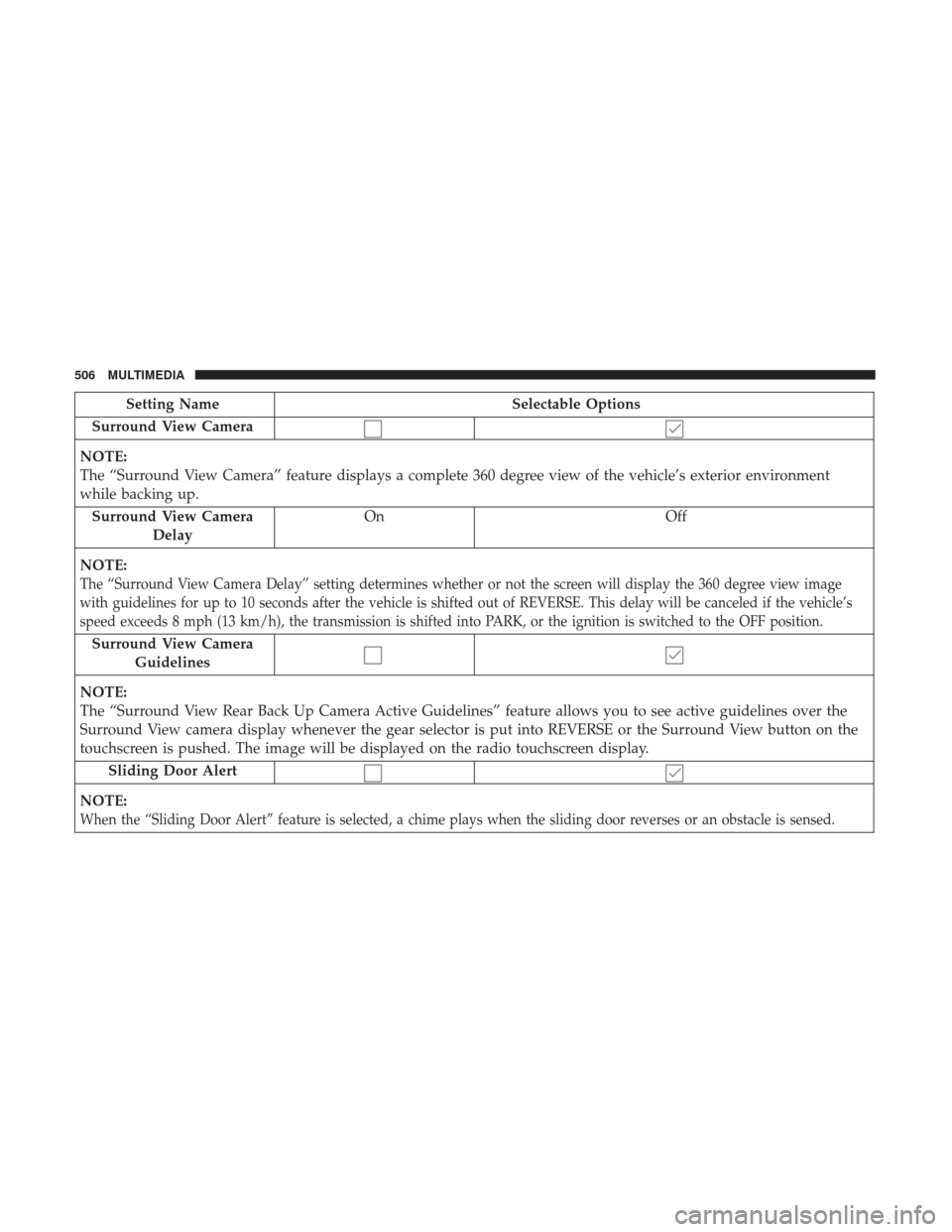
Setting NameSelectable Options
Surround View Camera
NOTE:
The “Surround View Camera” feature displays a complete 360 degree view of the vehicle’s exterior environment
while backing up. Surround View Camera Delay On
Off
NOTE:
The “Surround View Camera Delay” setting determines whether or not the screen will display the 360 degree view image
with guidelines for up to 10 seconds after the vehicle is shifted out of REVERSE. This delay will be canceled if the vehicle’s
speed exceeds 8 mph (13 km/h), the transmission is shifted into PARK, or the ignition is switched to the OFF position.
Surround View Camera Guidelines
NOTE:
The “Surround View Rear Back Up Camera Active Guidelines” feature allows you to see active guidelines over the
Surround View camera display whenever the gear selector is put into REVERSE or the Surround View button on the
touchscreen is pushed. The image will be displayed on the radio touchscreen display. Sliding Door Alert
NOTE:
When the “Sliding Door Alert” feature is selected, a chime plays when the sliding door reverses or an obstacle is sensed.
506 MULTIMEDIA
Page 514 of 592
Setting NameSelectable Options
Personal Settings Linked to Key Fob — If Equipped On
Off
NOTE:
The “Personal Seetings Linked to Key Fob” feature provides automatic recall of all settings stored to a memory loca-
tion (driver ’s seat, exterior mirrors, steering column position and radio station pre-sets) to enhance driver mobility
when entering and exiting the vehicle.
The seat will return to the memorized seat location, if the settings is set to “On,” when the key fob is used to unlock
the door. Power Liftgate Alert On Off
NOTE:
When the “Power Liftgate Alert” feature is selected, an alert plays when the power liftgate is raising or lowering. Sliding Door Alert On Off
NOTE:
When the “Sliding Door Alert” feature is selected, a chime plays when the sliding door reverses or an obstacle is
sensed.
512 MULTIMEDIA


