Page 446 of 592
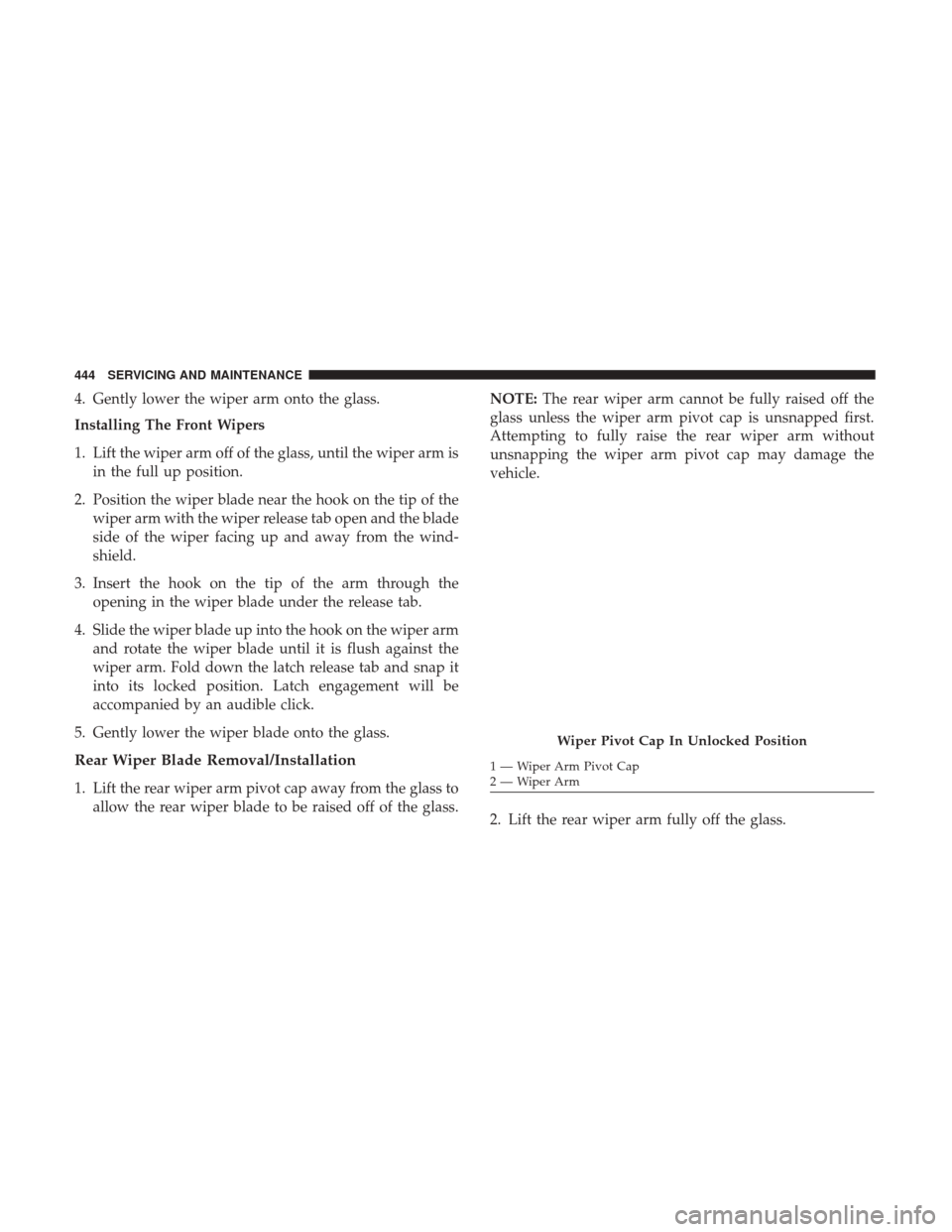
4. Gently lower the wiper arm onto the glass.
Installing The Front Wipers
1. Lift the wiper arm off of the glass, until the wiper arm isin the full up position.
2. Position the wiper blade near the hook on the tip of the wiper arm with the wiper release tab open and the blade
side of the wiper facing up and away from the wind-
shield.
3. Insert the hook on the tip of the arm through the opening in the wiper blade under the release tab.
4. Slide the wiper blade up into the hook on the wiper arm and rotate the wiper blade until it is flush against the
wiper arm. Fold down the latch release tab and snap it
into its locked position. Latch engagement will be
accompanied by an audible click.
5. Gently lower the wiper blade onto the glass.
Rear Wiper Blade Removal/Installation
1. Lift the rear wiper arm pivot cap away from the glass to allow the rear wiper blade to be raised off of the glass. NOTE:
The rear wiper arm cannot be fully raised off the
glass unless the wiper arm pivot cap is unsnapped first.
Attempting to fully raise the rear wiper arm without
unsnapping the wiper arm pivot cap may damage the
vehicle.
2. Lift the rear wiper arm fully off the glass.
Wiper Pivot Cap In Unlocked Position
1 — Wiper Arm Pivot Cap
2—WiperArm
444 SERVICING AND MAINTENANCE
Page 506 of 592
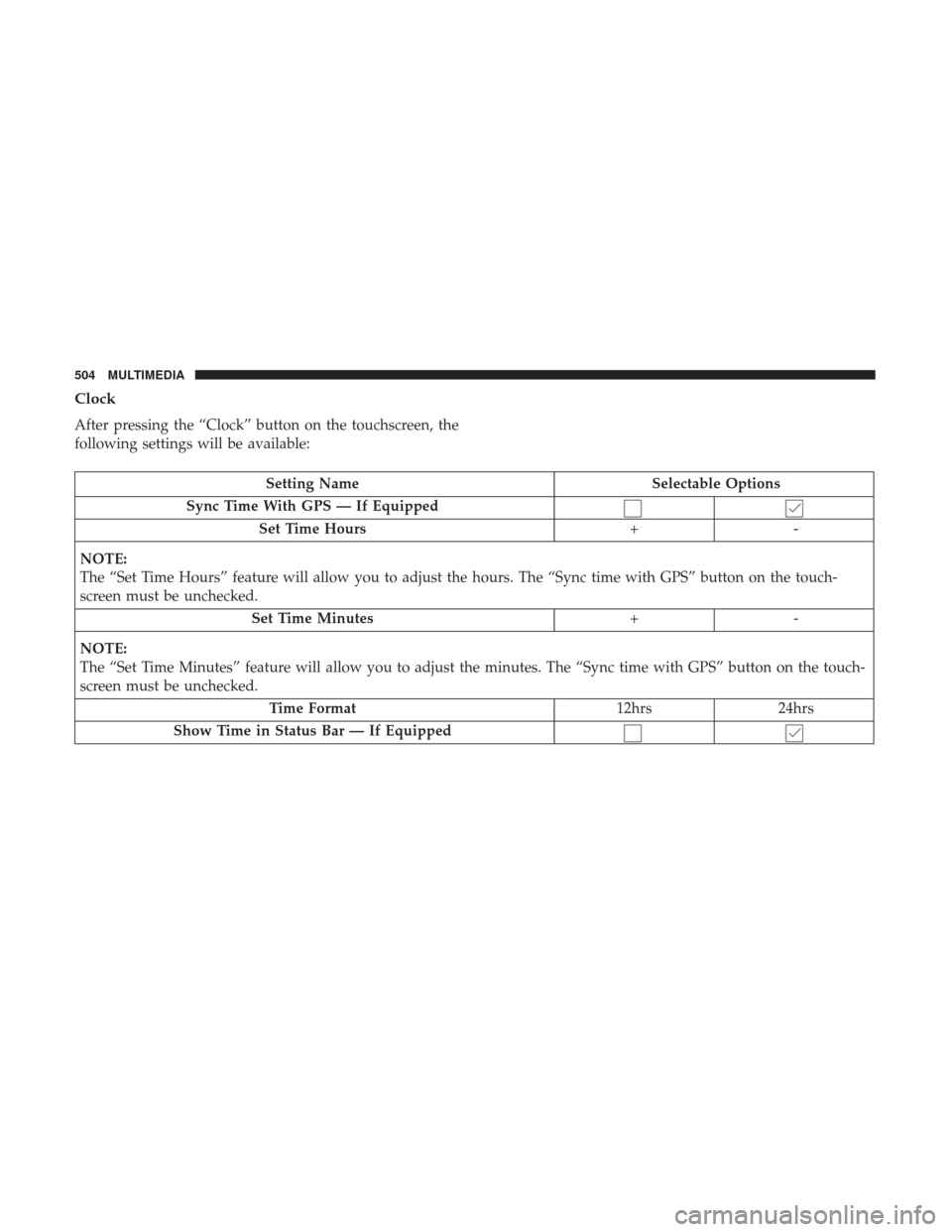
Clock
After pressing the “Clock” button on the touchscreen, the
following settings will be available:
Setting NameSelectable Options
Sync Time With GPS — If Equipped Set Time Hours +-
NOTE:
The “Set Time Hours” feature will allow you to adjust the hours. The “Sync time with GPS” button on the touch-
screen must be unchecked. Set Time Minutes +-
NOTE:
The “Set Time Minutes” feature will allow you to adjust the minutes. The “Sync time with GPS” button on the touch-
screen must be unchecked. Time Format 12hrs24hrs
Show Time in Status Bar — If Equipped
504 MULTIMEDIA
Page 512 of 592
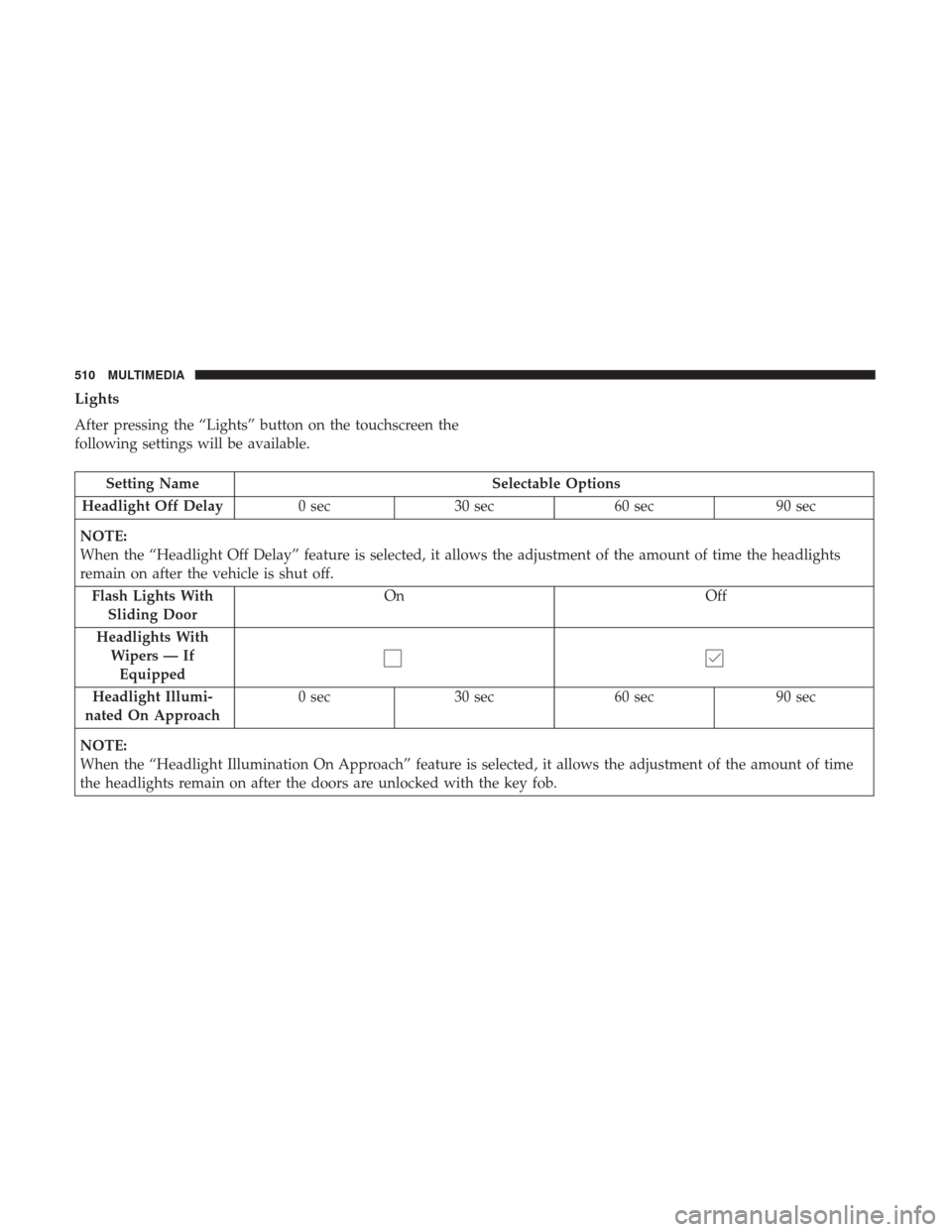
Lights
After pressing the “Lights” button on the touchscreen the
following settings will be available.
Setting NameSelectable Options
Headlight Off Delay 0 sec30 sec 60 sec 90 sec
NOTE:
When the “Headlight Off Delay” feature is selected, it allows the adjustment of the amount of time the headlights
remain on after the vehicle is shut off. Flash Lights With Sliding Door On
Off
Headlights With Wipers — IfEquipped
Headlight Illumi-
nated On Approach 0 sec
30 sec 60 sec 90 sec
NOTE:
When the “Headlight Illumination On Approach” feature is selected, it allows the adjustment of the amount of time
the headlights remain on after the doors are unlocked with the key fob.
510 MULTIMEDIA
Page 513 of 592
Setting NameSelectable Options
Auto Dim High Beams— IfEquipped On
Off
NOTE:
When the “Auto Dim High Beams” feature is selected, the high beam headlights will activate/deactivate automati-
cally under certain conditions. Daytime Running Lights Ye s
N o
Flash Lights With Lock On
Off
Doors & Locks
After pressing the “Doors & Locks” button on the touch-
screen the following settings will be available:
NOTE:The auto door lock feature default condition is
enabled. When enabled, the door locks will lock automati-
cally when the vehicle’s speed exceeds 12 mph (20 km/h).
The auto door lock feature can be enabled or disabled by
your authorized dealer per written request of the customer.
Please see your authorized dealer for service.
10
MULTIMEDIA 511
Page 514 of 592
Setting NameSelectable Options
Personal Settings Linked to Key Fob — If Equipped On
Off
NOTE:
The “Personal Seetings Linked to Key Fob” feature provides automatic recall of all settings stored to a memory loca-
tion (driver ’s seat, exterior mirrors, steering column position and radio station pre-sets) to enhance driver mobility
when entering and exiting the vehicle.
The seat will return to the memorized seat location, if the settings is set to “On,” when the key fob is used to unlock
the door. Power Liftgate Alert On Off
NOTE:
When the “Power Liftgate Alert” feature is selected, an alert plays when the power liftgate is raising or lowering. Sliding Door Alert On Off
NOTE:
When the “Sliding Door Alert” feature is selected, a chime plays when the sliding door reverses or an obstacle is
sensed.
512 MULTIMEDIA
Page 515 of 592

Setting NameSelectable Options
Hands Free Lift Gate On Off
Hands Free Sliding Door OnOff
Auto Unlock On Exit On Off
NOTE:
When the “Auto Unlock On Exit” feature is selected, all doors will unlock when the vehicle is stopped and the trans-
mission is in the PARK or NEUTRAL position and the driver’s door is opened. Flash Lights With Lock OnOff
Sound Horn With Lock Off1st Press 2nd Press
Sound Horn With Remote Start — If Equipped On
Off
Passive Entry On Off
1st Press Of Key Fob Unlocks DriverAll
NOTE:
When the “1st Press Of Key Fob Unlocks” feature’s “Driver” option is selected, only the driver’s door will unlock on
the first push of the key fob unlock button; you must push the key fob unlock button twice to unlock the passenger’s
doors. When “All” is selected, all of the doors will unlock on the first press of the key fob unlock button. If “All” is
programmed, all doors will unlock no matter which Passive Entry equipped door handle is grasped. If “Driver” is
programmed, only the driver ’s door will unlock when the driver ’s door is grasped. Touching the handle more than
once will only result in the driver ’s door opening once. If the driver door is opened, the interior door lock/unlock
switch can be used to unlock all doors (or use key fob).
10
MULTIMEDIA 513
Page 522 of 592
System Information
After pressing the “System Information” button on the
touchscreen, the following settings will be available:
Setting NameSelectable Options
System Information System Software Information Screen
NOTE:
When this feature is selected, a “System Information” screen will appear, displaying the system software version.
STEERING WHEEL AUDIO CONTROLS
The remote sound system controls are located on the rear
surface of the steering wheel at the three and nine o’clock
positions.
Steering Wheel Audio Controls (Back View Of Steering Wheel)
520 MULTIMEDIA
Page 527 of 592
Uconnect Theater ControlsParents can control certain features of the system with the
“Uconnect Theater Controls” screens, right from the
Uconnect touchscreen radio. Options are:
•Change media sources
• Lock one or both screens
• Mute an individual screen or both screens
• Turn on/off one or both screens
• Select APPS
• View media while gear selector is in PARK
Uconnect Theater Controls Screen
1 — Power All
2 — Mute All
3 — Lock All
4 — Source Drop Down List
5 — Lock On/Off current screen6 — Mute On/Off current
screen
7 — Power On/Off current
screen
Listen In
10
MULTIMEDIA 525