Page 244 of 539
�CLIMATE CONTROLS ....................306
▫ Climate Controls Without A Touchscreen
Overview ........................... .306
▫ Climate Controls With A Touchscreen
Overview ........................... .310
▫ Automatic Temperature Control (ATC) — If
Equipped ........................... .318
▫ Operating Tips ....................... .319
� PERSONALIZED MENU BAR ...............322
� UCONNECT VOICE RECOGNITION
QUICK TIPS .......................... .322
▫ Introducing Uconnect ....................322
▫ Get Started .......................... .323
▫ Basic Voice Commands ...................324
▫ Radio .............................. .325
▫ Media .............................. .326
▫ Phone .............................. .327▫
Voice Text Reply ...................... .328
▫ Climate (8.4/8.4 NAV) ...................329
▫ Navigation (8.4 /8.4 NAV) ................330
▫ Uconnect Access (8.4/8.4 NAV) .............331
▫ Register (8.4/8.4 NAV) ...................332
▫ Vehicle Health Alert ....................332
▫ Mobile App (8.4/8.4 NAV) ................332
▫ Voice Texting (8.4/8.4 NAV) ...............334
▫ Yelp (8.4/8.4 NAV) ..................... .335
▫ SiriusXM Travel Link (8.4/8.4 NAV) ..........335
▫ Siri Eyes Free — If Equipped ..............336
▫ Do Not Disturb ....................... .339
▫ General
Information .....................340
▫ Additional Information ...................340
242 UNDERSTANDING YOUR INSTRUMENT PANEL
Page 245 of 539
INSTRUMENT PANEL FEATURES
1 — Air Outlet6 — Radio Screen11 — Steering Wheel
2 — Instrument Cluster Display Controls 7 — Passenger Air Bag 12 — Hood Release
3 — Instrument Cluster 8 — Glove Compartment13 — Headlight Switch
4 — Cruise Controls 9 — Radio Controls
5 — Ignition Switch 10 — Climate Controls
4
UNDERSTANDING YOUR INSTRUMENT PANEL 243
Page 286 of 539
Privacy of any wireless and wired communications cannot
be assured. Third parties may unlawfully intercept infor-
mation and private communications without your consent.
For further information, refer to “Privacy Practices – If
Equipped with Uconnect 8.4 radio” in “All About
Uconnect Access” in your Uconnect Owner ’s Manual
Supplement and “Onboard Diagnostic System (OBD II)
Cybersecurity”.
UCONNECT SETTINGS
The Uconnect system uses a combination of buttons on the
touchscreen and buttons on the faceplate located on the
center of the instrument panel that allows you to access
and change the customer programmable features.
Uconnect 5.0 Buttons On Touchscreen And Buttons OnFaceplate
1 — Uconnect Buttons On The Touchscreen
2 — Uconnect Buttons On The Faceplate
284 UNDERSTANDING YOUR INSTRUMENT PANEL
Page 298 of 539
Setting NameSelectable Options
Personal Settings Linked To Key Fob — If Equipped
NOTE:
The “Settings Linked To Key Fob” feature provides automatic recall of all settings stored to a memory location (driv-
er ’s seat, exterior mirrors, steering column position and radio station pre-sets) to enhance driver mobility when enter-
ing and exiting the vehicle.
Auto-On Comfort — If Equipped
After pressing the “Auto-On Comfort & Remote Start”
button on the touchscreen the following settings will be
available:
Setting Name Selectable Options
Auto-On Driver Heated/
Ventilated Seat & Steering Wheel With Vehicle Start — If Equipped Off
Remote Start All Starts
NOTE:
When this feature is selected the driver ’s heated seat and heated steering wheel will automatically turn ON when
temperatures are below 40° F (4.4° C). When temperatures are above 80° F (26.7° C), the driver vented seat will turn
ON.
296 UNDERSTANDING YOUR INSTRUMENT PANEL
Page 299 of 539
Engine Off Options
After pressing the “Engine Off Options” button on the
touchscreen the following settings will be available:
Setting NameSelectable Options
Engine Off Power Delay — IfEquipped 0 sec
45 sec 5 min10 min
NOTE:
When the “Engine Off Power Delay” feature is selected, the power window switches, radio, Uconnect phone system
(if equipped), power sunroof (if equipped), and power outlets will remain active for up to 10 minutes after the igni-
tion is cycled to OFF. Opening either front door will cancel this feature. Headlight Off Delay 0 sec30 sec 60 sec 90 sec
NOTE:
When the “Headlight Off Delay” feature is selected, it allows the adjustment of the amount of time the headlights
remain on after the engine is shut off. Easy Exit Seat — If Equipped
NOTE:
When the “Easy Exit Seat” feature is selected, it provides automatic driver seat positioning to enhance driver mobility
when entering and exiting the vehicle.
4
UNDERSTANDING YOUR INSTRUMENT PANEL 297
Page 302 of 539
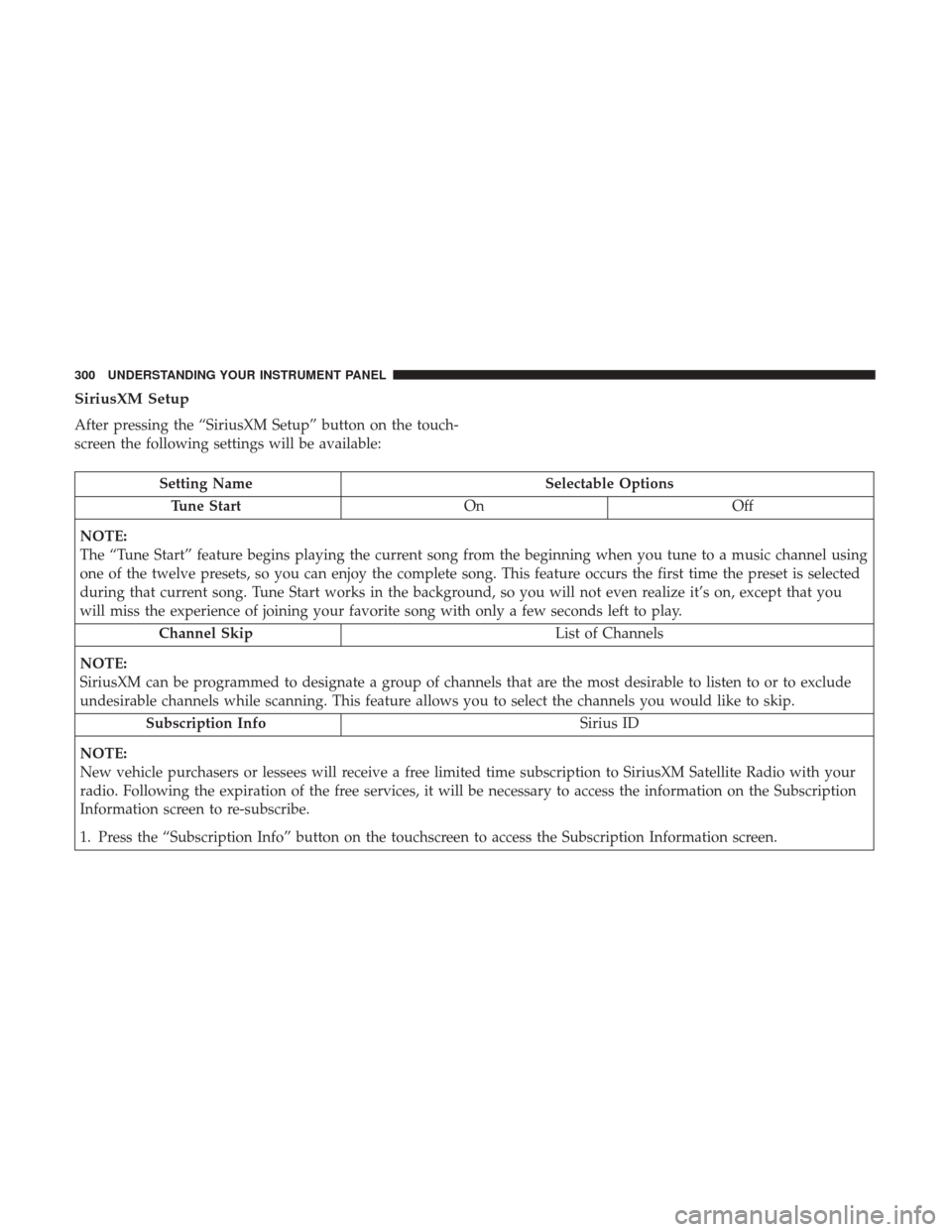
SiriusXM Setup
After pressing the “SiriusXM Setup” button on the touch-
screen the following settings will be available:
Setting NameSelectable Options
Tune Start OnOff
NOTE:
The “Tune Start” feature begins playing the current song from the beginning when you tune to a music channel using
one of the twelve presets, so you can enjoy the complete song. This feature occurs the first time the preset is selected
during that current song. Tune Start works in the background, so you will not even realize it’s on, except that you
will miss the experience of joining your favorite song with only a few seconds left to play. Channel Skip List of Channels
NOTE:
SiriusXM can be programmed to designate a group of channels that are the most desirable to listen to or to exclude
undesirable channels while scanning. This feature allows you to select the channels you would like to skip. Subscription Info Sirius ID
NOTE:
New vehicle purchasers or lessees will receive a free limited time subscription to SiriusXM Satellite Radio with your
radio. Following the expiration of the free services, it will be necessary to access the information on the Subscription
Information screen to re-subscribe.
1. Press the “Subscription Info” button on the touchscreen to access the Subscription Information screen.
300 UNDERSTANDING YOUR INSTRUMENT PANEL
Page 305 of 539
UCONNECT RADIOS — IF EQUIPPED
For detailed information about your Uconnect radio, refer
to your Uconnect Owner ’s Manual Supplement.
USB PORT AND AUX JACK — IF EQUIPPED
Located in the front storage area of the center console, this
feature allows an external device, to be connected to the
audio system.For further information, refer to the Uconnect Owner ’s
Manual Supplement.
Media Hub
1 — USB Port (Media and Charge)
2 — AUX Jack
3 — USB Port (Charge Only)
Uconnect 8.4/8.4 NAV Media Hub
1 — USB Port (Media and Charge)
2 — AUX Jack
3 — USB Port (Media and Charge)
4
UNDERSTANDING YOUR INSTRUMENT PANEL 303
Page 306 of 539

STEERING WHEEL AUDIO CONTROLS — IF
EQUIPPED
The remote sound system controls are located on the rear
surface of the steering wheel. Reach behind the wheel to
access the switches.
The right-hand control is a rocker-type switch with a
pushbutton in the center and controls the volume and
mode of the sound system. Pushing the top of the rocker
switch will increase the volume, and pushing the bottom of
the rocker switch will decrease the volume.Pushing the center button will make the radio switch
between the various audio modes available (AM/FM/
SXM/AUX, etc.).
The left-hand control is a rocker-type switch with a push-
button in the center. The function of the left-hand control is
different depending on which audio mode you are in.
The following describes the left-hand control operation
while in mode.
Radio Operation
Pushing the top of the switch will “Seek” up for the next
listenable station and pushing the bottom of the switch will
“Seek” down for the next listenable station.
The button located in the center of the left-hand control
will tune to the next preset station that you have pro-
grammed in the radio preset button.
Media Mode
Pushing the top of the switch once will go to the next track
on the selected media (Disc, AUX, Bluetooth). Pushing the
bottom of the switch once will go to the beginning of the
current track, or to the beginning of the previous track if it
is within eight seconds after the current track begins to
play.
Remote Sound System Controls (Back View Of Steering
Wheel)
304 UNDERSTANDING YOUR INSTRUMENT PANEL


