Page 335 of 539
To link your internet radio accounts:
1. Download the Uconnect Access App to your mobiledevice.
2. Press the Via Mobile icon on the navigation bar at the bottom of the app. 3. Press the app you’d like to connect to your vehicle.
4. Enter your login information for the selected app and
press Link.
5. Next time you’re in your vehicle, enable Bluetooth, pair your phone and select the Via Mobile app you want to
play from the Uconnect touchscreen to stream your
personalized music.
NOTE:
• You can also complete this process on the web. Simply
visit moparownerconnect.com log in and click Set Up
Via Mobile Profile (under Quick Links).
• Once you download the app to your compatible mobile
device, you will also be able to start your vehicle and
lock/unlock its doors from virtually anywhere.
Mobile App
4
UNDERSTANDING YOUR INSTRUMENT PANEL 333
Page 336 of 539

Voice Texting (8.4/8.4 NAV)
1. To send a message, push the Phone button. After the
beep, say the following command: “Send messageto
John Smith.”
2. Listen to the prompt. After the beep, dictate the message you would like to send. Wait for Uconnect to process
your message.
3. The Uconnect system will repeat your message and provide a variety of options to add to, delete, send or
hear the message again. After the beep, tell Uconnect
what you’d like to do. For instance, if you’re happy with
your message, after the beep, say: “Send.”
You must be registered with Uconnect Access and have a
compatible MAP – enabled smartphone to use your voice
to send a personalized text message. For details about
MAP, visit UconnectPhone.com.
Apple iPhone iOS6 or later supports reading incomingtext
messages only. To enable this feature on your Apple
iPhone, follow these 4 simple steps: TIP:
•
Voice Texting is not compatible with iPhone, but if your
vehicle is equipped with Siri Eyes Free, you can use your
voice to send a text message.
• Messages are limited to 140 characters.
iPhone Notification Settings
1 — Select “Settings”
2 — Select “Bluetooth”
3 — Select the (i) for the paired vehicle
4 — Turn on “Show Notifications”
334 UNDERSTANDING YOUR INSTRUMENT PANEL
Page 338 of 539
Push the VR button. After the beep, say one of the
following commands:
• Show fuel prices
• Show 5 - day weather forecast
• Show extended weather
TIP: Traffic alerts are not accessible with Voice Command.
Siri Eyes Free — If Equipped
Siri lets you use your voice to send text messages, select
media, place phone calls and much more. Siri uses your
natural language to understand what you mean and will
respond back to confirm your requests. The system is
designed to keep your eyes on the road and your hands on
the wheel by letting Siri help you perform useful tasks.
SiriusXM Travel Link
336 UNDERSTANDING YOUR INSTRUMENT PANEL
Page 339 of 539
To enable Siri push and hold, then release the Uconnect
Voice Recognition (VR) button on the steering wheel. After
you hear a double beep you can ask Siri to play podcasts
and music, get directions, read text messages and many
other useful requests.Getting Started
Ensure Siri is enabled on your iPhone.
1. Pair your Siri enabled device to the vehicles soundsystem. Refer to your Uconnect Owner ’s Manual
Supplement for a detailed pairing procedure.
Siri Eyes Free Available
Siri Enable Screens
4
UNDERSTANDING YOUR INSTRUMENT PANEL 337
Page 340 of 539
NOTE:Apush and release of thebutton will start
normal embedded VR functions. The push and hold,
then release of the
button will start Siri functions.
2. After the double beep, begin speaking to Siri.
Examples of Siri commands and questions:
•�Play Rolling Stones�
• �Send text message to John�
• �Read text message from Sarah�
• �Take me to the nearest coffee shop�
NOTE: •Speak clearly at a normal pace and volume while
facing straight ahead to ensure your command is
understood.
• Siri is available on iPhone 4S and later.
Voice Recognition/Siri Buttons
1 — Phone Pick up Button
2 — Voice Recognition/Siri Eyes Free Button
3 — Phone Hang Up Button 338 UNDERSTANDING YOUR INSTRUMENT PANEL
Page 341 of 539
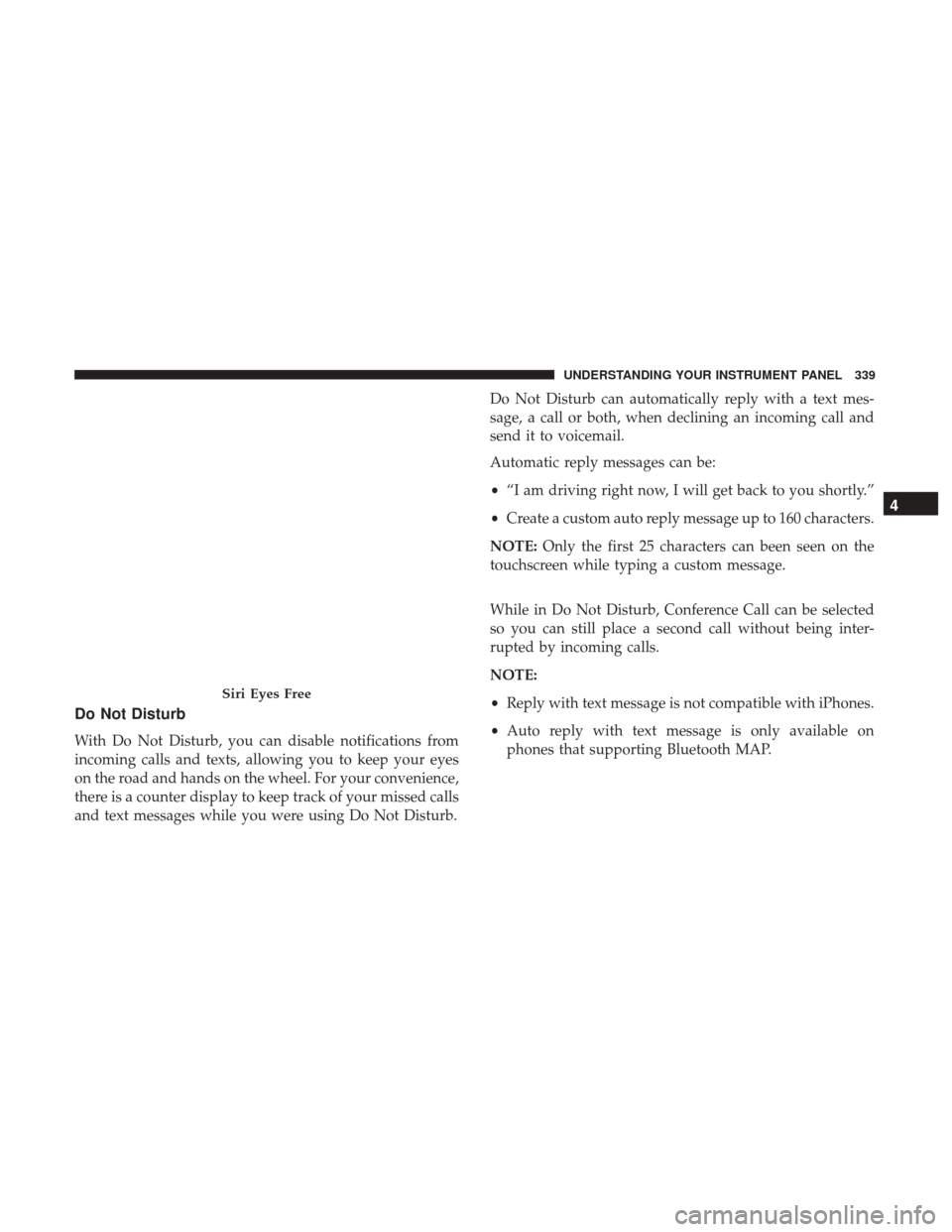
Do Not Disturb
With Do Not Disturb, you can disable notifications from
incoming calls and texts, allowing you to keep your eyes
on the road and hands on the wheel. For your convenience,
there is a counter display to keep track of your missed calls
and text messages while you were using Do Not Disturb.Do Not Disturb can automatically reply with a text mes-
sage, a call or both, when declining an incoming call and
send it to voicemail.
Automatic reply messages can be:
•
“I am driving right now, I will get back to you shortly.”
• Create a custom auto reply message up to 160 characters.
NOTE: Only the first 25 characters can been seen on the
touchscreen while typing a custom message.
While in Do Not Disturb, Conference Call can be selected
so you can still place a second call without being inter-
rupted by incoming calls.
NOTE:
• Reply with text message is not compatible with iPhones.
• Auto reply with text message is only available on
phones that supporting Bluetooth MAP.
Siri Eyes Free
4
UNDERSTANDING YOUR INSTRUMENT PANEL 339
Page 515 of 539
•Owner’s name and address
• Owner’s telephone number (home and office)
• Authorized dealer name
• Vehicle Identification Number (VIN)
• Vehicle delivery date and mileage
FCA US LLC Customer Center
P.O. Box 21–8004
Auburn Hills, MI 48321–8004
Phone: (800) 247-9753
FCA Canada Inc. Customer Center
P.O. Box 1621
Windsor, Ontario N9A 4H6
Phone: (800) 465-2001 English / (800) 387-9983 French
In Mexico Contact
Av. Prolongacion Paseo de la Reforma, 1240
Sante Fe C.P. 05109
Mexico, D. F.
In Mexico City: 5081-7568
Outside Mexico City: 1-800-505-1300
Puerto Rico And U.S. Virgin Islands
Customer Service Chrysler International Services LLC
P.O. Box 191857
San Juan 00919-1857
Tel.: (787) 782-5757
Fax: (787) 782-3345
9
IF YOU NEED CONSUMER ASSISTANCE 513
Page 518 of 539

In Canada
If you believe that your vehicle has a safety defect, you
should contact the Customer Service Department immedi-
ately. Canadian customers who wish to report a safety
defect to the Canadian government should contact Trans-
port Canada, Motor Vehicle Defect Investigations and
Recalls at 1-800-333-0510 or go to http://www.tc.gc.ca/
roadsafety/
PUBLICATION ORDER FORMS
To order the following manuals, you may use either the
website or the phone numbers listed below. Visa, Master-
card, American Express, and Discover orders are accepted.
If you prefer mailing your payment, please call for an order
form.
NOTE:A street address is required when ordering manu-
als (no P.O. Boxes).
Service Manuals
These comprehensive Service Manuals provide the infor-
mation that students and professional technicians need in
diagnosing/troubleshooting, problem solving, maintain-
ing, servicing, and repairing FCA US LLC vehicles. A complete working knowledge of the vehicle, system,
and/or components is written in straightforward language
with illustrations, diagrams, and charts.
Diagnostic Procedure Manuals
Diagnostic Procedure Manuals are filled with diagrams,
charts and detailed illustrations. These practical manuals
make it easy for students and technicians to find and fix
problems on computer-controlled vehicle systems and fea-
tures. They show exactly how to find and correct problems
the first time, using step-by-step troubleshooting and driv-
ability procedures, proven diagnostic tests, and a complete
list of all tools and equipment.
Owner’s Manuals
These Owner’s Manuals have been prepared with the
assistance of service and engineering specialists to acquaint
you with specific FCA US LLC vehicles. Included are
starting, operating, emergency and maintenance proce-
dures as well as specifications, capabilities and safety tips.
516 IF YOU NEED CONSUMER ASSISTANCE