2017 CHEVROLET TRAVERSE AUX
[x] Cancel search: AUXPage 165 of 394

Chevrolet Traverse Owner Manual (GMNA-Localizing-U.S./Canada/Mexico-
9955676) - 2017 - crc - 4/4/16
164 Infotainment System
Infotainment
System
Introduction
Infotainment . . . . . . . . . . . . . . . . . . 164
Theft-Deterrent Feature . . . . . . 165
Overview (Radio withoutTouchscreen) . . . . . . . . . . . . . . . 166
Overview (Radio with Touchscreen) . . . . . . . . . . . . . . . 168
Operation (Radio without Touchscreen) . . . . . . . . . . . . . . . 168
Operation (Radio with Touchscreen) . . . . . . . . . . . . . . . 170
Radio
AM-FM Radio (Radio withoutTouchscreen) . . . . . . . . . . . . . . . 173
AM-FM Radio (Radio with Touchscreen) . . . . . . . . . . . . . . . 174
Satellite Radio (Radio without Touchscreen) . . . . . . . . . . . . . . . 177
Satellite Radio (Radio with Touchscreen) . . . . . . . . . . . . . . . 180
Radio Reception . . . . . . . . . . . . . . 181
Multi-Band Antenna . . . . . . . . . . 182
Audio Players
CD Player (Radio without Touchscreen) . . . . . . . . . . . . . . . 182
CD Player (Radio with Touchscreen) . . . . . . . . . . . . . . . 184
MP3 (Radio without
Touchscreen) . . . . . . . . . . . . . . . 186
MP3 (Radio with Touchscreen) . . . . . . . . . . . . . . . 191
Auxiliary Devices . . . . . . . . . . . . . 193
OnStar System
OnStar System . . . . . . . . . . . . . . . 194
Rear Seat Infotainment
Rear Seat Audio (RSA) System . . . . . . . . . . . . . . . . . . . . . . 194
Phone
Bluetooth . . . . . . . . . . . . . . . . . . . . . 196
Settings
Settings . . . . . . . . . . . . . . . . . . . . . . 202
Trademarks and License
Agreements
Trademarks and LicenseAgreements . . . . . . . . . . . . . . . . . 204
Introduction
Infotainment
Base radio information is included in
this manual. See the infotainment
manual for information on other
available infotainment systems.
Read the following pages to
become familiar with these features.
{Warning
Taking your eyes off the road for
too long or too often while using
any infotainment feature can
cause a crash. You or others
could be injured or killed. Do not
give extended attention to
infotainment tasks while driving.
Limit your glances at the vehicle
displays and focus your attention
on driving. Use voice commands
whenever possible.
The infotainment system has built-in
features intended to help avoid
distraction by disabling some
functions when driving. These
Page 168 of 394

Chevrolet Traverse Owner Manual (GMNA-Localizing-U.S./Canada/Mexico-
9955676) - 2017 - crc - 4/4/16
Infotainment System 167
9. Auxiliary Input Jack.Use to connect external
audio devices.
10. CD/AUX .Press to scroll through
selecting the CD or an
auxiliary device.
11.
\FWD
. Press and hold to fast
forward through a track.
12.
sREV
. Press and hold to go
backward fast through a
track.
13.
P
. Press to turn the
infotainment system on
or off.
. Turn to adjust the volume.
14.
¨SEEK
. Seeks the next station or
track. 15.
©SEEK
. Seeks the previous station
or track.
16. BAND .Press to scroll through the
available bands AM, FM,
or SiriusXM, if equipped.
17.
H
. Press to set the clock.
Page 169 of 394

Chevrolet Traverse Owner Manual (GMNA-Localizing-U.S./Canada/Mexico-
9955676) - 2017 - crc - 4/4/16
168 Infotainment System
Overview (Radio with Touchscreen)
The infotainment system is controlled by using the buttons, touch screen,
steering wheel controls, and voice recognition. SeeOperation (Radio without
Touchscreen) 0168 orOperation (Radio with Touchscreen) 0170.
1. PUSH/O
2.Z
3. CD Slot
4. AUX Port 5. PUSH/SEL
6.
/BACK
7. SEEK
¨(Next/Forward)
8.
©SEEK 9. FAV
10. SRCE
11.
D
Operation (Radio without
Touchscreen)
Playing the Radio
O(Power/Volume) : Press to turn
the system on and off. Turn to
increase or decrease the volume.
A lock symbol displays next to the
clock display while the parental
control feature is being used. The
feature remains on until
Ois
pressed and held for more than
two seconds, or the driver turns the
ignition off and exits the vehicle.
4(Information) : Press to switch
the display between the radio
station frequency and the time.
When the ignition is in the OFF
position, press
4to display the time.
For vehicles with XM, MP3, WMA,
or RDS features, press
4to display
additional text information related to
the current FM-RDS or XM station;
Page 172 of 394

Chevrolet Traverse Owner Manual (GMNA-Localizing-U.S./Canada/Mexico-
9955676) - 2017 - crc - 4/4/16
Infotainment System 171
Z(Eject) :Press to eject a disc
from the CD player. See CD Player
(Radio without Touchscreen) 0182
or CD Player (Radio with
Touchscreen) 0184.
AUX Port : 3.5 mm (1/8 in)
connection for external audio
devices.
PUSH/SEL (Select):
. Turn to manually find a station or
highlight a menu selection.
. Press to select a highlighted
selection.
D(Home Page) : Press to go to
the Home Page. See “Home Page”
later in this section.
SRCE (Source) : Press to switch
between AM, FM, CD, and if
equipped, SiriusXM
®, front auxiliary,
rear auxiliary, and iPod/USB.
Press and hold to mute/pause the
system. Press and hold again to
unmute/resume the system.
FAV (Favorites Menu) : In AM, FM,
or SiriusXM (if equipped), press to
change the current favorite page
number above the preset buttons. Keep pressing to scroll through the
favorites pages. The stored stations
for each list display on the bottom of
the screen. The number of preset
Favorite Pages can be changed by
pressing the Settings button on a
Home Page, then pressing
Favorites Pages, and then selecting
the number of Favorite Pages.
©SEEK (Previous/Reverse):
. AM, FM, SiriusXM (if equipped):
Press to seek to the previous
strong station. Press and hold
for Scan. Press
©again to stop
the scan.
. CD, USB: Press to seek to the
beginning of the current or
previous track.
. CD, USB: Press and hold to
quickly reverse through a track.
Release the button to return to
playing speed. See CD Player
(Radio without Touchscreen)
0 182 orCD Player (Radio with
Touchscreen) 0184 and
Auxiliary Devices 0193. SEEK
¨(Next/Forward):
. AM, FM, SiriusXM (if equipped):
Press to seek to the next strong
station. Press and hold for Scan.
Press
¨again to stop the scan.
. CD, USB: Press to seek or skip
the next track or program.
. CD, USB: Press and hold to fast
forward through a track. Release
the button to return to playing
speed. See CD Player (Radio
without Touchscreen) 0182 or
CD Player (Radio with
Touchscreen) 0184 and
Auxiliary Devices 0193.
/BACK : Press to return to the
previous screen in a menu.
Touchscreen Buttons
Touchscreen buttons are visible on
the screen when available. When a
function is unavailable, the button
may gray out. When a function is
selected, the button may highlight or
animate.
Page 173 of 394
Chevrolet Traverse Owner Manual (GMNA-Localizing-U.S./Canada/Mexico-
9955676) - 2017 - crc - 4/4/16
172 Infotainment System
Home Page
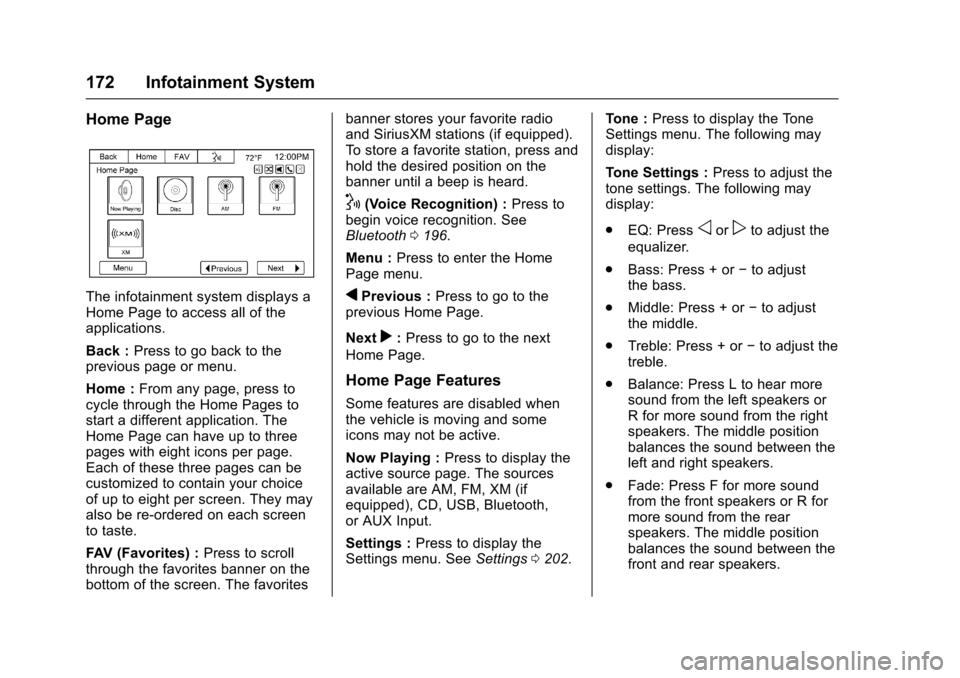
The infotainment system displays a
Home Page to access all of the
applications.
Back :Press to go back to the
previous page or menu.
Home : From any page, press to
cycle through the Home Pages to
start a different application. The
Home Page can have up to three
pages with eight icons per page.
Each of these three pages can be
customized to contain your choice
of up to eight per screen. They may
also be re-ordered on each screen
to taste.
FAV (Favorites) : Press to scroll
through the favorites banner on the
bottom of the screen. The favorites banner stores your favorite radio
and SiriusXM stations (if equipped).
To store a favorite station, press and
hold the desired position on the
banner until a beep is heard.
!(Voice Recognition) :
Press to
begin voice recognition. See
Bluetooth 0196.
Menu : Press to enter the Home
Page menu.
qPrevious : Press to go to the
previous Home Page.
Next
r: Press to go to the next
Home Page.
Home Page Features
Some features are disabled when
the vehicle is moving and some
icons may not be active.
Now Playing : Press to display the
active source page. The sources
available are AM, FM, XM (if
equipped), CD, USB, Bluetooth,
or AUX Input.
Settings : Press to display the
Settings menu. See Settings0202. Tone :
Press to display the Tone
Settings menu. The following may
display:
Tone Settings : Press to adjust the
tone settings. The following may
display:
. EQ: Press
oorpto adjust the
equalizer.
. Bass: Press + or −to adjust
the bass.
. Middle: Press + or −to adjust
the middle.
. Treble: Press + or −to adjust the
treble.
. Balance: Press L to hear more
sound from the left speakers or
R for more sound from the right
speakers. The middle position
balances the sound between the
left and right speakers.
. Fade: Press F for more sound
from the front speakers or R for
more sound from the rear
speakers. The middle position
balances the sound between the
front and rear speakers.
Page 184 of 394

Chevrolet Traverse Owner Manual (GMNA-Localizing-U.S./Canada/Mexico-
9955676) - 2017 - crc - 4/4/16
Infotainment System 183
CD/AUX (CD/Auxiliary) :Press to
select between CD, Auxiliary,
or USB.
. When a CD is in the player, the
CD icon and a message
showing the disc and/or track
number display.
. If an auxiliary input device is not
connected or a CD is not
installed an error message will
display.
Care of CDs
If playing a CD-R, the sound quality
can be reduced due to CD-R or
CD-RW quality, the method of
recording, the quality of the music
that has been recorded, and the
way the CD-R or CD-RW has been
handled. Handle them carefully.
Store CD-R(s) or CD-RW(s) in their
original cases or other protective
cases and away from direct sunlight
and dust. The CD player scans the
bottom surface of the disc. If the
surface of a CD is damaged, such
as cracked, broken, or scratched,
the CD does not play properly or not
at all. Do not touch the bottom side
of a CD while handling it; this could damage the surface. Pick up CDs
by grasping the outer edges or the
edge of the hole and the outer edge.
If the surface of a CD is soiled, take
a soft, lint-free cloth or dampen a
clean, soft cloth in a mild, neutral
detergent solution mixed with water,
and clean it. Make sure the wiping
process starts from the center to
the edge.
Care of the CD Player
Do not add any label to a CD; it
could get caught in the CD player.
If a CD is recorded on a personal
computer and a description label is
needed, try labeling the top of the
recorded CD with a marking pen.
The use of CD lens cleaners for
CDs is not advised.
Caution
If a label is added to a CD, more
than one CD is inserted into the
slot at a time, or an attempt is
made to play scratched or
damaged CDs, the CD player
(Continued)
Caution (Continued)
could be damaged. While using
the CD player, use only CDs in
good condition without any label,
load one CD at a time, and keep
the CD player and the loading slot
free of foreign materials, liquids,
and debris.
If an error displays, see “CD
Messages” later in this section.
Playing an MP3/WMA CD-R or
CD-RW Disc
The radio has the capability of
playing an MP3/WMA CD-R or
CD-RW disc. For more information
on how to play an MP3/WMA CD-R
or CD-RW disc, see MP3 (Radio
with Touchscreen) 0191 orMP3
(Radio without Touchscreen) 0186.
CD Messages
Check Disc : Radios with a single
CD player display Check Disc and/
or eject the CD if an error occurs.
Page 190 of 394

Chevrolet Traverse Owner Manual (GMNA-Localizing-U.S./Canada/Mexico-
9955676) - 2017 - crc - 4/4/16
Infotainment System 189
If you have an older iPod model that
is not supported, it can still be used
by connecting it to the auxiliary
input jack using a standard 3.5 mm
(1/8 in) stereo cable. SeeClock
(Radio without Touchscreen) 0114
or Clock (Radio with
Touchscreen) 0115.
Using the Radio to Control a
USB Storage Device or iPod
The radio can control a USB
storage device or an iPod using the
radio buttons and knobs and display
song information on the radio’s
display.
f(Tune) : Turn to select files.
©SEEK :Press to go to the start of
the current track, if more than
10 seconds on the track have
played, otherwise goes to the
previous track. Press and hold or
press multiple times to continue
moving backward through tracks.
¨SEEK : Press to go to the next
track. Press and hold or press
multiple times to continue moving
forward through tracks.
sREV (Reverse) : Press and hold
to reverse playback quickly. Sound
is heard at a reduced volume.
Release
sREV to resume playing.
The elapsed time of the file
displays.
\FWD (Fast Forward) : Press
and hold to advance playback
quickly. Sound is heard at a reduced
volume. Release
\FWD to
resume playing. The elapsed time of
the file displays.
4(Information) : Press to display
additional information about the
selected track.
Using Softkeys to Control a
USB Storage Device or iPod
The five softkeys below the radio
display are used to control the
functions listed below.
To use the softkeys:
1. Press the first or fifth softkey below the radio display to
display the functions listed
below, or press the softkey
below the function if it is
currently displayed. 2. Press the softkey below the tab
with the function on it to use
that function.
j(Pause) : Press the softkey belowjto pause the track. The tab
appears raised when pause is being
used. Press the softkey below
j
again to resume playback.
Back : Press the softkey below the
Back tab to go back to the main
display screen on an iPod, or the
root directory on a USB storage
device.
c(Folder View) : Press the
softkey below
cto view the
contents of the current folder on the
USB drive. To browse and select
files:
1. Press the softkey below
c.
2. Turn
fto scroll through the list
of folders.
3. Press
fto select the folder.
If there is more than one folder,
repeat Steps 1 and 2 until the
folder is reached.
Page 194 of 394

Chevrolet Traverse Owner Manual (GMNA-Localizing-U.S./Canada/Mexico-
9955676) - 2017 - crc - 4/4/16
Infotainment System 193
Auxiliary Devices
The vehicle has a 3.5 mm (1/8 in)
auxiliary input jack on the faceplate
and a USB port in the center stack.
If equipped, there are two USB
ports on the rear of the center
console that can be used for
charging only. They can charge
devices that draw 2.1 amps or less.
See the device’s owner manual for
the specification.
Using the 3.5 mm (1/8 in)
Auxiliary Input Jack
This is not an audio output; do not
plug a headphone set into the front
auxiliary input jack. Connect an
auxiliary input device such as an
iPod, laptop computer, MP3 player,
CD player, or cassette tape player
to the auxiliary input jack for use as
another source for audio listening. Drivers are encouraged to set up
any auxiliary device while the
vehicle is in P (Park). See
Defensive Driving
0217 for more
information on driver distraction.
To use an auxiliary input device,
connect a 3.5 mm (1/8 in) cable to
the radio's front auxiliary input jack.
Press SRCE to select the device.
Using the USB Port
The USB port can control a USB
storage device or an iPod using the
radio buttons and knobs.
USB Supported Devices
. USB Flash Drives
. Portable USB Hard Drives
. Fifth generation or later iPod
. iPod classic
®(6th generation)
. iPod nano
®(3G, 4G, 5G,
and 6G)
. iPod touch
®(1G, 2G, 3G,
and 4G)
. iPhone
®(2G, 3G, 3GS, 4, and 5)
. iPad
®(1G, 2G) Not all iPods and USB drives are
compatible with the USB port.
Make sure the iPod has the latest
firmware from Apple
®for proper
operation. iPod firmware can be
updated using the latest iTunes
®
application. See www.apple.com/
itunes.
For help identifying your iPod, go to
www.apple.com/support.