2017 CHEVROLET SUBURBAN USB port
[x] Cancel search: USB portPage 24 of 465
Chevrolet Tahoe/Suburban Owner Manual (GMNA-Localizing-U.S./Canada/
Mexico-9955986) - 2017 - crc - 7/5/16
In Brief 23
Portable Audio Devices
This vehicle may have a 3.5 mm
(1/8 in) auxiliary input jack and two
USB ports in the center stack or
inside the front seat armrest.
External devices such as iPods
®,
laptop computers, MP3 players, CD
changers, and USB storage devices
may be connected, depending on
the audio system.
See USB Port 0210 andAuxiliary
Jack 0213.
Bluetooth®
The Bluetooth®system allows users
with a Bluetooth-enabled cell phone
to make and receive hands-free
calls using the vehicle audio system
and controls.
The Bluetooth-enabled cell phone
must be paired with the in-vehicle
Bluetooth system before it can be
used in the vehicle. Not all phones
will support all functions. See
Bluetooth (Overview) 0214 or
Bluetooth (Infotainment Controls -
Base Radio) 0215 orBluetooth
(Voice Recognition - Base
Radio) 0219.
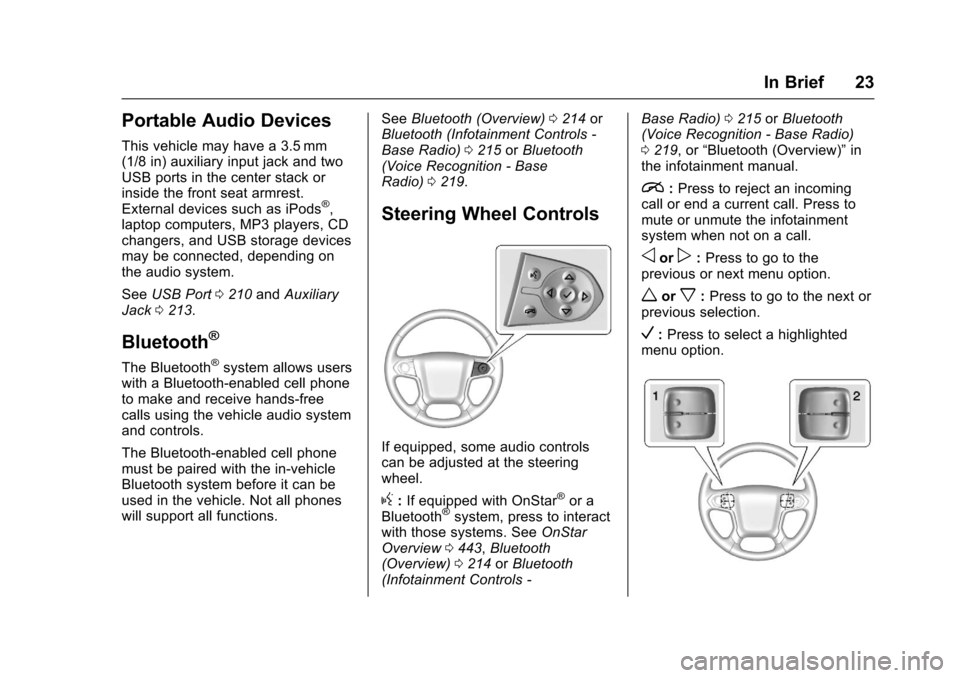
Steering Wheel Controls
If equipped, some audio controls
can be adjusted at the steering
wheel.
g:If equipped with OnStar®or a
Bluetooth®system, press to interact
with those systems. See OnStar
Overview 0443, Bluetooth
(Overview) 0214 orBluetooth
(Infotainment Controls - Base Radio)
0215 orBluetooth
(Voice Recognition - Base Radio)
0 219, or “Bluetooth (Overview)” in
the infotainment manual.
i: Press to reject an incoming
call or end a current call. Press to
mute or unmute the infotainment
system when not on a call.
oorp: Press to go to the
previous or next menu option.
worx: Press to go to the next or
previous selection.
V: Press to select a highlighted
menu option.
Page 126 of 465
Chevrolet Tahoe/Suburban Owner Manual (GMNA-Localizing-U.S./Canada/
Mexico-9955986) - 2017 - crc - 7/5/16
Storage 125
Storage
Storage Compartments
Storage Compartments . . . . . . . 125
Instrument Panel Storage . . . . 125
Glove Box . . . . . . . . . . . . . . . . . . . . 125
Cupholders . . . . . . . . . . . . . . . . . . . 125
Sunglasses Storage . . . . . . . . . . 126
Armrest Storage . . . . . . . . . . . . . . 126
Rear Storage . . . . . . . . . . . . . . . . . 126
Center Console Storage . . . . . . 126
Additional Storage Features
Cargo Tie-Downs . . . . . . . . . . . . . 127
Convenience Net . . . . . . . . . . . . . 127
Roof Rack System
Roof Rack System . . . . . . . . . . . 127
Storage
Compartments
{Warning
Do not store heavy or sharp
objects in storage compartments.
In a crash, these objects may
cause the cover to open and
could result in injury.
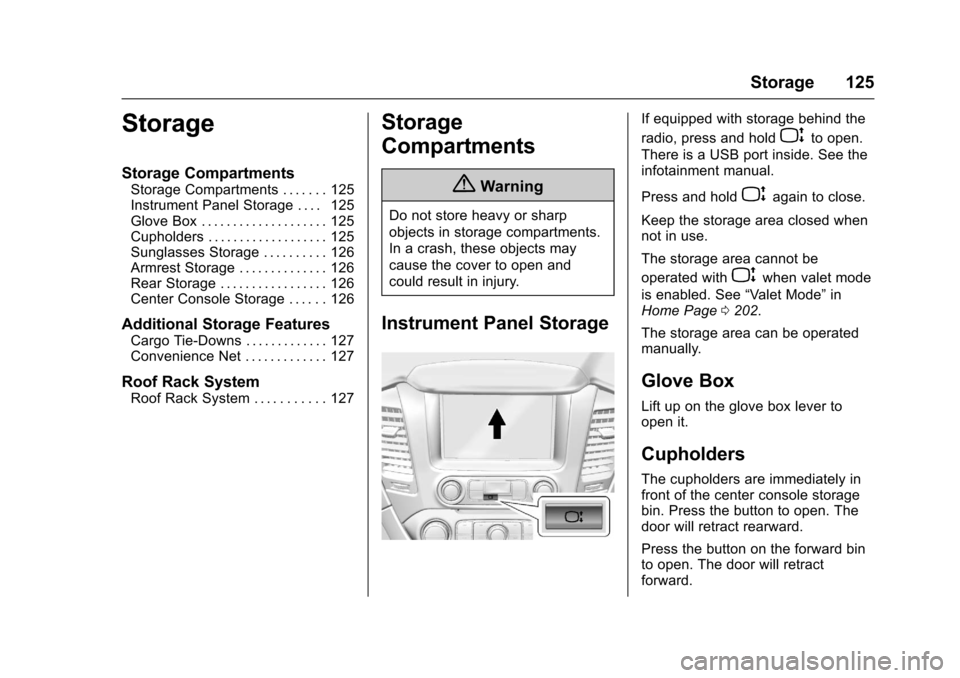
Instrument Panel Storage
If equipped with storage behind the
radio, press and hold
Pto open.
There is a USB port inside. See the
infotainment manual.
Press and hold
Pagain to close.
Keep the storage area closed when
not in use.
The storage area cannot be
operated with
Pwhen valet mode
is enabled. See “Valet Mode”in
Home Page 0202.
The storage area can be operated
manually.
Glove Box
Lift up on the glove box lever to
open it.
Cupholders
The cupholders are immediately in
front of the center console storage
bin. Press the button to open. The
door will retract rearward.
Press the button on the forward bin
to open. The door will retract
forward.
Page 127 of 465
Chevrolet Tahoe/Suburban Owner Manual (GMNA-Localizing-U.S./Canada/
Mexico-9955986) - 2017 - crc - 7/5/16
126 Storage
If equipped, cupholders may be in
the second and third row seat
armrest areas.
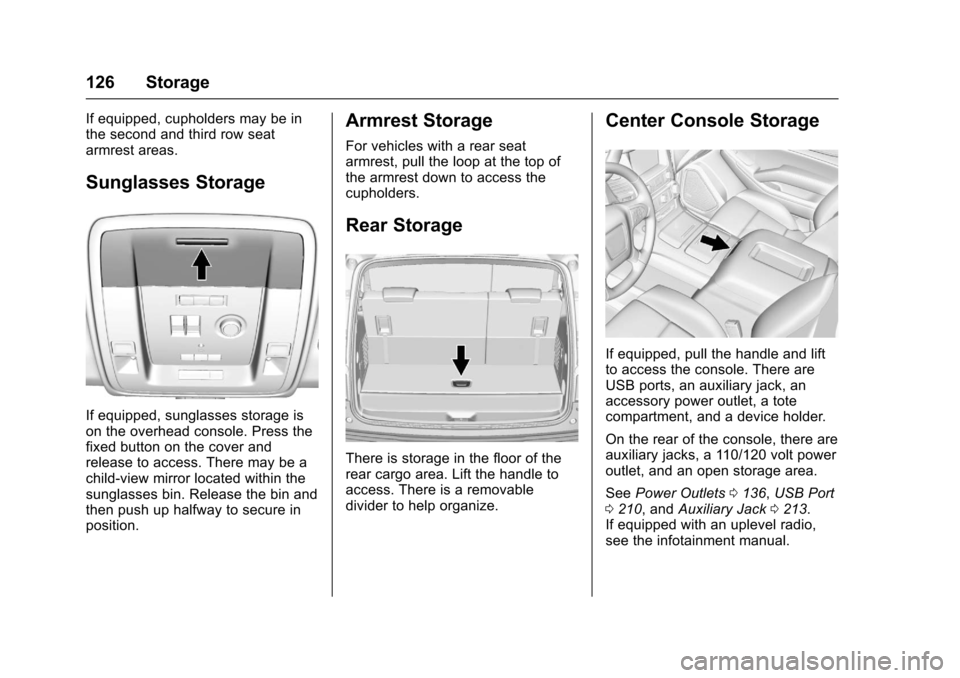
Sunglasses Storage
If equipped, sunglasses storage is
on the overhead console. Press the
fixed button on the cover and
release to access. There may be a
child-view mirror located within the
sunglasses bin. Release the bin and
then push up halfway to secure in
position.
Armrest Storage
For vehicles with a rear seat
armrest, pull the loop at the top of
the armrest down to access the
cupholders.
Rear Storage
There is storage in the floor of the
rear cargo area. Lift the handle to
access. There is a removable
divider to help organize.
Center Console Storage
If equipped, pull the handle and lift
to access the console. There are
USB ports, an auxiliary jack, an
accessory power outlet, a tote
compartment, and a device holder.
On the rear of the console, there are
auxiliary jacks, a 110/120 volt power
outlet, and an open storage area.
SeePower Outlets 0136, USB Port
0 210, and Auxiliary Jack 0213.
If equipped with an uplevel radio,
see the infotainment manual.
Page 185 of 465

Chevrolet Tahoe/Suburban Owner Manual (GMNA-Localizing-U.S./Canada/
Mexico-9955986) - 2017 - crc - 7/5/16
184 Instruments and Controls
.Apple CarPlay
. Manage Apple CarPlay Devices
Apple CarPlay
This feature allows Apple devices to
be connected to the infotainment
system through a USB port. See
“Apple CarPlay and Android Auto”
under “Phone” in the infotainment
manual.
Select Off or On.
Manage Apple CarPlay Devices
Select to manage Apple devices.
Apple CarPlay must be on for this
feature to be accessed. See “Apple
CarPlay and Android Auto” under
“Phone” in the infotainment manual.
Android Auto™
Select and the following may
display:
.
Android Auto
. Manage Android Auto Devices
Android Auto
This feature allows Android devices
to be connected to the infotainment
system through a USB port. See “Apple CarPlay and Android Auto”
under
“Phone” in the infotainment
manual.
Select Off or On.
Manage Android Auto Devices
Select to manage Android devices.
Android Auto must be on for this
feature to be accessed. See “Apple
CarPlay and Android Auto” under
“Phone” in the infotainment manual.
Voice
Select and the following may
display:
.
Confidence Threshold
. Prompt Length
. Audio Feedback Speed
. Display “What Can I Say?” Tips
Confidence Threshold
This feature allows the adjustment
of the sensitivity of the speech
recognition system.
Select Confirm More or
Confirm Less. Prompt Length
This feature adjusts the voice
prompt length.
Select Short or Long.
Audio Feedback Speed
This feature adjusts the audio
feedback speed.
Select Slow, Medium, or Fast.
Display
“What Can I Say?” Tips
This feature gives voice
command tips.
Select Off or On.
Display
Select and the following may
display:
. Calibrate Touchscreen
. Turn Display Off
Calibrate Touchscreen
Select to calibrate the touchscreen,
then follow the prompts.
Page 199 of 465
Chevrolet Tahoe/Suburban Owner Manual (GMNA-Localizing-U.S./Canada/
Mexico-9955986) - 2017 - crc - 7/5/16
198 Infotainment System
Infotainment
System
Introduction
Infotainment . . . . . . . . . . . . . . . . . . 198
Theft-Deterrent Feature . . . . . . 199
Overview . . . . . . . . . . . . . . . . . . . . . 199
Home Page . . . . . . . . . . . . . . . . . . 202
Software Updates . . . . . . . . . . . . 204
Radio
AM-FM Radio . . . . . . . . . . . . . . . . 204
Satellite Radio . . . . . . . . . . . . . . . . 206
Radio Reception . . . . . . . . . . . . . . 206
Rear Side WindowAntenna . . . . . . . . . . . . . . . . . . . . . 207
Multi-Band Antenna . . . . . . . . . . 208
Audio Players
CD Player . . . . . . . . . . . . . . . . . . . . 208
USB Port . . . . . . . . . . . . . . . . . . . . . 210
Auxiliary Jack . . . . . . . . . . . . . . . . 213
Phone
Bluetooth (Overview) . . . . . . . . . 214
Bluetooth (Infotainment Controls - Base Radio) . . . . . . 215
Bluetooth (Voice Recognition - Base Radio) . . . . . . . . . . . . . . . . 219
Trademarks and License
Agreements
Trademarks and LicenseAgreements . . . . . . . . . . . . . . . . . 224
Introduction
Infotainment
Base radio information is included in
this manual. See the infotainment
manual for information on other
available infotainment systems.
Read the following pages to
become familiar with the features.
{Warning
Taking your eyes off the road for
too long or too often while using
any infotainment feature can
cause a crash. You or others
could be injured or killed. Do not
give extended attention to
infotainment tasks while driving.
Limit your glances at the vehicle
displays and focus your attention
on driving. Use voice commands
whenever possible.
The infotainment system has built-in
features intended to help avoid
distraction by disabling some
functions when driving. These
Page 211 of 465
Chevrolet Tahoe/Suburban Owner Manual (GMNA-Localizing-U.S./Canada/
Mexico-9955986) - 2017 - crc - 7/5/16
210 Infotainment System
.The road is very rough. Try the
disc again when the road is
smoother.
. The disc is dirty, scratched, wet,
or upside down.
. The air is very humid. Try the
disc again later.
. There was a problem while
burning the disc.
. The label is caught in the CD
player.
If Disc Player Error displays, it could
be for one of the following reasons:
. The player temperature is
too high.
. There are load or eject errors.
If the CD is not playing correctly for
any other reason, try a known
good CD.
If any error continues, contact your
dealer.
Playing an MP3 CD
To play an MP3 CD, follow the same
instructions as “Playing an Audio
CD” previously in this section. The following guidelines must be
met when creating an MP3 disc,
otherwise the CD might not play:
.
Sampling rate: 16 kHz,
22.05 kHz, 24 kHz, 32 kHz,
44.1 kHz, and 48 kHz.
. Bit rates supported: 8, 16, 24,
32, 40, 48, 56, 64, 80, 96, 112,
128, 144, 160, 192, 224, 256,
and 320 kbps.
. Maximum number of folders:
eight folders with 255 files per
folder.
. Maximum of 1,000 files on
a disc.
. Recorded on a CD-R or CD-RW.
Root Directory
The root directory is treated as a
folder. All files contained directly
under the root directory are
accessed prior to any root directory
folders.
Empty Folders
If a root directory or folder is empty
or contains only folders, the player
advances to the next folder in the file structure that contains a
compressed audio file. The empty
folder(s) are not displayed or
numbered.
No Folder
When the CD only contains
compressed audio files without any
folders, all files are under the root
folder.
USB Port
Playing from a USB
A USB mass storage device or
Media Transfer Protocol (MTP)
device can be connected to the
USB port.
The USB ports are in the center
stack or inside the front seat
armrest.
USB MP3 Player and USB Drives
.
The USB MP3 players and USB
drives connected must comply
with the USB Mass Storage
Class specification (USB MSC).
. Hard disk drives are not
supported.
Page 212 of 465
Chevrolet Tahoe/Suburban Owner Manual (GMNA-Localizing-U.S./Canada/
Mexico-9955986) - 2017 - crc - 7/5/16
Infotainment System 211
To play a USB device:
.Connect the USB.
. Press the MEDIA button on the
faceplate until the connected
device is shown.
While the USB source is active, use
the corresponding faceplate buttons
to operate USB function:
.
t(Seek Previous/Fast
Reverse)
.
u(Seek Next/Fast Forward)
.
j/r(Play/Pause)
.
Z(Shuffle)
For information on how to use the
screen icons, see “Playing an Audio
CD” previously in this section.
USB Menu
Press the MENU knob to display the
USB menu and the following may
display:
Browse : Select to display the files
and folders on the USB device. Tone Settings :
Select to adjust
Bass, Midrange, Treble, Balance,
Fade, and EQ (Equalizer). See
“Tone Settings” underAM-FM
Radio 0204.
Auto Volume : If equipped, see
“Playing an Audio CD” previously in
this section.
EQ (Equalizer) Settings :
If equipped, this feature adjusts the
equalizer settings. See “EQ
(Equalizer) Settings” inAM-FM
Radio 0204.
Playing from an iPod®/iPad®/
iPhone®
This feature supports the following
devices:
. iPod nano
®(1st, 2nd, 3rd, and
4th generation)
. iPod with video (5.0 and 5.5
generation).
. iPod classic
®(6th generation)
. iPod touch
®(1st and 2nd
generation)
. iPad .
iPhone 3G, iPhone 3GS,
iPhone 4
There may be problems with
operation and function in the
following situations:
. When connecting a device with
a more recent version of the
firmware installed than is
supported by the infotainment
system.
. When connecting a device on
which firmware from other
providers is installed.
To connect and control a device: 1. Connect one end of the standard USB cable to the
device's dock connector.
2. Connect the other end to a USB port in the center console.
See Center Console
Storage 0126.
3. Press the MEDIA button to select the source.
The music information displays on
the radio’s display and begins
playing through the vehicle’s audio
system.
Page 213 of 465
Chevrolet Tahoe/Suburban Owner Manual (GMNA-Localizing-U.S./Canada/
Mexico-9955986) - 2017 - crc - 7/5/16
212 Infotainment System
The device battery recharges
automatically while the vehicle is on.
When the vehicle is off while a
device is connected using the USB
cable, the device battery stops
charging and the device will
automatically turn off.
If the device is an unsupported
model, it can still be listened to in
the vehicle by connecting to the
auxiliary input jack using a standard
3.5 mm (1/8 in) stereo cable.
Menu
Press the MENU knob to display the
device Menu and the following may
display:
Browse :Select to display the files
or songs on the device. See
“Browse Device Media” later in this
section.
Tone Settings : Select to adjust
Bass, Midrange, Treble, Balance,
Fade, and EQ (Equalizer). See
“Tone Settings” underAM-FM
Radio 0204.
Auto Volume : If equipped, see
“Playing an Audio CD” previously in
this section. EQ (Equalizer) Settings :
If equipped, this feature adjusts the
equalizer settings. See
“EQ
(Equalizer) Settings” inAM-FM
Radio 0204.
Browse Device Media
Use the following to browse:
Playlists: 1. Turn the MENU knob to highlight and press to view the
playlists stored on the device.
2. Turn the MENU knob to highlight and press to select a
playlist name to view a list of
all songs in the playlist.
3. Turn the MENU knob to highlight and press to select
the song from the list to begin
playback.
Artists: 1. Turn the MENU knob to highlight and press to view the
artists stored on the device.
2. Turn the MENU knob to highlight and press to select an
artist name to view a list of all
albums by the artist. 3. Turn the MENU knob to
highlight and press to select an
album name to view a list of all
songs on the album.
4. Turn the MENU knob to highlight and press to select
the song from the list to begin
playback.
Albums:
1. Turn the MENU knob to highlight and press to view the
albums stored on the device.
2. Turn the MENU knob to highlight and press to select an
album name to view a list of all
songs on the album.
3. Turn the MENU knob to highlight and press to select
the song from the list to begin
playback.
Genres: 1. Turn the MENU knob to highlight and press to view the
genres stored on the device.