2017 CHEVROLET SUBURBAN phone
[x] Cancel search: phonePage 164 of 465
Chevrolet Tahoe/Suburban Owner Manual (GMNA-Localizing-U.S./Canada/
Mexico-9955986) - 2017 - crc - 7/5/16
Instruments and Controls 163
information appears as an image
focused out toward the front of the
vehicle.
Caution
If you try to use the HUD image
as a parking aid, you may
misjudge the distance and
damage your vehicle. Do not use
the HUD image as a parking aid.
The HUD information can be
displayed in various languages. The
speedometer reading and other
numerical values can be displayed
in either English or metric units.
The language selection is changed
through the radio and the units of
measurement is changed through
the instrument cluster. See Vehicle
Personalization 0178 and“Cluster
Settings Menu” underInstrument
Cluster 0141.
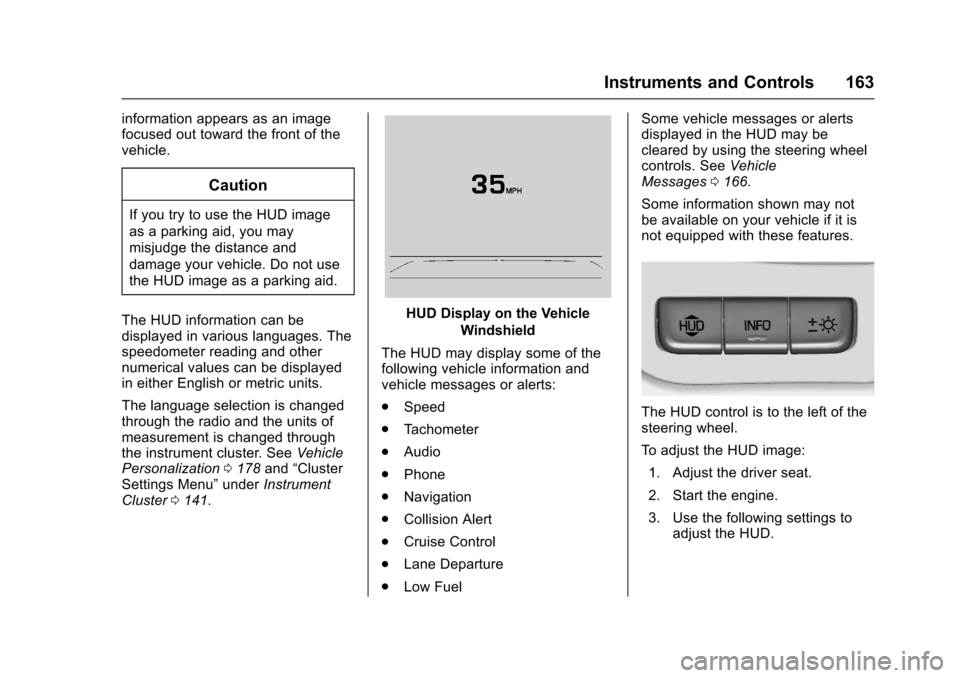
HUD Display on the Vehicle
Windshield
The HUD may display some of the
following vehicle information and
vehicle messages or alerts:
. Speed
. Tachometer
. Audio
. Phone
. Navigation
. Collision Alert
. Cruise Control
. Lane Departure
. Low Fuel Some vehicle messages or alerts
displayed in the HUD may be
cleared by using the steering wheel
controls. See
Vehicle
Messages 0166.
Some information shown may not
be available on your vehicle if it is
not equipped with these features.
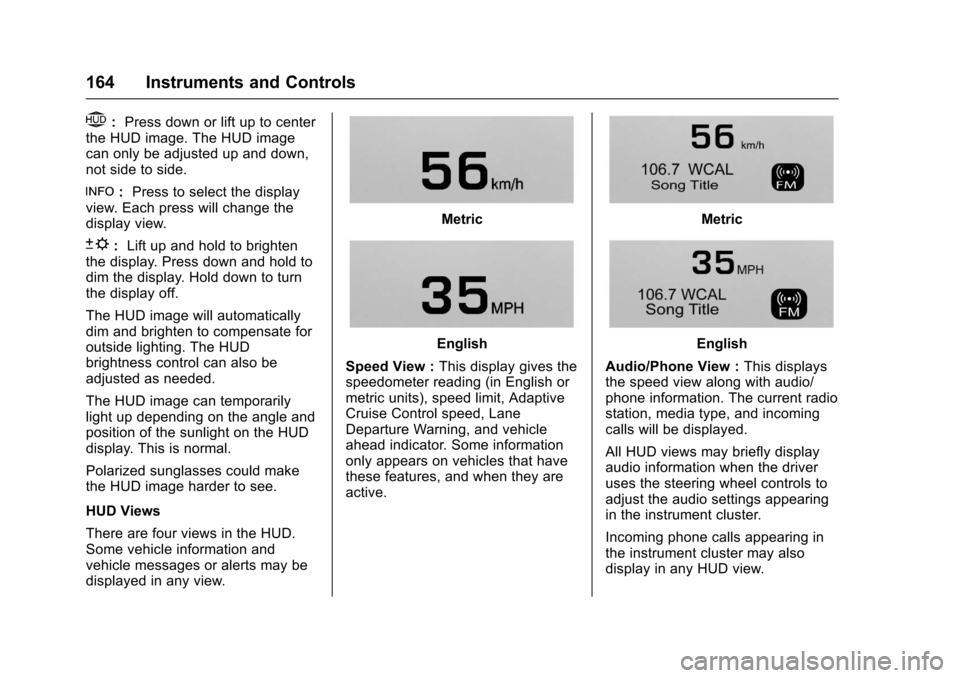
The HUD control is to the left of the
steering wheel.
To adjust the HUD image: 1. Adjust the driver seat.
2. Start the engine.
3. Use the following settings to adjust the HUD.
Page 165 of 465
Chevrolet Tahoe/Suburban Owner Manual (GMNA-Localizing-U.S./Canada/
Mexico-9955986) - 2017 - crc - 7/5/16
164 Instruments and Controls
$:Press down or lift up to center
the HUD image. The HUD image
can only be adjusted up and down,
not side to side.
!: Press to select the display
view. Each press will change the
display view.
D: Lift up and hold to brighten
the display. Press down and hold to
dim the display. Hold down to turn
the display off.
The HUD image will automatically
dim and brighten to compensate for
outside lighting. The HUD
brightness control can also be
adjusted as needed.
The HUD image can temporarily
light up depending on the angle and
position of the sunlight on the HUD
display. This is normal.
Polarized sunglasses could make
the HUD image harder to see.
HUD Views
There are four views in the HUD.
Some vehicle information and
vehicle messages or alerts may be
displayed in any view.
Metric
English
Speed View : This display gives the
speedometer reading (in English or
metric units), speed limit, Adaptive
Cruise Control speed, Lane
Departure Warning, and vehicle
ahead indicator. Some information
only appears on vehicles that have
these features, and when they are
active.
Metric
English
Audio/Phone View : This displays
the speed view along with audio/
phone information. The current radio
station, media type, and incoming
calls will be displayed.
All HUD views may briefly display
audio information when the driver
uses the steering wheel controls to
adjust the audio settings appearing
in the instrument cluster.
Incoming phone calls appearing in
the instrument cluster may also
display in any HUD view.
Page 184 of 465
Chevrolet Tahoe/Suburban Owner Manual (GMNA-Localizing-U.S./Canada/
Mexico-9955986) - 2017 - crc - 7/5/16
Instruments and Controls 183
Remote Window Operation
This allows the window to be
opened when pressing and holding
Kon the RKE transmitter. See
Remote Keyless Entry (RKE)
System Operation (Key Access)
0 35 orRemote Keyless Entry
(RKE) System Operation (Keyless
Access) 037.
Select Off or On.
Passive Door Unlock
This allows the selection of what
doors will unlock when using the
button on the driver door to unlock
the vehicle.
Select All Doors or Driver Door.
Passive Door Lock
This allows passive locking to be
turned on or off and selects
feedback. See Remote Keyless
Entry (RKE) System Operation (Key
Access) 035 orRemote Keyless
Entry (RKE) System Operation
(Keyless Access) 037.
Select Off, On with Horn
Chirp, or On. Remote Left in Vehicle Alert
This feature sounds an alert when
the RKE transmitter is left in the
vehicle.
Select Off or On.
Bluetooth
Select and the following may
display:
.
Pair New Device
. Device Management
. Ringtones
. Voice Mail Numbers
. Text Message Alerts
Pair New Device
Select to pair a new device. See
“Pairing” in“Infotainment Controls”
under “Bluetooth (Overview) 0214
or Bluetooth (Infotainment Controls -
Base Radio) 0215 orBluetooth
(Voice Recognition - Base Radio)
0 219” or“Pairing” in“Infotainment
Controls” under“Bluetooth” in the
infotainment manual. Device Management
Select to connect to a different
phone source, disconnect a phone,
or delete a phone.
Ringtones
Select to change the ring tone for
the specific phone. The phone does
not need to be connected to change
the ring tones.
Voice Mail Numbers
This feature displays the voice mail
number for all connected phones.
To change the voice mail number,
select EDIT or press the EDIT
button. Type a new number, then
select SAVE or press the SAVE
button.
Text Message Alerts
This feature allows text messages
to be received. See
“Text
Messaging” under“Phone” in the
infotainment manual.
Select Off or On.
Apple CarPlay™
Select and the following may
display:
Page 185 of 465

Chevrolet Tahoe/Suburban Owner Manual (GMNA-Localizing-U.S./Canada/
Mexico-9955986) - 2017 - crc - 7/5/16
184 Instruments and Controls
.Apple CarPlay
. Manage Apple CarPlay Devices
Apple CarPlay
This feature allows Apple devices to
be connected to the infotainment
system through a USB port. See
“Apple CarPlay and Android Auto”
under “Phone” in the infotainment
manual.
Select Off or On.
Manage Apple CarPlay Devices
Select to manage Apple devices.
Apple CarPlay must be on for this
feature to be accessed. See “Apple
CarPlay and Android Auto” under
“Phone” in the infotainment manual.
Android Auto™
Select and the following may
display:
.
Android Auto
. Manage Android Auto Devices
Android Auto
This feature allows Android devices
to be connected to the infotainment
system through a USB port. See “Apple CarPlay and Android Auto”
under
“Phone” in the infotainment
manual.
Select Off or On.
Manage Android Auto Devices
Select to manage Android devices.
Android Auto must be on for this
feature to be accessed. See “Apple
CarPlay and Android Auto” under
“Phone” in the infotainment manual.
Voice
Select and the following may
display:
.
Confidence Threshold
. Prompt Length
. Audio Feedback Speed
. Display “What Can I Say?” Tips
Confidence Threshold
This feature allows the adjustment
of the sensitivity of the speech
recognition system.
Select Confirm More or
Confirm Less. Prompt Length
This feature adjusts the voice
prompt length.
Select Short or Long.
Audio Feedback Speed
This feature adjusts the audio
feedback speed.
Select Slow, Medium, or Fast.
Display
“What Can I Say?” Tips
This feature gives voice
command tips.
Select Off or On.
Display
Select and the following may
display:
. Calibrate Touchscreen
. Turn Display Off
Calibrate Touchscreen
Select to calibrate the touchscreen,
then follow the prompts.
Page 199 of 465
Chevrolet Tahoe/Suburban Owner Manual (GMNA-Localizing-U.S./Canada/
Mexico-9955986) - 2017 - crc - 7/5/16
198 Infotainment System
Infotainment
System
Introduction
Infotainment . . . . . . . . . . . . . . . . . . 198
Theft-Deterrent Feature . . . . . . 199
Overview . . . . . . . . . . . . . . . . . . . . . 199
Home Page . . . . . . . . . . . . . . . . . . 202
Software Updates . . . . . . . . . . . . 204
Radio
AM-FM Radio . . . . . . . . . . . . . . . . 204
Satellite Radio . . . . . . . . . . . . . . . . 206
Radio Reception . . . . . . . . . . . . . . 206
Rear Side WindowAntenna . . . . . . . . . . . . . . . . . . . . . 207
Multi-Band Antenna . . . . . . . . . . 208
Audio Players
CD Player . . . . . . . . . . . . . . . . . . . . 208
USB Port . . . . . . . . . . . . . . . . . . . . . 210
Auxiliary Jack . . . . . . . . . . . . . . . . 213
Phone
Bluetooth (Overview) . . . . . . . . . 214
Bluetooth (Infotainment Controls - Base Radio) . . . . . . 215
Bluetooth (Voice Recognition - Base Radio) . . . . . . . . . . . . . . . . 219
Trademarks and License
Agreements
Trademarks and LicenseAgreements . . . . . . . . . . . . . . . . . 224
Introduction
Infotainment
Base radio information is included in
this manual. See the infotainment
manual for information on other
available infotainment systems.
Read the following pages to
become familiar with the features.
{Warning
Taking your eyes off the road for
too long or too often while using
any infotainment feature can
cause a crash. You or others
could be injured or killed. Do not
give extended attention to
infotainment tasks while driving.
Limit your glances at the vehicle
displays and focus your attention
on driving. Use voice commands
whenever possible.
The infotainment system has built-in
features intended to help avoid
distraction by disabling some
functions when driving. These
Page 200 of 465
Chevrolet Tahoe/Suburban Owner Manual (GMNA-Localizing-U.S./Canada/
Mexico-9955986) - 2017 - crc - 7/5/16
Infotainment System 199
functions may gray out when they
are unavailable. Many infotainment
features are also available through
the instrument cluster and steering
wheel controls.
Before driving:
.Become familiar with the
operation, faceplate buttons, and
screen buttons.
. Set up the audio by presetting
favorite stations, setting the
tone, and adjusting the
speakers.
. Set up phone numbers in
advance so they can be called
easily by pressing a single
button or by using a single voice
command if equipped with
Bluetooth phone capability.
See Defensive Driving 0236.
To play the infotainment system with
the ignition off, see Retained
Accessory Power (RAP) 0258.Theft-Deterrent Feature
TheftLock®is designed to
discourage theft of the vehicle's
radio by learning a portion of the
Vehicle Identification Number (VIN).
The radio does not operate if it is
stolen or moved to a different
vehicle.
Overview
Infotainment System Overview
The infotainment system is
controlled by using the buttons on
the faceplate and steering wheel
controls, if equipped. See Steering
Wheel Controls 0131.
Page 203 of 465
Chevrolet Tahoe/Suburban Owner Manual (GMNA-Localizing-U.S./Canada/
Mexico-9955986) - 2017 - crc - 7/5/16
202 Infotainment System
from the beginning. Press
and hold
gto quickly
reverse through a track.
Release the button to return
to playing speed. Press
l
to seek the next track.
Press and hold
lto fast
forward through a track.
Release the button to return
to playing speed.
. AM, FM, or SiriusXM (If
Equipped): Press
gorl
to seek to the previous or
next strong station.
10. RADIO .Press to change the audio
source between AM, FM,
or SiriusXM, if equipped.
11. MEDIA .Press to change the audio
source between CD, USB,
and AUX.
12.
O
. Press to turn the audio on.
. Press and hold to turn it off. .
When on, press to mute the
system. Press again to
unmute.
. Turn to increase or
decrease the volume.
Home Page
Home Page Features
The infotainment system displays a
Home Page that makes it easy to
access all of the applications. Turn
the MENU knob to highlight feature
icons. Press the MENU knob to
access the feature’s options.
Various functions are disabled when
the vehicle is moving.
AUDIO : Select the AUDIO screen
icon to display the active source
page. The sources available are
AM, FM, SiriusXM
®(if equipped),
CD, USB/iPod, and AUX. See
AM-FM Radio 0204, Satellite Radio
0 206, CD Player 0208, and
Auxiliary Jack 0213. PHONE :
Select the PHONE screen
icon to display the Phone main
page. See “Bluetooth Overview” in
Bluetooth (Overview) 0214 or
Bluetooth (Infotainment Controls -
Base Radio) 0215 orBluetooth
(Voice Recognition - Base
Radio) 0219.
NAV (Navigation, If Equipped) :
Select the NAV screen icon to
display the OnStar Turn-by-Turn
Navigation. See “OnStar Overview”
in OnStar, if equipped.
SETTINGS : Select the SETTINGS
screen icon to display the Settings
main page. See “Setting Radio
Preferences” following.
Setting Radio Preferences
Select the SETTINGS screen icon
to display the Settings menu and
the following may display:
Time :SeeClock 0135.
Language (Current Language) :
This will set the display language in
the radio and instrument cluster.
Select to display a list of languages.
Select BACK to go back to the
previous menu.
Page 207 of 465
Chevrolet Tahoe/Suburban Owner Manual (GMNA-Localizing-U.S./Canada/
Mexico-9955986) - 2017 - crc - 7/5/16
206 Infotainment System
or SiriusXM (if equipped), press and
hold a favorites button on the
faceplate.
Mixed-Audio Favorites
Media and Broadcast favorites can
be stored.
To display the favorites page, press
qorron the faceplate.
From the Settings menu press the
MENU knob to select Manage
Favorites. The Manage Favorites
feature has the option of moving or
deleting a favorite. See “Manage
Favorites” in“Radio Setup” under
Home Page 0202.
Satellite Radio
SiriusXM®Satellite Radio
Service (If Equipped)
Vehicles with a SiriusXM satellite
radio tuner and a valid SiriusXM
satellite radio subscription can
receive SiriusXM programming.
SiriusXM is a satellite radio service
based in the 48 contiguous United
States and 10 Canadian provinces.
SiriusXM satellite radio has a wide variety of programming and
commercial-free music, coast to
coast, and in digital-quality sound.
A service fee is required to receive
the SiriusXM service. See
www.siriusxm.com or call
1-888-601-6296 (U.S.); or see
www.siriusxm.ca or call
1-877-438-9677 (Canada).
When SiriusXM is active, the
channel name and number,
category name, song title, and artist
display on the screen.
Browsing SiriusXM Channels
(If Equipped)
To browse the SiriusXM channels:
1. Press the MENU knob.
2. Turn the MENU knob to highlight SXM Channel List.
3. Turn the MENU knob to highlight the desired SXM
Channels.
Radio Reception
Frequency interference and static
can occur during normal radio
reception if items such as phone chargers, vehicle convenience
accessories, and external electronic
devices are plugged into the
accessory power outlet. If there is
interference or static, unplug the
item from the accessory power
outlet.
FM
FM signals only reach about 16 to
65 km (10 to 40 mi). Although the
radio has a built-in electronic circuit
that automatically works to reduce
interference, some static can occur,
especially around tall buildings or
hills, causing the sound to fade in
and out.
AM
The range for most AM stations is
greater than for FM, especially at
night. The longer range can cause
station frequencies to interfere with
each other. Static can also occur
when things like storms and power
lines interfere with radio reception.
When this happens, try reducing the
treble on the radio.