2017 CHEVROLET SONIC audio
[x] Cancel search: audioPage 153 of 342
Chevrolet Sonic Owner Manual (GMNA-Localizing-U.S./Canada-10122660) -2017 - crc - 5/13/16
152 Infotainment System
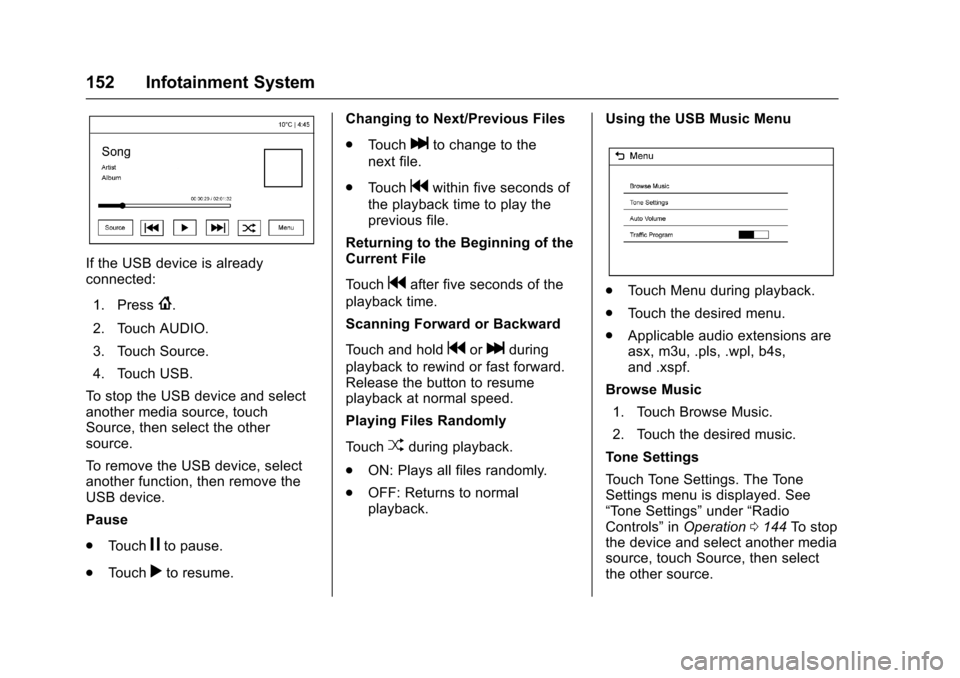
If the USB device is alreadyconnected:
1. Press{.
2. Touch AUDIO.
3. Touch Source.
4. Touch USB.
To s t o p t h e U S B d e v i c e a n d s e l e c tanother media source, touchSource, then select the othersource.
To r e m o v e t h e U S B d e v i c e , s e l e c tanother function, then remove theUSB device.
Pause
.To u c hjto pause.
.To u c hrto resume.
Changing to Next/Previous Files
.To u c hlto change to the
next file.
.To u c hgwithin five seconds of
the playback time to play theprevious file.
Returning to the Beginning of theCurrent File
To u c hgafter five seconds of the
playback time.
Scanning Forward or Backward
To u c h a n d h o l dgorlduring
playback to rewind or fast forward.Release the button to resumeplayback at normal speed.
Playing Files Randomly
To u c hZduring playback.
.ON: Plays all files randomly.
.OFF: Returns to normalplayback.
Using the USB Music Menu
.To u c h M e n u d u r i n g p l a y b a c k .
.To u c h t h e d e s i r e d m e n u .
.Applicable audio extensions areasx, m3u, .pls, .wpl, b4s,and .xspf.
Browse Music
1. Touch Browse Music.
2. Touch the desired music.
To n e S e t t i n g s
To u c h To n e S e t t i n g s . T h e To n eSettings menu is displayed. See“To n e S e t t i n g s”under“RadioControls”inOperation0144To s t o pthe device and select another mediasource, touch Source, then selectthe other source.
Page 154 of 342
Chevrolet Sonic Owner Manual (GMNA-Localizing-U.S./Canada-10122660) -2017 - crc - 5/13/16
Infotainment System 153
Auto Volume
To u c h A u t o V o l u m e . T h e A u t oVolume menu is displayed. See“Auto Volume”under“RadioControls”inOperation0144
Tr a f f i c P r o g r a m(If Equipped)
To u c h O n o r O f f .
MTP (Media Transfer Protocol)
.Connect an MTP supporteddevice.
.Play will start automatically afterthe system has finished readingthe MTP device.
.If a non-readable MTP device isconnected, an error messagedisplays and the system willswitch to the previous audiofunction.
iPod/iPhone Player
This feature is limited to modelssupporting the iPod/iPhoneconnection.
Playing Music Files
.Connect the iPod/iPhone to theUSB port.
.Play will start from the previouslyplayed point after the systemhas finished reading the USBdevice.
.If a non-readable USB device isconnected, an error messagedisplays and the system willswitch to the previous audiofunction.
If the iPod/iPhone is alreadyconnected:
1. Press{.
2. Touch AUDIO.
3. Touch Source.
4. Touch iPod.
To s t o p t h e d e v i c e a n d s e l e c tanother media source, touchSource, then select the othersource.
To r e m o v e t h e d e v i c e , s e l e c tanother function, then remove thedevice.
Pause
.To u c hjto pause.
.To u c hrto resume.
Changing to Next/Previous Song
.To u c hlto change to the
next song.
.To u c hgwithin two seconds of
the playback time to play theprevious file.
Returning to the Beginning of theCurrent File
To u c hgafter two seconds of the
playback time.
Scanning Forward or Backward
To u c h a n d h o l dgorlduring
playback to rewind or fast forward.Release the button to resumeplayback at normal speed.
Playing Files Randomly
To u c hZduring playback.
.ON: Plays all files randomly.
.OFF: Returns to normalplayback.
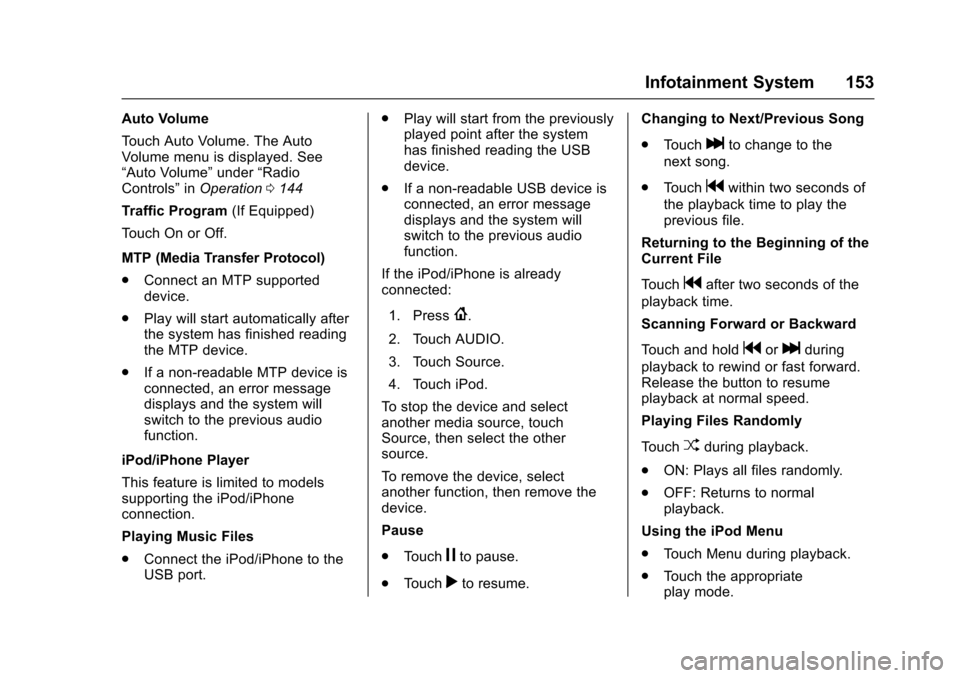
Using the iPod Menu
.To u c h M e n u d u r i n g p l a y b a c k .
.To u c h t h e a p p r o p r i a t eplay mode.
Page 156 of 342
Chevrolet Sonic Owner Manual (GMNA-Localizing-U.S./Canada-10122660) -2017 - crc - 5/13/16
Infotainment System 155
Auxiliary Devices
Using the Auxiliary Input Jack
Settings menus and functions mayvary depending on vehicle options.
If equipped, the auxiliary input jackcan be used to connect externalaudio devices such as an iPod®,iPhone®,MP3player,CDplayer,and other supported devices for useas another source for audiolistening. This input jack is not anaudio output; do not plugheadphones into the front auxiliaryinput jack.
If equipped, the auxiliary input jackis located on the center consolebelow the climate controls. Theinfotainment system can play musicconnected by the auxiliary device.
Play will begin when the system hasfinished reading the information onthe device.
Playing Music
To p l a y m u s i c f r o m t h e d e v i c e , i f t h edevice is already connected:
1. Press{.
2. Touch AUDIO.
3. Touch Source.
4. Touch AUX.
5. Touch0.
To a d j u s t t h e t o n e s e t t i n g s , S e e“To n e S e t t i n g s”under“RadioControls”inOperation0144.
Phone
Bluetooth (Overview)
For vehicles equipped withBluetooth capability, the system caninteract with many cell phones,allowing:
.Placement and receipt of calls inahands-freemode.
.Sharing of the cell phone’saddress book or contact list withthe vehicle.
To m i n i m i z e d r i v e r d i s t r a c t i o n ,before driving, and with the vehicleparked:
.Become familiar with thefeatures of the cell phone.Organize the phone book andcontact lists clearly and deleteduplicate or rarely used entries.If possible, program speed dialor other shortcuts.
.Review the controls andoperation of the infotainmentsystem.
Page 157 of 342
Chevrolet Sonic Owner Manual (GMNA-Localizing-U.S./Canada-10122660) -2017 - crc - 5/13/16
156 Infotainment System
.Pair cell phone(s) to the vehicle.The system may not work withall cell phones. See“Pairing”inthis section.
.If the cell phone has voicedialing capability, learn to usethat feature to access theaddress book or contact list. See“Vo i c e P a s s - T h r u”in thissection.
.See“Storing and Deleting PhoneNumbers”in this section.
{Warning
When using a cell phone, it can
be distracting to look too long or
too often at the screen of the
phone or the infotainment system.
Ta k i n g y o u r e y e s o f f t h e r o a d t o o
long or too often could cause a
crash resulting in injury or death.
Focus your attention on driving.
Vehicles with a Bluetooth systemcan use a Bluetooth-capable cellphone with a Hands-Free Profile tomake and receive phone calls. Theinfotainment system and voice
recognition are used to control thesystem. The system can be usedwhile in ON/RUN or ACC/ACCESSORY. The range of theBluetooth system can be up to 9.1 m(30 ft). Not all phones support allfunctions and not all phones workwith the Bluetooth system. Seewww.gm.com/bluetooth for moreinformation about compatiblephones.
Bluetooth Controls
Use the buttons located on theinfotainment system and thesteering wheel to operate theBluetooth system.
Steering Wheel Controls
b/g:Press to answer incomingcalls, confirm system information,and start voice recognition.
$/i:Press to end a call, rejectacall,orcancelanoperation.
Infotainment System Controls
If equipped, the infotainment systemallows certain controls to beselected on the infotainment display.SeeOnStar Overview0321.
For information about how tonavigate the menu system using theinfotainment controls. SeeOperation0144.
5\>:Press to enter the Phonemain menu. Press to mute the audiosystem.
Voice Recognition
The voice recognition system usescommands to control the systemand dial phone numbers.
Noise :The system may notrecognize voice commands if thereis too much background noise.
When to Speak :Atonesoundstoindicate that the system is ready foravoicecommand.Waitforthetoneand then speak.
How to Speak :Speak clearly in acalm and natural voice.
Audio System
When using the Bluetooth system,sound comes through the vehicle'sfront audio system speakers andoverrides the audio system. Use the
VOL/Oknob during a call to
Page 160 of 342
Chevrolet Sonic Owner Manual (GMNA-Localizing-U.S./Canada-10122660) -2017 - crc - 5/13/16
Infotainment System 159
are successfully paired,Z/5
is displayed on the pair devicescreen. If no desired device isavailable go to Step 5.
5. Touch Search Device to searchfor the desired device.
6. Touch the desired device topair on the searched listscreen.
7. Input the PersonalIdentification Number (PIN)code (default: 1234) to theBluetooth device. When theBluetooth device andinfotainment system are
successfully paired,Z/5is
displayed on the pair devicescreen.
.The connected phone is
highlighted by5.
.Z/5indicates the hands-free
and phone music functions areenabled.
.5indicates only the hands-free
function is enabled.
.Zindicates only Bluetooth
music is enabled.
Connecting a Paired BluetoothDevice
1. Press{.
2. Touch SETTINGS.
3. Touch Bluetooth, then DeviceManagement.
4. Touch the device to beconnected.
Checking the BluetoothConnection
1. Press{.
2. Touch SETTINGS.
3. Touch Bluetooth, then DeviceManagement.
4. The paired device will show.
Disconnecting a Bluetooth Device
1. Press{.
2. Touch SETTINGS.
3. Touch Bluetooth, then DeviceManagement.
4. Touch the name of the deviceto be disconnected.
5. Touch Disconnect.
Deleting a Bluetooth Device
1. Press{.
2. Touch SETTINGS.
3. Touch Bluetooth, then DeviceManagement.
4. Touch the device to delete.
5. TouchY.
6. Touch Delete.
Bluetooth Music
Before playing Bluetooth music,read the following information:
.AcellphoneorBluetoothdevicethat supports Advanced AudioDistribution Profile (A2DP)versions over 1.2 must beregistered and connected to theproduct.
.From the cell phone or Bluetoothdevice, find the Bluetooth devicetype to set/connect the item as astereo headset.
Page 161 of 342
Chevrolet Sonic Owner Manual (GMNA-Localizing-U.S./Canada-10122660) -2017 - crc - 5/13/16
160 Infotainment System
.ewill appear on the screen if
the stereo headset issuccessfully connected.
.The sound played by theBluetooth device is deliveredthrough the infotainment system.
.Bluetooth music can be playedonly when a Bluetooth devicehas been connected. To playBluetooth music, connect theBluetooth phone to theinfotainment system.
.If the Bluetooth device isdisconnected while playingphone music, the music isdiscontinued. The audiostreaming function may not besupported in some Bluetoothphones. Only one function canbe used at a time between theBluetooth hands-free or Phonemusic function. For example,if you convert to Bluetoothhands-free while playing Phonemusic, the music isdiscontinued. Playing music fromthe car is not possible whenthere are no music files stored inthe cell phone.
Playing Bluetooth Music
1. Press{.
2. Touch AUDIO.
3. Touch Source.
4. Touch Bluetooth.
Pause
To u c hjto pause.
To u c hrto resume.
Playing the Next Song
To u c hl.
Playing the Previous Song
To u c hgwithin two seconds of
playback time to play theprevious song.
Returning to the Beginning of theCurrent Song
To u c hgafter two seconds of
playback time.
Search
To u c h a n d h o l dgorlto rewind
or fast forward.
Playing Music Randomly
To u c hZduring playback. Touch
again to return to normal play.
This function may not be supporteddepending on the Bluetooth device.
Do not change the track too quicklywhen playing Bluetooth music.
Conditions that may occur whenplaying Bluetooth music:
.It takes time to transmit datafrom the Bluetooth device to theinfotainment system.
.If the cell phone or Bluetoothdevice is not in the waitingscreen mode, it may notautomatically play.
.The infotainment systemtransmits the order to play fromthe Bluetooth device in theBluetooth music play mode.If this is done in a differentmode, then the device transmitsthe order to stop. Depending onthe Bluetooth device options,this order to play/stop may taketime to activate.
Page 162 of 342
Chevrolet Sonic Owner Manual (GMNA-Localizing-U.S./Canada-10122660) -2017 - crc - 5/13/16
Infotainment System 161
.If the Bluetooth music playbackis not functioning, then check tosee if the Bluetooth device is inthe waiting screen mode.
.Sounds may be cut off duringthe Bluetooth music playback.
.The infotainment system outputsthe audio from the cell phone orBluetooth device as it istransmitted.
Apple CarPlay and
Android Auto
If equipped, Android Auto™and/orApple CarPlay™capability may beavailable through a compatiblesmartphone. If available, aPROJECTION icon will appear asAndroid Auto or Car Play on theHome Page of the infotainmentdisplay.
To u s e A n d r o i d A u t o a n d / o r A p p l eCarPlay:
1. Download the Android Autoapp to your phone from theGoogle™Play store. There is
no app required for AppleCarPlay. Use the latestavailable operation system.
2. Connect your Android phone orApple iPhone by using thecompatible phone USB cableand plugging into a USB dataport. For best performance, usethe device’sfactory-providedUSB cable. Aftermarket orthird-party cables maynot work.
The PROJECTION icon on theHome Page will change to AndroidAuto or Apple CarPlay dependingon the phone. Android Auto and/orApple CarPlay may automaticallylaunch upon USB connection. If not,touch the ANDROID AUTO and/orAPPLE CARPLAY icon on theHome Page to launch.
For further information on how to setup Android Auto and Apple CarPlayin the vehicle, seewww.my.chevrolet.com for the U.S.and www.chevroletowner.ca forCanada only orCustomerAssistance Offices0309.
Android Auto is provided by Googleand is subject to Google’stermsand privacy policy. CarPlay isprovided by Apple and is subject toApple’stermsandprivacypolicy.For Android Auto support seehttps://support.google.com/androidauto or Apple CarPlaysupport at https://www.apple.com/ios/carplay/. Apple or Google maychange or suspend availability atany time. Android Auto is atrademark of Google Inc.; AppleCarPlay is a trademark of Apple Inc.
Hands-Free Phone
General Information
Vehicles with a Hands-Free Phonesystem can use a Bluetooth-capablecell phone with a hands-free profileto make and receive phone calls.The infotainment system and voicecontrol are used to operate thesystem. Not all phones support allfunctions and not all phones workwith the Hands-Free Phone system.
Page 163 of 342
Chevrolet Sonic Owner Manual (GMNA-Localizing-U.S./Canada-10122660) -2017 - crc - 5/13/16
162 Infotainment System
Hands-Free Phone Controls
Use the buttons on the infotainmentsystem and the steering wheel tooperate the Hands-Free Phonesystem.
Steering Wheel Controls
Steering wheel controls can beused to:
.Answer incoming calls.
.Confirm system information.
.End a call.
.Decline a call.
.Cancel an operation.
.Make outgoing calls using thecall list.
g:Press to answer incoming calls.
i:Press to end a call, decline acall, or cancel an operation.
Making a Call by Entering a PhoneNumber
.Press5on the faceplate.
.Press{,thentouchPHONEon
the screen.
.Pressgon the steering wheel.
If a wrong number is entered, touch}to delete the number one digit at
atime,ortouchandhold}to
delete all digits of the number.
Switching a Call to the Cell Phone(Private Mode)
To s w i t c h t h e c a l l f r o m t h e c e l lphone to hands-free:
1. Touch0.
2. Touch0again to switch back
to hands-free.
Turning the Microphone Onand Off
To u c h3to turn the microphone on
or off.
Calling by Redial
To c a l l b y u s i n g r e d i a l :
.Pression the steering wheel
controls to display the redialguidance screen.
.To u c h5on the screen.
Redialing is not possible when thereis no call history.
Taking Calls
When a phone call comes throughthe connected Bluetooth cell phone,the audio system will be muted orpaused and the phone will ring withthe relevant information displayed.
Pression the steering wheel
controls, touch5on the screen,
or press5on the faceplate.
To d e c l i n e t h e c a l l , p r e s sion the
steering wheel controls or touchReject on the screen.
Using the Contacts Menu
1. Touch contacts on the phonescreen.
2. TouchQorRto scroll through
the list.
3. Touch the phone book entryto call.
4. If there is more than onenumber associated with thename, touch the numberto dial.