2017 CHEVROLET SONIC manual radio set
[x] Cancel search: manual radio setPage 147 of 342
Chevrolet Sonic Owner Manual (GMNA-Localizing-U.S./Canada-10122660) -2017 - crc - 5/13/16
146 Infotainment System
Direct Tune
From the AM or FM menu:
1. Touch Tune.
2. Enter the station number.
3. Touch Go.
Favorites
1. TouchSorTto scroll through
the favorite pages.
2. Touch the station to select it.
Update Station List
.From the AM or FM menu, touchMenu, then touch Update StationList. The broadcasting listupdating will begin.
.During the AM or FMbroadcasting list update, touchCancel to stop the updates.
Station List
1. From the AM or FM menu,touch Menu.
2. Select Station List.
3. TouchQorRto scroll through
the list. Touch the station toselect it.
Menu
To u c h t o c h o o s e b e t w e e n a v a i l a b l emenus for the current source.
Storing a Station as a Favorite
Stations from all bands can bestored in any order in the favoritepages.
Up to 25 stations can be stored.
Storing Stations
To s t o r e t h e s t a t i o n t o a p o s i t i o n i nthe list, touch the correspondingbutton 1✓5untilabeepisheard.
1. Select the desired station.
2. TouchSorTto select the
desired page of savedfavorites.
3. Touch and hold any of thepreset buttons to save thecurrent radio station to thatbutton of the selectedfavorites page.
To c h a n g e a p r e s e t b u t t o n , t u n e t othe new desired radio station andtouch and hold the preset button.
Satellite Radio
If equipped, vehicles with anSiriusXM®Satellite Radio tuner andavalidSiriusXMSatelliteRadiosubscription can receive SiriusXMprogramming.
SiriusXM Satellite Radio
Service
SiriusXM is a satellite radio servicebased in the 48 contiguous UnitedStates and 10 Canadian provinces.SiriusXM Satellite Radio has a widevariety of programming andcommercial-free music, coast tocoast, and in digital-quality sound.During your trial or when yousubscribe, you will get unlimitedaccess to SiriusXM Radio Online forwhen you are not in the vehicle.Aservicefeeisrequiredtoreceivethe SiriusXM service. If SiriusXMservice needs to be reactivated, theradio will display "No SubscriptionPlease Renew" on channel SXM1.For more information, contactSiriusXM at www.siriusxm.com or1-888-601-6296 (U.S.), andwww.siriusxm.ca or 1-877-438-9677(Canada).
Page 148 of 342
Chevrolet Sonic Owner Manual (GMNA-Localizing-U.S./Canada-10122660) -2017 - crc - 5/13/16
Infotainment System 147
Listening to SiriusXM Radio
1. Press{.
2. Touch AUDIO.
3. Touch Source.
4. Touch SXM and the mostrecent listened to SiriusXMchannel will display.
Selecting a Category
From Menu, touch Categories, thentouch the desired category or from
Categories, touchQorRto find the
desired channel. Touch the channelto select it.
Selecting a Channel
Pressgordto seek the previous
or next channel.
Using the Preset Buttons
Up to five favorites pages can besaved, and each page can store upto five channels.
To c h a n g e a p r e s e t b u t t o n , t u n e t othe new desired channel and holdthe button.
Listening to Preset Channels
1. TouchSorTrepeatedly to
select the desiredfavorites page.
2. Touch the preset button tolisten to the channel.
Using the SiriusXM Menu
Operation
1. Touch MENU on the SXM radioscreen.
2. Touch the menu to select thedesired item or to display thedetail menu item.
3. Touch0to return to the
previous menu.
Channel List
1. Touch Channel List from theSXM menu. The channel list isdisplayed.
2. TouchQorRto find the
desired channel. Touch thechannel to select it.
Tone Settings
1. Touch Tone Settings. See“To n e S e t t i n g s”underOperation0144.
2. Touch0.
Auto Volume
1. Touch Auto Volume. See“AutoVolume”underOperation0144.
2. Touch0.
Categories
1. Touch Categories.
2. TouchQorRto find the
desired category. Touch thecategory to select it.
Explicit Content Filter
When on, only a filtered list ofchannels will be received. When off,all regular SXM programmingsubscribed to will be received.
1. Touch SXM Explicit Filter.
2. Select to enable or disable.
Page 153 of 342
Chevrolet Sonic Owner Manual (GMNA-Localizing-U.S./Canada-10122660) -2017 - crc - 5/13/16
152 Infotainment System
If the USB device is alreadyconnected:
1. Press{.
2. Touch AUDIO.
3. Touch Source.
4. Touch USB.
To s t o p t h e U S B d e v i c e a n d s e l e c tanother media source, touchSource, then select the othersource.
To r e m o v e t h e U S B d e v i c e , s e l e c tanother function, then remove theUSB device.
Pause
.To u c hjto pause.
.To u c hrto resume.
Changing to Next/Previous Files
.To u c hlto change to the
next file.
.To u c hgwithin five seconds of
the playback time to play theprevious file.
Returning to the Beginning of theCurrent File
To u c hgafter five seconds of the
playback time.
Scanning Forward or Backward
To u c h a n d h o l dgorlduring
playback to rewind or fast forward.Release the button to resumeplayback at normal speed.
Playing Files Randomly
To u c hZduring playback.
.ON: Plays all files randomly.
.OFF: Returns to normalplayback.
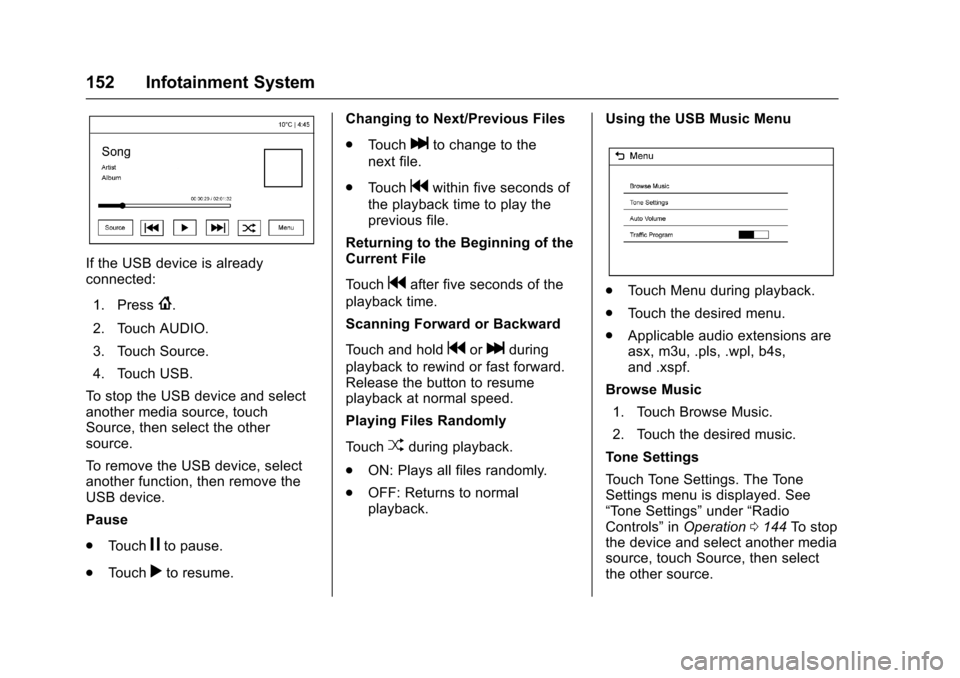
Using the USB Music Menu
.To u c h M e n u d u r i n g p l a y b a c k .
.To u c h t h e d e s i r e d m e n u .
.Applicable audio extensions areasx, m3u, .pls, .wpl, b4s,and .xspf.
Browse Music
1. Touch Browse Music.
2. Touch the desired music.
To n e S e t t i n g s
To u c h To n e S e t t i n g s . T h e To n eSettings menu is displayed. See“To n e S e t t i n g s”under“RadioControls”inOperation0144To s t o pthe device and select another mediasource, touch Source, then selectthe other source.
Page 155 of 342

Chevrolet Sonic Owner Manual (GMNA-Localizing-U.S./Canada-10122660) -2017 - crc - 5/13/16
154 Infotainment System
Browse Music
1. Touch Browse Music.
2. Touch the desired music.
To n e S e t t i n g s
To u c h To n e S e t t i n g s . T h e To n eSettings menu is displayed. See“To n e S e t t i n g s”under“RadioControls”inOperation0144
Auto Volume
To u c h A u t o V o l u m e . T h e A u t oVolume menu is displayed. See“Auto Volume”under“RadioControls”inOperation0144.
Picture System Information
The infotainment system can viewpicture files stored on a USBstorage device and devices thatsupport Media TransferProtocol (MTP).
.Supported file extensions: .jpg,.bmp, .png, .gif.
.Animated GIF files are notsupported.
.Some files may not operate dueto a different recording format orthe condition of the file.
Viewing Pictures
1. Connect the USB device to theUSB port.
2. Touch the screen to open to fullscreen. Touch the screen againto return to the previousscreen.
If the USB device is alreadyconnected:
1. Press{.
2. Touch GALLERY.
Some features are disabled whilethe vehicle is in motion.
Viewing a Slide Show
1. Touchzfrom the picture
screen.
2. Touch the screen to cancel theslide show during the slideshow playback.
Viewing a Previous or NextPicture
To u c hSorTfrom the picture
screen.
Rotating a Picture
To u c hwfrom the picture screen.
Enlarging a Picture
To u c hxfrom the picture screen.
Using the USB Picture Menu
1. Touch MENU from the picturescreen.
2. Touch the appropriate menu:
.Slide Show Time: Allowsselection of the slide showinterval.
.Clock, Temp. Display:Allows selection of On orOff to show the clock andtemperature on the fullscreen.
.Display Settings: Adjustsfor Brightness and Contrast.
3. Touch0to exit.
Page 156 of 342
Chevrolet Sonic Owner Manual (GMNA-Localizing-U.S./Canada-10122660) -2017 - crc - 5/13/16
Infotainment System 155
Auxiliary Devices
Using the Auxiliary Input Jack
Settings menus and functions mayvary depending on vehicle options.
If equipped, the auxiliary input jackcan be used to connect externalaudio devices such as an iPod®,iPhone®,MP3player,CDplayer,and other supported devices for useas another source for audiolistening. This input jack is not anaudio output; do not plugheadphones into the front auxiliaryinput jack.
If equipped, the auxiliary input jackis located on the center consolebelow the climate controls. Theinfotainment system can play musicconnected by the auxiliary device.
Play will begin when the system hasfinished reading the information onthe device.
Playing Music
To p l a y m u s i c f r o m t h e d e v i c e , i f t h edevice is already connected:
1. Press{.
2. Touch AUDIO.
3. Touch Source.
4. Touch AUX.
5. Touch0.
To a d j u s t t h e t o n e s e t t i n g s , S e e“To n e S e t t i n g s”under“RadioControls”inOperation0144.
Phone
Bluetooth (Overview)
For vehicles equipped withBluetooth capability, the system caninteract with many cell phones,allowing:
.Placement and receipt of calls inahands-freemode.
.Sharing of the cell phone’saddress book or contact list withthe vehicle.
To m i n i m i z e d r i v e r d i s t r a c t i o n ,before driving, and with the vehicleparked:
.Become familiar with thefeatures of the cell phone.Organize the phone book andcontact lists clearly and deleteduplicate or rarely used entries.If possible, program speed dialor other shortcuts.
.Review the controls andoperation of the infotainmentsystem.
Page 173 of 342
Chevrolet Sonic Owner Manual (GMNA-Localizing-U.S./Canada-10122660) -2017 - crc - 5/13/16
172 Driving and Operating
Driving Information
Distracted Driving
Distraction comes in many formsand can take your focus from thetask of driving. Exercise goodjudgment and do not let otheractivities divert your attention awayfrom the road. Many localgovernments have enacted lawsregarding driver distraction. Becomefamiliar with the local laws inyour area.
To a v o i d d i s t r a c t e d d r i v i n g , k e e pyour eyes on the road, keep yourhands on the steering wheel, andfocus your attention on driving.
.Do not use a phone indemanding driving situations.Use a hands-free method toplace or receive necessaryphone calls.
.Watch the road. Do not read,take notes, or look upinformation on phones or otherelectronic devices.
.Designate a front seatpassenger to handle potentialdistractions.
.Become familiar with vehiclefeatures before driving, such asprogramming favorite radiostations and adjusting climatecontrol and seat settings.Program all trip information intoany navigation device prior todriving.
.Wait until the vehicle is parkedto retrieve items that have fallento the floor.
.Stop or park the vehicle to tendto children.
.Keep pets in an appropriatecarrier or restraint.
.Avoid stressful conversationswhile driving, whether with apassenger or on a cell phone.
{Warning
Ta k i n g y o u r e y e s o f f t h e r o a d t o o
long or too often could cause a
crash resulting in injury or death.
Focus your attention on driving.
Refer to the Infotainment section formore information on using thatsystem, including pairing and usingacellphone.
Defensive Driving
Defensive driving means“alwaysexpect the unexpected.”The firststep in driving defensively is to wearthe safety belt. SeeSafetyBelts059.
.Assume that other road users(pedestrians, bicyclists, andother drivers) are going to becareless and make mistakes.Anticipate what they might doand be ready.
.Allow enough following distancebetween you and the driver infront of you.
.Focus on the task of driving.
Drunk Driving
Death and injury associated withdrinking and driving is a globaltragedy.
Page 188 of 342
Chevrolet Sonic Owner Manual (GMNA-Localizing-U.S./Canada-10122660) -2017 - crc - 5/13/16
Driving and Operating 187
Warning (Continued)
Failure to use therecommended extensioncord in good operatingcondition, or using adamaged heater orextension cord, could makeit overheat and cause a fire,property damage, electricshock, and injury.
.Do not operate the vehiclewith the heater cordpermanently attached to thevehicle. Possible heatercord and thermostatdamage could occur.
.While in use, do not let theheater cord touch vehicleparts or sharp edges. Neverclose the hood on theheater cord.
.Before starting the vehicle,unplug the cord, reattachthe cover to the plug, andsecurely fasten the cord.Keep the cord away fromany moving parts.
4. Before starting the engine, besure to unplug and store thecord as it was before to keep itaway from moving engineparts. If you do not it could bedamaged.
The length of time the heater shouldremain plugged in depends onseveral factors. Ask a dealer in thearea where you will be parking thevehicle for the best advice on this.
Retained Accessory
Power (RAP)
These vehicle accessories may beused for up to 10 minutes after theengine is turned off:
.Audio System
.Power Windows
.Sunroof
The power windows and sunroof willcontinue to work for up to10 minutes or until any door isopened.
The radio will work when the key isin ON/RUN or ACC/ACCESSORY.Once the ignition is turned from on
to off, the radio will continue to workfor 10 minutes after the last input(button press, knob turn) to theradio is detected.
It is possible to turn the radio backon at any time after it has timed outusing the Power knob. The radio willbe functional for 10 minutes after thelast input (button press, knob turn)to the radio is detected.
Shifting Into Park
(Automatic Transmission)
1. Hold the brake pedal down andset the parking brake. SeeParking Brake0196.
2. Move the shift lever intoP(Park) by pressing the buttonon the shift lever and pushingthe lever all the way toward thefront of the vehicle.
3. Turn the ignition key toLOCK/OFF.
4. Remove the key and take itwith you. If you can leave thevehicle with the ignition key inyour hand, the vehicle is inP(Park).
Page 287 of 342
Chevrolet Sonic Owner Manual (GMNA-Localizing-U.S./Canada-10122660) -2017 - crc - 5/13/16
286 Vehicle Care
Speaker Covers
Va c u u m a r o u n d a s p e a k e r c o v e rgently, so that the speaker will notbe damaged. Clean spots with waterand mild soap.
Coated Moldings
Coated moldings should be cleaned.
.When lightly soiled, wipe with asponge or soft, lint-free clothdampened with water.
.When heavily soiled, use warmsoapy water.
Fabric/Carpet/Suede
Start by vacuuming the surfaceusing a soft brush attachment. If arotating vacuum brush attachment isbeing used, only use it on the floorcarpet. Before cleaning, gentlyremove as much of the soil aspossible:
.Gently blot liquids with a papertowel. Continue blotting until nomore soil can be removed.
.For solid soils, remove as muchas possible prior to vacuuming.
To c l e a n :
1. Saturate a clean, lint-freecolorfast cloth with water.Microfiber cloth isrecommended to prevent linttransfer to the fabric or carpet.
2. Remove excess moisture bygently wringing until water doesnot drip from the cleaning cloth.
3. Start on the outside edge of thesoil and gently rub toward thecenter. Fold the cleaning clothto a clean area frequently toprevent forcing the soil in to thefabric.
4. Continue gently rubbing thesoiled area until there is nolonger any color transfer fromthe soil to the cleaning cloth.
5. If the soil is not completelyremoved, use a mild soapsolution followed only by plainwater.
If the soil is not completelyremoved, it may be necessary touse a commercial upholsterycleaner or spot lifter. Test a smallhidden area for colorfastness beforeusing a commercial upholstery
cleaner or spot lifter. If ringformation occurs, clean the entirefabric or carpet.
After cleaning, use a paper towel toblot excess moisture.
Cleaning High Gloss Surfaces
and Vehicle Information and
Radio Displays
Use a microfiber cloth on high glosssurfaces or vehicle displays. First,use a soft bristle brush to removedirt that can scratch the surface.Then gently clean by rubbing with amicrofiber cloth. Never use windowcleaners or solvents. Periodicallyhand wash the microfiber clothseparately, using mild soap. Do notuse bleach or fabric softener. Rinsethoroughly and air dry beforenext use.
Caution
Do not attach a device with a
suction cup to the display. This
may cause damage and would
not be covered by the vehicle
warranty.