Page 128 of 342

Chevrolet Sonic Owner Manual (GMNA-Localizing-U.S./Canada-10122660) -2017 - crc - 5/13/16
Instruments and Controls 127
Messages that require immediateaction cannot be cleared until thataction is performed. Clearingmessages does not correct theproblem.
Engine Oil Messages
:% CHANGE
This message displays when theengine oil needs to be changed.When changing the engine oil, besure to reset the Oil Life System.SeeEngine Oil Life System0222,Engine Oil0220,andMaintenanceSchedule0290.
Tire Messages
LF XX, RF XX, LR XX,
or RR XX
Amessagedisplayswhenthetirepressure is low. It shows thelocation of the low tire and theapproximate pressure of the low tire.
If a tire pressure message appears,stop as soon as you can. Inflate thetires by adding air until the tirepressure is equal to the valuesshown on the Tire and LoadingInformation label. SeeTires0248,Vehicle Load Limits0178,andTirePressure0256.
Vehicle
Personalization
Use the audio system controls toaccess the personalization menusfor customizing vehicle features.
The following are all possiblepersonalization features. Dependingon the vehicle, some may not beavailable.
Radio Audio System Controls
1. Touch the desired feature todisplay a list of availableoptions.
2. Touch to select the desiredfeature setting.
3. PressoBACK on the
faceplate or touch0to return
to the previous menu or exit.
Turn the vehicle to ON/RUN toaccess the Settings menu, thenselect SETTINGS from the HomePage on the infotainment systemdisplay.
Page 129 of 342

Chevrolet Sonic Owner Manual (GMNA-Localizing-U.S./Canada-10122660) -2017 - crc - 5/13/16
128 Instruments and Controls
Personalization Menus
The following list of menu items maybe available:
.Time and Date
.Language
.Va l e t M o d e
.Radio
.Vehicle
.Bluetooth
.Apple CarPlay
.Android Auto
.USB Auto Launch
.Turn Display Off
.Rear Camera
.Return to Factory Settings
.Software Information
Detailed information for each menufollows.
Time and Date
Manually set the time and date. SeeClock0104.
Language
Select Language, then select fromthe available language(s).
The selected language will displayon the system, and voicerecognition will reflect the selectedlanguage.
Valet Mode (If Equipped)
This will lock the infotainmentsystem and steering wheel controls.It may also limit access to vehiclestorage locations (if equipped).
To e n a b l e v a l e t m o d e :
1. Enter a four-digit code on thekeypad.
2. Select Enter to go to theconfirmation screen.
3. Re-enter the four-digit code.
To u c h L O C K o r U N L O C K t o l o c k o runlock the system. Touch Back togo back to the previous menu.
Radio
Press and the following maydisplay:
.Manage Favorites
.Number of Favorites Shown
.Audible Touch Feedback
.Te x t S c r o l l
.To n e S e t t i n g s
.Auto Volume
.Maximum Startup Volume
.Audio Cue Volume
Manage Favorites
This allows favorites to be edited.See“Storing a Station as aFavorite”inAM-FM Radio0145.
Number of Favorites Shown
Press to set the number of favoritesto display.
Select the desired number or selectAuto and the infotainment systemwill automatically adjust the numberof favorites shown.
Audible Touch Feedback
This allows Audible TouchFeedback to be turned on or off.
Select Off or On.
Page 133 of 342
Chevrolet Sonic Owner Manual (GMNA-Localizing-U.S./Canada-10122660) -2017 - crc - 5/13/16
132 Instruments and Controls
Apple CarPlay™
Select and the following maydisplay:
.Apple CarPlay
.Manage Apple CarPlay Devices
Apple CarPlay
This feature allows Apple devices tobe connected to the infotainmentsystem through a USB port.
Select Off or On.
Manage Apple CarPlay Devices
Select to manage Apple devices.Apple CarPlay must be on for thisfeature to be accessed.
Android Auto™
Select and the following maydisplay:
.Android Auto
.Manage Android Auto Devices
Android Auto
This feature allows Android devicesto be connected to the infotainmentsystem through a USB port.
Select Off or On.
Manage Android Auto Devices
Select to manage Android devices.Android Auto must be on for thisfeature to be accessed.
USB Auto Launch
This allows Android and AppleCarPlay devices to automaticallyconnect when plugged into theUSB port.
Select Off or On.
Turn Display Off
Select to turn the display off. Pressanywhere on the display area or anyfaceplate button to turn thedisplay on.
Calibrate Touchscreen
Select to calibrate the touchscreen,then follow the prompts.
Turn Display Off
Select to turn the display off. Pressanywhere on the display area or anyfaceplate button to turn thedisplay on.
Rear Camera
Select and the following maydisplay:
.Guidance Lines
.Rear Park Assist Symbols
Guidance Lines
Select to turn Off or On. SeeRearVision Camera (RVC)0201.
Rear Park Assist Symbols
Select to turn Off or On. SeeParking Assist0203.
Return to Factory Settings
Select and the following maydisplay:
.Reset Vehicle Settings
.Clear All Private Data
.Restore Radio Settings
Reset Vehicle Settings
This allows selection of restoringvehicle settings.
Select Continue or Cancel.
Page 134 of 342
Chevrolet Sonic Owner Manual (GMNA-Localizing-U.S./Canada-10122660) -2017 - crc - 5/13/16
Instruments and Controls 133
Clear All Private Data
Select to clear all private informationfrom the vehicle.
Select Continue or Cancel.
Restore Radio Settings
This allows selection to restoreradio settings.
Select Continue or Cancel.
Software Information
Select to view the infotainmentsystem current software information.
Page 138 of 342
Chevrolet Sonic Owner Manual (GMNA-Localizing-U.S./Canada-10122660) -2017 - crc - 5/13/16
Lighting 137
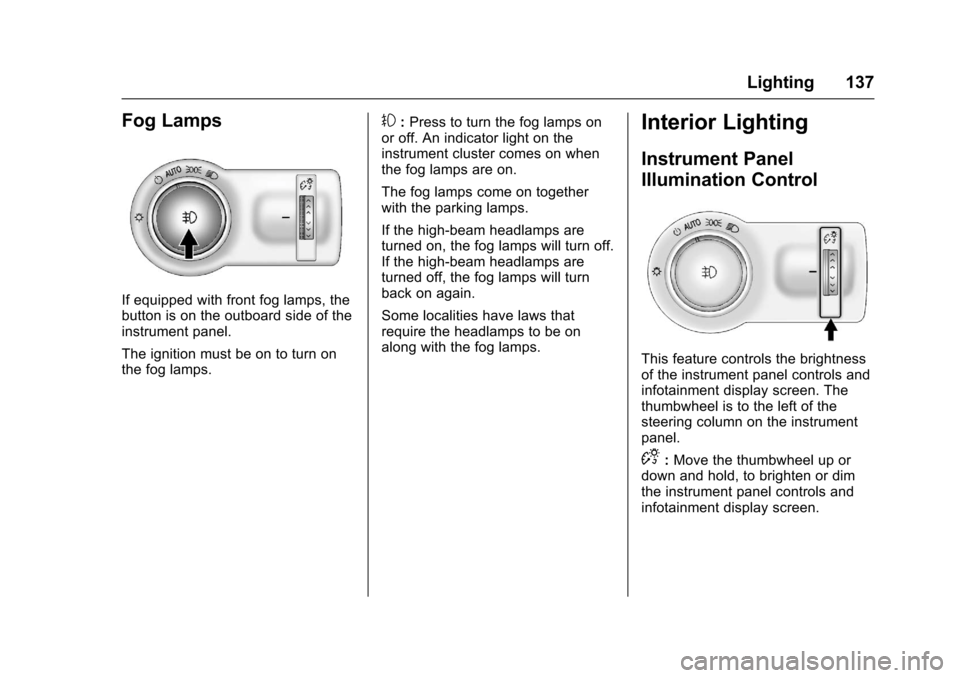
Fog Lamps
If equipped with front fog lamps, thebutton is on the outboard side of theinstrument panel.
The ignition must be on to turn onthe fog lamps.
#:Press to turn the fog lamps onor off. An indicator light on theinstrument cluster comes on whenthe fog lamps are on.
The fog lamps come on togetherwith the parking lamps.
If the high-beam headlamps areturned on, the fog lamps will turn off.If the high-beam headlamps areturned off, the fog lamps will turnback on again.
Some localities have laws thatrequire the headlamps to be onalong with the fog lamps.
Interior Lighting
Instrument Panel
Illumination Control
This feature controls the brightnessof the instrument panel controls andinfotainment display screen. Thethumbwheel is to the left of thesteering column on the instrumentpanel.
D:Move the thumbwheel up ordown and hold, to brighten or dimthe instrument panel controls andinfotainment display screen.
Page 142 of 342

Chevrolet Sonic Owner Manual (GMNA-Localizing-U.S./Canada-10122660) -2017 - crc - 5/19/16
Infotainment System 141
Infotainment
System
Introduction
Infotainment . . . . . . . . . . . . . . . . . . 141Theft-Deterrent Feature . . . . . . 142Overview . . . . . . . . . . . . . . . . . . . . . 143Home Page . . . . . . . . . . . . . . . . . . 144Operation . . . . . . . . . . . . . . . . . . . . . 144
Radio
AM-FM Radio . . . . . . . . . . . . . . . . 145Satellite Radio . . . . . . . . . . . . . . . . 146Radio Reception . . . . . . . . . . . . . . 148Multi-Band Antenna . . . . . . . . . . 148
Audio Players
Avoiding Untrusted MediaDevices . . . . . . . . . . . . . . . . . . . . . 149USB Port . . . . . . . . . . . . . . . . . . . . . 149Auxiliary Devices . . . . . . . . . . . . . 155
Phone
Bluetooth (Overview) . . . . . . . . . 155Bluetooth (InfotainmentControls) . . . . . . . . . . . . . . . . . . . . 157Apple CarPlay andAndroid Auto . . . . . . . . . . . . . . . . 161Hands-Free Phone . . . . . . . . . . . 161
Trademarks and License
Agreements
Trademarks and LicenseAgreements . . . . . . . . . . . . . . . . . 164
Introduction
Infotainment
Read the following pages tobecome familiar with the features.
{Warning
Ta k i n g y o u r e y e s o f f t h e r o a d f o r
too long or too often while using
any infotainment feature can
cause a crash. You or others
could be injured or killed. Do not
give extended attention to
infotainment tasks while driving.
Limit your glances at the vehicle
displays and focus your attention
on driving. Use voice commands
whenever possible.
The infotainment system has built-infeatures intended to help avoiddistraction by disabling somefunctions when driving. Thesefunctions may gray out when theyare unavailable. Many infotainment
Page 143 of 342
Chevrolet Sonic Owner Manual (GMNA-Localizing-U.S./Canada-10122660) -2017 - crc - 5/13/16
142 Infotainment System
features are also available throughthe instrument cluster and steeringwheel controls.
Before driving:
.Become familiar with theoperation, faceplate buttons, andscreen buttons.
.Set up the audio by presettingfavorite stations, setting thetone, and adjusting thespeakers.
.Set up phone numbers inadvance so they can be calledeasily by pressing a singlebutton or by using a single voicecommand if equipped withBluetooth phone capability.
SeeDefensive Driving0172.
To p l a y t h e i n f o t a i n m e n t s y s t e m w i t hthe ignition off, seeRetainedAccessory Power (RAP)0187.
Theft-Deterrent Feature
The infotainment system has anelectronic security system installedto prevent theft.
The infotainment system only worksin the vehicle in which it was firstinstalled, and cannot be used inanother vehicle.
Page 144 of 342
Chevrolet Sonic Owner Manual (GMNA-Localizing-U.S./Canada-10122660) -2017 - crc - 5/13/16
Infotainment System 143
Overview1.{
.Press to go to the HomePage. SeeHomePage0144.
2.g
.Radio: Press and release tofast seek the strongestprevious station or channel.
.USB/Music/Pictures: Pressto go to the previouscontent. Press and hold tofast rewind.
3.O
.Press to turn the power on.
.Press and hold to turn thepower off.
.Press to mute/unmute thesystem when on.
.Turn to decrease orincrease the volume.
4.d
.Radio: Press and release tofast seek the next strongeststation or channel.