2017 CHEVROLET MALIBU reset infotainment system
[x] Cancel search: reset infotainment systemPage 20 of 419
Chevrolet Malibu Owner Manual (GMNA-Localizing-U.S./Canada/Mexico-10122664) - 2017 - crc - 6/1/16
In Brief 19
pedal. L2 (Low 2) provides moderatebraking and L1 (Low 1) providesmaximum braking below 80 km/h(50 mph). When the battery reachesfull charge the engine may run tomaintain braking.
To u s e t h i s f e a t u r e :
1. Move the shift lever to L (Low).The transmission will enterL2 (Low 2).
2. Press + (Plus) or✓(Minus) onthe shift lever to shift betweenL2 (Low 2) and L1 (Low 1).
SeeManual Mode0235.
Vehicle Features
Infotainment System
Base radio information is included inthis manual. See the infotainmentmanual for information on otheravailable infotainment systems.
Read the following pages tobecome familiar with these features.
{Warning
Ta k i n g y o u r e y e s o f f t h e r o a d f o r
too long or too often while using
any infotainment feature can
cause a crash. You or others
could be injured or killed. Do not
give extended attention to
infotainment tasks while driving.
Limit your glances at the vehicle
displays and focus your attention
on driving. Use voice commands
whenever possible.
The infotainment system has built-infeatures intended to help avoiddistraction by disabling somefunctions when driving. These
functions may gray out when theyare unavailable. Many infotainmentfeatures are also available throughthe instrument cluster and steeringwheel controls.
Before driving:
.Become familiar with theoperation, faceplate buttons, andscreen buttons.
.Set up the audio by presettingfavorite stations, setting thetone, and adjusting thespeakers.
.Set up phone numbers inadvance so they can be calledeasily by pressing a singlebutton or by using a single voicecommand if equipped withBluetooth phone capability.
SeeDefensive Driving0216.
To p l a y t h e i n f o t a i n m e n t s y s t e m w i t hthe ignition off, seeRetainedAccessory Power (RAP)0230.
Page 108 of 419
Chevrolet Malibu Owner Manual (GMNA-Localizing-U.S./Canada/Mexico-10122664) - 2017 - crc - 5/23/16
Instruments and Controls 107
aheadingagain.SeeCompassMessages0139for the messagesthat may be displayed for thecompass.
Clock
Radio without Touchscreen
The infotainment system controlsare used to access the time anddate settings through the menusystem. SeeOperation0176onhow to use the menu system.
Setting the Time and Date
1. Press MENU, then selectSettings.
2. Select Time and Date.
3. Select Set Time or Set Date.
4. Turn MENU to change thevalue.
5. Press MENU to select the nextvalue.
6. Turn MENU to change thevalue.
7. To exit without saving, pressBACK at any time; or to saveand return to the Time andDate menu, press MENUmultiple times.
Auto Set
When Auto Set is enabled, the timecannot be manually set.
From the Set Time or SetDate menu:
1. Press the preset button underAuto Set.
2. Turn MENU to select Off(Manual) or On-Cell Network,then press MENU to select itand return to the Time andDate menu.
3. To exit without saving, pressBACK at any time.
Setting the 12/24 Hour Format
From the Set Time menu:
1. Press the preset button under12-24 HR to change between12 hour and 24 hour modes.
2. To return to the Time and Datemenu, press BACK at any time.
Radio with Touchscreen
The infotainment system controlsare used to access the time anddate settings through the menusystem. SeeOperation0176onhow to use the menu system.
Setting the Time and Date
When Auto Set is enabled the timecannot be manually set.
1. Press{,thentouchSettings.
2. Touch Time and Date, then SetTime or Set Date.
3. Touch + or✓to adjust thevalue.
4. TouchRorQto adjust AM or
PM for 12 hour format.
5. Touch0to return to the
Time and Date menu.
Auto Set
1. Press{,thentouchSettings.
2. Touch Time and Date, thenAuto Set.
3. Select from the availableselections.
Page 173 of 419
Chevrolet Malibu Owner Manual (GMNA-Localizing-U.S./Canada/Mexico-10122664) - 2017 - crc - 5/23/16
172 Infotainment System
functions may gray out when theyare unavailable. Many infotainmentfeatures are also available throughthe instrument cluster and steeringwheel controls.
Before driving:
.Become familiar with theoperation, faceplate buttons, andscreen buttons.
.Set up the audio by presettingfavorite stations, setting thetone, and adjusting thespeakers.
.Set up phone numbers inadvance so they can be calledeasily by pressing a singlebutton or by using a single voicecommand if equipped withBluetooth phone capability.
SeeDefensive Driving0216.
To p l a y t h e i n f o t a i n m e n t s y s t e m w i t hthe ignition off, seeRetainedAccessory Power (RAP)0230.
Theft-Deterrent Feature
The infotainment system has anelectronic security system installedto prevent theft.
The infotainment system only worksin the vehicle in which it was firstinstalled, and cannot be used inanother vehicle.
Page 175 of 419
Chevrolet Malibu Owner Manual (GMNA-Localizing-U.S./Canada/Mexico-10122664) - 2017 - crc - 5/23/16
174 Infotainment System
.Turn to highlight menuitems or to set values whilein a menu.
.Turn to manually selectradio stations.
9. Preset Buttons 1✓4
.Press and hold to store astation.
.Press to go to a presetfavorite station.
10. FAV
.Press to go to afavorite page.
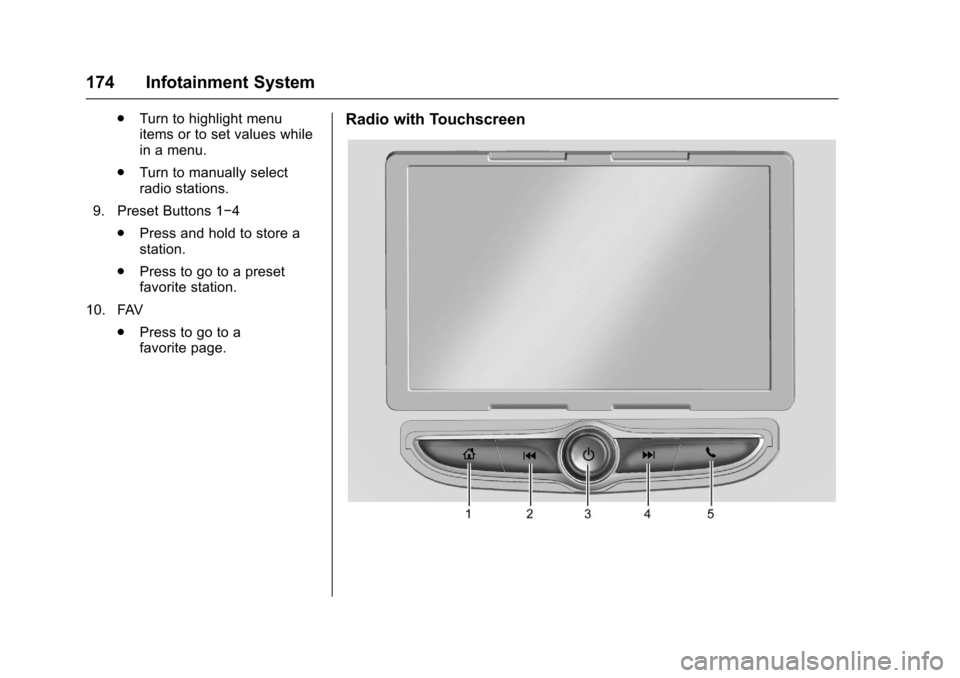
Radio with Touchscreen
Page 179 of 419
Chevrolet Malibu Owner Manual (GMNA-Localizing-U.S./Canada/Mexico-10122664) - 2017 - crc - 5/23/16
178 Infotainment System
Automatic Switch-Off
If the infotainment system has beenturned on after the ignition is turnedoff, the system will turn offautomatically after 10 minutes.
Volume Control
O:Turn to increase or decrease.
O:Press when the system is on tomute and unmute the system.
System Settings
Auto Volume
This feature automatically adjuststhe radio volume to compensate forroad and wind noise.
The level of volume compensationcan be selected, or the feature canbe turned off.
1. Touch MENU from a sourcescreen.
2. Select Auto Volume.
3. Select the desired setting.
4. Touch3to go back to the
source screen.
Tone Settings
The tone settings can be set foreach radio band and each audioplayer source.
Preset Tone Settings
1. Touch MENU.
2. Touch Tone Settings.
3. Select a preset tone setting.
Custom Tone Settings
1. Touch MENU.
2. Touch Tone Settings.
3. Touch Custom.
.Bass, Midrange, or Treble:To u c h✓or +.
.Fader or Balance: Adjustthe front/rear or left/rightspeakers by dragging thedot in the vehicle image onthe screen.
4. Touch3to go back to the
source screen.
Radio
AM-FM Radio
Playing the Radio without
Touchscreen
Audio Source Menu
O:Press and hold to turn thesystem on and off. Turn to increaseor decrease the volume or to cancelmute when the audio system ismuted.
MENU :Turn to change the radiostation.
RADIO :Press to select AMand FM.
7or6:Press to seek theprevious or next station.
Press and hold to quick seek astation.
FAV :Press to open the favoriteslist and select a favorite page orview the radio station and currentsong playing information.
Preset Buttons 1–4:Press toselect preset stations.
Page 180 of 419
Chevrolet Malibu Owner Manual (GMNA-Localizing-U.S./Canada/Mexico-10122664) - 2017 - crc - 5/23/16
Infotainment System 179
Radio Data System (RDS)
RDS is a service by FM stationsthat makes it easier to find radiostations with fault-free reception.
RDS stations are indicated by theprogram service name withbroadcasting frequency.
Selecting a Band
Press RADIO to choose AM or FM.The last station that was playingstarts playing again.
Selecting an Auxiliary Device
Press MEDIA to select a connectedauxiliary device.
Selecting a Station
Seek Tuning
If the radio station is not known:
Press7or6to automatically
search for available radio stations.
Press and hold7or6to change
the radio stations as desired, thenrelease to stop at the next availablestation.
Favorites List
There are two ways to select astation from the Favorites List:
.Press FAV repeatedly, until thedesired FAV page is displayed,then press the preset button ofthe desired FAV station.
.Press FAV, turn MENU until thedesired FAV station ishighlighted, then press MENU toselect the desired FAV station.
Stations List
1. From AM or FM, turn MENU toselect Stations List, then pressto select.
2. Turn MENU to move to thedesired station from theStations List, then press toreceive the station.
Category List
Most stations that broadcast anRDS program type code specify thetype of programming transmitted.Some stations change the programtype code depending on the
content. The system stores the RDSstations sorted by program type inthe FM category list.
To s e a r c h f o r a p r o g r a m m i n g t y p edetermined by station:
1. From the FM menu, turn MENUto select FM Category List,then press MENU.
2. Turn MENU to move to thedesired station, then pressMENU to receive the selectedbroadcasting channel.
Update Stations List
From AM or FM, press MENU, turnMENU to Update Stations List, thenpress MENU.
During the AM or FM broadcastinglist update, press the preset buttonunder Cancel or BACK to stop theupdates.
Storing a Station as a Favorite
Stations from all bands can bestored in any order in the favoritepages.
Up to four stations can be stored ineach favorite page.
Page 181 of 419
Chevrolet Malibu Owner Manual (GMNA-Localizing-U.S./Canada/Mexico-10122664) - 2017 - crc - 5/23/16
180 Infotainment System
Storing Stations
Press FAV to select the desiredpage of saved favorites.
To s t o r e t h e s t a t i o n t o a p o s i t i o n i nthe list, press and hold thecorresponding preset button 1✓4until a beep is heard.
Playing the Radio with
Touchscreen
Audio Source Menu
{:Press to go to the Home Page.
O:Press to turn on, mute,or unmute the system. Press andhold to turn off the system.
Selecting a Band
1. Press{.
2. Touch AUDIO.
3. Touch Source.
4. Select AM, FM, or SXM,if equipped.
The last station that was playingstarts playing again.
Selecting an Auxiliary Device
Connect the auxiliary device to theAUX input terminal. Play will beginwhen the system has finishedreading the information on thedevice.
If the auxiliary device is alreadyconnected:
1. Press{.
2. Touch AUDIO.
3. Touch Source.
4. Select the device.
Selecting a Station
Seek Tuning
If the radio station is not known:
Pressgordto automatically
search for available radio stations.
Direct Tune
From the AM or FM menu:
1. Touch Tune.
2. Enter the station number.
3. Touch Go.
Favorite
1. TouchSorTto scroll through
the favorite pages.
2. Touch the station to select it.
Station List
1. From the AM or FM menu,touch Menu.
2. Select Station List.
3. TouchQorRto scroll through
the list. Touch the station toselect it.
Update Station List
.From the AM or FM menu, touchMenu, then touch Update StationList. The broadcasting listupdating will begin.
.During the AM or FMbroadcasting list update, touchCancel to stop the updates.
Menu
To u c h t o c h o o s e b e t w e e n a v a i l a b l emenus for the current source.
Page 182 of 419
Chevrolet Malibu Owner Manual (GMNA-Localizing-U.S./Canada/Mexico-10122664) - 2017 - crc - 5/23/16
Infotainment System 181
Storing a Station as a Favorite
Stations from all bands can bestored in any order in the favoritepages.
Up to 25 stations can be stored.
Storing Stations
To s t o r e t h e s t a t i o n t o a p o s i t i o n i nthe list, touch the correspondingbutton 1✓5untilabeepisheard.
1. Select the desired station.
2. TouchSorTto select the
desired page of savedfavorites.
3. Touch and hold any of thepreset buttons to save thecurrent radio station to thatbutton of the selectedfavorites page.
To c h a n g e a p r e s e t b u t t o n , t u n e t othe new desired radio station andtouch and hold the preset button.
Satellite Radio
If equipped, vehicles with anSiriusXM®Satellite Radio tuner andavalidSiriusXMSatelliteRadiosubscription can receive SiriusXMprogramming.
SiriusXM Satellite Radio
Service
SiriusXM is a satellite radio servicebased in the 48 contiguous UnitedStates and 10 Canadian provinces.SiriusXM Satellite Radio has a widevariety of programming andcommercial-free music, coast tocoast, and in digital-quality sound.During your trial or when yousubscribe, you will get unlimitedaccess to SiriusXM Radio Online forwhen you are not in the vehicle.Aservicefeeisrequiredtoreceivethe SiriusXM service. If SiriusXMservice needs to be reactivated, theradio will display "No SubscriptionPlease Renew" on channel SXM1.For more information, contactSiriusXM at www.siriusxm.com or1-888-601-6296 (U.S.), andwww.siriusxm.ca or 1-877-438-9677(Canada).
Listening to SiriusXM Radio
1. Press{.
2. Touch AUDIO.
3. Touch Source.
4. Touch SXM and the mostrecent listened to SiriusXMchannel will display.
Selecting a Category
From Menu, touch Categories, thentouch the desired category or from
Categories, touchQorRto find the
desired channel. Touch the channelto select it.
Selecting a Channel
Pressgordto seek the previous
or next channel.
Using the Preset Buttons
Up to five favorites pages can besaved, and each page can store upto five channels.
To c h a n g e a p r e s e t b u t t o n , t u n e t othe new desired channel and holdthe button.