2017 CHEVROLET MALIBU Onstar
[x] Cancel search: OnstarPage 174 of 419
Chevrolet Malibu Owner Manual (GMNA-Localizing-U.S./Canada/Mexico-10122664) - 2017 - crc - 5/23/16
Infotainment System 173
Overview
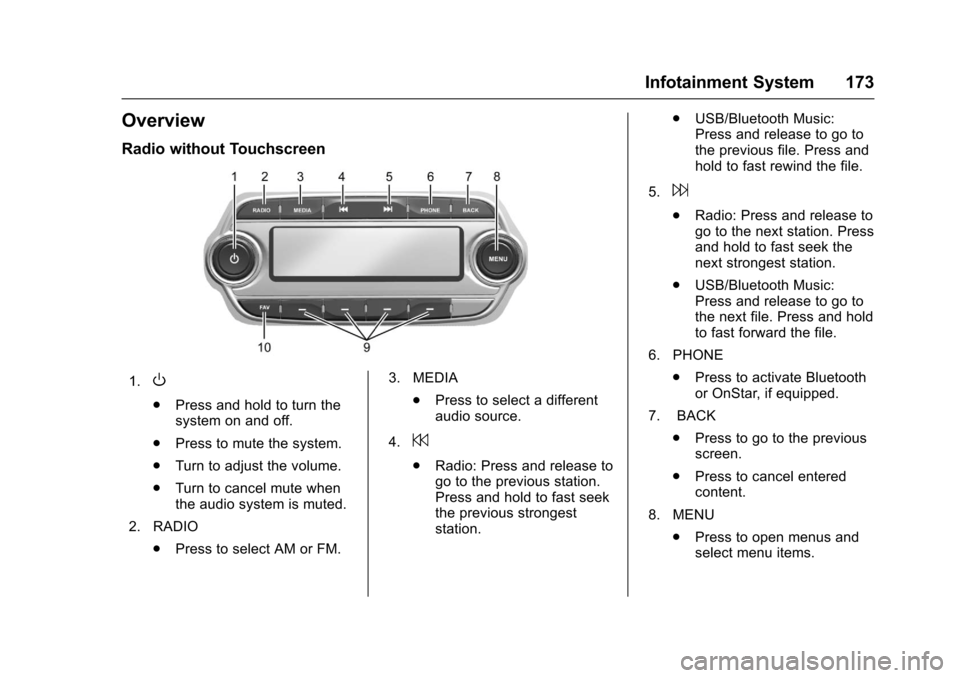
Radio without Touchscreen
1.O
.Press and hold to turn thesystem on and off.
.Press to mute the system.
.Turn to adjust the volume.
.Turn to cancel mute whenthe audio system is muted.
2. RADIO
.Press to select AM or FM.
3. MEDIA
.Press to select a differentaudio source.
4.7
.Radio: Press and release togo to the previous station.Press and hold to fast seekthe previous strongeststation.
.USB/Bluetooth Music:Press and release to go tothe previous file. Press andhold to fast rewind the file.
5.6
.Radio: Press and release togo to the next station. Pressand hold to fast seek thenext strongest station.
.USB/Bluetooth Music:Press and release to go tothe next file. Press and holdto fast forward the file.
6. PHONE
.Press to activate Bluetoothor OnStar, if equipped.
7. BACK
.Press to go to the previousscreen.
.Press to cancel enteredcontent.
8. MENU
.Press to open menus andselect menu items.
Page 177 of 419
Chevrolet Malibu Owner Manual (GMNA-Localizing-U.S./Canada/Mexico-10122664) - 2017 - crc - 5/23/16
176 Infotainment System
Settings :To u c h t o a c c e s s t h ePersonalization menu. SeeVehiclePersonalization0147.
Climate :If equipped, touch toaccess the Climate menu. SeeClimate Control Systems0205orDual Automatic Climate ControlSystem0208.
OnStar :If equipped, touch toaccess the OnStar menu. SeeOnStar Overview0397.
Energy :If equipped, touch toaccess the Energy menu.
Drive Mode :If equipped, touch toaccess the Drive Mode menu.
Operation
Radio Controls without
Touchscreen
The infotainment system is operatedby using the pushbuttons,multifunction knobs, and menusshown on the display.
Turning the System On or Off
O:Press and hold to turn thesystem on and off.
Automatic Switch-Off
If the infotainment system has beenturned on after the ignition is turnedoff, the system will turn offautomatically after 10 minutes.
Volume Control
O:Turn to adjust the volume or tocancel mute when the audio systemis muted.
PHONE :Press to activate OnStar.SeeOnStar Overview0397.
Press to mute the audio system.Press again to cancel mute.
Menu System
Controls
The MENU knob and BACK buttonare used to navigate the menusystem.
MENU Knob:
Turn to:
.Highlight a menu option.
.Select a value.
.Manually select radio stations.
Press to:
.Enter the menu system.
.Select or activate the highlightedmenu option.
.Confirm a set value.
.Turn a system setting on or off.
BACK:
Press to:
.Exit a menu.
.Go back to the previous menuscreen.
.Delete the last character in asequence.
.Press and hold to delete theentire character sequence.
Submenus
Abarontheright-handedgeofthemenu indicates that it has asubmenu with other options.
Tone Settings
The tone settings can be set foreach radio band and each audioplayer source.
Page 184 of 419
Chevrolet Malibu Owner Manual (GMNA-Localizing-U.S./Canada/Mexico-10122664) - 2017 - crc - 5/23/16
Infotainment System 183
interfere with radio reception. Whenthis happens, try reducing the trebleon the radio.
SiriusXM Satellite Radio
Service
If equipped, SiriusXM SatelliteRadio Service provides digital radioreception. Tall buildings or hills caninterfere with satellite radio signals,causing the sound to fade in andout. In addition, traveling or standingunder heavy foliage, bridges,garages, or tunnels may cause lossof the SiriusXM signal for a periodof time.
Cell Phone Usage
Cell phone usage, such as makingor receiving phone calls, charging,or just having the phone on maycause static interference with theradio. Unplug the phone or turn it offif this happens.
Backglass Antenna
The AM-FM antenna is integratedwith the rear window defogger,located in the rear window. Makesure that the inside surface of the
rear window is not scratched andthat the lines on the glass are notdamaged. If the inside surface isdamaged, it could interfere withradio reception. For proper radioreception, the antenna connectorneeds to be properly attached to thepost on the glass.
If a cellular telephone antennaneeds to be attached to the glass,make sure that the grid lines for theAM-FM antenna are not damaged.There is enough space between thegrid lines to attach a cellulartelephone antenna withoutinterfering with radio reception.
Caution
Using a razor blade or sharp
object to clear the inside rear
window can damage the rear
window antenna and/or the rear
window defogger. Repairs would
not be covered by the vehicle
warranty. Do not clear the inside
rear window with sharp objects.
Caution
Do not apply aftermarket glass
tinting with metallic film. The
metallic film in some tinting
materials will interfere with or
distort the incoming radio
reception. Any damage caused to
the backglass antenna due to
metallic tinting materials will not
be covered by the vehicle
warranty.
Multi-Band Antenna
The multi-band antenna is on theroof of the vehicle. The antenna isused for OnStar, the SiriusXMSatellite Radio Service System, andGPS (Global Positioning System),if the vehicle has these features.Keep the antenna clear ofobstructions for clear reception.
If the vehicle has a sunroof, and it isopen, reception can also beaffected.
Page 192 of 419
Chevrolet Malibu Owner Manual (GMNA-Localizing-U.S./Canada/Mexico-10122664) - 2017 - crc - 5/23/16
Infotainment System 191
There may be restrictions on usingBluetooth wireless technology insome locations.
Due to the variety of Bluetoothdevices and their firmware versions,the device may respond differentlywhen performing over Bluetooth.
On a current phone call, an imageof the current contact from thephone's contact list may bedisplayed. Not all phones arecompatible with this feature.
Refer to the cell phonemanufacturer’suserguideforquestions about the phone'sBluetooth functionality.
Bluetooth Controls
If equipped with Bluetooth capability,use the buttons on the infotainmentsystem and the steering wheel tooperate the system.
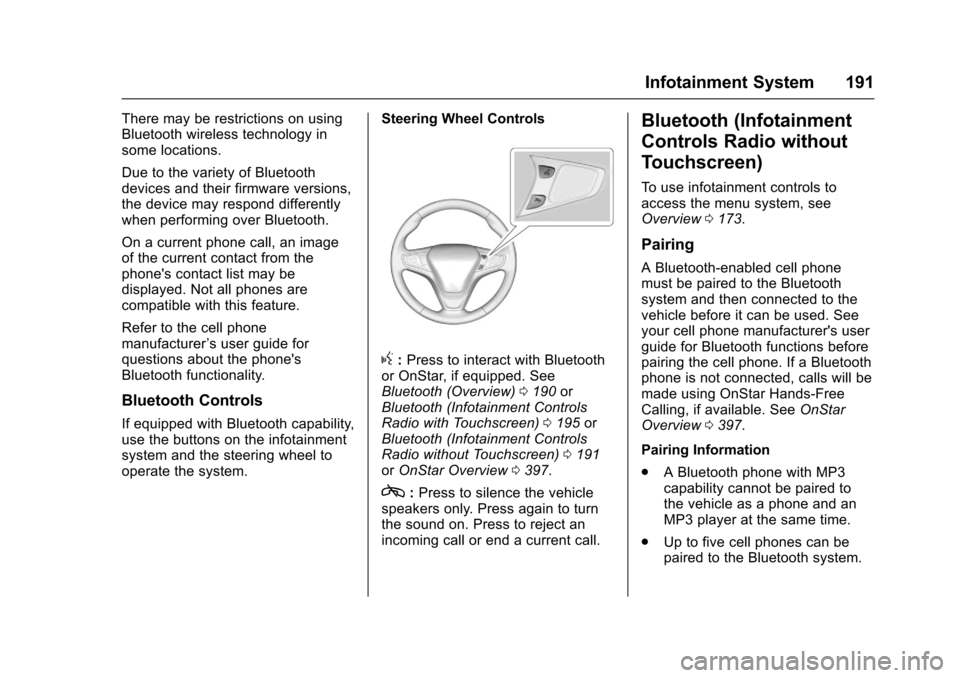
Steering Wheel Controls
g:Press to interact with Bluetoothor OnStar, if equipped. SeeBluetooth (Overview)0190orBluetooth (Infotainment ControlsRadio with Touchscreen)0195orBluetooth (Infotainment ControlsRadio without Touchscreen)0191orOnStar Overview0397.
c:Press to silence the vehiclespeakers only. Press again to turnthe sound on. Press to reject anincoming call or end a current call.
Bluetooth (Infotainment
Controls Radio without
Touchscreen)
To u s e i n f o t a i n m e n t c o n t r o l s t oaccess the menu system, seeOverview0173.
Pairing
ABluetooth-enabledcellphonemust be paired to the Bluetoothsystem and then connected to thevehicle before it can be used. Seeyour cell phone manufacturer's userguide for Bluetooth functions beforepairing the cell phone. If a Bluetoothphone is not connected, calls will bemade using OnStar Hands-FreeCalling, if available. SeeOnStarOverview0397.
Pairing Information
.ABluetoothphonewithMP3capability cannot be paired tothe vehicle as a phone and anMP3 player at the same time.
.Up to five cell phones can bepaired to the Bluetooth system.
Page 193 of 419
Chevrolet Malibu Owner Manual (GMNA-Localizing-U.S./Canada/Mexico-10122664) - 2017 - crc - 5/23/16
192 Infotainment System
.The pairing process is disabledwhen the vehicle is moving.
.Pairing only needs to becompleted once, unless thepairing information on the cellphone changes or the cell phoneis deleted from the system.
.Only one paired cell phone canbe connected to the Bluetoothsystem at a time.
.If multiple paired cell phones arewithin range of the system, thesystem connects to the firstavailable paired cell phone in theorder that they were first paired.
When the Bluetooth device andinfotainment system aresuccessfully paired, the phone bookis downloaded automatically. This isdependent on the type of phonepaired. If the automatic downloaddoes not occur, proceed with thephone book download on thephone.
Pairing a Phone–SSP and NoPaired Device
When there is no paired device onthe infotainment system and SimpleSecure Pairing (SSP) is supported:
1. Press PHONE or pressgon
the steering wheel withoutOnStar.
2. Press Pair to search forBluetooth Devices.
3. When the Bluetooth device andinfotainment system aresuccessfully paired, the phonescreen is displayed on theinfotainment system.
Pairing a Phone–SSP and PairedDevice
When a paired device is on theinfotainment system and SSP issupported:
1. Press PHONE or pressgon
the steering wheel withoutOnStar.
2. Press MENU, then selectBluetooth Devices.
3. Turn MENU to the desireddevice to pair.
4. Press MENU to select thedesired device to pair.
5. When the Bluetooth device andinfotainment system aresuccessfully paired, the phonescreen is displayed on theinfotainment system. If nodesired device is available goto Step 6.
6. Press Add to search for thedesired device.
.The connected phone is
highlighted by5.
.Z/5indicates the hands-free
and phone music functions areenabled.
.5indicates only the hands-free
function is enabled.
.Zindicates only Bluetooth
music is enabled.
Page 194 of 419
Chevrolet Malibu Owner Manual (GMNA-Localizing-U.S./Canada/Mexico-10122664) - 2017 - crc - 5/23/16
Infotainment System 193
Pairing a Phone–No SSP and NoPaired Device
When there is no paired device onthe infotainment system and SSP isnot supported:
1. Press PHONE or pressgon
the steering wheel withoutOnStar.
2. Press Pair to search forBluetooth Devices.
3. Input the PersonalIdentification Number (PIN)code (default: 1234) to theBluetooth device. When theBluetooth device andinfotainment system aresuccessfully paired, thePHONE screen is displayed onthe infotainment system.
When the connection fails, a failuremessage is displayed on theinfotainment system.
If a Bluetooth device was previouslyconnected, the infotainment systemexecutes the auto connection.However, if the Bluetooth setting on
the Bluetooth device is turned off, afailure message is displayed on theinfotainment system.
Pairing a Phone–No SSP andPaired Device
When a paired device is on theinfotainment system and SSP is notsupported:
1. Press PHONE or pressgon
the steering wheel withoutOnStar.
2. Press MENU, then selectBluetooth Devices.
3. Turn MENU to the desireddevice to pair.
4. Press MENU to select thedesired device to pair.
5. Input the PersonalIdentification Number (PIN)code (default: 1234) to theBluetooth device. When theBluetooth device andinfotainment system are
successfully paired,Z/5is
displayed on the pair devicescreen. If no desired device isavailable go to Step 6.
6. Press Add to search for thedesired device.
.The connected phone is
highlighted by5.
.Z/5indicates the hands-free
and phone music functions areenabled.
.5indicates only the hands-free
function is enabled.
.Zindicates only Bluetooth
music is enabled.
Checking the BluetoothConnection
1. Press PHONE.
2. Turn MENU to highlightBluetooth Devices.
3. Press MENU to selectBluetooth Devices.
4. The paired device will show.
Disconnecting a Bluetooth Device
1. Press PHONE.
2. Turn MENU to highlightBluetooth Devices.
Page 196 of 419
Chevrolet Malibu Owner Manual (GMNA-Localizing-U.S./Canada/Mexico-10122664) - 2017 - crc - 5/23/16
Infotainment System 195
Turn MENU to highlightr,then
press MENU to resume.
Playing the Next Song
Turn MENU to highlightl,then
press MENU to pause.
Playing the Previous Song
Turn MENU to highlightg,then
press MENU within two seconds ofplayback time to play theprevious song.
Returning to the Beginning of theCurrent Song
Turn MENU to highlightg,then
press MENU after two seconds ofplayback time.
Search
Turn MENU to highlightgorl,
then press and hold MENU torewind or fast forward.
Playing Music Randomly
Turn MENU to highlightZ,then
press MENU during playback. PressMENU again to return tonormal play.
This function may not be supporteddepending on the cell phone.
Do not change the track too quicklywhen playing Bluetooth music.
Conditions that may occur whenplaying Bluetooth music:
.It takes time to transmit datafrom the cell phone to theinfotainment system.
.If the cell phone or Bluetoothdevice is not in the waitingscreen mode, it may notautomatically play.
.The infotainment systemtransmits the order to play fromthe cell phone in the Bluetoothmusic play mode. If this is donein a different mode, then thedevice transmits the order tostop. Depending on the cellphone’soptions,thisordertoplay/stop may take time toactivate.
.If the Bluetooth music playbackis not functioning, then check tosee if the cell phone is in thewaiting screen mode.
.Sounds may be cut off duringthe Bluetooth music playback.
.The infotainment system outputsthe audio from the cell phone orBluetooth device as it istransmitted.
Bluetooth (Infotainment
Controls Radio with
Touchscreen)
To u s e i n f o t a i n m e n t c o n t r o l s t oaccess the menu system, seeOverview0173.
Pairing
ABluetooth-enabledcellphonemust be paired to the Bluetoothsystem and then connected to thevehicle before it can be used. Seeyour cell phone manufacturer's userguide for Bluetooth functions beforepairing the cell phone. If a Bluetoothphone is not connected, calls will bemade using OnStar Hands-FreeCalling, if available. SeeOnStarOverview0397.
Page 197 of 419
Chevrolet Malibu Owner Manual (GMNA-Localizing-U.S./Canada/Mexico-10122664) - 2017 - crc - 5/23/16
196 Infotainment System
Pairing Information
.ABluetoothphonewithMP3capability cannot be paired tothe vehicle as a phone and anMP3 player at the same time.
.Up to 10 cell phones can bepaired to the Bluetooth system.
.The pairing process is disabledwhen the vehicle is moving.
.Pairing only needs to becompleted once, unless thepairing information on the cellphone changes or the cell phoneis deleted from the system.
.Only one paired cell phone canbe connected to the Bluetoothsystem at a time.
.If multiple paired cell phones arewithin range of the system, thesystem connects to the firstavailable paired cell phone in theorder that they were first paired.
When the Bluetooth device andinfotainment system aresuccessfully paired, the phone bookis downloaded automatically. This isdependent on the type of phonepaired. If the automatic download
does not occur, proceed with thephone book download on thephone.
Pairing a Phone–SSP and NoPaired Device
When there is no paired device onthe infotainment system and SimpleSecure Pairing (SSP) is supported:
1. Press{.
2. Touch PHONE, press5on the
faceplate, or pressgon the
steering wheel without OnStar.
3. Touch Search Device.
4. Touch the desired device topair on the searched listscreen.
5. Touch Yes on the pop-upscreen of the Bluetooth deviceand infotainment system.
6. When the Bluetooth device andinfotainment system aresuccessfully paired, the phonescreen is displayed on theinfotainment system.
Pairing a Phone–SSP and PairedDevice
When a paired device is on theinfotainment system and SSP issupported:
1. Press{.
2. Touch SETTINGS.
3. Touch Bluetooth, then DeviceManagement.
4. Touch the desired device topair. When the Bluetoothdevice and infotainment system
are successfully paired,Z/5
is displayed on the pair devicescreen. If no desired device isavailable go to Step 5.
5. Touch Search Device to searchfor the desired device.
6. Touch the desired device topair on the searched listscreen.
7. Touch Yes on the pop-upscreen of the Bluetooth deviceand infotainment system.
.The connected phone is
highlighted by5.