Page 189 of 419
Chevrolet Malibu Owner Manual (GMNA-Localizing-U.S./Canada/Mexico-10122664) - 2017 - crc - 5/23/16
188 Infotainment System
Auto Volume
To u c h A u t o V o l u m e . T h e A u t oVolume menu is displayed. See“Auto Volume”under“RadioControls”inOperation0176
Tr a f f i c P r o g r a m(If Equipped)
To u c h O n o r O f f .
MTP (Media Transfer Protocol)
.Connect an MTP supporteddevice.
.Play will start automatically afterthe system has finished readingthe MTP device.
.If a non-readable MTP device isconnected, an error messagedisplays and the system willswitch to the previous audiofunction.
iPod/iPhone Player
This feature is limited to modelssupporting the iPod/iPhoneconnection.
Playing Music Files
.Connect the iPod/iPhone to theUSB port.
.Play will start from the previouslyplayed point after the systemhas finished reading the USBdevice.
.If a non-readable USB device isconnected, an error messagedisplays and the system willswitch to the previous audiofunction.
If the iPod/iPhone is alreadyconnected:
1. Press{.
2. Touch AUDIO.
3. Touch Source.
4. Touch iPod.
To s t o p t h e d e v i c e a n d s e l e c tanother media source, touchSource, then select the othersource.
To r e m o v e t h e d e v i c e , s e l e c tanother function, then remove thedevice.
Pause
.To u c hjto pause.
.To u c hrto resume.
Changing to Next/Previous Song
.To u c hlto change to the
next song.
.To u c hgwithin two seconds of
the playback time to play theprevious file.
Returning to the Beginning of theCurrent File
To u c hgafter two seconds of the
playback time.
Scanning Forward or Backward
To u c h a n d h o l dgorlduring
playback to rewind or fast forward.Release the button to resumeplayback at normal speed.
Playing Files Randomly
To u c hZduring playback.
.ON: Plays all files randomly.
.OFF: Returns to normalplayback.
Using the iPod Menu
.To u c h M e n u d u r i n g p l a y b a c k .
.To u c h t h e a p p r o p r i a t eplay mode.
Page 192 of 419
Chevrolet Malibu Owner Manual (GMNA-Localizing-U.S./Canada/Mexico-10122664) - 2017 - crc - 5/23/16
Infotainment System 191
There may be restrictions on usingBluetooth wireless technology insome locations.
Due to the variety of Bluetoothdevices and their firmware versions,the device may respond differentlywhen performing over Bluetooth.
On a current phone call, an imageof the current contact from thephone's contact list may bedisplayed. Not all phones arecompatible with this feature.
Refer to the cell phonemanufacturer’suserguideforquestions about the phone'sBluetooth functionality.
Bluetooth Controls
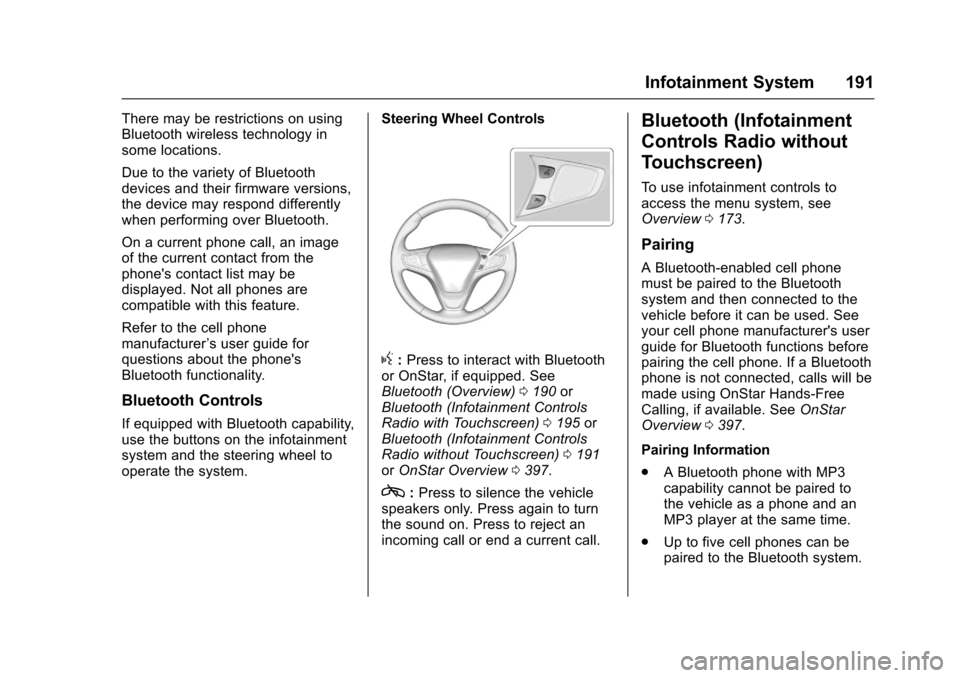
If equipped with Bluetooth capability,use the buttons on the infotainmentsystem and the steering wheel tooperate the system.
Steering Wheel Controls
g:Press to interact with Bluetoothor OnStar, if equipped. SeeBluetooth (Overview)0190orBluetooth (Infotainment ControlsRadio with Touchscreen)0195orBluetooth (Infotainment ControlsRadio without Touchscreen)0191orOnStar Overview0397.
c:Press to silence the vehiclespeakers only. Press again to turnthe sound on. Press to reject anincoming call or end a current call.
Bluetooth (Infotainment
Controls Radio without
Touchscreen)
To u s e i n f o t a i n m e n t c o n t r o l s t oaccess the menu system, seeOverview0173.
Pairing
ABluetooth-enabledcellphonemust be paired to the Bluetoothsystem and then connected to thevehicle before it can be used. Seeyour cell phone manufacturer's userguide for Bluetooth functions beforepairing the cell phone. If a Bluetoothphone is not connected, calls will bemade using OnStar Hands-FreeCalling, if available. SeeOnStarOverview0397.
Pairing Information
.ABluetoothphonewithMP3capability cannot be paired tothe vehicle as a phone and anMP3 player at the same time.
.Up to five cell phones can bepaired to the Bluetooth system.
Page 195 of 419
Chevrolet Malibu Owner Manual (GMNA-Localizing-U.S./Canada/Mexico-10122664) - 2017 - crc - 5/23/16
194 Infotainment System
3. Press MENU to selectBluetooth Devices.
4. Turn MENU to highlight thedesired Bluetooth device.
5. Press Disconnect.
Deleting a Bluetooth Device
1. Press PHONE.
2. Turn MENU to highlightBluetooth Devices.
3. Press MENU to selectBluetooth Devices.
4. Turn MENU to highlight thedesired Bluetooth device.
5. Press Delete.
Bluetooth Music
Before playing Bluetooth music,read the following information.
.AcellphoneorBluetoothdevicethat supports Advanced AudioDistribution Profile (A2DP)versions over 1.2 must beregistered and connected to theproduct.
.From the cell phone or Bluetoothdevice, find the Bluetooth devicetype to set/connect the item as astereo headset.
.ewill appear on the screen if
the stereo headset issuccessfully connected.
.The sound played by theBluetooth device is deliveredthrough the infotainment system.
.Bluetooth music can be playedonly when a Bluetooth devicehas been connected. To playBluetooth music, connect theBluetooth phone to theinfotainment system.
.If the Bluetooth device isdisconnected while playingphone music, the music isdiscontinued. The audiostreaming function may not besupported in some Bluetoothphones. Only one function canbe used at a time between theBluetooth hands-free or Phonemusic function. For example,if you convert to Bluetoothhands-free while playing Phonemusic, the music is
discontinued. Playing music fromthe car is not possible whenthere are no music files stored inthe cell phone.
.For Bluetooth music to play, themusic must be played at leastonce from the music playermode of the cell phone orBluetooth device afterconnecting as a stereo headset.After being played at least once,the music player willautomatically play upon enteringplay mode, and it willautomatically stop when themusic player mode ends. If thecell phone or Bluetooth device isnot in the waiting screen mode,some devices may notautomatically play in Bluetoothmusic play mode.
Playing Bluetooth Music
Press Media repeatedly, untilBluetooth Audio is selected.
Pause
Turn MENU to highlightj,then
press MENU to pause.
Page 197 of 419
Chevrolet Malibu Owner Manual (GMNA-Localizing-U.S./Canada/Mexico-10122664) - 2017 - crc - 5/23/16
196 Infotainment System
Pairing Information
.ABluetoothphonewithMP3capability cannot be paired tothe vehicle as a phone and anMP3 player at the same time.
.Up to 10 cell phones can bepaired to the Bluetooth system.
.The pairing process is disabledwhen the vehicle is moving.
.Pairing only needs to becompleted once, unless thepairing information on the cellphone changes or the cell phoneis deleted from the system.
.Only one paired cell phone canbe connected to the Bluetoothsystem at a time.
.If multiple paired cell phones arewithin range of the system, thesystem connects to the firstavailable paired cell phone in theorder that they were first paired.
When the Bluetooth device andinfotainment system aresuccessfully paired, the phone bookis downloaded automatically. This isdependent on the type of phonepaired. If the automatic download
does not occur, proceed with thephone book download on thephone.
Pairing a Phone–SSP and NoPaired Device
When there is no paired device onthe infotainment system and SimpleSecure Pairing (SSP) is supported:
1. Press{.
2. Touch PHONE, press5on the
faceplate, or pressgon the
steering wheel without OnStar.
3. Touch Search Device.
4. Touch the desired device topair on the searched listscreen.
5. Touch Yes on the pop-upscreen of the Bluetooth deviceand infotainment system.
6. When the Bluetooth device andinfotainment system aresuccessfully paired, the phonescreen is displayed on theinfotainment system.
Pairing a Phone–SSP and PairedDevice
When a paired device is on theinfotainment system and SSP issupported:
1. Press{.
2. Touch SETTINGS.
3. Touch Bluetooth, then DeviceManagement.
4. Touch the desired device topair. When the Bluetoothdevice and infotainment system
are successfully paired,Z/5
is displayed on the pair devicescreen. If no desired device isavailable go to Step 5.
5. Touch Search Device to searchfor the desired device.
6. Touch the desired device topair on the searched listscreen.
7. Touch Yes on the pop-upscreen of the Bluetooth deviceand infotainment system.
.The connected phone is
highlighted by5.