2017 CHEVROLET IMPALA steering wheel
[x] Cancel search: steering wheelPage 116 of 378

Chevrolet Impala Owner Manual (GMNA-Localizing-U.S./Canada-9921197) -
2017 - crc - 3/30/16
Instruments and Controls 115
Cluster Menu
There is an interactive display area
in the center of the instrument
cluster.
Use the right steering wheel control
to open and scroll through the
different items and displays.
Press
oto access the cluster
applications. Use
worxto scroll
through the list of available
applications. Not all applications will
be available on all vehicles. .
Info app. This is where you can
view the selected Driver
Information Center (DIC)
displays. See Driver Information
Center (DIC) 0128.
. Audio
. Phone
. Navigation
. Settings
Audio
In the main view of the Audio app,
press
worxto scroll through
radio stations or move to the next/
previous track of a CD/USB/
Bluetooth device that is connected
to the vehicle. Press
Vto select the
Audio app, then press
pto enter
the Audio menu. In the Audio menu
browse for music, select from the
favorites, or change the audio
source.
Phone
Press
Vto select the Phone app,
then press
pto enter the Phone
menu. In the Phone menu, if there is no active phone call, view recent
calls, scroll through contacts,
or select from the favorites. If there
is an active call, mute or unmute the
phone or switch to handset or
handsfree operation.
Navigation
Press
Vto select the Navigation
app, then press
pto enter the
Navigation menu. If there is no
active route, you can resume the
last route, location details, and turn
the voice prompts on/off. If there is
an active route, press
Vto cancel
route guidance or turn the voice
prompts on/off.
Settings
Press
Vto select the Settings app.
Use
worxto scroll through the
items in the Settings menu.
Units : Press
pwhile Units is
displayed to enter the Units menu.
Choose English or metric units by
pressing
Vwhile the desired item is
highlighted.
Page 123 of 378
Chevrolet Impala Owner Manual (GMNA-Localizing-U.S./Canada-9921197) -
2017 - crc - 3/30/16
122 Instruments and Controls
The DLC is under the instrument
panel to the left of the steering
wheel. Connecting devices that are
not used to perform an Emissions
Inspection/Maintenance test or to
service the vehicle may affect
vehicle operation. SeeAdd-On
Electrical Equipment 0247. See
your dealer if assistance is needed.
The vehicle may not pass
inspection if:
. The light is on when the engine
is running.
. The light does not come on
when the ignition is in ON/RUN
with the engine not running for
Key Access or in Service Only
Mode for Keyless Access.
. Critical emission control systems
have not been completely
diagnosed. If this happens, the
vehicle would not be ready for
inspection and might require
several days of routine driving
before the system is ready for
inspection. This can happen if
the 12-volt battery has recently been replaced or run down, or if
the vehicle has been recently
serviced.
See your dealer if the vehicle will
not pass or cannot be made ready
for the test.
Brake System Warning
Light
The vehicle brake system consists
of two hydraulic circuits. If one
circuit is not working, the remaining
circuit can still work to stop the
vehicle. For normal braking
performance, both circuits need to
be working.
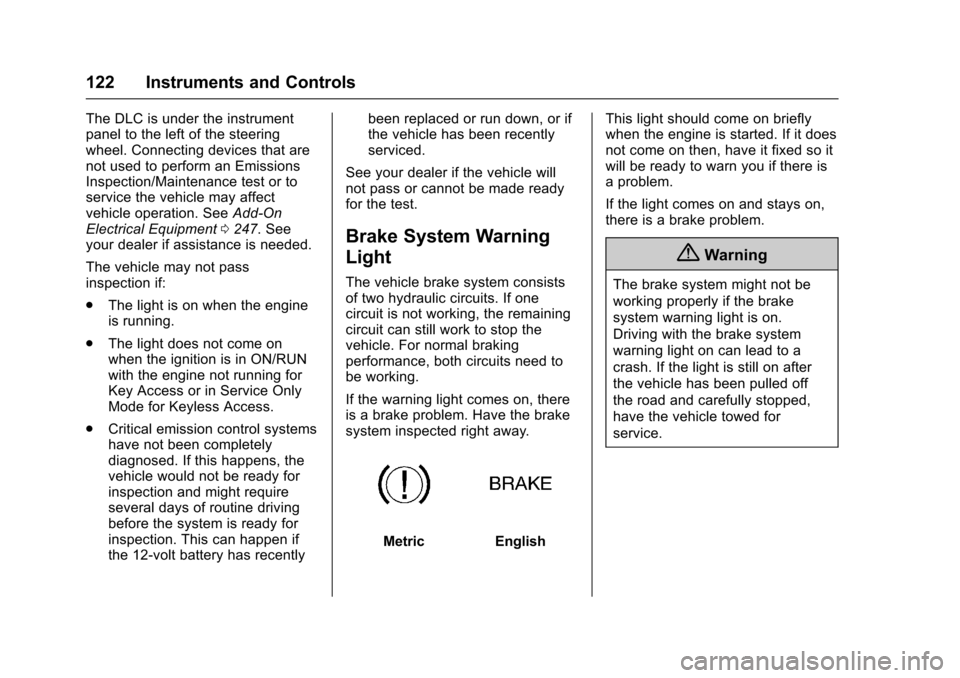
If the warning light comes on, there
is a brake problem. Have the brake
system inspected right away.
MetricEnglish This light should come on briefly
when the engine is started. If it does
not come on then, have it fixed so it
will be ready to warn you if there is
a problem.
If the light comes on and stays on,
there is a brake problem.
{Warning
The brake system might not be
working properly if the brake
system warning light is on.
Driving with the brake system
warning light on can lead to a
crash. If the light is still on after
the vehicle has been pulled off
the road and carefully stopped,
have the vehicle towed for
service.
Page 129 of 378

Chevrolet Impala Owner Manual (GMNA-Localizing-U.S./Canada-9921197) -
2017 - crc - 3/30/16
128 Instruments and Controls
Information Displays
Driver Information
Center (DIC)
The DIC displays are shown in the
center of the instrument cluster in
the Info app. SeeInstrument Cluster
0 113. The Info app is only available
when the vehicle is in ON/RUN. The
displays show the status of many
vehicle systems. The controls for
the DIC are on the right steering
wheel control.
worx: Press to move up or
down in a list, or on the main view
press to cycle through the different
Info app pages.
oorp: Pressoto open
application menus on the left. Press
pto open interaction menus on the
right.
V: Press to select a menu item.
Press and hold to reset values on
certain screens, or on the main view
reset info pages to the original
setting.
DIC Info Page Options
The info pages on the DIC can be
turned on or off through the
Settings app.
1. Press
oto access the cluster
applications.
2. Press
worxto scroll to the
Settings application.
3. Press
Vto select the
Settings app.
4. Scroll to Info Pages and press
p. 5. Select Edit List.
6. Press
worxto move
through the list of possible
information displays.
7. Press
Vwhile an item is
highlighted to select or
deselect that item. When an
item is selected, a checkmark
will appear next to it.
DIC Info Pages
The following is the list of all
possible DIC info page displays.
Some may not be available for your
particular vehicle. Some items may
not be turned on by default but can
be turned on through the Settings
app. See “DIC Info Page Options”
earlier in this section.
Current Speed : Displays the
vehicle speed in either kilometers
per hour (km/h) or miles per
hour (mph).
Trip A and Average Fuel Economy
or Trip B and Average Fuel
Economy : The Trip display shows
the current distance traveled, in
Page 141 of 378

Chevrolet Impala Owner Manual (GMNA-Localizing-U.S./Canada-9921197) -
2017 - crc - 3/30/16
140 Instruments and Controls
.Language (Language)
. Valet Mode
. Radio
. Vehicle
. Bluetooth
. Apple CarPlay
. Android Auto
. Voice
. Display
. Rear Camera
. Return to Factory Settings
. Software Information
Each menu is detailed in the
following information.
Time and Date
Manually set the time and date. See
Clock (Base Radio) 0108 orClock
(Uplevel Radio) 0109.
Language (Language)
Select Language, then select from
the available language(s).
Valet Mode (If Equipped)
This will lock the infotainment
system and steering wheel controls.
It may also limit access to vehicle
storage locations (if equipped).
To enable valet mode:
1. Enter a four-digit code on the keypad.
2. Select Enter to go to the confirmation screen.
3. Re-enter the four-digit code.
Press LOCK or UNLOCK to lock or
unlock the system. Press Back to go
back to the previous menu.
Radio
To manage the radio features, see
“Radio Setup” under“Setting Radio
Preferences” inHome Page 0159.
Vehicle
Select and the following may
display:
.
Climate and Air Quality
. Collision/Detection Systems
. Comfort and Convenience .
Lighting
. Power Door Locks
. Remote Lock, Unlock, Start
Climate and Air Quality
Select and the following may
display:
. Auto Fan Max Speed
. Air Conditioning Mode
. Auto Defog
. Auto Rear Defog
Auto Fan Max Speed
This feature will set the maximum
auto fan speed.
Select Low, Medium, or High.
Air Conditioning Mode
This feature changes the mode of
the air conditioning.
Select Off, On, or Last Setting.
Auto Defog
When set to On, the front defog will
automatically react to temperature
and humidity conditions that may
Page 153 of 378
Chevrolet Impala Owner Manual (GMNA-Localizing-U.S./Canada-9921197) -
2017 - crc - 3/30/16
152 Lighting
Turn and Lane-Change
Signals
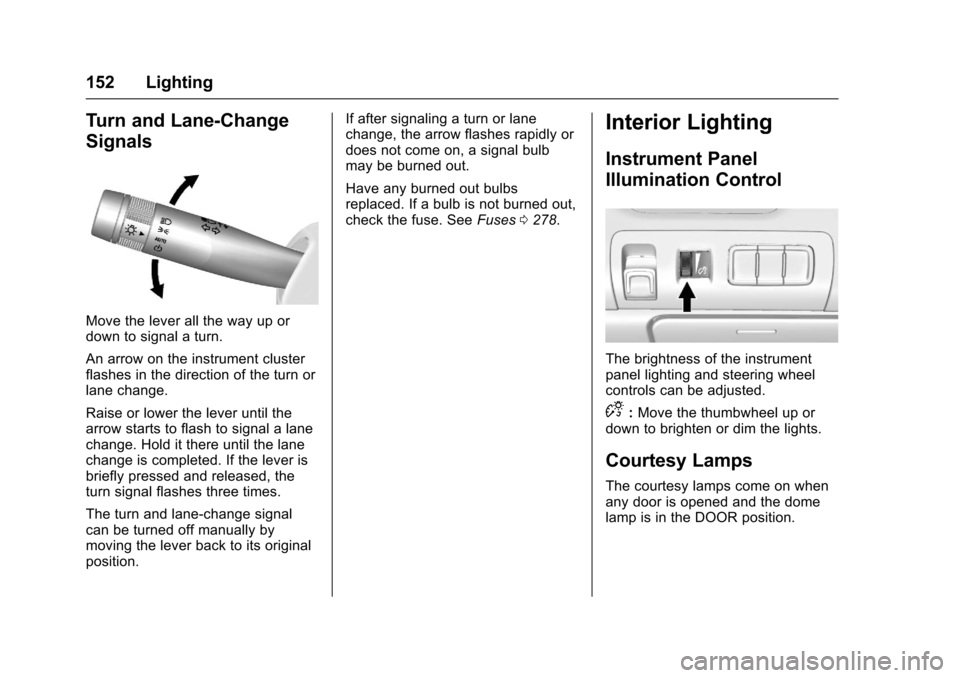
Move the lever all the way up or
down to signal a turn.
An arrow on the instrument cluster
flashes in the direction of the turn or
lane change.
Raise or lower the lever until the
arrow starts to flash to signal a lane
change. Hold it there until the lane
change is completed. If the lever is
briefly pressed and released, the
turn signal flashes three times.
The turn and lane-change signal
can be turned off manually by
moving the lever back to its original
position.If after signaling a turn or lane
change, the arrow flashes rapidly or
does not come on, a signal bulb
may be burned out.
Have any burned out bulbs
replaced. If a bulb is not burned out,
check the fuse. See
Fuses0278.
Interior Lighting
Instrument Panel
Illumination Control
The brightness of the instrument
panel lighting and steering wheel
controls can be adjusted.
D:Move the thumbwheel up or
down to brighten or dim the lights.
Courtesy Lamps
The courtesy lamps come on when
any door is opened and the dome
lamp is in the DOOR position.
Page 158 of 378

Chevrolet Impala Owner Manual (GMNA-Localizing-U.S./Canada-9921197) -
2017 - crc - 3/30/16
Infotainment System 157
The infotainment system has built-in
features intended to help avoid
distraction by disabling some
functions when driving. These
functions may gray out when they
are unavailable. Many infotainment
features are also available through
the instrument cluster and steering
wheel controls.
Before driving:
.Become familiar with the
operation, faceplate buttons, and
screen buttons.
. Set up the audio by presetting
favorite stations, setting the
tone, and adjusting the
speakers.
. Set up phone numbers in
advance so they can be called
easily by pressing a single
button or by using a single voice
command if equipped with
Bluetooth phone capability.
See Defensive Driving 0193.
To play the infotainment system with
the ignition off, see Retained
Accessory Power (RAP) 0209.Theft-Deterrent Feature
TheftLock®is designed to
discourage theft of the vehicle's
radio by learning a portion of the
Vehicle Identification Number (VIN).
The radio does not operate if it is
stolen or moved to a different
vehicle.
Page 159 of 378
Chevrolet Impala Owner Manual (GMNA-Localizing-U.S./Canada-9921197) -
2017 - crc - 3/30/16
158 Infotainment System
Overview
Infotainment System Overview
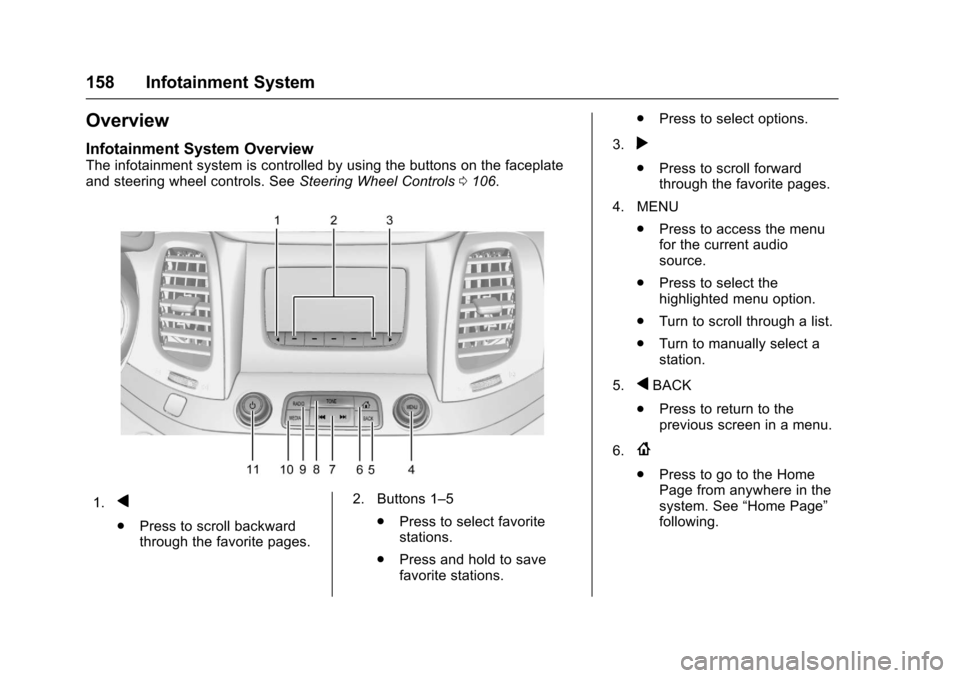
The infotainment system is controlled by using the buttons on the faceplate
and steering wheel controls. SeeSteering Wheel Controls0106.
1.q
.
Press to scroll backward
through the favorite pages. 2. Buttons 1–5
.Press to select favorite
stations.
. Press and hold to save
favorite stations. .
Press to select options.
3.
r
. Press to scroll forward
through the favorite pages.
4. MENU .Press to access the menu
for the current audio
source.
. Press to select the
highlighted menu option.
. Turn to scroll through a list.
. Turn to manually select a
station.
5.
qBACK
. Press to return to the
previous screen in a menu.
6.
{
. Press to go to the Home
Page from anywhere in the
system. See “Home Page”
following.
Page 163 of 378
Chevrolet Impala Owner Manual (GMNA-Localizing-U.S./Canada-9921197) -
2017 - crc - 3/30/16
162 Infotainment System
Radio
AM-FM Radio
Playing the Radio
While on the audio main page,
press the RADIO or MEDIA button
repeatedly to display and scroll
through the available sources: AM,
FM, and SiriusXM
®(if equipped),
USB, SD, and AUX.
The steering wheel controls can
also be used to adjust the volume.
See Steering Wheel Controls 0106.
AM, FM, SiriusXM (If Equipped)
To select AM, FM, or SiriusXM (if
equipped):
1. Press
{.
2. Turn the MENU knob to highlight the AUDIO
screen icon.
3. Press the MENU knob to select. 4. Turn the MENU knob to
highlight either AM, FM,
or SiriusXM (if equipped) and
press MENU to select.
Press the RADIO faceplate button
to display and change the radio
source. Press the MENU knob and
the following radio settings may
display:
Tone Settings:
. Bass, Midrange, and Treble :
Turn the MENU knob to
highlight. Press the MENU knob
to select. Turn the MENU knob
to adjust.
. Balance : Turn the MENU knob
to highlight. Press the MENU
knob to select. Turn the MENU
knob left for more sound from
the left speakers or right for
more sound from the right
speakers. The middle position
balances the sound between the
left and right speakers.
. Fade : Turn the MENU knob to
highlight. Press the MENU knob
to select. Turn the MENU knob
to the left for more sound from the front speakers and to the
right for more sound from the
rear speakers. The middle
position balances the sound
between the front and rear
speakers.
. EQ (Equalizer) : Turn the MENU
knob to highlight. Turn the
MENU knob to scroll through the
options. Press the MENU knob
to select. Press
qBACK button
to go to the previous menu.
Station List : Select to display a list
of AM or FM stations. Press
q
BACK to go to the previous menu.
Auto Volume : If equipped, this
feature adjusts the volume based on
the vehicle speed. Select the level
between off, low, medium-low,
medium, medium-high, and high.
Press
qBACK to go to the
previous menu.
EQ (Equalizer) Settings :
If equipped with a Bose Sound
System, the available choices are
Manual and Talk.