2017 CHEVROLET COLORADO radio controls
[x] Cancel search: radio controlsPage 140 of 419
Chevrolet Colorado Owner Manual (GMNA-Localizing-U.S./Canada/Mexico-10122675) - 2017 - crc - 8/22/16
Instruments and Controls 139
TO EXIT 4WD LOW SLOW
TO XXX
If a four-wheel drive shift out ofFour-Wheel Drive Low is requested,but the vehicle speed is too high,this message will display until thecorrect vehicle speed is reached.
TO EXIT 4WD LOW SHIFT TO
NEUTRAL
If a four-wheel drive shift out ofFour-Wheel Drive Low is requested,and the vehicle speed is correct, butthe transmission is not inN(Neutral), this message willdisplay until the transmission isshifted to N (Neutral).
TRANSMISSION HOT IDLE
ENGINE
This message displays and a chimemay sound if the transmission fluidin the vehicle gets hot. Driving withthe transmission fluid temperaturehigh can cause damage to thevehicle. Stop the vehicle and let itidle to allow the transmission tocool. This message clears and thechime stops when the fluidtemperature reaches a safe level.
When towing, use Tow/Haul Modeto prevent damage to the engine ortransmission. SeeTo w / H a u lMode0245.
VEHICLE IN 4WD LOW
This message will display if thevehicle is driven in Four-WheelDrive Low for about 10 minutesabove 72 km/h (45 mph).
Vehicle Reminder
Messages
ICE POSSIBLE DRIVE
WITH CARE
This message is displayed when iceconditions are possible.
Vehicle Speed Messages
REDUCE SPEED FOR HILL
DESCENT CONTROL
This message displays whenattempting to enable Hill DescentControl (HDC) when the vehiclespeed is too high. SeeHill DescentControl (HDC)0258.
Vehicle
Personalization
Use the audio system controls toaccess the personalization menusfor customizing vehicle features.
The following are all possiblepersonalization features. Dependingon the vehicle, some may not beavailable.
Base Radio Audio SystemControls
MENU :Press the center of theknob to enter menus and selectmenu items. Turn the knob to scrollthrough the menus.
oBACK :Press to return to theprevious menu or exit.
Uplevel Radio Audio SystemControls
1. Touch the desired feature todisplay a list of availableoptions.
2. Touch to select the desiredfeature setting.
Page 141 of 419

Chevrolet Colorado Owner Manual (GMNA-Localizing-U.S./Canada/Mexico-10122675) - 2017 - crc - 8/22/16
140 Instruments and Controls
3. PressoBACK on the
faceplate or touch0screen
button to return to the previousmenu or exit.
Turn the vehicle to ON/RUN toaccess the Settings menu, thenselect SETTINGS from the Homepage on the infotainment display.
Personalization Menus
The following list of menu items maybe available:
.Time and Date
.Language (Language)
.Rear Seat Reminder
.Te e n D r i v e r
.Va l e t M o d e
.Radio
.Vehicle
.Bluetooth
.Apple CarPlay
.Android Auto
.Voice
.Display
.Rear Camera
.Return to Factory Settings
.Software Information
Detailed information for each menufollows.
Time and Date
Manually set the time and date. SeeClock0106.
Language (Language)
Select Language, then select fromthe available language(s).
The selected language will displayon the system, and voicerecognition will reflect the selectedlanguage.
Rear Seat Reminder
This allows for a chime and amessage“Look in Rear Seat”whenthe rear door has been openedbefore or during operation of thevehicle.
Select Off or On.
Teen Driver
See“Te e n D r i v e r”under“Settings”in the infotainment manual.
Valet Mode (If Equipped)
This will lock the infotainmentsystem and steering wheel controls.It may also limit access to vehiclestorage locations (if equipped).
To e n a b l e v a l e t m o d e :
1. Enter a four-digit code on thekeypad.
2. Select Enter to go to theconfirmation screen.
3. Re-enter the four-digit code.
To u c h L O C K o r U N L O C K t o l o c k o runlock the system. Touch Back togo back to the previous menu.
Radio
To u c h t o d i s p l a y t h e R a d i o m e n uand the following may display:
.Manage Favorites
.Number of Favorites Shown
.Audible Touch Feedback
.Auto Volume
Page 142 of 419
Chevrolet Colorado Owner Manual (GMNA-Localizing-U.S./Canada/Mexico-10122675) - 2017 - crc - 8/22/16
Instruments and Controls 141
.Maximum Startup Volume
Manage Favorites
This allows favorites to be edited.See“Manage Favorites”in“RadioSetup”underHome Page (BaseRadio)0158orHome Page (BaseRadio with Touchscreen)0160or“Manage Favorites”in“Settings”under“Radio”in the infotainmentmanual.
Number of Favorites Shown
To u c h t o s e t t h e n u m b e r o f f a v o r i t e sto display.
Select the desired number or selectAuto and the infotainment systemwill automatically adjust the numberof favorites shown.
Audible Touch Feedback
This allows Audible TouchFeedback to be turned on or off.
Select Off or On.
Auto Volume
This feature adjusts the volumebased on vehicle speed andambient noise.
Select Off, Low, Medium-Low,Medium, Medium-High, or High.
Maximum Startup Volume
This feature sets the maximumstartup volume. If the vehicle isstarted and the volume is greaterthan this level, the volume isadjusted to this level. To set themaximum startup volume, touch +or✓to increase or decrease.
Vehicle
Select and the following maydisplay:
.Climate and Air Quality
.Comfort and Convenience
.Lighting
.Power Door Locks
.Remote Lock, Unlock, Start
Climate and Air Quality
Select and the following maydisplay:
.Auto Fan Speed
.Auto Defog
.Auto Rear Defog
Auto Fan Speed
This feature will set the maximumauto fan speed.
Select Low, Medium, or High.
Auto Defog
This allows the feature to be turnedon or off.
Select Off or On.
Auto Rear Defog
This allows the feature to be turnedon or off.
Select Off or On.
Comfort and Convenience
Select and the following maydisplay:
.Chime Volume
Chime Volume
This allows the selection of thechime volume level.
Select + or✓to adjust the volume.
Page 144 of 419
Chevrolet Colorado Owner Manual (GMNA-Localizing-U.S./Canada/Mexico-10122675) - 2017 - crc - 8/22/16
Instruments and Controls 143
Remote Start Auto Heat Seats
If equipped and turned on, thisfeature will turn the heated seats onwhen using remote start oncold days.
Select Off or On.
Bluetooth
Select and the following maydisplay:
.Pair New Device
.Device Management
.Ringtones
.Voice Mail Numbers
.Te x t M e s s a g e A l e r t s
Pair New Device
Select to pair a new device. See“Pairing”underBluetooth(Overview)0187orBluetooth(Infotainment Controls - BaseRadio)0188orBluetooth (VoiceRecognition)0192orBluetooth(Infotainment Controls - Base Radiowith Touchscreen)0197or“Pairing”
in“Infotainment Controls”under“Bluetooth”in the infotainmentmanual.
Device Management
Select to connect to a differentphone source, disconnect a phone,or delete a phone.
Ringtones
To u c h t o c h a n g e t h e r i n g t o n e f o rthe specific phone. The phone doesnot need to be connected to changethe ring tones.
Voice Mail Numbers
This feature displays the voice mailnumber for all connected phones.To c h a n g e t h e v o i c e m a i l n u m b e r ,select EDIT or touch the EDITbutton. Type a new number, thenselect SAVE or touch the SAVEbutton.
Text Message Alerts
This allows the feature to be turnedon or off.
Select Off or On.
Apple CarPlay™
Select and the following maydisplay:
.Apple CarPlay
.Manage Apple CarPlay Devices
Apple CarPlay
This feature allows Apple devices tobe connected to the infotainmentsystem through a USB port. See“Apple CarPlay and Android Auto”under“Phone”in the infotainmentmanual.
Select Off or On.
Manage Apple CarPlay Devices
Select to manage Apple devices.Apple CarPlay must be on for thisfeature to be accessed. See“AppleCarPlay and Android Auto”under“Phone”in the infotainment manual.
Android Auto™
Select and the following maydisplay:
.Android Auto
.Manage Android Auto Devices
Page 145 of 419

Chevrolet Colorado Owner Manual (GMNA-Localizing-U.S./Canada/Mexico-10122675) - 2017 - crc - 8/22/16
144 Instruments and Controls
Android Auto
This feature allows Android devicesto be connected to the infotainmentsystem through a USB port. See“Apple CarPlay and Android Auto”under“Phone”in the infotainmentmanual.
Select Off or On.
Manage Android Auto Devices
Select to manage Android devices.Android Auto must be on for thisfeature to be accessed. See“AppleCarPlay and Android Auto”under“Phone”in the infotainment manual.
Voice
Select and the following maydisplay:
.Confidence Threshold
.Prompt Length
.Audio Feedback Speed
.Display“What Can I Say?”Tips
Confidence Threshold
This feature allows the adjustmentof the sensitivity of the speechrecognition system.
Select Confirm More orConfirm Less.
Prompt Length
This feature adjusts the voiceprompt length.
Select Short or Long.
Audio Feedback Speed
This feature adjusts the audiofeedback speed.
Select Slow, Medium, or Fast.
Display“What Can I Say?”Tips
This feature gives voicecommand tips.
Select Off or On.
Display
Select and the following maydisplay:
.Mode
.Calibrate Touchscreen
.Turn Display Off
Mode
Select to change the displayscreen mode.
Select Auto, Day, or Night.
Calibrate Touchscreen
Select to calibrate the touchscreen,then follow the prompts.
Turn Display Off
Select to turn the display off. Touchanywhere on the display area or anyfaceplate button to turn thedisplay on.
Rear Camera
Select and the following maydisplay:
.Guidance Lines
Guidance Lines
Select to turn Off or On. SeeRearVision Camera (RVC)0261.
Return to Factory Settings
Select and the following maydisplay:
.Restore Vehicle Settings
.Clear All Private Data
.Restore Radio Settings
Page 146 of 419
Chevrolet Colorado Owner Manual (GMNA-Localizing-U.S./Canada/Mexico-10122675) - 2017 - crc - 8/22/16
Instruments and Controls 145
Restore Vehicle Settings
This allows selection of restoringvehicle settings.
Select Restore or Cancel.
Clear All Private Data
Select to clear all private informationfrom the vehicle.
Select Delete or Cancel.
Restore Radio Settings
This allows selection to restoreradio settings.
Select Restore or Cancel.
Software Information
Select to view the infotainmentsystem current software information.
Page 154 of 419
Chevrolet Colorado Owner Manual (GMNA-Localizing-U.S./Canada/Mexico-10122675) - 2017 - crc - 8/22/16
Infotainment System 153
Infotainment
System
Introduction
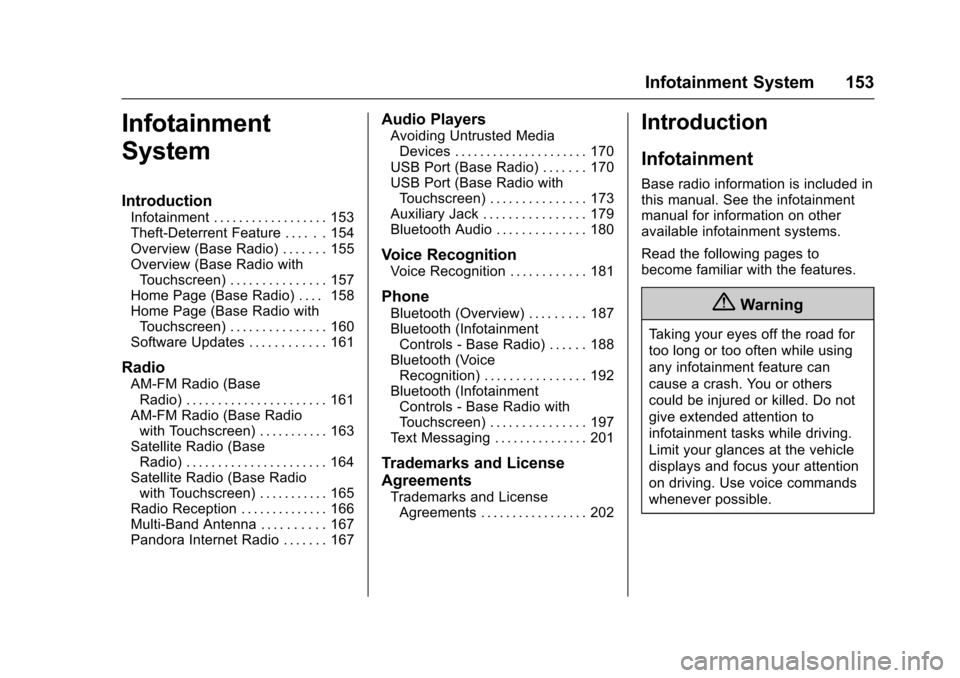
Infotainment . . . . . . . . . . . . . . . . . . 153Theft-Deterrent Feature . . . . . . 154Overview (Base Radio) . . . . . . . 155Overview (Base Radio withTo u c h s c r e e n ) . . . . . . . . . . . . . . . 1 5 7Home Page (Base Radio) . . . . 158Home Page (Base Radio withTo u c h s c r e e n ) . . . . . . . . . . . . . . . 1 6 0Software Updates . . . . . . . . . . . . 161
Radio
AM-FM Radio (BaseRadio) . . . . . . . . . . . . . . . . . . . . . . 161AM-FM Radio (Base Radiowith Touchscreen) . . . . . . . . . . . 163Satellite Radio (BaseRadio) . . . . . . . . . . . . . . . . . . . . . . 164Satellite Radio (Base Radiowith Touchscreen) . . . . . . . . . . . 165Radio Reception . . . . . . . . . . . . . . 166Multi-Band Antenna . . . . . . . . . . 167Pandora Internet Radio . . . . . . . 167
Audio Players
Avoiding Untrusted MediaDevices . . . . . . . . . . . . . . . . . . . . . 170USB Port (Base Radio) . . . . . . . 170USB Port (Base Radio withTo u c h s c r e e n ) . . . . . . . . . . . . . . . 1 7 3Auxiliary Jack . . . . . . . . . . . . . . . . 179Bluetooth Audio . . . . . . . . . . . . . . 180
Voice Recognition
Voice Recognition . . . . . . . . . . . . 181
Phone
Bluetooth (Overview) . . . . . . . . . 187Bluetooth (InfotainmentControls - Base Radio) . . . . . . 188Bluetooth (VoiceRecognition) . . . . . . . . . . . . . . . . 192Bluetooth (InfotainmentControls - Base Radio withTo u c h s c r e e n ) . . . . . . . . . . . . . . . 1 9 7Te x t M e s s a g i n g . . . . . . . . . . . . . . . 2 0 1
Trademarks and License
Agreements
Trademarks and LicenseAgreements . . . . . . . . . . . . . . . . . 202
Introduction
Infotainment
Base radio information is included inthis manual. See the infotainmentmanual for information on otheravailable infotainment systems.
Read the following pages tobecome familiar with the features.
{Warning
Ta k i n g y o u r e y e s o f f t h e r o a d f o r
too long or too often while using
any infotainment feature can
cause a crash. You or others
could be injured or killed. Do not
give extended attention to
infotainment tasks while driving.
Limit your glances at the vehicle
displays and focus your attention
on driving. Use voice commands
whenever possible.
Page 155 of 419
Chevrolet Colorado Owner Manual (GMNA-Localizing-U.S./Canada/Mexico-10122675) - 2017 - crc - 8/22/16
154 Infotainment System
The infotainment system has built-infeatures intended to help avoiddistraction by disabling somefunctions when driving. Thesefunctions may gray out when theyare unavailable. Many infotainmentfeatures are also available throughthe instrument cluster and steeringwheel controls.
Before driving:
.Become familiar with theoperation, faceplate buttons, andscreen buttons.
.Set up the audio by presettingfavorite stations, setting thetone, and adjusting thespeakers.
.Set up phone numbers inadvance so they can be calledeasily by pressing a singlebutton or by using a single voicecommand if equipped withBluetooth phone capability.
SeeDefensive Driving0215.
To p l a y t h e i n f o t a i n m e n t s y s t e m w i t hthe ignition off, seeRetainedAccessory Power (RAP)0237.
Theft-Deterrent Feature
TheftLock®is designed todiscourage theft of the vehicle'sradio by learning a portion of theVehicle Identification Number (VIN).The radio does not operate if it isstolen or moved to a differentvehicle.