2017 CHEVROLET COLORADO ECO mode
[x] Cancel search: ECO modePage 178 of 419
Chevrolet Colorado Owner Manual (GMNA-Localizing-U.S./Canada/Mexico-10122675) - 2017 - crc - 8/22/16
Infotainment System 177
To n e S e t t i n g s
.To u c h To n e S e t t i n g s . T h e To n eSettings menu is displayed. See“To n e S e t t i n g s”inAM-FM Radio(Base Radio)0161orAM-FMRadio (Base Radio withTo u c h s c r e e n )0163.
Auto Volume
.To u c h A u t o V o l u m e . T h e A u t oVolume menu is displayed. See“Auto Volume”inAM-FM Radio(Base Radio)0161orAM-FMRadio (Base Radio withTo u c h s c r e e n )0163.
Tr a f f i c P r o g r a m(If Equipped)
.To u c h O n o r O f f .
MTP (Media Transfer Protocol)
.Connect a MTP supporteddevice.
.Play will start automatically afterthe system has finished readingthe MTP device.
.If a non-readable MTP device isconnected, an error messagedisplays and the system willswitch to the previous audiofunction.
iPod/iPhone Player
This feature is limited to modelssupporting the iPod/iPhoneconnection.
Playing Music Files
.Connect the iPod/iPhone to theUSB port.
.Play will start from the previouslyplayed point after the systemhas finished reading the USBdevice.
.If a non-readable USB device isconnected, an error messagedisplays and the system willswitch to the previous audiofunction.
If the iPod/iPhone is alreadyconnected:
1. Press{.
2. Touch AUDIO.
3. Touch Source.
4. Touch iPod.
To s t o p t h e d e v i c e a n d s e l e c tanother media source, touchSource, then select the othersource.
To r e m o v e t h e d e v i c e , s e l e c tanother function, then remove thedevice.
Pause
.To u c hjto pause.
.To u c hrto resume.
Changing to Next/Previous Song
.To u c hlto change to the
next song.
.To u c hgwithin two seconds of
the playback time to play theprevious file.
Returning to the Beginning of theCurrent File
To u c hgafter two seconds of the
playback time.
Scanning Forward or Backward
To u c h a n d h o l dgorlduring
playback to rewind or fast forward.Release the button to resumeplayback at normal speed.
Playing a File Randomly
To u c hZduring playback.
Page 179 of 419

Chevrolet Colorado Owner Manual (GMNA-Localizing-U.S./Canada/Mexico-10122675) - 2017 - crc - 8/22/16
178 Infotainment System
.ON: Plays all files randomly.
.OFF: Returns to normalplayback.
Using the iPod Menu
.To u c h M e n u d u r i n g p l a y b a c k .
.To u c h t h e a p p r o p r i a t eplay mode.
Browse Music
1. Touch Browse Music.
2. Touch the desired music.
To n e S e t t i n g s
.To u c h To n e S e t t i n g s . T h e To n eSettings menu is displayed. See“To n e S e t t i n g s”inAM-FM Radio(Base Radio)0161orAM-FMRadio (Base Radio withTo u c h s c r e e n )0163.
Auto Volume
.To u c h A u t o V o l u m e . T h e A u t oVolume menu is displayed. See“Auto Volume”inAM-FM Radio(Base Radio)0161orAM-FMRadio (Base Radio withTo u c h s c r e e n )0163.
Picture System Information
The infotainment system can viewpicture files stored on a USBstorage device and devices thatsupport Media TransferProtocol (MTP).
.Supported file extensions: .jpg,.bmp, .png, .gif.
.Animated GIF files are notsupported.
.Some files may not operate dueto a different recording format orthe condition of the file.
Viewing Pictures
1. Connect the USB device to theUSB port.
2. Touch the screen to open to fullscreen. Touch the screen againto return to the previousscreen.
If the USB device is alreadyconnected:
1. Touch{.
2. Touch GALLERY.
Some features are disabled whilethe vehicle is in motion.
Viewing a Slide Show
1. Touchzfrom the picture
screen.
2. Touch the screen to cancel theslide show during the slideshow playback.
Viewing a Previous or NextPicture
To u c hSorTfrom the picture
screen.
Rotating a Picture
To u c hwfrom the picture screen.
Enlarging a Picture
To u c hxfrom the picture screen.
Using the USB Picture Menu
1. Touch MENU from the picturescreen.
2. Touch the appropriate menu:
.Slide Show Time: Allowsselection of the slide showinterval.
Page 182 of 419
Chevrolet Colorado Owner Manual (GMNA-Localizing-U.S./Canada/Mexico-10122675) - 2017 - crc - 8/22/16
Infotainment System 181
Voice Recognition
If equipped, voice recognition allowsfor hands-free operation within theaudio and phone applications. Thisfeature can be started by pressinggon the steering wheel or by
selectinggon the infotainment
display.
However, not all features withinthese areas are supported by voicecommands. Generally, only complextasks that require multiple manualinteractions to complete aresupported by voice commands.
For example, tasks that take morethan one or two button presses suchas selecting a song or artist to playfrom a media device would besupported by voice commands.Other tasks, like adjusting thevolume or seeking up or down areaudio features that are easilyperformed by pressing one or twobuttons, and are not supported byvoice commands.
In general there are flexible ways tospeak commands for completing thetasks. Most of them, except
destination entry and voice keypad,can be completed in a singlecommand. If the task takes morethan one command to complete, thefirst command would be to indicatethe kind of task that is to beperformed. The system replies withprompts that lead through a dialogto enter the necessary information.
Voice recognition can be used whenthe ignition is on or when RetainedAccessory Power (RAP) is active.SeeRetained Accessory Power(RAP)0237.
Using Voice Recognition
Voice recognition becomes availableonce the system has beeninitialized. This begins when theignition is turned on. Initializationmay take a few moments.
1. Pressgon the steering wheel
to activate voice recognition,
or selectgon the infotainment
display.
.If voice recognition isstarted from the steeringwheel control, the
instrument cluster displaysthe selections and visualdialog content.
.If voice recognition isstarted from theinfotainment display, theselections and visual dialogcontent appear on both theinfotainment display andthe instrument clusterdisplay.
2. The audio system mutes andthe system plays a promptfollowed by a beep.
3. Wait until after the beepcompletes, then clearly speakone of the commandsdescribed in this section.
Pressgto interrupt any voice
recognition system prompt. Forexample, if the prompt seemsto be taking too long to finish,
pressgagain and the beep
should happen right away.
There are two voice prompt modessupported:
Page 188 of 419
Chevrolet Colorado Owner Manual (GMNA-Localizing-U.S./Canada/Mexico-10122675) - 2017 - crc - 8/22/16
Infotainment System 187
Phone
Bluetooth (Overview)
Instructions for using the cell phonemay differ between infotainmentsystems. The base radio and baseradio with touchscreen instructionsare included in this manual. See theinfotainment manual for instructionson the uplevel radios.
Bluetooth-capable systems caninteract with many cell phones,allowing:
.Placement and receipt of calls inahands-freemode.
.Sharing of the cell phone’saddress book or contact list withthe vehicle.
To m i n i m i z e d r i v e r d i s t r a c t i o n ,before driving, and with the vehicleparked:
.Become familiar with thefeatures of the cell phone.Organize the phone book andcontact lists clearly and delete
duplicate or rarely used entries.If possible, program speed dialor other shortcuts.
.Review the controls andoperation of the infotainmentsystem.
.Pair cell phone(s) to the vehicle.The system may not work withall cell phones. See“Pairing”inthis section.
.If the cell phone has voicedialing capability, learn to usethat feature to access theaddress book or contact list.
.See“Deleting a Paired Phone”and/or“Deleting a BluetoothDevice”in this section.
{Warning
When using a cell phone, it can
be distracting to look too long or
too often at the screen of the
phone or the infotainment system.
Ta k i n g y o u r e y e s o f f t h e r o a d t o o
long or too often could cause a
crash resulting in injury or death.
Focus your attention on driving.
Vehicles with a Bluetooth systemcan use a Bluetooth-capable cellphone with a Hands-Free Profile tomake and receive phone calls. Theinfotainment system and voicerecognition are used to control thesystem. The system can be usedwhile in ON/RUN or ACC/ACCESSORY. The range of theBluetooth system can be up to 9.1 m(30 ft). Not all phones support allfunctions and not all phones workwith the Bluetooth system. Seewww.gm.com/bluetooth or see yourdealer for more information aboutcompatible phones.
Bluetooth Controls
Use the controls on the infotainmentdisplay, center stack, and thesteering wheel to operate theBluetooth system.
Steering Wheel Controls
SeeSteering Wheel Controls0104.
Page 189 of 419
Chevrolet Colorado Owner Manual (GMNA-Localizing-U.S./Canada/Mexico-10122675) - 2017 - crc - 8/22/16
188 Infotainment System
Infotainment System Controls
For information about how tonavigate the menu system using theinfotainment controls, seeOverview(Base Radio)0155orOverview(Base Radio withTo u c h s c r e e n )0157.
MENU :Turn to scroll through a list.Press to select the highlighted listoption.
{:Press to go to the Home Page.SeeHome Page (Base Radio)0158orHome Page (Base Radiowith Touchscreen)0160.
#:Select to enter the phone mainmenu. SeeBluetooth (Overview)0187orBluetooth (InfotainmentControls - Base Radio)0188orBluetooth (Voice Recognition)0192orBluetooth (Infotainment Controls -Base Radio withTo u c h s c r e e n )0197.
Voice Recognition
If equipped, the voice recognitionsystem uses commands to controlthe system and dial phone numbers.
Noise :The system may notrecognize voice commands if thereis too much background noise, suchas noise from open windows or loudtalking inside the vehicle.
When to Speak :Atonesoundstoindicate that the system is ready foravoicecommand.Waitforthetoneand then speak.
How to Speak :Speak clearly in acalm and natural voice.
Audio System
When using the Bluetooth system,sound comes through the vehicle'sfront audio system speakers andoverrides the audio system. Use theOknob during a call to change thevolume level. The system maintainsaminimumvolumelevel.
Bluetooth Audio Quality
Turn off the Echo and Noisecancellation feature on your phone,if supported, for the best hands-freeperformance.
See www.gm.com/bluetooth or seeyour dealer.
Bluetooth (Infotainment
Controls - Base Radio)
For information about how tonavigate the menu system using theinfotainment controls, seeOverview(Base Radio)0155orOverview(Base Radio withTo u c h s c r e e n )0157.
Switching to Handset or
Hands-Free Mode
To s w i t c h b e t w e e n h a n d s e t m o d eand hands-free mode, use theOnStar command,“transfer call.”
Pairing
ABluetooth-enabledcellphonemust be paired to the Bluetoothsystem and then connected to thevehicle before it can be used. Seeyour cell phone manufacturer's userguide for Bluetooth functions beforepairing the cell phone. If a Bluetoothphone is not connected, calls canbe made using OnStar Hands-FreeCalling, if available. SeeOnStarOverview0397,ifequipped.
Page 201 of 419
Chevrolet Colorado Owner Manual (GMNA-Localizing-U.S./Canada/Mexico-10122675) - 2017 - crc - 8/22/16
200 Infotainment System
versions over 1.2 must beregistered and connected to theproduct.
.From the cell phone or Bluetoothdevice, find the Bluetooth devicetype to set/connect the item as astereo headset.
.ewill appear on the screen if
the stereo headset issuccessfully connected.
.The sound played by theBluetooth device is deliveredthrough the infotainment system.
.Bluetooth music can be playedonly when a Bluetooth devicehas been connected. To playBluetooth music, connect theBluetooth phone to theinfotainment system.
.If the Bluetooth device isdisconnected while playingphone music, the music isdiscontinued. The audiostreaming function may not besupported in some Bluetoothphones. Only one function canbe used at a time between theBluetooth hands-free or Phone
music function. For example,if you convert to Bluetoothhands-free while playing Phonemusic, the music isdiscontinued. Playing music fromthe car is not possible whenthere are no music files stored inthe cell phone.
Playing Bluetooth Music
1. Press{.
2. Touch AUDIO.
3. Touch Source.
4. Touch Bluetooth.
Pause
To u c hjto pause.
To u c hrto resume.
Playing the Next Song
To u c hl.
Playing the Previous Song
To u c hgwithin two seconds of
playback time to play theprevious song.
Returning to the Beginning of theCurrent Song
To u c hgafter two seconds of
playback time.
Search
To u c h a n d h o l dgorlto rewind
or fast forward.
Playing Music Randomly
To u c hZduring playback. Touch
again to return to normal play.
This function may not be supporteddepending on the Bluetooth device.
Do not change the track too quicklywhen playing Bluetooth music.
Conditions that may occur whenplaying Bluetooth music:
.It takes time to transmit datafrom the Bluetooth device to theinfotainment system.
.If the cell phone or Bluetoothdevice is not in the waitingscreen mode, it may notautomatically play.
Page 209 of 419
Chevrolet Colorado Owner Manual (GMNA-Localizing-U.S./Canada/Mexico-10122675) - 2017 - crc - 8/22/16
208 Climate Controls
Climate Controls
Climate Control Systems
Climate Control Systems . . . . . 208Automatic Climate ControlSystem . . . . . . . . . . . . . . . . . . . . . . 210
Air Vents
Air Vents . . . . . . . . . . . . . . . . . . . . . 212
Maintenance
Passenger Compartment AirFilter . . . . . . . . . . . . . . . . . . . . . . . . 213
Climate Control Systems
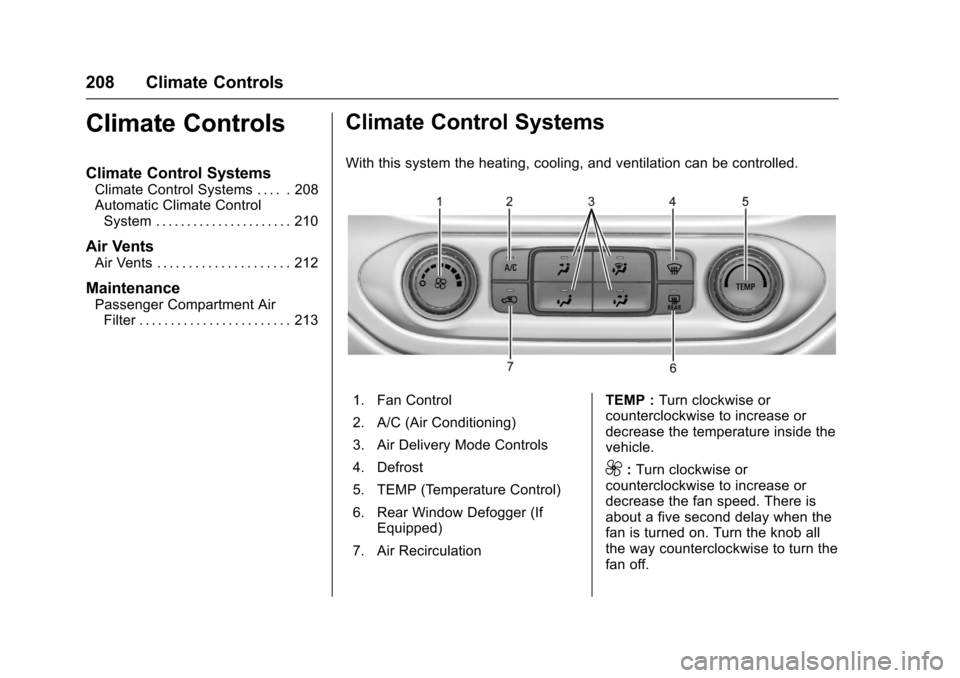
With this system the heating, cooling, and ventilation can be controlled.
1. Fan Control
2. A/C (Air Conditioning)
3. Air Delivery Mode Controls
4. Defrost
5. TEMP (Temperature Control)
6. Rear Window Defogger (IfEquipped)
7. Air Recirculation
TEMP :Turn clockwise orcounterclockwise to increase ordecrease the temperature inside thevehicle.
9:Turn clockwise orcounterclockwise to increase ordecrease the fan speed. There isabout a five second delay when thefan is turned on. Turn the knob allthe way counterclockwise to turn thefan off.
Page 211 of 419

Chevrolet Colorado Owner Manual (GMNA-Localizing-U.S./Canada/Mexico-10122675) - 2017 - crc - 8/22/16
210 Climate Controls
Automatic Climate Control System
With this system the heating, cooling, and ventilation in the vehicle can becontrolled.
1. Fan Control
2. A/C (Air Conditioning)
3. Air Delivery Mode Controls
4. Defrost
5. Temperature Control
6. AUTO (Automatic Operation)
7. Rear Window Defogger
8. Air Recirculation
9. Power Button
Automatic Operation
The system automatically heats orcools the vehicle to the desiredtemperature:
.Fan Speed
.Air Delivery Mode
.Air Conditioning
.Recirculation
When AUTO is lit, all functionsoperate automatically. Each functioncan also be manually set. Functionsnot manually set will continue to beautomatically controlled.
To p l a c e t h e s y s t e m i n f u l l a u t o m a t i coperation:
1. Press AUTO.
2. Set the temperature.
To f i n d y o u r c o m f o r t s e t t i n g ,start with 22 °C (72 °F) andallow the system time tostabilize. Then adjust thetemperature as needed for bestcomfort.
To i m p r o v e f u e l e f f i c i e n c y a n d t ocool the vehicle faster, recirculationmay be automatically selected inwarm weather.
The recirculation light will not comeon when automatically controlled.
Press@to manually select
recirculation; press it again to selectoutside air.