2017 CHEVROLET BOLT EV phone
[x] Cancel search: phonePage 115 of 361
Chevrolet Bolt EV Owner Manual (GMNA-Localizing-U.S./Canada/Mexico-
10122739) - 2017 - CRC - 10/3/16
114 Instruments and Controls
Phone
In the Phone menu, if there is no
active phone call, view recent calls,
scroll through contacts, or select
from the favorites. If there is an
active call, mute or unmute the
phone or switch to handset or
handsfree operation.
Onstar Navigation
This display is used for OnStar
Turn-by-Turn guidance, if equipped.
Layout
Choose Classic, Modern,
or Enhanced layout by pressing
V
while the desired item is highlighted.
Exit the Layout menu by
pressing
o.
Options
PressVto select the Options app.
Use
worxto scroll through the
items in the Options menu. Exit the
Options menu by pressing
o. Units :
Press
pwhile Units is
displayed to enter the Units menu.
Use
worxto scroll through the
items. Choose U.S., Metric,
or Imperial by pressing
Vwhile the
desired item is highlighted.
Speed Warning : The speed
warning display allows the driver to
set a speed that they do not want to
exceed. To set the speed warning,
press
Vwhen Speed Warning is
displayed. Press
worxto adjust
the value. Press
Vto set the speed.
Once set, this feature can be turned
off by pressing
Vwhile viewing this
page. If the selected speed limit is
exceeded, a pop-up warning is
displayed and a chime may sound.
Help : Press
pwhile Help is
displayed to enter the Help menu.
Use
worxto scroll through the
items in the Help menu.
Open Source Software : Press
V
while Open Source Software is
highlighted to display open source
software information.
Speedometer
The speedometer shows the
vehicle's speed in either kilometers
per hour (km/h) or miles per
hour (mph).
Odometer
The odometer shows how far the
vehicle has been driven, in either
kilometers or miles.
Trip Odometer
The trip odometer shows how far
the vehicle has been driven since
the trip odometer was last reset.
The trip odometer is accessed and
reset through the Driver Information
Center (DIC). SeeDriver
Information Center (DIC) 0133.
Page 143 of 361

Chevrolet Bolt EV Owner Manual (GMNA-Localizing-U.S./Canada/Mexico-
10122739) - 2017 - CRC - 10/3/16
142 Instruments and Controls
Vehicle
Personalization
Use the audio system controls to
access the personalization menus
for customizing vehicle features.
The following are all possible
personalization features. Depending
on the vehicle, some may not be
available.
{:Touch to access the
Home Page.
T: Touch to access the Icon view.
Y: Drag the scroll bar to navigate
the list.
0 :Touch to exit or return to the
previous screen or menu.
To access the menu:
1. Touch
T.
2. Touch Settings.
3. Touch the menu item to select it.
Each of the menus is detailed in the
following information.
Personalization Menu
The following list of menu items may
be available:
. Time and Date
. Rear Seat Reminder
. Language (Language)
. Teen Driver
. Radio Settings
. Vehicle
. Devices
. Device Remote Access
. Bluetooth Phone
. Apple CarPlay
. Android Auto
. KeyPass
. USB Auto Launch
. Wi-Fi
. Display Settings
. Rear Camera
. Return to Factory Settings
. Audible Touch Feedback
. Text Scroll .
Software Information
Each menu is detailed in the
following information.
Time and Date
Manually set the time and date. See
“Time and Date” inClock 0108.
Rear Seat Reminder
This message displays under
certain conditions indicating there
may be an item or passenger in the
rear seat. Check before exiting the
vehicle.
This feature allows for a chime and
a message when the rear door has
been opened before or during
operation of the vehicle.
Select Off or On.
Language (Language)
Select Language, then select from
the available language(s).
Teen Driver
See Teen Driver 0178.
Page 146 of 361

Chevrolet Bolt EV Owner Manual (GMNA-Localizing-U.S./Canada/Mexico-
10122739) - 2017 - CRC - 10/3/16
Instruments and Controls 145
.Remote Start Auto Heat Seats
. Passive Door Unlock
. Passive Door Lock
. Remote Left in Vehicle Alert
Remote Unlock Light Feedback
When on, the exterior lamps will
flash when unlocking the vehicle
with the RKE transmitter.
Select Off or Flash Lights
Remote Lock Feedback
This allows selection of what type of
feedback is given when locking the
vehicle with the RKE transmitter.
Select Off, Lights and Horn, Lights
Only, or Horn Only.
Remote Door Unlock
This allows selection of which doors
will unlock when pressing
Kon the
RKE transmitter.
Select All Doors or Driver Door. Remote Start Auto Heat Seats
If equipped and turned on, this
feature will turn the heated seats on
when using remote start on
cold days.
Select Off or On.
Passive Door Unlock
This allows the selection of what
doors will unlock when using the
button on the outside driver door
handle to unlock the vehicle.
Select All Doors or Driver
Door Only.
Passive Door Lock
This allows passive locking to be
turned on or off and selects
feedback.
Select Off, On with Horn
Chirp, or On.
Remote Left in Vehicle Alert
This feature sounds an alert when
the RKE transmitter is left in the
vehicle.
Select Off or On.
Devices
This shows status of the connected
device.
Touch Add Device if a device needs
to be added.
Device Remote Access
This will allow devices to control
system functionality and
access data.
Select Off or On.
Bluetooth Phone
This allows the connected Bluetooth
phone to be configured. See
“Bluetooth Phone”
inSettings 0177.
. My Number
. Privacy
. Sort Contacts
. Resync Device Contacts
My Number
This displays the phone number of
the connected Bluetooth device.
Page 147 of 361

Chevrolet Bolt EV Owner Manual (GMNA-Localizing-U.S./Canada/Mexico-
10122739) - 2017 - CRC - 10/3/16
146 Instruments and Controls
Privacy
This allows call alerts to appear on
the infotainment display.
Select Off or On.
Sort Contacts
Touch to sort by first or last name.
Resync Device Contacts
This resyncs the contacts on the
phone.
Apple CarPlay™
This feature allows Apple devices to
be connected to the infotainment
system through a USB port.
Select Off or On.
Android Auto™
This feature allows Android devices
to be connected to the infotainment
system through a USB port.
Select Off or On.
KeyPass
Select and the following may
display:
.KeyPass .
Manage KeyPass Devices
KeyPass
This feature allows smartphones to
be connected to the vehicle.
Select to turn Off or On.
Manage KeyPass Devices
Select to manage smartphones.
Smartphones must be on for this
feature to be accessed.
USB Auto Launch
This allows Android and Apple
CarPlay devices to automatically
connect when plugged into the
USB port.
Select Off or On.
Wi-Fi
Select and the following may
display:
. Wi-Fi
. Manage Wi-Fi Networks Wi-Fi
This feature allows for a connection
to available protected Wi-Fi
networks in range of the vehicle to
be turned off or on.
Select Off or On.
Manage Wi-Fi Networks
Select to manage a list of available
protected networks. Wi-Fi must be
set to On for this feature to be
accessed.
Display Settings
Select and the following choices will
display:
.
Blue Sky
. Sunset Orange
. Black Eclipse
Choose one of these options to
change the display settings.
Rear Camera
Select and the following may
display:
. Symbols
. Guidelines
Page 156 of 361
Chevrolet Bolt EV Owner Manual (GMNA-Localizing-U.S./Canada/Mexico-
10122739) - 2017 - CRC - 10/3/16
Infotainment System 155
Infotainment
System
Introduction
Introduction . . . . . . . . . . . . . . . . . . . 155
Theft-Deterrent Feature . . . . . . 156
Overview . . . . . . . . . . . . . . . . . . . . . 156
Operation . . . . . . . . . . . . . . . . . . . . . 156
Software Updates . . . . . . . . . . . . 159
Radio
AM-FM Radio . . . . . . . . . . . . . . . . 160
Satellite Radio . . . . . . . . . . . . . . . . 162
Multi-Band Antenna . . . . . . . . . . 163
Audio Players
USB Port . . . . . . . . . . . . . . . . . . . . . 164
Auxiliary Devices . . . . . . . . . . . . . 170
Bluetooth Audio . . . . . . . . . . . . . . 170
OnStar System
OnStar System . . . . . . . . . . . . . . . 173
Phone
Bluetooth . . . . . . . . . . . . . . . . . . . . . 173
Hands-Free Phone . . . . . . . . . . . 175
Settings
Settings . . . . . . . . . . . . . . . . . . . . . . 177
Teen Driver . . . . . . . . . . . . . . . . . . . 178
Downloadable Applications
Downloading Apps . . . . . . . . . . . 181
Trademarks and License
Agreements
Trademarks and LicenseAgreements . . . . . . . . . . . . . . . . . 182
Introduction
Read the following pages to
become familiar with the features.
{Warning
Taking your eyes off the road for
too long or too often while using
any infotainment feature can
cause a crash. You or others
could be injured or killed. Do not
give extended attention to
infotainment tasks while driving.
Limit your glances at the vehicle
displays and focus your attention
on driving. Use voice commands
whenever possible.
The infotainment system has built-in
features intended to help avoid
distraction by disabling some
functions when driving. These
functions may gray out when they
are unavailable. Many infotainment
features are also available through
the instrument cluster and steering
wheel controls.
Page 157 of 361
Chevrolet Bolt EV Owner Manual (GMNA-Localizing-U.S./Canada/Mexico-
10122739) - 2017 - CRC - 10/3/16
156 Infotainment System
Before driving:
.Become familiar with the
operation of the center stack
controls and the infotainment
system.
. Set up the audio by presetting
favorite stations, setting the
tone, and adjusting the
speakers.
. Set up phone numbers in
advance so they can be called
easily by pressing a single
control or by using a single voice
command if equipped with
Bluetooth phone capability.
See Defensive Driving 0192.
To play the infotainment system with
the vehicle off, see Retained
Accessory Power (RAP) 0203.
Theft-Deterrent Feature
The infotainment system has an
electronic security system installed
to prevent theft. The infotainment system only works
in the vehicle in which it was first
installed, and cannot be used in
another vehicle.
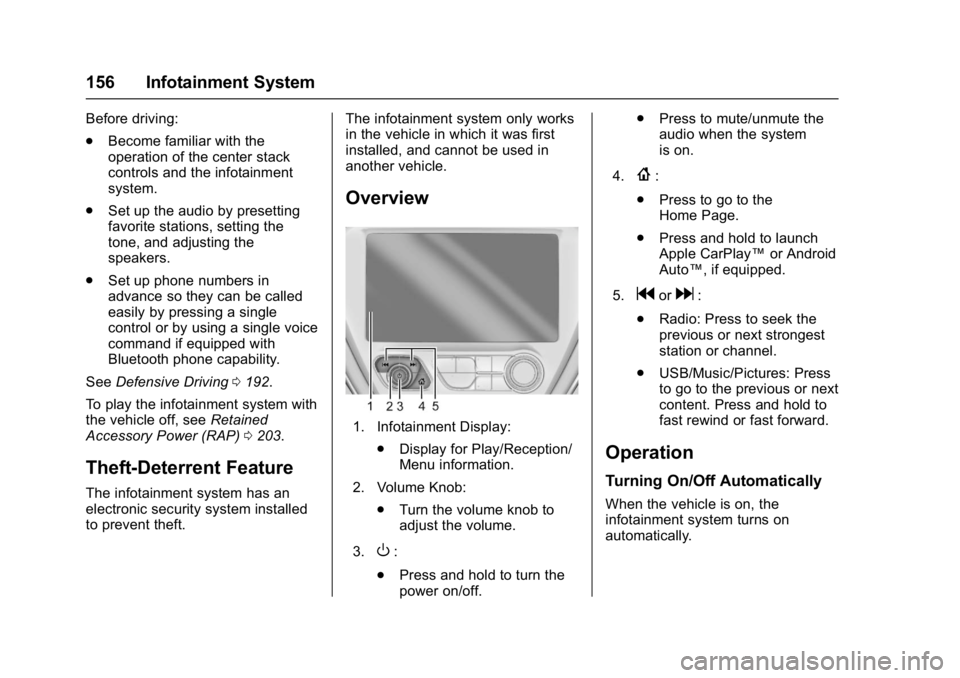
Overview
1. Infotainment Display:
.Display for Play/Reception/
Menu information.
2. Volume Knob: .Turn the volume knob to
adjust the volume.
3.
O:
. Press and hold to turn the
power on/off. .
Press to mute/unmute the
audio when the system
is on.
4.
{:
. Press to go to the
Home Page.
. Press and hold to launch
Apple CarPlay™ or Android
Auto™, if equipped.
5.
gord:
. Radio: Press to seek the
previous or next strongest
station or channel.
. USB/Music/Pictures: Press
to go to the previous or next
content. Press and hold to
fast rewind or fast forward.
Operation
Turning On/Off Automatically
When the vehicle is on, the
infotainment system turns on
automatically.
Page 159 of 361
Chevrolet Bolt EV Owner Manual (GMNA-Localizing-U.S./Canada/Mexico-
10122739) - 2017 - CRC - 10/3/16
158 Infotainment System
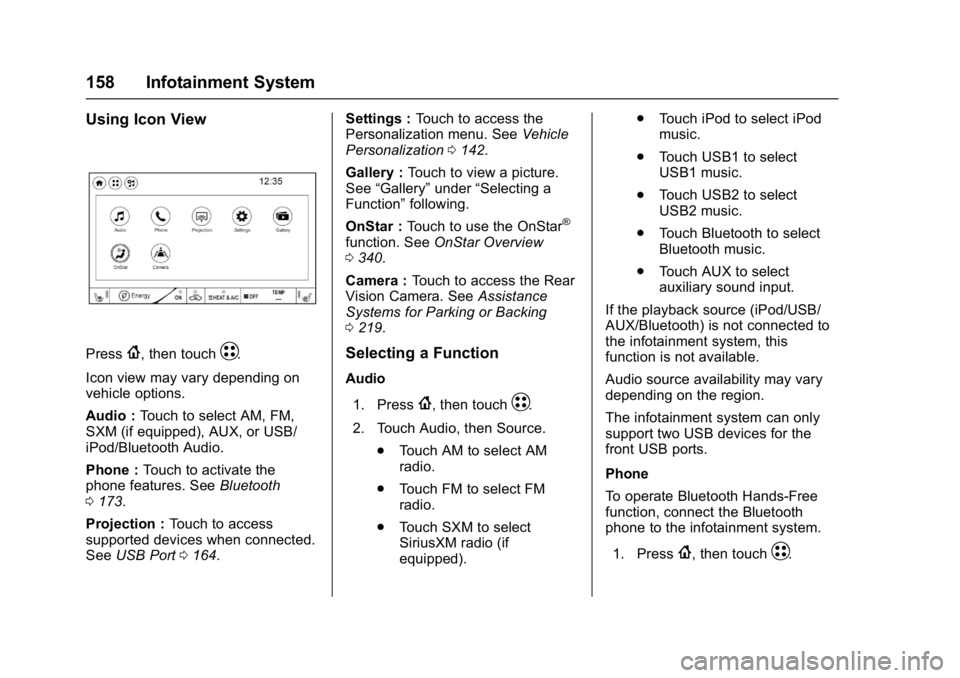
Using Icon View
Press{, then touchT.
Icon view may vary depending on
vehicle options.
Audio : Touch to select AM, FM,
SXM (if equipped), AUX, or USB/
iPod/Bluetooth Audio.
Phone : Touch to activate the
phone features. See Bluetooth
0 173.
Projection : Touch to access
supported devices when connected.
See USB Port 0164. Settings :
Touch to access the
Personalization menu. See Vehicle
Personalization 0142.
Gallery : Touch to view a picture.
See “Gallery” under“Selecting a
Function” following.
OnStar : Touch to use the OnStar
®
function. See OnStar Overview
0 340.
Camera : Touch to access the Rear
Vision Camera. See Assistance
Systems for Parking or Backing
0 219.
Selecting a Function
Audio
1. Press
{, then touchT.
2. Touch Audio, then Source. .Touch AM to select AM
radio.
. Touch FM to select FM
radio.
. Touch SXM to select
SiriusXM radio (if
equipped). .
Touch iPod to select iPod
music.
. Touch USB1 to select
USB1 music.
. Touch USB2 to select
USB2 music.
. Touch Bluetooth to select
Bluetooth music.
. Touch AUX to select
auxiliary sound input.
If the playback source (iPod/USB/
AUX/Bluetooth) is not connected to
the infotainment system, this
function is not available.
Audio source availability may vary
depending on the region.
The infotainment system can only
support two USB devices for the
front USB ports.
Phone
To operate Bluetooth Hands-Free
function, connect the Bluetooth
phone to the infotainment system.
1. Press
{, then touchT.
Page 160 of 361
Chevrolet Bolt EV Owner Manual (GMNA-Localizing-U.S./Canada/Mexico-
10122739) - 2017 - CRC - 10/3/16
Infotainment System 159
2. Touch Phone, then touch5on
the infotainment display,
or press
gon the steering
wheel controls.
Settings
1. Press
{, then touchT.
2. Touch Settings, then select an item from the menu and adjust
the settings by selecting from
the available options. See
Settings 0177.
Gallery
1. Press
{, then touchT.
2. Touch Gallery, then touch
'
menu to view picture files
contained in the USB storage
device.
Software Updates
Over-the-Air Software Updates
If equipped, the infotainment system
can download and install software
updates over a wireless connection.
The system will prompt high priority
updates to be downloaded and installed, while others can be
manually accessed. To manually
check for updates:
1. Press
{, then touchT.
2. Touch Settings, then Software Information.
3. Touch Software Update and follow the on-screen prompts.
Steps for downloading and
installing updates may vary by
vehicle.
Downloading Over-the-Air software
updates requires Internet
connectivity, which can be accessed
through the vehicle’ s OnStar Wi-Fi
hotspot, if equipped. Optionally, a
secured Wi-Fi hotspot such as a
mobile device hotspot, a home
hotspot, or a public hotspot can be
used. To connect the infotainment
system to a secured mobile device
hotspot, home hotspot, or public
hotspot:
1. Press
{, then touchT.
2. Touch Settings, then Wi-Fi. 3. Touch Manage Wi-Fi Networks,
then select the appropriate
Wi-Fi network and follow the
on-screen prompts.
Download speeds may vary.
On most mobile devices,
activation of the Wi-Fi hotspot
is in the Settings menu under
Mobile Network Sharing,
Personal Hotspot, Mobile
Hotspot, or similar.
Availability of Over-the-Air software
updates varies by vehicle and
country. In the U.S., see
my.chevrolet.com/learn. In Canada,
see my.chevrolet.ca. In Mexico see
your dealer.