2017 BUICK ENVISION override
[x] Cancel search: overridePage 21 of 366
Buick Envision Owner Manual (GMNA-Localizing-U.S./Canada/Mexico-
10122659) - 2017 - crc - 11/16/16
20 In Brief
vehicle. This can help avoid or
lessen the severity of crashes when
driving in a forward gear.
SeeForward Automatic Braking
(FAB) 0221.
Lane Keep Assist (LKA)
If equipped, LKA may help avoid
crashes due to unintentional lane
departures. It may assist by gently
turning the steering wheel if the
vehicle approaches a detected lane
marking without using a turn signal
in that direction. It may also provide
a Lane Departure Warning (LDW)
alert as the lane marking is crossed.
The system will not assist or alert if
it detects that you are actively
steering. Override LKA by turning
the steering wheel. LKA uses a
camera to detect lane markings
between 60 km/h (37 mph) and
180 km/h (112 mph).
See Lane Departure Warning (LDW)
0 224 andLane Keep Assist (LKA)
0 224.
Lane Change Alert (LCA)
If equipped, the LCA system is a
lane-changing aid that assists
drivers with avoiding lane change
crashes that occur with moving
vehicles in the side blind zone (or
spot) areas or with vehicles rapidly
approaching these areas from
behind. The LCA warning display
will light up in the corresponding
outside mirror and will flash if the
turn signal is on. The Side Blind
Zone Alert (SBZA) system is
included as part of the LCA system.
See Side Blind Zone Alert (SBZA)
0 222 andLane Change Alert (LCA)
0 222.
Surround Vision
If equipped, views around the
vehicle display in the infotainment
display to aid with parking and
low-speed maneuvers.
See “Surround Vision” under
Assistance Systems for Parking or
Backing 0214. Front Vision Camera
If equipped, a view of the area in
front of the vehicle displays on the
infotainment display to aid with
parking and low-speed maneuvers.
See
“Front Vision Camera” under
Assistance Systems for Parking or
Backing 0214.
Rear Vision
Camera (RVC)
If equipped, RVC shows a view of
the area behind the vehicle on the
infotainment display when the
vehicle is shifted into R (Reverse) to
aid with parking and low-speed
backing maneuvers.
See Assistance Systems for Parking
or Backing 0214.
Rear Cross Traffic Alert
(RCTA) System
If equipped, the RCTA system uses
a triangle with an arrow displayed
on the infotainment display to warn
of traffic behind your vehicle that
may cross your vehicle's path while
Page 37 of 366

Buick Envision Owner Manual (GMNA-Localizing-U.S./Canada/Mexico-
10122659) - 2017 - crc - 11/16/16
36 Keys, Doors, and Windows
Delayed Locking
This feature delays the actual
locking of the doors until
five seconds after all doors are
closed.
Delayed locking can only be turned
on when the Unlocked Door Anti
Lock Out feature has been
turned off.
When
Qis pressed on the power
door lock switch with the door open,
a chime will sound three times
indicating that delayed locking is
active.
The doors will then lock
automatically five seconds after all
doors are closed. If a door is
reopened before five seconds have
elapsed, the five-second timer will
reset once all the doors are closed
again.
Press
Qon the door lock switch
again, or press
Qon the RKE
transmitter, to override this feature
and lock the doors immediately. Delayed locking can be
programmed through the Driver
Information Center (DIC). See
Vehicle Personalization
0149.
Automatic Door Locks
The doors will lock automatically
when all doors are closed, the
ignition is on, and the vehicle is
shifted out of P (Park).
To unlock the doors:
.
Press
Kon the power door lock
switch.
. Shift the transmission into
P (Park).
Automatic door locking cannot be
disabled. Automatic door unlocking
can be programmed. See Vehicle
Personalization 0149.
Lockout Protection
If the vehicle is in ACC/
ACCESSORY or ON/RUN/START
and the power door lock switch is
pressed with the driver door open,
all the doors will lock and only the
driver door will unlock. If the vehicle is off and locking is
requested while a door is open,
when all doors are closed the
vehicle will check for RKE
transmitters inside. If an RKE
transmitter is detected and the
number of RKE transmitters inside
has not reduced, the driver door will
unlock and the horn will chirp three
times.
Lockout Protection can be manually
overridden with the driver door open
by pressing and holding
Qon the
power door lock switch.
Unlocked Door Anti Lockout
If Unlocked Door Anti Lockout is
turned on and the vehicle is off, the
driver door is open, and locking is
requested, all the doors will lock and
only the driver door will unlock. The
Unlocked Door Anti Lockout feature
can be turned on or off using the
vehicle personalization menus. See
Vehicle Personalization 0149.
Page 48 of 366
Buick Envision Owner Manual (GMNA-Localizing-U.S./Canada/Mexico-
10122659) - 2017 - crc - 11/16/16
Keys, Doors, and Windows 47
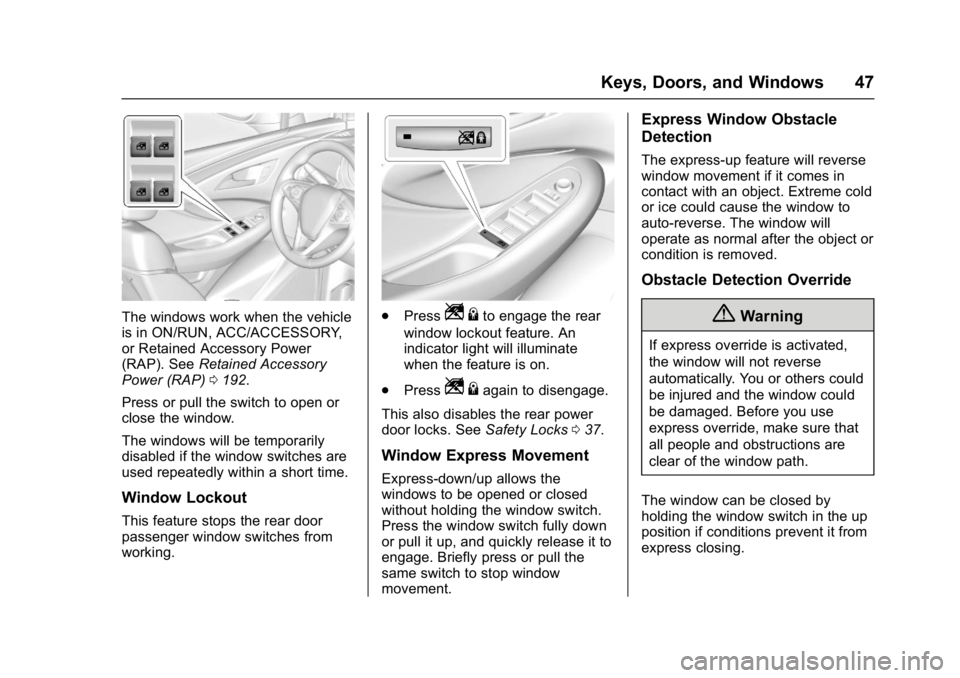
The windows work when the vehicle
is in ON/RUN, ACC/ACCESSORY,
or Retained Accessory Power
(RAP). SeeRetained Accessory
Power (RAP) 0192.
Press or pull the switch to open or
close the window.
The windows will be temporarily
disabled if the window switches are
used repeatedly within a short time.
Window Lockout
This feature stops the rear door
passenger window switches from
working.
. PressZ{to engage the rear
window lockout feature. An
indicator light will illuminate
when the feature is on.
. Press
Z{again to disengage.
This also disables the rear power
door locks. See Safety Locks037.
Window Express Movement
Express-down/up allows the
windows to be opened or closed
without holding the window switch.
Press the window switch fully down
or pull it up, and quickly release it to
engage. Briefly press or pull the
same switch to stop window
movement.
Express Window Obstacle
Detection
The express-up feature will reverse
window movement if it comes in
contact with an object. Extreme cold
or ice could cause the window to
auto-reverse. The window will
operate as normal after the object or
condition is removed.
Obstacle Detection Override
{Warning
If express override is activated,
the window will not reverse
automatically. You or others could
be injured and the window could
be damaged. Before you use
express override, make sure that
all people and obstructions are
clear of the window path.
The window can be closed by
holding the window switch in the up
position if conditions prevent it from
express closing.
Page 50 of 366

Buick Envision Owner Manual (GMNA-Localizing-U.S./Canada/Mexico-
10122659) - 2017 - crc - 11/16/16
Keys, Doors, and Windows 49
Sunroof Switch
Express-Open/Express-Close :To
express-open the sunroof, fully
press and release
e(1). Press
the switch again to stop it. To
express-close the sunroof, fully
press and release
g(1). Press
the switch again to stop it.
Open/Close (Manual Mode) : To
open the sunroof, press and hold
e(1) until the sunroof reaches
the desired position. Press and hold
g(1) to close it.
Vent : From the closed position,
press
e(1) to vent the sunroof.
Sunshade Switch
Express-open/Express-close : To
express-open the sunshade, fully
press and release
r(2). To
express-close the sunshade, fully
press and release
s(2) . Press
the switch again to stop it.
Open/Close : To open the
sunshade, press and hold
r(2)
until the sunshade reaches the
desired position. When the sunroof is opened, an air
deflector will automatically raise.
The air deflector will retract when
the sunroof is closed.
Automatic Reversal System
The sunroof/sunshade is equipped
with an automatic reversal system
that is only active when the sunroof/
sunshade is being operated in
express-close. If an object is in the
path of the sunroof/sunshade while
it is express-closing, the reversal
system will detect the object
and stop.
In the event of closing difficulties
like frost or other conditions, it is
possible to override the reversal
system. To override the reversal
system, close in manual mode. To
stop the movement, release the
switch.
Dirt and debris may collect on the
sunroof seal or in the track. This
could cause an issue with sunroof
operation or noise. It could also plug
the water drainage system.
Periodically open the sunroof and
remove any obstacles or loose
debris. Wipe the sunroof seal and
roof sealing area using a clean
cloth, mild soap, and water. Do not
remove grease from the sunroof.
If water is seen dripping into the
water drainage system, this is
normal.
Page 153 of 366

Buick Envision Owner Manual (GMNA-Localizing-U.S./Canada/Mexico-
10122659) - 2017 - crc - 11/16/16
152 Instruments and Controls
Power Door Locks
Select and the following may
display:
.Unlocked Door Anti Lock Out
. Auto Door Unlock
. Delayed Door Lock
Unlocked Door Anti Lock Out
When on, this feature will keep the
driver door from locking when the
door is open. If Off is selected, the
Delayed Door Lock menu will be
available.
Select Off or On.
Auto Door Unlock
This allows selection of which of the
doors will automatically unlock when
the vehicle is shifted into P (Park).
Select Off, All Doors, or Driver Door.
Delayed Door Lock
When on, this feature will delay the
locking of the doors. To override the
delay, press the power door lock
switch on the door.
Select Off or On. Remote Lock, Unlock, Start
Select and the following may
display:
.
Remote Unlock Light Feedback
. Remote Lock Feedback
. Remote Door Unlock
. Remote Start Auto Cool Seats
. Remote Start Auto Heat Seats
. Auto Heated Seats
. Passive Door Unlock
. Passive Door Lock
. Remote Left in Vehicle Alert
Remote Unlock Light Feedback
When on, the exterior lamps will
flash when unlocking the vehicle
with the RKE transmitter.
Select Off or Flash Lights.
Remote Lock Feedback
This allows selection of what type of
feedback is given when locking the
vehicle with the RKE transmitter.
Select Off, Lights and Horn, Lights
Only, or Horn Only. Remote Door Unlock
This allows selection of which doors
will unlock when pressing
Kon the
RKE transmitter.
Select All Doors or Driver Door.
Remote Start Auto Cool Seats
If equipped and turned on, this
feature will turn the ventilated seats
on when using remote start on
warm days.
Select Off, On-Driver and
Passenger, or On-Driver.
Remote Start Auto Heat Seats
If equipped and turned on, this
feature will turn the heated seats on
when using remote start on
cold days.
Select Off or On.
Auto Heated Seats
This feature will enable the heated
seats to turn on after pressing
ENGINE START/STOP when it is
cold outside.
Select Off or On.
Page 206 of 366

Buick Envision Owner Manual (GMNA-Localizing-U.S./Canada/Mexico-
10122659) - 2017 - crc - 11/16/16
Driving and Operating 205
Increasing Speed While Using
Cruise Control
If the cruise control system is
already activated:
.Press and hold RES+ up until
the vehicle accelerates to the
desired speed, then release it.
. To increase vehicle speed in
small increments, press RES+
up briefly. For each press, the
vehicle goes about 1.6 km/h
(1 mph) faster.
Reducing Speed While Using
Cruise Control
If the cruise control system is
already activated:
. Press and hold SET– down until
the desired lower speed is
reached, then release it.
. To decrease the vehicle speed in
small increments, press SET–
down briefly. For each press, the
vehicle goes about 1.6 km/h
(1 mph) slower. Passing Another Vehicle While
Using Cruise Control
Use the accelerator pedal to
increase the vehicle speed. When
you take your foot off the pedal, the
vehicle will slow down to the
previously set cruise speed. While
pressing the accelerator pedal or
shortly following the release to
override cruise control, briefly
pressing SET−
will result in cruise
set to the current vehicle speed.
Using Cruise Control on Hills
How well the cruise control will work
on hills depends upon the vehicle
speed, load, and the steepness of
the hills. When going up steep hills,
you might have to step on the
accelerator pedal to maintain your
speed. When going downhill, you
might have to brake or shift to a
lower gear to keep your speed
down. If the brake pedal is applied,
cruise control will disengage.
Ending Cruise Control
There are four ways to end cruise
control:
. Step lightly on the brake pedal. .
Press*.
. Shift the transmission to
N (Neutral).
. To turn off cruise control,
press
5.
Erasing Speed Memory
The cruise control set speed is
erased from memory if
5is pressed
or if the ignition is turned off.
Adaptive Cruise Control
If equipped with Adaptive Cruise
Control (ACC), it allows you to
select the cruise control set speed
and following gap. Read this entire
section before using this system.
The following gap is the following
time between your vehicle and a
vehicle detected directly ahead in
your path moving in the same
direction. If no vehicle is detected in
your path, ACC works like regular
cruise control. ACC uses camera
and radar sensors. See Radio
Frequency Statement 0340.
Page 212 of 366

Buick Envision Owner Manual (GMNA-Localizing-U.S./Canada/Mexico-
10122659) - 2017 - crc - 11/16/16
Driving and Operating 211
ACC Override
If using the accelerator pedal while
ACC is active, a warning message
in the DIC and in the HUD,
if equipped, will indicate that
automatic braking will not occur.
SeeCruise Control Messages 0141
. ACC will resume operation when
the accelerator pedal is not being
pressed.
{Warning
The ACC will not automatically
apply the brakes if your foot is
resting on the accelerator pedal.
You could crash into a vehicle
ahead of you.
Curves in the Road
{Warning
On curves, ACC may not detect a
vehicle ahead in your lane. You
could be startled if the vehicle
accelerates up to the set speed, (Continued)
Warning (Continued)
especially when following a
vehicle exiting or entering exit
ramps. You could lose control of
the vehicle or crash. Do not use
ACC while driving on an entrance
or exit ramp. Always be ready to
use the brakes if necessary.
{Warning
On curves, ACC may respond to
a vehicle in another lane, or may
not have time to react to a vehicle
in your lane. You could crash into
a vehicle ahead of you, or lose
control of your vehicle. Give extra
attention in curves and be ready
to use the brakes if necessary.
Select an appropriate speed while
driving in curves.
ACC may operate differently in a
sharp curve. It may reduce the
vehicle speed if the curve is too
sharp.
When following a vehicle and
entering a curve, ACC may not
detect the vehicle ahead and
accelerate to the set speed. When
this happens the vehicle ahead
indicator will not appear.
ACC may detect a vehicle that is
not in your lane and apply the
brakes.
Page 223 of 366

Buick Envision Owner Manual (GMNA-Localizing-U.S./Canada/Mexico-
10122659) - 2017 - crc - 11/16/16
222 Driving and Operating
Brake (EPB) to hold the vehicle at a
stop. Release the EPB or firmly
press the accelerator pedal.
{Warning
FAB may automatically brake the
vehicle suddenly in situations
where it is unexpected and
undesired. It could respond to a
turning vehicle ahead, guardrails,
signs, and other non-moving
objects. To override FAB, firmly
press the accelerator pedal, if it is
safe to do so.
Intelligent Brake Assist (IBA)
IBA may activate when the brake
pedal is applied quickly by providing
a boost to braking based on the
speed of approach and distance to
a vehicle ahead.
Minor brake pedal pulsations or
pedal movement during this time is
normal and the brake pedal should
continue to be applied as needed.
IBA will automatically disengage
only when the brake pedal is
released.
{Warning
IBA may increase vehicle braking
in situations when it may not be
necessary. You could block the
flow of traffic. If this occurs, take
your foot off the brake pedal and
then apply the brakes as needed.
FAB and IBA can be disabled
through vehicle personalization. See
“Collision/Detection Systems” under
Vehicle Personalization 0149.
Side Blind Zone
Alert (SBZA)
If equipped, the SBZA system is a
lane-changing aid that assists
drivers with avoiding crashes that
occur with moving vehicles in the
side blind zone (or spot) areas.
When the vehicle is in a forward
gear, the left or right side mirror
display will light up if a moving
vehicle is detected in that blind
zone. If the turn signal is activated
and a vehicle is also detected on
the same side, the display will flash as an extra warning not to change
lanes. Since this system is part of
the Lane Change Alert (LCA)
system, read the entire LCA section
before using this feature.
Lane Change Alert (LCA)
If equipped, the LCA system is a
lane-changing aid that assists
drivers with avoiding lane change
crashes that occur with moving
vehicles in the side blind zone (or
spot) areas or with vehicles rapidly
approaching these areas from
behind. The LCA warning display
will light up in the corresponding
outside side mirror and will flash if
the turn signal is on.
{Warning
LCA does not alert the driver to
vehicles outside of the system
detection zones, pedestrians,
bicyclists, or animals. It may not
provide alerts when changing
lanes under all driving conditions.
Failure to use proper care when
(Continued)