2017 BUICK CASCADA AUX
[x] Cancel search: AUXPage 137 of 381

Buick Cascada Owner Manual (GMNA-Localizing-U.S.-9967834) - 2017 - crc -
7/18/16
136 Infotainment System
TouchEBluetooth to display the
Bluetooth Audio main page to play
music through a Bluetooth device.
See Bluetooth Audio 0166.
Touch iPod to display the iPod main
page and play the current or last
track selected. See Auxiliary
Devices 0165.
Touch USB to display the USB main
page and play the current or last
track selected. See Auxiliary
Devices 0165.
Touch AUX to access any
connected auxiliary device. See
Auxiliary Devices 0165.
Touch Weather (if equipped) to
display the weather main page.
Select other weather-related options
from that list. See “SiriusXM Travel
Link Weather” underSatellite
Radio 0141.
Touch Fuel (if equipped) to display
detailed nationwide fuel pricing See
“SiriusXM Travel Link Fuel Pricing”
under Satellite Radio 0141.
Touch Movies (if equipped) to show
details of local movie theater
listings, start times, and ratings if
available. See “SiriusXM Travel Link
Movie Listings” underSatellite
Radio 0141.
Touch Quick Info to access
information on Audio playing,
OnStar Turn-by-Turn (if equipped),
5-day Forecast, Nearby Fuel
Stations, and Movie Showtimes.
See Quick Info 0147.
Page 139 of 381

Buick Cascada Owner Manual (GMNA-Localizing-U.S.-9967834) - 2017 - crc -
7/18/16
138 Infotainment System
Radio
AM-FM Radio
Playing the Radio
O/n:
. Press to turn the radio on or off.
. Turn to increase or decrease the
volume of the active source.
The steering wheel controls can
also be used to adjust the volume.
See Steering Wheel Controls 0132.
Radio Operation
The radio will work when the key is
in ON/RUN or ACC/ACCESSORY.
When the key is turned from ON/
RUN to LOCK/OFF, the radio will
continue to work for 10 minutes or
until the driver door is opened.
The radio can be turned on by
pressing
O/non the center
stack and will stay on for
10 minutes. Opening the driver door
will not turn the radio off when
pressing
O/n. Some radios may stay on longer
and reset the time for 10 minutes if
there are any additional presses of
O/n.
The radio can be turned off at any
time by pressing
O/non the
center stack.
Audio Source
Press SRCE on the center stack or
SRC on the steering wheel controls
to display and scroll through the
available sources AM, FM, SiriusXM
(if equipped), Pandora (if equipped),
Stitcher, CD, USB, AUX, and
Bluetooth Audio.
For radios without navigation, press
RADIO/BAND, CD, or AUX to scroll
through the sources.
Infotainment System Settings
Tone Settings
To access the tone settings, touch
Tone Settings on the Home Page.
Tone settings are specific to each
source.
The tone settings can also be
accessed by pressing TONE on the
center stack.
To adjust the settings:
. Bass: Touch + or −to change
the level.
. Mid (Midrange): Touch + or −to
change the level.
. Treble: Touch + or −to change
the level.
. EQ: Press and turn the
Z
knob to cycle through the preset
EQ options.
. Fade: Touch F or R for more
sound from the front or rear
speakers. The middle position
balances the sound between the
front and rear speakers.
Page 140 of 381
Buick Cascada Owner Manual (GMNA-Localizing-U.S.-9967834) - 2017 - crc -
7/18/16
Infotainment System 139
.Balance: Touch L or R for more
sound from the left or right
speakers. The middle position
balances the sound between the
left and right speakers.
Finding a Station
Press SRCE on the center stack or
press SRC on the steering wheel
controls to select AM, FM, SiriusXM
(if equipped), Pandora (if equipped),
Stitcher (if equipped), CD, USB,
AUX, and Bluetooth Audio.
Turn the
Zknob to find a radio
station. To select a preset station,
press FAV 1/2/3 to scroll through the
favorite pages and then press a
preset on the center stack or touch
the display icon.
Seeking a Station
Press
s ©or¨\to search for a
station. AM
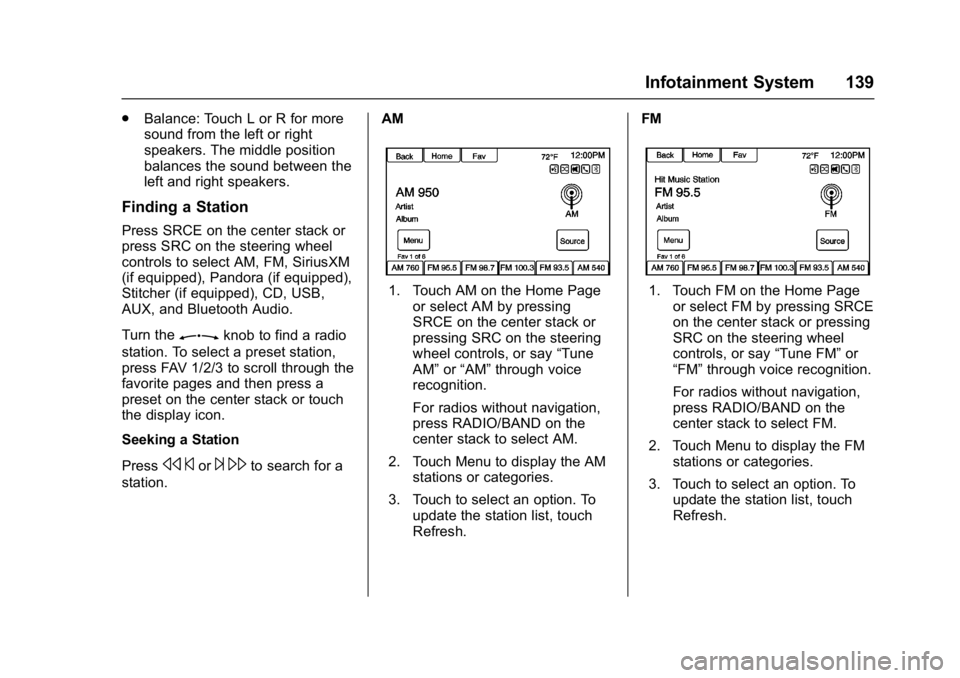
1. Touch AM on the Home Page
or select AM by pressing
SRCE on the center stack or
pressing SRC on the steering
wheel controls, or say “Tune
AM” or“AM” through voice
recognition.
For radios without navigation,
press RADIO/BAND on the
center stack to select AM.
2. Touch Menu to display the AM stations or categories.
3. Touch to select an option. To update the station list, touch
Refresh. FM1. Touch FM on the Home Page
or select FM by pressing SRCE
on the center stack or pressing
SRC on the steering wheel
controls, or say “Tune FM”or
“FM” through voice recognition.
For radios without navigation,
press RADIO/BAND on the
center stack to select FM.
2. Touch Menu to display the FM stations or categories.
3. Touch to select an option. To update the station list, touch
Refresh.
Page 149 of 381

Buick Cascada Owner Manual (GMNA-Localizing-U.S.-9967834) - 2017 - crc -
7/18/16
148 Infotainment System
www.pandora.com. Pandora may
not be available in Canada or
Mexico.
A phone or tablet with Internet
connection and the Pandora
application installed is required.
Personal cell phone data plans are
used. Make sure the latest version
is installed on the device and the
volume is turned up.
To install Pandora:
.On an Android™ phone or
Android Tablet, go to the Android
Play Store, and search for
Pandora. Install to the phone,
not to the SD card.
. On a BlackBerry
®phone, go to
the BlackBerry App World™ and
search for Pandora.
. On an iPhone
®, iPad®, or iPod
touch®, go to the iTunes®Store
and search for Pandora.
Launching Pandora
Connect the iPhone, iPad, or iPod
touch to the USB port, or connect
an Android or BlackBerry through
Bluetooth. See Auxiliary Devices 0
165 orBluetooth 0198. For
first-time use, set up stations before
connecting to the vehicle. The
Pandora icon will be available on
the Home Page and the source
pop-up displays if the latest
application is installed on the
device.
Using an iPhone, iPod touch,
or iPad
1. Plug the device into the USB port. The phone screen must
be unlocked.
2. To launch, do one of the following:
.Launch the application on
the device.
. Touch Pandora on the
Home Page.
. Press
b/gand say
“Pandora” or“Tune
Pandora.”
. Accept any notifications on
the device screen.
To relaunch Pandora, press SRCE
on the center stack or press SRC on
the steering wheel controls. If nothing happens when the
available Pandora icon is touched,
download the latest Pandora
application and retry.
Pandora will always be highlighted
on the Home Page when an iPhone,
iPad, or iPod touch is connected
using the USB port. To use, log into
your account.
If the
“Please See Device” message
is shown, the login screen may
display on the device.
If Pandora is shut down on the
phone or another audio app is used,
Pandora may not start on the next
ignition cycle. If iPod source is
selected, it may show iPod and then
switch to Pandora.
Using an Android Phone
1. Pair the Android phone using Bluetooth.
2. Use one of the following to launch:
.Launch the application on
the device.
. Touch Pandora on the
Home Page.
Page 153 of 381

Buick Cascada Owner Manual (GMNA-Localizing-U.S.-9967834) - 2017 - crc -
7/18/16
152 Infotainment System
Devices that allow multitasking may
require an extra step to quit the
Pandora application. Close Pandora
on the device and launch again.
Unlock the phone and check that
the Home Page shows on the
phone/device.
See the cell phone manufacturer's
user guide.
See www.pandora.com/help for
more information. If the service will
not work, see your dealer for
assistance.
Stitcher Internet Radio
Stitcher SmartRadio®is an Internet
radio service that streams news,
sports, and entertainment shows
through the audio system. Create
personalized, on-demand stations or
use Stitcher's preset stations. To set
up an account, download the
application from the Android Market
or iTunes Store, or go to
www.stitcher.com.
A phone or tablet with Internet
connection is required for this
application. Personal cell phone data plans are used. Make sure the
latest version is installed on the
device and the volume on the
device is turned up.
BlackBerry phones are not
supported for this application.
To install Stitcher:
.
On an Android phone or Tablet
with Internet connection, go to
the Android Play Store, search
for Stitcher, and install to the
phone, not to the SD card.
. On an iPhone, iPad, or iPod
touch, go to the iTunes Store
and search for Stitcher.Launching Stitcher
Connect the iPhone, iPad, or iPod
touch to the USB port, or connect
Android through Bluetooth. See
Auxiliary Devices 0165 orBluetooth
0 198. For first-time use, set up the
stations before connecting to the
vehicle. The Stitcher icon will be
available on the Home Page and
source pop-up displays if the latest
application is installed on the
device. Using the iPhone, iPod touch,
or an iPad
1. Plug the device into the USB port. The phone screen must
be unlocked.
2. Use one of the following to launch :
.Press the application on the
device.
. Touch Stitcher on the
Home Page.
. Press
b/gand say
“Stitcher” or“Tune Stitcher.”
. Accept any notifications on
the device screen.
3. If Stitcher does not begin playing, select a category and
then a station.
After Stitcher has been launched,
press SRCE on the center stack or
press SRC on the steering wheel
controls to access Stitcher features.
If nothing happens when the
available Stitcher icon is touched,
download the latest Stitcher
application and retry.
Page 162 of 381

Buick Cascada Owner Manual (GMNA-Localizing-U.S.-9967834) - 2017 - crc -
7/18/16
Infotainment System 161
the cover art found in the embedded
database and display it on the radio.
User predefined cover art will
always be used first. If no cover art
is found, Gracenote will use generic
genre graphics or images of artists.
More Like This
The Gracenote database contains
attributes for music, such as genre,
era of music, region, artist type,
mood, etc. Use this to create a
playlist of up to 30 songs "more
like" the currently playing song. This
playlist will be stored in the Playlist
Menu when the device is
reconnected. If songs are removed
from the device, the system will skip
over those songs and play the next
available song.
Use the infotainment display or
voice recognition to create a More
Like This Play List. See“Voice
Recognition Commands” inVoice
Recognition 0192.
Gracenote Indexing
While Gracenote is indexing,
infotainment features are available
including selecting music from the menu. Voice recognition music will
not be available until the radio has
completed indexing the device.
Devices with more music may take
longer to index. The device will
index when plugged into the radio
for the first time. When Indexing is
removed from the screen, the radio
is ready to support music search.
On the next connection or ignition
cycle, Indexing will show briefly on
the screen. The radio is searching
for changes to the device and
preparing the music list. If there are
no changes, the voice recognition
music search will be available. The
radio will index and store two
devices with up to 10,000 songs on
each device.
USB MP3 Players and USB Drives
.
The USB MP3 players and USB
devices connected must comply
with the USB Mass Storage
Class specification (USB MSC).
. Hard disk drives are not
supported.
. The radio will not be able to play
back write-protected music. .
File systems supported: FAT32,
NTFS, Linux, and HFS+.
. The following restrictions apply
for the data stored on a USB
MP3 player or USB device:
‐Maximum folder structure
depth: 8 levels.
‐ Maximum number of MP3/
WMA files that can be
displayed: 10,000.
‐ Playlist entries must be in the
form of relative paths.
‐ The system attribute for
folders/files that contain audio
data must not be set.
To play a USB device, do one of the
following:
. Connect the USB and it begins
to play.
. Touch Now Playing on the
Home Page.
. Press SRCE to scroll until the
USB source screen is available.
For vehicles without navigation,
press AUX on the center stack.
Page 164 of 381

Buick Cascada Owner Manual (GMNA-Localizing-U.S.-9967834) - 2017 - crc -
7/18/16
Infotainment System 163
Artists:1. Touch to view the list of artists on the USB.
2. Select an artist name to view a list of all albums by the artist.
3. To select a song, touch Songs List or touch an album and
then select a song from the list.
Albums: 1. Touch to view the albums on the USB.
2. Select the album to view a list of all songs on the album.
3. Select a song from the list to begin playback.
Genres: 1. Touch to view the genres on the USB.
2. Select a genre to view a list of all songs of that genre.
3. Select a song from the list to begin playback.
Songs: 1. Touch to display a list of all songs on the USB. 2. Songs are displayed as they
are stored on the disc. To begin
playback, select a song from
the list.
File System and Naming
The songs, artists, albums, and
genres are taken from the file’s
song information and are only
displayed if present. The radio
displays the file name as the track
name if the song information is not
available.
Playing from an iPod®
This feature supports the following
iPod models:
. iPod classic
®(6th generation)
. iPod nano
®(3G, 4G, 5G, 6G,
and 7G)
. iPod touch
®(1G, 2G, 3G, 4G,
5G, and 6G)
There may be problems with the
operation and function in the
following situations: .
When connecting an iPod on
which a more recent version of
the firmware is installed than is
supported by the infotainment
system.
. When connecting an iPod on
which firmware from other
providers is installed.
To connect an iPod:
1. Connect one end of the standard iPod USB cable to the
iPod's dock connector.
2. Connect the other end to the USB port in the center console.
iPod music information displays on
the radio’s display and begins
playing through the vehicle’s audio
system.
The iPod battery recharges
automatically while the vehicle is on.
The iPod shuts off and stops
charging when the vehicle is
shut off.
If the iPod is an unsupported model,
it can still be listened to in the
vehicle by connecting to the
auxiliary input jack using a standard
3.5 mm (1/8 in) stereo cable.
Page 166 of 381

Buick Cascada Owner Manual (GMNA-Localizing-U.S.-9967834) - 2017 - crc -
7/18/16
Infotainment System 165
2. Select a podcast name tobegin playback.
Composers: 1. Touch to view the composers on the iPod.
2. Select the composer to view a list of songs by that composer.
3. Select a song from the list to begin playback.
Audio Books: 1. Touch to view the audio books on the iPod.
2. Select the audio book from the list to begin playback.
Playing from an iPhone
or iPad®
This feature supports the following
iPhone or iPad models:
.iPhone
®(2G, 3G, 3GS, 4, 4S, 5,
6, and 6 plus)
. iPad
®(1G, 2G)
Follow the same instructions as
stated earlier for using an iPod. To
use voice recognition to play music,
say “Play USB,” “Play Artist,” “Play Album,” “Play Song,”
or“Play
Genre.” SeeVoice
Recognition 0192.
iPhone, iPod touch, and iPad
Troubleshooting
When an iPhone, iPod touch,
or iPad is connected through USB
and Bluetooth, the audio may not be
heard when the iPod source on the
radio is selected. If a phone call is
received while listening to the iPod
source and there is no audio for the
iPod after the source, then go to the
Airplay icon on the device and
select dock connector or disconnect
and reconnect the dock connector
on the device.
Some functionality may differ based
on operating system version on
device.
USB Troubleshooting
If the device is not being recognized
or the music is missing screen
information, restore the radio
defaults: 1. Touch Config.
2. Touch Radio Settings. 3. Touch Software
Versions Menu.
4. Touch Clear and Reset Radio.
5. Touch Yes.
Pair the phone again and the device
will have to index again.
Bluetooth Audio and Voice
Recognition
See Bluetooth Audio 0166 and
Voice Recognition 0192 for
information on using voice
recognition with Bluetooth audio.
Make sure all devices have the
latest software downloaded.
Auxiliary Devices
If equipped, this vehicle has an
auxiliary input jack in the center
console. Possible auxiliary audio
sources include:
. Laptop computer
. MP3 player
. Tape player