2017 BMW 6 SERIES GRAN COUPE navigation
[x] Cancel search: navigationPage 27 of 261

Executing functions using short
commands
Execute functions on the main menu via short
commands. It almost doesn't matter which
menu item is selected, for example, ›Vehicle
status‹.
List of short commands for the voice activation
system, see Navigation, Entertainment, Com‐
munication Owner's Manual.
The list for short commands of the voice acti‐
vation system can be called up via the Inte‐
grated Owner's Manual on the Control Display.
Help dialog for the voice activation
system
Calling up help dialog: ›Help‹.
Additional commands for the help dialog:▷›Help with examples‹: announces informa‐
tion about the current operating options
and the most important commands for
them.▷›Help with voice activation‹: information
about the principle of operation for the
voice activation system is announced.
One example: opening the
tone settings
Via the main menu
The commands of the menu items are spoken
just as they are selected via the Controller.
1.Turn on the Entertainment sound output if
needed.2. Press button on the steering
wheel.3.›Radio‹4.›Tone‹Via short command
The desired tone settings can also be started
via a short command.1.Turn on the Entertainment sound output if
needed.2. Press button on the steering
wheel.3.›Tone‹
Setting the voice dialog
Set system to standard dialog or use a short
version.
The short version of the voice dialog plays
back short messages in abbreviated form.
1."Settings"2."Language/Units"3."Speech type:"4.Select setting.
Adjusting the volume
Turn the volume button during the spoken in‐
structions until the desired volume is set.
▷The volume remains constant even if the
volume of other audio sources is changed.▷The volume is stored for the profile cur‐
rently used.Seite 27Voice activation systemAt a glance27
Online Edition for Part no. 01 40 2 969 305 - II/16
Page 36 of 261

Personal Profile
The concept Using Personal Profile, individual settings for
several drivers can be saved and called up
again at a later time.
General information There are three profiles with which personal
vehicle settings can be stored. Every remote
control has one of these profiles assigned.
If the vehicle is unlocked using a remote con‐
trol, the assigned personal profile will be acti‐
vated. All settings stored in the profile are au‐
tomatically applied.
If several drivers use their own remote control,
the vehicle will adjust the personal settings
during unlocking. These settings are also re‐
stored, if the vehicle has been used in the
meantime by a person with a different remote
control.
Changes to the settings are automatically
saved in the profile currently activated.
If another profile is selected via iDrive, the set‐
tings saved in it will be applied automatically.
The new profile is assigned to the remote con‐
trol currently used.
There is an additional guest profile available
that is not assigned to any remote control: It
can be used to apply settings in the vehicle
without changing the personal profiles.
Adjusting
The settings for the following systems and
functions are saved in the active profile. The
scope of storable settings is country- and
equipment-dependable.▷Unlocking and locking.▷Lights.▷Climate control.▷Radio.▷Instrument cluster.▷Programmable memory buttons.▷Volumes, tone.▷Control Display.▷Navigation.▷TV.▷Park Distance Control PDC.▷Rearview camera.▷Side View.▷Top View.▷Head-up Display.▷Driving Dynamics Control.▷Driver's seat position, exterior mirror posi‐
tion, steering wheel position.▷Intelligent Safety.▷Active Blind Spot Detection.▷Night vision.
Profile management
Opening profiles Regardless of the remote control in use a dif‐
ferent profile may be activated.
About iDrive:
1."Settings"2."Profiles"3.Select a profile.▷All settings stored in the called-up profile
are automatically applied.▷The called-up profile is assigned to the re‐
mote control being used at the time.▷If the profile is already assigned to a differ‐
ent remote control, this profile will apply to
both remote controls. It cannot be differen‐
tiated anymore between the settings for
the two remote controls.
Renaming profiles
A personal name can be assigned to every pro‐
file to avoid confusion between the profiles.
Seite 36ControlsOpening and closing36
Online Edition for Part no. 01 40 2 969 305 - II/16
Page 82 of 261

▷Messages, e.g. Check Control, refer to
page 85.▷Current fuel consumption, refer to
page 90.▷Navigation display, see Owner's Manual for
Navigation, Entertainment and Communi‐
cation.▷Range, refer to page 90.▷Status, Driving Dynamics Control, refer to
page 137.▷Service requirements, refer to page 91.▷Speed limit detection, refer to page 92.▷Time, refer to page 90.
Multifunctional instrument display
The concept
The instrument display is a variable display. In
the event of a program change, the display
rendition adapts to the respective program
through the Driving Dynamics Control. The
change of the display type can be deactivated
via iDrive.Some of the displays in the instrument display
may differ from the way they are shown in this
Owner's Manual.
Overview
1Fuel gauge 892Indicator/warning lights 853Speedometer4Variable displays5Tachometer 89
Selection lists 93
ECO PRO displays 1916Engine oil temperature 89Seite 82ControlsDisplays82
Online Edition for Part no. 01 40 2 969 305 - II/16
Page 83 of 261
7Onboard computer 948Reset miles 89Switching the change of display on
and off
You can set whether the instrument display
automatically changes to the ECO PRO or
SPORT in the display when you switch driving
modes.
On the Control Display:1."Settings"2."Instrument cluster"3."ECO PRO Info"Or "Driving mode view"
With Professional Navigation System:
switching zoom function on/off
You can program whether the current speed is
to appear enlarged in the speedometer.
On the Control Display:
1."Settings"2."Instrument cluster"3."Magnifier function"
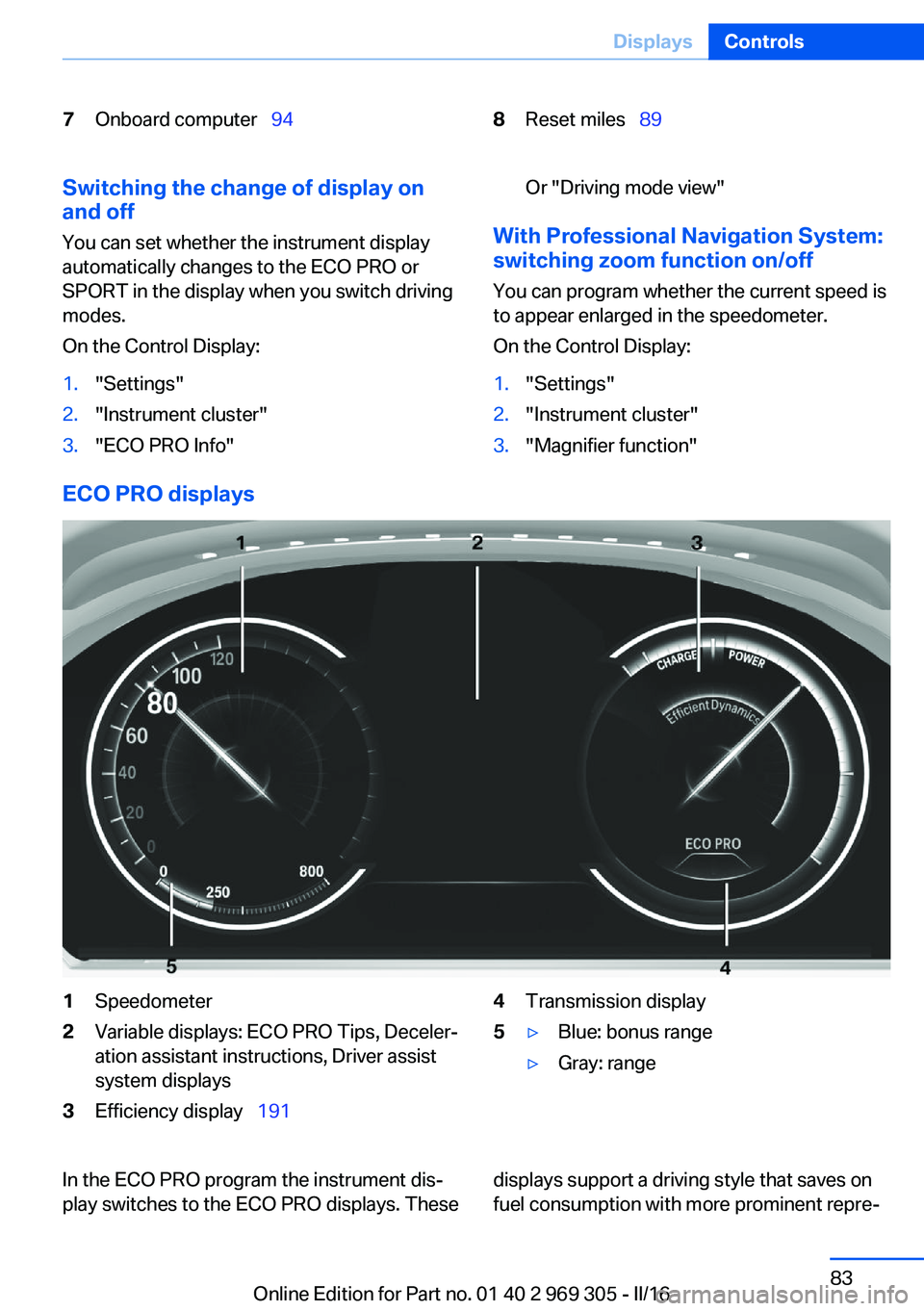
ECO PRO displays
1Speedometer2Variable displays: ECO PRO Tips, Deceler‐
ation assistant instructions, Driver assist
system displays3Efficiency display 1914Transmission display5▷Blue: bonus range▷Gray: rangeIn the ECO PRO program the instrument dis‐
play switches to the ECO PRO displays. Thesedisplays support a driving style that saves on
fuel consumption with more prominent repre‐Seite 83DisplaysControls83
Online Edition for Part no. 01 40 2 969 305 - II/16
Page 90 of 261
WARNING
Even at temperatures above +37 ℉/+3 ℃
there can be a danger of icy roads, e.g., on
bridges or shady sections of road. There is risk
of an accident. Adjust your driving style to the
weather conditions at low temperatures.◀
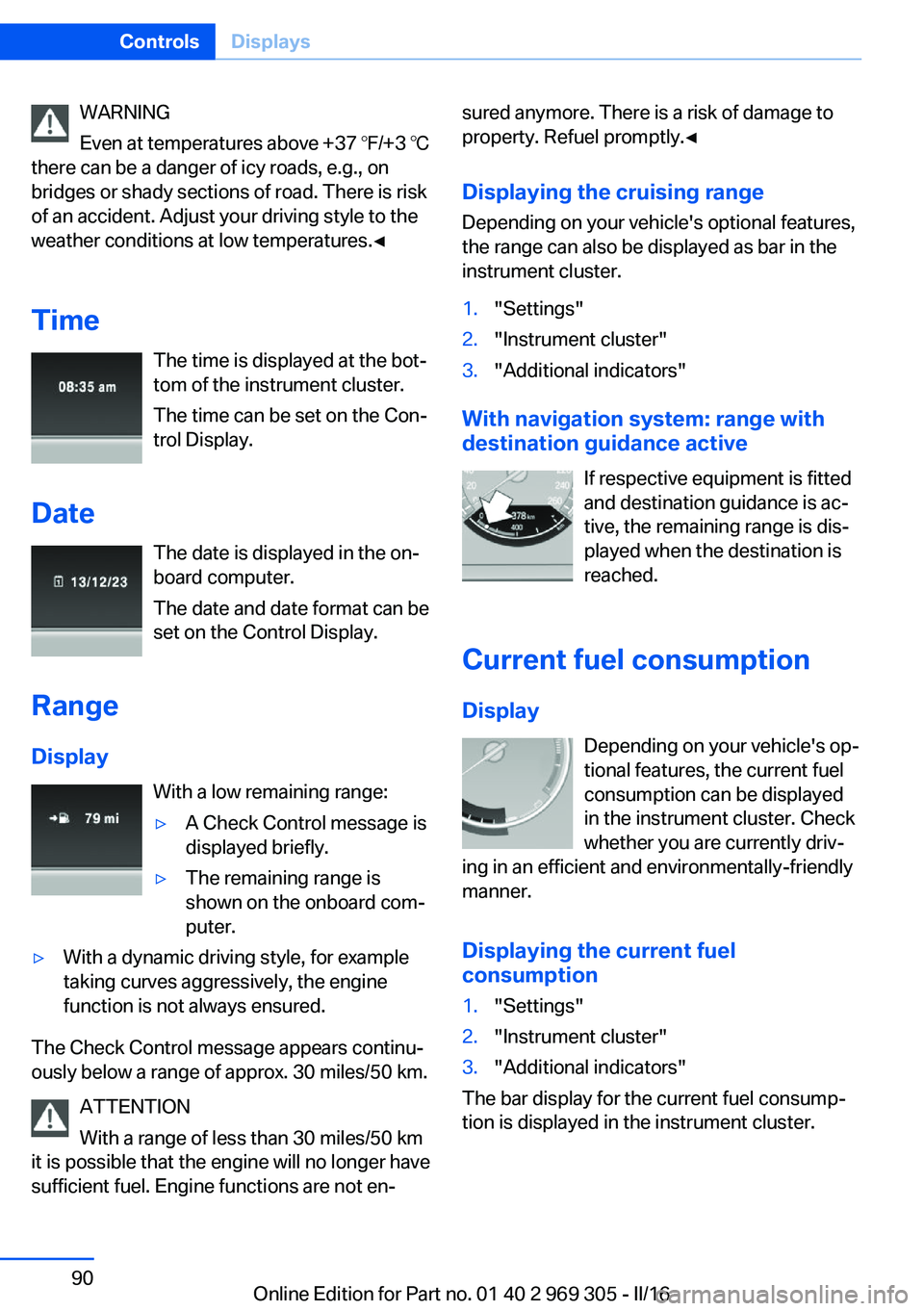
Time The time is displayed at the bot‐
tom of the instrument cluster.
The time can be set on the Con‐
trol Display.
Date The date is displayed in the on‐
board computer.
The date and date format can be
set on the Control Display.
Range Display With a low remaining range:▷A Check Control message is
displayed briefly.▷The remaining range is
shown on the onboard com‐
puter.▷With a dynamic driving style, for example
taking curves aggressively, the engine
function is not always ensured.
The Check Control message appears continu‐
ously below a range of approx. 30 miles/50 km.
ATTENTION
With a range of less than 30 miles/50 km
it is possible that the engine will no longer have
sufficient fuel. Engine functions are not en‐
sured anymore. There is a risk of damage to
property. Refuel promptly.◀
Displaying the cruising range Depending on your vehicle's optional features,
the range can also be displayed as bar in the
instrument cluster.1."Settings"2."Instrument cluster"3."Additional indicators"
With navigation system: range with destination guidance active
If respective equipment is fitted
and destination guidance is ac‐
tive, the remaining range is dis‐ played when the destination is
reached.
Current fuel consumption
Display Depending on your vehicle's op‐
tional features, the current fuel
consumption can be displayed
in the instrument cluster. Check
whether you are currently driv‐
ing in an efficient and environmentally-friendly
manner.
Displaying the current fuel
consumption
1."Settings"2."Instrument cluster"3."Additional indicators"
The bar display for the current fuel consump‐
tion is displayed in the instrument cluster.
Seite 90ControlsDisplays90
Online Edition for Part no. 01 40 2 969 305 - II/16
Page 92 of 261

Gear shift indicatorThe conceptThe system recommends the most fuel effi‐
cient gear for the current driving situation.
General information
Depending on the vehicle's features and coun‐
try version of the vehicle, the gear shift indica‐
tor is active in the manual mode of the Step‐
tronic transmission.
Suggestions to shift gear up or down are dis‐
played in the instrument cluster.
On vehicles without a gear shift indicator, the
engaged gear is displayed.
DisplayingExampleDescriptionFuel efficient gear is set.Shift into fuel efficient gear.
Speed limit detection
The concept
Speed limit detection
Speed limit detection shows the current maxi‐
mum permitted speed in the instrument clus‐
ter. The camera in the area of the interior mir‐
ror detects traffic signs at the edge of the road
as well as variable overhead sign posts. Traffic
signs with extra symbols for wet road condi‐
tions, etc. are also detected and compared
with the vehicle's onboard data, such as for the
rain sensor, and will be displayed depending
on the situation. The system takes into ac‐
count the information stored in the navigation
system and also displays speed limits present
on routes without signs.
Information WARNING
The system does not release from the
personal responsibility to correctly assess visi‐
bility and traffic situation. There is risk of an ac‐
cident. Adjust the driving style to the traffic
conditions. Watch traffic closely and actively
intervene in the respective situations.◀
Overview
Camera
The camera is installed near the interior mirror.
Keep the windshield in the area behind the in‐
terior mirror clean and clear.
Switching on/off On the Control Display:
1."Settings"2."Instrument cluster"3."Speed limit information"
If speed limit detection is switched on, it can
be displayed on the CID (central information
display) in the instrument cluster via the on‐
board computer.
Display
The following is displayed in the instrument
cluster:
Seite 92ControlsDisplays92
Online Edition for Part no. 01 40 2 969 305 - II/16
Page 93 of 261
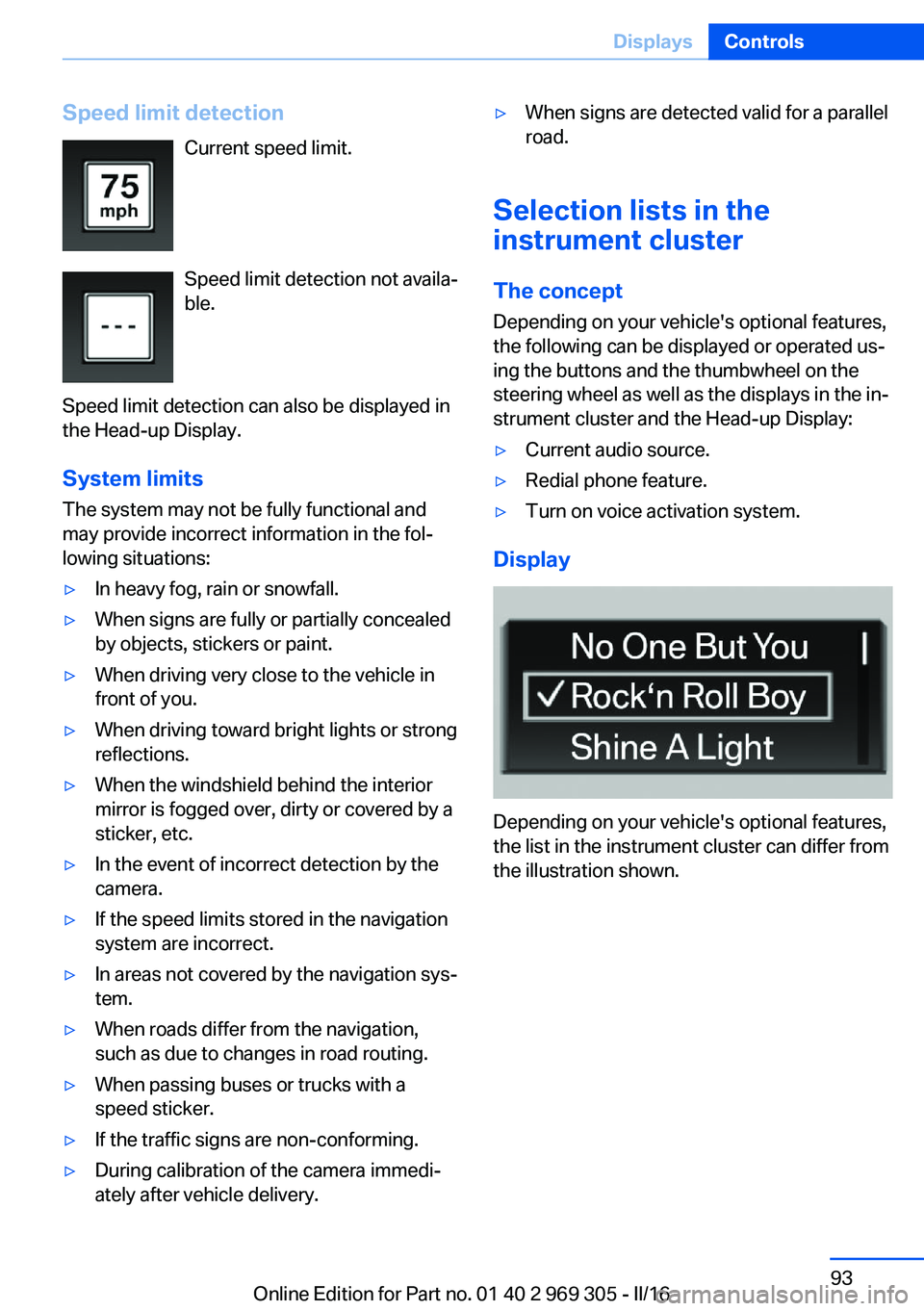
Speed limit detectionCurrent speed limit.
Speed limit detection not availa‐
ble.
Speed limit detection can also be displayed in
the Head-up Display.
System limits
The system may not be fully functional and
may provide incorrect information in the fol‐
lowing situations:▷In heavy fog, rain or snowfall.▷When signs are fully or partially concealed
by objects, stickers or paint.▷When driving very close to the vehicle in
front of you.▷When driving toward bright lights or strong
reflections.▷When the windshield behind the interior
mirror is fogged over, dirty or covered by a
sticker, etc.▷In the event of incorrect detection by the
camera.▷If the speed limits stored in the navigation
system are incorrect.▷In areas not covered by the navigation sys‐
tem.▷When roads differ from the navigation,
such as due to changes in road routing.▷When passing buses or trucks with a
speed sticker.▷If the traffic signs are non-conforming.▷During calibration of the camera immedi‐
ately after vehicle delivery.▷When signs are detected valid for a parallel
road.
Selection lists in the
instrument cluster
The concept Depending on your vehicle's optional features,
the following can be displayed or operated us‐
ing the buttons and the thumbwheel on the
steering wheel as well as the displays in the in‐
strument cluster and the Head-up Display:
▷Current audio source.▷Redial phone feature.▷Turn on voice activation system.
Display
Depending on your vehicle's optional features,
the list in the instrument cluster can differ from
the illustration shown.
Seite 93DisplaysControls93
Online Edition for Part no. 01 40 2 969 305 - II/16
Page 94 of 261
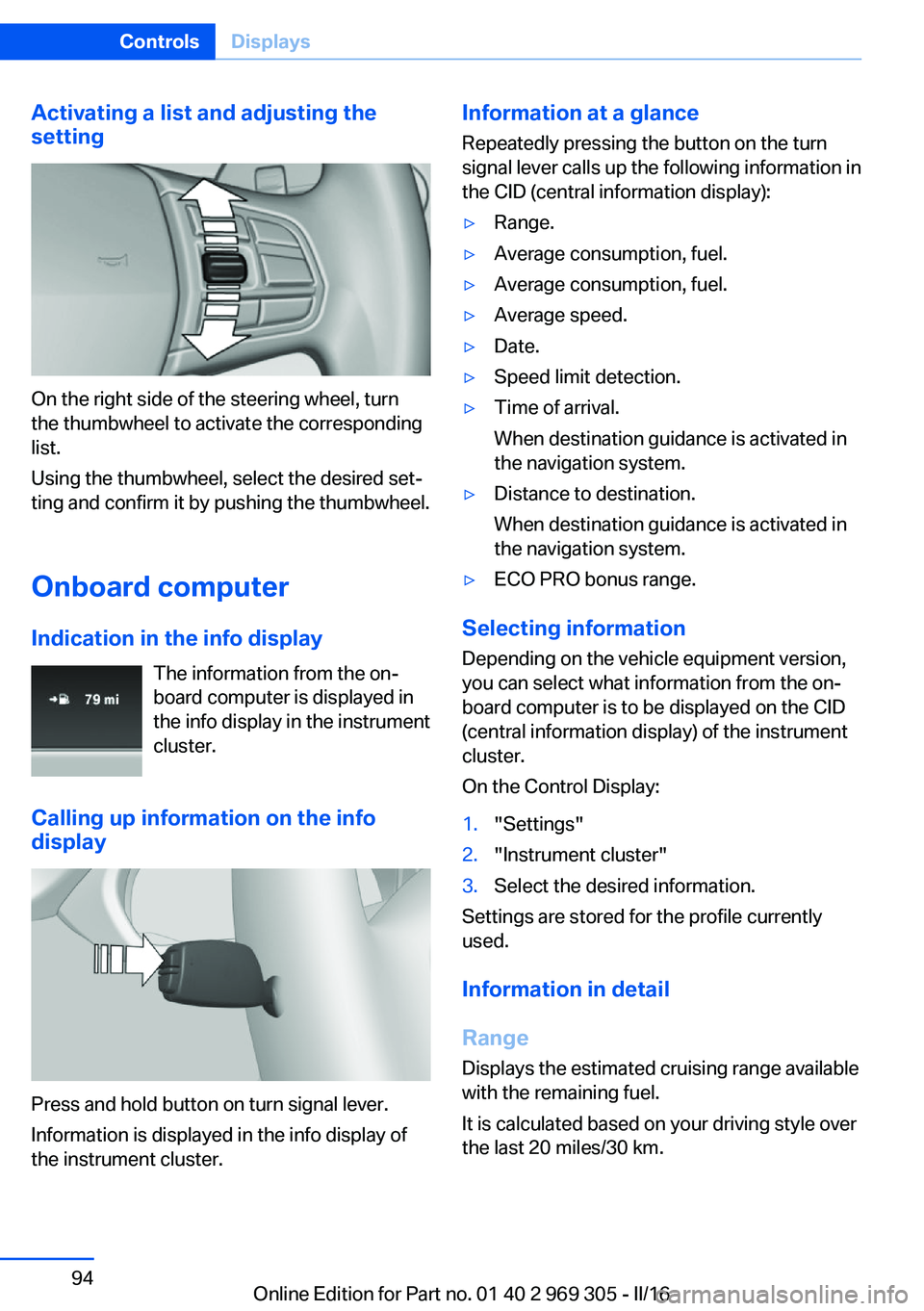
Activating a list and adjusting the
setting
On the right side of the steering wheel, turn
the thumbwheel to activate the corresponding
list.
Using the thumbwheel, select the desired set‐
ting and confirm it by pushing the thumbwheel.
Onboard computer
Indication in the info display The information from the on‐
board computer is displayed in
the info display in the instrument
cluster.
Calling up information on the info
display
Press and hold button on turn signal lever.
Information is displayed in the info display of
the instrument cluster.
Information at a glance
Repeatedly pressing the button on the turn
signal lever calls up the following information in
the CID (central information display):▷Range.▷Average consumption, fuel.▷Average consumption, fuel.▷Average speed.▷Date.▷Speed limit detection.▷Time of arrival.
When destination guidance is activated in
the navigation system.▷Distance to destination.
When destination guidance is activated in
the navigation system.▷ECO PRO bonus range.
Selecting information
Depending on the vehicle equipment version,
you can select what information from the on‐
board computer is to be displayed on the CID
(central information display) of the instrument
cluster.
On the Control Display:
1."Settings"2."Instrument cluster"3.Select the desired information.
Settings are stored for the profile currently
used.
Information in detail
Range
Displays the estimated cruising range available
with the remaining fuel.
It is calculated based on your driving style over
the last 20 miles/30 km.
Seite 94ControlsDisplays94
Online Edition for Part no. 01 40 2 969 305 - II/16