2017 AUDI TT ROADSTER radio
[x] Cancel search: radioPage 109 of 314
"'
"' ....
N
" N ....
R v> CX)
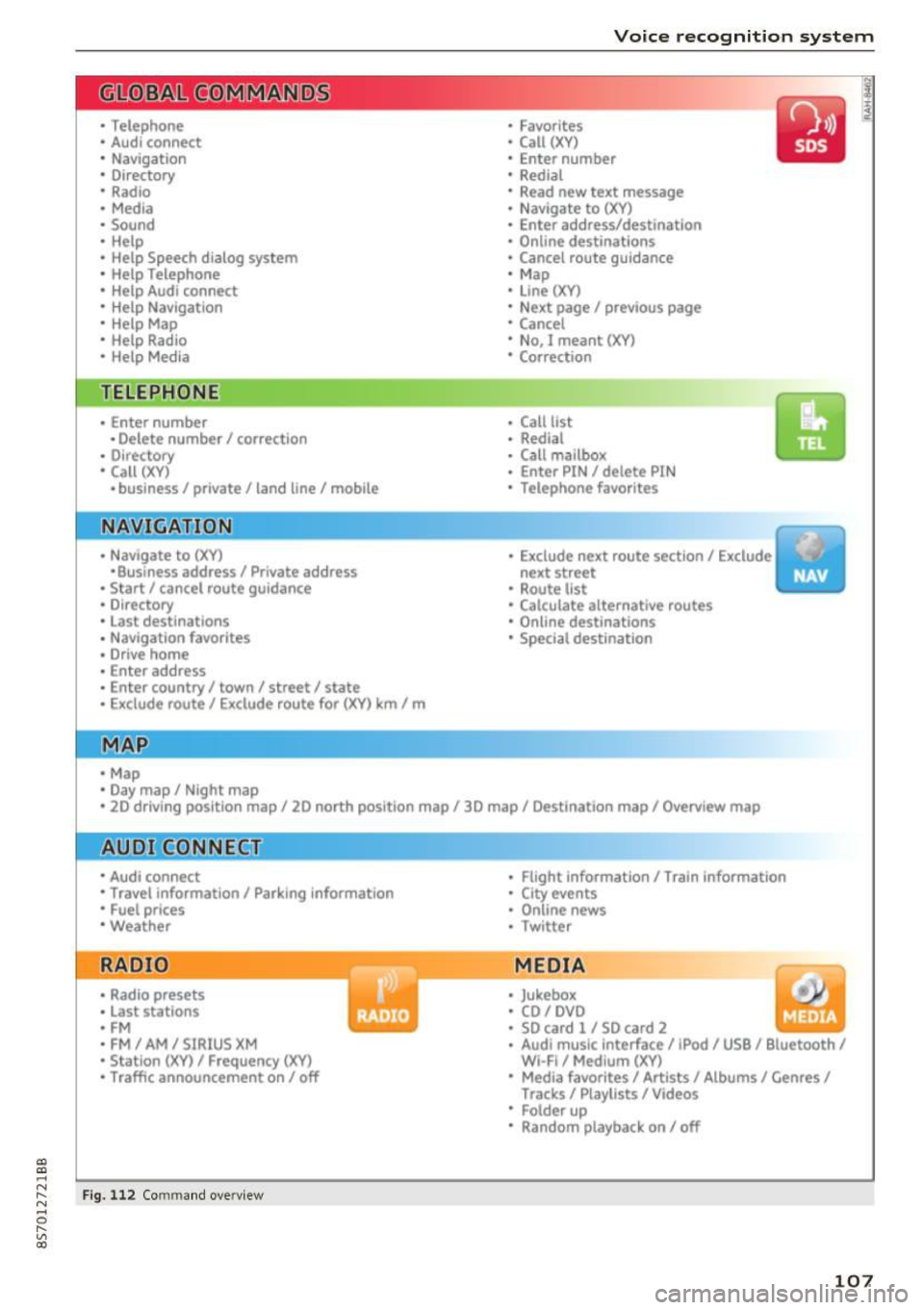
• Telephone
• Audi connect
• Navigation
• Directory
• Radio
• Med ia
• Sound
• Help
• Help Speech dia log system
• Help Telephone
• Help Audi connect
• Help Navigation
• Help Map
• Help Radio
• Help Media
TELEPHONE
· Enter number
• Delete number/ correc tion
• Directory
• Call (XY)
·business/ private/ land line/ mobile
NAVIG:ATI0N
• Navigate to (XV)
• Business address/ Private address
• Start/ cancel route guidance
· Directory
• Last destinations
• N avigation favorites
• Drive home
• Enter address
• Enter country/ town/ street/ state
• Exclude routt / Exclude route for (XY) km/ m
• M ap
• Day map / Night map
Voice recognition system
• Favor ites
• Call (XY)
• Enter number
• Redial
• Read new tex t message
• N avigate to
(XV)
• Enter address/destination
• Onhne destinations
• Cancel route guidance
• M ap
• Line (XY)
• Next page/ previous page
• Cancel
• N o, l meant
()(Y)
• Correction
• Call list
• Redial
• Call mailbox
• Enter PIN/ delete PI N
• Telephone favori tes
• Exclude ne xt route section / Exclude
nex t street
• Route list
• Calculate alternative routes
· Online destinations
• Special destination
• 20 driving position map/ 20 north position map/ 30 map/ Destination map/ Overview map
AllJC !H C0NNECf
• Audi connect
• Travel information/ Parking Information
• Fuel prices
• Weather
RADIO
• Radio presets
• Last stations
• FM
• FM / AM/ SIRIUS XM
• Station (XY) / Frequency (XY)
• T raffic announcement on/ off
Fig . 112 Co mmand overv ie w
• Flight Information I Train Information
• City events
• Online news
• Twitter
MEDIA
• Jukebo x
• CO/ DVD y
• SO card l / SD card 2
· Audi music Interface/ !Pod/ USB / Bluetooth /
Wl ·Fi / Medium (XV)
• Media favorites/ Artists/ Albums/ Genres/
Tracks/ Playlists / Videos
• Folder up
· Random playback on / off
107
Page 111 of 314
co
co
.... N
" N .... 0
" "' c:o
Voice recognition system
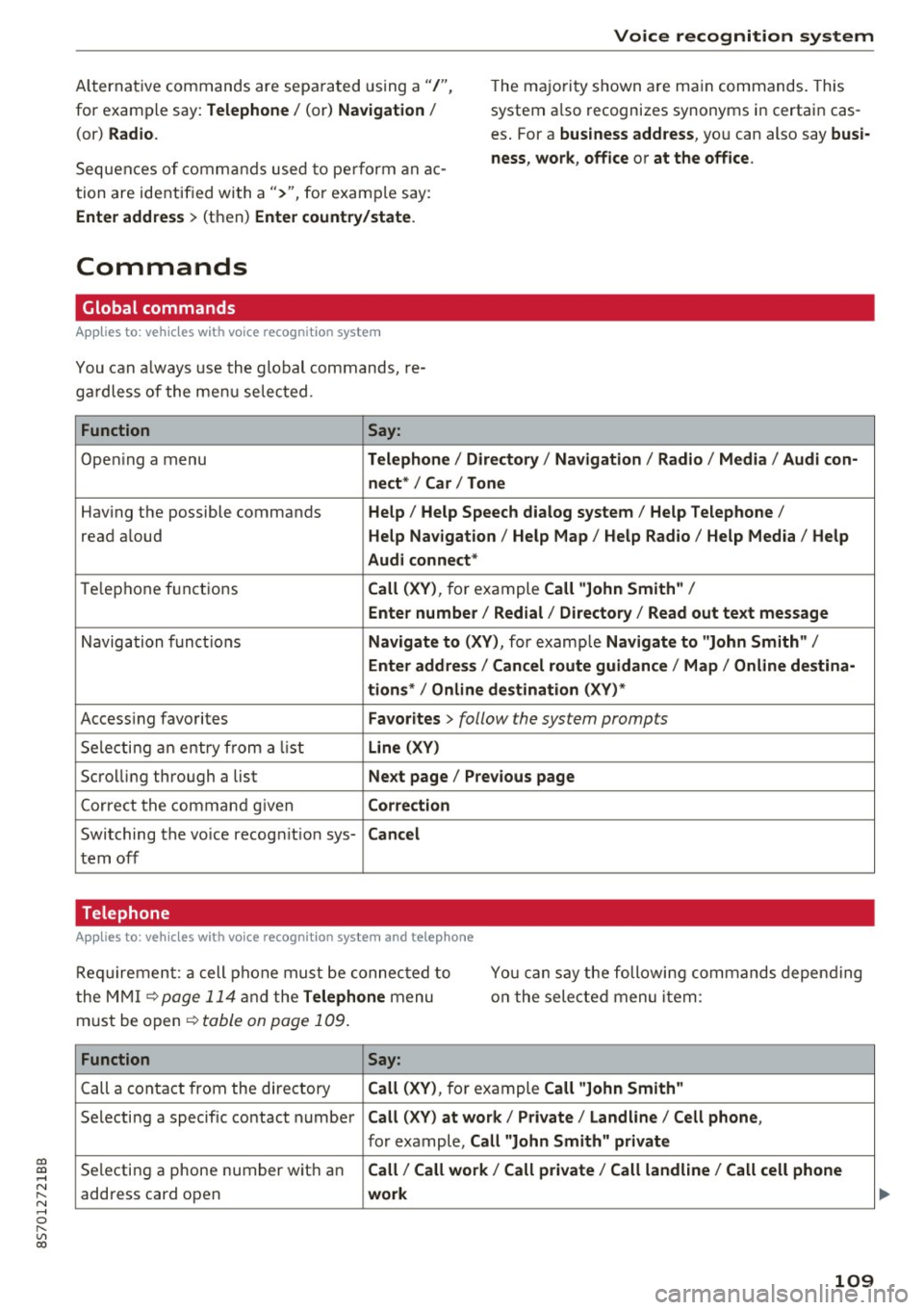
Alternative commands are sepa rated using a"/",
for examp le say:
Telephone / (or) Navigation /
(or) Radio.
Sequen ces o f comman ds used to pe rform an ac
tion are identif ied with a">'', for exam ple say: T
he ma jo rit y shown are ma in commands. This
system a lso recognizes synonyms in certain cas
es . For a
business address , you can also say busi
ness , work , office or at the office .
Enter address
> (then) Enter country/state .
Commands
Global commands
Applies to: vehicles with voice recognition system
You can always use t he global commands, re
ga rdless of the me nu selected.
Function Say:
Ope ning a menu Telephone / Directory / Navigation / Radio / Media / Audi con-
nect * /Car / Tone
Hav ing the possible commands Help / Help Speech dialog system / Help Telephone /
read aloud Help Nav igation / Help Map / Help Radio / Help Media / Help
Aud i connect *
Telep hone f unct ions Call (XV) , for example Call "John Smith" /
Enter number / Redial / Directory / Read out text message
Navigation f unc tions Navigate to (XV) , for example Navigate to "John Smith" /
Enter address / Cancel route guidance / Map / Online destina-
tions * /Online destination (XV) *
Accessing favorites Favorites > follow the system prompts
S ele cti ng an entry from a list Line (XV)
Scrolling thro ugh a list Next page / Previous page
Corre ct th e comman d given Correction
Switching the vo ice recog nition sys-Cancel
tern off
Telephone
Applies to: vehicles with vo ice recognition system and telephone
R equi reme nt: a cell p hone must be connec ted t o
t he MM I
¢page 114 a nd the Telephone menu
m ust be op en ¢
table on page 1 09 .
Yo u ca n say the foll owi ng commands depen ding
o n t he sele cted menu item:
Function Say:
Call a conta ct fr om the dire ctory Call (XV) , for ex ample Call "John Smith"
Se lecti ng a specif ic contact number Call (XV) at work / Private / Land line / Cell phone ,
for example, Call "John Smith" private
Selecting a phone number wit h an Call / Call work / Call private / Call land line / Call cell phone
address card open work
109
Page 114 of 314
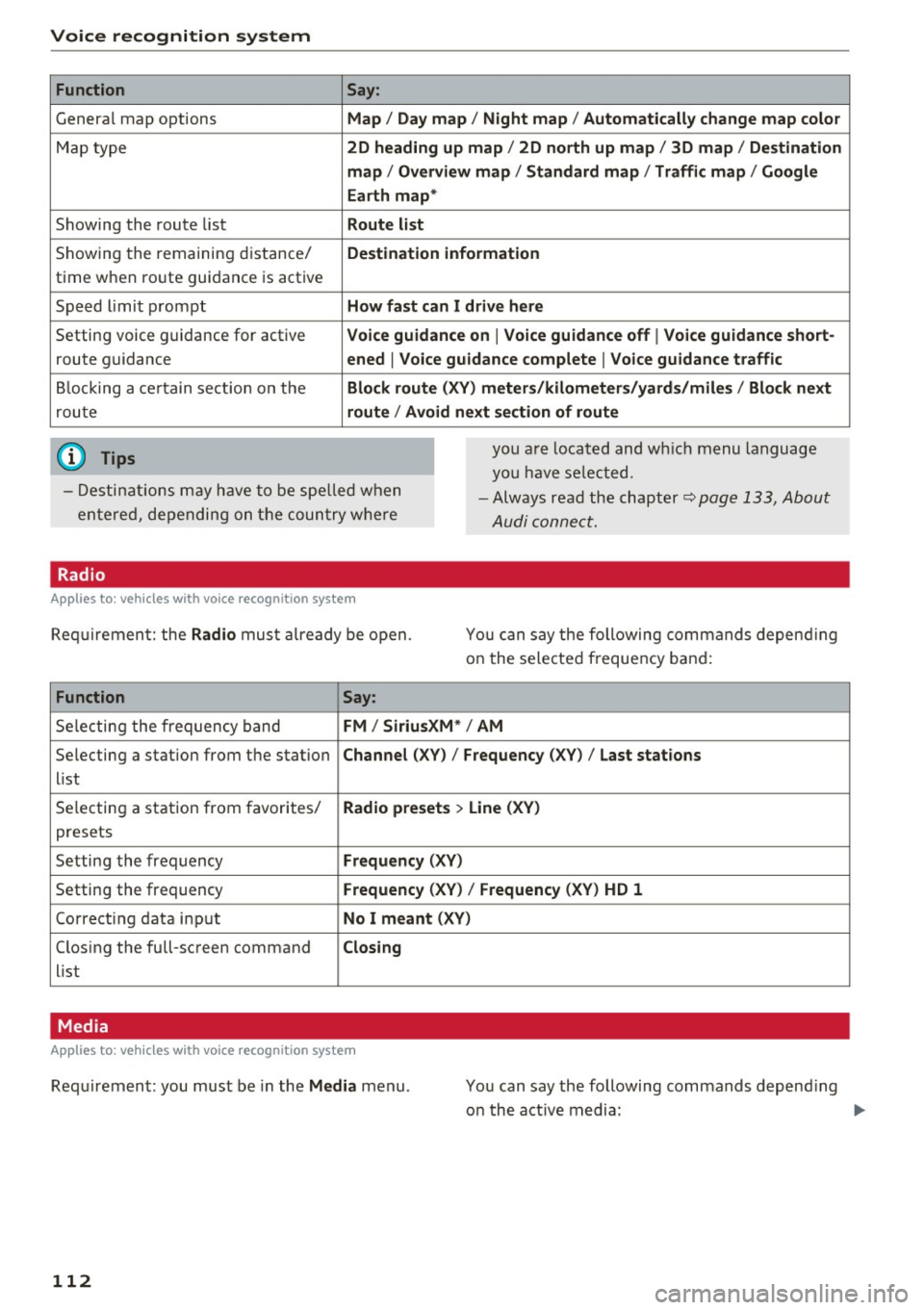
Voice recognition system Function
Genera l map options
Map type
Showing the route list
Showing the remaining distance/
time when route guidance is active
Speed limit prompt
Setting voice guidance for active route guidance
B locking a ce rtain section on the
rou te
(D Tips Say:
Map / Day map / N ight map / Automatically change map color
2D heading up map / 2D north up map / 3D map / De stination
map / Ov ervi ew map / Standard map / Traffic map / Googl e
Earth map *
Route l ist
Destin ation information
How fa st can I drive here
V oice guidance on
I V oice guidance off I Voice guidance short-
ened
I Vo ice guidance complete I V oice guid ance traffic
Block route (XV ) m eter s/kilom eters /yards /mile s/ Block next
route / Avo id next section of route
you a re located and wh ich menu language
you have se lected.
- Destinations may have to be spe lled when
entered, depending on the coun try where -
Always read the chapter~
page 133, About
Audi connect.
Radio
Applies to : vehicles with voice recognitio n system
Req uirement: the Radio mus t already be open. You can say the following commands depend ing
on the selected frequency band:
Function Say:
Selecting the frequency band FM / Siriu sXM * / AM
Selecting a station from the station Channel (XV) / !Frequency (XV) / Last stat ions
list
Selecting a station from favorites/
Radio presets > Line (XV)
presets
Setting the frequency
Fr equ ency (XV)
Setting the frequency Frequenc y (XV) / Frequency (XV ) HD 1
Correcting data input No I m eant (XV )
Closing the full-screen command C losing
list
Media
Appl ies to: vehicles with voice recognition system
Requirement: you must be in the Med ia menu .
112 You can say the following commands depend
ing
o n the act ive media:
Page 120 of 314
Telephone
-Ending a phone call/cancel dialing: select and
confirm End call. Or : press the control knob.
A ccepting another call: see
q page 118, During
a phone call.
Caller information : the name, phone number or
Unknown appears in the Infotainment system
display depending on if the ca ller has bee n stored
in the directory and if the phone number has
been transmitted. A picture may also be dis
p layed, depending on whether you have assigned
a picture to a contact in your directory and if it
was transferred to your MMI. You can find out if
your cell phone supports this function from your cell phone network provider, your cell phone
owner's manual or at www.audiusa .com/blue
tooth .
{D) Tips
The radio or media playback is muted during a
phone call.
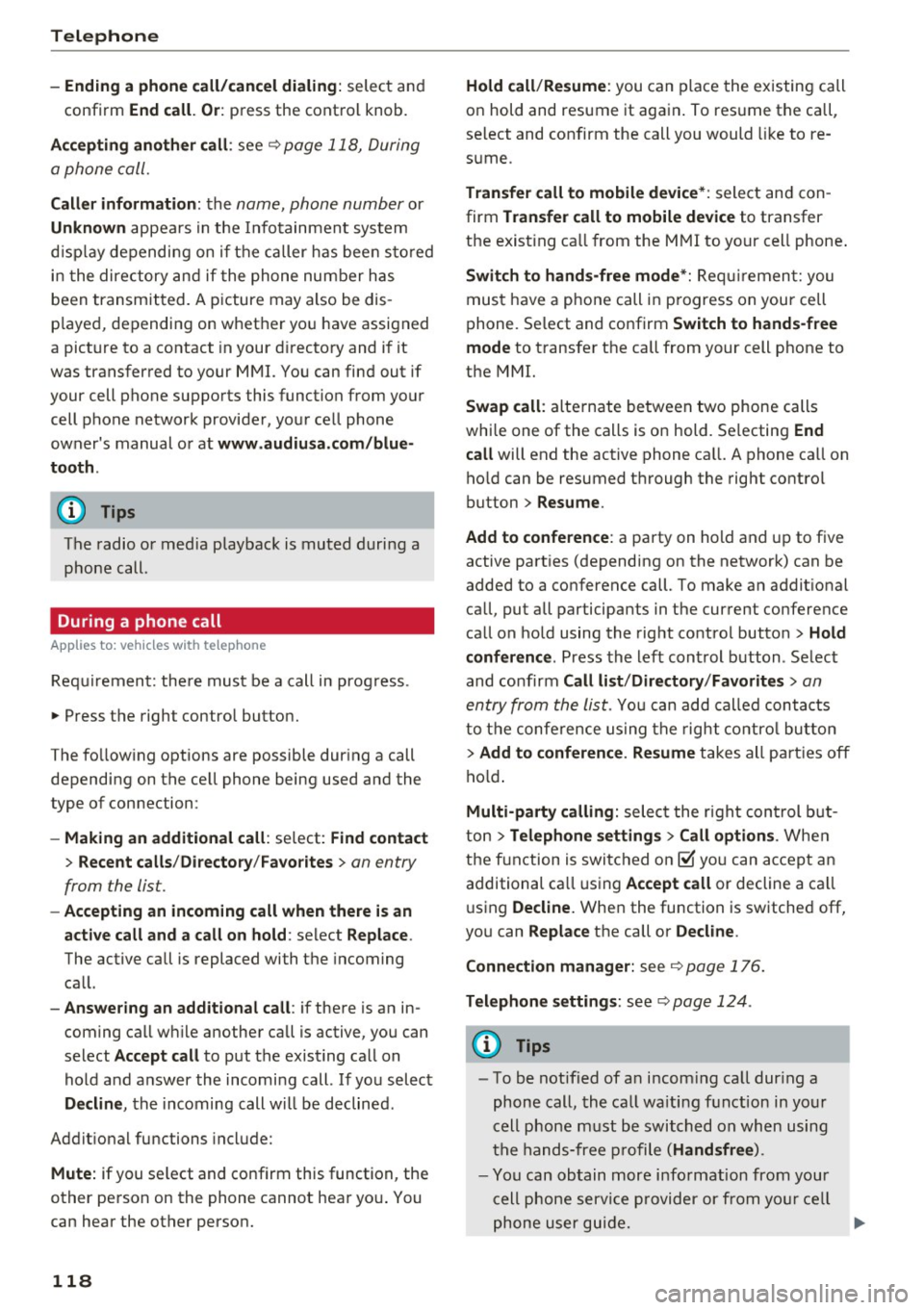
During a phone call
Applies to: vehicles with telephone
Requirement: there must be a call in progress.
"" Press the right control button.
The fo llowing options are possible during a call
depending on the ce ll phone being used and the
type of connection:
- Making an additional call: select: Find contact
> Recent calls /Directory /Favorites > an entry
from the list.
- Accepting an incoming call when there is an
active call and a call on hold : select Replace .
The active call is replaced with the incoming
call.
- Answering an additional call : if there is an in
coming call w hile another call is active, you can
select Accept call to put the exist ing call on
hold and answer the incomi ng call.
If you select
Decline , the incoming call w ill be declined.
Addit ional functions include:
Mute: if you se lect and confirm this function, the
other person on the phone cannot hear you . You
can hear the other person.
118
Hold call /Resume : you can place the existing call
on hold and resume it again . To res ume the call,
se lect and confirm the call you would like to re
sume .
Transfer call to mobile device* : select and con
firm Transfer call to mobile device to transfer
the exist ing ca ll from the MMI to your cell phone .
Switch to hands-free mode*: Requiremen t: you
must have a phone call in progress on your cell
phone. Select and confirm Switch to hands-free
mode to transfer the call from your cell phone to
the MMI.
Swap call: alternate between two phone calls
while one of the calls is on hold. Se lecting End
call will end the active phone call. A phone call on
hold can be resumed through the right control
button
> Resume .
Add to conference : a party on hold and up to five
active part ies (depending on the network) can be
added to a conference call. To make an addit ional
ca ll, put all participants in the current conference
call on hold using the right control button
> Hold
conference . Press the left control button . Se lect
and confirm Call list/Directory /Favorites
> an
entry from the list.
You can add called contacts
to the conference using the right control button
> Add to conference. Resume takes all part ies off
hold.
Multi-party calling: select the right con trol but
ton
> Telephone settings > Call options . When
the function is switched on~ you can accept an
additional ca ll using Accept call or decline a ca ll
using Decline. When the function is switched off,
you can Replace the call or Decline.
Connection manager: see
q page 176.
Telephone settings: see q page 124.
(D Tips
-To be notified of a n incom ing call dur ing a
phone call, the call wa iting function in your
cell phone must be switched on when using
the hands-free profile (Handsfree ).
- You can obtain more information from your
cell phone service provider or from your cell
phone user guide.
Ill>
Page 124 of 314
Telephone
(D Tips
-This service must be set up and activated in
advance by the cell phone service provider.
You can obta in more information from your
cell phone service prov ider.
- The voicemai l number depends on the cell
phone service provider .
Emergency call functions
Appl ies to: ve hicles w ith tele phone
~ Select : I MENU I button >Telephone > left con
trol button >
Enter number > Enter emergency
call number (for example , 911)
> O K.
A WARNING
-
- Beca use your phone works with radio s ig
nals , a connect ion cannot be guaranteed un
der all ci rc u mstances. Do not rely on only
yo ur phone when it comes to essent ial com
mun ication (s uch as a medical eme rgency).
- Always follow the instructions given by the
emergency personnel du ring an emergency
call and only end the call when they instruct
yo u to do so .
(D Tips
Emergency numbers are not the same eve ry
where. Find out which eme rgency number is
used in yo ur current locat ion .
Directory
Opening the directory
Appl ies to: ve hicles w ith tele phone
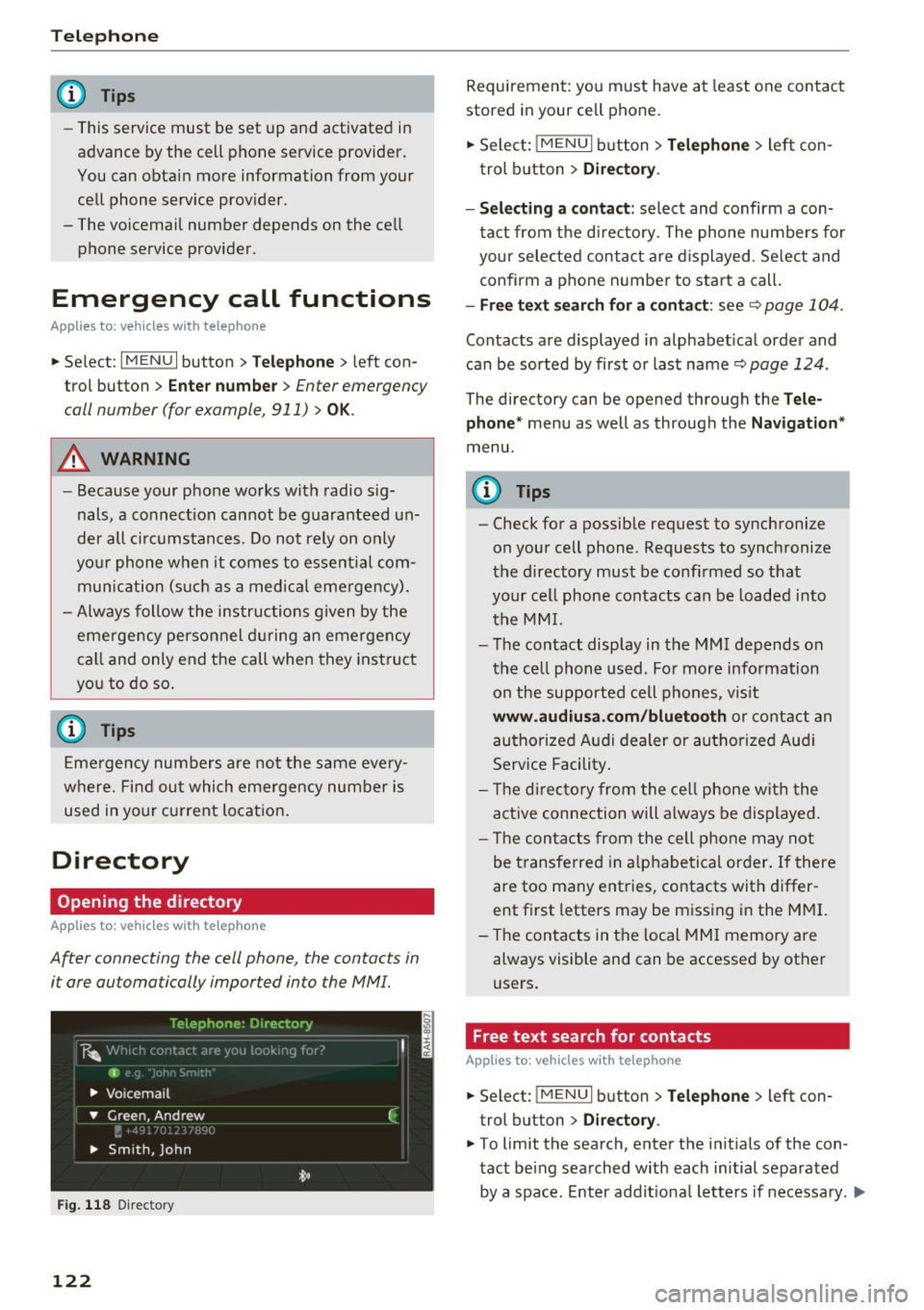
After connecting the cell phone, the contacts in
i t are automatically impor ted in to the MMI.
F ig . 11 8 Direc tory
122
Requirement: yo u must have at least one contact
stored in your cell phone.
~ Select: ! M ENUI button> T el ephone > left con
trol b utton >
Dire ctory .
- Selecting a contact :
select and confirm a con
tact from t he d irectory. The phone numbers for
your selected contact are displayed . Se lect and
confirm a phone n umbe r to sta rt a call .
-Fre e te xt sear ch for a conta ct : see q page 104 .
Contacts a re displayed in alphabet ical order and
can be sorted by first or last name ¢
page 124.
The directo ry can be opened th rough the Tele
phone "
menu as well as through the Navigation "
menu.
(D Tips
-Check for a possible request to synchronize
on your cell phone . Requests to synchronize
the directory must be confirmed so that
your cell phone contacts can be loaded into
the MM I.
- The contact display in the MMI depends on
the ce ll phone used . Fo r more information
on the supported cell phones , vis it
www .audiu sa .com /blu etooth or contact an
authorized Audi dealer or authorized Aud i
Service Facility .
- T he d irecto ry from the cell phone w ith the
active connection will a lways be displayed.
- T he contac ts from the cell phone may not
be transferred in a lphabetical order. If there
are too many entries, contacts with differ
ent first letters may be miss ing in the M MI.
- The contacts in the local MMI memory are
always visible and can be accessed by other
users.
, Free text search for contacts
App lies to : vehicles wi th telepho ne
~ Select: !MENU I button> Telephone > left con
trol button >
Director y.
~ To limit the search , enter the in it ials of the con
tact being searched with each initial separated
by a space. Enter addit iona l letters if necessa ry . .,..
Page 153 of 314
Radio
Opening the radio
The radio supports the FM , A M and SiriusXM *
(satellite radio) bands. Using the HO Radio re
ceiver also allows you to receive radio stations
on the FM and AM bands in digital format.
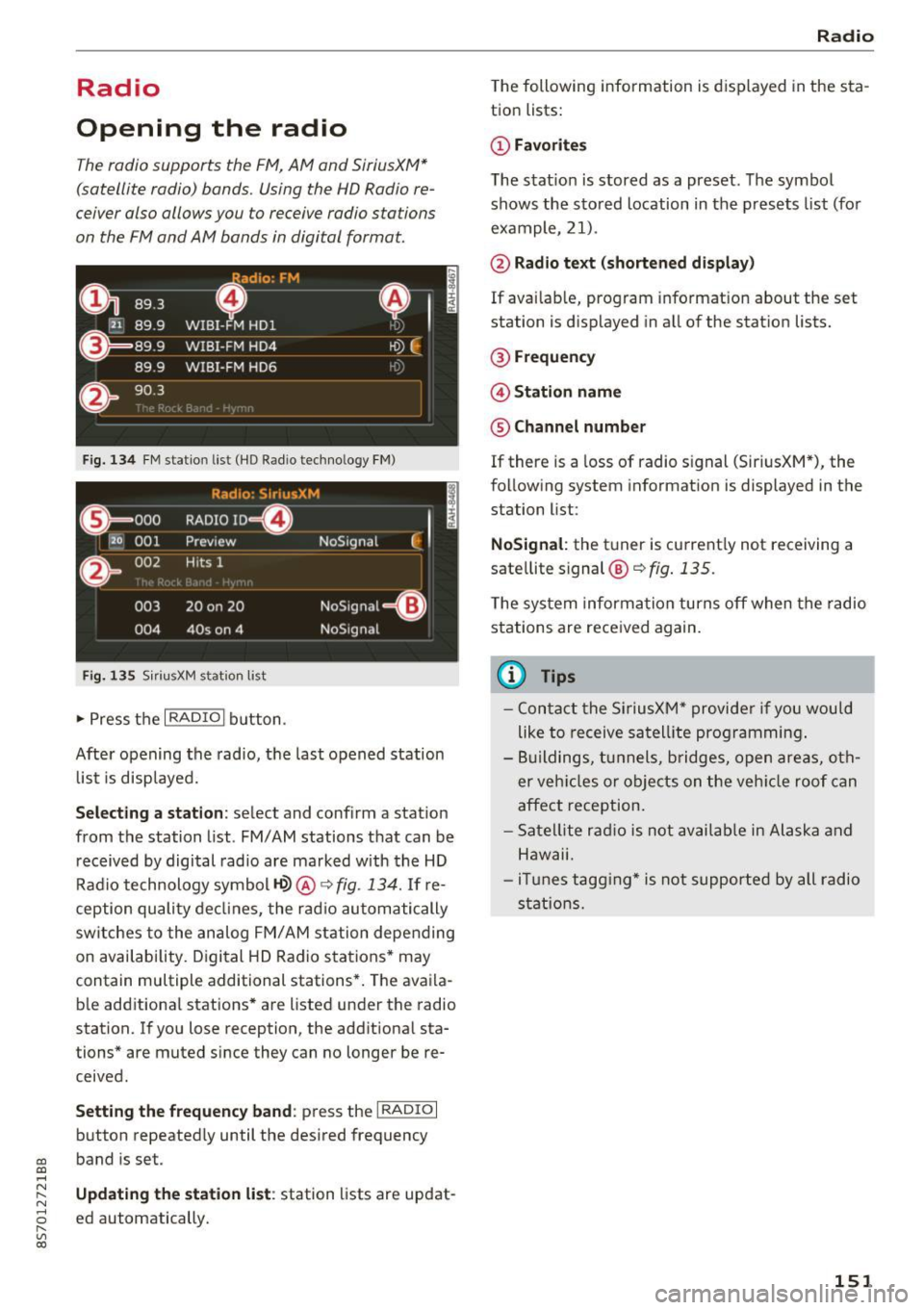
Fig . 134 FM stat ion list ( HO Ra dio tec hn ology FM)
Radio: SiriusXM
ti
~ .. . 000 RADIO 10 D
120 001
Preview NoSignal
&
002 H
its 1
003 20 on 20
NoSignal=8
004 40s on 4 NoSignal
Fig. 135 S iri usXM station list
.. Press the I RAD IO I bu tton.
Afte r opening the rad io, t he last opened station
lis t is disp laye d.
.
I
Selecting a station : select and confirm a stat io n
from the station list . FM/ AM stations t hat can be
received by digital rad io are ma rked w ith the HD
R adio technology symbol
tQ> @ ~ fig. 13 4. If re
ception quality decl ines, the r adio automatically
switches to the analog FM/AM station depe nding
on availability . D igi tal HD Radio s ta tions * may
contain multiple additional stations* . The ava ila
b le add itiona l stations* are listed under the radio
station. I f you lose reception, the add it iona l sta
tions* are muted since they can no longer be re
ceived.
Setting the frequency band : press the I RADIO I
button repeated ly until the desired frequency
CD band is set. CD ....
~ Updat ing the station li st : station lists are updat -.....,
8 ed automatically. r--. V, co
Radio
The following information is displayed in the s ta
tion lists:
(D Favorites
The s tat io n is stored as a preset . The symbo l
shows the s to red location in the p resets list (fo r
example, 21).
@ Rad io text (shortened display )
If availab le, program info rmat ion about the set
station is d isplayed in a ll of the stat ion lists.
@ Frequenc y
@ Station name
® Channel number
If there is a loss of radio signal (Sir iusXM*), the
f o llow ing system in format ion is displayed in the
station list:
NoSignal : the tu ner is cu rrent ly not receiving a
sate llite signal @~
fig. 135.
The system inform ation turns off when the radio
st ations are rece ived again.
(D Tips
- Con tact the SiriusXM" provider if you would
like to receive sa tel lit e programming .
- B uilding s, tu nnels, b ridges, ope n area s, oth
er veh icles or objects o n the veh icle roof can
affect reception.
- Sate llite ra dio is not availab le in Alaska and
Hawaii.
- iT unes tagg ing* is not supporte d by all radio
sta tio ns.
151
Page 154 of 314
Radio
Radio functions
Free text search
Using the free text search, you can select the or
der that the search terms are entered in the in
put field. Search in all frequency bands for a sta tion name or program type such as
News ).
891 l,
~ flLJ.3 .
D
H'J.6
WIBI-FM HDl
H'-J.7 WIBI-FM HD4
IIM
r,M
~
fl'l.9 WIBI-FM HD6 ,,,,.
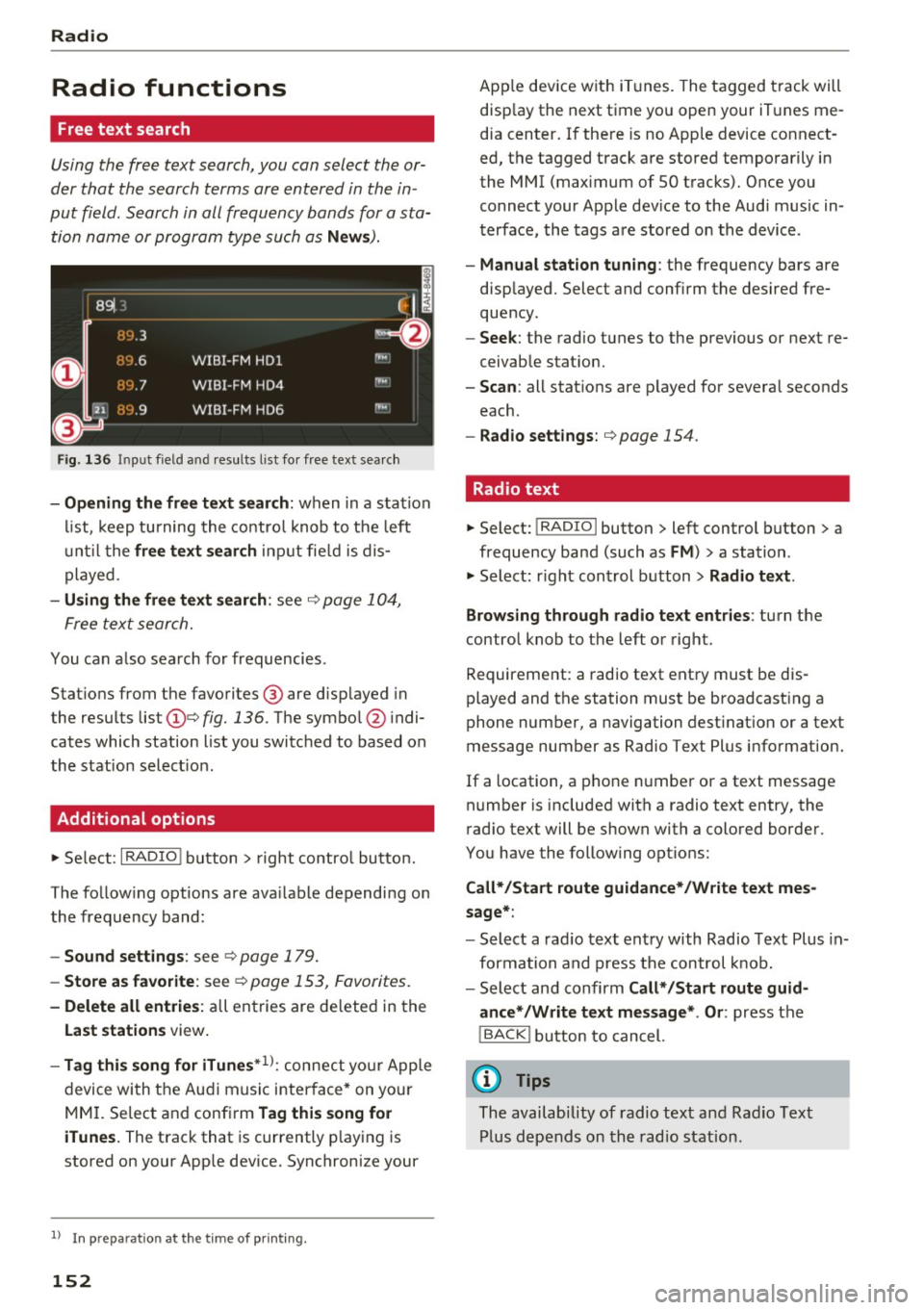
Fig. 136 Input field a nd result s list fo r free text sea rc h
- Opening the free text search : when in a station
list, keep turning the control knob to the left
until the
free text search input fie ld is dis
played .
-Using the free text search : see ¢ page 104,
Free text search.
You can a lso search for frequencies .
Stat ions from the favorites ® are disp layed in
the results list
(D e> fig. 136. The symbol @ indi
cates which station list you switched to based on
the station select ion .
Additional options
~ Select : I RADIO I button> right control button.
The follow ing options are ava ilable depending on
the frequency band:
- Sound settings : see c> page 179.
-Store as favorite: see c> page 153 , Favorites.
- Delete all entries: all entries are de leted in the
Last stations view.
-Tag this song for iTunes*1>: connect you r Apple
device with the Audi music interface* on you r
MM I. Select and confirm
Tag this song for
iTunes.
The track that is currently p laying is
stored on your App le device. Synchronize your
1> I n pr ep aratio n at t he time of pr inting.
152
App le device with iTunes. The tagged track will
disp lay the next time you open your iTunes me
dia center. If there is no Apple device connect
ed, the tagged track are stored temporarily in
the MMI (max imum of SO tracks). Once you
connect your Apple dev ice to the Audi music in
terface, the tags are stored on the device .
-Manual station tuning: the frequency bars are
displayed. Select and confirm the desired fre
quency .
-Seek: the radio tunes to the previous or next re
ceivable stat ion.
- Scan: all stat ions are p layed for several seconds
each.
- Radio settings: c> page 154 .
Radio text
~ Select: I RADIO I button > left control button > a
frequency band (such as
FM ) > a station .
~ Select: right control button> Radio text .
Browsing through radio text entries :
turn the
control knob to the left or right.
Requirement: a radio text entry must be dis
played and the station must be broadcasting a
phone number, a navigation dest ination or a text
message number as Radio Text Plus information.
If a location, a phone number or a text message
number is included with a radio text entry, the
radio text will be shown with a colored border .
You have the following options:
Call*/Start route guidance*/Write text mes
sage*:
- Select a radio text entry with Radio Text Plus in
formation and press the control knob.
- Select and confirm
Call* /Start route guid
ance* /Write text message* . Or :
press the
I BACK I button to cancel.
(D Tips
The availability of radio text and Radio Text
Plus depends on the radio station.
Page 155 of 314
CD
CD
.... N
" N ...... 0 r--. V, co
View: additional station information
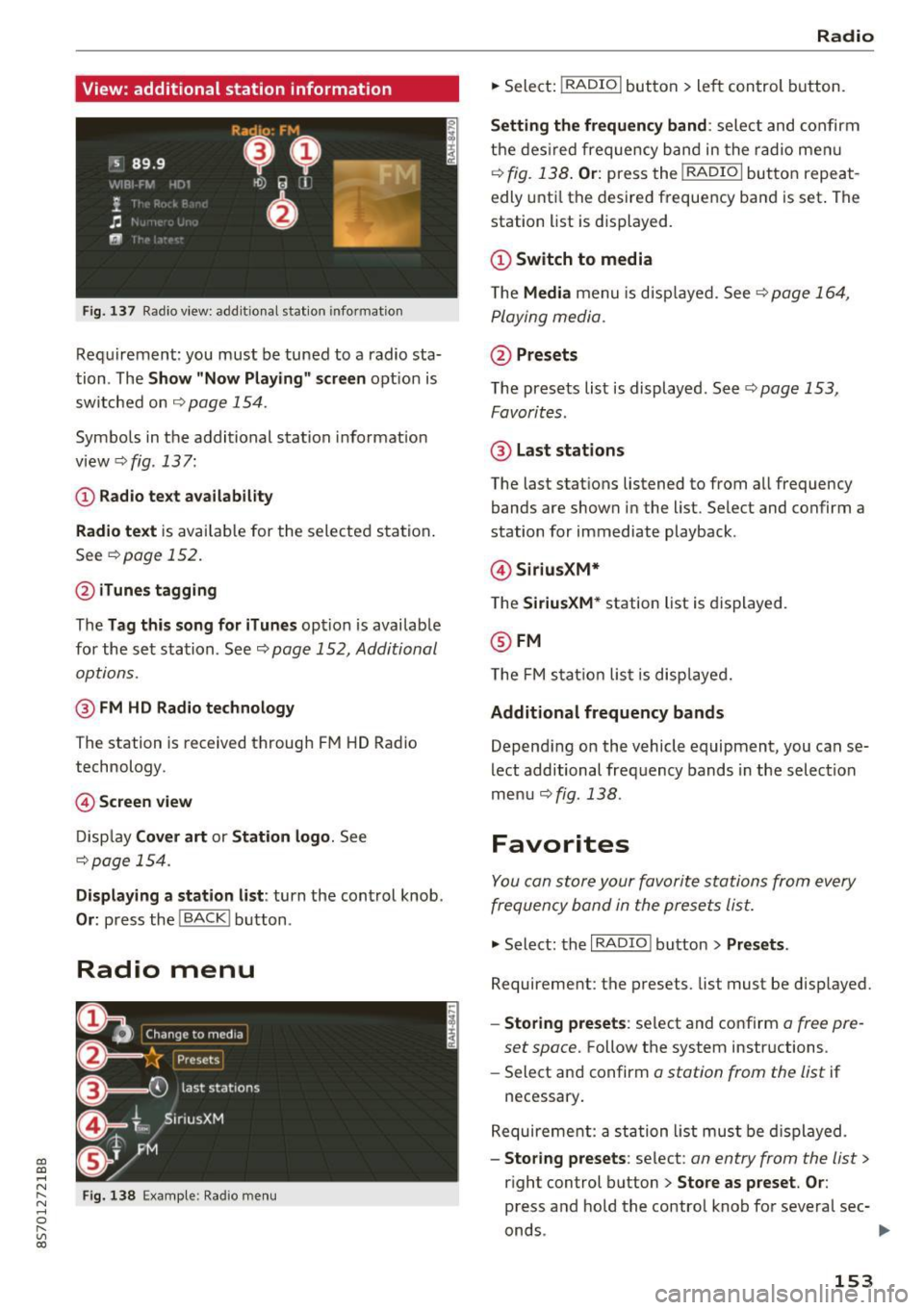
Fig. 137 Radio view: add it ional stat ion information
Requirement: you must be tuned to a radio sta
tion . The
Show "Now Playing" screen opt ion is
switched on
Q page 154.
Symbols in the additional station informat ion
view ¢fig .137:
(D Radio text availability
Radio text
is available for the selected station .
See
Q page 152.
@iTunes tagging
The Tag this song for iTunes option is available
for the set station . See ¢
page 152, Additional
options.
@ FM HD Radio technology
The station is received through FM HD Radio
technology.
@ Screen view
Display Cover art or Station logo. See
¢page 154.
Displaying a station list: turn the control knob .
Or: press the I BACK ! button .
Radio menu
Fig. 138 Example: Radio menu
Radio
.,. Select: I RADIO I button > left control button.
Setting the frequency band : select and confirm
the desired frequency band in the radio menu
¢
fig. 138 . Or: press the I RADIO I button repeat
edly until the desired frequency band is set . The
station list is displayed.
(D Switch to media
The Media menu is disp layed. See Q page 164,
Playing media.
@Presets
The presets list is displayed. See ¢ page 153,
Favorites .
@ Last stations
The last stations listened to from all frequency
bands are shown in the list. Select and confirm a
station for immediate playback .
@SiriusXM*
The SiriusXM* station list is displayed.
@FM
The FM sta tion list is displayed.
Additional frequency bands
Depend ing on the vehicle equipment, you can se
lect additional frequency bands in the selection
menu ¢
fig. 138 .
Favorites
You can store your favorite stations from every
frequency band in the presets list.
.,. Select: the I RADIO I button > Presets .
Requirement: the presets. list must be disp layed.
- Storing presets : select and confirm a free pre-
set space.
Follow the system instructions .
- Select and confirm
a station from the list if
necessary .
Requirement: a station list must be displayed.
-Storing presets : select : an entry from the list>
right control button > Store as preset. Or :
press and hold the contro l knob for several sec-
onds .
~
153