2017 AUDI A8 radio
[x] Cancel search: radioPage 180 of 354

Radio
Radio functions
Fig . 192 Radio mai n functio n s
.. Se lect: the I RADIO I b utton> Functions cont rol
button.
The fo llow ing f unct io ns can be selected, depend
i n g on the band that is se le cted:
(!) Store station /Store channel
The se lected stat ion is stored in the next empty
position in the presets list
c:, page 178 . Select
a nd confi rm the desired p rese ts loca tion.
@ Seek down/Seek up (FM , AM)
The prev ious
I~ or next ~I receivable station is se
lected.
Or : press the arrow keys on the MMI con
trol pane l
l
Previou s channel /Next channel (Si rius*)
The prev ious I~ or next ~ I channel is selecte d. Or:
press the arrow keys on the MMI control pane l
l
@ Tuning
The frequ ency bars are disp laye d. Sele ct and con
fi rm the desired frequen cy .
Tuning (Sirius*)
Select a nd confirm the des ired channel from the
S ir iu s frequency ban d*.
@ Scan
All stations are played for several seconds each.
® Information (FM )/Info (Sirius*)
The radio text (such as station name, artist o r ti
tle) is show n in the Infotai nment display, de
pending on availability.
178
@ Information window
Va rious in forma tion about th e se lected st ation
(s uch as the sta tion name, ensemble or p rogram
type) is displaye d, depending on availability.
(J) Presets
The prese ts lis t can co nta in up to 50 sta tions
fro m al l frequency bands.
- Storing stations : select the Presets control
bu tton >
Store station name. The selected sta
tion is sto red in t he nex t emp ty pos ition in the
presets list. Sele ct and confir m th e des ired pre
se ts lo cati on .
- Selecting a stored station : press the Presets
control b utton. Selec t and con firm a st atio n
from t he p rese ts lis t.
Or: press the arrow keys
on the MMI cont rol panel
(l
-Moving stored station s: press the Presets con
t rol b utt on. Se lect and confirm the s tat ion
from the station list and then
Move station
name.
Se lect and conf irm the desired presets
location.
Other settings
.. Select: the I RADIO I button > Settings control
button.
The following se tt ings can be sele cte d d epend ing
o n the band that is selected ( FM, A M, Siri us*) :
HD Radio* (FM/AM)
Yo u can swit ch HD Radio reception o n or off.
HD station information* (FM/AM)
Requirement: HD radio recept io n must be switch
ed on .
When the funct ion is switched on, va rious i nfor
mation abo ut the t itle t hat is c urrent ly playing
(such as artist or album) is displayed, depending
o n ava ilab ility.
Station names (FM )
- Scrolling:
scro lling text t ransm itted by the FM
stat ions is shown in the Infotainment system
disp lay.
- Fixed : scrolling text transmitted by the FM sta
tions is not shown in the In fota inment system .,,.
Page 181 of 354

0 co .... N ,..... N .... 0 0 :c '
ing text displayed.
-Off: scrolling text transmitted by the FM sta
tions is not shown in the Infotainment display.
Scro lling text from HD stations is shown in the
Infotainment display.
Channel info (Sirius*)
If track informat ion is available for the current ti
tle (such as artist or album), it will be displayed
in a pop-up window if this function is activated.
Station sorting (Sirius*)
-Channel number : the stations are sorted in as
c ending order a ccording to their station num
ber.
- Channel name : the stations are listed in alpha
betical order.
- Category and channel number : the stations are
sorted according to their category and then ac
cording to their channel number.
- Category and channel name : the stations are
so rted according to their category and then ac
cording to their station name.
Troubleshooting
Problem Solution
Radio
Category filter (Sirius*)
The stations shown in the station list can be fil
tered by yo ur personal preferences and by pro
gram type . The program categories that you can
select depend on what is offered by your provid
er. Select the
Deactivate category filter option to
deact ivate all filter opt ions and disp lay all availa
ble stations in the satell ite stat ion list.
Receiver serial number (Sirius*)
The electronic seria l number (ESN) is d isp layed.
The number is required when logging in to Sir
ius*.
Deleting presets
Requirement: a station must be stored in the
presets list¢
page 178 .
Stored stations can be deleted Individually or All
at once .
A station with poor reception is no Store the station ahead of time and then select it from the pre-
longer disp layed in the station list sets list later
(z) ¢ page 178, fig. 192.
once you switch to a different sta-
t ion.
179
Page 195 of 354

C) C0 ....
"' " "' .... 0 0 :r
RSE components
overview
A ppl ies to: ve hicl es w ith Re ar Seat E nte rtainment
The Rear Seat Entertainment, abbreviated RSE ,
combines different entertainment systems . The
RSE control panel is located in the rear center
console .
Fig . 202 RSE compo nen ts
The RSE components are located centra lly in the
rear of t he vehicle
9 fig. 202 . You can also access
the MMI DVD changer* .
CD DVD changer*
@ Left/right RS E disp lay
® Audi music interface
© RSE control unit
® RSE media drives
The standard RSE sys tem is equipped with two
d isp lays, two sets of wire less headphones, a DVD
drive, two SD card readers as well as an Audi mu
sic interface that can be used to connect portable
audio/video devices . The RSE also has a Jukebox
(20 GB memory capacity) available.
Rear Seat Entertainment
A WARNING
-- Driving requires your complete and undivid-
ed attention. As the drive r, you have com
plete responsib ility for safety in traff ic. Only
use the Rear Seat Entertainment system
when t raff ic conditions permit and always in
a way tha t allows you to maintain comp lete
control over your vehicle . For examp le, do
not reach behind you when driving to oper
ate the Rear Seat Entertainment system .
-Adj ust the volume of the audio system so
that signals from outside the vehicle, suc h
as police and fire sirens, can be heard easi ly
at all times.
(D Tips
Note that this chapte r on ly describes RSE
components . For deta iled information about
operating indiv idual RSE funct ions, refer to
the descriptions in the corresponding chapter
(for example the Radio functions
¢ page 177).
Switching the RSE on
and off
Applies to : vehicles wit h Rear Seat Enterta inment
Operating the RS E corresponds to the operation
al conc ept for the MMI control pan el. You us e
the RSE control unit for both RSE displays.
F ig . 203 RS E cont ro l un it
.,. Swit ching the RS E on : press the left/right On/
Off knob
CD ¢ fig . 203 briefly . Or: press one of
the buttons to open a menu direct ly @ .
"" Swit ching the R SE off : press and hold the left/
r igh t On/Off knob until the RSE turns off.
IJ,,
193
Page 197 of 354

C) C0 ....
"' " "' .... 0 0 :r
Applies to: veh icles with Rear Seat Entertainment
Fig. 205 Adju sting the aud io o utp ut
• Select : the I M ENU ! button > Audio outp ut @
¢ fig . 205.
The Audio outp ut for the vehicle sound sys tem
can be switched on for either the left or r ight RS E
display . The
Audio output for the other RSE dis
p lay then plays through the wire less or wired
h eadphones .
The active aud io source is indicated by a corre
spond ing symbol in the display @/@
¢ page 194, fig . 204 .
-Switching off Aud io output in the rear : press
t h e
I RADIO I/IM EDIA I button on the M MI control
panel.
Or : deactivate the Audio output function
¢page 196 .
If you change the stat ion or track on the MMI
control panel, the aud io outp ut in the rear will al
so be switched off .
1l The so un d sett ing s c an only be adjusted fo r au dio outp ut
thro ugh t he v eh icl e s ound sy ste m.
Rear Seat Entertainment
Adjusting the sound
Applies to: vehicles with Rear Seat Entertainment
Fig. 206 Sou nd set tings (headp ho nes conne cted by cab le)
• Sele ct: the I MENU I but ton > Tone .
Different sound sett ings can be ad justed depend
i ng on the selected
Audio output source (head
phones o r vehicle sound system) .
DSP [BOSE]* / DSP [Bang & Olufsen]*
See¢ page 204 .
Bass I Treble / Balance /Fader (sound
focu s)
1
>
You can adjust the Ba ss , T reble and Balance /Fad
er
settings by turn ing the control knob. The Bas s
and Treble sett ings on ly app ly to the respective
active aud io so urce . This allows you to adjust the
sou nd settings for each audio source sepa rately .
@ Tips
Sound sett ings cannot be adjusted for wi re
l ess headphones that are connected to the
system.
195
Page 198 of 354
Rear Seat Entertainment
Restarting the RSE
(reset)
Applies to: ve hicles w ith Rear Seat Ente rta inment
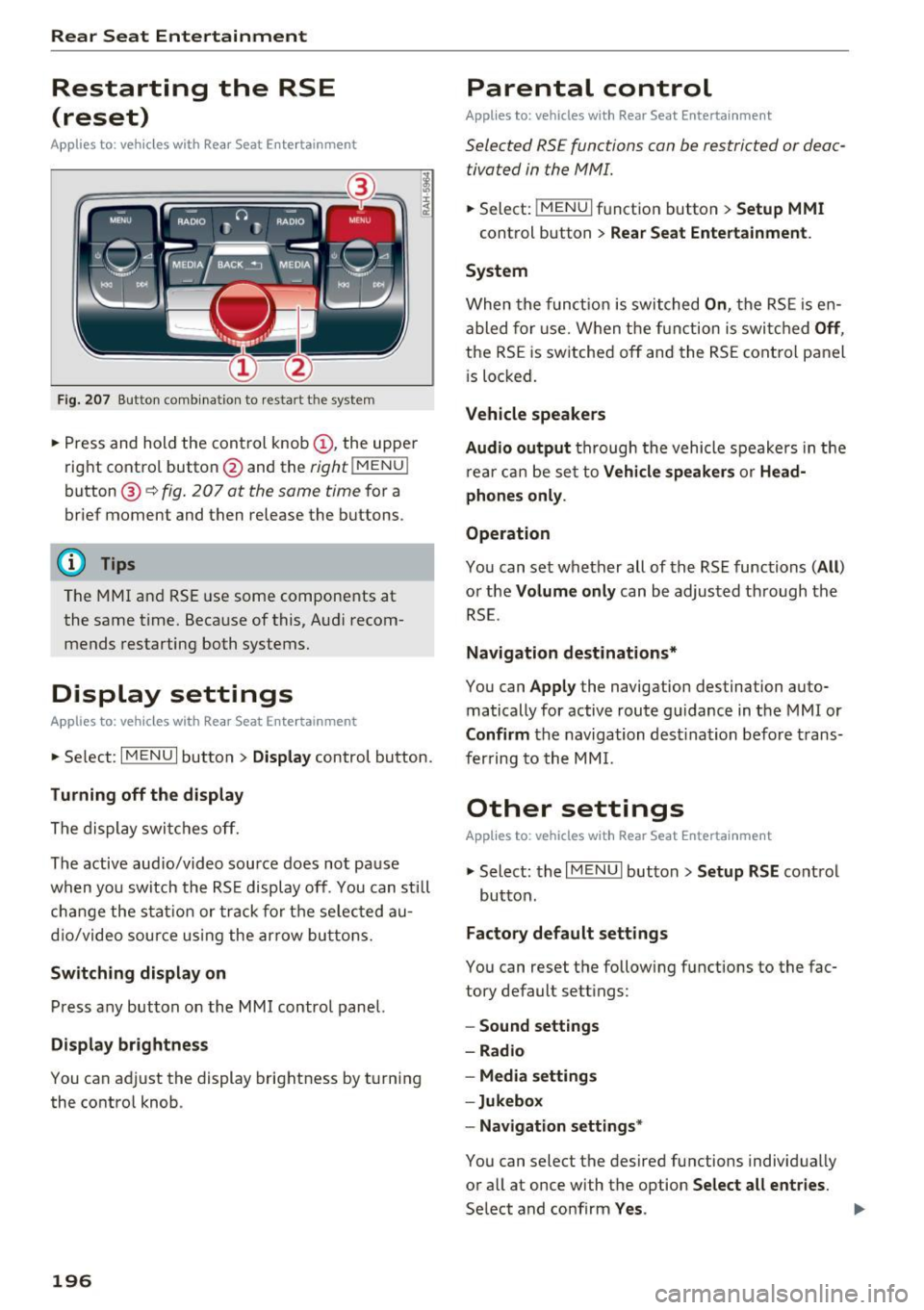
F ig. 207 Button combination to restart th e system
... Press and hold the control knob (D , the upper
right control button @and the
righ t!MENUI
button ® c:::> fig. 207 at the same time for a
brief moment and then release the buttons .
@ Tips
The MMI and RSE use some components at
the same time. Because of this, Audi recom
mends restarting both systems.
Display settings
Applies to: vehicles with Rear Seat Enterta inment
... Se lect: I MENU I button > Display control button.
Turning off the display
The display switches off.
The active aud io/video source does not pause
when yo u switch the RSE display off . You can still
change the stat ion or track for the selected au
dio/video source using the arrow buttons.
Switching display on
Press any button on the MMI control panel.
Display brightness
You can adjust the display brightness by turning
the control knob .
196
Parental control
Applies to: ve hicles with Rear Seat Entertainment
Selected RSE functions can be restricted or deac
tivated in the MMI.
... Select: I MEN u I fu nction button > Setup MMI
control button > Rear Seat Entertainment.
System
When the function is switched On, the RSE is en
abled for use. When the function is switched
Off,
the RSE is switched off and the RSE control panel
i s locked.
Vehicle speakers
Audio output
through the vehicle speakers in the
rear can be set to
Vehicle speakers or Head
phones only.
Operation
You can set whether all of the RSE functions (All)
or the Volume only can be adjusted through the
RSE.
Navigation destinations*
You can Apply the navigation destination auto
matically for active route guidance in the MMI or
Confirm the navigation dest ination before trans
ferring to the MMI.
Other settings
App lies to: vehicles with Rear Seat Enterta inment
.,. Select: the I MENU I button> Setup RSE control
button.
Factory default settings
You can reset the following functions to the fac
tory default settings:
- Sound settings
- Radio
- Media settings
-Jukebox
- Navigation settings*
You can select the desired functions individually
or all at once with the option
Select all entries.
Select and confirm Yes . .,,.
Page 203 of 354

0 co .... N ,..... N .... 0 0 :c '
The route is calculated based on various route cri
teria. To set the criteria, you must first plan a
destination and then display the route in the RSE
display using the
Display route function. When
you transfer a planned destination to the MMI
using the
Send destination to the driver func
tion, the cr iteria are transferred automat ically.
A planned destination is shown in the RSE display
in white and active route guidance is marked in
blue.
Displaying a route
The planned destination and the distance to the
destination/arrival time are displayed on the
map. The route is calculated based on the current
vehicle location and can be updated.
To display active route guidance on the map, se
lect the
Destination control button > Exit route
display.
Send destination to the driver
To start route guidance for a planned route, the
destination must be transferred to the MMI. If
the
Destinations are set to Confirm in the Setup
MMI menu q page 196, the destination must be
confirmed before transferring to the MMI.
(i) Tips
-The display of navigation functions is
synchronized to both RSE displays.
- Refer to the notes in the chapter
About
Audi connect
q page 162.
- The content, scope and providers of offered
Audi connect services may vary.
- The navigation functions match those in the
MMI to a large extent. For more informa
tion, refer to
q page 165.
- The functions for the online Street View
9page 159 can also be used in the RSE
while driving.
- If
On request is selected for the data con
nection in the
Data connection menu
qpage 161, receiving data packets, such as
l) Applies to veh icles w ith A udi connect
Rear Seat Entertainment
weather information, must be confirmed in
the MMI.
Accessing traffic information
Applies to: vehicles with Rear Seat Entertainment and naviga·
tion system
.. Select: the I MENU I button > Info.
- Opening a detailed view of traffic information :
select and confirm the traffic information from
the list.
-Opening the next traffic report: select and
confirm
Show next report .
(D Tips
For more information on accessing traffic in·
formation, refer to
9 page 175.
Accessing Audi connect services
Applies to: vehicles with Rear Seat Entertainment, navigation
system and Audi connect
Requirement: the requirements for Audi connect
services must be met
9page 157.
.. Select: the I MENU I button > Audi connect > the
desired Audi connect service .
-For example, display weather information : se
lect and confirm
Weather. Se lect and confirm
the desired search area:
In immediate vicinity/
In vicinity of destination or stopover or In new
city .
Enter a location and confirm the input
with
OK.
(D Tips
- Refer to the notes in the chapter About
Audi connect
q page 162.
- Additional information about accessing Audi
connect services can be found under
9page 157.
Entertainment systems
Listening to the radio
Applies to: vehicles with Rear Seat Enterta inment
.. Select: the I RADIO I button.
201
Page 204 of 354

Rear Seat Entertainment
The radio functions match those in the MMI. For
more information on the Radio menu, refer to
c::>page 177.
You can store a separate presets list in the RSE
that may contain up to SO stations from all fre
quency bands. You can a lso display the station
name for the selected radio stat ion or change the
station sorting separately in both RSE disp lays.
Playing media
A pp lies to: ve hicles w ith Rea r Seat E nte rtainment
.,. Select : I MEDIAi button .
The media functions match those in the MMI to a
large extent. For more information on the Media
menu, refer to
c::> page 189.
Possible sources are:
(D Jukebox
@ SD card reader
® DVD drive
@ DVD changer*
® Audi music interface (such as iPod, USB or ex
ternal audio/video input)
Different functions are available depending on
the active source and the medium inserted.
(D Tips
- The Album browser function is not available
in the RSE .
- The copy and delete process cannot be
started simultaneous ly when accessing the
Jukebox from both systems at the same
time.
Video playback information
Playback combinations
A pp lies to: ve hicles w ith Rea r Seat E nte rtainment
When se lecting the same video source, both
sound and picture w ill play through both RSE dis
plays.
202
If different video sou rces are started on both RSE
displays, only certain picture/sound playback
combinations are poss ible and they depend on
the selected video sources.
Complete output format (sound and video
image) on both RSE displays
Se lect a video DVD as the first video source in the
DVD drive and then the following source:
- DVD changer*
- Aud i music interface with AV adapter cable*/
iPod adapter cab le plus*
Playing only sound on the second RSE
display
There is only sound output for the second v ideo
source if you:
- Start a video DVD in the DVD drive as the first
source and sele ct a video file from the Jukebox
or the SD card as the second source.
- Sta rt a video file from the Juke box as the first
source, and select a video file from the SD card
or from the Aud i music interface using an AV
adapter cable* /USB adap ter cable" /iPod adapt
er cable plus * as the second sou rce and vice
versa .
- Start a video DVD/video fi le in the DVD chang
er * as the first source, and select a video file
from the Jukebox, SD card or from the Audi mu
sic interface using an AV adapter cable*/USB
adapter cable*/iPod adapter cable plus* as the
second source.
No picture/sound playback on the second
RSE display
If a video file from the Jukebox, from an SD card
or from the Audi music interface w ith the USB
adapter cable* is already play ing o n one RSE dis
play, playback of a video DVD in the DVD drive on
the other RSE display is not possible.
Page 208 of 354

System settings
Voice recognition volume: you ca n adjust the vol
ume of the announcements by t urning the con
trol knob.
Individual speech training (onl y when the ve hi
cle is s tat io nary): yo u ca n ada pt the voice recog
n ition system to yo ur voice or pro nunciat io n in
or der to im prove the system's ability to reco gnize
your speech. Individua l train ing is comprised of
40 speech e ntries that cons ist of commands and
sequences of numbers . Yo u can delete t he p ro
g ra m med voice tra ining using
Reset speech
training .
Delete all name tags :
all of the name tags that
you have stored (spoke n na mes) a re deleted .
Display brightness
You can a djust the Infotainment display bright
ness by t urning the co ntro l knob .
Factory settings
Yo u can r ese t t he followi ng func tion s to t he fa c
t ory defa ult settin gs:
- Sound settings
- Radio
- Media settings
- Jukebox
- Directory*
- Telephone *
- Bluetooth *
- Navigation settings*
- Navigation and online memory *
- Voice recognition system
You can se lect the des ired functions individua lly
or all at once with the
Select all entries option.
Select an d confirm
Restore factory default set
tings .
If you reset the Jukebox to facto ry setti ngs, all of
the music/video files are deleted and the
Media
settings
are reset.
System update
T he MMI softwa re, s uch a s the navig ation d ata*,
ca n be updated by DV D, USB or S D card usin g t he
system update feature .
206
Fo r more info rmation abou t the System update ,
visit www.audiusa.com/bluetooth or contact an
a uth orize d Aud i dea le r or authorized Aud i Serv ice
Facility.
Data encryption
Yo u can prote ct your pe rsonal dat a, su ch as con
tac ts in the dire ctory, destina tions in navigation*
and name tags with a persona l passwor d. If the
u nit is rep lace d, you can on ly t ransfe r yo ur per
sona l data to t he new MMI unit using your pass
w ord . T he default passwo rd "M MI3G" is valid un
ti l yo u assig n a perso nal passwo rd .
Version information
Info rmation on the software ve rsion of the MMI
and t he nav igation database * is displayed.