Page 183 of 553

uuAdjusting the Seats uHead Restraints
182
Controls
A passenger sitting in the center back seating
position should adjust th e height of their head
restraint to an appropriate position before the
vehicle begins moving.
To raise the head restraint:
Pull it upward.
To lower the head restraint:
Push it down while pressing the release
button.
Head restraints can be removed for cleaning or repair.
To remove a head restraint:
Pull the restraint up as far as it will go. Then push the release button, and pull the
restraint up and out.
To reinstall a head restraint:
Insert the legs back in place, then adjust the head restraint to an appropriate height
while pressing the release butto n. Pull up on the restraint to make sure it is locked
in position.
■Changing the Rear Center Seat Head Restraint Positions
■Removing and Reinstalling the Head Restraints1 Removing and Reinstalling the Head Restraints
3WARNING
Failure to reinstall, or correctly reinstall, the
head restraints can result in severe injury
during a crash.
Always replace the he ad restraints before
driving.
17 ACURA TLX-31TZ36200.book 182 ページ 2016年6月10日 金曜日 午後6時39分
Page 185 of 553

184
uuAdjusting the Seats uRear Seats
Controls
Rear Seats
1. Remove the center shoulder belt from the
guide.
2. Pull the release lever in the trunk to release
the lock.
3. Fold the seat-back down.
If the rear head restraints get caught on the
front seat-backs, remove the head restraints.
2 Removing and Reinstalling the Head
Restraints P. 182
■60/40 Split Folding Down the Rear Seats160/40 Split Folding Down the Rear Seats
The rear seat-backs can be folded down to
accommodate bulkier items in the trunk.
Never drive with a seat-back folded down and the
trunk lid open. 2 Exhaust Gas Hazard P. 66
To lock the seat-back upri ght, push it backwards until
it locks.
When returning a seat-back to it’s original position,
push it firmly back. Also, m ake sure all rear shoulder
belts are positioned in front of the seat-back, and the
center shoulder belt is re -positioned in the guide.
Make sure that the folded seat-back does not press
against the front passenger seat, as this can cause the
weight sensors in the front passenger seat to work
improperly. 2 Passenger Front Airbag Off Indicator P. 52
Also make sure all items in the trunk or items
extending through the opening into the rear
seats are properly secured. Loose items can fly
forward if you have to brake hard.
The front seat(s) must be far enough forward so they
do not interfere with the rear seats as they fold
down.
Center
Shoulder Belt
Guide
Release
Lever
17 ACURA TLX-31TZ36200.book 184 ページ 2016年6月10日 金曜日 午後6時39分
Page 187 of 553

186
Controls
Interior Lights/Interior Convenience Items
Interior Lights
■ON
The interior lights come on regardless whether
the doors are open or closed.
■Door activated
The interior lights come on in the following
situations:
• When any doors are opened.
• You unlock the driver’s door.
• When the power mode is set to VEHICLE
OFF (LOCK).
■OFF
The interior lights remain off regardless
whether the doors are open or closed.
■Interior Light Switches1 Interior Light Switches
In the door activated position, the interior lights fade
out and go off about 30 se conds after the doors are
closed.
The lights go off after 30 seconds in the following
situations:
•When you unlock the driver’s door but do not open
it.
•When you set the power mode to VEHICLE OFF
(LOCK) but do not open a door.
You can change the interi or lights dimming time.
2 Customized Features P. 126, 257
The interior lights go off i mmediately in the following
situations:
•When you lock the driver’s door.
•When you close the driver’s door in ACCESSORY
mode.
• When you set the power mode to ON.
If you leave any doors open, the interior lights go off
after about 15 minutes.
Door Activated Position
Off
On
17 ACURA TLX-31TZ36200.book 186 ページ 2016年6月10日 金曜日 午後6時39分
Page 189 of 553
188
uuInterior Lights/Interior Convenience Items uInterior Convenience Items
Controls
Interior Convenience Items
Press the button to open the glove box. You
can lock the glove box with the built-in key.
■Removable shelf
The shelf in the glove box is detachable. To
remove it, disengage the tabs.
The removable shelf can be stored upside
down in the glove box.
■Glove Box1 Glove Box
3WARNING
An open glove box can cause serious injury
to your passenger in a crash, even if the
passenger is wearing the seat belt.
Always keep the glove box closed while
driving.
Glove Box
Release Button
To Lock
Tabs
Shelf
17 ACURA TLX-31TZ36200.book 188 ページ 2016年6月10日 金曜日 午後6時39分
Page 200 of 553
Continued199
uuClimate Control System uUsing Automatic Climate Control
Controls
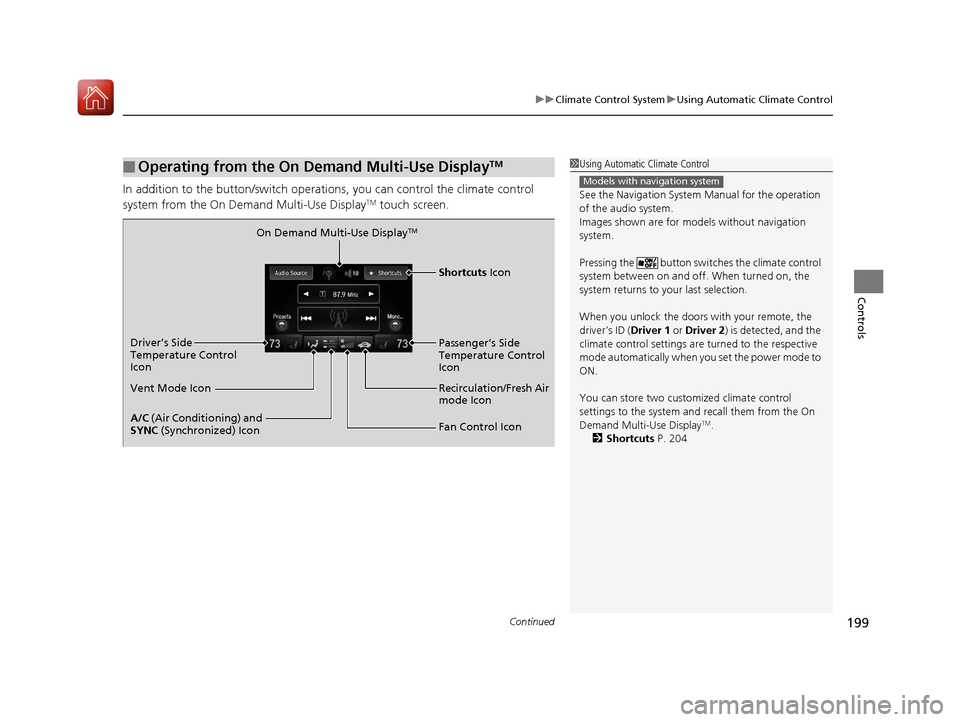
In addition to the button/switch operati ons, you can control the climate control
system from the On Demand Multi-Use DisplayTM touch screen.
■Operating from the On Demand Multi-Use DisplayTM1 Using Automatic Climate Control
See the Navigation System Manual for the operation
of the audio system.
Images shown are for m odels without navigation
system.
Pressing the button switch es the climate control
system between on and off. When turned on, the
system returns to your last selection.
When you unlock the doors with your remote, the
driver’s ID ( Driver 1 or Driver 2) is detected, and the
climate control settings are turned to the respective
mode automatically when you set the power mode to
ON.
You can store two customized climate control
settings to the system and recall them from the On
Demand Multi-Use Display
TM.
2 Shortcuts P. 204
Models with navigation system
On Demand Multi-Use DisplayTM
A/C (Air Conditioning) and
SYNC (Synchronized) Icon
Vent Mode Icon Driver’s Side
Temperature Control
Icon
Recirculation/Fresh Air
mode Icon
Fan Control Icon Passenger’s Side
Temperature Control
Icon
Shortcuts Icon
17 ACURA TLX-31TZ36200.book 199 ページ 2016年6月10日 金曜日 午後6時39分
Page 213 of 553

212
Features
Audio System Basic Operation
To use the audio system, the power mode must be in ACCESSORY or ON.
Use the interface dial or MENU button to
access some audio functions.
Press to switch between the normal and
extended display fo r some functions.
Interface dial: Rotate left or right to scroll
through the available choices. Press to set
your selection. Move right, left, up or down to
select a secondary menu.
MENU button: Press to select any mode. The
available mode includes Change Source,
Station List , Save Preset , Radio Text ,
Music Search, and play modes. Play modes
can be also selected from Scan, Random/
Repeat , and so on.
BACK button: Press to go back to the
previous display. (Day/Night) button: Press to change
the audio/information screen brightness.
Press once and make an adjustment
using the interface dial. u Each time you press , the mode
switches between the daytime mode,
nighttime mode and off mode.1Audio System Basic Operation
These indications are used to show how to operate
the interface dial.
Rotate to select.
Press to enter.
Move , , or to se lect a secondary menu.
Audio Menu Items 2 Station List P. 227
2 Save Preset P. 226, 231
2 Radio Text P. 228
2 Music Search P. 233, 237, 243
2 Scan P. 234, 244
2 Random/Repeat P. 234, 238, 244
When you unlock the doors with your remote, the
driver’s ID ( Driver 1 or Driver 2) is detected, and the
audio system settings and pr eset memory are turned
to the respective mode automatically when you set
the power mode to ON.
Interface Dial
MENU ButtonBACK Button
(Day/Night) Button
17 ACURA TLX-31TZ36200.book 212 ページ 2016年6月10日 金曜日 午後6時39分
Page 221 of 553
220
uuAudio System Basic Operation uAudio/Information Screen
Features
■Audio
Shows the current audio information.
■Phone
Shows the HFL information.
2 Bluetooth ® HandsFreeLink® P. 278
■Info
Shows the Trip Computer or Clock/Wallpaper and other information. Rotate
to select an item, then press .
■Trip computer (Current Drive)
Shows the range and instant and average fuel economy of the current trip, as well
as the average fuel economy from your last trip.
■Trip computer (History of Trip A)
Shows the range, average fuel economy an d distances traveled for the current trip,
as well as the average fuel economy and distances traveled during the last three
driving cycles.
Each time you reset the trip meter A, the information on the display updates. The
history of the previous th ree driving cycles is kept.
■Deleting the history manually
1. Move on the History of Trip A screen to select Delete History, then press .
2. A confirmation message appears on the screen. Rotate to select Yes, then
press .
■Clock/Wallpaper
Shows a clock screen or an image you import.
17 ACURA TLX-31TZ36200.book 220 ページ 2016年6月10日 金曜日 午後6時39分
Page 222 of 553
Continued221
uuAudio System Basic Operation uAudio/Information Screen
Features
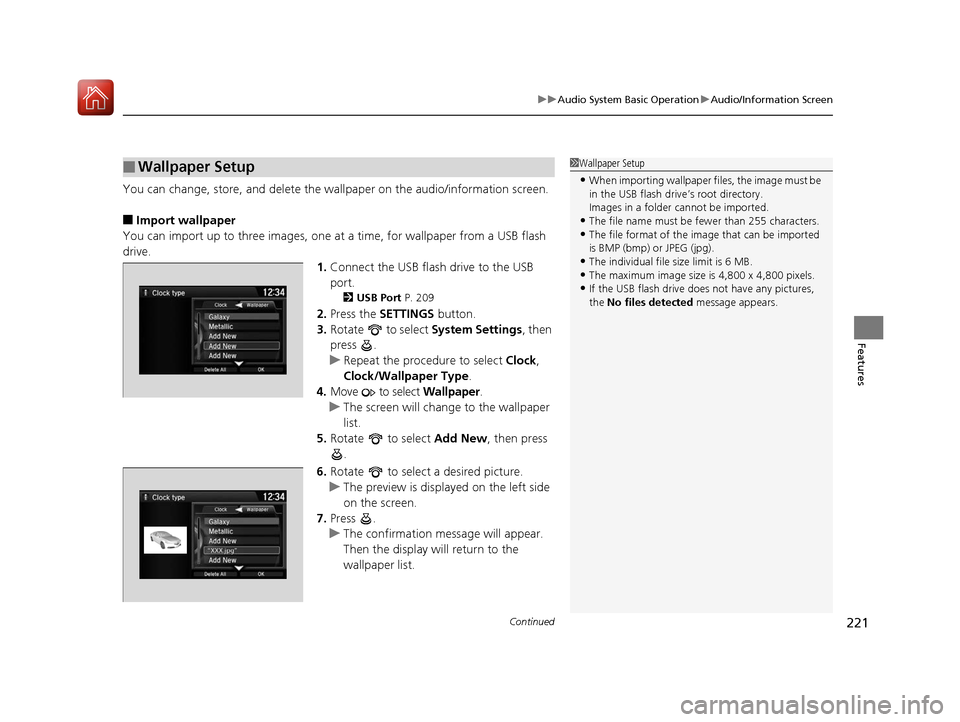
You can change, store, and delete the wa llpaper on the audio/information screen.
■Import wallpaper
You can import up to three images, one at a time, for wallpaper from a USB flash
drive.
1.Connect the USB flash drive to the USB
port.
2 USB Port P. 209
2.Press the SETTINGS button.
3. Rotate to select System Settings, then
press .
u Repeat the procedure to select Clock,
Clock/Wallpaper Type .
4. Move to select Wallpaper.
u The screen will change to the wallpaper
list.
5. Rotate to select Add New, then press
.
6. Rotate to select a desired picture.
u The preview is displayed on the left side
on the screen.
7. Press .
u The confirmation message will appear.
Then the display will return to the
wallpaper list.
■Wallpaper Setup1Wallpaper Setup
•When importing wallpaper files, the image must be
in the USB flash drive’s root directory.
Images in a folder cannot be imported.
•The file name must be fewer than 255 characters.•The file format of the im age that can be imported
is BMP (bmp) or JPEG (jpg).
•The individual file size limit is 6 MB.•The maximum image size is 4,800 x 4,800 pixels.
•If the USB flash drive doe s not have any pictures,
the No files detected message appears.
17 ACURA TLX-31TZ36200.book 221 ページ 2016年6月10日 金曜日 午後6時39分
