Page 26 of 449
25
uuFor Safe Driving uImportant Safety Precautions
Safe Driving
■Pay appropriate attention to the task of driving safely
Engaging in cell phone conversation or other activities that keep you from paying
close attention to the road, other vehicles , and pedestrians could lead to a crash.
Remember, situations can change quickly, and only you can decide when it is safe to
divert some attention away from driving.
■Control your speed
Excessive speed is a major factor in crash injuries and deaths. Generally, the higher
the speed, the greater the risk, but serious injuries can also occur at lower speeds.
Never drive faster than is safe for curr ent conditions, regardless of the maximum
speed posted.
■Keep your vehicle in safe condition
Having a tire blowout or a mechanical failure can be extremely hazardous.
To reduce the possibility of such problems, check your tire pressures and condition
frequently, and perform all regularly scheduled maintenance.
Page 74 of 449
73
uuIndicators u
Continued
Instrument Panel
*1:On the left: Models wi thout full color display
On the right: Models with full color display
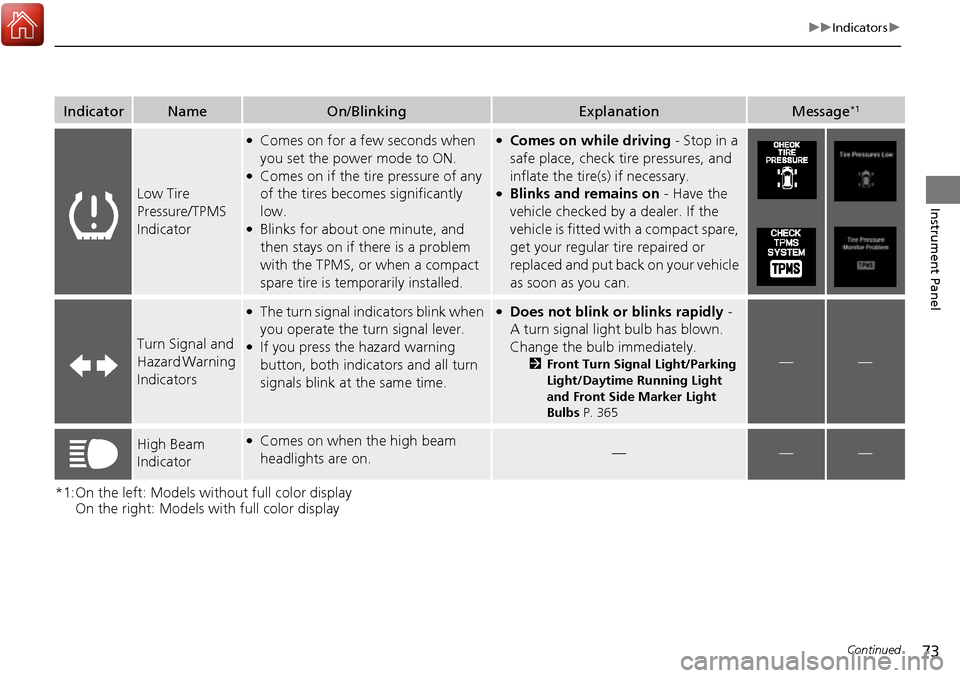
IndicatorNameOn/BlinkingExplanationMessage*1
Low Tire
Pressure/TPMS
Indicator
●Comes on for a few seconds when
you set the power mode to ON.
●Comes on if the tire pressure of any
of the tires becomes significantly
low.
●Blinks for about one minute, and
then stays on if there is a problem
with the TPMS, or when a compact
spare tire is temporarily installed.
●Comes on while driving - Stop in a
safe place, check tire pressures, and
inflate the tire(s) if necessary.
●Blinks and remains on - Have the
vehicle checked by a dealer. If the
vehicle is fitted with a compact spare,
get your regular tire repaired or
replaced and put back on your vehicle
as soon as you can.
Turn Signal and
Hazard Warning
Indicators
●The turn signal indicators blink when
you operate the turn signal lever.
●If you press the hazard warning
button, both indicators and all turn
signals blink at the same time.
●Does not blink or blinks rapidly -
A turn signal light bulb has blown.
Change the bulb immediately.
2 Front Turn Signal Light/Parking
Light/Daytime Running Light
and Front Side Marker Light
Bulbs P. 365——
High Beam
Indicator●Comes on when the high beam
headlights are on.———
Page 95 of 449
94
uuGauges and Multi-Information Display uMulti-Information Display
Instrument Panel
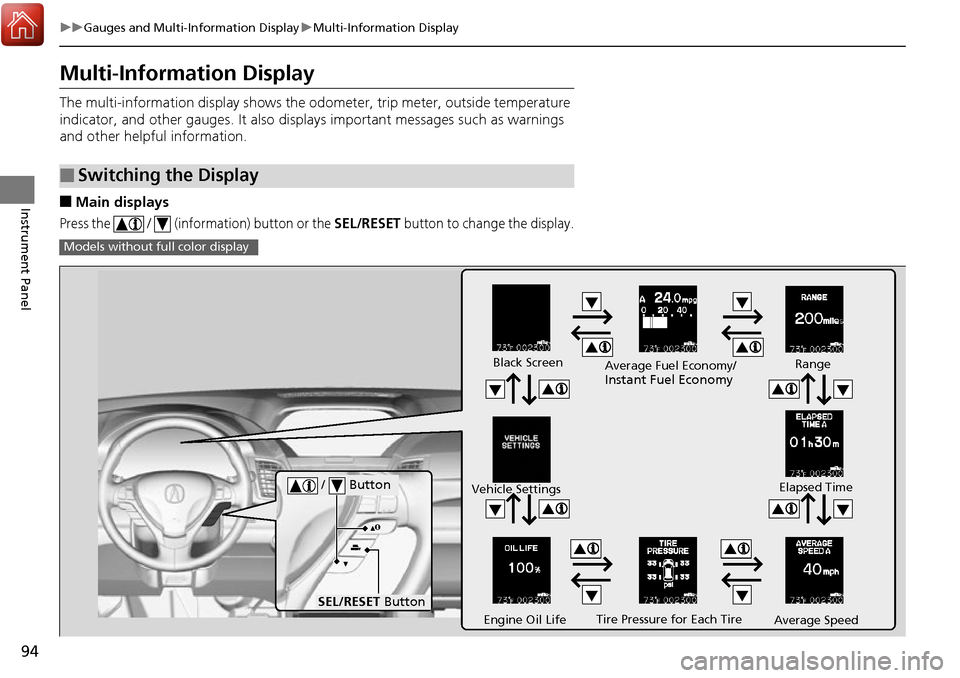
Multi-Information Display
The multi-information display shows the od ometer, trip meter, outside temperature
indicator, and other gauges. It also disp lays important messages such as warnings
and other helpful information.
■Main displays
Press the / (information) button or the SEL/RESET button to change the display.
■Switching the Display
Models without fu ll color display
Tire Pressure for Each Tire
Black Screen
Engine Oil Life
Vehicle Settings
Average SpeedRange
Elapsed Time
Average Fuel Economy/
Instant Fuel Economy
/ Button
SEL/RESET
Button
Page 96 of 449
95
uuGauges and Multi-Information Display uMulti-Information Display
Continued
Instrument Panel
Models with full color display
Tire Pressure for
Each Tire Turn-by-Turn
Directions
*
Engine Oil Life
Vehicle Settings Average Speed
Range Elapsed Time
Average Fuel Economy/
Instant Fuel Economy
/ Button
SEL/RESET
ButtonCompass*
OFF
* Not available on all models
Page 100 of 449

Continued99
uuGauges and Multi-Information Display uMulti-Information Display
Instrument Panel
Shows the estimated distance you can travel on the remaining fuel. This distance is
estimated from the fuel economy of your previous trips.
Shows the time elapsed since Trip A or Trip B was reset.
Shows the average speed in mph (U.S.) or km/h (Canada) since Trip A or Trip B was
reset.
Shows you turn-by-turn driv ing directions to your destination linked with the
navigation system.
2 Refer to the Navigation System Manual
Shows each tire’s pressure.
2Tire Pressure Monitoring System (TPMS) P. 314
Shows the remaining oil life and Maintenance MinderTM.
2Maintenance MinderTM P. 347
■Range
■Elapsed Time
■Average Speed
■Turn-by-Turn Directions*
■Tire Pressure Monitor
■Engine Oil Life
1Elapsed Time
You can change when to reset the elapsed time.
2 Customized Features P. 100, 106
1Average Speed
You can change when to reset the average speed.
2 Customized Features P. 100, 106
1Turn-by-Turn Directions*
The multi-information disp lay shows a compass when
the route guidance is not used.
You can select whether the turn-by-turn display
comes on or not during the route guidance. 2 Customized Features P. 106
2 Refer to the Navigation System Manual
* Not available on all models
Page 228 of 449
227
uuBluetooth ® HandsFreeLink ®u HFL Menus
Continued
Features
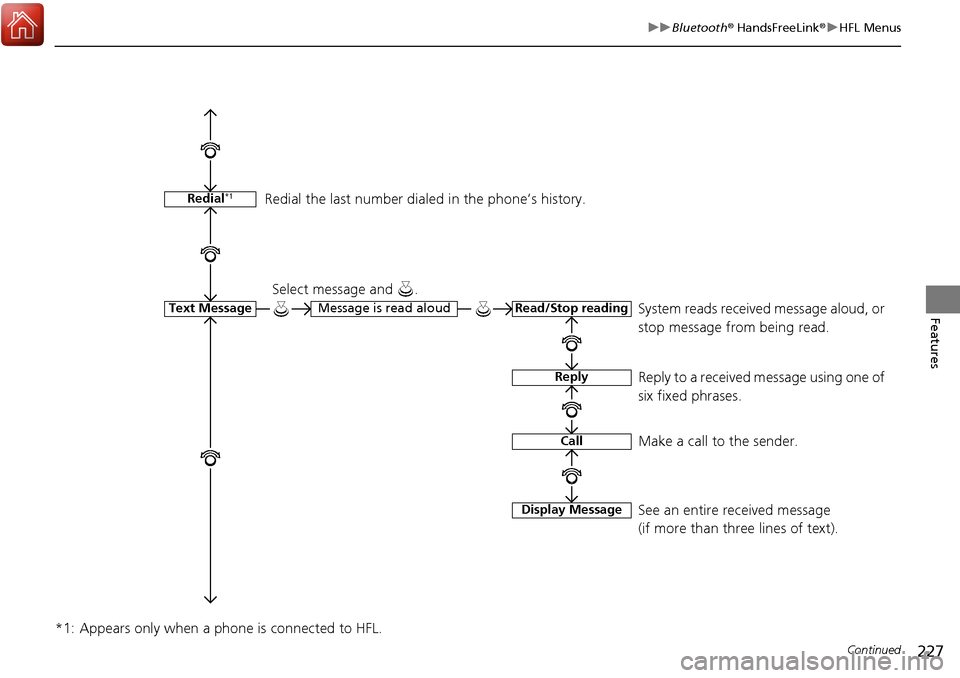
*1: Appears only when a phone is connected to HFL.
Redial*1
Text MessageRead/Stop readingMessage is read aloud
Reply
Call
Display Message
System reads received message aloud, or
stop message from being read.
Select message and .
Reply to a received message using one of
six fixed phrases.
Make a call to the sender.
See an entire received message
(if more than three lines of text).
Redial the last number dial
ed in the phone’s history.
Page 249 of 449
uuBluetooth ® HandsFreeLink ®u HFL Menus
248
Features
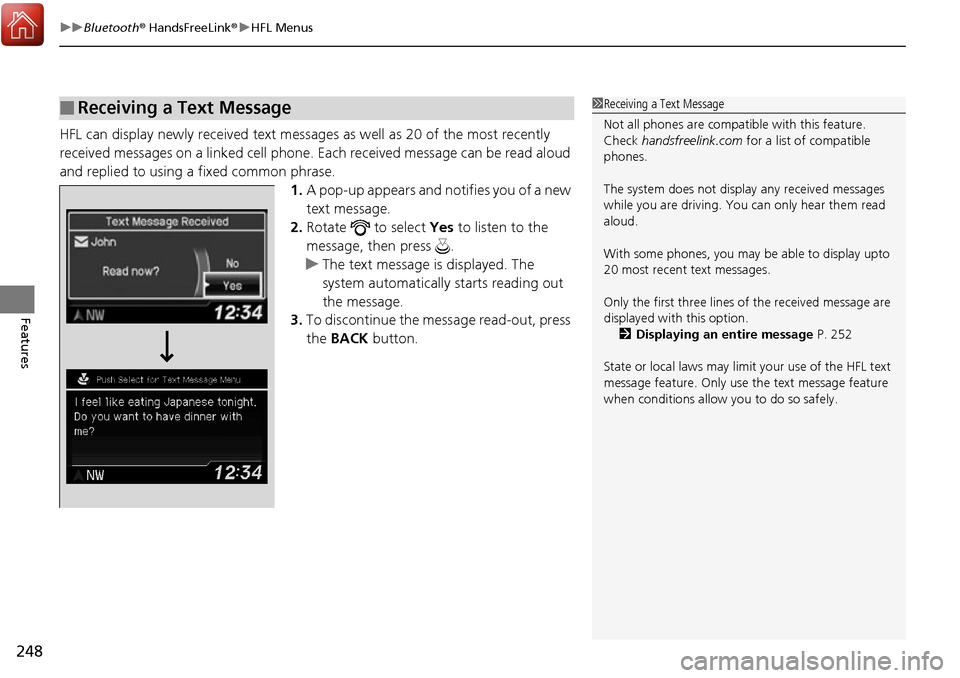
HFL can display newly received text message s as well as 20 of the most recently
received messages on a linked cell phone. Each received message can be read aloud
and replied to using a fixed common phrase. 1.A pop-up appears and notifies you of a new
text message.
2. Rotate to select Yes to listen to the
message, then press .
u The text message is displayed. The
system automatically starts reading out
the message.
3. To discontinue the message read-out, press
the BACK button.
■Receiving a Text Message1Receiving a Text Message
Not all phones are compatible with this feature.
Check handsfreelink.com for a list of compatible
phones.
The system does not display any received messages
while you are driving. You can only hear them read
aloud.
With some phones, you may be able to display upto
20 most recent text messages.
Only the first three lines of the received message are
displayed with this option. 2 Displaying an entire message P. 252
State or local laws may limit your use of the HFL text
message feature. Only use the text message feature
when conditions allow you to do so safely.
Page 250 of 449
Continued249
uuBluetooth ® HandsFreeLink ®u HFL Menus
Features
1. Press the PHONE button or the button.
2. Rotate to select Text Message, then
press .
3. Rotate to select a message, then press
.
u The text message is displayed. The
system automatically starts reading the
message aloud.
■Displaying Messages1Displaying Messages
The icon appears next to an unread message.
Only the first three lines of the received message are
displayed with this option.
2 Displaying an entire message P. 252
If you delete a message on the phone, the message is
also deleted in the system. If you send a message
from the system, the message goes to your phone’s
outbox.