INSTRUMENTS AND CONTROLS
}}
129
Instrument panel settings
Some of the settings for the instrument panel can be made in the App menu (see also the arti-cle "Instrument panel app menu"). The following settings can be made in the center display's Top view under:
SettingsMy CarDisplays:
•
Driver Display Center Area: Select what is
displayed in the background (center) of the instrument panel. The options are: (
Show no
information in the background, Show
information for current playing media orShow navigation even if no route is set
) 8
. In the 12" instrument panel, the infor-
mation is shown in the center and in the 8" instrument panel, it is shown in the field atthe upper right.
•
Themes. Select a theme (appearance). The
options are: (Glass, Minimalistic,Performance or Chrome Rings).
The system language can be changed under
SettingsSystemChoose system
language. This change affects the language
used in all displays.
Related information
• Instrument panel App menu (p. 129)
• Warning symbols in the instrument panel (p. 137) •
Indicator symbols in the instrument panel(p. 125)
Instrument panel App menu The App (application) menu in the instrument panel provides quick access to commonly usedfunctions in certain apps.
In some cases, the App menu can be used instead of the center display
The App menu is displayed in the instrument panel and is controlled using the right-side steer-ing wheel keypad. This menu makes it possible totoggle between apps or functions in apps withoutremoving your hands from the steering wheel.
App menu functionsThe following apps and their functions can becontrolled from the App menu:
8
The 8" instrument panel only shows guidance instructions. The 12" instrument panel only shows the map. See the navigation manual for additional information.
||
INFOTAINMENT
* Option/accessory, for more information, see Introduction.
426 Play/pause: tap the track's image, press the
symbol on the keypad or press the button under the center display. Change tracks: tap the desired track on the cen- ter display, press the
< > buttons under the cen-
ter display or use the keypad. Fast forward/reverse, move within a track: press the time axis on the center display and drag from side to side, press and hold the < > buttons
under the center display or use the keypad. Change media source: Tap a media source under
Recents, tap the desired app in the center dis-
play's App view or use the keypad.
Library: tap to play a track from the library.
Shuffle: tap to play tracks in random order.
Similar: tap to use Gracenote to search for simi-
lar music on the USB device and create a playlist based on the results. The playlist can contain upto 50 tracks.
Change device: tap to toggle between USB
devices if more than one is connected.
Video settings
The following can be adjusted with the video player in full screen or by opening the center dis- play's Top view and tapping
SettingsVideo:Primary Audio Default Language, Subtitleand Primary Subtitle Default Language.
Play DivX®
This DivX device must be registered in order to play purchased DivX Video-on-Demand (VOD)movies.
1. Open the center display's Top view and tap
SettingsVideoDivX
® VOD to get a
registration code.
2. Go to vod.divx.com for additional information and to complete the registration process.
Related information
• CD (media) player
* (p. 424)
• Media player (p. 421)
• Voice control for radio and media (p. 122)
• Apps (applications) (p. 433)
• Connecting a Bluetooth ®
device (p. 420)
• Connecting a device via the AUX/USB socket (p. 420)
• Gracenote (p. 428)
• Connecting to the Internet (p. 431)
• Media searches (p. 426)
• Video (p. 429)
• Apple CarPlay (p. 422)
Media searches
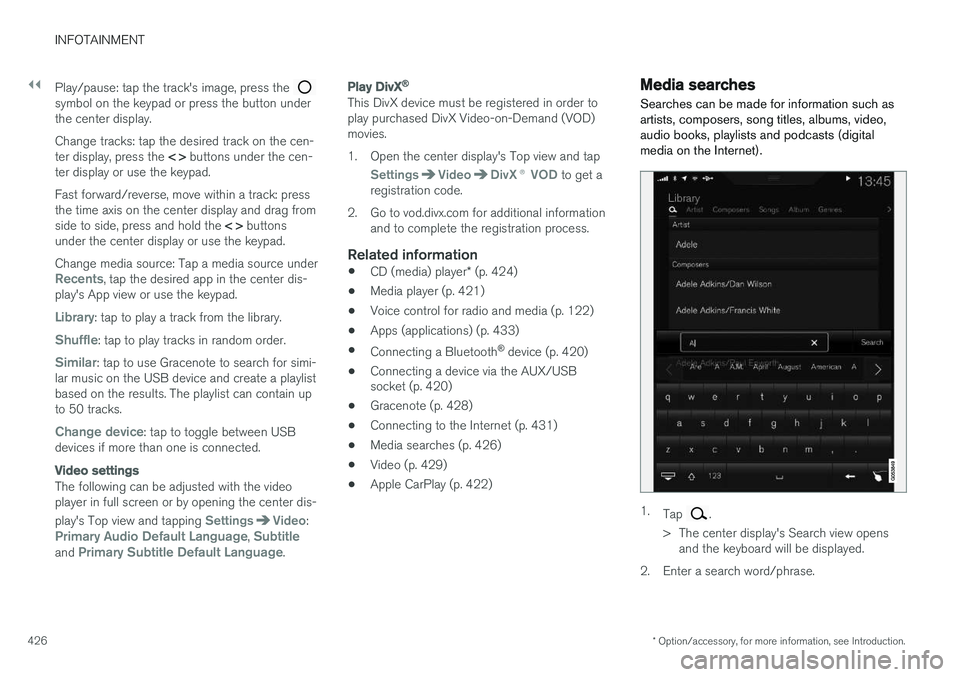
Searches can be made for information such as artists, composers, song titles, albums, video,audio books, playlists and podcasts (digitalmedia on the Internet).
1. Tap .
> The center display's Search view opens and the keyboard will be displayed.
2. Enter a search word/phrase.
INDEX
534Brake system
Brake pad inspection 347
fluid 528
general information 346, 348, 350
Bulbs 500 replacing 496
specifications 501
C
Cameradriver support systems 252
limitations 254
Camera, Park Assist 311, 313, 315, 316
Capacity weight 449, 525
Cargo area, steel grid 219
Cargo area cover 221Cargo compartment fuses 493
raising/lowering the level 215
Cargo net 217
Cargo space 208
Car wash 511
Catalytic converter 364CD, USB, iPod, AUX, Bluetooth, Recents, Library, Shuffle, Similar, Change device, Pri-
mary Audio Default Language, Subtitle, Pri- mary Subtitle Default Language, Video, DivX ® VOD 424
CD player 424 Cell phone hands-free 414
Pairing 415
Cell phone voice control 122 Center display changing settings 34
cleaning 515
keyboard 35
navigating in 42
overview 32
screen in the center console 49
symbols in the status bar 47
Chains 451
Changing a wheel 453Charging cable hybrid battery 375
Child restraints recalls and registration 70
Child restraint systems 70 booster cushions 77
convertible seats 74
infant seats 72
ISOFIX/LATCH anchors 78
top tether anchors 80Child safety 68booster cushions 77
child restraint systems 70, 79
convertible seats 74
infant seats 72
Child safety locks 228 Child seats lower attachment points 79
City safety 287, 293City Safety crossing traffic 291
detecting objects 290
limitations 293
rear collision warning 292
symbols and messages 297
troubleshooting 295
City Safety, On/Off 289 Cleaning exterior 511
interior 513
Clean Zone Interior Package 186
Climate system 188 air distribution 201, 202, 204
air filter 187
air vents 202
auto mode 187
blower 191
center display controls 189