2016 VOLVO XC90 T8 display
[x] Cancel search: displayPage 246 of 546
||
LOCKS AND ALARM
* Option/accessory, for more information, see Introduction.
244
Rubberized button on the tailgate used only for locking/ unlocking
Locking
All of the doors have to be closed before the vehicle can be locked but the tailgate can beopen. Lock the doors and tailgate by pressing the pres- sure sensitive area on any of the door handles orby pressing the rubberized button on the tailgate.The lock indicator light on the dashboard willbegin to flash to show that the vehicle is lockedand the alarm has been armed. To close any windows or the panoramic roof *
when locking the vehicle, hold the pressure sen- sitive area for several seconds until closingbegins.
Unlocking
Pull a door handle to unlock and open the door or press the rubberized button under the tailgate opening control. The lock indicator light on thedashboard will go out to show that the vehicle isunlocked and the alarm has been disarmed. The lock/unlock settings can be changed in the center display's Top view: Go to:
SettingsMy CarKeyless Unlockand select All Doors or Single Door.
Automatic relockingIf no door or the tailgate is opened within two minutes after being unlocked, the vehicle willautomatically relock.
Remote door unlockThe vehicle can be unlocked using the Volvo OnCall app.
Related information
•
Remote key (p. 235)
• Remote key's range (p. 235)
• Detachable key blade (p. 237)
• Alarm (p. 226)
Locking/unlocking the tailgate The tailgate can be locked/unlocked in different ways, depending on whether the vehicle isequipped with the optional keyless Passive Entrysystem.
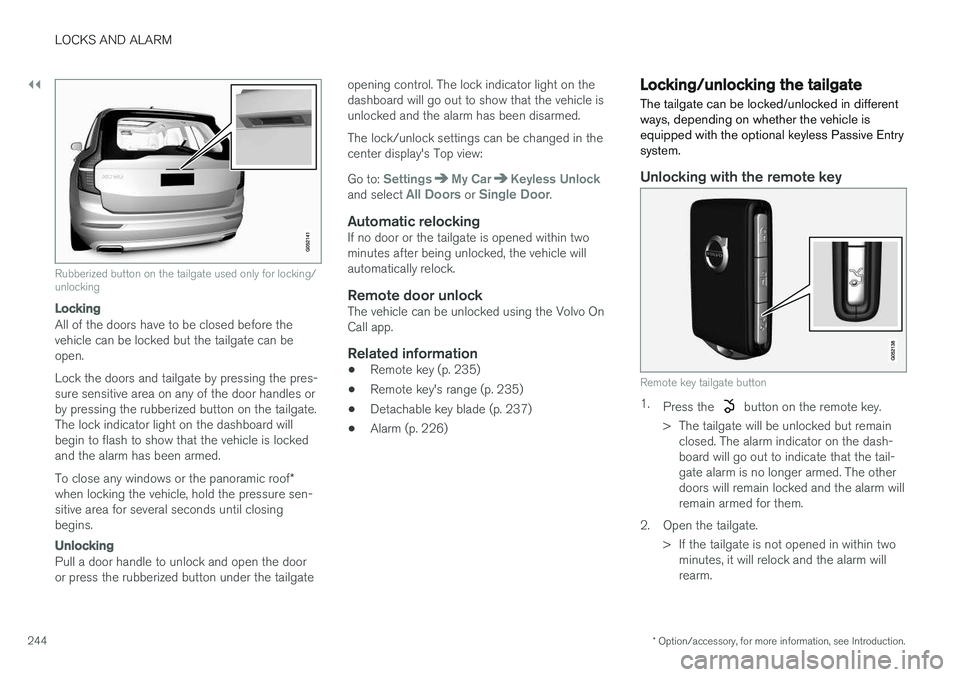
Unlocking with the remote key
Remote key tailgate button
1.
Press the button on the remote key.
> The tailgate will be unlocked but remain closed. The alarm indicator on the dash- board will go out to indicate that the tail-gate alarm is no longer armed. The otherdoors will remain locked and the alarm willremain armed for them.
2. Open the tailgate. > If the tailgate is not opened in within twominutes, it will relock and the alarm willrearm.
Page 260 of 546

DRIVER SUPPORT
258
Radar sensor limitations
The radar sensor used by several of the driver support systems has certain limitations, whichalso affect the systems using it.
Obstructions
The marked area must not be obstructed in any way. This area of the windshield should always be kept clean
The radar sensor is located at the upper, center section of the windshield along with the camera.
WARNING
Never place any objects, decals, etc., on the windshield in front of the camera/radar unit.This could reduce or block these components'functions, and could cause one or more of thesystems that utilize the them to stop function-ing.
If this symbol and the message
Windscreen Sensors blockedappear in the instrument panel, this indicates that the camera and/or radar
sensor cannot detect other vehicles ahead.
The following table shows some of the situations that can cause the message to be displayed andsuggested actions.
CauseAction
The area of the windshield in front of the camera/radar sensor is dirty or covered by ice or snow.Clean the windshield or remove the ice/ snow.
Thick fog or heavy rain/snow blocks reduces the camera/radar sensor's range of visibility.No action. The driver should be extra alert in conditions of this type.
Water or snow on the surface of the road swirl up and block radar signals or the camera's view.No action. The driver should be extra alert in conditions of this type.
There is dirt between the inside of the windshield and the camera/radar sensor.Have the area of the windshield cleaned by a trained and quali- fied Volvo service technician.
Page 263 of 546
DRIVER SUPPORT
}}
* Option/accessory, for more information, see Introduction.261
Cruise Control (CC)
Cruise Control (CC) is designed to assist the driver by maintaining a set speed. It is primarilyintended for use on long straight roads in steadytraffic, such as on highways and other mainroads in smoothly flowing traffic.
Overview
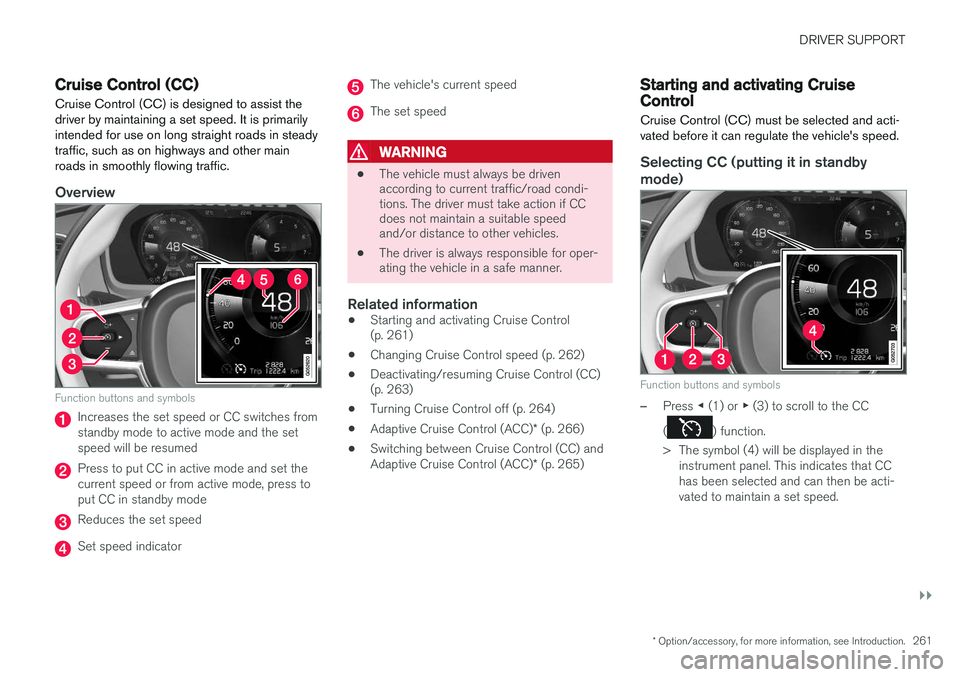
Function buttons and symbols
Increases the set speed or CC switches from standby mode to active mode and the setspeed will be resumed
Press to put CC in active mode and set the current speed or from active mode, press toput CC in standby mode
Reduces the set speed
Set speed indicator
The vehicle's current speed
The set speed
WARNING
• The vehicle must always be driven according to current traffic/road condi-tions. The driver must take action if CCdoes not maintain a suitable speedand/or distance to other vehicles.
• The driver is always responsible for oper-ating the vehicle in a safe manner.
Related information
•
Starting and activating Cruise Control(p. 261)
• Changing Cruise Control speed (p. 262)
• Deactivating/resuming Cruise Control (CC)(p. 263)
• Turning Cruise Control off (p. 264)
• Adaptive Cruise Control (ACC)
* (p. 266)
• Switching between Cruise Control (CC) and Adaptive Cruise Control (ACC)
* (p. 265)
Starting and activating Cruise Control
Cruise Control (CC) must be selected and acti- vated before it can regulate the vehicle's speed.
Selecting CC (putting it in standby
mode)
Function buttons and symbols
–Press ◀ (1) or ▶ (3) to scroll to the CC
(
) function.
> The symbol (4) will be displayed in the instrument panel. This indicates that CC has been selected and can then be acti-vated to maintain a set speed.
Page 264 of 546
||
DRIVER SUPPORT
* Option/accessory, for more information, see Introduction.
262
NOTE
Before CC can be activated, the vehicle's speed must be at least 20 mph (30 km/h).This is also the lowest speed that can be set.
Activating CC (putting it in active mode and setting a speed)
–With the symbol displayed (CC is in
standby mode), press the
button (2) on
the left-side steering wheel keypad.
> This puts CC in active mode and will maintain the vehicle's current speed.
Related information
• Cruise Control (CC) (p. 261)
• Switching between Cruise Control (CC) and Adaptive Cruise Control (ACC)
* (p. 265)
• Deactivating/resuming Cruise Control (CC) (p. 263)
• Turning Cruise Control off (p. 264)
Changing Cruise Control speed
Changing a set speed
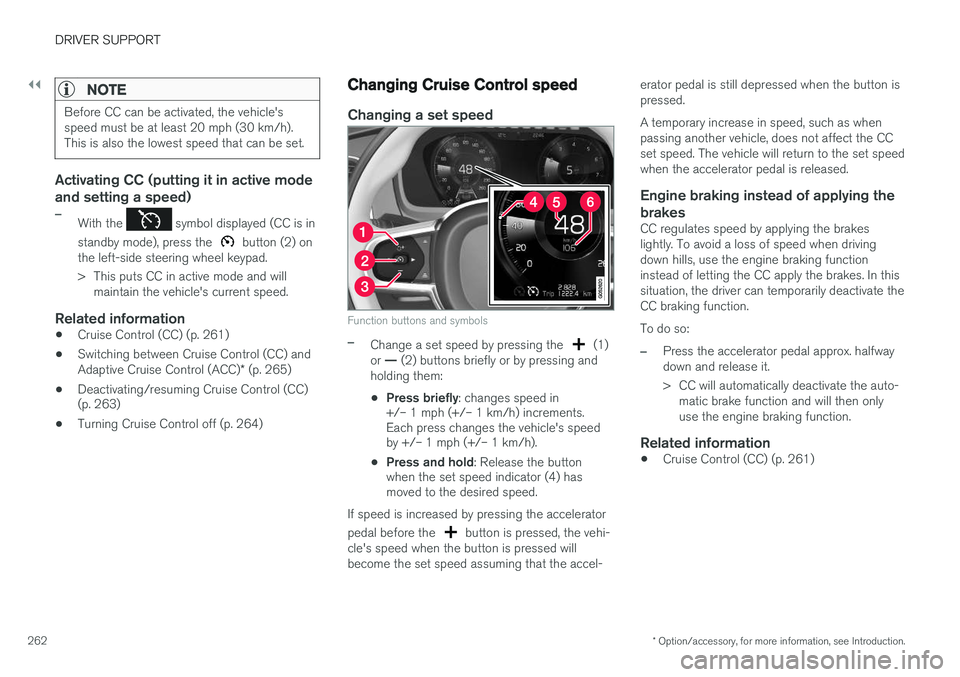
Function buttons and symbols
–Change a set speed by pressing the (1)
or — (2) buttons briefly or by pressing and
holding them:
• Press briefly
: changes speed in
+/– 1 mph (+/– 1 km/h) increments. Each press changes the vehicle's speedby +/– 1 mph (+/– 1 km/h).
• Press and hold
: Release the button
when the set speed indicator (4) hasmoved to the desired speed.
If speed is increased by pressing the accelerator pedal before the
button is pressed, the vehi-
cle's speed when the button is pressed will become the set speed assuming that the accel- erator pedal is still depressed when the button ispressed. A temporary increase in speed, such as when passing another vehicle, does not affect the CCset speed. The vehicle will return to the set speedwhen the accelerator pedal is released.
Engine braking instead of applying the
brakes
CC regulates speed by applying the brakeslightly. To avoid a loss of speed when drivingdown hills, use the engine braking functioninstead of letting the CC apply the brakes. In thissituation, the driver can temporarily deactivate theCC braking function. To do so:
–Press the accelerator pedal approx. halfway down and release it.
> CC will automatically deactivate the auto- matic brake function and will then only use the engine braking function.
Related information
• Cruise Control (CC) (p. 261)
Page 267 of 546
DRIVER SUPPORT
* Option/accessory, for more information, see Introduction.265
Switching between Cruise Control (CC) and Adaptive Cruise Control (ACC)*
In models equipped with the optional ACC, the driver can toggle between CC and ACC.
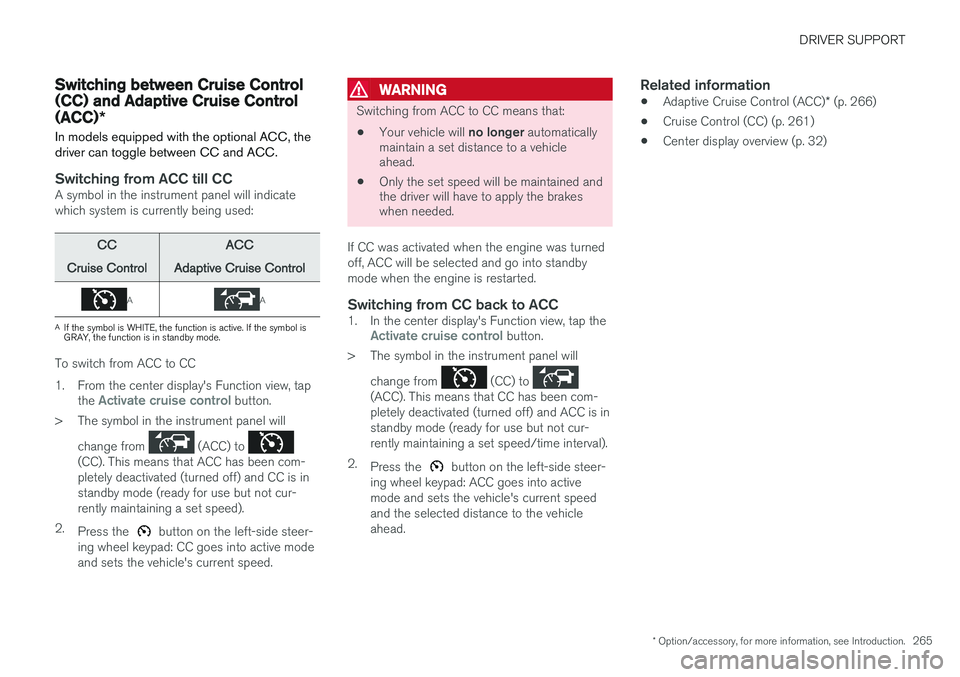
Switching from ACC till CCA symbol in the instrument panel will indicate which system is currently being used:
CC
Cruise ControlACC
Adaptive Cruise Control
AA
A If the symbol is WHITE, the function is active. If the symbol is GRAY, the function is in standby mode.
To switch from ACC to CC
1. From the center display's Function view, tap
the
Activate cruise control button.
> The symbol in the instrument panel will
change from
(ACC) to (CC). This means that ACC has been com- pletely deactivated (turned off) and CC is instandby mode (ready for use but not cur-rently maintaining a set speed).
2. Press the
button on the left-side steer-
ing wheel keypad: CC goes into active mode and sets the vehicle's current speed.
WARNING
Switching from ACC to CC means that:
• Your vehicle will
no longer automatically
maintain a set distance to a vehicle ahead.
• Only the set speed will be maintained andthe driver will have to apply the brakeswhen needed.
If CC was activated when the engine was turned off, ACC will be selected and go into standbymode when the engine is restarted.
Switching from CC back to ACC1. In the center display's Function view, tap theActivate cruise control button.
> The symbol in the instrument panel will
change from
(CC) to (ACC). This means that CC has been com- pletely deactivated (turned off) and ACC is instandby mode (ready for use but not cur-rently maintaining a set speed/time interval).
2. Press the
button on the left-side steer-
ing wheel keypad: ACC goes into active mode and sets the vehicle's current speedand the selected distance to the vehicleahead.
Related information
• Adaptive Cruise Control (ACC)
* (p. 266)
• Cruise Control (CC) (p. 261)
• Center display overview (p. 32)
Page 270 of 546

||
DRIVER SUPPORT
* Option/accessory, for more information, see Introduction.
268
Head-up-display *
A flashing light alerts the driver
A flashing icon will appear in the head-up dis- play* to alert the driver of a collision risk.
WARNING
Adaptive Cruise Control only warns of vehicles detected by the radar sensor. In some casesthere may be no warning or the warning maybe delayed. The driver should always apply thebrakes when necessary.
Related information
• Adaptive Cruise Control (ACC) - fault tracing (p. 285)
• Starting and activating Adaptive CruiseControl (ACC) (p. 268)
• Adaptive cruise control passing assistance(p. 284) •
Setting an Adaptive Cruise Control timeinterval (p. 272)
• Deactivating/resuming Adaptive CruiseControl (ACC) (p. 269)
• Adaptive Cruise Control (ACC) symbols andmessages (p. 286)
• Switching between Cruise Control (CC) and Adaptive Cruise Control (ACC)
* (p. 265)
Starting and activating Adaptive Cruise Control (ACC)
ACC must first be put in active mode before it can be started in order to regulate speed or aset time interval to the vehicle ahead.
Starting ACC (putting it in standby
mode)
Function buttons and symbols
–Press ◀ (2) or ▶ (3) to scroll to the ACC
(
) function. The symbol (4) will be dis-
played in the instrument panel.
> The symbol indicates that ACC has been
started and is in standby mode . In
standby mode, the vehicle will not main-
tain a set speed or a time interval to the vehicle ahead.
Page 271 of 546
DRIVER SUPPORT
}}
* Option/accessory, for more information, see Introduction.269
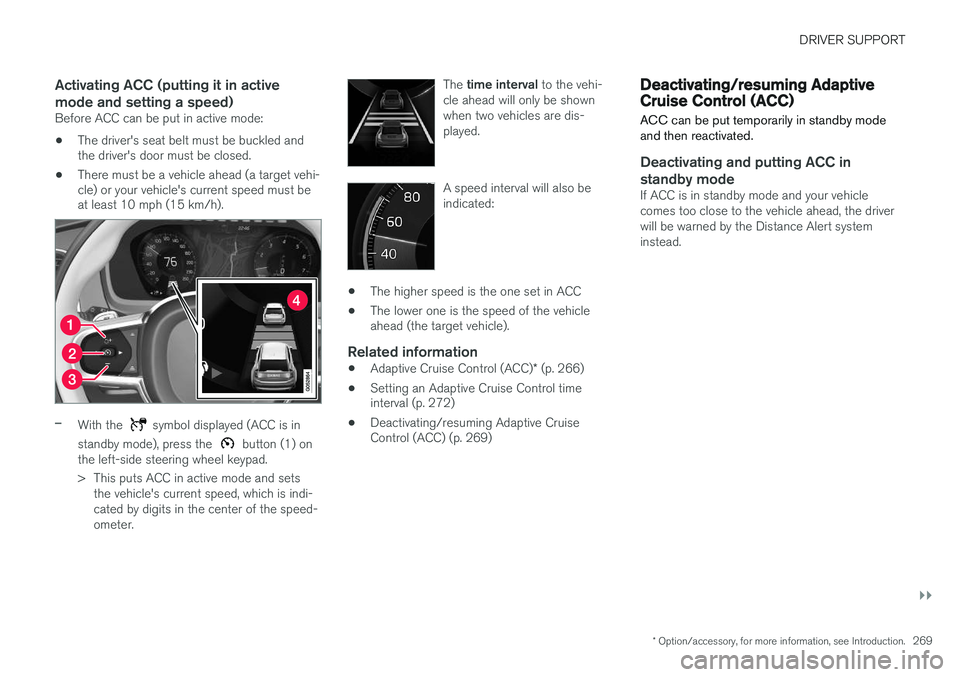
Activating ACC (putting it in active mode and setting a speed)
Before ACC can be put in active mode:
• The driver's seat belt must be buckled and the driver's door must be closed.
• There must be a vehicle ahead (a target vehi-cle) or your vehicle's current speed must beat least 10 mph (15 km/h).
–With the symbol displayed (ACC is in
standby mode), press the
button (1) on
the left-side steering wheel keypad.
> This puts ACC in active mode and sets the vehicle's current speed, which is indi- cated by digits in the center of the speed-ometer. The
time interval to the vehi-
cle ahead will only be shownwhen two vehicles are dis-played.
A speed interval will also be indicated:
• The higher speed is the one set in ACC
• The lower one is the speed of the vehicle ahead (the target vehicle).
Related information
•
Adaptive Cruise Control (ACC)
* (p. 266)
• Setting an Adaptive Cruise Control timeinterval (p. 272)
• Deactivating/resuming Adaptive CruiseControl (ACC) (p. 269)
Deactivating/resuming Adaptive Cruise Control (ACC)
ACC can be put temporarily in standby mode and then reactivated.
Deactivating and putting ACC in standby mode
If ACC is in standby mode and your vehicle comes too close to the vehicle ahead, the driverwill be warned by the Distance Alert systeminstead.
Page 274 of 546
||
DRIVER SUPPORT
* Option/accessory, for more information, see Introduction.
272
Related information
• Adaptive Cruise Control (ACC)
* (p. 266)
• Starting and activating Pilot Assist (p. 276)
• Setting an Adaptive Cruise Control time interval (p. 272)
Setting an Adaptive Cruise Control time interval
ACC makes it possible to set various time inter- vals to the vehicle ahead.
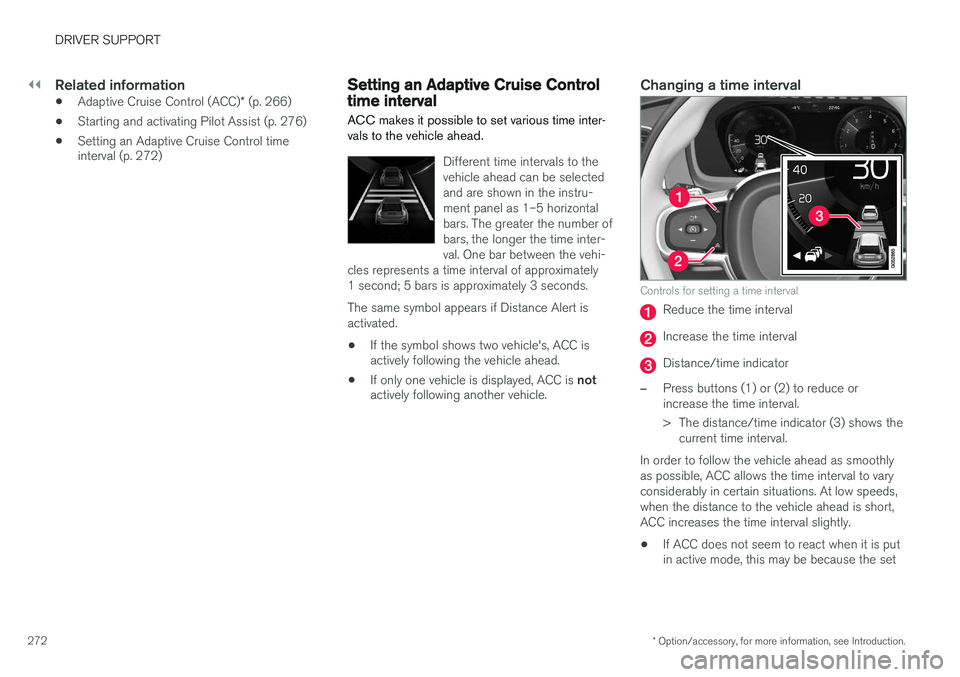
Different time intervals to the vehicle ahead can be selectedand are shown in the instru-ment panel as 1–5 horizontalbars. The greater the number ofbars, the longer the time inter-val. One bar between the vehi-
cles represents a time interval of approximately1 second; 5 bars is approximately 3 seconds. The same symbol appears if Distance Alert is activated.
• If the symbol shows two vehicle's, ACC is actively following the vehicle ahead.
• If only one vehicle is displayed, ACC is
not
actively following another vehicle.
Changing a time interval
Controls for setting a time interval
Reduce the time interval
Increase the time interval
Distance/time indicator
–Press buttons (1) or (2) to reduce or increase the time interval.
> The distance/time indicator (3) shows the
current time interval.
In order to follow the vehicle ahead as smoothly as possible, ACC allows the time interval to varyconsiderably in certain situations. At low speeds,when the distance to the vehicle ahead is short,ACC increases the time interval slightly. • If ACC does not seem to react when it is put in active mode, this may be because the set