2016 VAUXHALL MOVANO_B warning
[x] Cancel search: warningPage 94 of 147

94NavigationWarnings
Select Warnings to access the
following settings (switch off if not
required):
● Warn when speeding (On/Off)
● Speed limit always visible (On/
Off)
● Alert point warnings (On/Off)
● Pre-alert distance (0 m/200 m/
500 m)
Available depending on version.
Warn when speeding : The digital map
contains speed limits for certain
roads. Audio and/or visual warnings
are given when the vehicle exceeds
the speed limit.
Speed limit always visible : The speed
limit for certain roads is always visible on the screen.
Alert point warnings : When the
vehicle passes an alert point
(permanent or temporary) - i.e. when
entering a potentially hazardous area
requiring extra caution - audio and
visual warnings are given.Pre-alert distance : Select a distance
from which notifications of alert point warnings should be given.
Notice
Warnings may not be available for
some roads and regions.Route settings
Select Route settings to update the
following settings for route
calculation:
● Route planning method (Fast/
Short/ECO)
● Motorways (On/Off)
● Period charge (On/Off)
● Per-use toll (On/Off)
● Ferries (On/Off)
● Carpool/HOV (On/Off)
● Unpaved roads (On/Off)
If necessary, press Options then
Reset to defaults to set each of these
options back to the factory default
settings.
Alternatively, when the map is
displayed (no route guidance is
active), the Route settings menu can
be accessed by pressing Options.Refer to (NAVI 50) "Information on the
display", "Map screen" above for
further information.
Route planning method : Select Fast
to set the fastest route to the
destination entered. This method
assumes the vehicle travels at or near
the speed limit on all roads.
Select Short to set the shortest route
and minimise the total distance to
travel to the destination entered.
Select Eco to set a compromise
between the fastest and the shortest
route planning methods. The route
provided may be shorter than the
fastest method, but not significantly
slower.
Motorways : To include or exclude
motorways from the route plan.
Turn off, e.g. when towing a vehicle, or when motorway driving is not
permitted.
Notice
Follow the regulations of the country
in which you are driving.
Period charge : To include or exclude
roads which require a special license
to be purchased for certain periods.
Page 96 of 147

96NavigationMap update
Select Map update to display the
following digital map content and latest update information:
● Alert Points
● Junction View
● Maps
● Places
● Preprocessed Road Network
Specific content or all map content
can be updated. Select one of the
options first or press Options then
Update . Wait for the update to
complete.
Refer to "USB memory stick"
(NAVI 50), "Updating the USB
memory stick and Navigation system"
in the "General information" section
3 74.Traffic
Select Traffic to change the following
traffic information settings:
● Traffic info (On/Off)
● Detour
● Event typesTraffic info : Warnings are given for
incidents that occur along the route.
Detour : Save time by using an
alternative route when a traffic jam or
an incident occurs along the current
route. Select 'On'/'Off' alongside
"Confirm offered route?" as required.
If necessary, update the time value
for the option "Offer detour if the
calculated route saves more than:"
(e.g. 5 minutes) by pressing k/l .
Event types : Select the type of events
to be displayed during route
guidance, e.g. all events, traffic flow
events, closures and blockages,
accidents.
NAVI 80 - Setting up the navigation
system
To access the Navigation settings
menu from the Home page, press
MENU then Navigation , followed by
Settings on the display screen. The
following settings submenus are
displayed:
● Turn off voice guidance :
Switch on/off voice guidance
during navigation.● Route planning :
Select a planning preference type; "Fastest route" is
recommended. The eco-route is designed to save the most fuel.
Then switch on/off "iQ routes™" as required. iQ routes™ enables
routes to be calculated according to average traffic levels during a
particular day and time, and also
the best route according to actual traffic speeds.
● Show POI on map :
Show or hide categories of POI
markers on the map.
● Manage POIs :
Add, change or delete POIs or
POI categories.
● Voice :
Select synthesised voice or a
male or female human voice (for the voice instructions) from the
available list.
Human voices provide more
simplified voice guidance
instructions and are not available
Page 109 of 147

Navigation109The following options are available:● Summary
Shows each waypoint and the destination, including the
waypoint distance, time left to next waypoint and arrival time.
● Normal
Shows each manoeuvre, with
street or place names, distance,
and route section numbers.
This option also shows signpost information, access and
manoeuvre restrictions,
warnings and system preference
information.
● Road list
Shows only the main sections of
the route using road names/
numbers.
This option also shows the length of each section, time left to next
section, arrival time and average
direction.
Alternatively, these itinerary/route
options can be changed by pressing
the "Direction and distance to next
change of direction" tab on the displayduring route guidance. Press
Options to change and sort the details
of the route.
Refer to (NAVI 50) "Information on the display", "Map screen" in the Usage
section 3 78.Edit route
To edit the route by modifying the list
of waypoints, press 7 followed by
y NAVI / ýNav , Route then Edit
Route on the display screen.
The following options are available:Top <:Add waypointBottom <:Add new destinationë:Delete destinationy:Change the route
departure address
(available depending on
version)
To change the order of the waypoints
in the list, press Options followed by
Re-order then move the waypoints
up/down.
For the various methods of entering a
destination, refer to (NAVI 50)
"Destination input" 3 97.
Avoidances
To edit the route by avoiding
particular sections, press 7 followed
by yNAVI / ýNav , Route then
Avoidances /To avoid on the display
screen.
Select a section from the list on the
display screen to be avoided. The
avoided section is highlighted in red.
Confirm the new route by pressing
OK .Alternative routes
To change the route planning
method, press 7 followed by yNAVI /
ý Nav , Route then Alternative routes
on the display screen.
The following options are available,
each with a distance and estimated
time:
● fast
● short
● eco
Select one of the options and confirm the new route by pressing r.
For further information, refer to
(NAVI 50) "Setting up the navigation
system" in the "Usage" section 3 78.
Page 113 of 147

Navigation113●Nearest pharmacy ,
● Nearest vet .
When a service centre is selected, the
location and phone number are
displayed. Select the service centre
as a destination by pressing the soft
button.Drive to help
Use the system to navigate by road
to:
● Nearest car repair services
● Nearest hospital
● Nearest doctor
● Nearest police station
● Nearest pharmacy
● Nearest dentistWhere am I?
The system shows your current
location (address) and gives the GPS
coordinates (latitude/longitude).
NAVI 50 - Help!
When the map screen is displayed,
press Options followed by Where am
I? to check helpful information about
the current location and to search for
Points of Interest (POI) nearby.
To access the map screen at any
time, press 7 followed by sMAP .Where am I?
This menu option contains the
following information:
● current location (address)
● latitude
● longitude
● altitude
● GPS status
Press Options to display the following
options:
● Add to favourites
Refer to (NAVI 50) "Destination
input", "Add and save a favourite" for further information 3 97.
● Country information : Refer to
"Country information" below.Country information
This function allows you to check
country information and legislation for
the current location.
When the Where am I? screen is
displayed, press Options followed by
Country information on the display
screen.This menu option contains the
following information:
● speed limits
● phone country code (International dialling code, e.g.
+49)
● emergency number (e.g. 112)
● legal restrictions, e.g.: ● vehicle equipment requirements, e.g. warning
triangle, first aid kit, fire
extinguisher, spare bulbs,
high-visibility jacket etc.
● headlights legislation
● maximum blood alcohol level
● snow chains legislation
● winter tyres legislationHelp Nearby
This function allows you to search for assistance near your current location.
When the Where am I? screen is
displayed, press Help Nearby on the
display screen.
Page 114 of 147

114NavigationThis menu option contains the
following information:
● Car repair around here (Vehicle
repair services)
● Health around here (Medical and
emergency services)
● Police around here (Police
stations)
● Petrol/Service station around
here (Fuel stations)
Select the appropriate option to
access a list of local Points of Interest
(POI).
For information on Points of Interest
(POI), refer to ( NAVI 50) "Destination
input" 3 97.
TomTom Safety Cameras
CD35 BT USB NAVI
The system can provide alerts of
safety or speed cameras on route.
For options select TomTom Safety
Cameras in the main menu:Report safety camera
If the system does not indicate a
camera that is on the journey, its
details can be entered manually by
selecting Report safety camera .
The type of camera has to be entered (fixed or mobile). The system opens a
map page and using the directional
controls, place the red marker on the
location of the camera and confirm
using the soft buttons.
Confirm the type of camera, and if
Speed camera is chosen, the speed
limit must also be entered and
confirmed.
For the system to integrate cameras
entered manually by other users, you
must be subscribed to the camera
updates in TomTom HOME . The
camera alert will only become active
after the location is confirmed by the
TomTom technical department.
The quick menu can also be used to
report a camera. Select Report safety
camera . The system requires the type
of camera to be entered, then which
side of the road it is on. Confirm with
the right soft button.Change warning preferences
Use to delete or modify the warning
time before the camera and the sound
of the warning.
To add camera alerts (mobile
camera, toll road camera etc.), check the types of camera required. Select
the type of camera to modify, then to
delete the warning, use the soft
buttons to confirm yes or no. If No is
chosen, enter the warning time before the camera and Done using the soft
button.
Select the desired sound to warn of
an upcoming camera. Test the sound
using the left soft button and confirm
with the right soft button.Disable alerts
The camera warnings can be
enabled/disabled. Select Disable
alerts in the main menu if the
warnings are enabled or Enable
alerts if the warnings are disabled.
Notice
In certain countries it is illegal to
download and activate the camera
warning option and this could lead to prosecution.
Page 122 of 147

122PhonePhoneGeneral information...................122
Connection ................................. 124 Bluetooth connection .................127
Emergency call .......................... 131
Operation ................................... 131
Mobile phones and CB radio equipment .................................. 140General information
The handsfree phone system
provides you with the possibility of
having mobile phone conversations
via the vehicle's microphone and
loudspeakers, as well as operating
the most important mobile phone
functions via the Infotainment system.
To be able to use the handsfree
phone system, the mobile phone
must be connected with it via
Bluetooth .
Not all handsfree phone system
functions are supported by every
mobile phone. The possible phone functions depend on the relevant
mobile phone and network provider.
Refer to the operating instructions for
your mobile phone or consult your
network provider.Important information for
operation and traffic safety9 Warning
Use of the handsfree phone
system while driving can be
dangerous as your concentration
is reduced when telephoning. Park the vehicle before using the
handsfree phone system.
Follow the regulations of the
country in which you are driving.
Also follow the special regulations
that apply in specific areas and
always switch off the mobile
phone if the use of mobile phones is prohibited, if interference is
caused by the mobile phone or if
dangerous situations can occur.
9 Warning
Mobile phones have effects on
your environment. For this reason,
safety regulations have been
Page 131 of 147
Phone131Select Manage devices , then press
< to open a pop-up menu, select
Delete and remove the selected
device from the list.
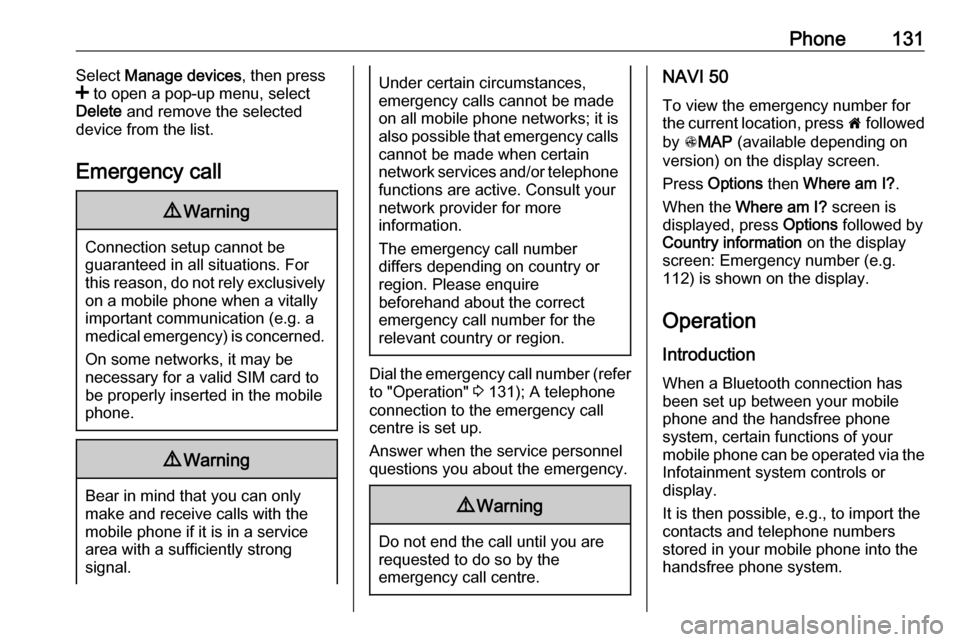
Emergency call9 Warning
Connection setup cannot be
guaranteed in all situations. For
this reason, do not rely exclusively on a mobile phone when a vitally
important communication (e.g. a
medical emergency) is concerned.
On some networks, it may be
necessary for a valid SIM card to
be properly inserted in the mobile
phone.
9 Warning
Bear in mind that you can only
make and receive calls with the
mobile phone if it is in a service
area with a sufficiently strong
signal.
Under certain circumstances,
emergency calls cannot be made on all mobile phone networks; it is also possible that emergency callscannot be made when certain
network services and/or telephone functions are active. Consult your
network provider for more
information.
The emergency call number
differs depending on country or
region. Please enquire
beforehand about the correct
emergency call number for the
relevant country or region.
Dial the emergency call number (refer
to "Operation" 3 131); A telephone
connection to the emergency call
centre is set up.
Answer when the service personnel
questions you about the emergency.
9 Warning
Do not end the call until you are
requested to do so by the
emergency call centre.
NAVI 50
To view the emergency number for
the current location, press 7 followed
by sMAP (available depending on
version) on the display screen.
Press Options then Where am I? .
When the Where am I? screen is
displayed, press Options followed by
Country information on the display
screen: Emergency number (e.g.
112) is shown on the display.
Operation Introduction When a Bluetooth connection has
been set up between your mobile phone and the handsfree phone
system, certain functions of your
mobile phone can be operated via the
Infotainment system controls or
display.
It is then possible, e.g., to import the
contacts and telephone numbers stored in your mobile phone into the
handsfree phone system.
Page 141 of 147
Phone141For reasons of safety, do not use the
phone while driving. Even use of a
handsfree set can be a distraction while driving.9 Warning
Operation of radio equipment and
mobile telephones which fail to
meet above mentioned mobile
telephone standards is only
permitted using an antenna
located outside of the vehicle.
Caution
Mobile telephones and radio
equipment may lead to
malfunctions in the vehicle
electronics when operated inside
the vehicle with no exterior
antenna, unless the above
mentioned regulations are
observed.