2016 VAUXHALL MOVANO_B service
[x] Cancel search: servicePage 54 of 147

54RadioI-Traffic (Traffic information)
Radio traffic service stations are FM
RDS stations that broadcast traffic
news.
Switch on I-Traffic to automatically
receive traffic bulletins when they are
broadcast.Programme type search (PtY)
Switch on PtY to display the type of
programme (e.g. news, sport)
currently being broadcastUpdate radio list
Refer to (NAVI 80) "Autostore lists" 3 50.
Text information (Radio text)
Certain FM radio stations issue text information relating to the broadcast
program (e.g. song name).
To check for text information, from
any radio mode (e.g. Preset, List ,
Frequency ) press < to open a pop-up
menu, and access the text
information option.
Digital audio broadcasting
Digital audio broadcasting (DAB) is
an innovative and universal
broadcast system.
General information ● DAB stations are indicated by the
programme name instead of thebroadcasting frequency.
● With DAB, several radio programmes (services) can be
broadcast on a single frequency(ensemble).
● Besides high-quality digital audio
services, DAB is also able to
transmit programme-associated data and a multitude of other data services including travel andtraffic information.
● As long as a given DAB receiver can pick up the signal sent out bya broadcasting station (even if
the signal is very weak), sound
reproduction is ensured.
● There is no fading (weakening of
the sound) that is typical of AM or
FM reception. The DAB signal is
reproduced at a constant volume.● Interference caused by stations that are on nearby frequencies (aphenomenon that is typical of AMand FM reception) does not
occur with DAB.
If the DAB signal is too weak to
be picked up by the receiver, the
system switches over to the
same programme on another
DAB or FM station.
● If the DAB signal is reflected by natural obstacles or buildings,
the reception quality of DAB is
improved, whereas AM or FM
reception is considerably
impaired in such cases.
● When DAB reception is enabled, the FM tuner of the Infotainmentsystem remains active in the
background and continually
searches for the best receivable
FM stations.
Page 74 of 147

74NavigationNavigationGeneral information.....................74
Usage .......................................... 78
Destination input ..........................97
Guidance ................................... 106
Symbols overview ......................117General information9Warning
The navigation system is an aid to
your navigational abilities and
does not replace them. Drive with
due care and attention and adopt
a safe, vigilant attitude.
If a navigation system instruction
contradicts traffic regulations, the
traffic regulations always apply.
The Navigation system will reliably
guide you to your chosen destination
without the need for physical road
maps.
If the Traffic info service is available
in your country or region, the current
traffic situation is also considered in
route calculations. The system
receives traffic messages in the
current reception area.
To receive the most up-to-date, real-
time traffic information possible,
subscribe to the Live services facility
via the TomTom™ website.
Notice
Only available with
CD35 BT USB NAVI, NAVI 80.
Functioning of the Navigation
system
The position and movement of the
vehicle are detected by the
Navigation system using sensors.
The distance travelled is determined
by the vehicle's speedometer signal,
and turning movements on bends are
determined by a gyro sensor. The
position is determined by GPS
(Global Positioning System)
satellites.
By comparing these sensor signals
with the digital maps on the
Navigation system, it is possible to
accurately determine the position of
the vehicle.
When using the vehicle for the first
time, or after a ferry trip, etc., the
system will self-calibrate. It is,
therefore, normal if it does not provide
an exact location until the vehicle has
travelled for some distance.
Page 75 of 147

Navigation75After the entry of the destination
address or point of interest (nearest
petrol station, hotel, etc.) the route is
calculated from the current location to
the selected destination.
Route guidance is provided by voice
output and the display screen.9 Warning
Areas such as one-way streets
and pedestrian zones are not
marked on the navigation system map. In such areas, the system
may issue a warning that must be
accepted. Therefore, pay
particular attention to one-way
streets and other roads and
entrances that must not be driven
into.
Notice
Depending on Infotainment system, radio reception may be interrupted
during voice guidance and before
each change of direction.
USB memory stick (NAVI 50)
A USB memory stick is required for
the Navigation system, to contain,
among other things, a digital map of
the towns and roads in your country.
Notice
Use a USB memory stick, formatted
to FAT32 format, with a minimum
4 GB and maximum 32 GB of
storage capacity.
After delivery of a new vehicle, there
is a maximum of 90 days in which to
update the digital map for free. After
this time has elapsed, a fee is
charged for map updates.
Notice
To avoid possible technical issues,
only use a compatible USB memory stick for operating and updating the
Navigation system. Do not insert USB memory stick in any other
device (e.g. digital camera, mobile
phone, etc.), or in another vehicle.
Software installation
To update the digital maps and to
benefit from exclusive downloadable
services, an account must be createdon the vauxhall.naviextras.com
website and the free software must be
installed.Creating an account
Create your internet account via the
vauxhall.naviextras.com website.
Select e.g., the "Register" option on
the web page and enter the
appropriate details.Installing the software
Install the software on your computer
by downloading from
vauxhall.naviextras.com.
Follow the on-screen instructions to
install the software and launch the
online application.Registering the Navigation system
The Navigation system must be
registered with your new internet
account.
Insert an empty USB memory stick in
the Navigation system's USB slot. Press 7 then select yNAVI / ýNav ,
followed by Options then Map update .
Page 77 of 147

Navigation77card in any other device (e.g. digital
camera, mobile phone, etc.), or in
another vehicle.
SD card (CD35 BT USB NAVI)
An SD card is supplied with the
Navigation system and contains,
among other things, a digital map of
the towns and roads in your country.
After delivery of a new vehicle, there
is a maximum of 60 days in which to
update the digital map for free. After
this time has elapsed, a fee is
charged for map updates.
Notice
To avoid possible technical issues,
only use a compatible SD card for
operating and updating the
Navigation system. Do not insert SD
card in any other device (e.g. digital
camera, mobile phone, etc.), or in
another vehicle.
TomTom HOME™ software
installation
To update the digital maps and to
benefit from exclusive downloadable
services, including real-time safety
and traffic alerts, an account must becreated on the TomTom™ website
and the free TomTom HOME™
software must be installed.Creating an account
Create your TomTom™ internet
account via the TomTom™ website.
Select e.g., the Create account option
on the web page and enter the
appropriate details.Installing the software
Insert the SD card in your computer's card reader (or an external card
reader) while connected to the
Internet. The software installation is
launched automatically.
Follow the on-screen instructions to
install the free TomTom HOME™
software.
Your SD card is automatically
recognised by the system after the
initial set-up.
Updating the SD card and Navigation
system
Updates are issued regularly, e.g. for map and safety camera revisions.
These updates are only available via the TomTom HOME software, which
is accessed via the SD card.
Using the TomTom HOME software,
it is possible to:
● update the Navigation system (maps, safety cameras etc.)
● subscribe to LIVE services
● save the system data onto your computer
● add or delete data
● customise the system
● share map corrections with the community ( Map Share™ )
● download the full TomTom™ Navigation system user manual
Page 87 of 147

Navigation87●Avoid roadblock
● Avoid part of route
● Minimise delays
3. VIEW MAP
Refer to (NAVI 80) "Browse map"
in the "Guidance" section 3 106.
● Use this position to...
● Find
● Change the map details
● Add to saved locations
4. <: Pop-up menu
5. SETTINGS
Refer to (NAVI 80) "Setting up the navigation system" below.
● Turn off voice guidance
● Route planning
● Show POI on map
● Manage POIs
● Voice
● EV settings
● Set home location
● Manage saved locations
● Switch map
● Change map colours●Car symbol
● Advanced
6. NAVIGATION SERVICES
Refer to (NAVI 80) "LIVE
services" below.
● Traffic
● Speed Cameras
● Local search /TomTom
places
● My TomTom live
● Weather
7. ITINERARIES
Refer to (NAVI 80) "Edit Itinerary"
in the "Guidance" section 3 106.
8. r : Return to previous screenMap screen
To access the map screen without navigation, on the Home page press
MENU , then Navigation followed by
View Map on the display screen.
Press anywhere on the map. The cursor indicates the current selected
position. To scroll within the map,
drag the cursor in the required
direction.To access the map screen with
navigation, on the Home page press
MENU followed by Navigation on the
display screen and enter a
destination. Refer to (NAVI 80)
"Destination input" 3 97.
The map screen (with or without route
guidance) contains the following
controls and information:
1. Speed limit (illuminates red and flashes if speed limit is exceeded)
2. o: Change scale (zoom in/out)
3. Name of the next major road or road sign information, if
applicable
4. ô Outside air quality
Page 89 of 147

Navigation89Notice
When making an entry, certain
letters and numbers are unavailable
for selection (greyed-out) based on
the information stored in the
Navigation system.
NAVI 80 - Operating keyboards in the
display
To move within and to enter
characters in both the alphabetical
and numerical keyboards, make the
appropriate selection by touching the
display screen.
● Entries can be corrected during input with the k keyboard
character.
● Press r to stop using the
keyboard and return to the
previous screen.
Guided tours
CD35 BT USB NAVI
The system offers tutorials to enable
quick familiarisation with the different
functions.Select Guided tours in the main
menu, then the required tour:
● Remote control operation
● Driving view
● Menu options
● Browse map
● Route planning
● Itinerary planning
● Traffic information
● Warnings and notifications
● Quick menu
● TomTom HOME
Live services
CD35 BT USB NAVI - Live services
Live services includes road safety
alerts, up-to-date traffic information
with HD Traffic™, local search with
Google™ and a weather forecast.
These features are available for a free 3 month trial period, after which a
subscription is required. Visit the
TomTom website and refer to the
Services section to subscribe to LIVE
services .Notice
LIVE services are not available in
some countries or regions.
To check the status of your
subscription at any time, select My
Services in the LIVE services menu.
Some features will not be available for
selection in the main menu until a
subscription to live services has been
set up. To access these features,
select LIVE services from the
Navigation system main menu.Safety alerts
This service includes the location of
mobile speed cameras in real-time,
fixed speed cameras and accident
blackspots.
The latest fixed camera updates can
be downloaded via the
TomTom HOME™ website.
This service can be activated or
deactivated at any time via Safety
Alerts in the LIVE services menu.HD Traffic™
To only receive up-to-date, real-time
traffic information and to plan the best
route to your destination, select HD
Traffic in the LIVE services menu.
Page 90 of 147

90NavigationNotice
The HD Traffic service is named
Traffic if a subscription has not been
activated.TomTom places / Google™ local
search
This service allows you to use a
keyword to quickly find any Point of
Interest (POI) and set it as a
destination.Weather
The weather forecast service
provides up to 5 days of weather
reports for your current location and
your chosen destination.
NAVI 80 - Live services
In addition to the free navigation
services (e.g. traffic information, fixed speed cameras), extra features can
be added by subscribing to paid LIVE services.
LIVE services include up-to-date
traffic information with "HD Traffic™ ",
updates and locations of fixed and
mobile speed cameras, local search,
weather forecast and the "My
TomTom LIVE" subscription status.
Notice
LIVE services are not available in
some countries or regions.
The following menus are displayed: ● Traffic /HD Traffic
Select to receive up-to-date, real-
time traffic information.
Notice
The HD Traffic service is named
Traffic if a subscription has not been
activated.
● Speed cameras
Displays alerts and location of
mobile speed cameras in real-
time, fixed speed cameras and accident blackspots.
Notice
Speed camera information is
updated online by the entire
community of system users.
Switch function off via the "SpeedCameras" menu in "LIVE
services", if required.
Notice
In certain countries it is illegal to
download and activate the camerawarning option and this could lead to
prosecution.
● Local search /TomTom places
This service allows you to use a
keyword to quickly find any Point
of Interest (POI) and set it as a
destination.
● My TomTom LIVE
Displays expiry date of
subscribed services. Renew
subscriptions via the Store.
Notice
A valid email address must be
entered to use this service.
Notice
Invoices are sent to the entered
email address, with (if necessary)
the install instructions and user
information for the applications,
services or other downloaded
content.
● Weather
The weather forecast service
provides up to 5 days of weather
reports for your current location
and your chosen destination.
Page 98 of 147
98NavigationTo store a destination in the
favourites list, see Add and save a
favourite .
Notice
The Favourite icon will be greyed out
if no destinations have been saved
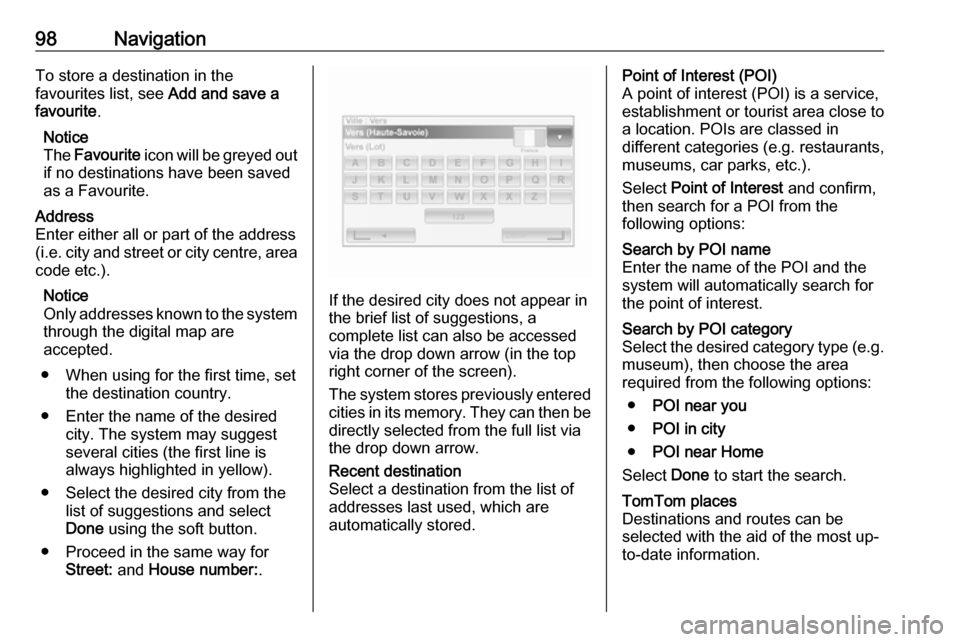
as a Favourite.Address
Enter either all or part of the address (i.e. city and street or city centre, area
code etc.).
Notice
Only addresses known to the system through the digital map are
accepted.
● When using for the first time, set the destination country.
● Enter the name of the desired city. The system may suggest
several cities (the first line is always highlighted in yellow).
● Select the desired city from the list of suggestions and select
Done using the soft button.
● Proceed in the same way for Street: and House number: .
If the desired city does not appear in
the brief list of suggestions, a
complete list can also be accessed via the drop down arrow (in the top
right corner of the screen).
The system stores previously entered
cities in its memory. They can then be directly selected from the full list via
the drop down arrow.
Recent destination
Select a destination from the list of
addresses last used, which are
automatically stored.Point of Interest (POI)
A point of interest (POI) is a service,
establishment or tourist area close to
a location. POIs are classed in
different categories (e.g. restaurants,
museums, car parks, etc.).
Select Point of Interest and confirm,
then search for a POI from the
following options:Search by POI name
Enter the name of the POI and the
system will automatically search for
the point of interest.Search by POI category
Select the desired category type (e.g.
museum), then choose the area
required from the following options:
● POI near you
● POI in city
● POI near Home
Select Done to start the search.TomTom places
Destinations and routes can be
selected with the aid of the most up-
to-date information.