Page 195 of 366
195
1. VOICE COMMAND SYSTEM OPERATION
SIENNA_Navi+MM_OM08015U_(U)
15.09.16 18:08
VOICE COMMAND SYSTEM
4
Phone
Audio
Information
CommandAction
“Redial”Places a call to the phone number of the latest outgoing
call
“Call Back”Places a call to the phone number of latest incoming call
“Show Recent Calls”Displays the call history screen
“Dial ”Places a call to the said phone number
“Call ”Place a call to the said phone type of the contact from the
phone book
CommandAction
“Play Playlist ”Plays tracks from the selected playlist
“Play Artist ”Plays tracks from the selected artist
“Play Song ”Plays the selected track
“Play Album ”Plays tracks from the selected album
CommandAction
“Show Forecast”Displays weather information
“Show Traffic”Displays traffic information
Page 196 of 366
196
SIENNA_Navi+MM_OM08015U_(U)
15.09.16 18:08
2. MOBILE ASSISTANT OPERATION
1. MOBILE ASSISTANT
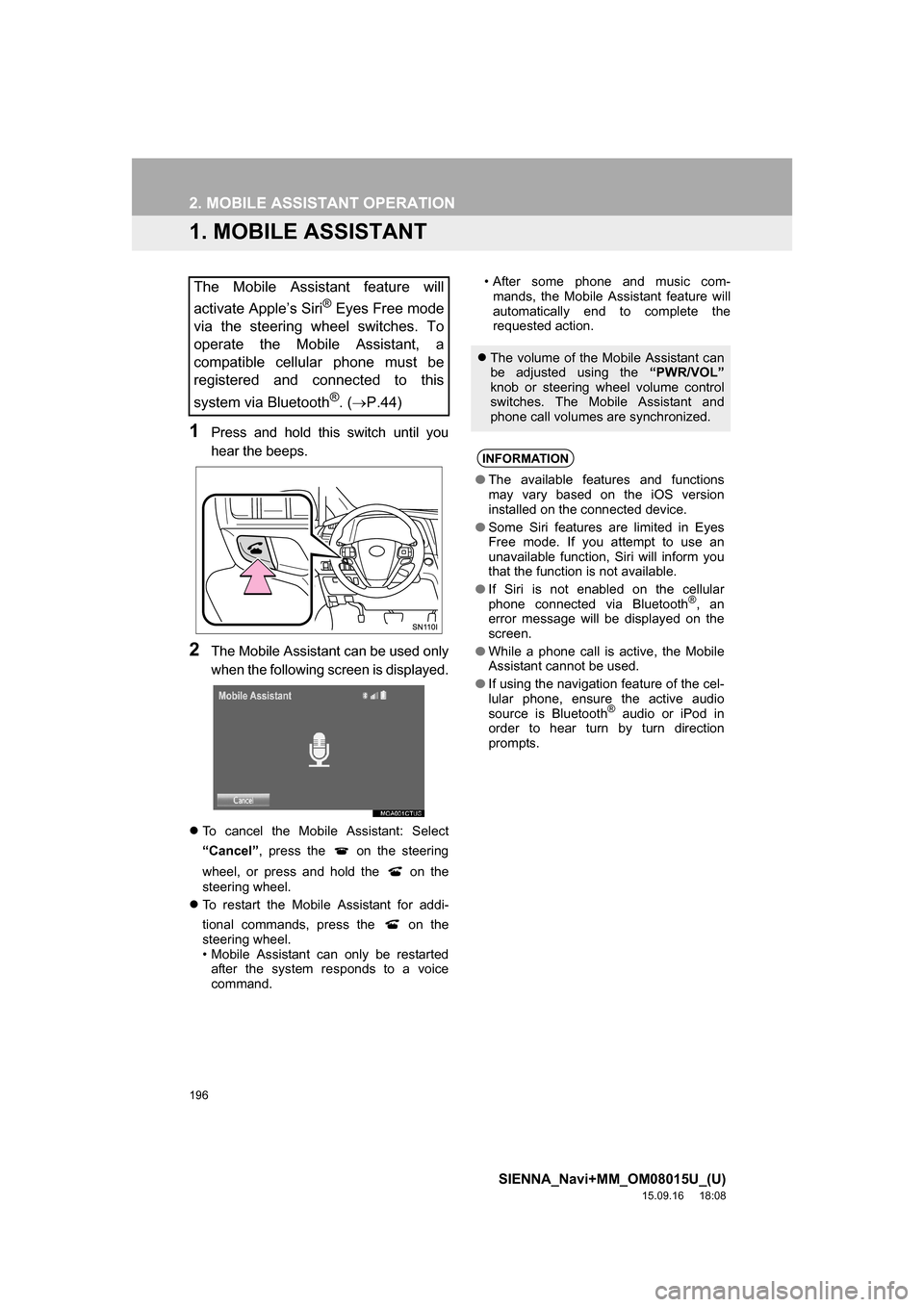
1Press and hold this switch until you
hear the beeps.
2The Mobile Assistant can be used only
when the following screen is displayed.
To cancel the Mobile Assistant: Select
“Cancel”, press the on the steering
wheel, or press and hold the on the
steering wheel.
To restart the Mobile Assistant for addi-
tional commands, press the on the
steering wheel.
• Mobile Assistant can only be restarted
after the system responds to a voice
command.• After some phone and music com-
mands, the Mobile Assistant feature will
automatically end to complete the
requested action.
The Mobile Assistant feature will
activate Apple’s Siri
® Eyes Free mode
via the steering wheel switches. To
operate the Mobile Assistant, a
compatible cellular phone must be
registered and connected to this
system via Bluetooth
®. (P.44)
The volume of the Mobile Assistant can
be adjusted using the “PWR/VOL”
knob or steering wheel volume control
switches. The Mobile Assistant and
phone call volumes are synchronized.
INFORMATION
●The available features and functions
may vary based on the iOS version
installed on the connected device.
●Some Siri features are limited in Eyes
Free mode. If you attempt to use an
unavailable function, Siri will inform you
that the function is not available.
●If Siri is not enabled on the cellular
phone connected via Bluetooth
®, an
error message will be displayed on the
screen.
●While a phone call is active, the Mobile
Assistant cannot be used.
●If using the navigation feature of the cel-
lular phone, ensure the active audio
source is Bluetooth
® audio or iPod in
order to hear turn by turn direction
prompts.
Page 197 of 366
197
2. MOBILE ASSISTANT OPERATION
SIENNA_Navi+MM_OM08015U_(U)
15.09.16 18:08
VOICE COMMAND SYSTEM
4
MICROPHONE
It is not necessary to speak directly into
the microphone when using the Mobile
Assistant. (Microphone location:
P.186)
INFORMATION
●Wait for the listening beeps before using
the Mobile Assistant.
●The Mobile Assistant may not recognize
commands in the following situations:
• Spoken too quickly.
• Spoken at a low or high volume.
• The roof or windows are open.
• Passengers are talking while the
Mobile Assistant is being used.
• The air conditioning speed is set high.
• The air conditioning vents are turned
toward the microphone.
Page 200 of 366

200
SIENNA_Navi+MM_OM08015U_(U)
15.09.16 18:08
1. USEFUL INFORMATION
1. RECEIVING WEATHER INFORMATION
1Press the “APPS” button.
2Select “Weather”.
3Check that the “Weather” screen is dis-
played. Entune Audio Plus
Weather information can be received
via the HD Radio broadcast.
Entune Premium Audio
Weather information can be received
via the HD Radio broadcast or by the
Entune App Suite application on a
Bluetooth
® phone. For details about
the Entune App Suite application:
P.339
DISPLAYING WEATHER
INFORMATION
No.Function
Select to display the weather of the
current location. (P.201)
Select to display the weather of a
desired location in the recently
checked locations list.
Select to display the weather of a
desired location in the national cities
list.
Select to display the weather of a
desired location in the other local cit-
ies list.
*Select to display weather informa-
tion over the map.
*: Entune Premium Audio only
INFORMATION
●Weather information is available in the
48 states, D.C. and Alaska of the United
States.
Page 203 of 366

203
1. USEFUL INFORMATION
SIENNA_Navi+MM_OM08015U_(U)
15.09.16 18:08
INFORMATION
5
3. DATA SERVICES SETTINGS*
1Press the “APPS” button.
2Select “Setup”.
3Select “HD Data”.
4Select the desired item to be set.
Select a checkbox on the right to set.
SETTING DOWNLOAD
METHODS
Data service information, which is
comprised of traffic information and
weather information, can be received
via HD Radio broadcast and by the
Entune App Suite application on a
Bluetooth
® phone. The receiving meth-
od can be set to both or only via HD
Radio broadcast. For details about the
Entune App Suite application: P.339
No.Function
Select to receive data service infor-
mation via both HD Radio broadcast
and the Entune App Suite applica-
tion on a Bluetooth
® phone. When
both methods are available, HD Ra-
dio broadcast will be selected.
Select to receive data only via HD
Radio broadcast.
INFORMATION
●These settings are available in the 48
states, D.C. and Alaska of the United
States.
*: Entune Premium Audio only
Page 204 of 366

204
1. USEFUL INFORMATION
SIENNA_Navi+MM_OM08015U_(U)
15.09.16 18:08
4. Driver Easy Speak*
Using the “APPS” button
1Press the “APPS” button.
2Select “Driver Easy Speak” to
change on/off.
Using the “HOME” button
1Press the “HOME” button.
2Select “On” or “Off”.
1Press the “APPS” button.
2Select “Setup”.
3Select “Driver Easy Speak”.
4Select “High”, “Medium” or “Low”.
USING Driver Easy Speak
Driver Easy Speak will utilize the vehi-
cle microphones and speakers to allow
passengers in the rear of the vehicle to
more easily hear the driver.
CHANGING Driver Easy
Speak SETTINGS
INFORMATION
●If a side door or the back door is opened
while the Driver Easy Speak function is
in use, it will be automatically turned off.
Driver Easy Speak will automatically turn
back on when all doors and back door
closed.
●Driver Easy Speak cannot be used while
the voice command system or hands-
free system is in use.
●If feedback occurs, turn the Driver Easy
Speak function off or adjust its volume.
*: Entune Premium Audio only
Page 223 of 366

7
223
SIENNA_Navi+MM_OM08015U_(U)
15.09.04 16:56
1
2
3
4
5
6
7
8
9
1. QUICK REFERENCE ................... 224
2. SOME BASICS ............................ 225
REGISTERING/CONNECTING A
Bluetooth® PHONE ........................... 226
USING THE PHONE
SWITCH/MICROPHONE .................. 226
VOICE COMMAND SYSTEM.............. 227
ABOUT THE CONTACTS IN THE
CONTACT LIST ................................ 228
WHEN SELLING OR DISPOSING
OF THE VEHICLE............................. 228
3. CALLING ON THE Bluetooth®
PHONE....................................... 229
BY FAVORITES LIST .......................... 230
BY CALL HISTORY ............................. 230
BY CONTACTS LIST .......................... 231
BY DIAL PAD ...................................... 233
BY OFF HOOK SWITCH ..................... 233
BY “Home” SCREEN ........................... 233
4. RECEIVING ON THE Bluetooth®
PHONE ...................................... 235
INCOMING CALLS .............................. 235
5. TALKING ON THE Bluetooth®
PHONE ...................................... 236
INCOMING CALL WAITING ................ 238
6. Bluetooth® PHONE MESSAGE
FUNCTION ................................ 239
RECEIVING A MESSAGE ................... 240
CHECKING MESSAGES ..................... 241
REPLYING TO A MESSAGE
(QUICK REPLY) ................................ 242
CALLING THE MESSAGE
SENDER ........................................... 243
1. PHONE/MESSAGE
SETTINGS ................................. 244
PHONE/MESSAGE SETTINGS
SCREEN ........................................... 244
“Sound Settings” SCREEN .................. 245
“Contact/Call History Settings”
SCREEN ........................................... 246
“Messaging Settings” SCREEN ........... 254
“Phone Display Settings” SCREEN ..... 255
1. TROUBLESHOOTING ................ 256
1
PHONE OPERATION
(HANDS-FREE SYSTEM
FOR CELLULAR PHONES)
2SETUP
3WHAT TO DO IF...
PHONE
Page 224 of 366
224
SIENNA_Navi+MM_OM08015U_(U)
15.09.16 18:08
1. PHONE OPERATION (HANDS-FREE SYSTEM FOR CELLULAR PHONES)
1. QUICK REFERENCE
The phone top screen can be used to make a phone call. To display the hands-free
operation screen, press the “APPS” button and select “Phone”, the switch on
the steering wheel or switch on the instrument panel.
Several functions are available to operate on each screen that is displayed by se-
lecting the 4 tabs.
FunctionPage
Phone operation
Registering/connecting Bluetooth® phone44
Calling on the Bluetooth® phone229
Receiving on the Bluetooth® phone235
Talking on the Bluetooth® phone236
Message functionUsing the Bluetooth® phone message function239
Setting up a phonePhone settings244
Bluetooth® settings51


