Page 281 of 620
281
PRIUS v_OM_OM47B12U_(U)
5-2. Setup
5
Audio system
Display settings
Press the “SETUP” button.
Select “Display” on the “Setup” screen.
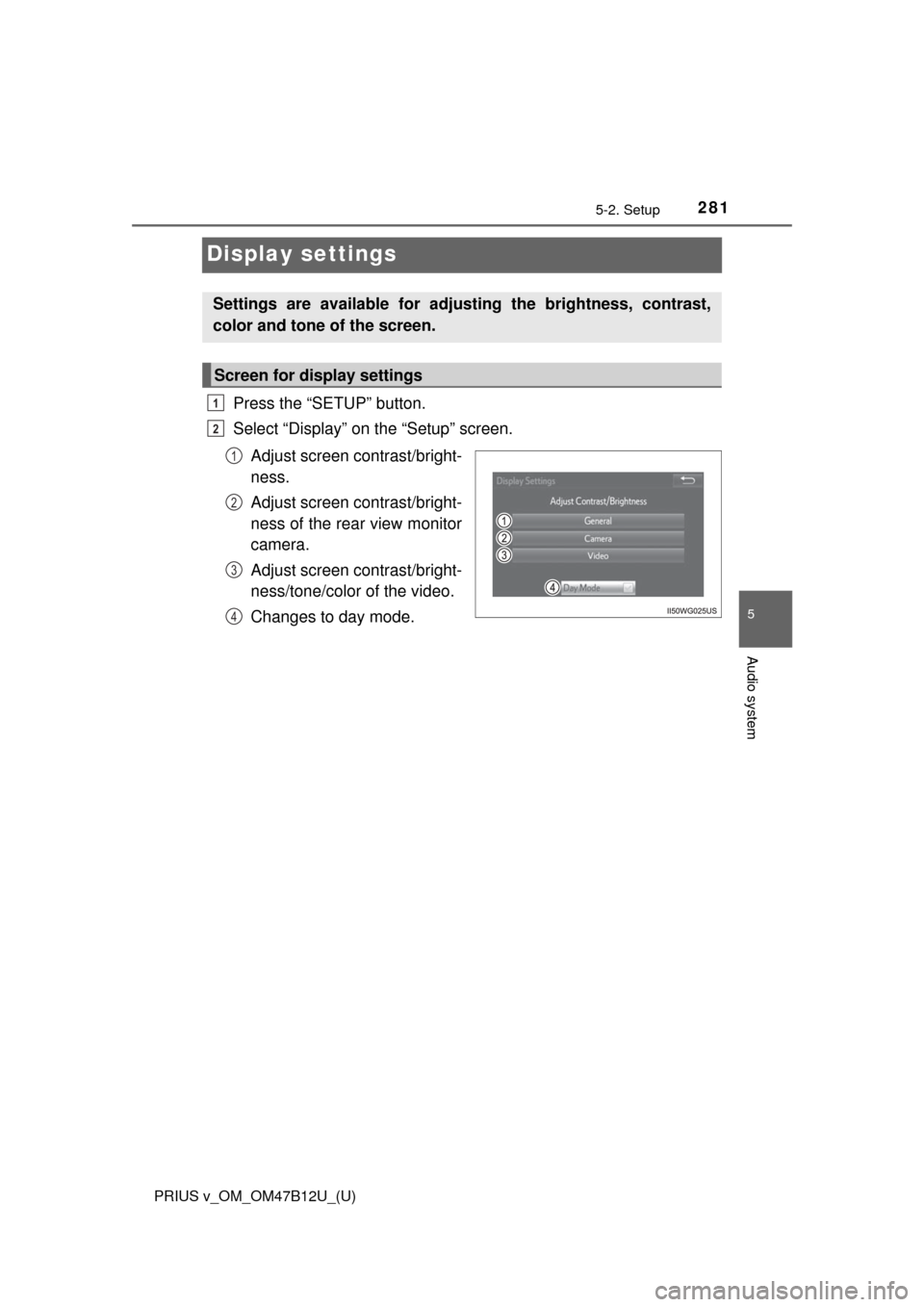
Adjust screen contrast/bright-
ness.
Adjust screen contrast/bright-
ness of the rear view monitor
camera.
Adjust screen contrast/bright-
ness/tone/color of the video.
Changes to day mode.
Settings are available for adjusting the brightness, contrast,
color and tone of the screen.
Screen for display settings
1
2
1
2
3
4
Page 283 of 620
PRIUS v_OM_OM47B12U_(U)
2835-2. Setup
5
Audio system
When the headlights are turned on, the screen dims.
However, the screen can be switched to day mode by selecting “Day
Mode”.
The screen will stay in day mode when the headlights are turned on until
“Day Mode” is selected again.
Day mode
Page 285 of 620
285
PRIUS v_OM_OM47B12U_(U)
5-3. Using the Multimedia system
5
Audio system
Selecting the audio source
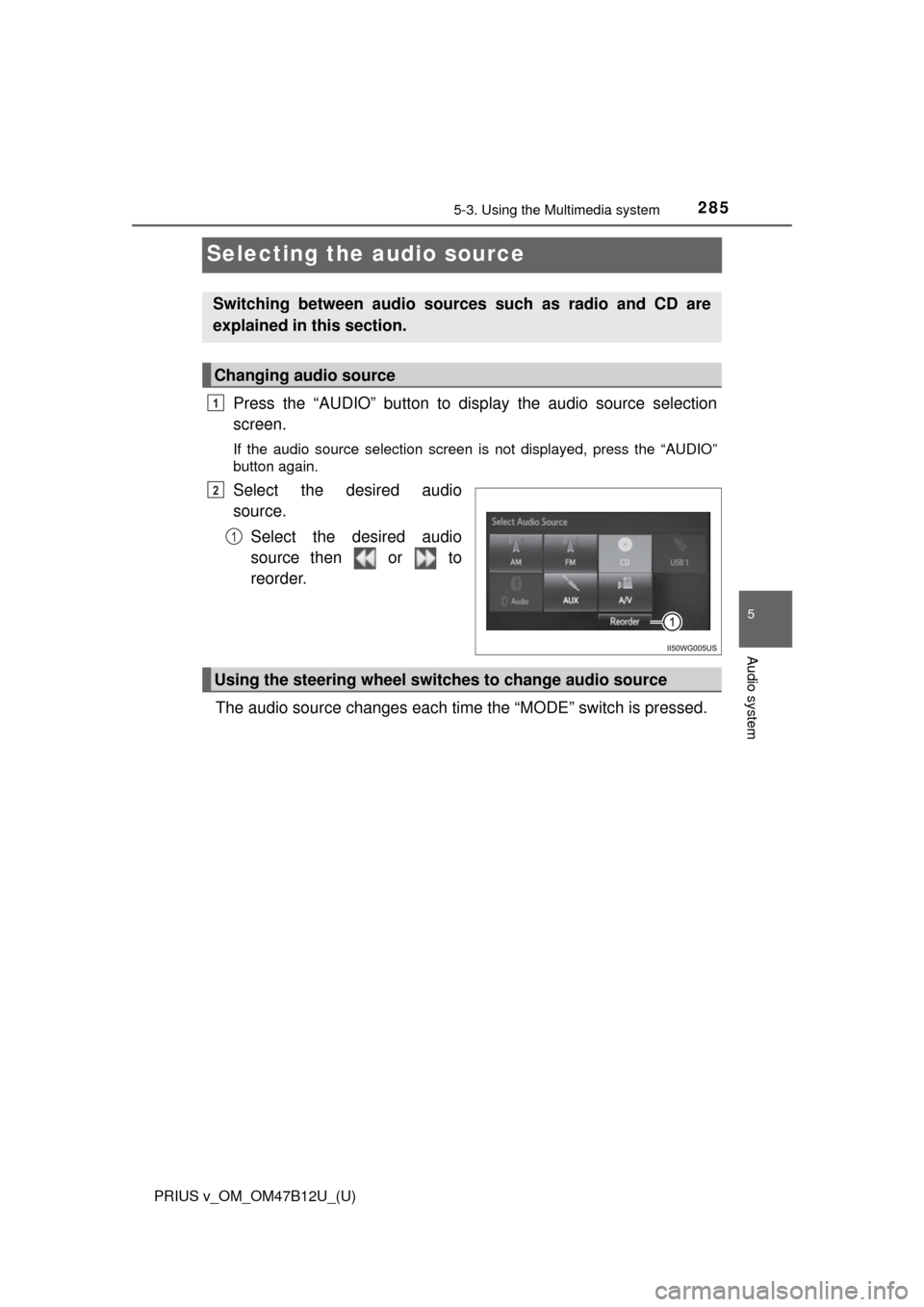
Press the “AUDIO” button to display the audio source selection
screen.
If the audio source selection screen is not displayed, press the “AUDIO”
button again.
Select the desired audio
source.
Select the desired audio
source then or to
reorder.
The audio source changes each time the “MODE” switch is pressed.
Switching between audio sources such as radio and CD are
explained in this section.
Changing audio source
1
2
1
Using the steering wheel switches to change audio source
Page 287 of 620
PRIUS v_OM_OM47B12U_(U)
2875-3. Using the Multimedia system
5
Audio system
■Selecting a track/file/song
Press the “” or “” button on “SEEK/TRACK” or turn the “TUNE
SCROLL” knob to select the desired track/file/song number.
To fast-forward or reverse, press and hold the “” or “” button on
“SEEK/TRACK”.
■Selecting a track/file/song from the track/file/song list
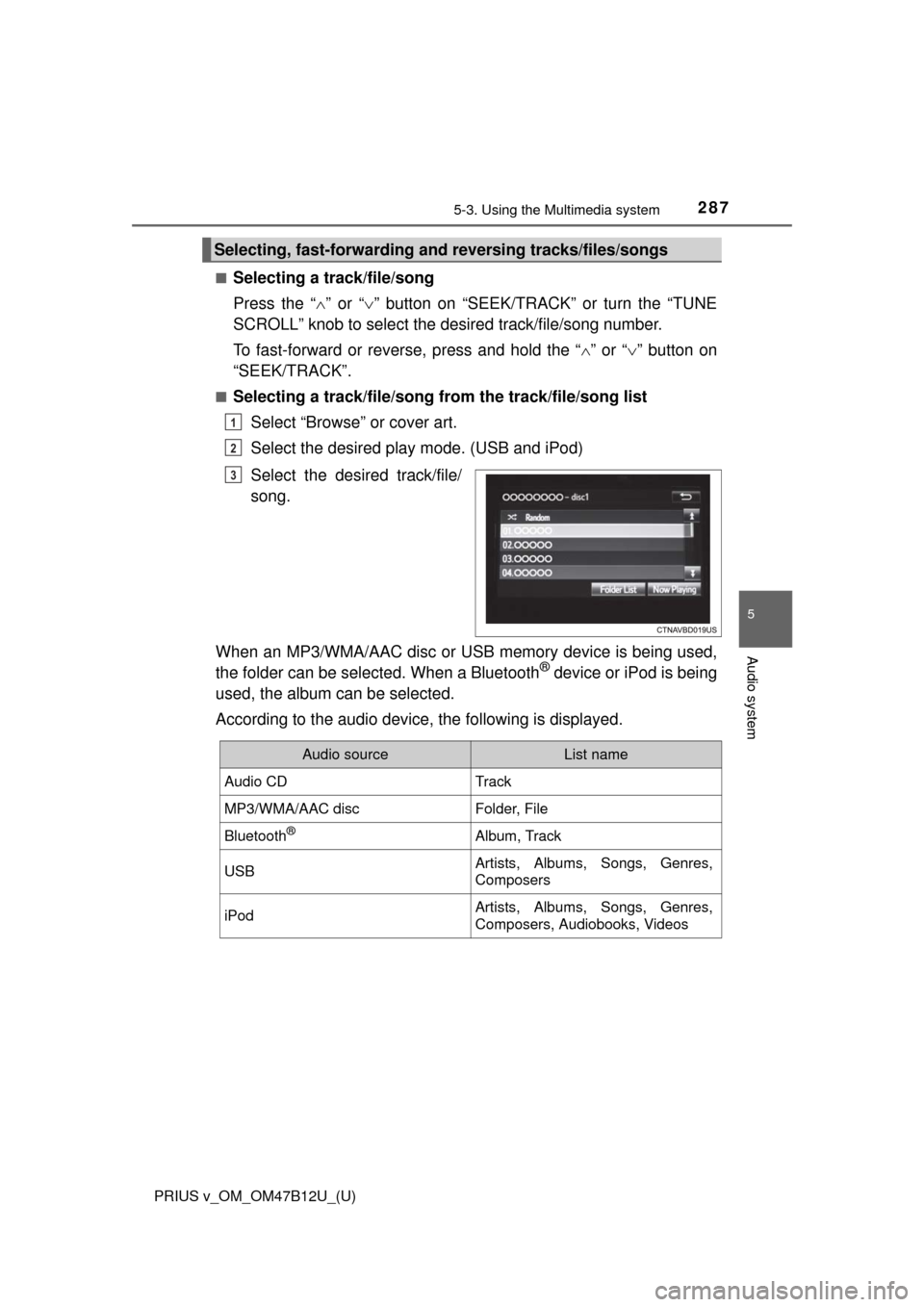
Select “Browse” or cover art.
Select the desired play mode. (USB and iPod)
Select the desired track/file/
song.
When an MP3/WMA/AAC disc or USB memory device is being used,
the folder can be selected. When a Bluetooth
® device or iPod is being
used, the album can be selected.
According to the audio device, the following is displayed.
Selecting, fast-forwarding and reversing tracks/files/songs
1
2
3
Audio sourceList name
Audio CDTrack
MP3/WMA/AAC discFolder, File
Bluetooth®Album, Track
USBArtists, Albums, Songs, Genres,
Composers
iPodArtists, Albums, Songs, Genres,
Composers, Audiobooks, Videos
Page 288 of 620
288
PRIUS v_OM_OM47B12U_(U)
5-3. Using the Multimedia system
Optimal use of the audio system
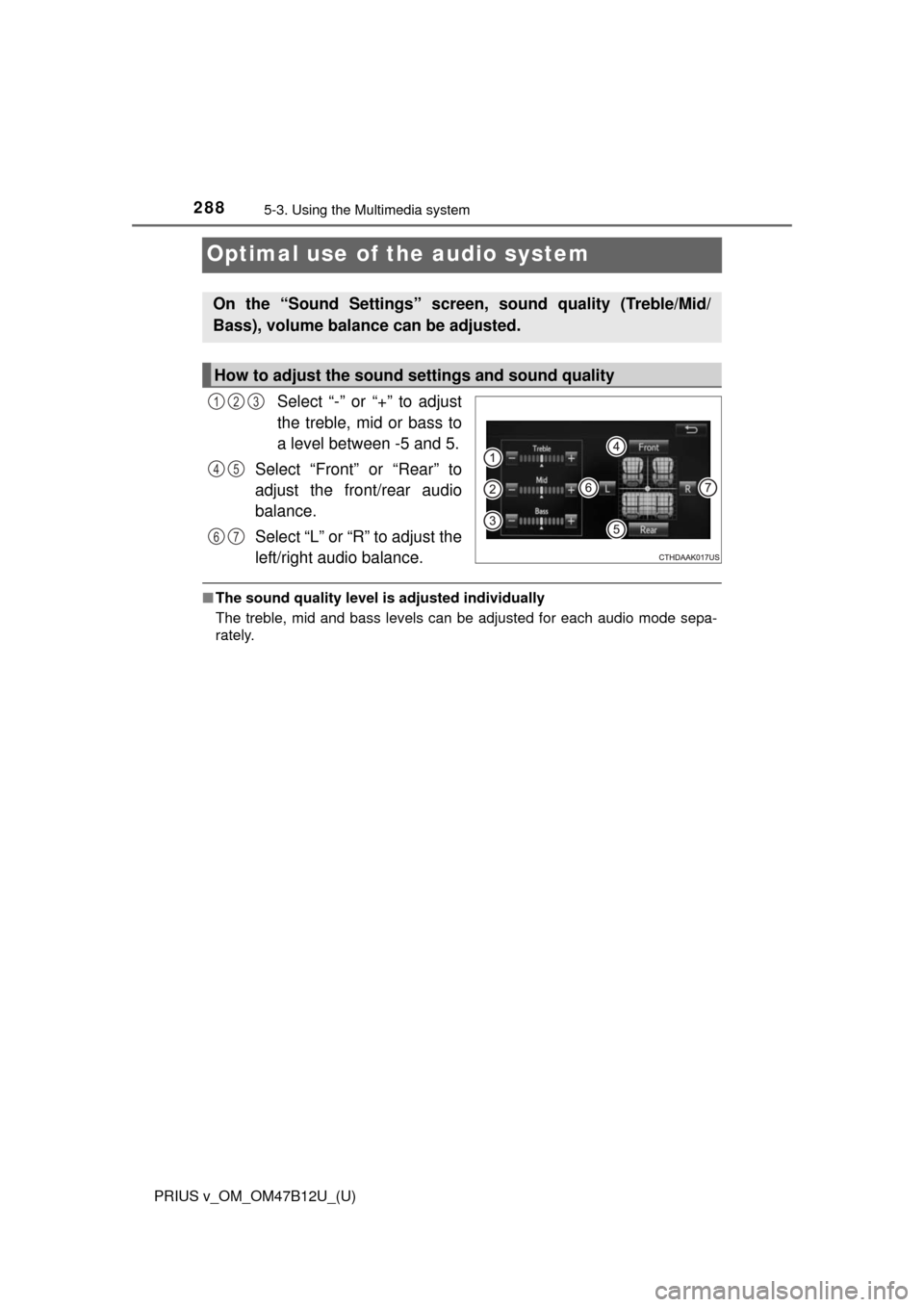
Select “-” or “+” to adjust
the treble, mid or bass to
a level between -5 and 5.
Select “Front” or “Rear” to
adjust the front/rear audio
balance.
Select “L” or “R” to adjust the
left/right audio balance.
■The sound quality level is adjusted individually
The treble, mid and bass levels can be adjusted for each audio mode sepa-
rately.
On the “Sound Settings” screen, sound quality (Treble/Mid/
Bass), volume balance can be adjusted.
How to adjust the sound settings and sound quality
123
45
67
Page 289 of 620
289
PRIUS v_OM_OM47B12U_(U)
5-3. Using the Multimedia system
5
Audio system
Audio screen adjustment
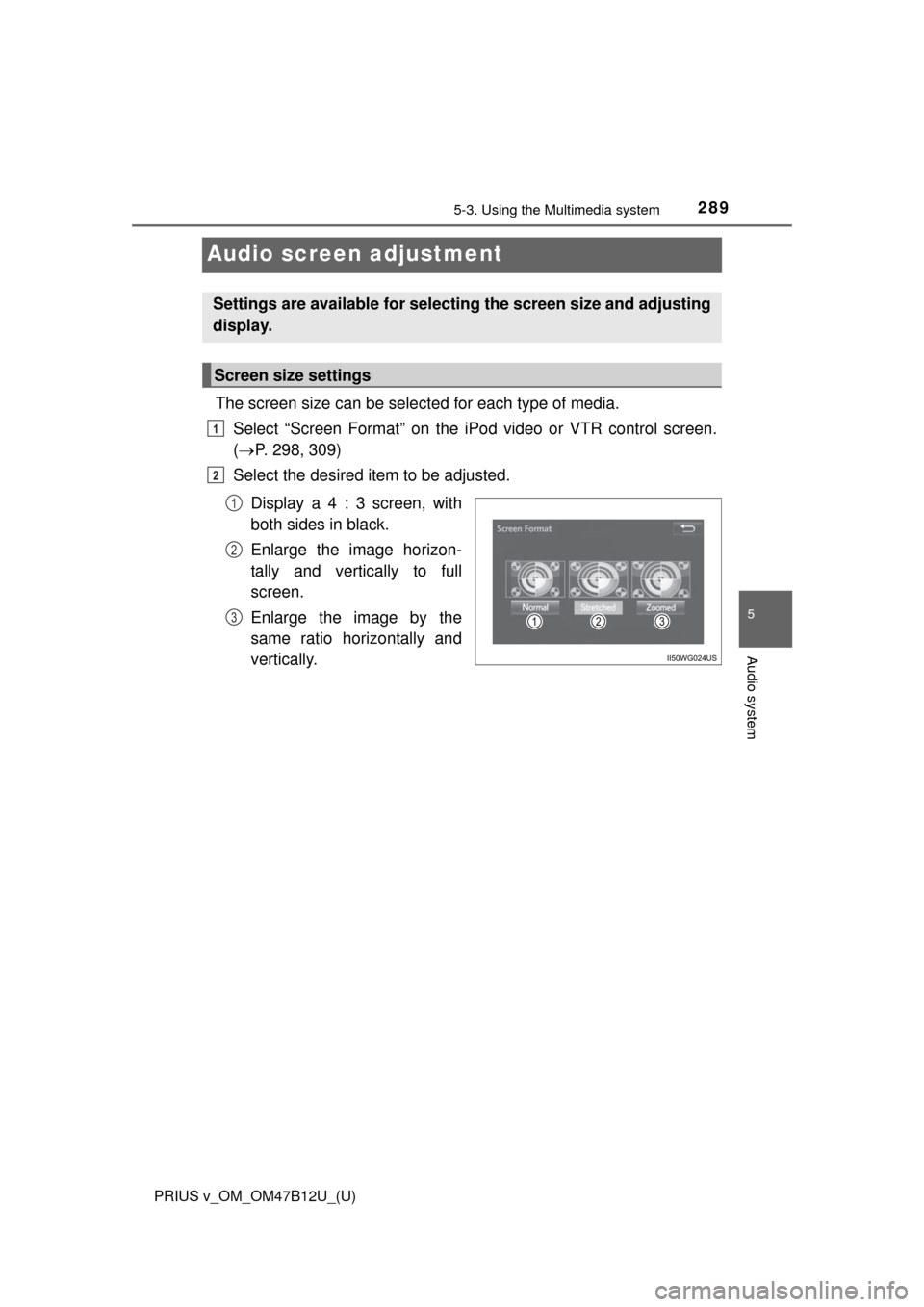
The screen size can be selected for each type of media.
Select “Screen Format” on the iPod video or VTR control screen.
(P. 298, 309)
Select the desired item to be adjusted.
Display a 4 : 3 screen, with
both sides in black.
Enlarge the image horizon-
tally and vertically to full
screen.
Enlarge the image by the
same ratio horizontally and
vertically.
Settings are available for selecting the screen size and adjusting
display.
Screen size settings
1
2
1
2
3
Page 290 of 620
290
PRIUS v_OM_OM47B12U_(U)
5-4. Using the radio
Radio operation
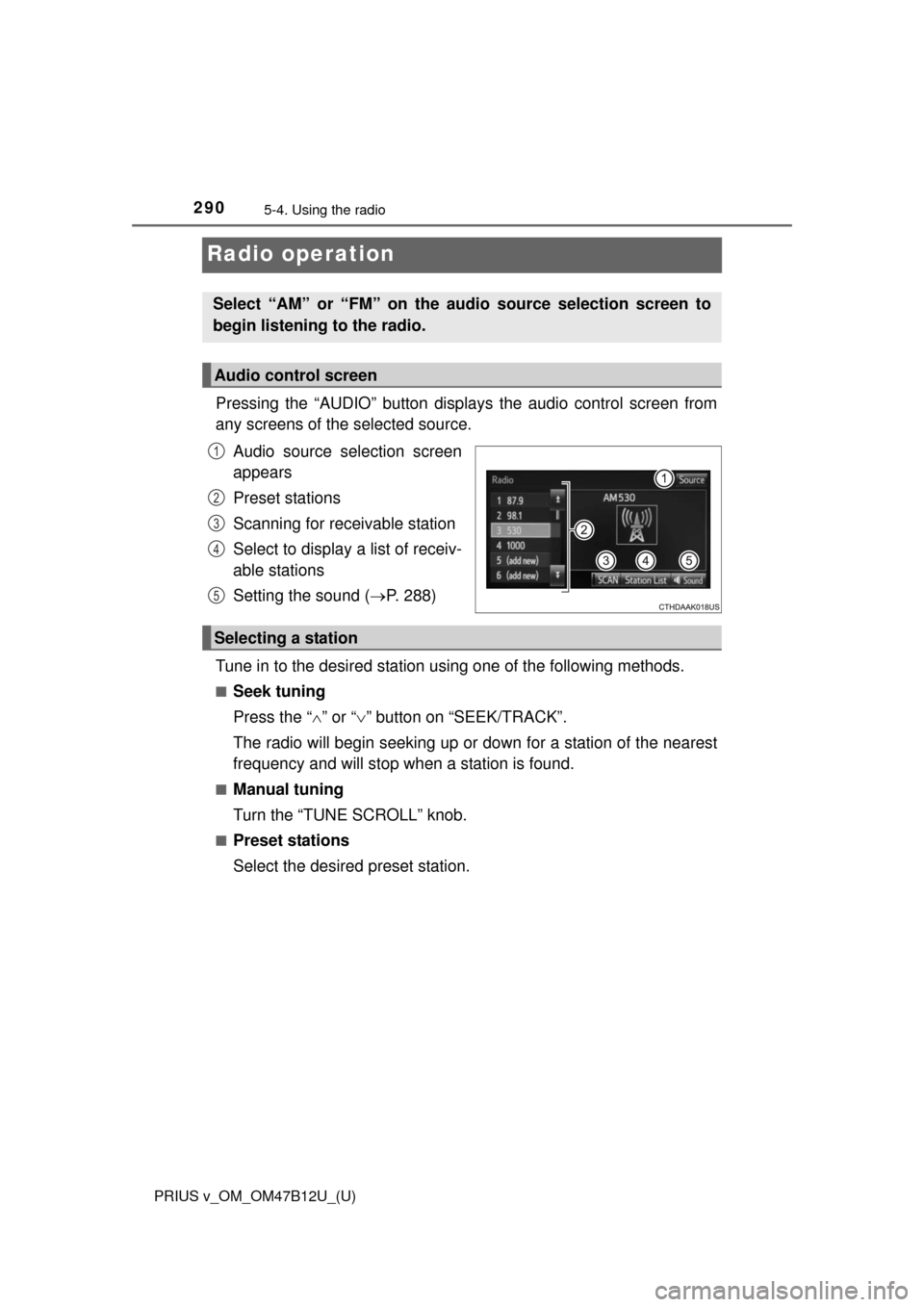
Pressing the “AUDIO” button displays the audio control screen from
any screens of the selected source.
Audio source selection screen
appears
Preset stations
Scanning for receivable station
Select to display a list of receiv-
able stations
Setting the sound (P. 288)
Tune in to the desired station using one of the following methods.
■Seek tuning
Press the “” or “” button on “SEEK/TRACK”.
The radio will begin seeking up or down for a station of the nearest
frequency and will stop when a station is found.
■Manual tuning
Turn the “TUNE SCROLL” knob.
■Preset stations
Select the desired preset station.
Select “AM” or “FM” on the audio source selection screen to
begin listening to the radio.
Audio control screen
1
2
3
4
5
Selecting a station
Page 291 of 620
PRIUS v_OM_OM47B12U_(U)
2915-4. Using the radio
5
Audio system
Search for desired stations by turning the “TUNE SCROLL” knob or
pressing the “” or “” button on “SEEK/TRACK”.
Select “(add new)”.
To change the preset station to a different one, select and hold the preset
station.
Select “Yes”.
Select “OK” after setting the new preset station.
■Refreshing the station list
Select “Refresh” on the “Station List” screen.
To cancel the refresh, select “Cancel Refresh”.
■Reception sensitivity
●Maintaining perfect radio reception at all times is difficult due to the continu-
ally changing position of the antenna, differences in signal strength and sur-
rounding objects, such as trains, transmitters, etc.
●The radio antenna is mounted on the roof. The antenna can be removed
from the base by turning it.
Setting station presets
1
2
3
4