Page 54 of 294
54
2. Bluetooth® SETTINGS
COROLLA_14CY_Navi_U
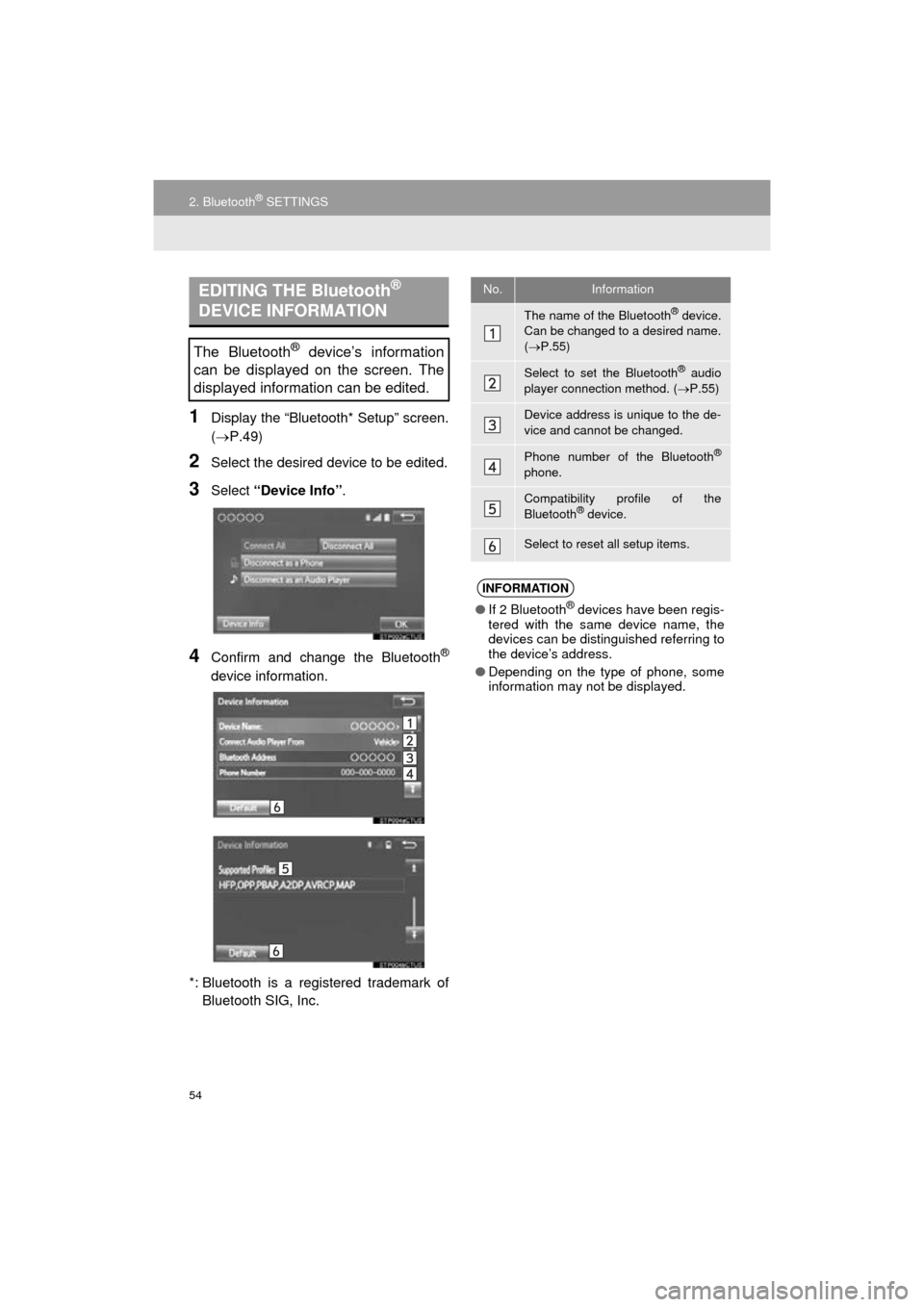
1Display the “Bluetooth* Setup” screen.
(P.49)
2Select the desired device to be edited.
3Select “Device Info” .
4Confirm and change the Bluetooth®
device information.
*: Bluetooth is a regi stered trademark of
Bluetooth SIG, Inc.
EDITING THE Bluetooth®
DEVICE INFORMATION
The Bluetooth® device’s information
can be displayed on the screen. The
displayed information can be edited.
No.Information
The name of the Bluetooth® device.
Can be changed to a desired name.
( P.55)
Select to set the Bluetooth® audio
player connection method. ( P.55)
Device address is unique to the de-
vice and cannot be changed.
Phone number of the Bluetooth®
phone.
Compatibility profile of the
Bluetooth® device.
Select to reset all setup items.
INFORMATION
● If 2 Bluetooth® devices have been regis-
tered with the same device name, the
devices can be distinguished referring to
the device’s address.
● Depending on the type of phone, some
information may not be displayed.
Page 56 of 294
56
2. Bluetooth® SETTINGS
COROLLA_14CY_Navi_U
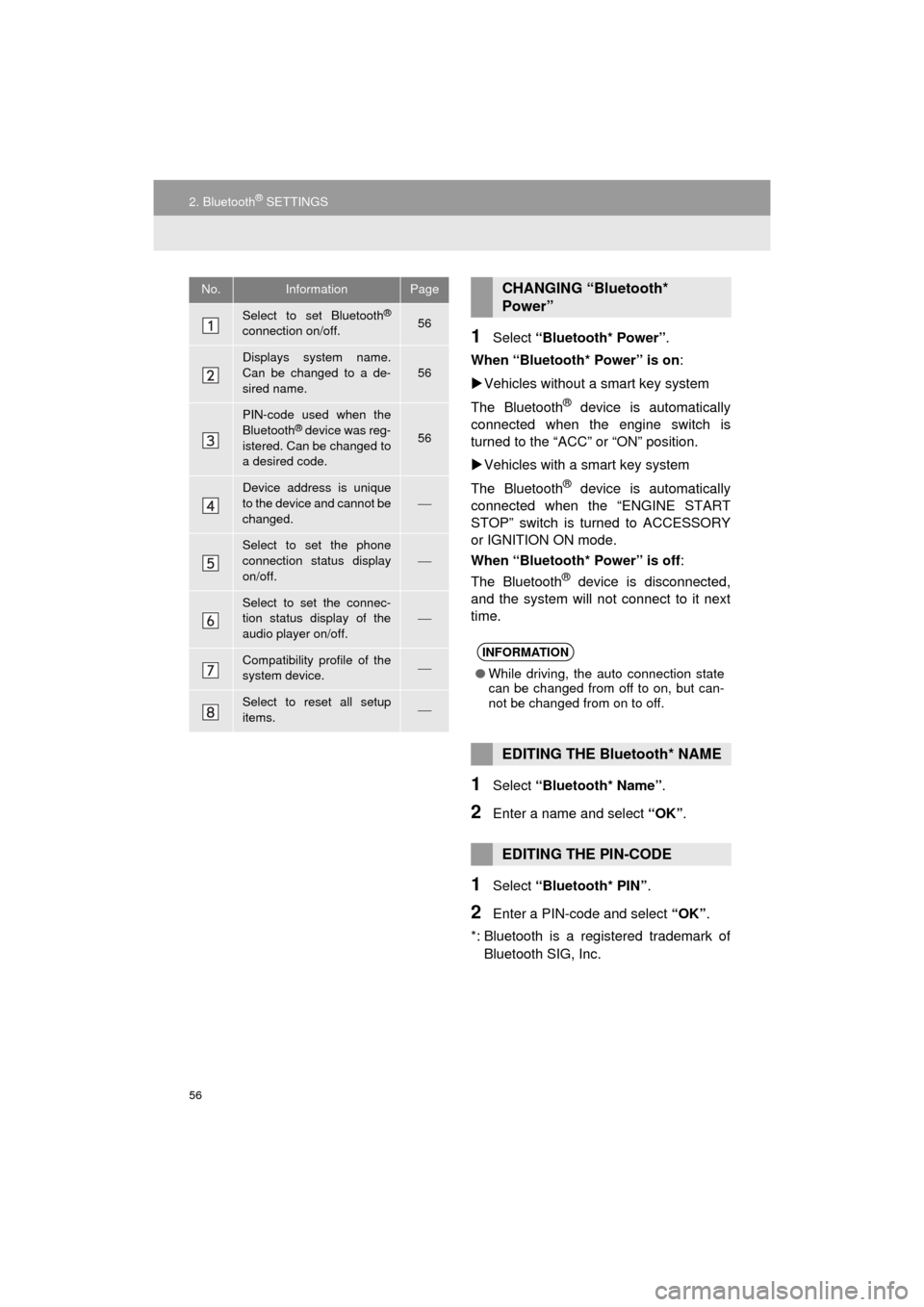
1Select “Bluetooth* Power” .
When “Bluetooth* Power” is on :
Vehicles without a smart key system
The Bluetooth
® device is automatically
connected when the engine switch is
turned to the “ACC” or “ON” position.
Vehicles with a smart key system
The Bluetooth
® device is automatically
connected when the “ENGINE START
STOP” switch is turned to ACCESSORY
or IGNITION ON mode.
When “Bluetooth* Power” is off :
The Bluetooth
® device is disconnected,
and the system will not connect to it next
time.
1Select “Bluetooth* Name” .
2Enter a name and select “OK”.
1Select “Bluetooth* PIN” .
2Enter a PIN-code and select “OK”.
*: Bluetooth is a registered trademark of Bluetooth SIG, Inc.
No.InformationPage
Select to set Bluetooth®
connection on/off.56
Displays system name.
Can be changed to a de-
sired name.56
PIN-code used when the
Bluetooth® device was reg-
istered. Can be changed to
a desired code.56
Device address is unique
to the device and cannot be
changed.
Select to set the phone
connection status display
on/off.
Select to set the connec-
tion status display of the
audio player on/off.
Compatibility profile of the
system device.
Select to reset all setup
items.
CHANGING “Bluetooth*
Power”
INFORMATION
● While driving, the auto connection state
can be changed from off to on, but can-
not be changed from on to off.
EDITING THE Bluetooth* NAME
EDITING THE PIN-CODE
Page 58 of 294
58
3. OTHER SETTINGS
COROLLA_14CY_Navi_U
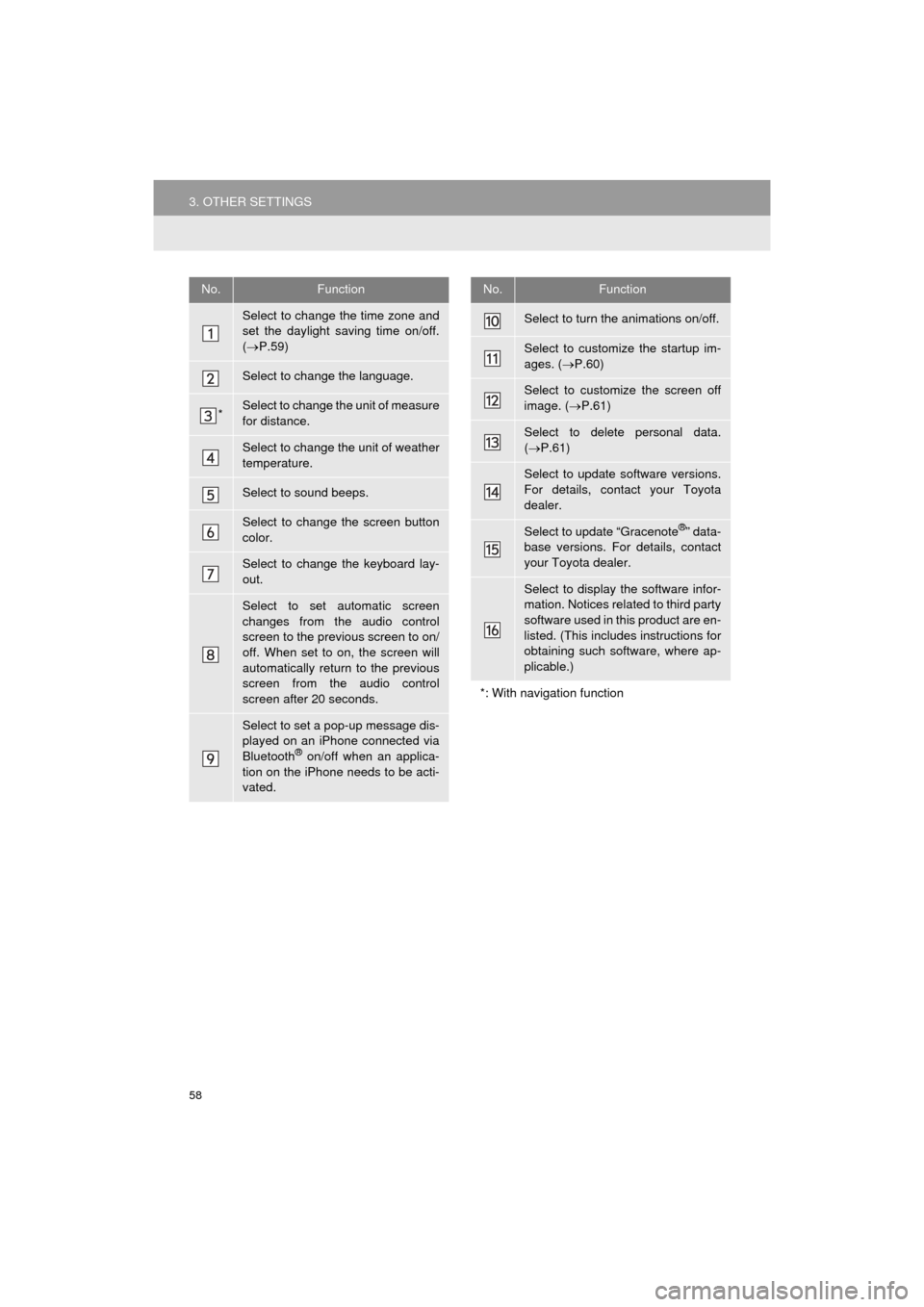
No.Function
Select to change the time zone and
set the daylight saving time on/off.
( P.59)
Select to change the language.
*Select to change the unit of measure
for distance.
Select to change the unit of weather
temperature.
Select to sound beeps.
Select to change the screen button
color.
Select to change the keyboard lay-
out.
Select to set automatic screen
changes from the audio control
screen to the previous screen to on/
off. When set to on, the screen will
automatically return to the previous
screen from the audio control
screen after 20 seconds.
Select to set a pop-up message dis-
played on an iPhone connected via
Bluetooth
® on/off when an applica-
tion on the iPhone needs to be acti-
vated.
Select to turn the animations on/off.
Select to customize the startup im-
ages. ( P.60)
Select to customize the screen off
image. ( P.61)
Select to delete personal data.
( P.61)
Select to update software versions.
For details, contact your Toyota
dealer.
Select to update “Gracenote®” data-
base versions. For details, contact
your Toyota dealer.
Select to display the software infor-
mation. Notices related to third party
software used in this product are en-
listed. (This includes instructions for
obtaining such software, where ap-
plicable.)
*: With navigation function
No.Function
Page 61 of 294
61
3. OTHER SETTINGS
COROLLA_14CY_Navi_U
BASIC FUNCTION
2
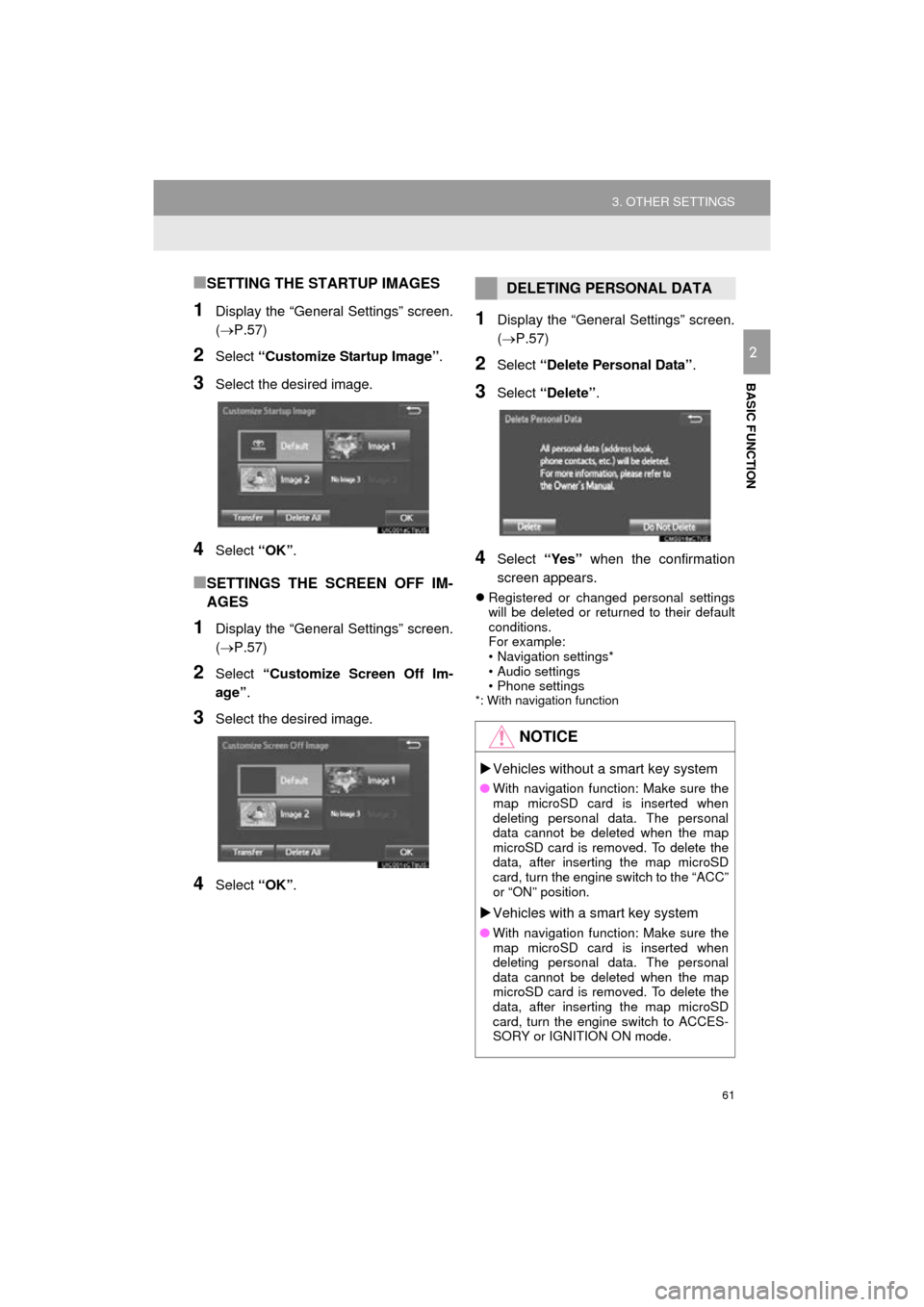
■SETTING THE STARTUP IMAGES
1Display the “General Settings” screen.
(P.57)
2Select “Customize Startup Image” .
3Select the desired image.
4Select “OK”.
■SETTINGS THE SCREEN OFF IM-
AGES
1Display the “General Settings” screen.
(P.57)
2Select “Customize Screen Off Im-
age” .
3Select the desired image.
4Select “OK”.
1Display the “General Settings” screen.
(P.57)
2Select “Delete Personal Data” .
3Select “Delete” .
4Select “Yes” when the confirmation
screen appears.
Registered or changed personal settings
will be deleted or returned to their default
conditions.
For example:
• Navigation settings*
• Audio settings
• Phone settings
*: With navigation function
DELETING PERSONAL DATA
NOTICE
Vehicles without a smart key system
● With navigation function: Make sure the
map microSD card is inserted when
deleting personal data. The personal
data cannot be deleted when the map
microSD card is removed. To delete the
data, after inserting the map microSD
card, turn the engine switch to the “ACC”
or “ON” position.
Vehicles with a smart key system
● With navigation function: Make sure the
map microSD card is inserted when
deleting personal data. The personal
data cannot be deleted when the map
microSD card is removed. To delete the
data, after inserting the map microSD
card, turn the engine switch to ACCES-
SORY or IGNITION ON mode.
Page 63 of 294
63
3. OTHER SETTINGS
COROLLA_14CY_Navi_U
BASIC FUNCTION
2
3. DRIVER SETTINGS
1Press the “APPS” button.
2Select “Setup” .
3Select “Driver” .
4Select “Enable this Feature” .
1Display the driver settings screen.
(P.63)
2Select “Manually Select Linked Set-
tings” .
3Select the desired phone.
After a few seconds, loaded screen auto-
matically switches to the home screen.
The driver settings feature will allow
the system to link some preferences
(such as audio presets, button colors,
language, etc.) to a paired Bluetooth
®
phone.
MANUALLY SELECT LINKED
SETTINGS
Page 66 of 294
66
3. OTHER SETTINGS
COROLLA_14CY_Navi_U
3Select the items to be edited.■EDITING DEALER OR CONTACT
NAME
1Select “Edit” next to “Dealer” or “Con-
tact”.
2Enter the name and select “OK”.
■EDITING THE LOCATION
1Select “Edit” next to “Location”.
2Scroll the map to the desired point
(P.205) and select “OK”.
■EDITING PHONE NUMBER
1Select “Edit” next to “Phone #”.
2 Enter the phone number and select
“OK”.
No.FunctionPage
Select to enter the name of
a dealer.66
Select to enter the name of
a dealer member.66
Select to set the location.66
Select to enter the phone
number.66
Select to delete the dealer
information displayed on
the screen.
Select to set the displayed
dealer as a destination.225
Page 83 of 294

83
2. RADIO OPERATION
COROLLA_14CY_Navi_U
AUDIO SYSTEM
3
1Select “Station List” .
2FM radio only: Select a desired genre
of station and select a desired station.
The genre list is in the following order:
• Classical
• Country
• EasyLis (Easy Listening)
• Inform (Information)
•Jazz
•News
• Oldies
•Other
• Pop Music
•Religion
•Rock
• R&B (Rhythm and Blues)
•Sports
•Talk
• Traffic (Not available when “HD Radio”
indicator is off.)
• Alert (Emergency Alert)
AUTOMATIC PLAYBACK OF
THE CACHE
If the radio broadcast is interrupted by
another audio output, such as an
incoming phone call, the system will
automatically cache the interrupted
portion and perform time-shift
playback when the interruption ends.
To manually operate the cache
operation: ( P.82)
INFORMATION
●The system can store up to 20 minutes.
Cached data will be erased when the
radio mode or station is changed or
when the audio system is turned off.
● If noise or silence occurs during the
caching process, cache writing will con-
tinue, with the noise or silence recorded
as is. In this case, the cached broadcast
will contain the noise or silence when
played back.
RADIO BROADCAST DATA
SYSTEM
This audio system is equipped with Ra-
dio Broadcast Data Systems (RBDS).
RBDS mode allows text messages to
be received from radio stations that uti-
lize RBDS transmitters.
When RBDS is on, the radio can
— only select stations of a particular
program type,
— display messages from radio sta-
tions,
— search for a stronger signal station.
RBDS features are available only
when listening to an FM station that
broadcasts RBDS information and the
“FM Info” indicator is on.
SELECTING A DESIRED
GENRE
Page 94 of 294
94
2. RADIO OPERATION
COROLLA_14CY_Navi_U
3. INTERNET RADIO*
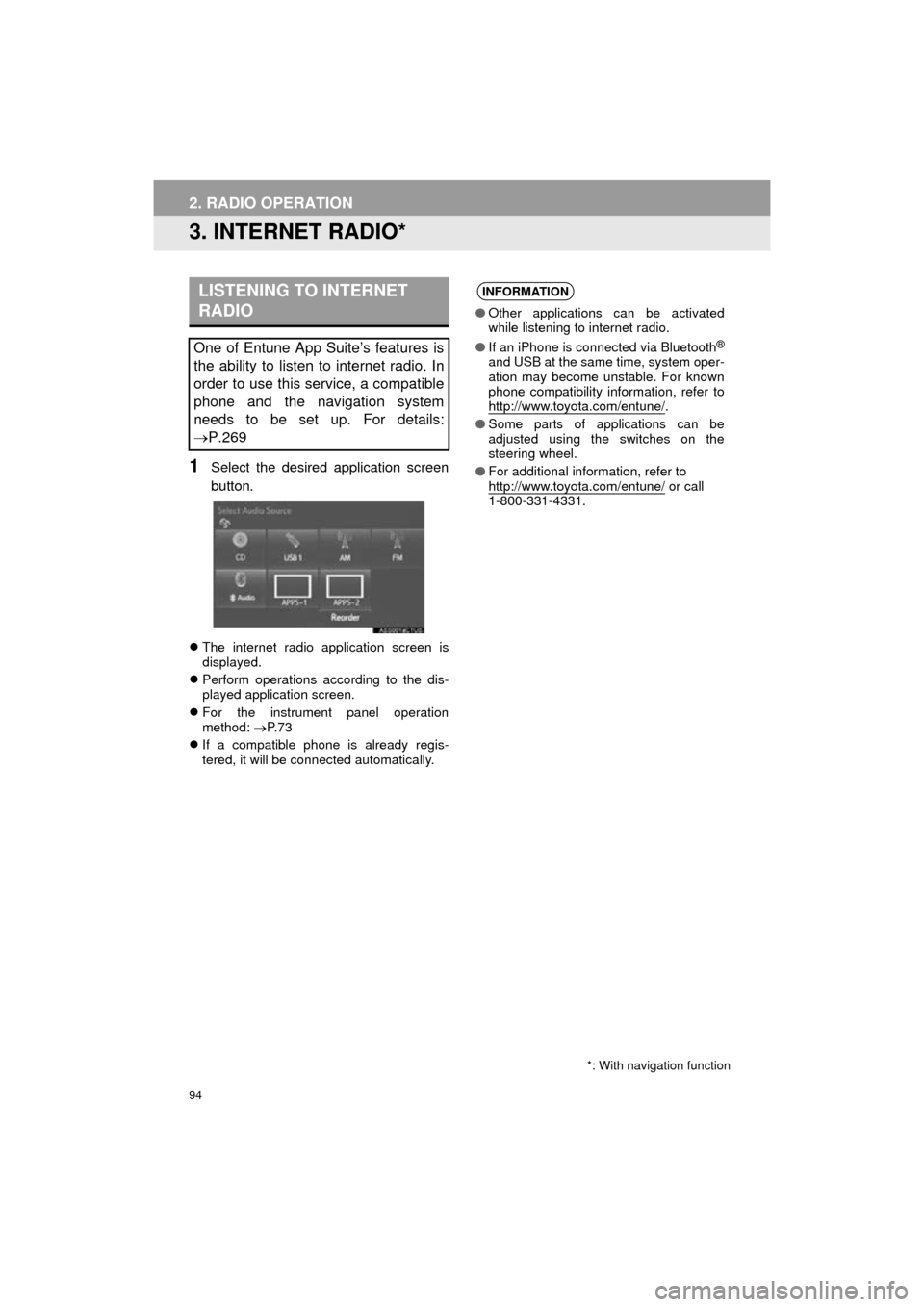
1Select the desired application screen
button.
The internet radio application screen is
displayed.
Perform operations according to the dis-
played application screen.
For the instrument panel operation
method: P. 7 3
If a compatible phone is already regis-
tered, it will be connected automatically.
LISTENING TO INTERNET
RADIO
One of Entune App Suite’s features is
the ability to listen to internet radio. In
order to use this service, a compatible
phone and the navigation system
needs to be set up. For details:
P.269
*: With navigation function
INFORMATION
●Other applications can be activated
while listening to internet radio.
● If an iPhone is connected via Bluetooth
®
and USB at the same time, system oper-
ation may become unstable. For known
phone compatibility information, refer to
http://www.toyota.com/entune/
.
● Some parts of applications can be
adjusted using the switches on the
steering wheel.
● For additional information, refer to
http://www.toyota.com/entune/
or call
1-800-331-4331.

