Page 244 of 568
2445-1. Basic Operations
CAMRY_U (OM33D37U)
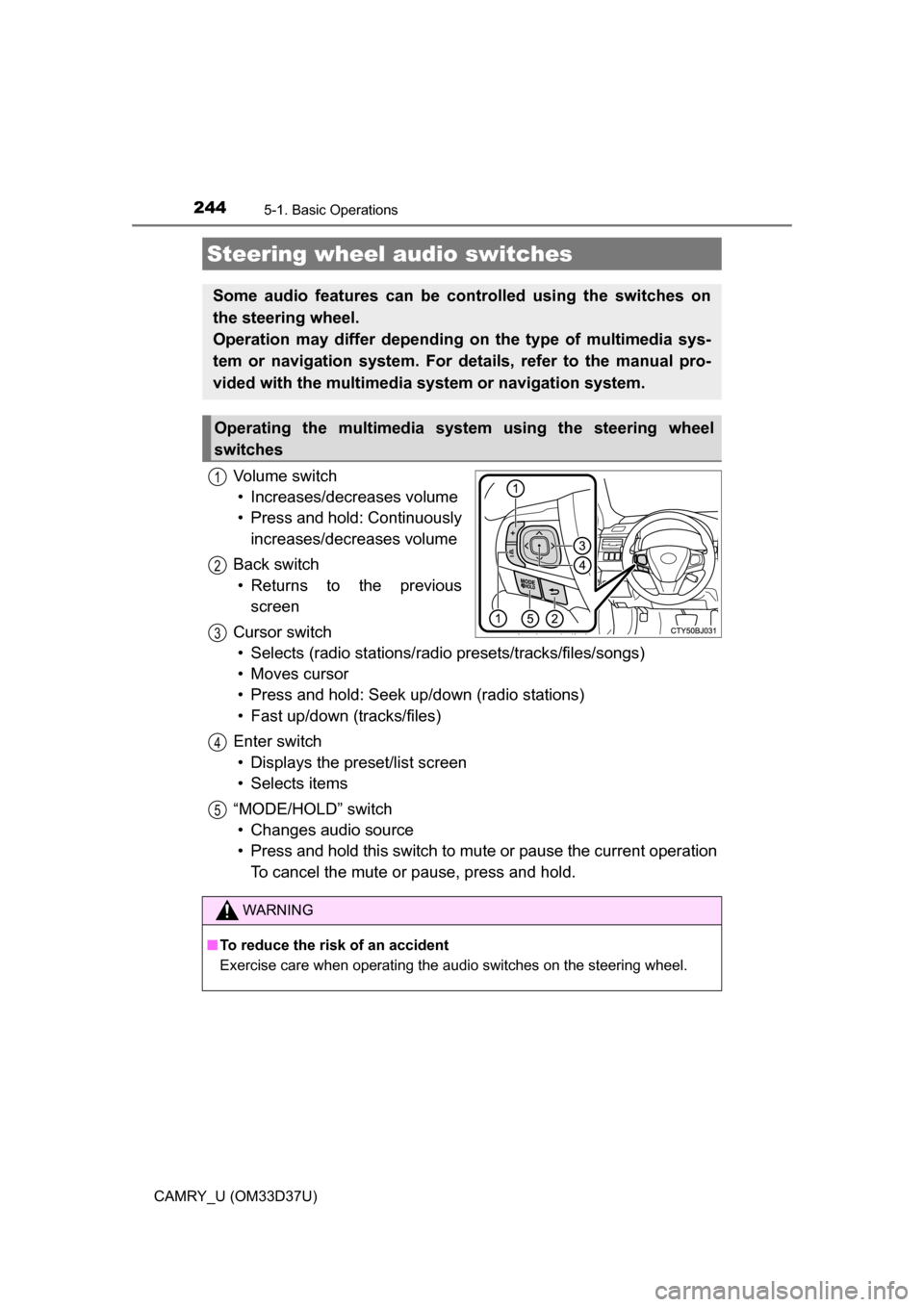
Volume switch• Increases/decreases volume
• Press and hold: Continuously increases/decreases volume
Back switch • Returns to the previous screen
Cursor switch • Selects (radio stations/radio presets/tracks/files/songs)
• Moves cursor
• Press and hold: Seek up/down (radio stations)
• Fast up/down (tracks/files)
Enter switch • Displays the preset/list screen
• Selects items
“MODE/HOLD” switch • Changes audio source
• Press and hold this switch to mute or pause the current operation To cancel the mute or pause, press and hold.
Steering wheel audio switches
Some audio features can be controlled using the switches on
the steering wheel.
Operation may differ depending on the type of multimedia sys-
tem or navigation system. For details, refer to the manual pro-
vided with the multimedia system or navigation system.
Operating the multimedia system using the steering wheel
switches
1
12
3
4
5
WARNING
■ To reduce the risk of an accident
Exercise care when operating the audio switches on the steering wheel.
Page 247 of 568
2475-1. Basic Operations
5
Audio system
CAMRY_U (OM33D37U)
Press: Turns the multimedia system on and off.
Turn: Adjusts the volume.
Ejects a disc.
Disc slot
Pauses or resumes playing music.
Turn: Selects radio station bands, tracks and files. Selects items in the list display.
Seeks up or down fo r a radio station.
Accesses a desired track or file.
Select to change on/off.
Select to change on/off.
■ Using cellular phones
Interference may be heard through the multimedia system's speakers if a cel-
lular phone is being used inside or close to the vehicle while the multimedia
system is operating.
Basic audio operations
Basic audio operations and functi ons common to each mode are
explained in this section.
Operating the multimedia system
Random playback
Repeat play
1
2
3
4
5
6
Page 249 of 568
249
5
Audio system
CAMRY_U (OM33D37U)
5-2.Setup
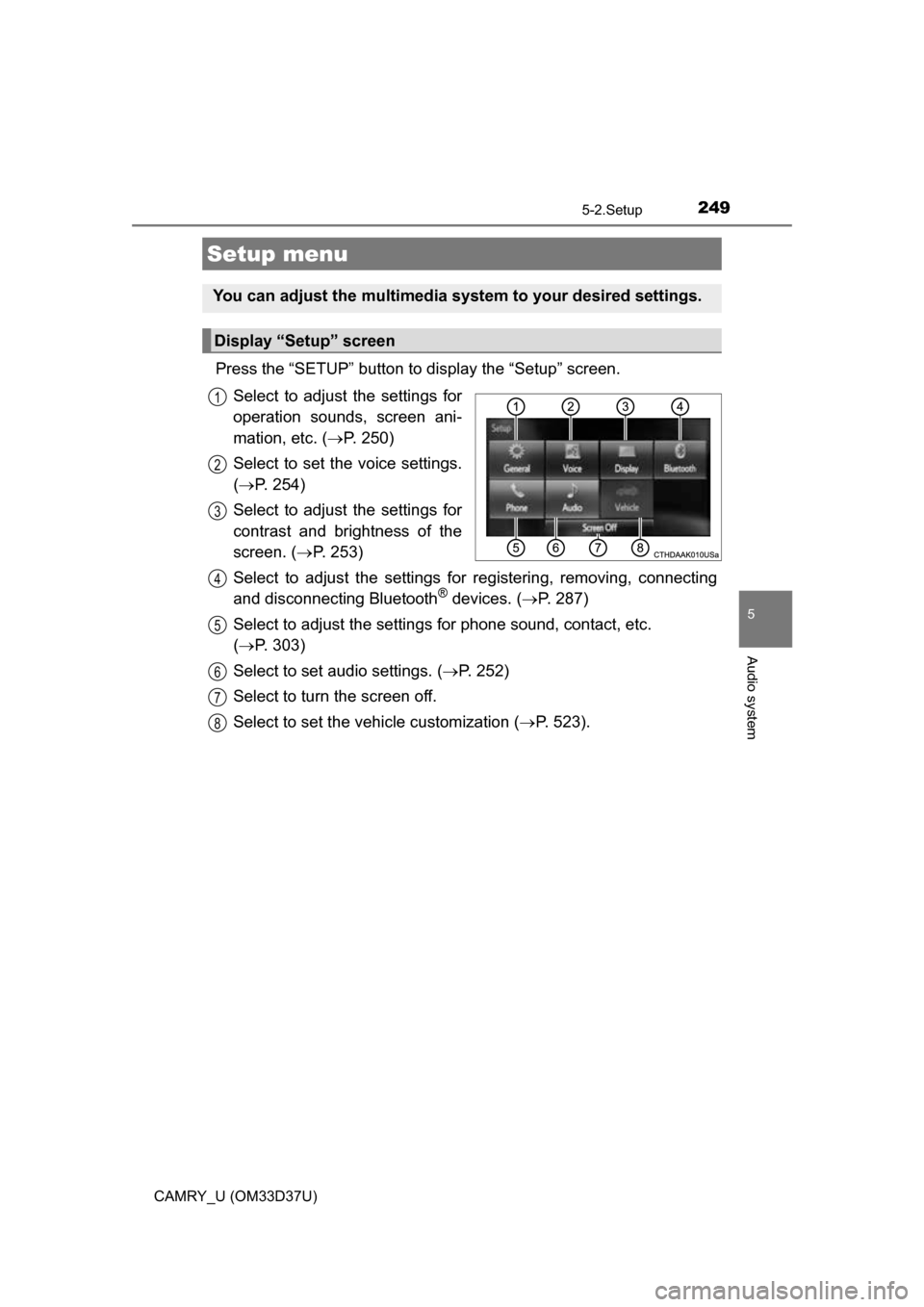
Press the “SETUP” button to display the “Setup” screen.Select to adjust the settings for
operation sounds, screen ani-
mation, etc. ( P. 250)
Select to set the voice settings.
( P. 254)
Select to adjust the settings for
contrast and brightness of the
screen. ( P. 253)
Select to adjust the settings for registering, removing, connecting
and disconnecting Bluetooth
® devices. ( P. 287)
Select to adjust the settings fo r phone sound, contact, etc.
( P. 303)
Select to set audio settings. ( P. 252)
Select to turn the screen off.
Select to set the vehicle customization ( P. 523).
Setup menu
You can adjust the multimedia system to your desired settings.
Display “Setup” screen
1
2
3
4
5
6
7
8
Page 250 of 568
2505-2. Setup
CAMRY_U (OM33D37U)
Press the “SETUP” button.
Select “General” on the “Setup”
screen.Select to adjust the clock.
“English”, “Français” or
“Español” can be selected.
On/off can be selected to
sound beeps.
Select to change the screen
color.
Select to change the key-
board layout.
The animation effect for the screen can be set to on/off.
Select to delete personal data ( P. 251)
Select to update program versions. For details, contact your
Toyota dealer.
Select to display the software info rmation. Notices related to third
party software used in this produc t are enlisted. (This includes
instructions for obta ining such software, where applicable.)
■To return to the default volume settings
Select “Default”, and then “Yes”.
General settings
Settings are available for adjusting the operation sounds,
screen animation, etc.
Screen for general settings
1
2
1
2
3
4
5
6
7
8
9
Page 251 of 568
2515-2. Setup
5
Audio system
CAMRY_U (OM33D37U)
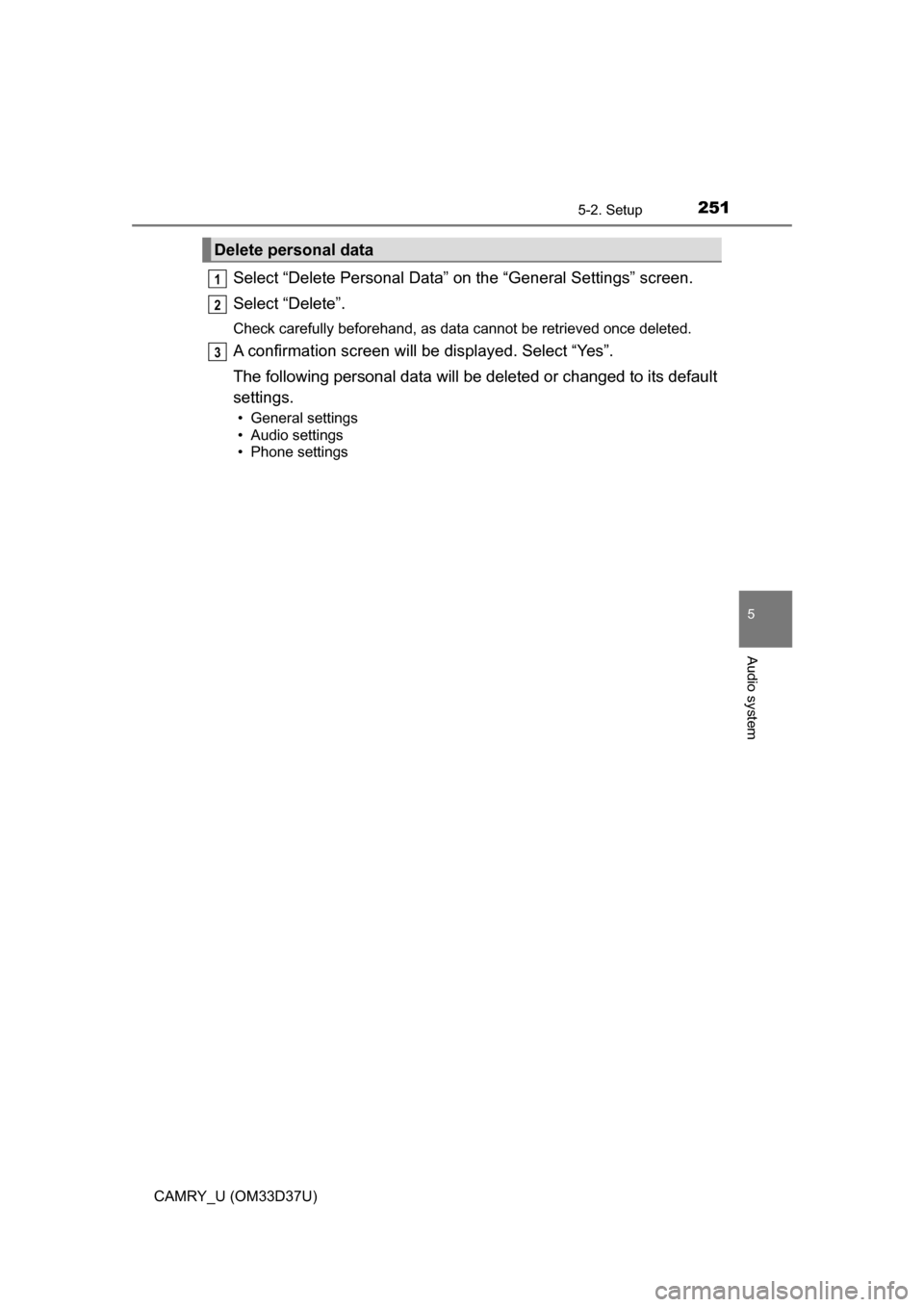
Select “Delete Personal Data” on the “General Settings” screen.
Select “Delete”.
Check carefully beforehand, as data cannot be retrieved once deleted.
A confirmation screen will be displayed. Select “Yes”.
The following personal data will be deleted or changed to its default
settings.
• General settings
• Audio settings
• Phone settings
Delete personal data
1
2
3
Page 252 of 568
2525-2. Setup
CAMRY_U (OM33D37U)
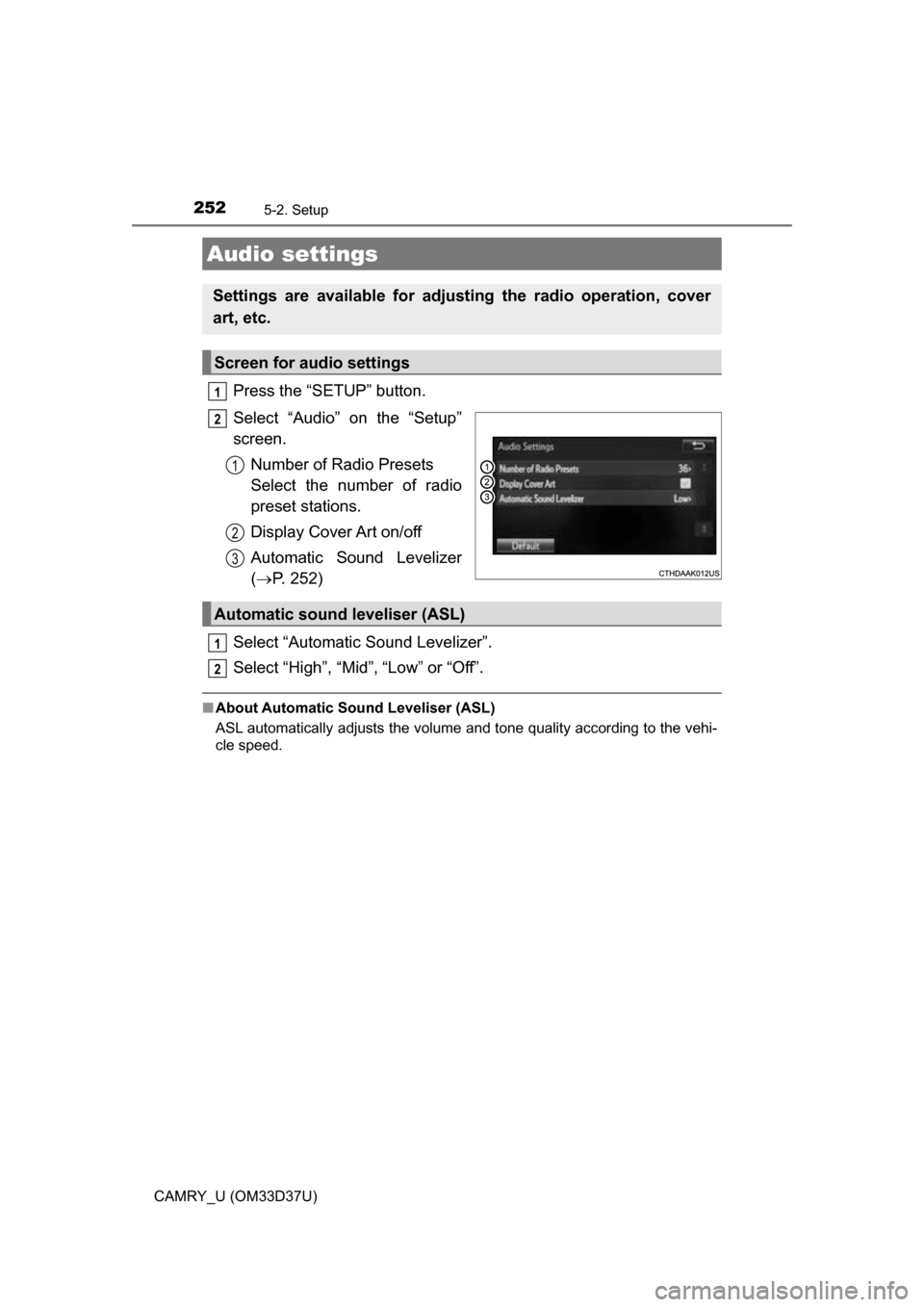
Press the “SETUP” button.
Select “Audio” on the “Setup”
screen.Number of Radio Presets
Select the number of radio
preset stations.
Display Cover Art on/off
Automatic Sound Levelizer
( P. 252)
Select “Automatic Sound Levelizer”.
Select “High”, “Mid”, “Low” or “Off”.
■ About Automatic Sou nd Leveliser (ASL)
ASL automatically adjusts the volume and tone quality according to the vehi-
cle speed.
Audio settings
Settings are available for adjusting the radio operation, cover
art, etc.
Screen for audio settings
1
2
1
2
3
Automatic sound leveliser (ASL)
1
2
Page 253 of 568
2535-2. Setup
5
Audio system
CAMRY_U (OM33D37U)
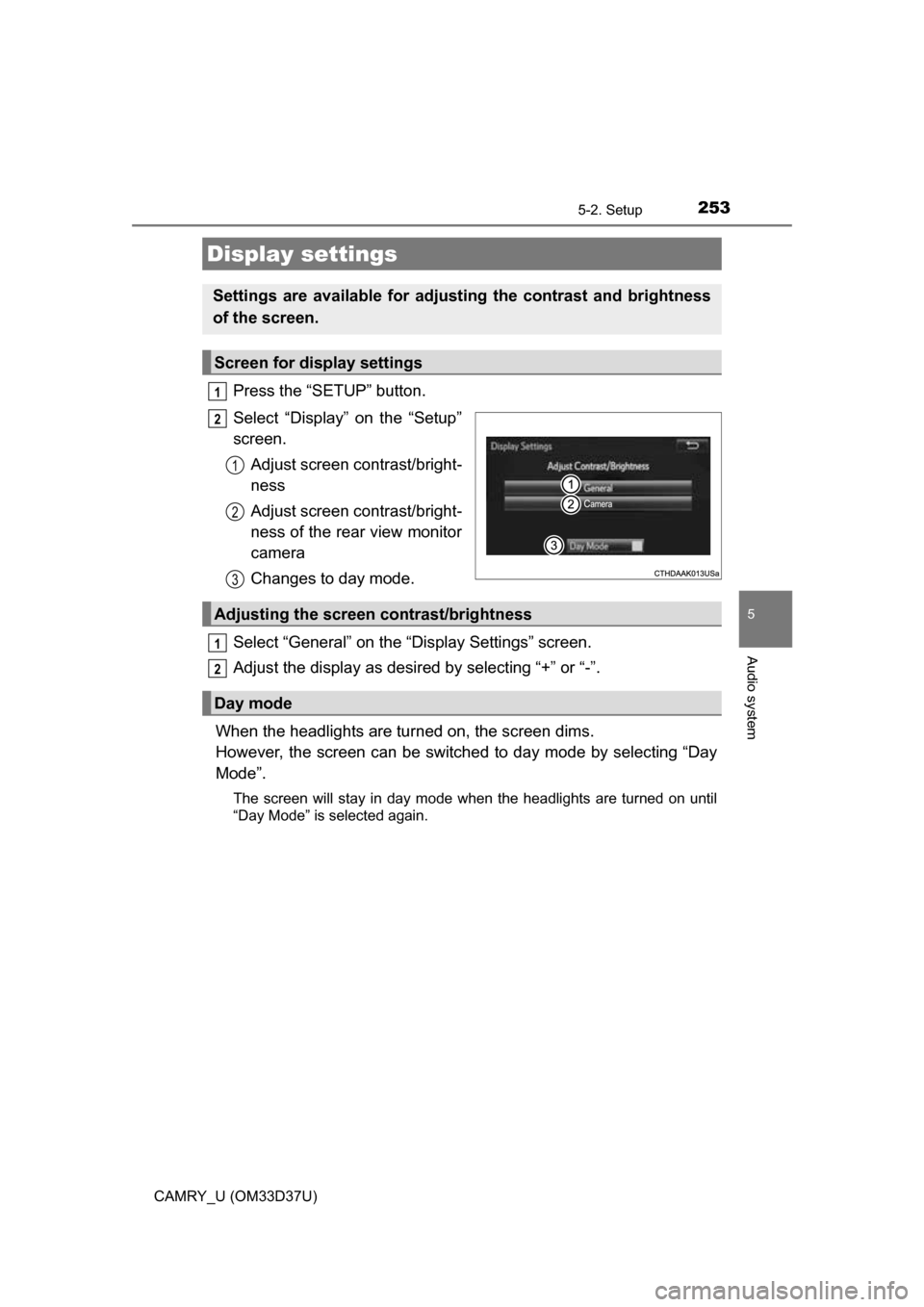
Press the “SETUP” button.
Select “Display” on the “Setup”
screen.Adjust screen contrast/bright-
ness
Adjust screen contrast/bright-
ness of the rear view monitor
camera
Changes to day mode.
Select “General” on the “Display Settings” screen.
Adjust the display as desired by selecting “+” or “-”.
When the headlights are tur ned on, the screen dims.
However, the screen can be switch ed to day mode by selecting “Day
Mode”.
The screen will stay in day mode when the headlights are turned on until
“Day Mode” is selected again.
Display settings
Settings are available for adjusting the contrast and brightness
of the screen.
Screen for display settings
1
2
1
2
3
Adjusting the screen contrast/brightness
Day mode
1
2
Page 255 of 568
255
5
Audio system
CAMRY_U (OM33D37U)
5-3.Using the Multimedia system
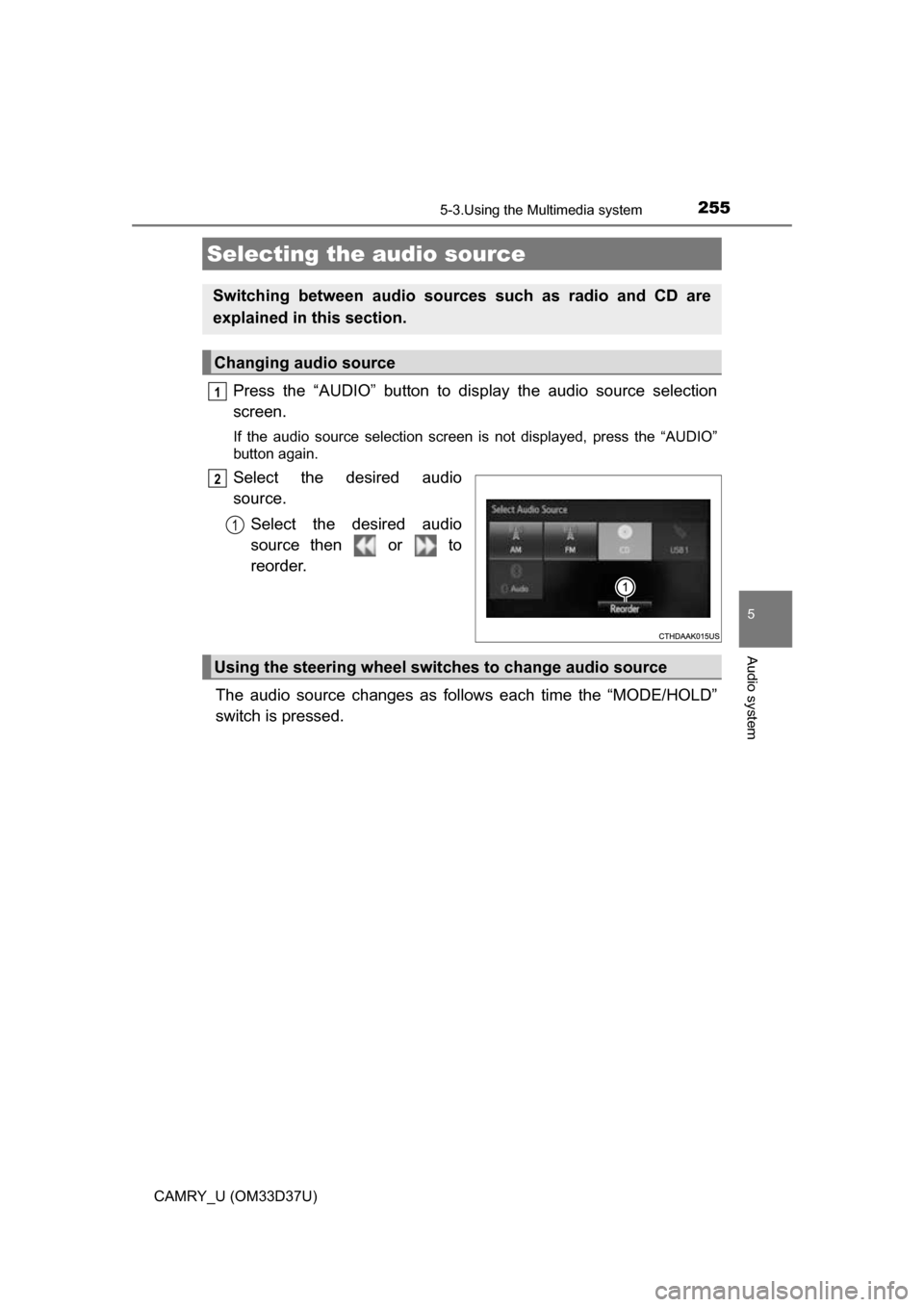
Press the “AUDIO” button to display the audio source selection
screen.
If the audio source selection screen is not displayed, press the “AUDIO”
button again.
Select the desired audio
source.
Select the desired audio
source then or to
reorder.
The audio source changes as follows each time the “MODE/HOLD”
switch is pressed.
Selecting the audio source
Switching between audio sources such as radio and CD are
explained in this section.
Changing audio source
1
2
1
Using the steering wheel switches to change audio source